Add Emoji To Photo
Upload a photo, tap the emojis you want, then drag, resize and rotate them into place — and save the photo. Free, in your browser.
Updated

How do you add emoji to a photo?
Upload the photo, tap the emojis you want, drag each one into place, and save. On this page that takes a minute: the photo opens in your browser, every emoji you tap lands on it as its own layer, and you can move, resize and turn each one until the picture looks right. Then save it as a PNG or JPG at full size. Nothing is uploaded, there is no sign-up and no watermark.
The palette has 160 emojis in eight groups — smileys, hearts, hands, party, nature, food, travel and symbols — and you can type or paste any other emoji from your keyboard, flags included. A photo can carry up to 30 of them, each with its own size and angle.
The emojis are drawn with your device's own emoji set, so they look exactly like the ones on your keyboard: Apple's on an iPhone or Mac, Microsoft's on Windows, Google's on Android.
How to add emoji to a photo
- Upload your photo Drop a JPG, PNG or WebP photo of up to 20 MB on the tool, or click to choose one. Phone photos open the right way up.
- Tap an emoji Pick a group — smileys, hearts, hands, party, nature, food, travel or symbols — and tap an emoji, or type or paste any emoji you like.
- Place, size and turn it Drag the emoji on the photo, then set its size (4–60% of the photo's shorter side) and rotation. Arrow keys nudge it.
- Add more and layer them Add up to 30 emojis. Duplicate one, bring it to the front, or delete it.
- Save the photo Choose PNG or JPG and click Download photo. It is saved at full size, up to 4096 px on the long edge.
Add emoji to a photo in under a minute
A real run of the tool on this page: open a photo, tap four emojis, drag each one into place, resize and turn them, and save the photo. The clip ends with the photo it saved.
- Drop a photo onto the tool. This sample is 1600 × 1200.
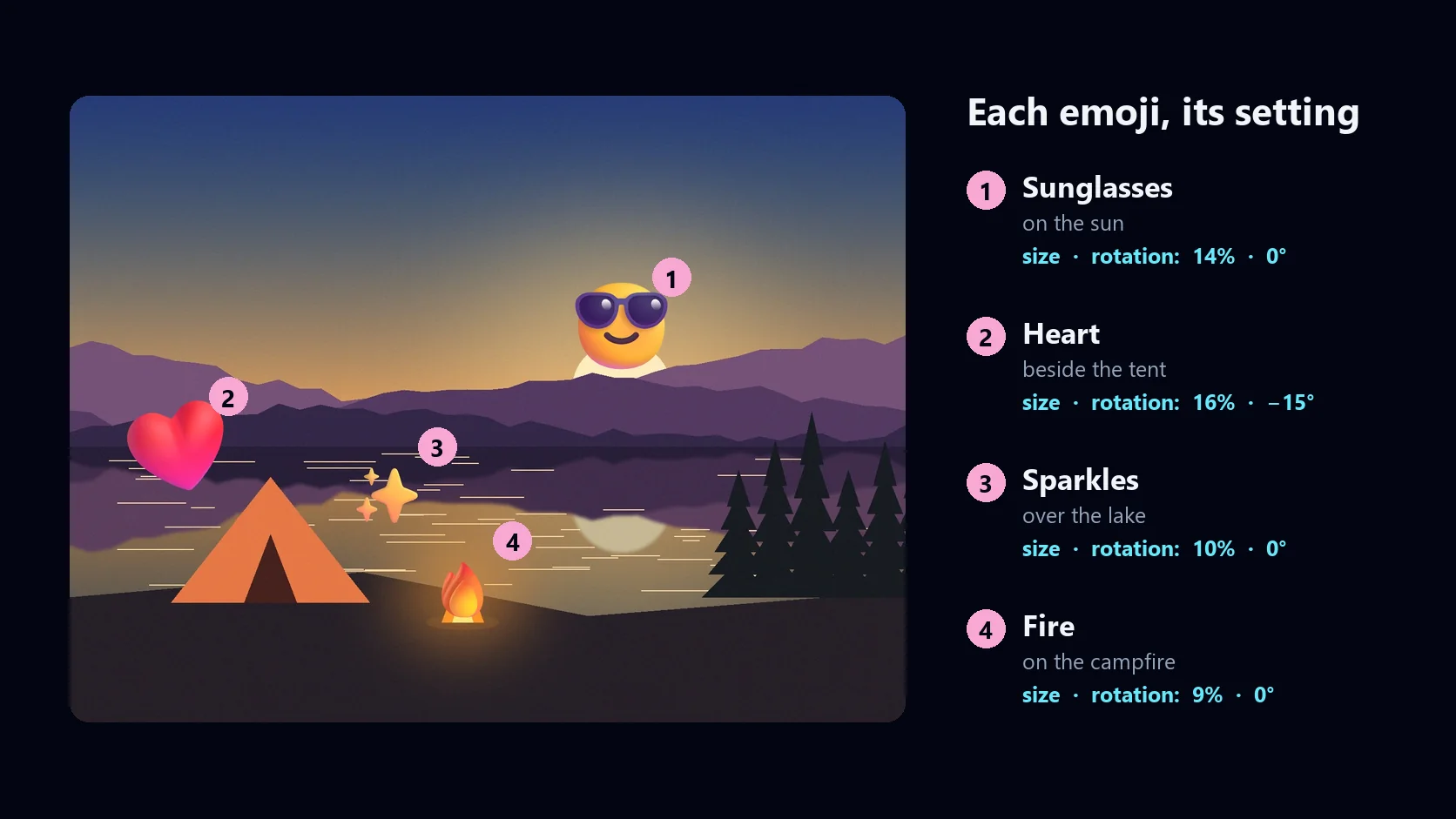
- Tap the sunglasses emoji and drag it onto the sun, then make it 14% of the photo's shorter side.
- Open Hearts, tap the red heart, drag it beside the tent, make it 16% and turn it −15°.
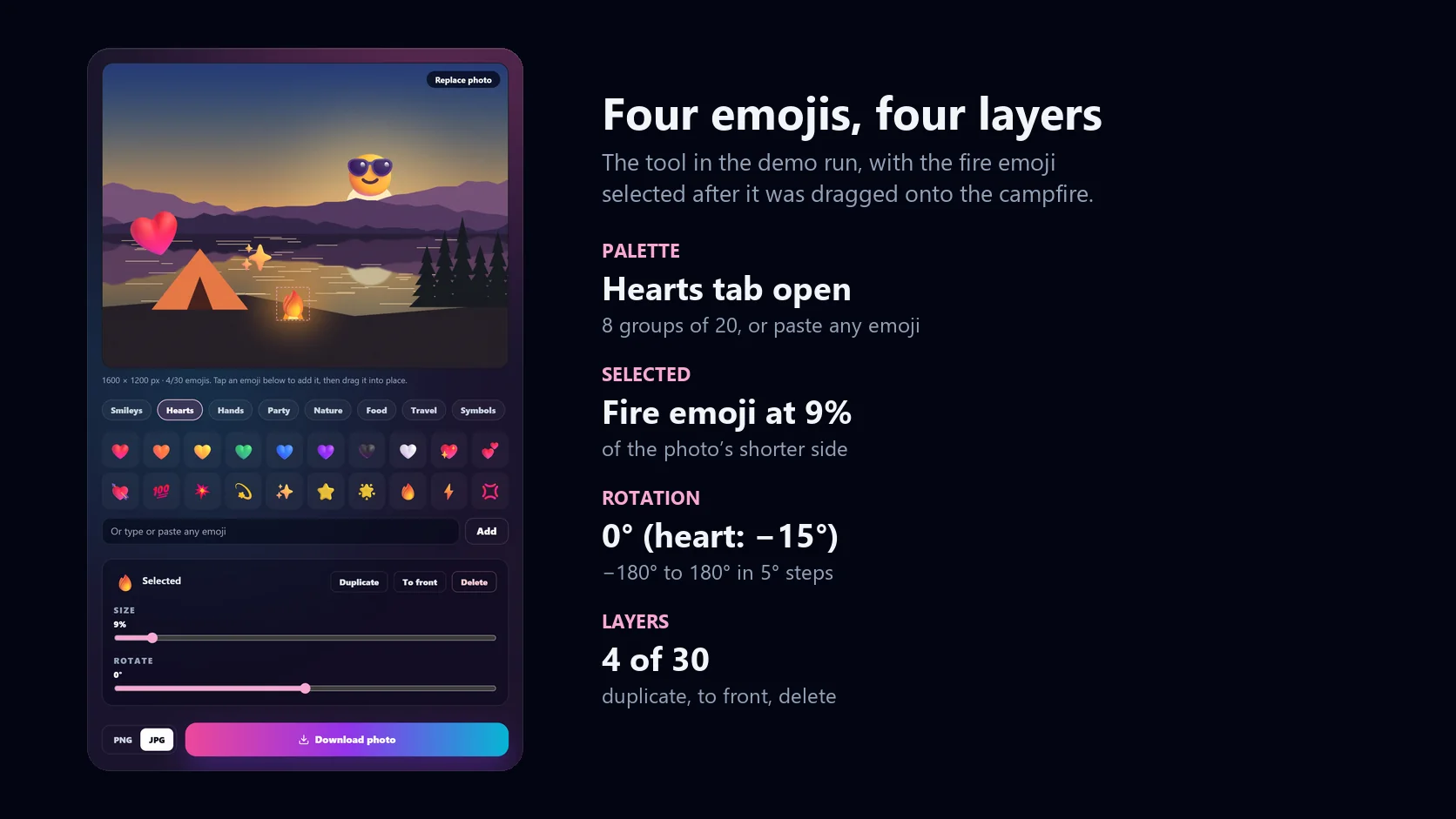
- Add sparkles over the lake and fire on the campfire, each sized to fit.
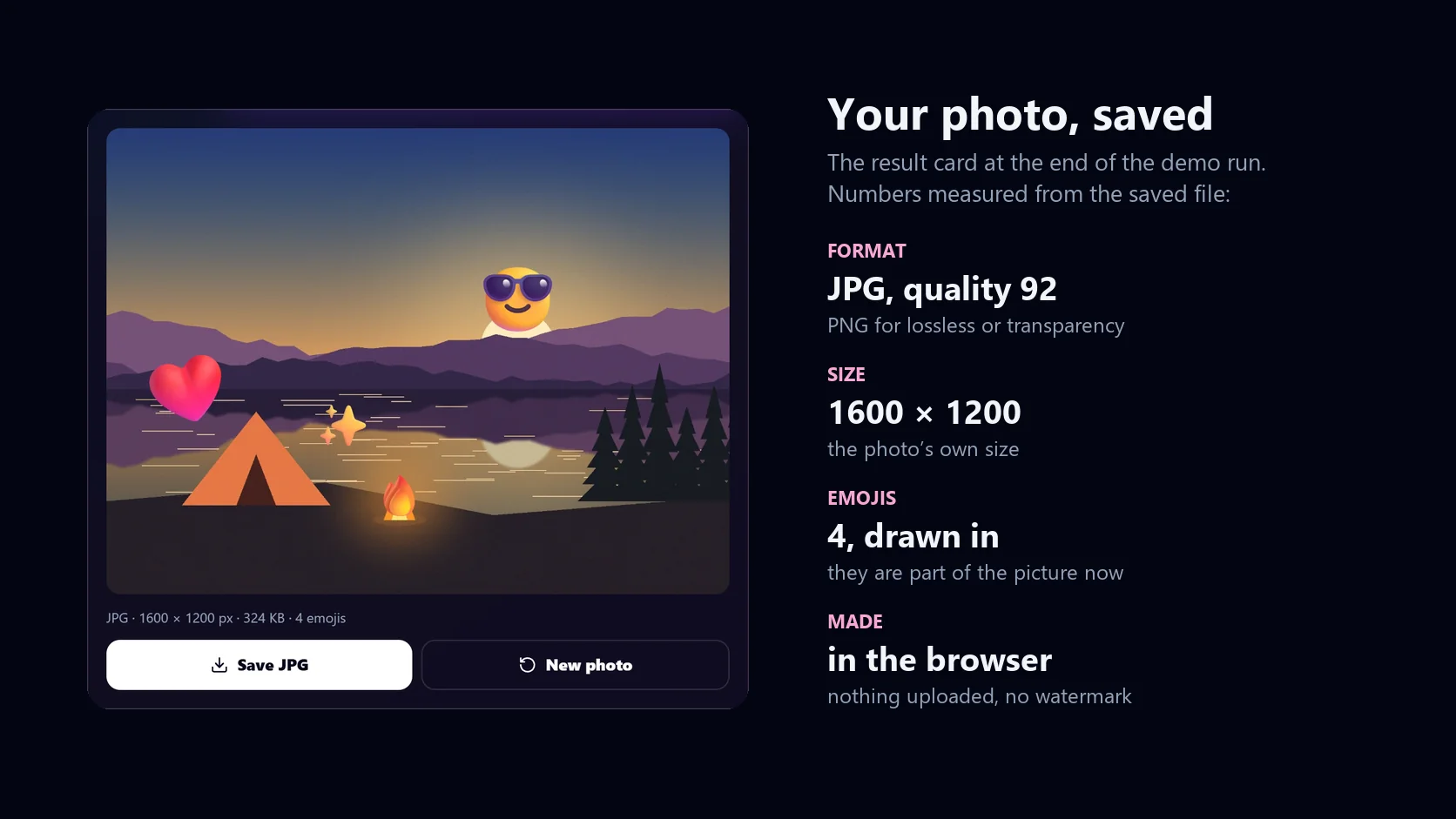
- Click Download photo. The photo is saved in the browser at full size, 1600 × 1200, as a JPG.
How emojis get onto your photo
An emoji is a character, like a letter, so a photo cannot hold one the way a message does. To put emojis on a photo, they have to be drawn into its pixels. This tool does that in your browser: it opens the photo, keeps every emoji you add as a separate layer while you edit, and only when you save does it draw the photo and all of its emojis into one image.
Until then, nothing is fixed. You can move an emoji, change its size or angle, put another one in front of it or delete it, as often as you like. The preview shows exactly what the saved photo will look like, apart from the dashed box that marks the emoji you have selected.
Phone cameras often store the photo sideways and record its rotation separately. The tool reads that rotation, so a portrait photo opens and saves the right way up.
- Every emoji stays editable until you save.
- The saved photo has the same size as yours, up to 4096 pixels on the long edge.
- Your photo is never uploaded: it is opened, edited and saved on your device.
160 emojis to tap, and any emoji you can type
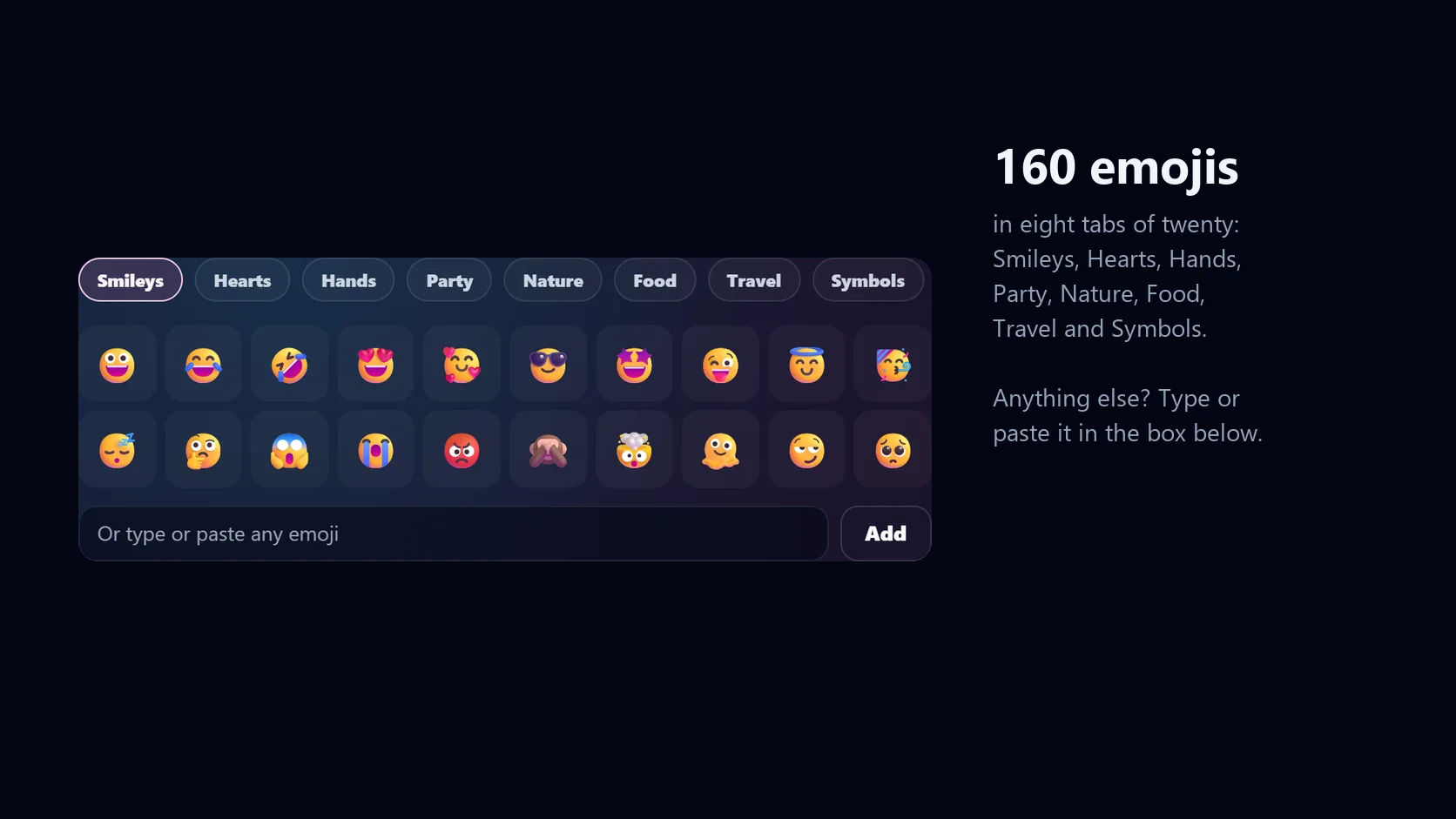
The palette groups 160 of the emojis people use most on photos into eight tabs of twenty: Smileys, Hearts, Hands, Party, Nature, Food, Travel and Symbols. Tap one and it lands near the middle of the photo, a little apart from the last one, so new emojis never hide under each other.
For anything else, use the box under the palette: type or paste any emoji — a flag, a skin-tone variant, a family, the newest emoji your keyboard has — and click Add. The tool takes the first emoji in whatever you paste and ignores plain text.
Size, position and rotation
Drag an emoji to move it; if two overlap, the one on top is picked up. Size is set as a share of the photo's shorter side, from 4% to 60%, so the same setting looks the same on a small photo and a large one. Rotation runs from −180° to 180° in 5° steps — a slight tilt is often what makes an emoji look placed rather than pasted.
The keyboard works too: with the preview selected, the arrow keys nudge the selected emoji by 1% of the photo (5% with Shift), and Delete removes it. That makes small, exact adjustments easy on a laptop trackpad.
| Size setting | Emoji size | Good for |
|---|---|---|
| 4% | 43 px | Small accents, a row of sparkles |
| 10% | 108 px | Reactions next to a subject |
| 20% | 216 px | A clear focal emoji |
| 40% | 432 px | Covering a face or an object |
| 60% | 648 px | A big statement emoji |
Layers: up to 30 emojis, in any order
Each emoji is its own layer. The newest one is on top; To front moves the selected emoji above all the others, Duplicate makes a copy with the same size and angle just beside it, and Delete removes it. A photo can carry up to 30 emojis — plenty for a confetti of hearts or a trail of footprints.
The demo on this page uses four, each with its own setting, all listed below.
| Emoji | Where | Size | Rotation |
|---|---|---|---|
| 😎 | On the sun | 14% | 0° |
| ❤️ | Beside the tent | 16% | −15° |
| ✨ | Over the lake | 10% | 0° |
| 🔥 | On the campfire | 9% | 0° |
Save as PNG or JPG, at full size
The tool saves the photo at its own size, up to 4096 pixels on the long edge; larger photos are scaled down to that, which still suits every social network. The format starts out matching your photo — PNG for a PNG, JPG otherwise — and you can switch it before you save.
PNG is lossless and keeps any transparency in your image, which matters for logos and cut-outs. JPG is smaller and right for ordinary photos; it is saved at quality 92, and any transparent areas become white, because JPG cannot store transparency.
| What | Limit |
|---|---|
| Photo you upload | JPG, PNG or WebP, up to 20 MB |
| Emojis | Up to 30 per photo; 160 in the palette, or any you type or paste |
| Emoji size | 4–60% of the photo's shorter side |
| Rotation | −180° to 180°, in 5° steps |
| Photo you save | PNG or JPG, full size up to 4096 px on the long edge |
| Cost | Free: no sign-up, no watermark |
Why emojis look different on different devices
Every company draws its own emojis: the same "smiling face with sunglasses" looks different on an iPhone, on Windows and on Android. This tool uses whichever set your device has, so the emojis you place look like the ones on your own keyboard — and once you save, that look is fixed into the picture, so everyone who sees the photo sees exactly the same thing.
| Device | Emoji set |
|---|---|
| iPhone, iPad, Mac | Apple Color Emoji |
| Windows 10 and 11 | Microsoft Segoe UI Emoji |
| Android, ChromeOS | Google Noto Color Emoji |
Ideas for emojis on photos
A few places where an emoji does more than a caption could.
- Hide a face or a name: a large emoji (around 40%) over a face, a car plate or a screen before you share.
- Reactions on a group photo: a crown on the birthday person, hearts on the couple.
- Travel posts: sunglasses on the sun, a pin on the place, a plane in the sky.
- Product and food shots: fire on the bestseller, stars on the new arrival.
- Thumbnails and stories: one big emoji that says how you feel before anyone reads a word.
- Classroom and slides: arrows, ticks and crosses to point at what matters in a picture.
Troubleshooting
The problems people run into most, and what fixes them.
- The photo will not open: the tool takes JPG, PNG and WebP up to 20 MB. If your phone saves HEIC photos, choose or share the photo as JPG.
- An emoji shows as a blank box: your device has no colour emoji for it yet. Pick another one, or update your device.
- I cannot grab an emoji: another emoji may be on top of it. Move the top one, or select the one you want and click To front.
- The saved photo is smaller than my original: photos over 4096 pixels on the long edge are scaled down to 4096.
- The transparent background turned white: JPG cannot store transparency. Switch to PNG before you save.
When you need more than emojis
This page does one job: emojis on a photo, quickly. For text and captions, stickers, frames, a square post or a vertical story size, or a design built around the photo, open HueFold Studio, the full editor. It has the same emoji palette under Elements, in the Emoji section, with search and paste-any-emoji, and places each one as a sticker you can resize, turn and layer.
And if the photo goes somewhere people use screen readers, describe it in the alt text where you post it, emojis included: the picture shows them, but the alt text is how everyone else knows they are there.
Frequently asked questions
Can I add emojis to a photo online?
Yes. Upload a photo on this page, tap the emojis you want, drag, resize and rotate them, and save the photo as a PNG or JPG — free, in your browser.
What image formats can I upload?
JPG, PNG and WebP photos up to 20 MB. If your phone saves HEIC, choose or share the photo as JPG first.
Can I move and resize the emoji stickers?
Yes. Drag an emoji to move it, set its size from 4% to 60% of the photo's shorter side, and rotate it up to 180° either way. Arrow keys nudge the selected emoji.
Can I use this for social media posts?
Yes. The photo is saved at full size, up to 4096 px on the long edge, which suits Instagram, TikTok, Facebook, X and every other network. For a square or story canvas, open HueFold Studio.
Is it free to add emoji to a photo?
Yes. Adding emojis and saving the photo is free, with no sign-up and no watermark.
Is my photo uploaded?
No. The photo is opened, edited and saved in your browser and never leaves your device.
How many emojis can I add?
Up to 30 per photo. Each one can have its own size, position and rotation, and you can duplicate, layer and delete them.
Can I use any emoji?
Yes. The palette has 160 emojis in eight groups, and you can type or paste any other emoji — including flags and skin tones — into the box under it.
Can I hide a face with an emoji?
Yes. Place an emoji over the face and set its size to around 40%. Because the emoji is drawn into the saved photo, it cannot be removed afterwards.
Will the saved photo lose quality?
No. It is saved at the photo's own size, up to 4096 px on the long edge. PNG is lossless; JPG is saved at quality 92.
Why do the emojis look different from my friend's phone?
Each company draws its own emojis. The tool uses your device's set — Apple, Microsoft or Google — and the saved photo shows exactly what you placed, on every device.