Add Music To GIF
Add audio to GIFs, sync music with short loops, and export polished social clips from a simple online editor.
Updated

Can you add music to a GIF?
Not inside the GIF itself: the GIF format stores pictures and their timing, with no place for sound. To add music, audio or a sound effect to a GIF, you pair the animation with an audio track and save the two together as a short video — an MP4 — which social networks and messaging apps play with sound.
That is what this page does, in your browser. Drop in an animated GIF, add an MP3, WAV, M4A or OGG file, choose the part of the song you want and download the result as an MP4. The free export needs no account, adds no watermark and does not upload your files.
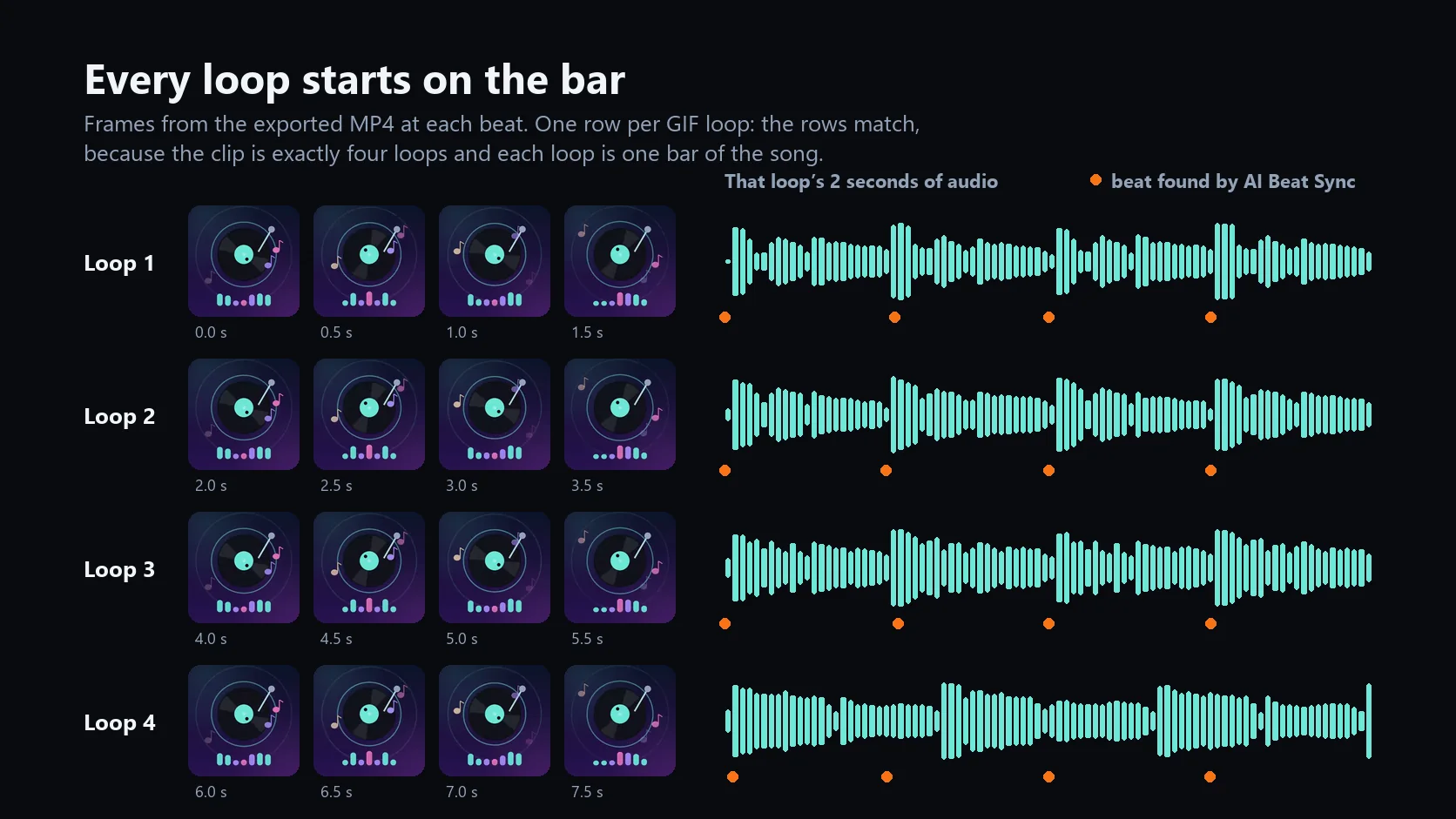
If you would rather not hunt for the right moment yourself, AI Beat Sync does it: it measures the song's tempo, finds the chorus, starts the music exactly on a beat and keeps a whole number of GIF loops, so the animation and the music start over together.
How to add music to a GIF
- Upload your GIF Drop an animated GIF of up to 15 MB on the tool, or click to choose one. The page reads every frame and measures how long one loop lasts — for example 25 frames over 2.0 seconds.
- Add music or a sound Add an MP3, WAV, M4A or OGG file: a song, a voice clip, ambience or a short sound effect. Its waveform appears next to six frames of your GIF.
- Pick the moment, or let AI Beat Sync pick it Drag Start at to where the music should begin and set the clip length anywhere from 2 to 20 seconds. Or click AI Beat Sync to start on the chorus, on a beat, with a whole number of loops.
- Set the volume Volume runs from 0 to 200%, so a quiet recording can be lifted and a loud master brought down before you export.
- Generate and download the MP4 Click Generate video with sound. The video is recorded in your browser in real time; download it as an MP4, or continue in HueFold Studio to add captions, change the layout or keep editing.
Add music to a GIF in under a minute
A real run of the tool on this page: drop in a looping GIF, add a song, let AI Beat Sync pick the tempo, the chorus and a clip length of whole loops, then generate the MP4 in the browser and download it. The clip ends with the exported video, sound on.
- Drop an animated GIF onto the tool, or click to choose one. This one loops every 2.0 seconds.
- Add a song — MP3, WAV, M4A or OGG. Its waveform appears under the GIF's frames.
- Click AI Beat Sync: it measures 120 BPM, finds the chorus at 0:08 and sets the clip to four whole GIF loops, 8.0 seconds.
- Click Generate video with sound. The MP4 is rendered in your browser; this step uploads nothing.
- Download the MP4, or continue in HueFold Studio to keep editing.
Why a GIF has no sound, and what to share instead
GIF — the Graphics Interchange Format — dates from 1987. A GIF file holds a series of images, a palette of up to 256 colours for each, and a delay that says how long every frame stays on screen. That is the whole format: there is no audio track to fill, which is why no editor can put sound "into" a GIF file.
What people call a GIF with sound is a short video that looks and loops like a GIF. Many sites already turn uploaded GIFs into video behind the scenes, because video compresses moving pictures far better than a palette of 256 colours per frame. Exporting your GIF as an MP4 with a soundtrack simply does the same thing on purpose, with the music you chose.
- MP4 with H.264 video and AAC audio plays in practically every browser, phone and social app.
- The animation keeps its own timing: each frame stays on screen exactly as long as the GIF says.
- An MP4 is usually much smaller than the GIF it came from, so it uploads and loads faster.
How AI Beat Sync lines the music up with your GIF
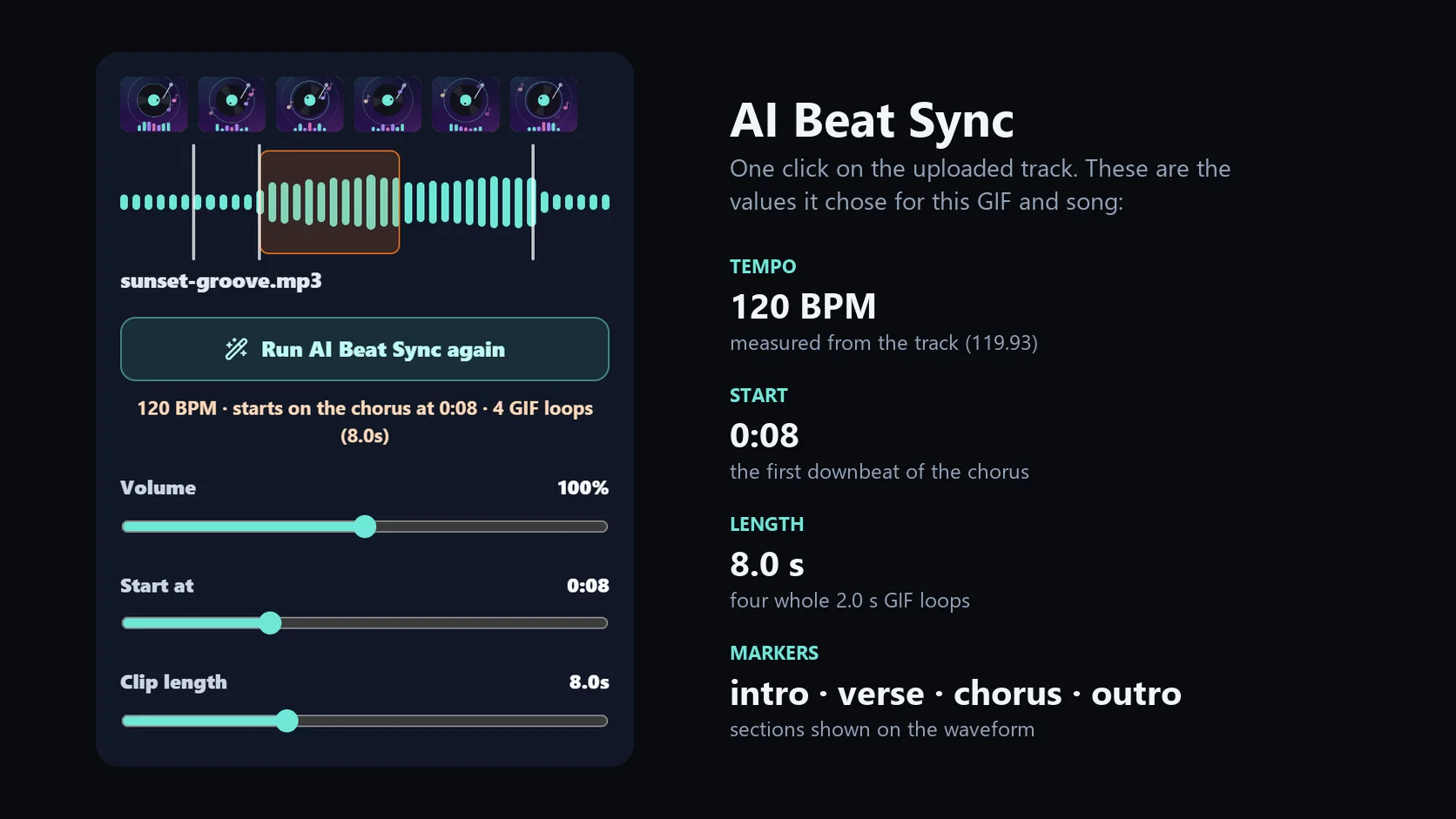
Beat Sync sends your song to HueFold's music analysis, which measures the tempo in beats per minute, marks where every beat falls and splits the track into sections such as intro, verse, chorus and outro. The tool then makes two decisions for you.
First, where the music starts. It takes the strongest chorus — the chorus section with the most energy, or the most energetic section if the song has no chorus — and moves the start to the first beat of it. Starting on a beat is what makes a cut sound intentional rather than accidental.
Second, how long the clip runs. It rounds the length to a whole number of GIF loops, no shorter than 2 seconds and no longer than 20 seconds or the end of the song. Because the clip ends exactly where a loop ends, the GIF and the music finish together instead of the picture stopping halfway through its motion.
Beat Sync never changes the speed of your GIF or of your song. In the demo above it measured 119.93 BPM (shown as 120), found the chorus at 0:08 and kept four 2.0-second loops, for an 8.0-second clip. Your song is analysed only when you click the button, and files up to 20 MB are accepted.
- Tempo, beats and sections come from the audio itself, not from file names or tags.
- You can still move Start at or the clip length afterwards; Beat Sync only sets them.
- Run it again after changing the song and it plans the clip for the new track.
Choosing music that fits your GIF loop
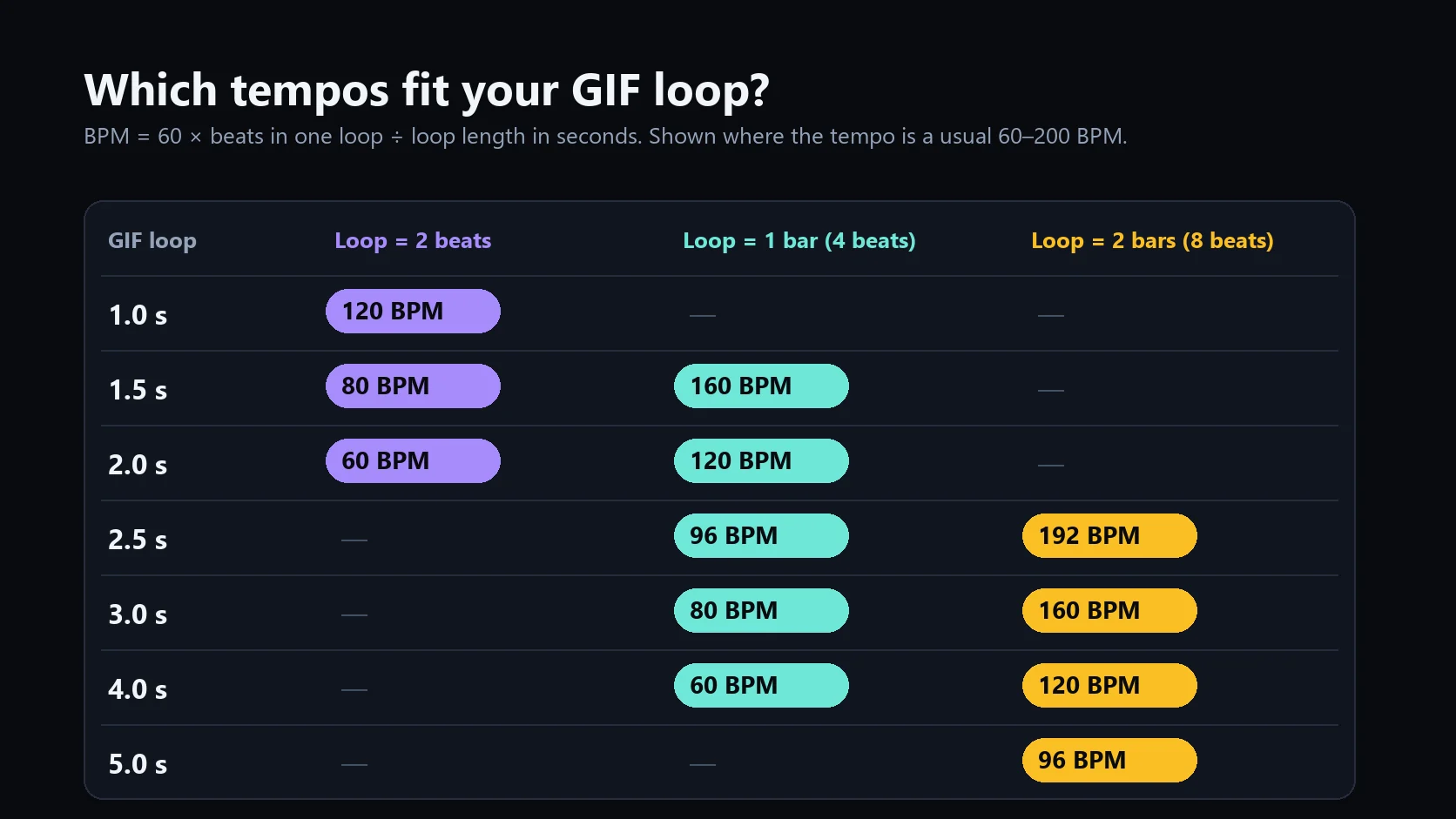
A loop lands on the beat when it lasts a whole number of beats at the song's tempo. The arithmetic is short: BPM = 60 × beats in one loop ÷ the loop's length in seconds. A 2.0-second loop is exactly one bar of 4 beats at 120 BPM, or 2 beats at 60 BPM; a 1.5-second loop fits 80 or 160 BPM.
You do not need a perfect match. Beat Sync starts the music on a beat and ends the clip on a loop boundary either way; a song whose tempo fits the table below simply keeps the two in step for the whole clip, not only at the start and the end. For reaction GIFs, pick the hook or the line people will recognise. For a product or brand loop, a steady instrumental works better than vocals. For a sound effect, set Start at so the hit lands on the frame where the action happens.
| GIF loop | Loop = 2 beats | Loop = 1 bar (4 beats) | Loop = 2 bars (8 beats) |
|---|---|---|---|
| 1.0 s | 120 BPM | — | — |
| 1.5 s | 80 BPM | 160 BPM | — |
| 2.0 s | 60 BPM | 120 BPM | — |
| 2.5 s | — | 96 BPM | 192 BPM |
| 3.0 s | — | 80 BPM | 160 BPM |
| 4.0 s | — | 60 BPM | 120 BPM |
| 5.0 s | — | — | 96 BPM |
Trim, time and balance the soundtrack
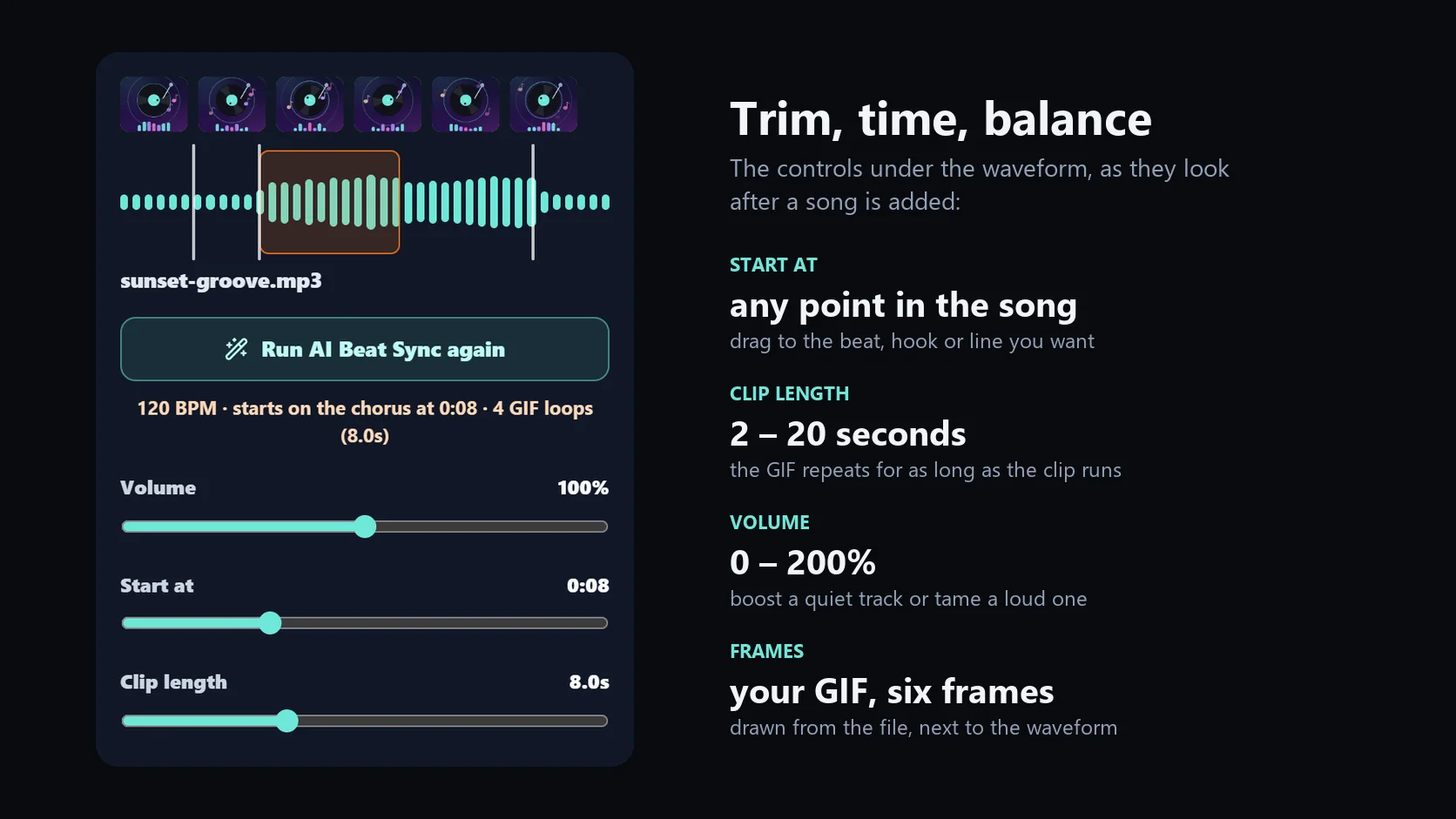
Once a song is loaded, three controls decide how it sits under your GIF. Start at chooses the moment in the song where the music begins. Clip length sets how long the video runs, from 2 to 20 seconds; the GIF simply repeats for as long as the clip lasts. Volume runs from 0 to 200%, which is enough to lift a quiet phone recording or to bring a loud master down under a voice.
The strip above the waveform shows six frames taken from your GIF, and the highlighted window on the waveform is the part of the song that will play. Section markers from Beat Sync show where the intro, verses and chorus begin, so you can see at a glance why the clip starts where it does.
- Short sound effects suit reaction GIFs; a full chorus suits product loops and greetings.
- Keep spoken audio under the music low, or choose an instrumental, so captions stay readable.
- For fades, music that loops, or a longer edit, continue in HueFold Studio.
Export: a free MP4 in your browser, or HD with HueFold
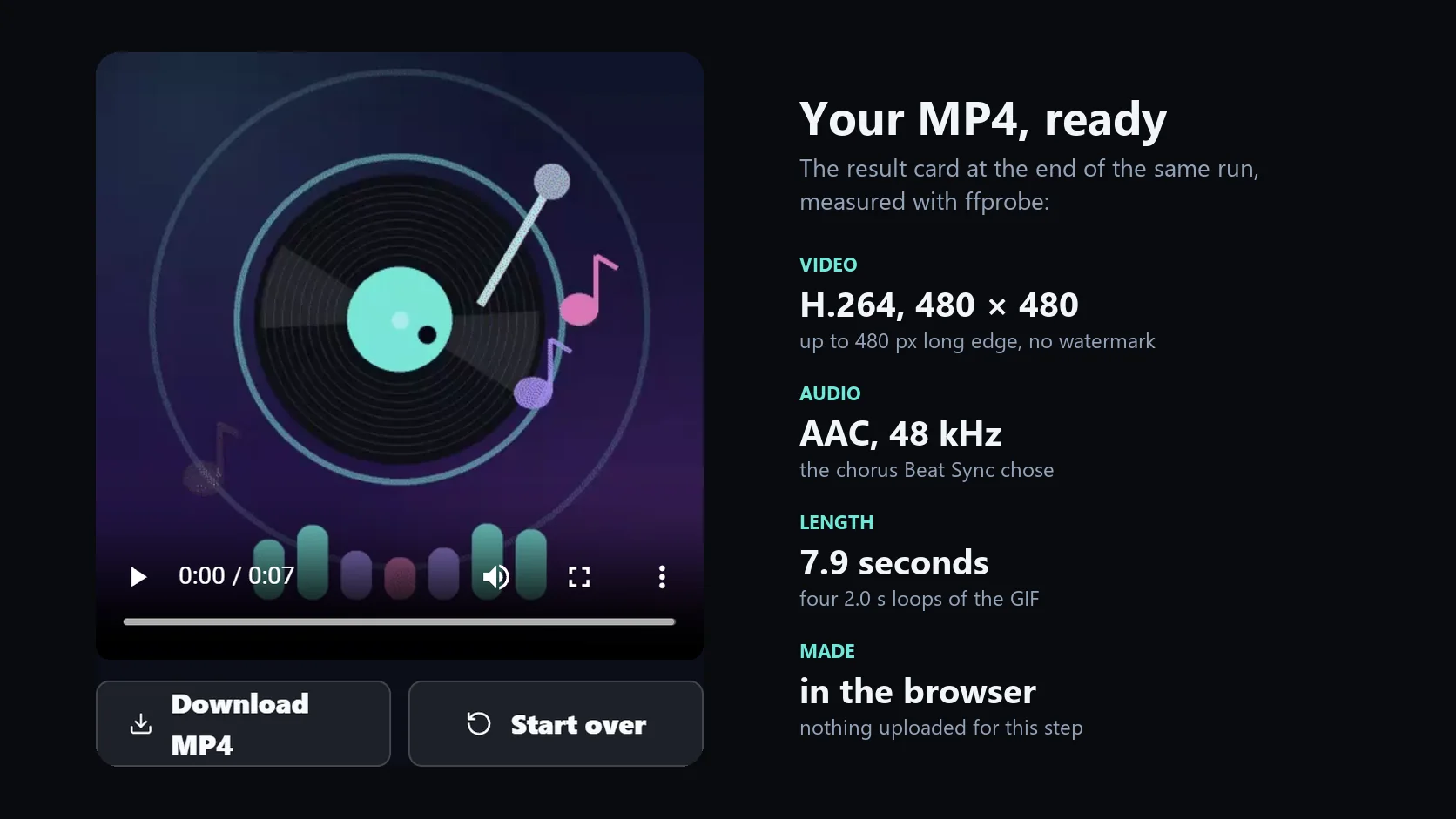
The free export happens on your device. The page plays your GIF frame by frame together with the music and records both into one video file in real time, so an 8-second clip takes about 8 seconds. In recent Chrome and Edge that file is an MP4 with H.264 video and AAC audio, at your GIF's size up to 480 pixels on the long edge, and without a watermark; a browser that can only record WebM gets a WebM file. Nothing is uploaded for this step.
HD render does the same job on HueFold's servers with the engine behind HueFold Studio's exports, producing an MP4 up to 1080p; small GIFs are scaled up to a 1080-pixel long edge. It needs you to sign in, and it uploads your GIF and song so the server can render them. Because it does not depend on your browser's recording features, it is also the route to use where the free export is not available.
Continue editing in HueFold Studio uploads both files and opens them as an editable design, with the music already linked to the GIF. There you can run Beat Sync again, add fades, loop the music, place captions or stickers, change the canvas size and export from the same engine.
What people add music to GIFs for
Most GIFs with sound fall into a handful of jobs. Each one wants a slightly different soundtrack, and the same three controls cover all of them.
- Reaction memes: a two-second sound bite or the hook of a song, timed to the punchline frame.
- Product and brand loops: a steady instrumental under a looping product shot for ads and landing pages.
- Greetings: a birthday, anniversary or holiday GIF with the song that goes with it.
- Gaming and sports moments: the clip that already loops, with crowd noise or a beat drop on the play.
- Pets and everyday moments: a funny loop turned into a short video for stories and chats.
- Presentations and teaching: a looping diagram with narration or a short audio cue.
Troubleshooting
The problems people run into most, and what fixes them.
- The Generate button is unavailable: the free in-browser export needs recent Chrome or Edge. Use HD render or HueFold Studio instead; both render on HueFold's servers.
- The GIF plays faster or slower than you expected: frames with a delay of 10 ms or less are shown for 100 ms by browsers. The tool measures and exports with the same rule, so the preview and the MP4 agree.
- The music starts in the wrong place: move Start at, or run Beat Sync again. It picks the most energetic chorus, which is not always the part of the song you know best.
- The file is too large: GIFs up to 15 MB and Beat Sync audio up to 20 MB are accepted. Shorten the GIF, or export a smaller audio file first.
- The song is too quiet or too loud: set Volume anywhere from 0 to 200% before generating.
Use music you have the right to use
Adding a song to a GIF does not change who owns the song. Social platforms may mute, block or remove videos that use copyrighted music without permission, so for anything public use your own recordings, tracks you have licensed, or music from a royalty-free library whose licence covers your use. The same goes for the GIF: a clip from a film or a show belongs to whoever made it.
Frequently asked questions
How do I add audio to a GIF?
Upload the GIF, add an audio file (MP3, WAV, M4A or OGG), choose where the audio starts and how long the clip runs, then click Generate video with sound and download the MP4. A GIF cannot hold audio itself, so the result is a short video that loops like the GIF.
How do I add sound to a GIF on Android?
Open this page in Chrome on your phone, choose the GIF and the sound from your files, and generate the video. There is no app to install. If your browser cannot run the free export, the page says so, and HD render works instead.
Can I add music to a GIF on iPhone?
Yes. If the free in-browser export is not available in your browser, the page says so; sign in and use HD render, or continue in HueFold Studio. Both render on HueFold's servers, so they do not depend on the browser.
Is adding music to a GIF free?
Yes. The in-browser export is free, needs no account and adds no watermark. HD render and HueFold Studio need a HueFold account.
How long can the music be?
On this page a clip runs from 2 to 20 seconds, and the GIF repeats for the whole clip. For longer edits, continue in HueFold Studio.
What is BPM, and why does it matter for a GIF?
BPM is beats per minute, the tempo of a song. A GIF loop stays in step with the music when it lasts a whole number of beats: BPM = 60 × beats in one loop ÷ loop length in seconds. A 2-second loop fits 120 BPM exactly.
Will the GIF lose quality when it becomes an MP4?
The free export records every frame of the GIF at up to 480 pixels on the long edge, which suits most GIFs. For a larger, sharper video use HD render: up to 1080p, with small GIFs scaled up to a 1080-pixel long edge.
Can I add music to a GIF from Giphy or Tenor?
Download the GIF file first, then upload it here. Make sure you are allowed to reuse it — the GIF and the music both belong to the people who made them.