Add Text To GIF
Type a caption, pick a style, drag it into place and choose when it appears — then download your GIF with text. Free, in your browser.
Updated

How do you add text to a GIF?
Upload the GIF, type your text, pick a style, place it, and download the GIF again with the words drawn into every frame. On this page that takes about a minute: the tool reads your GIF in the browser, shows a live preview of the loop with your text on it, and makes a new GIF when you are happy with it. Nothing is uploaded, there is no sign-up and no watermark.
You can add up to three separate pieces of text — a top line and a punchline, say, or a title and a label — and give each one its own style, size, colours and position. Each line can stay on screen for the whole loop or appear only for part of it, so a punchline can land on the exact frame where the joke happens.
The result is a real GIF: the same frames and the same timing as your original, with your text added, looping forever. It plays anywhere a GIF plays — chats, social posts, documents and web pages.
How to add text to a GIF
- Upload your GIF Drop an animated GIF of up to 15 MB on the tool, or click to choose one. The page reads every frame and its timing — for example 20 frames at 0.1 s, a 2.0 s loop.
- Type your text Write a caption, title or punchline of up to 120 characters. Long lines wrap automatically; press Enter to break a line yourself.
- Style and place it Pick Meme, Caption or Label, set the size and colours, then snap the text to the top, middle or bottom — or drag it anywhere on the preview.
- Choose when it shows Keep it for the whole loop, or untick that and set when it appears and disappears, in 0.1-second steps. Add a second or third line the same way.
- Make and download the GIF Click Make GIF with text. The GIF is made in your browser, usually in a few seconds; check the result and click Download GIF.
Add text to a GIF in under a minute
A real run of the tool on this page: drop in a GIF, type a top line, add a timed second line, make the GIF in the browser and download it. The clip ends with the GIF it made.
- Drop an animated GIF onto the tool. This one is 480 × 480, with 20 frames of 0.1 seconds — a 2.0-second loop.
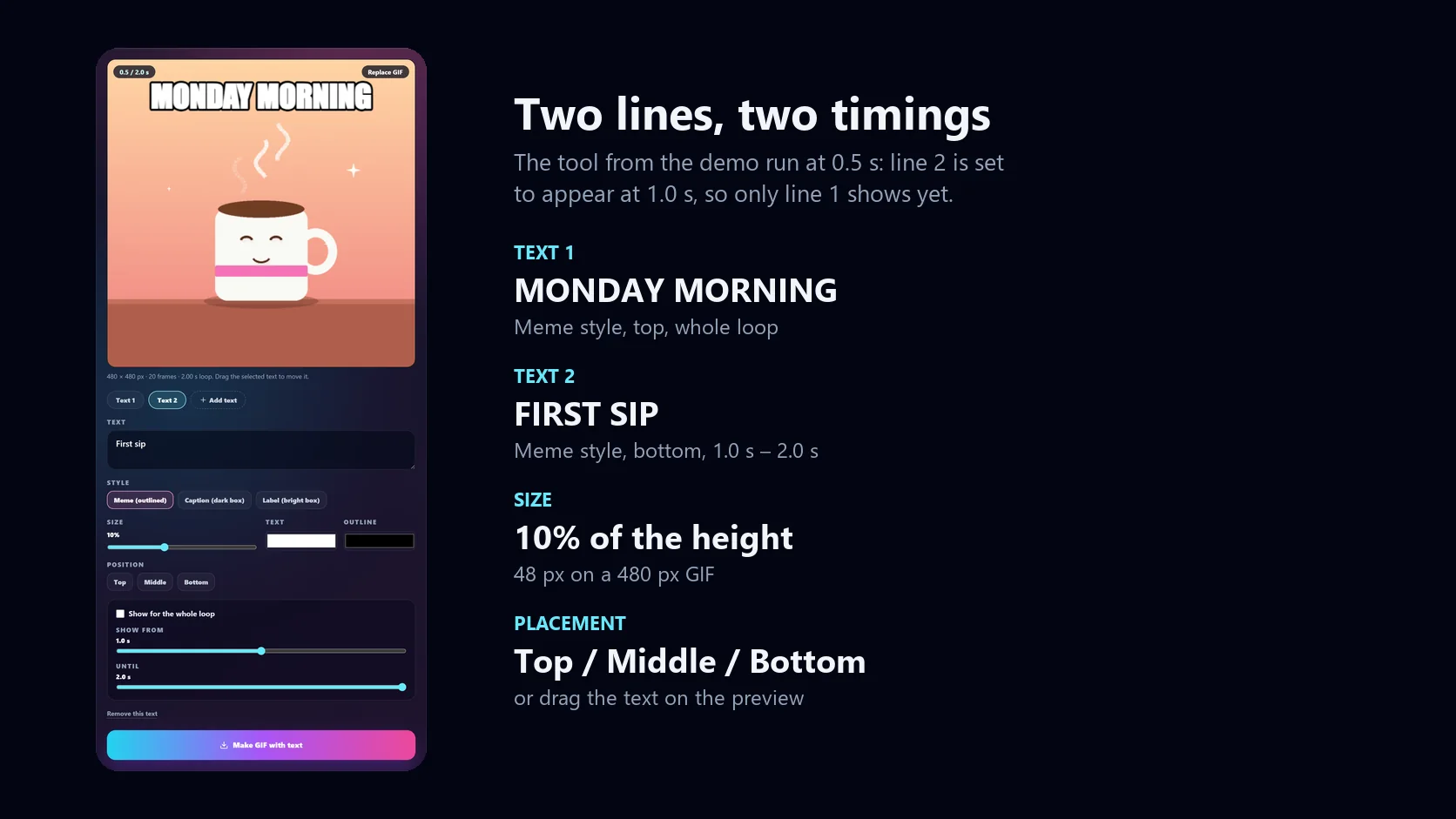
- Type the first line, MONDAY MORNING, and snap it to the top. The Meme style writes it in capitals with a black outline.
- Add a second line, FIRST SIP, and snap it to the bottom.
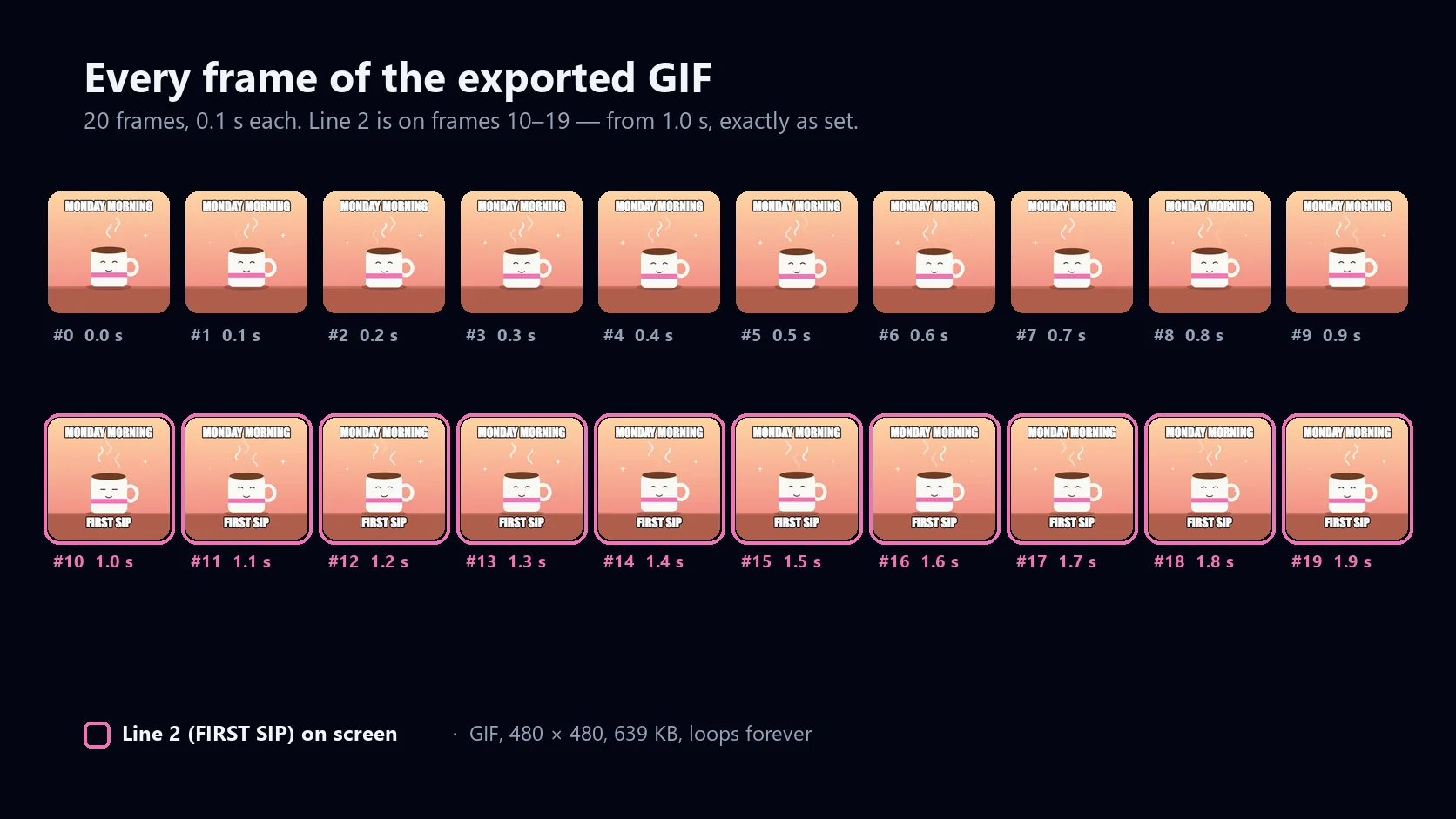
- Untick Show for the whole loop and set it to appear from 1.0 s until 2.0 s, so it pops in halfway through every loop.
- Click Make GIF with text. The GIF is made in the browser; nothing is uploaded.
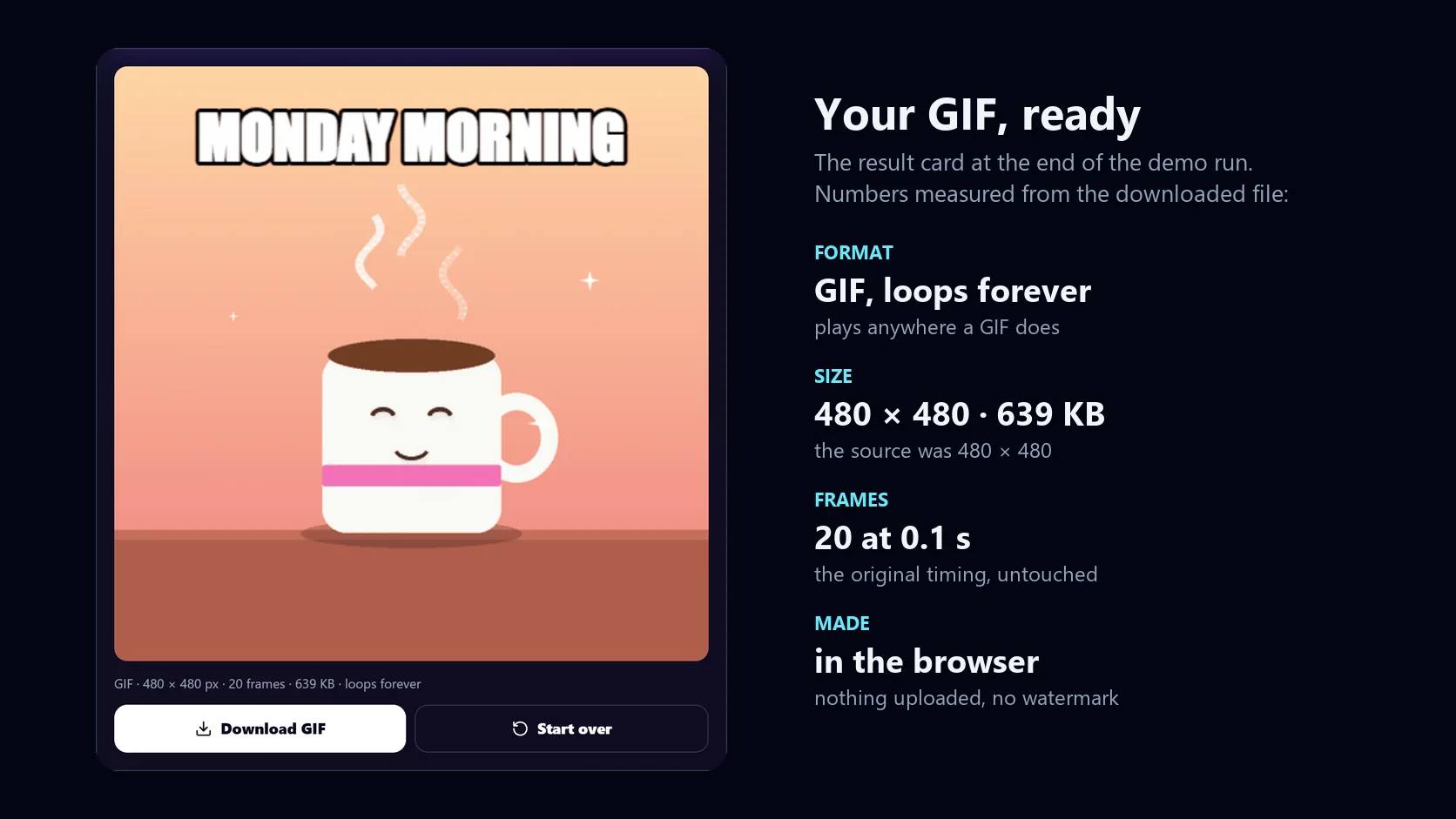
- Download the GIF: 480 × 480, 20 frames, looping forever, with the second line on frames 10 to 19.
How text gets into a GIF
A GIF has no separate text layer that apps can switch on and off, the way subtitles work in a video. Text on a GIF is part of the picture: every frame that should show the words has them drawn into its pixels. That is why adding text means making a new GIF, and why the text then shows up the same way everywhere the GIF goes.
This tool does exactly that, frame by frame. It decodes your GIF with the browser's own image decoder, draws each frame onto a canvas, paints your text on top and hands the frames to a GIF encoder running in background workers. Every frame keeps its original delay, so the animation runs at the same speed as before.
One detail matters for timing: browsers play GIF frames that ask for 10 milliseconds or less at 100 milliseconds instead. The tool measures and exports with the same rule, so what you see in the preview is what the GIF will do.
- Text is drawn into the frames themselves, so it cannot be turned off or lost when the GIF is shared.
- The frames, their order and their timing stay the same as in your original.
- Like every GIF, each frame is stored with a palette of up to 256 colours.
Meme, Caption or Label: choosing a style
Readability is the whole game with GIF text, because the picture keeps moving behind the words. Each of the three styles solves that differently.
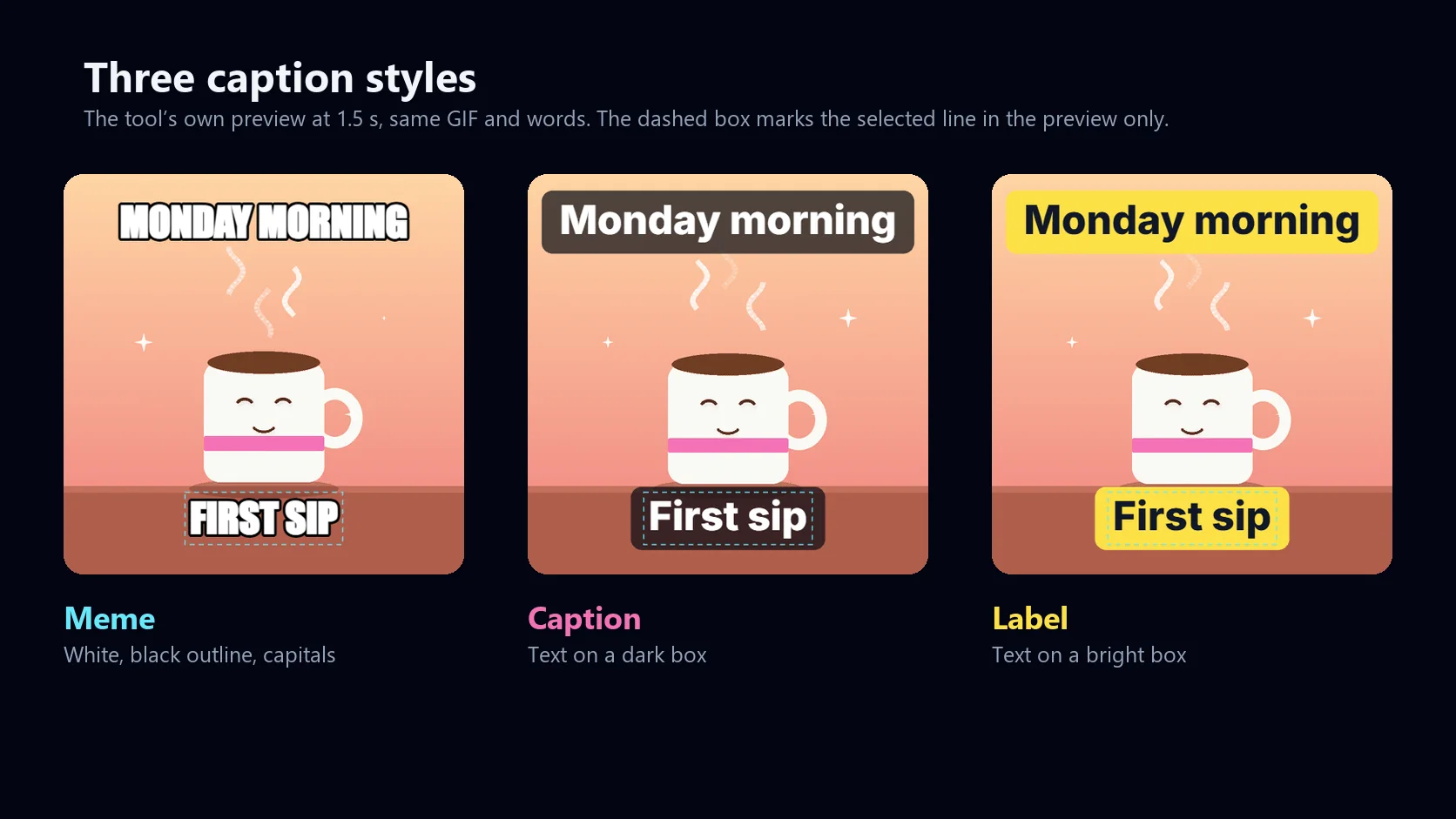
Meme is the classic: white capital letters with a thick black outline, set in Impact where your device has it and Arial Black where it does not. The outline keeps the words readable over any frame, light or dark. Caption puts the text on a dark, slightly see-through box, which reads like a subtitle and suits longer sentences. Label puts dark text on a bright box — yellow by default — for callouts, prices and arrows-free "look here" notes.
All three take any colour you like: one colour for the letters, and one for the outline or the box.
| Style | Looks like | Default colours | Best for |
|---|---|---|---|
| Meme | Capitals with a black outline | White text, black outline | Reaction GIFs, top-and-bottom jokes |
| Caption | Text on a dark box | White text, dark box | Subtitles, longer sentences, quotes |
| Label | Text on a bright box | Dark text, yellow box | Callouts, prices, step labels |
Size and position that stay readable
Size is set as a share of the GIF's height, from 4% to 20%, so the same setting looks the same on a small GIF and a large one: 10% is 48 pixels on a 480-pixel GIF. Text wider than the GIF wraps onto more lines automatically, using up to 92% of the width.
Top, Middle and Bottom snap the selected text into place in one click. For anything else, drag the text on the preview: the selected line has a dashed outline, and whichever line you grab becomes the selected one. Text is kept inside the frame, so a line dragged to the edge stops there instead of being cut off.
- Phones show GIFs small: on a 480-pixel GIF, 8–12% is a good range for one line.
- Keep captions off faces and the main action; top and bottom are the classic places for a reason.
- Two lines in the same style read as one caption; different styles read as separate notes.
| Size setting | 240 px GIF | 480 px GIF | 640 px GIF |
|---|---|---|---|
| 4% | 10 px | 19 px | 26 px |
| 8% | 19 px | 38 px | 51 px |
| 10% | 24 px | 48 px | 64 px |
| 14% | 34 px | 67 px | 90 px |
| 20% | 48 px | 96 px | 128 px |
Timed text: show a line for only part of the loop
Every line has a Show for the whole loop switch. Untick it and two sliders appear — Show from and Until — that set, in 0.1-second steps, when the line appears and disappears within each loop. The preview plays the loop with a running clock, so you can watch the line come and go.
In the exported GIF, each frame carries the lines that are on screen at the moment that frame starts. In the demo GIF, frames are 0.1 seconds long, so a line set to appear at 1.0 s is on frames 10 to 19 and on none before — exactly what the frame-by-frame figure below shows. Timing a punchline to land a beat after the setup, or a label to appear when the thing it names comes into view, is what makes a GIF caption feel deliberate.
What you get, and the limits
The download is a GIF that loops forever, with your GIF's frames and frame timing and your text on top. GIFs up to 640 pixels on the long edge keep their size; larger ones are scaled down to 640 pixels, which keeps the file small enough to share and the export quick. Where the original GIF has transparent areas, they are filled with white.
Everything happens on your device. The GIF is read, previewed and made in your browser, and it is never uploaded to HueFold. The tool needs a browser that can decode GIF frames — recent Chrome and Edge can — and the page tells you if yours cannot.
| What | Limit |
|---|---|
| GIF you upload | Up to 15 MB and 400 frames |
| Text | Up to 3 lines of text, 120 characters each |
| Text size | 4–20% of the GIF's height |
| Timing | Whole loop, or from/until in 0.1 s steps |
| GIF you download | Up to 640 px on the long edge, original frame timing, loops forever |
| Cost | Free: no sign-up, no watermark |
Ideas for text on GIFs
Most GIF captions do one of a handful of jobs. Each one suits a different style and timing.
- Reaction memes: a top line for the setup in Meme style, and the punchline timed to the reaction frame.
- Subtitles for a looping clip: Caption style at the bottom, for the whole loop.
- Tutorial and product GIFs: Label style next to the button or feature, appearing when it is used.
- Greetings: a name and a message over a celebration loop.
- Team chat: a status or a one-word mood on a GIF everyone already knows.
- Slides and documents: a short label so a looping diagram explains itself.
Troubleshooting
The problems people run into most, and what fixes them.
- The page says your browser cannot read GIF frames: use a recent Chrome or Edge, or open HueFold Studio.
- The GIF is too large: GIFs up to 15 MB and 400 frames are accepted. Shorten the GIF or reduce its size first.
- The text is hard to read: switch to Meme for an outline, or to Caption or Label for a solid box behind the words.
- The text is cut into too many lines: lower the size, or shorten the line; text wraps at 92% of the width.
- A line appears a frame late or early: set Show from to the start time of the frame you want — in a GIF with 0.1 s frames, frame 10 starts at 1.0 s.
- The edges look slightly speckled: GIF frames are limited to 256 colours, so smooth gradients are approximated.
When you need more than text
This page is built for one job: words on a GIF, quickly. For animated text that slides or fades in, stickers, several GIFs on one canvas, a different canvas size for Stories, or music, open HueFold Studio, the full editor.
And if the text should be read rather than seen — for a screen reader or a search engine — also give the GIF alt text where you post it. Words drawn into pixels are for people; alt text is for everyone else.
Frequently asked questions
How do I add text to a GIF online?
Upload the GIF on this page, type your text, pick a style and position, choose when it shows, then click Make GIF with text and download the result. It is free and runs in your browser.
Can I add meme text to a GIF?
Yes. The Meme style writes white capital letters with a black outline — the classic top-and-bottom meme look — and you can add up to three lines.
Can text appear for only part of the GIF?
Yes. Untick Show for the whole loop and set Show from and Until, in 0.1-second steps. In the exported GIF, each frame carries the text that is on screen when that frame starts.
Can I edit text style?
Yes. Choose Meme, Caption or Label, set the size from 4% to 20% of the GIF's height, pick the text colour and the outline or box colour, and place the text by snapping or dragging.
What format should I export?
This tool makes a GIF, which loops forever and plays anywhere a GIF does. If you need a video file instead, open the GIF in HueFold Studio.
Is it free to add text to a GIF?
Yes. Adding text and downloading the GIF is free, with no sign-up and no watermark.
Is my GIF uploaded?
No. The GIF is read, previewed and made in your browser and never leaves your device.
Will adding text change the speed of my GIF?
No. Every frame keeps its original delay. Frames that ask for 10 ms or less are played at 100 ms, the same rule browsers use, so the GIF plays as it did before.
How big can my GIF be?
Up to 15 MB and 400 frames. The GIF you download is up to 640 pixels on its long edge; larger GIFs are scaled down to that.
Can I add text to a GIF on my phone?
Yes, in a browser that can decode GIF frames, such as Chrome. The page tells you if your browser cannot; then open HueFold Studio instead.
Can I add animated text to a GIF?
Text on this page can appear and disappear at set times. For text that slides, fades or bounces in, use HueFold Studio.