AI Generative Fill
Brush over anything in a photo, then describe what should be there, or leave it blank to remove it. The AI fills only the area you brushed.
Updated

What is AI generative fill?
AI generative fill lets you change one part of a photo by painting over it. You brush the area, say what should be there — "a red kite", "green grass" — or say nothing to have it removed, and an AI image model paints new pixels into that area to match the rest of the picture.
On this page the brushing happens in your browser. When you click Generate, only a crop around the area you brushed is uploaded and sent to the AI, and its answer is blended back through the shape you painted. Everything you did not brush stays exactly as it was, down to the pixel, so a fill never shifts, recolours or softens the rest of your photo.
You can fill one area, then brush the next, undo the last fill, and download the photo as a PNG or JPG at its own size. Generating needs a free HueFold account and uses AI credits; brushing, undoing and downloading do not.
How to use AI generative fill
- Upload a photo Drop a JPG, PNG or WebP photo of up to 20 MB on the tool, or try the sample photo. Phone photos open the right way up.
- Brush the area Paint over what you want to change, a little past its edges, shadow included. Use the eraser or Undo stroke to correct it.
- Describe it, or leave it blank Type what should appear there in up to 400 characters, or leave the box empty to remove what you brushed.
- Generate Click Generate fill (or Remove with AI). Sign in once if asked; the fill usually takes 10 to 40 seconds.
- Download Brush and fill again if you like, then download the photo as a PNG or JPG at its own size.
Remove an object and add one with AI generative fill
A real run of the tool on this page: open a photo, brush over a traffic cone and remove it with the prompt left blank, then brush the sky and add a red kite, and download the photo.
- Drop a photo onto the tool. This sample is 1200 × 896.
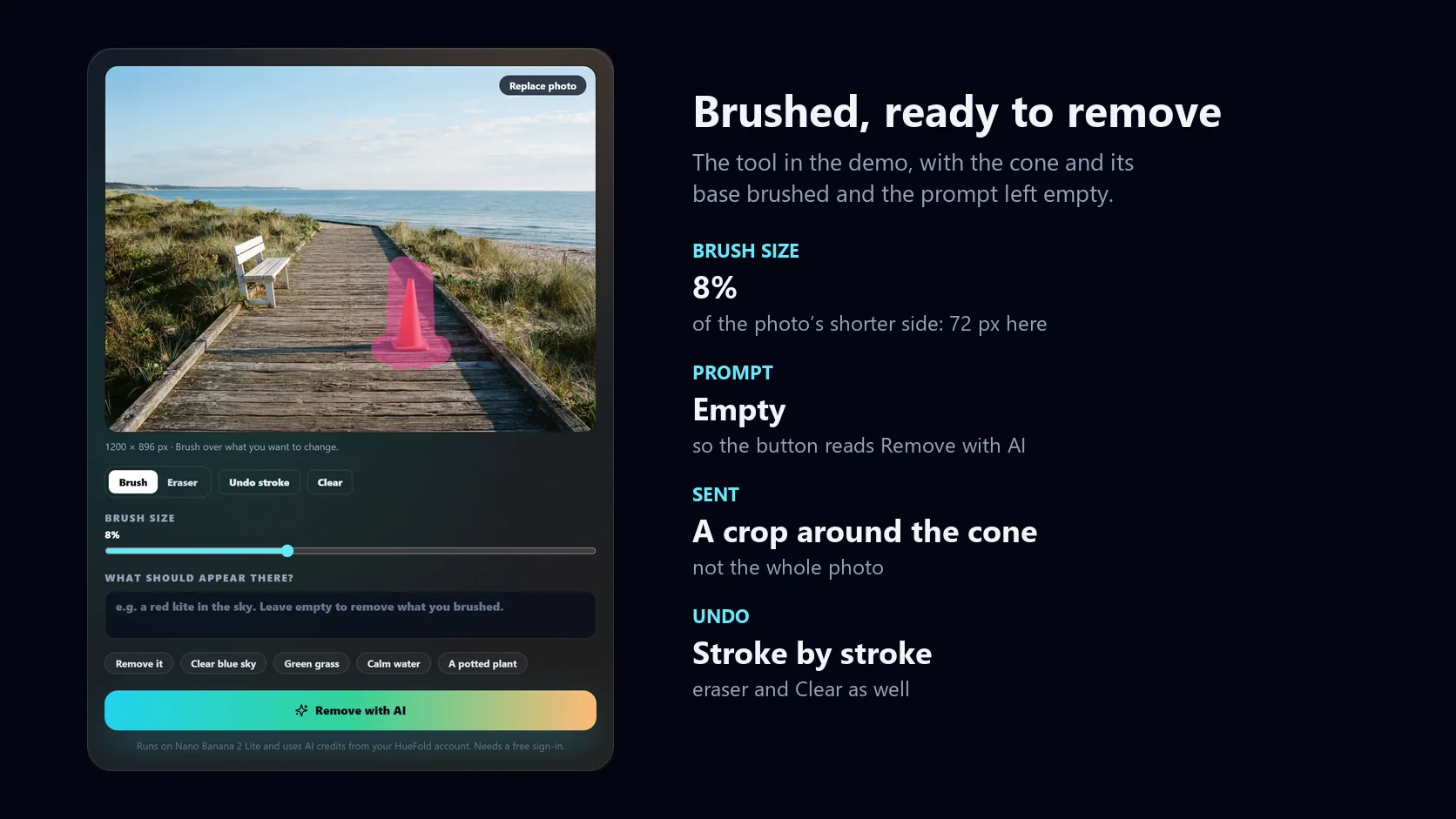
- Brush over the orange traffic cone and its base, at brush size 8%.
- Leave the prompt empty and click Remove with AI. The cone is replaced with boardwalk.
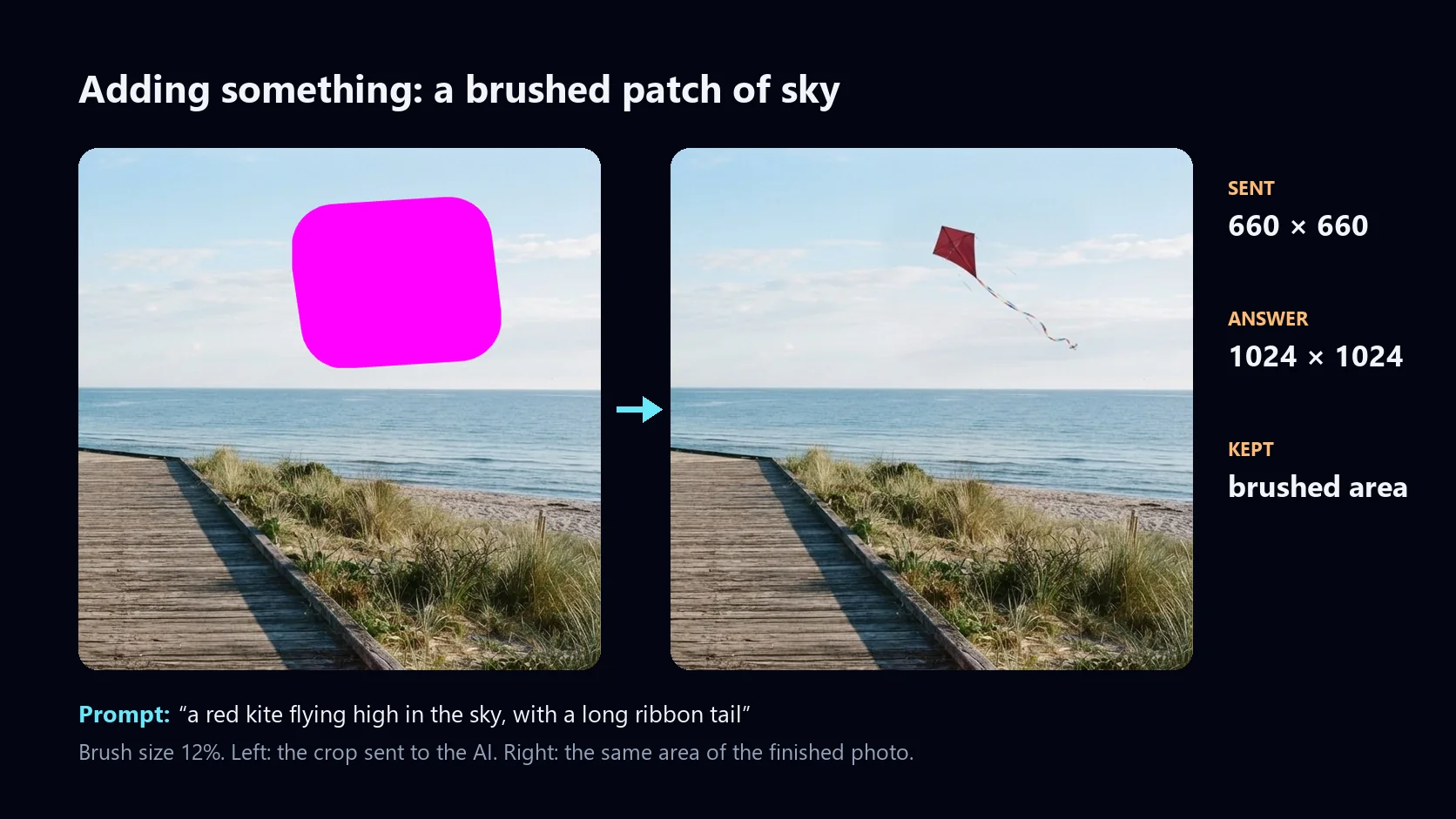
- Brush a patch of sky at brush size 12% and type: a red kite flying high in the sky, with a long ribbon tail.
- Click Generate fill. The kite is blended into the brushed patch of sky.
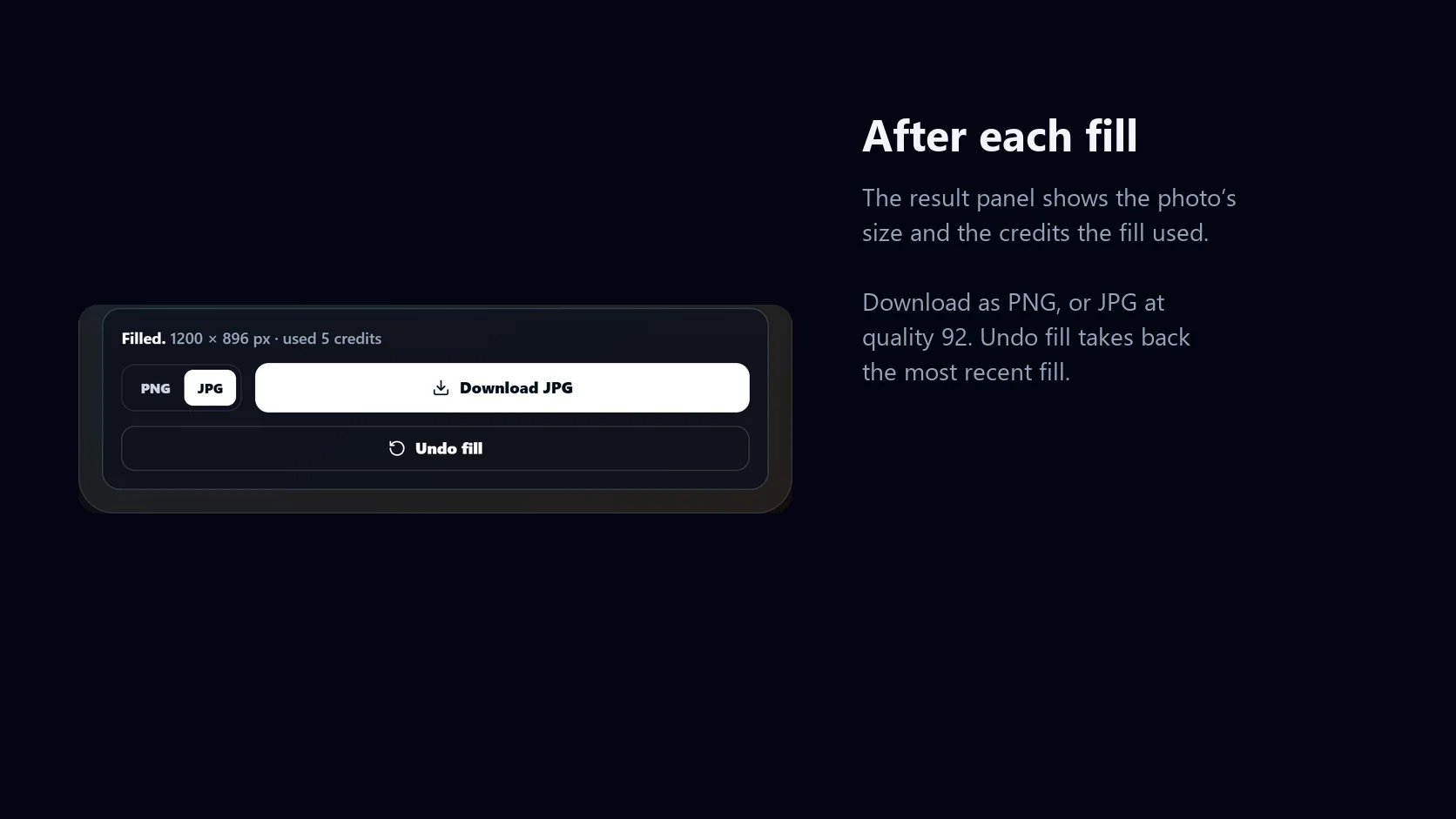
- Click Download JPG. The photo is saved from the browser at its own size, 1200 × 896.
How generative fill works on this page
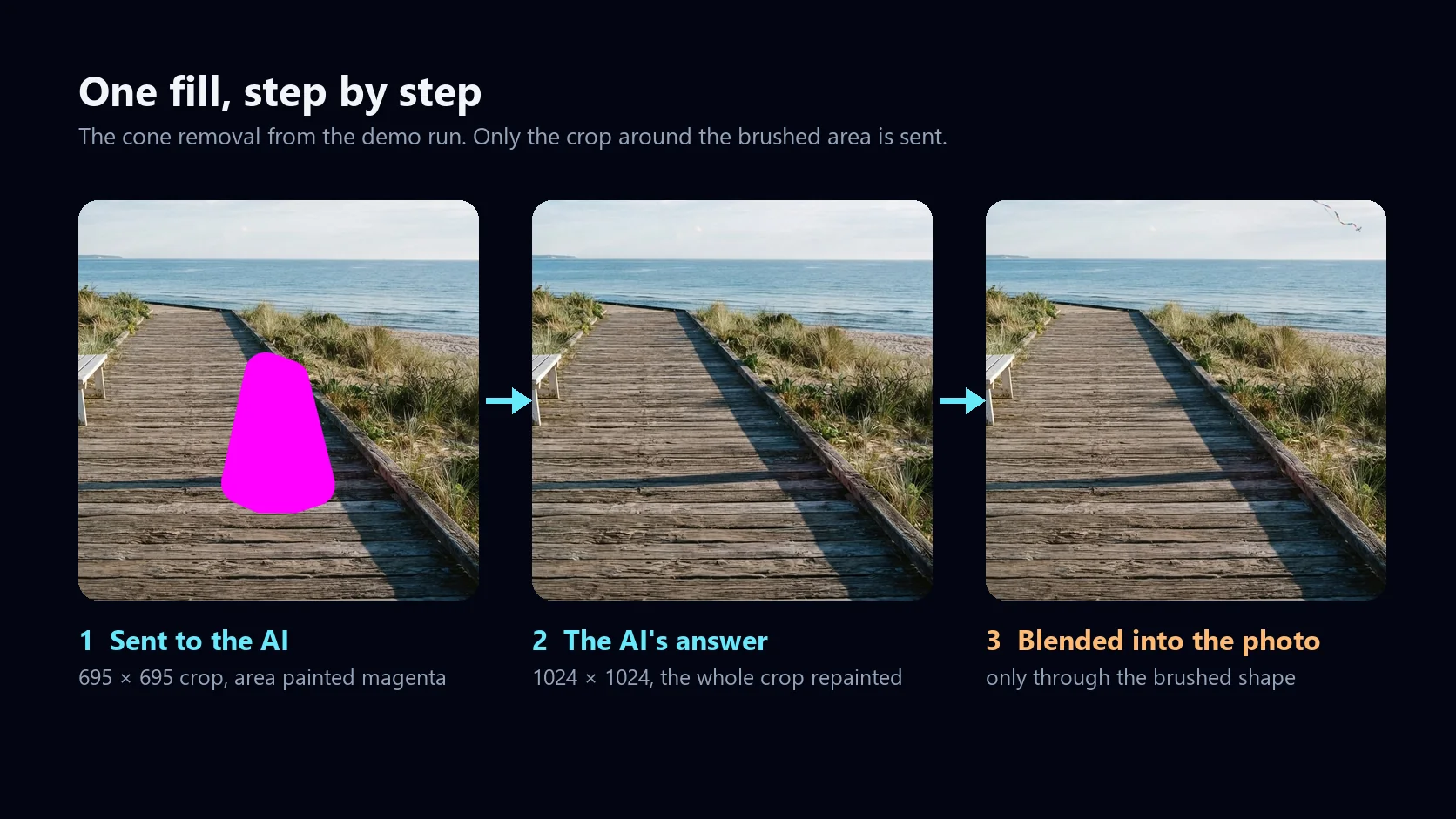
The tool never sends the whole photo when it does not need to. It takes the area you brushed, adds context around it — three quarters of the area's longer side on every side, and at least 512 pixels in all — and grows that box to the nearest shape the image models accept: square, 3:4, 4:3, 9:16 or 16:9. That crop, at up to 1536 pixels, is what goes to the AI. A small edit on a large photo therefore gets the model's full resolution instead of a shrunken copy of the whole picture.
How the area is marked depends on the model running the tool. A prompt-driven model is shown the crop with the area painted solid magenta and told to replace only the magenta; a dedicated inpainting model receives the crop with the area cut out to transparency. Either way, the model's answer comes back as a new image of the crop.
The tool then lays that answer over your photo through the shape you brushed, grown and feathered by about one percent of the crop so the seam melts in. Pixels outside it are never touched: if the model changed something elsewhere in the crop, that change is simply not used.
How to brush a good area
The brush decides what the AI may change, so it is worth ten seconds of care. Cover the whole object and a little beyond its edges, and include its shadow and reflection: a removed object that leaves its shadow behind is the most common give-away. The overlay shows exactly what is selected.
Brush size is a share of the photo's shorter side, from 1% for fine edges to 20% for large areas, so the same setting behaves the same on a small photo and a large one. The eraser takes paint away, Undo stroke steps back one stroke at a time, and Clear starts over.
Bigger is not always better. The tool sends context around your brushed area, and the AI matches what it sees there, so brushing much more than you need asks it to invent more of the picture.
| Brush size | Brush width | Good for |
|---|---|---|
| 1% | 11 px | Wires, thin poles, edges of hair |
| 5% | 54 px | Small objects, text, blemishes |
| 8% | 86 px | A person-sized object far away, a traffic cone |
| 12% | 130 px | Patches of sky, water or grass |
| 20% | 216 px | Large areas, whole backgrounds |
Writing the prompt
Describe what should be in the area, not what to do: "a red kite flying high in the sky, with a long ribbon tail" works better than "add a kite please". Mention the things that make it fit — size, colour, material, the direction of the light — and leave out the rest of the photo; the model can already see it.
To remove something, leave the box empty. The button changes to Remove with AI, and the model is asked to fill the area with what would naturally be behind it. You have up to 400 characters, and the idea chips under the box fill in a few common requests.
| You want to | Brush | Type |
|---|---|---|
| Remove an object | The object and its shadow | Nothing |
| Replace an object | The object | What should stand there instead |
| Add something | Where it should go, roughly its size | The new thing, with size and colour |
| Fix the sky | The sky area | clear blue sky |
| Repair a surface | The damaged patch | The surface, e.g. green grass |
Removing objects without a trace
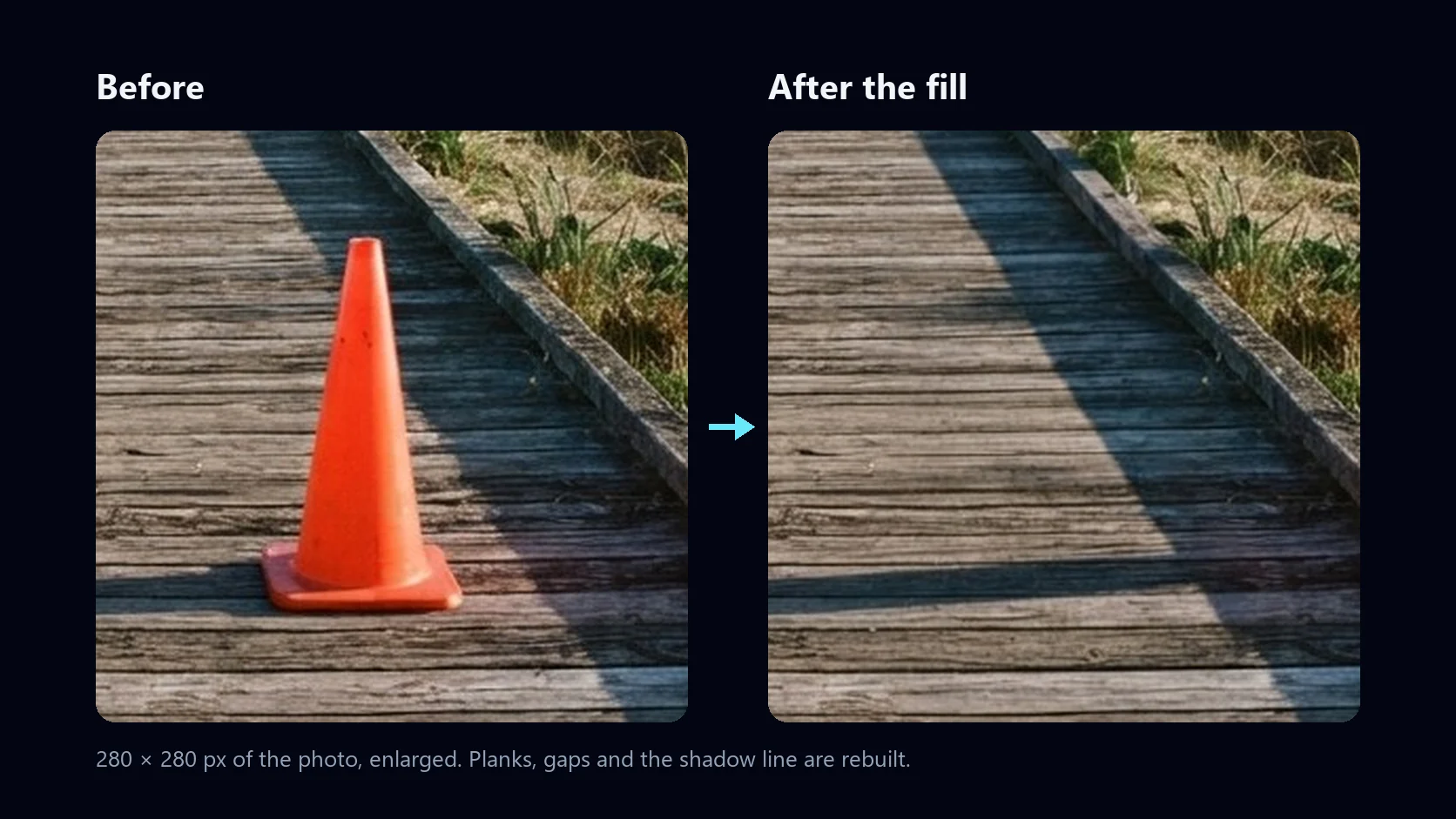
Removal is the most common use of generative fill: a traffic cone, a sign, a bin, a stranger in the background, a power line across the sky. The demo on this page removes an orange cone from a boardwalk. The cone, its base and a margin around it were brushed, the prompt was left blank, and the AI rebuilt the planks and the shadow line behind it.
If a trace remains — an edge, part of a shadow — brush just that and run it again. Each fill builds on the last, and Undo fill takes back the most recent one if you prefer the photo before it.
What is uploaded, stored and charged
Opening a photo and brushing it happen in your browser, and nothing is sent until you click Generate. Then the crop around your brushed area is uploaded to your HueFold account, sent to the AI model, and the answer is stored in your account like any other HueFold AI image. The finished photo is put together in your browser and downloaded from it.
Generating needs a free HueFold account. Before your first AI edit you are asked to accept HueFold's AI policy, once. Each fill uses AI credits from your account; the cost depends on the model, and the tool shows how many credits a fill used when it finishes. If the AI returns no image, the run is not charged.
| Step | Where it happens | Account needed |
|---|---|---|
| Open the photo and brush | Your browser | No |
| Generate | The crop is uploaded and sent to the AI | Yes, free account; uses AI credits |
| Blend the answer in | Your browser | — |
| Undo fill, download | Your browser | No |
Download as PNG or JPG, at full size
The photo is edited at its own size, up to 4096 pixels on the long edge; larger photos are scaled down to that when they open. Download it as a PNG, which is lossless and keeps transparency, or as a JPG, which is smaller and right for ordinary photos. JPG is saved at quality 92, and any transparent areas become white.
| What | Limit |
|---|---|
| Photo you upload | JPG, PNG or WebP, up to 20 MB |
| Editing size | Your photo's own size, up to 4096 px on the long edge |
| Brush | 1–20% of the photo's shorter side; eraser, Undo stroke, Clear |
| Prompt | Up to 400 characters, or blank to remove |
| Area sent to the AI | A crop around the brushed area, up to 1536 px |
| Undo | Every brush stroke; the most recent fill |
| Photo you download | PNG, or JPG at quality 92 |
| Cost | Free account; each fill uses AI credits |
Ideas for generative fill
A few edits that take seconds with a brush and a sentence.
- Clean up travel photos: cones, barriers, signs and bins off a view.
- Product shots: remove a price tag, a scuff or a stray cable from the table.
- Property photos: clear clutter from a worktop or a car from a driveway.
- Add an element: a kite in the sky, a boat on the water, a plant in an empty corner.
- Fix a background: replace a grey sky with a clear one, patch bare grass.
- Make room for text: remove what sits where a headline or logo should go.
Troubleshooting
The problems people run into most, and what fixes them.
- The AI returned no image: image models sometimes refuse an ordinary edit, often because of the shape or content of the area. The tool tries once more by itself; if it still fails, brush a slightly different area and try again. You are not charged.
- The area came back unfilled: now and then a model returns the photo without painting the area. The tool checks every answer, never blends an unfilled one into your photo, and asks once more. An answer that came back as an image uses credits even when it is not used.
- Part of the object is still there: the brush did not cover it. Brush the leftover, including its shadow, and generate again.
- The edge of the fill shows: brush a little wider, so the area ends on plain surroundings rather than on an edge.
- The result does not match the light: say it in the prompt — "in soft evening light", "in shadow" — and generate again.
- The photo will not open: the tool takes JPG, PNG and WebP up to 20 MB. If your phone saves HEIC, share the photo as JPG.
- I was asked to accept the AI policy: that happens once, before your first AI edit on HueFold. Accept it and the fill carries on.
When you need more than a fill
This page does one job: change part of a photo. For text and captions, stickers, layouts, brand colours or a design built around the photo, open HueFold Studio, the full editor.
Generative fill is in Studio too. Select any image in a design, open Edit and choose AI Generative Fill: the same brush, prompt and variations as on this page, applied to the image in place, with Restore original to undo it.
And if you publish an edited photo where it matters — news, evidence, a listing — say that it was edited. Generative fill makes changes that are hard to see, which is exactly why they should be disclosed.
Frequently asked questions
What is AI generative fill?
You brush over part of a photo and an AI image model paints new pixels into that area, following your description or, with no description, filling in what would be behind the thing you brushed.
Can I remove objects from photos?
Yes. Brush over the object and its shadow, leave the prompt empty and click Remove with AI. The area is filled with what would naturally be behind it.
Can I add something new to a photo?
Yes. Brush where it should go, roughly at its size, describe it — for example "a red kite flying high in the sky" — and click Generate fill.
Does generative fill change the rest of my photo?
No. The AI's answer is blended in only through the area you brushed, slightly feathered at the edge. Every other pixel stays exactly as it was.
Is AI generative fill free?
Brushing, undoing and downloading are free. Generating needs a free HueFold account and uses AI credits; the tool shows how many credits each fill used. Runs that return no image are not charged.
Is my photo uploaded?
Only when you click Generate, and only a crop around the area you brushed. That crop and the AI's answer are stored in your HueFold account. The rest of the editing happens in your browser.
Which AI model does it use?
The image model HueFold has set for this tool. Its name is shown under the Generate button.
What image formats can I upload?
JPG, PNG and WebP photos up to 20 MB. Photos larger than 4096 pixels on the long edge are scaled down to 4096 when they open.
Can I undo a fill?
Yes. Undo fill takes back the most recent fill, and Undo stroke steps back through your brush strokes before you generate.
Why did the AI return no image?
Image models sometimes decline an ordinary edit, for example because of the shape of the brushed area. The tool retries once by itself; if it still fails, brush a slightly different area. Failed runs are not charged.
Can I expand an image for different sizes?
When an outpainting model is switched on for this tool, an Expand tab appears that grows the photo to 1:1, 4:5, 9:16 or 16:9. Without it, the tool fills and removes inside the photo only.
Can I keep editing after using generative fill?
Yes. Generative fill is also in HueFold Studio: select an image in your design, open Edit and choose AI Generative Fill. It edits the image in place, keeps the original for Restore original, and lets you try several versions of a fill before you apply one.