Content Management
Drop a batch of photos, videos and sound, leave out exact copies, tidy the names, and file everything into folders in your HueFold library in one go.
Updated

How do you keep your design files organised?
Design work piles up files: photos from a shoot, clips for a reel, a soundtrack, and copies of all of them. This tool sorts a batch before it goes into your HueFold library: it finds files you have twice, gives every file a clean name, and files them into folders by kind, then uploads them for you.
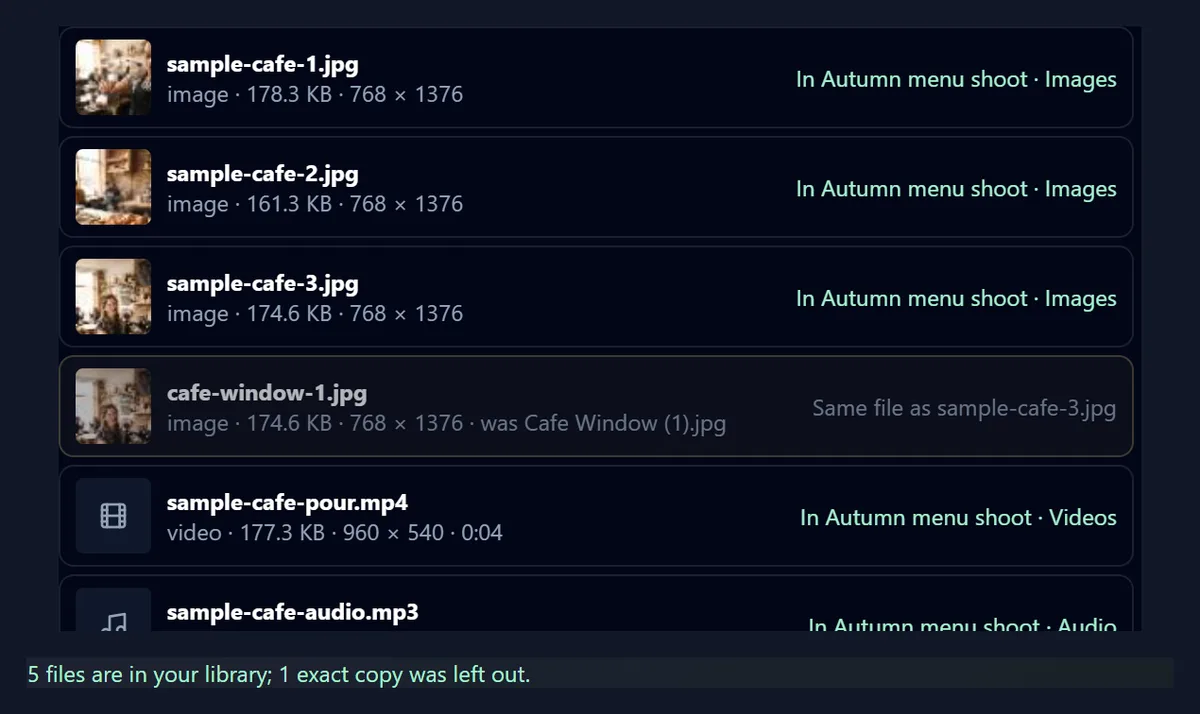
We dropped 6 files from a café shoot. The tool found one exact copy under a different name, filed the other 5 into three folders, and showed them in the library: the run is measured below, file by file.
How to sort files into your library
- Drop your files Add photos, videos and sound files at once. Each is measured in your browser.
- Check the copies Exact copies are marked and left out; edited files are kept.
- Choose the folders One folder per kind or all in one, with a name you type.
- Upload Sign in and press the button. Folders are made and every file goes into its folder.
Sorting a batch of files into a HueFold library
Six files from a café shoot dropped at once, an exact copy found, the names tidied, three folders planned and made, and the files uploaded into them.
- Three photos, a copy of one of them, a video and a sound are dropped on the tool.
- The copy is found by its fingerprint and left out.
- The folder name is typed, and three folders are planned, one per kind.
- The files are uploaded into their folders one by one.
- The new folders are listed, and the images folder is opened.
How do I organise files into my HueFold library?
Drop photos, videos and sound files on the tool, as many as you like at once. Your browser reads each one, shows its size, its dimensions and, for a video or a sound, its length, and finds any file you dropped twice. Choose how they should be filed, one folder per kind or all in one folder, name the folders, and press the button.
The tool makes the folders in your HueFold library, uploads each file and puts it in its folder, then lists your library's folders so you can open one, star it, or go to it in your dashboard. The files are then in your uploads, ready to drag into any design in the editor.
How does it find duplicate files?
For every file it reads the bytes and works out a SHA-256 fingerprint, a 64-character code that changes completely if a single byte changes. Two files with the same fingerprint and the same size are the same file, whatever they are called, and the second one is left out of the upload.
Our sample had one: Cafe Window (1).jpg, the kind of copy a phone or a download folder makes, was the same file as sample-cafe-3.jpg. It is marked Same file as sample-cafe-3.jpg, greyed out, and not uploaded. A photo that was edited, resized or saved again has different bytes, so it counts as a different file, which is what you want: only exact copies are dropped.
What does tidying the file names do?
With Tidy the file names ticked, each file is uploaded under a clean name: lower case, words joined by hyphens, accents and symbols dropped, and a copy marker such as (1) kept as -1, so Cafe Window (1).jpg becomes cafe-window-1.jpg. The extension is kept, in lower case, and .jpeg becomes .jpg.
Two files that end up with the same name in the same folder are told apart with -2, -3 and so on. Untick it to keep the names as they are.
How are the folders made?
One per kind makes a folder for each kind of file you dropped, named after the folder name you type: for Autumn menu shoot, that was Autumn menu shoot · Images, Autumn menu shoot · Videos and Autumn menu shoot · Audio. All in one puts every kept file into a single folder with the name you type.
The plan under the folder name shows each folder with the number of files and their total size before anything is uploaded: Autumn menu shoot · Images 3 files · 514.2 KB; Autumn menu shoot · Videos 1 file · 177.3 KB; Autumn menu shoot · Audio 1 file · 274.8 KB.
How long does uploading take?
Files are uploaded one at a time, each straight into its folder. On our test server the 3 photos took 1.3, 0.8 and 0.7 seconds, the video 3.1 and the sound 0.6, 6.6 seconds in all. The video took longest, and the first photo longer than the other two; HueFold also makes a thumbnail for each photo as it arrives.
Times on HueFold itself depend on your connection and the size of the files, so treat these as the shape, not the speed: big videos take longest. Each file turns green with the folder it went into as it lands.
| File | Size (KB) | Seconds to upload |
|---|---|---|
| sample-cafe-1.jpg | 178.3 | 1.3 |
| sample-cafe-2.jpg | 161.3 | 0.8 |
| sample-cafe-3.jpg | 174.6 | 0.7 |
| sample-cafe-pour.mp4 | 177.3 | 3.1 |
| sample-cafe-audio.mp3 | 274.8 | 0.6 |
How do I know it worked?
When the last file is in, the tool says so, counting what went in and what was left out: 5 files are in your library; 1 exact copy was left out. Any file that could not be uploaded is marked with HueFold's reason, and pressing the button again uploads only the files still waiting.
We checked the library behind the page too: the three folders held 3, 1 and 1 files, exactly as planned.
Can I see my library here?
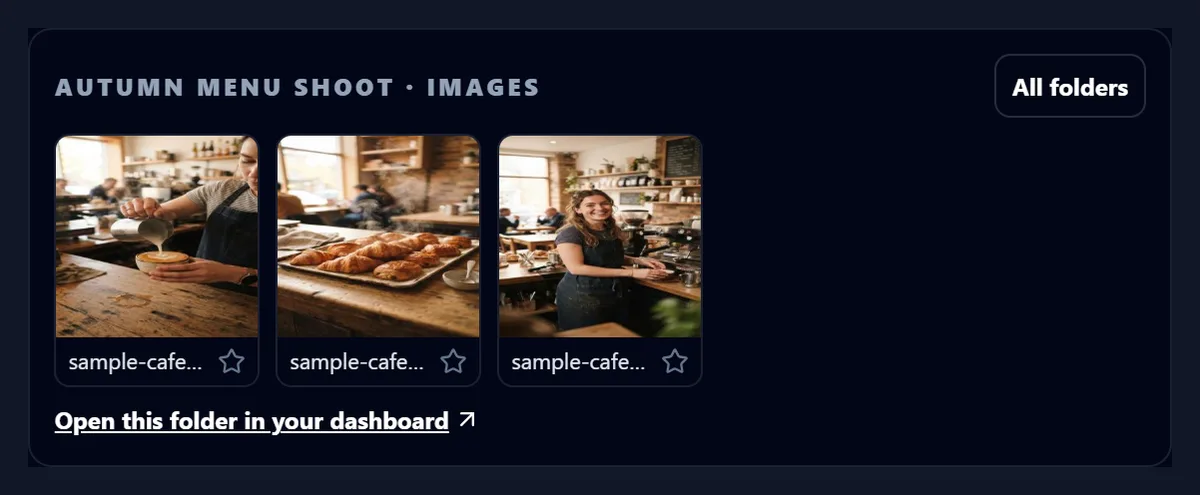
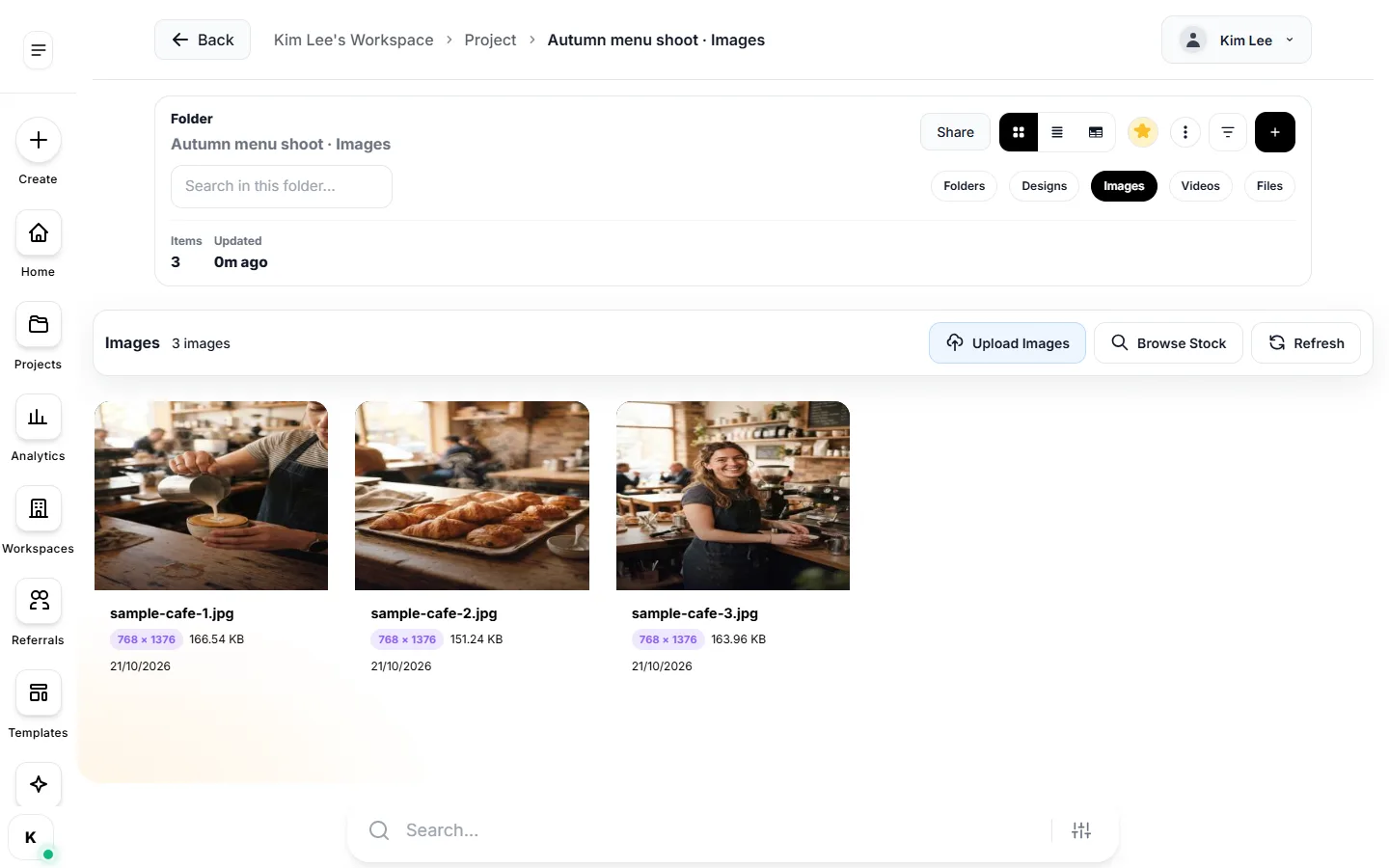
Yes. Once you are signed in, the tool lists the folders in your HueFold library, with how many items each holds. Click one to open it and see its files as thumbnails; star a folder or a file to find it quickly later, and All folders takes you back.
Open this folder in your dashboard goes to the same folder in your HueFold dashboard, where it sits with the rest of your files and folders.
Where do the files go?
Into your HueFold account: each file is an upload in your library, filed in its folder. In the editor, your uploads are a panel of their own, so the photos, the video and the sound are ready to drag into any design.
The folders and files are in the account you signed in with. To work on them with other people, put them in a design and share it, or invite your team to a workspace, from the Invite your team page.
Which files can I add?
Photos and pictures (JPG, PNG, WebP, GIF, AVIF, SVG, HEIC and more), videos (MP4, MOV, WebM, MKV) and sound (MP3, WAV, M4A, AAC, OGG, FLAC, Opus): the kinds HueFold's uploads take. Anything else, such as a PDF or a zip file, is left out, and the tool says how many files that was. Up to 50 files can be sorted at a time.
How big a single file can be depends on your HueFold plan. The tool asks HueFold for your limit when you sign in, and marks any file over it with Over and the size in MB before you upload, so a large video does not fail halfway.
Are my files private?
Before you press the button, nothing leaves your browser: the fingerprints, sizes, dimensions and new names are all worked out there. After it, the files go to the HueFold account you signed in with, and nowhere else.
The tool never deletes anything: duplicates are simply not uploaded, and files already in your library stay as they are.
What does the tool read from each file?
For a photo it reads the picture's width and height and draws a small thumbnail; for a video, its width, height and length; for a sound, its length. It shows each with the file's size, so you can spot a video that is far longer than it should be, or a photo that is tiny, before it goes into your library.
Our photos were 161.3 KB to 178.3 KB at 768 × 1376, the video 177.3 KB at 960 × 540 and 0:04 long, and the sound 274.8 KB and 0:14 long. All of this is read by your browser; nothing is uploaded to measure it.
What if something does not upload?
Each file shows its own result: the folder it went into, or HueFold's reason for refusing it, such as a file over your size limit. The files that did go in stay in, and pressing the button again uploads only the files still waiting, into the same folders.
A file you remove from the list before pressing the button is simply not uploaded. The list holds up to 50 files at a time; for a bigger shoot, sort it in batches with the same folder name.
How do I use the files in a design?
Open the editor and choose Uploads in the left-hand panel: everything you uploaded is there, the photos, videos and sounds this tool put in your library among them. Drag a photo onto the page, drop a video into a video design, or add the sound to the design's soundtrack.
Because the files were sorted first, the uploads list has no doubles of the same photo, and the tidy names make a file easy to find when you search for it.
What did our test run look like?
We dropped all 6 files of a small café shoot on the tool at once: three photos, a phone's copy of one of them, a four-second video and a fourteen-second sound. The tool found the copy before anything was sent, planned three folders under the name Autumn menu shoot, and uploaded the other 5 files in 6.6 seconds in all.
Then we opened the library: the three folders were there with the right number of files in each, the photos showed as thumbnails, and the same folder opened in the HueFold dashboard. That whole run, from dropping the files to seeing them filed, is the video on this page.
How do I keep a tidy library?
Sort a shoot or a project as it comes in, not months later: drop the whole card or download folder, name the folder after the project, and let the tool split it by kind. One folder per project, with Images, Videos and Audio inside the name, keeps search simple.
Star the folders you use every week, and leave Tidy the file names on: plain names like autumn-menu-croissant.jpg are easier to find and safe in any web address.

Frequently asked questions
Is content management free?
Sorting files in the tool is free. Uploading them needs a free HueFold account; how much you can store depends on your plan.
Which files can I upload?
Photos and pictures, videos and sound files: JPG, PNG, WebP, GIF, HEIC, MP4, MOV, WebM, MP3, WAV, M4A and more.
How are duplicates found?
By a SHA-256 fingerprint of each file’s bytes. Two files with the same fingerprint and size are the same file, whatever their names.
Are edited copies treated as duplicates?
No. Only exact copies are left out; a resized or edited photo counts as a different file.
What does tidying names do?
Lower case, hyphens between words, no symbols: Cafe Window (1).jpg becomes cafe-window-1.jpg.
Can I put everything in one folder?
Yes: choose All in one and type the folder’s name.
Where do the uploaded files go?
Into your HueFold library, in the folders the tool made, and into your uploads in the editor.
Can I star folders and files?
Yes, from the tool’s library list or from your dashboard.
Does the tool delete anything?
No. Duplicates are simply not uploaded; nothing in your library is removed.
Is there a file size limit?
Yes, set by your plan. The tool reads it when you sign in and marks any file over it before uploading.
Can I sort files without uploading them?
Yes. The duplicate check, the tidy names and the folder plan all work before you sign in; nothing is uploaded until you press the button.
What happens to the copies that are left out?
Nothing: they stay on your computer, and the file they match is uploaded once.
Related tools
- Invite Your Team — Bring people into a workspace or a design.
- Huefold Live — See who is working on a design right now.
- Content Planner — Plan the posts you will make from these files.
- Brand Kit — Keep your colours and fonts next to your files.
- Animator — Animate your photos and text into a video.
- Premium Content — Find premium templates for your files.