Animator
Give every text, badge and picture in a design its own entrance, emphasis and exit on a timeline, and save the scene as an MP4 made in your browser.
Updated

How do you animate a design online?
Put your texts, badges and pictures on a scene, give each one an entrance, an emphasis that repeats while it is on screen and an exit, and arrange them on a timeline. This animator previews the scene as you work and saves it as an H.264 MP4 at 30 frames a second, made in your browser: nothing is uploaded and there is no watermark.
It comes with three sample scenes, a square café opening, a 9:16 product launch and a wide sale. The café scene exported as 150 frames in 5.5 seconds on our test laptop, 1.37 MB.
How to animate a design
- Pick a scene Start from a sample or add your own texts, badges and pictures, and choose square, story or wide.
- Place the layers Drag each layer into place on the picture and set its text, font, colour and size.
- Set the motion Give each layer an entrance, an emphasis and an exit, with start times and lengths, or press Stagger entrances.
- Make the video Press Make the video and download the MP4.
Animating a design part by part
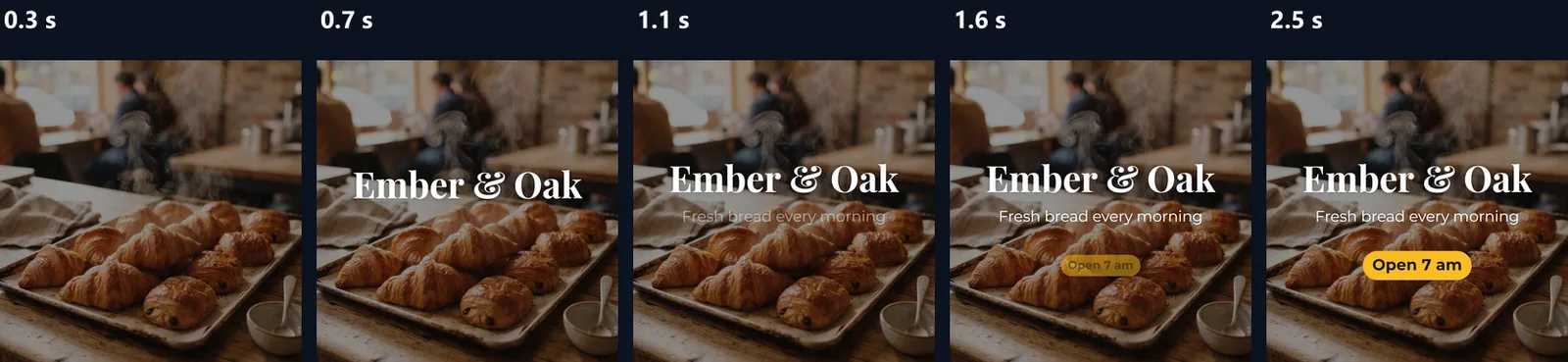
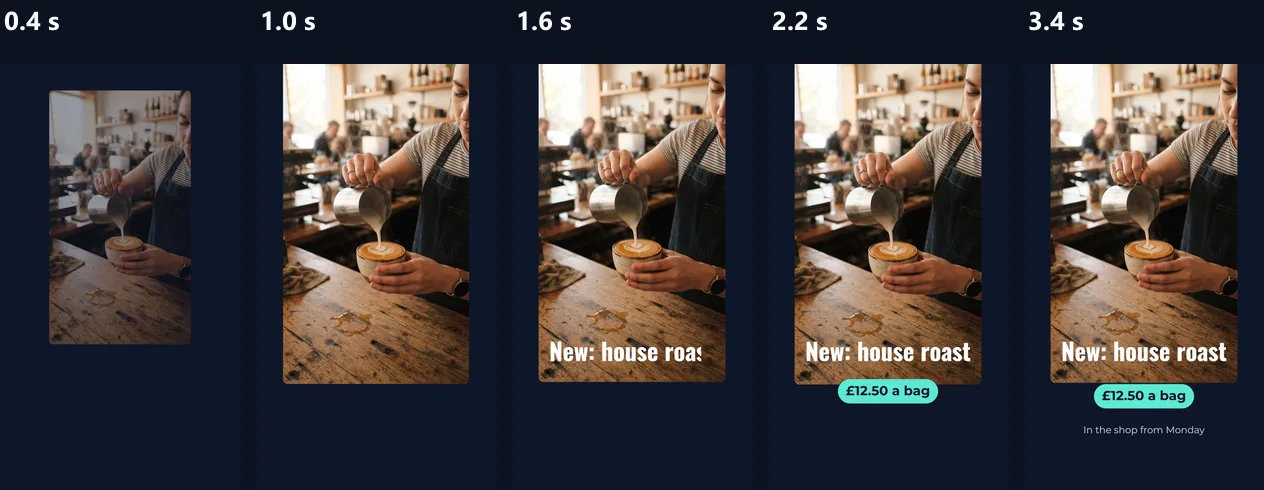
The café scene playing, a layer given a new entrance, the entrances staggered, the product launch story, and the MP4 made in the browser.
- The café sample plays: the name slides up, a line fades in and the badge pops in and pulses.
- The subtitle is given a Zoom in entrance instead of a fade.
- Stagger entrances spaces the three entrances 0.4 seconds apart.
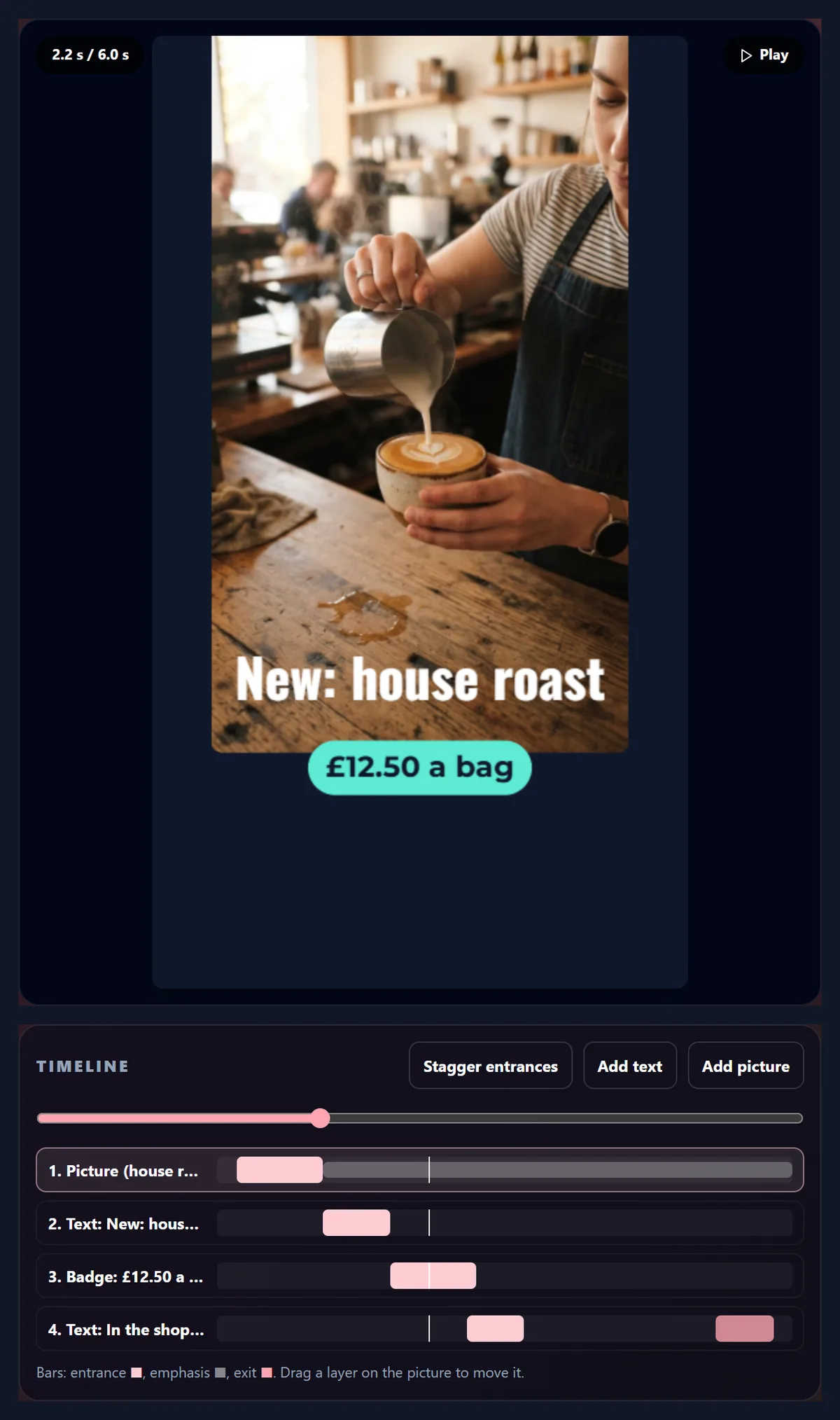
- The Product launch sample: a story-size scene with a floating picture and a bouncing price badge.
- Make the video draws every frame at 30 frames a second and saves an MP4 in the browser.
How do I animate a design?
Start from one of the three sample scenes or build your own: add texts, badges and pictures, drag each one into place on the picture, and give each layer an entrance, an emphasis and an exit. The timeline under the picture shows when each part moves, and the preview plays the whole scene on a loop while you work.
When it looks right, Make the video draws every frame of the scene and saves it as an H.264 MP4 at 30 frames a second. The café sample, three layers over a photo for five seconds, came out as 150 frames, 1.37 MB, made in 5.5 seconds on our test laptop.
What can I animate?
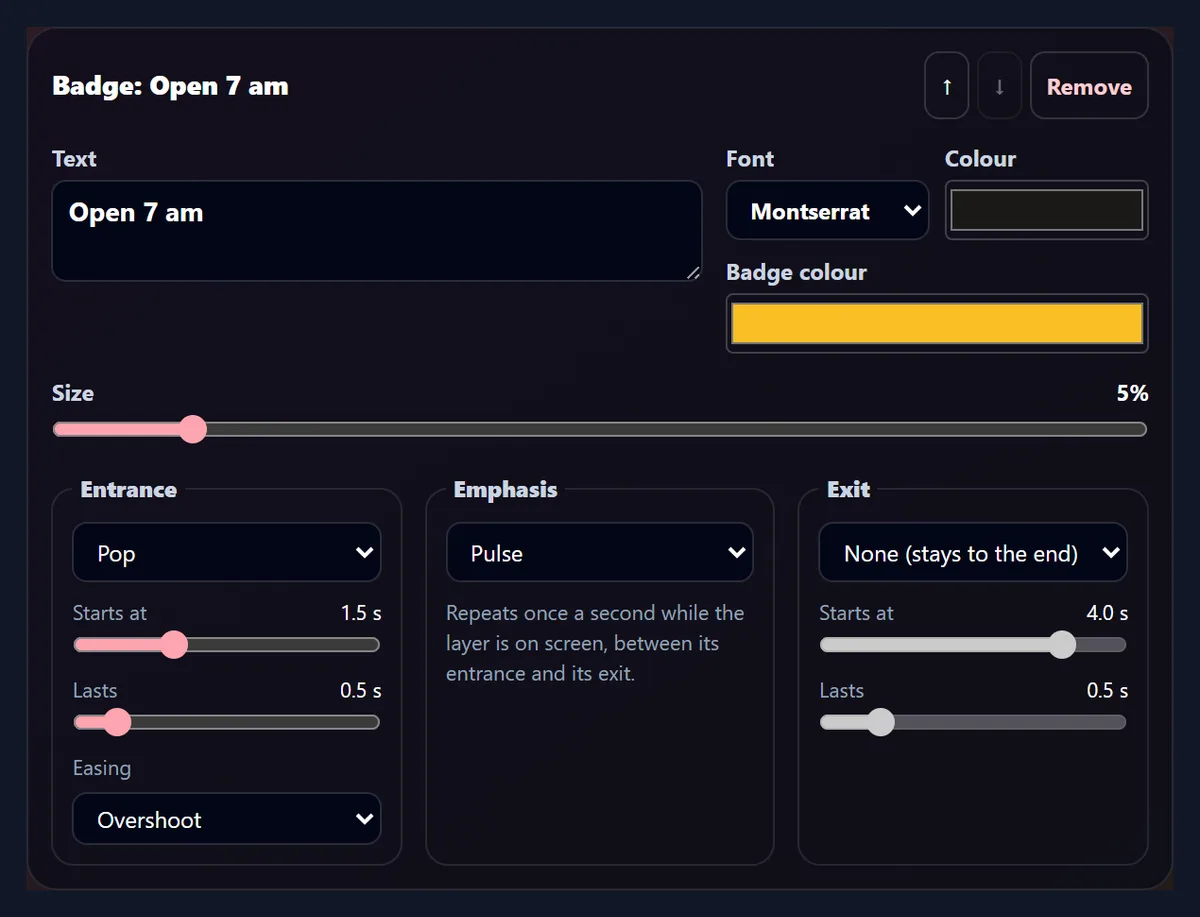
Three kinds of layer: a text, a badge (a text on a rounded colour pill) and a picture. A scene holds up to eight layers. Texts and badges take any of eleven self-hosted fonts, a colour and a size; a badge also takes its own colour. Pictures can be JPG, PNG or WebP files from your device; a PNG with transparency, such as a logo or a cut-out product, keeps its transparency over the scene.
The scene itself is a colour or a photo. Layers sit on top in the order of the timeline list: the last one in the list is drawn on top. Use the arrows on a layer's settings to move it up or down the list.
Which entrances are there?
Twelve. Fade in. Slide up, slide down, slide in from the left or from the right: the layer travels 8% of the scene's short side (86 pixels on a 1080-pixel square) and fades in over the first 40% of its entrance. Zoom in grows from 60% to full size; Pop grows from 20%, and with the Overshoot easing it passes full size and settles back. Rotate in turns a quarter turn into place while it grows from 70%. Bounce in drops from 12% of the short side above its place, and with the Bounce easing it lands with three bounces.
Flip in turns the layer edge-on into view. Wipe in reveals it from left to right. Typewriter, for texts and badges, shows the text a letter at a time at a steady rate, and the line stays where the whole text will sit, so nothing shuffles while it types.
What is an emphasis?
A small movement that repeats once a second while a layer is on screen, from the end of its entrance to the start of its exit: Pulse grows the layer by up to 4.5% and back, Float lifts it by 1.2% of the short side and lets it down, Shake gives three quick shakes in the first 0.4 seconds of every second, Wobble tips it 4 degrees either way, and Flash dims it to 35% and back.
An emphasis draws the eye to one thing, such as a price or an opening time. Use it on one layer, not all of them: in the samples only the badge pulses, the product picture floats and the sale badge wobbles.
How do layers leave?
Each layer can stay to the end or leave with a fade, a slide up or down, a zoom out to 60% or a wipe from the right. An exit has its own start and length on the timeline, so one layer can leave while the others stay; in the Product launch sample only the last line fades out, at 5.2 seconds.
Exits use the layer's easing, except Overshoot and Bounce, which would make a leaving layer jump back into view: those exits ease in instead.
How does the timeline work?
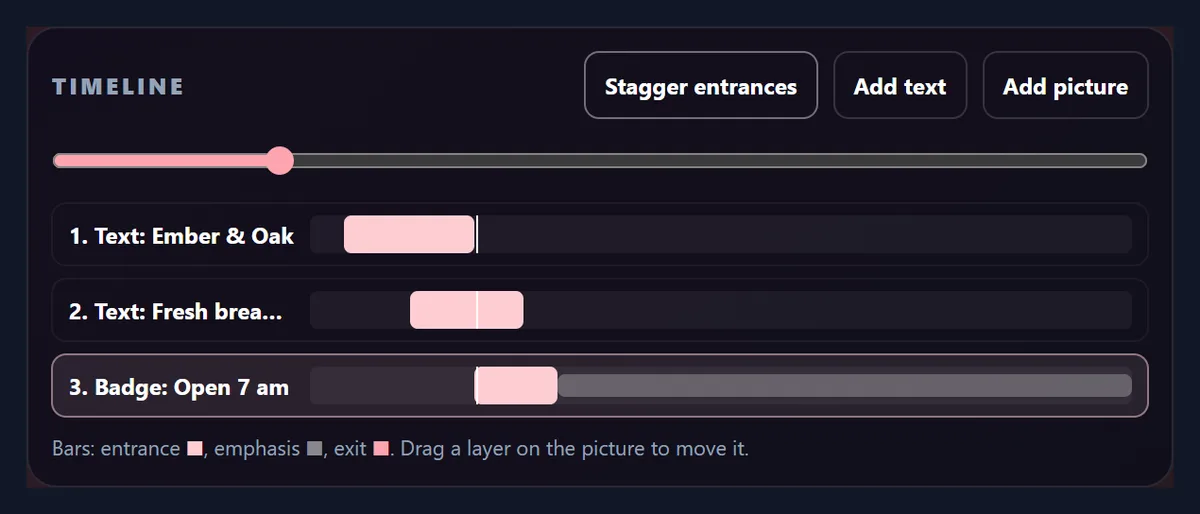
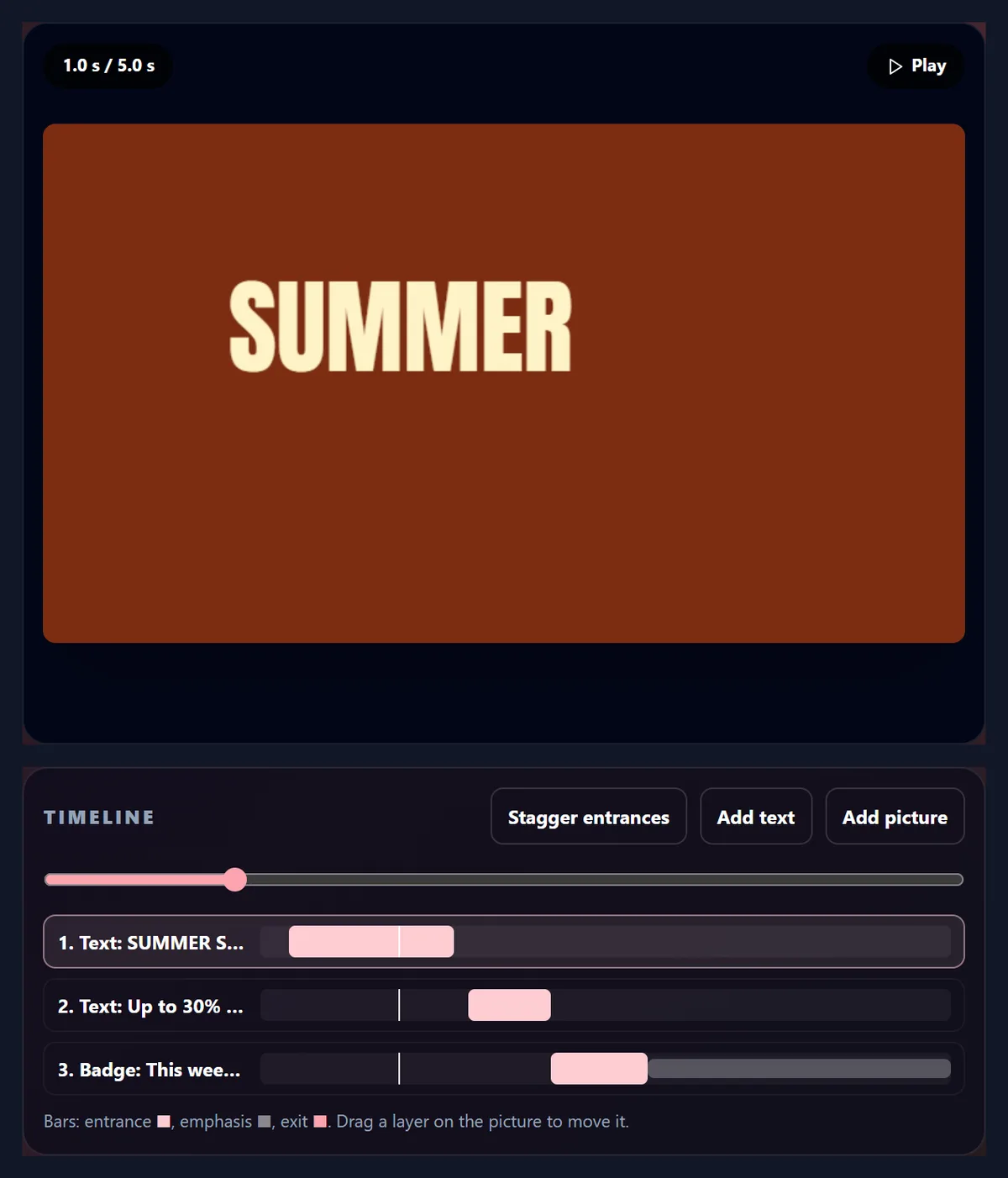
Each layer has a row with bars: its entrance in the page's colour, its emphasis in grey and its exit in red, placed by their start times and lengths on the scene's length. The white line is the playhead; drag the slider above the rows to stop the preview at any moment and look at a frame, then press Play to carry on.
Stagger entrances spaces the entrances out in the order of the list, the first at 0.2 seconds and each next one 0.4 seconds later, keeping each one's length. In the café sample that moves the three entrances to 0.2, 0.6 and 1.0 seconds, which is the quickest way to make a scene read in order.
What does the easing change?
How the movement is spread over its time. Ease out (the default) starts fast and settles gently, which suits most entrances. Ease in and out starts and ends slowly. Steady moves at one speed. Overshoot goes about 10% past the end and comes back, which makes a pop feel springy. Bounce lands with three bounces, like a dropped ball. Ease in starts slowly and speeds up.
A typewriter ignores the easing and types at a steady rate: letters appearing faster and faster are hard to read.
What does the video come out as?
An H.264 MP4 at 30 frames a second, the size of the scene: 1080 × 1080 for square, 1080 × 1920 for a story and 1920 × 1080 for wide. Every frame is drawn from the same timeline as the preview, one frame every 1/30 of a second, and encoded in your browser with WebCodecs, so the timing in the file is exact rather than recorded in real time.
How big the file is depends on how much of the picture changes. The café scene, with text moving over a still photo, came to 1.37 MB for five seconds; the Product launch story, whose large picture floats all the time, to 9.07 MB for six; the text-only Sale scene to 0.82 MB. Each took between 3.0 and 5.5 seconds to make on our test laptop.
| Scene | Size (px) | Length | File (KB) | Made in (s) |
|---|---|---|---|---|
| Café opening | 1080 × 1080 | 5 s, 150 frames | 1,402 | 5.5 |
| Product launch | 1080 × 1920 | 6 s, 180 frames | 9,286 | 4.0 |
| Sale | 1920 × 1080 | 5 s, 150 frames | 839 | 3.0 |
Which sizes and lengths can I make?
Square 1:1 (1080 × 1080) for feeds, Story 9:16 (1080 × 1920) for stories and reels, and Wide 16:9 (1920 × 1080) for YouTube, slides and screens. Switching the size keeps your layers where they are as shares of the width and height, so a scene laid out for square may need a nudge in a story.
A scene lasts from 2 to 15 seconds, in half-second steps. If an animation ends after the scene does, the tool says so and shows when the last one ends, so nothing is cut off without you knowing.
What are the three samples?
Café opening is a square scene over a photo: the name slides up, a line fades in and an opening-time badge pops in and pulses. Product launch is a story: a picture zooms in and floats, a name wipes in, a price badge bounces in and a line fades in and out again. Sale is a wide scene on a colour: SUMMER SALE types itself out, a line slides in from the left and a badge rotates in and wobbles.
The café and its prices are made up; the photos are the AI reel maker's sample pictures. Change any text, font or colour, or replace the pictures with your own, and the timing stays as it was.

Are my pictures uploaded?
No. Pictures you add are opened by your browser and drawn into the scene on your device; the MP4 is made there too. Nothing on this page is sent to HueFold, so it works for unreleased products and private events, and it keeps working on a slow connection once the page has loaded.
The fonts are HueFold's own copies of the eleven Google Fonts, loaded from this site the first time a layer uses one.
Can I animate a design in the HueFold editor too?
Yes. In the editor, a selected text, picture or video has an Animation panel with entrance, exit and emphasis presets, and a design page can be turned into a video with its own timeline. This page is the quick way to animate a few layers and get an MP4 without opening a design.
The two are separate: a scene made here is not saved to your account, and the editor's animations are set on the design's elements there. To keep a scene, download the MP4.
How do I make motion that people can read?
Keep entrances short, between 0.4 and 0.8 seconds, and stagger them so the eye has one thing to follow at a time. Leave the scene still for at least a second or two after the last entrance, so people can read it before it loops or ends. One emphasis is plenty.
Big movements and fast flashes can bother people who are sensitive to motion; a fade or a short slide is gentler than a spin. If a scene will play without sound in a feed, put the important words on screen early: many people scroll on within the first two seconds.
Something is not working?
If Make the video says your browser cannot make videos, use a recent Chrome, Edge, Safari 17 or Firefox 130 or newer: the MP4 is encoded with WebCodecs. Browsers without it record the preview in real time instead, which takes as long as the scene and can save a WebM.
If a font looks plain for a moment, it is still loading; the video waits for every layer's font before it starts. If a layer cannot be grabbed, it may be hidden at that moment of the timeline: move the playhead to a time when it is on screen.
Frequently asked questions
Is the Animator free?
Yes. It runs in your browser and needs no account; the MP4 has no watermark.
What format is the video?
An H.264 MP4 at 30 frames a second, at 1080 × 1080, 1080 × 1920 or 1920 × 1080 pixels. The café sample came to 1.37 MB for five seconds.
How many layers can a scene have?
Up to eight: texts, badges and pictures, in any mix.
How long can a scene be?
From 2 to 15 seconds, in half-second steps.
Can a layer have more than one animation?
Yes: an entrance, an emphasis that repeats while it is on screen, and an exit, each with its own timing.
Can I use my own pictures and logos?
Yes, JPG, PNG or WebP. A transparent PNG keeps its transparency. Pictures stay on your device.
Can I make a GIF?
This tool saves MP4. To turn the MP4 into a GIF, use the video to GIF converter on this site.
Why is one of my videos much bigger than another?
Because more of the picture changes. A large picture that moves all the time costs far more than text over a still photo: 9.07 MB against 1.37 MB in our samples.
Is my scene saved?
Not on HueFold. Download the MP4 to keep it; reloading the page starts again from the café sample.
Does it work on a phone?
Yes, in a phone browser with WebCodecs (recent Chrome and Safari). Dragging layers works with a finger.
Related tools
- Text Animations — One line of text animated letter by letter or word by word.
- Motion Path — Move a shape, emoji or picture along a path you draw.
- Photo Animation — Slow zooms and pans that bring a still photo to life.
- Video To GIF — Turn your MP4 into a GIF for chats and emails.
- Add Text To Video — Timed captions and titles over a video you already have.
- Brand Kit — Your logo’s colours and your fonts, ready for every design.