Huefold Live
See who is working on a HueFold design right now, what they are doing, and its comments and activity as they happen, without opening the editor.
Updated

How do you know who is working on a design?
When several people work on the same designs, the hardest thing to know is who is in which design right now. Huefold Live shows you. Choose a design, go live, and the page lists everyone in it, what they are doing, the comments, and the recent activity, updated every few seconds.
We tested it with two people in one design, one watching from this page and one joining from elsewhere: every step showed on the other side within 5.2 seconds. Below: what the page shows, how quickly, and what the person in the editor sees.
How to use Huefold Live
- Sign in Huefold Live works on your designs and designs shared with you.
- Choose a design Pick one from Your designs or Shared with you.
- Go live See who is in the design, what they are doing, the comments and the activity.
- Comment or open it Answer comments here, or open the design in the editor to work on it.
Watching a HueFold design live
A design chosen and joined live, a teammate joining and commenting, the comment answered from the page, and the teammate opening the design in the editor.
- A design is chosen and the page goes live in it.
- A teammate joins the design and appears in the list, then posts a comment.
- The comment is answered from the page.
- The teammate opens the design in the editor. The editor takes a while to load, so that wait plays at eight times speed, until they appear in the list again as an editor.
How do I see who is working on a design?
Sign in, choose one of your designs, or one someone has shared with you, and press Go live in this design. The page joins the design's live session, the same one the HueFold editor joins, and lists everyone in it right now: their name, their role, whether they are active, and what they are doing, such as typing in a text box or how many elements they have selected.
Under the people are the session's comments, which you can read, answer and resolve, and the design's recent activity: who joined, who commented, who started the session. Open it in the editor takes you into the design; Leave the live session, or closing the page, takes you out.
Which designs can I watch?
Your own designs, and the designs people have shared with you. The design menu lists them in two groups: Your designs, and Shared with you, where each shared design shows your role in it and who shared it.
You join with the role you have in the design. On a design shared with you as a viewer you can watch and read the comments; a commenter or an editor can also post comments.

What does the people list show?
Everyone in the design's live session: people in the editor and people watching from this page, each with their initials in a coloured circle, their name, their role, and a status such as active. For someone in the editor it also says what they are doing, such as typing in a text box or how many elements they have selected, and which page they are on.
You are on the list too, marked as you, on this page. The panel also shows how many people can edit and how many can view the design at once; those numbers come from the workspace's HueFold plan.
How quickly do changes show?
The page checks the session every four seconds, so a change shows within a few seconds. We measured it with two people in one design, one on this page and one elsewhere: every step, from joining to leaving, showed on the other side within 5.2 seconds.
Opening the design in the editor took 12.3 seconds to show on this page, because that includes loading the whole editor before it joins the session. While the page is open it also tells the session every twenty seconds that you are still there.
| What happened | Seconds until the other side saw it |
|---|---|
| A teammate joins the design | 5.2 |
| The teammate posts a comment | 2.9 |
| A reply from this page reaches the teammate | 2.1 |
| The teammate leaves | 4.1 |
| The teammate opens the design in the editor | 12.3 |
What is in the recent activity?
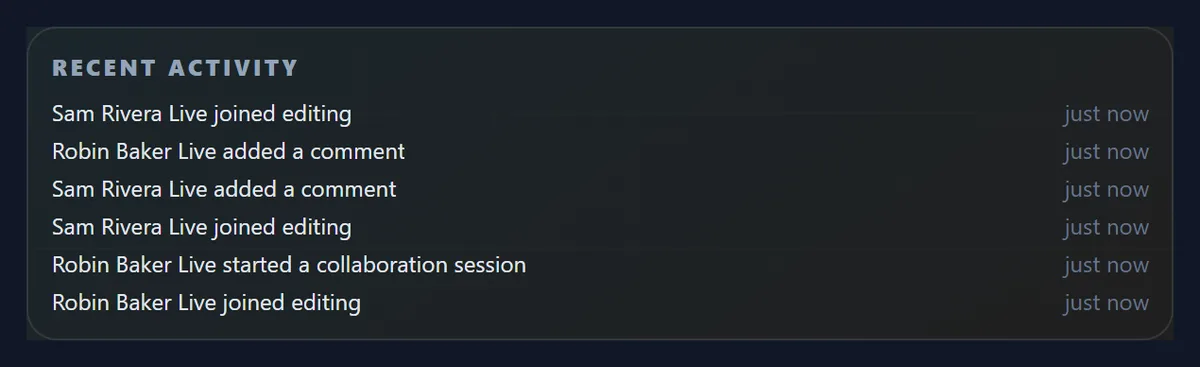
The design's activity as HueFold records it: who started the live session, who joined editing, who added a comment, newest first, with how long ago. It is the quickest way to see what happened in a design while you were away.
Activity shows what happened, not the changes themselves: to see what someone changed, open the design in the editor.
What does the person in the editor see?
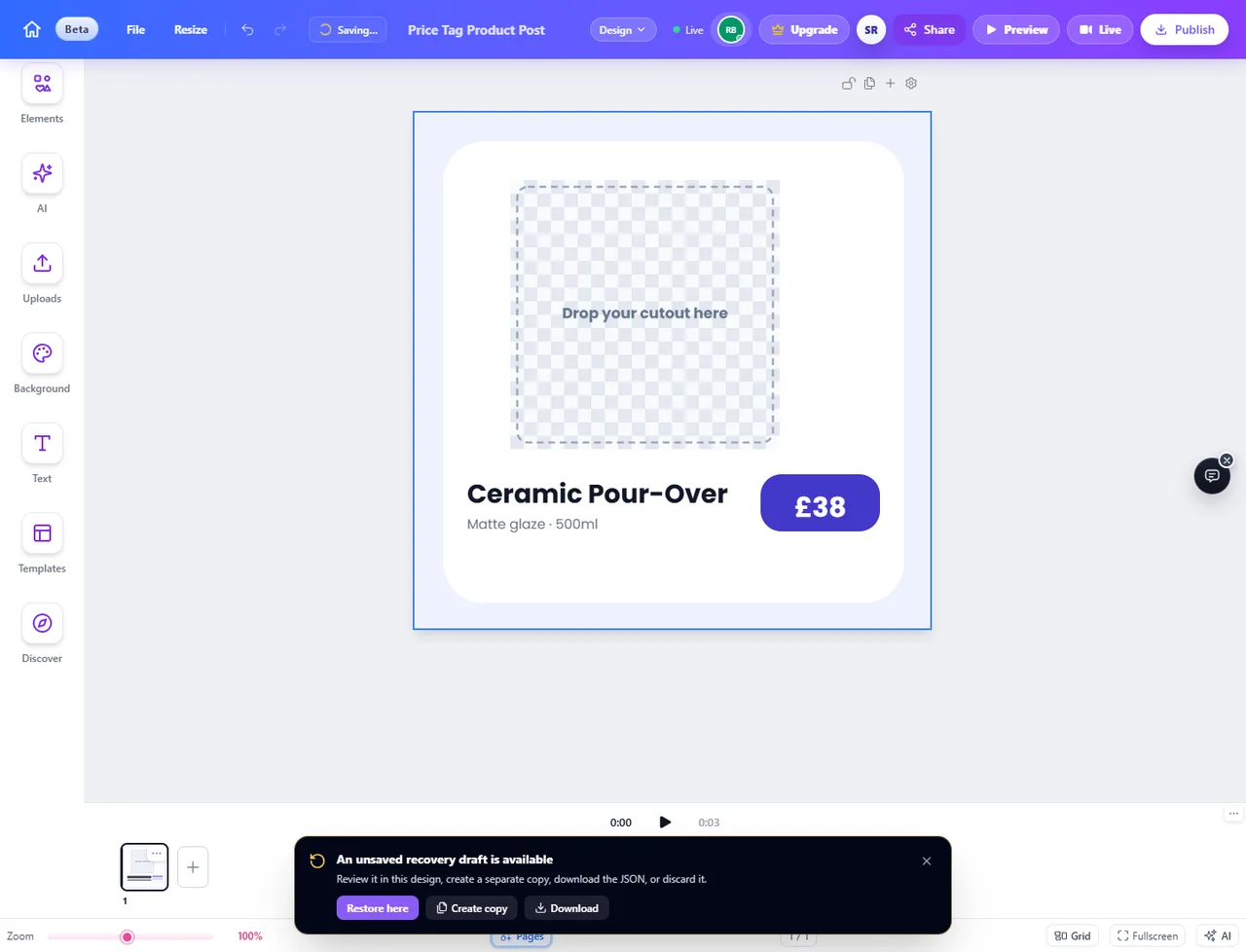
The editor joins the same session. At the top of the editor, next to Live, each other person in the design appears as an avatar: while you watch from this page, the person editing sees your initials there, so they know someone is looking.
When you press Open it in the editor, this page leaves the session first and then opens the design, so you do not count twice. In the editor you work on the design with the others at the same time.
Does watching take a place in the design?
Yes. While you watch from this page, you are one of the people in the design's live session, with your own role, and you count towards how many people can be in it at once. If the design is full, the page shows HueFold's message instead of joining.
That is why the page leaves the session when you leave, close the tab or open the editor: the place is freed for someone else. If a page is closed without leaving, the place is freed when the session stops hearing from it.
How do I get people into a design?
Share it with them. On the Invite your team page, the One design tab shares a design with people by email as viewers, commenters or editors; once they sign in with that address, the design is in their Shared with me list, and in the menu on this page.
To bring people into all your designs at once, invite them to your team workspace instead, on the same page.
When is Huefold Live useful?
When you want to know who is in a design before you change it, so two people do not redo each other's work. When a client is reviewing a design and you want to answer their comments as they come in. When you manage a team and want to see, without opening the editor, whether anyone is working on the launch post.
It also works as a light review room: everyone watches the same design from this page, comments, and resolves the comments as they are dealt with.
Who can see that I am watching?
Everyone in the design's live session: they see your name, your role and that you are watching from this page. Only people with access to the design can join its session, so nobody else can watch.
Joining is recorded in the design's activity, as joining from the editor is. Leaving takes you off the list, and the others see it at their next check.
What can each design role do here?
On this page, everyone can see who is in the design, the comments and the activity. Commenters and editors can also post comments and resolve them; viewers can read them. Editing happens only in the editor, where the design's editors work on it together.
Your role in each shared design is shown in the design menu, next to the design's name and the person who shared it, so you know what you can do before you go live.
Why is my design list empty?
The list shows your own designs and the designs shared with you. If you have neither yet, the menu says so: make a design in the editor first, or ask someone to share theirs with you from the Invite your team page.
A design shared with you appears once you are signed in with the address it was shared to. If it does not, check that you are signed in with that address, and that the share has not been withdrawn.
How do I get the most out of it?
Keep the page open in a tab while your team works, and check it before you make a big change. Resolve comments as you deal with them, so the open count tells you what is left.
Leave when you are done watching, so you do not hold a place in the design, and give reviewers the viewer or commenter role, so they can watch and comment without editing by accident.
Frequently asked questions
What is Huefold Live?
A page that shows who is in a HueFold design right now, what they are doing, and the design’s comments and activity, as they happen.
Do I need an account?
Yes. Huefold Live works on your own designs and those shared with you, so you sign in to choose one.
Can the others see me?
Yes. You are listed in the design’s live session as watching from this page, and the editor shows your avatar.
How fast do changes show?
Within a few seconds: the page checks every four seconds. In our test every step showed within 5.2 seconds.
Can I comment from this page?
Yes, if your role in the design allows comments. You can also resolve comments.
Can I edit the design here?
No. Press Open it in the editor to work on it; the page leaves the session first.
Does watching take a place in the design?
Yes. You count towards how many people can be in the design at once, until you leave.
How do I add people to a design?
Share it from the Invite your team page, as a viewer, commenter or editor.
Can I watch a design someone shared with me?
Yes. It is listed under Shared with you, with your role and who shared it.
What happens if I close the page?
The page tells the session you left. If it cannot, your place is freed once the session stops hearing from the page.
Do I need the editor open to go live?
No. The page joins the design’s live session on its own, so you can go live, read the comments and post one without anyone having the editor open.
What does Watching from the Huefold Live page mean?
That person is in the design from this page, watching, rather than editing it in the editor. It is how the others see you too.
Is Huefold Live free?
It needs a free HueFold account and a design of your own or one shared with you. How many people can be in a design at once depends on the workspace’s plan.
Related tools
- Invite Your Team — Share a design or invite your team to a workspace.
- Content Management — Sort your files into folders for the team.
- Content Planner — Plan the posts your team will make.
- Brand Kit — Give everyone the same colours and fonts.
- Animator — Animate a design into a video.
- Premium Content — Licence premium templates for your team’s work.
How do comments work here?
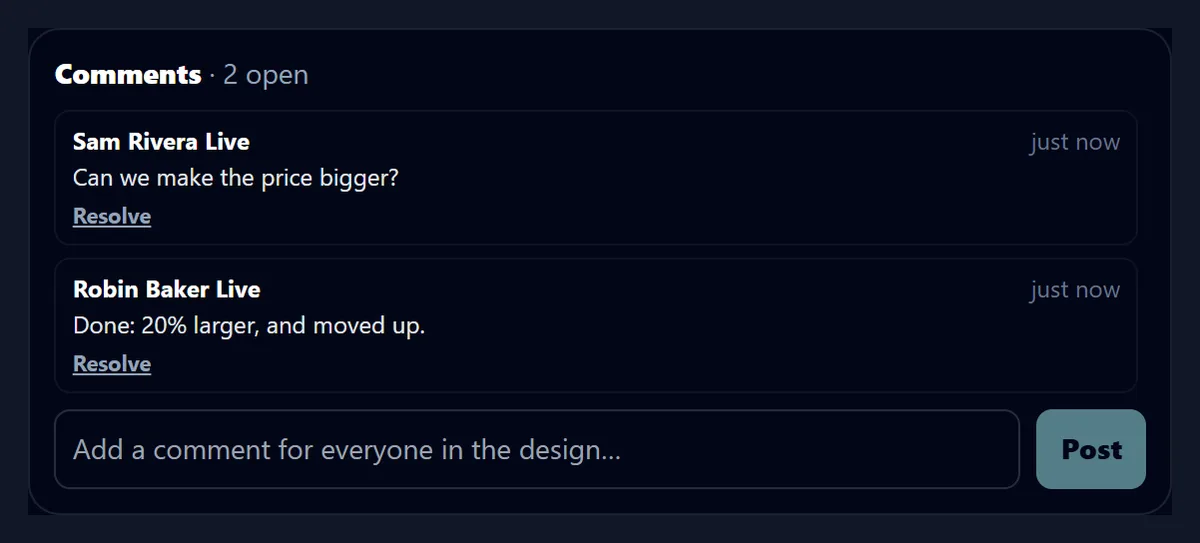
Type in the comment box and press Post: the comment goes to the design's live session, with your name, and appears for everyone watching. Each comment shows who wrote it and when; Resolve marks it done and greys it out, and the count of open comments goes down.
In our test the teammate asked Can we make the price bigger?, it showed on this page in 2.9 seconds, and the answer posted here, Done: 20% larger, and moved up., reached the teammate's side in 2.1 seconds. If your role in the design cannot comment, the box says so.