Invite Your Team
Paste your team’s email addresses, give each person a role, and invite them to your HueFold workspace, or to a single design, with one press.
Updated

How do you bring your team into HueFold?
Designing with a team works best when everyone is in the same place: the same workspace, the same designs, the same brand. This tool invites people there. Paste their addresses, give each person a role, and HueFold emails each of them a link to join, with the role you chose.
We used it to invite three people to a café's team workspace and one to a single design, and followed an invitation from the email to the moment the person joined. Below: every step, what each role can do, and what happens when the workspace's seats are full.
How to invite your team
- Paste the addresses Any list will do: lines, commas or spaces. Repeats and non-addresses are caught.
- Choose roles Admin, Member or Viewer for each person, or Viewer, Commenter or Editor for one design.
- Choose the workspace Pick your team workspace, or make one if you only have a personal one.
- Send Each person gets an email and joins with their role once they sign in.
Inviting a team to a HueFold workspace
A list of addresses pasted and cleaned, roles chosen, invitations sent to a team workspace, an invitation accepted from its link, and a single design shared with an editor.
- A list of addresses is pasted: repeats and a non-address are caught.
- Each person is given a role, and the role table shows what each can do.
- The invitations are sent to the team workspace.
- The invited person opens the link, signs in and joins as a viewer.
- A single design is shared with another person as an editor.
How do I invite my team to HueFold?
Paste the email addresses of the people you want, in any form: one per line, or separated by commas or spaces, straight from an email or a spreadsheet. The tool picks out the addresses, lists anything that is not one, and lists a repeated address only once. Give each person a role, choose your team workspace, and press Send.
Each person gets an email from HueFold with a link to join. They sign in, or make a free account, with the address you invited, and join your workspace with the role you chose. Their names then appear in the workspace's member list, on this page and in your dashboard.
What can I paste?
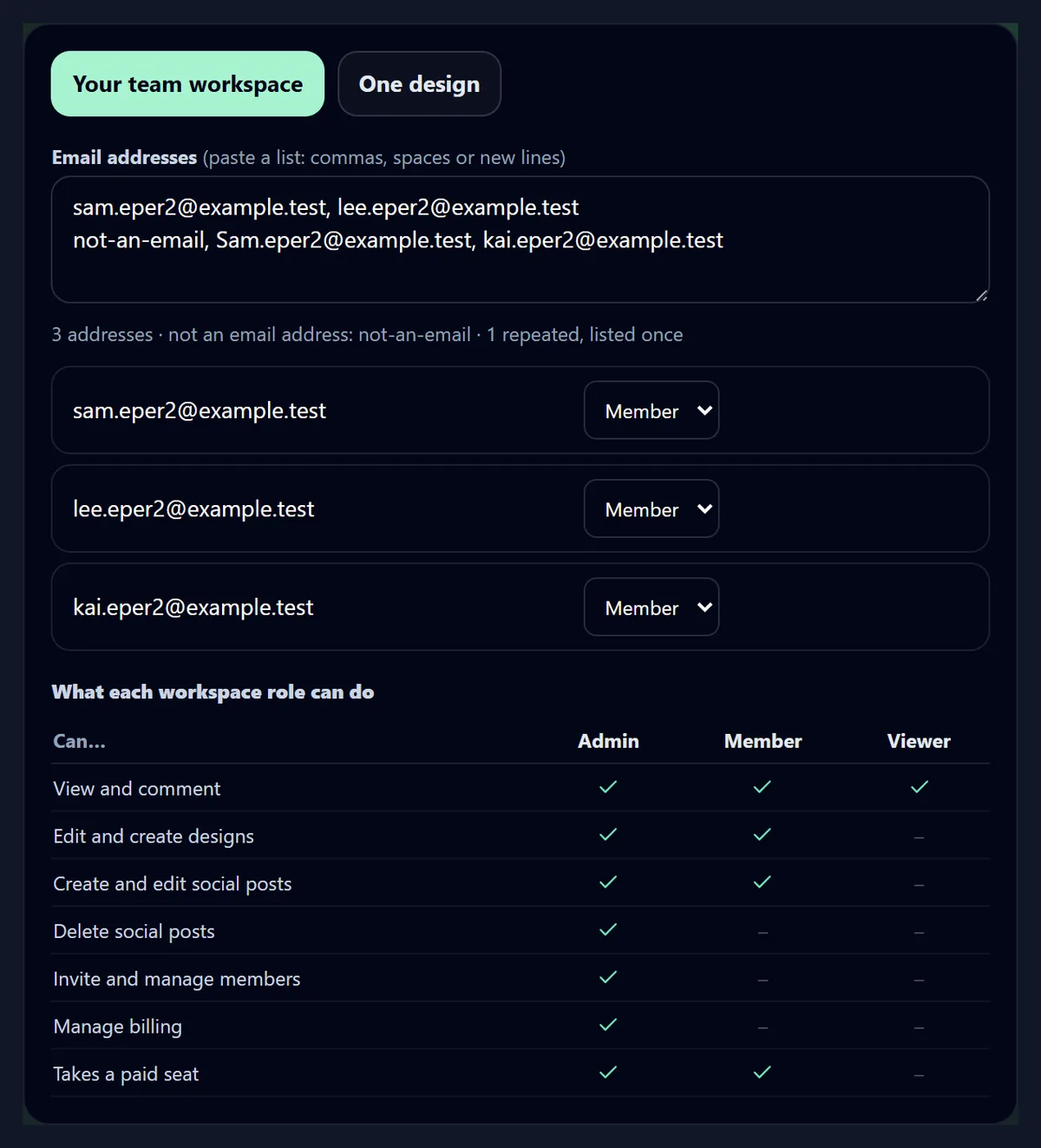
Anything with addresses in it. We pasted two lines with four addresses, one of them twice in different capitals, and a word that is not an address. The tool read it as: 3 addresses · not an email address: not-an-email · 1 repeated, listed once. Addresses are compared without regard to capitals, so Sam@ and sam@ are one person.
Up to 50 people can be invited at once. Each gets their own role menu, so you can paste the whole team and set the roles one by one, or leave everyone on the default.
What can each role do?
A HueFold team workspace has four roles, and HueFold sets what each can do. Its thirteen core workspace permissions cover the designs, the members, billing and the workspace's social posts. The Owner, who made the workspace, has all thirteen. An Admin has eleven: everything except the workspace's API access and custom domains, so admins can invite and manage members and manage billing. A Member has seven: view, comment, create and edit designs, and create and edit the workspace's social posts. A Viewer has three: view, comment, and see the social posts.
HueFold's social publishing tools add permissions of their own on top of these, for connected accounts, schedules, approvals and analytics; the Owner has every one of them, and the other roles get the ones HueFold gives that role. On this page you invite Admins, Members and Viewers; there is one Owner. The table on the tool spells the roles out, row by row, so whoever you invite gets the role you mean.
| Role | Core permissions out of 13 | Takes a paid seat |
|---|---|---|
| Owner | 13 | Yes |
| Admin | 11 | Yes |
| Member | 7 | Yes |
| Viewer | 3 | No |
Which roles take a seat?
Owners, Admins and Members each take a seat in the workspace; Viewers do not. How many seats a workspace has depends on its HueFold plan. When the seats are full, HueFold refuses an Admin or Member invitation with its own message, Seats full - Upgrade to add more members, and the tool shows that message next to the person.
That is what happened on our test account: the workspace had no free seat, so the Admin and the Member invitations were refused, and the Viewer's went through, because a Viewer takes no seat. Viewers are a good way to bring in clients and reviewers who only need to see and comment.
Which workspace are people invited to?
A team workspace: one you made, or one you manage as an Admin. Every HueFold account starts with a personal workspace, which is just for you and has no members, so if that is all you have, the tool offers to make a team workspace first: type its name and it is made for you, with you as its Owner.
Whether you can make another workspace depends on your plan; if you cannot, the tool shows HueFold's message. The workspace menu lists all of yours with their type and member count, and choosing one lists its members and the invitations still waiting.
What does the invitation say?
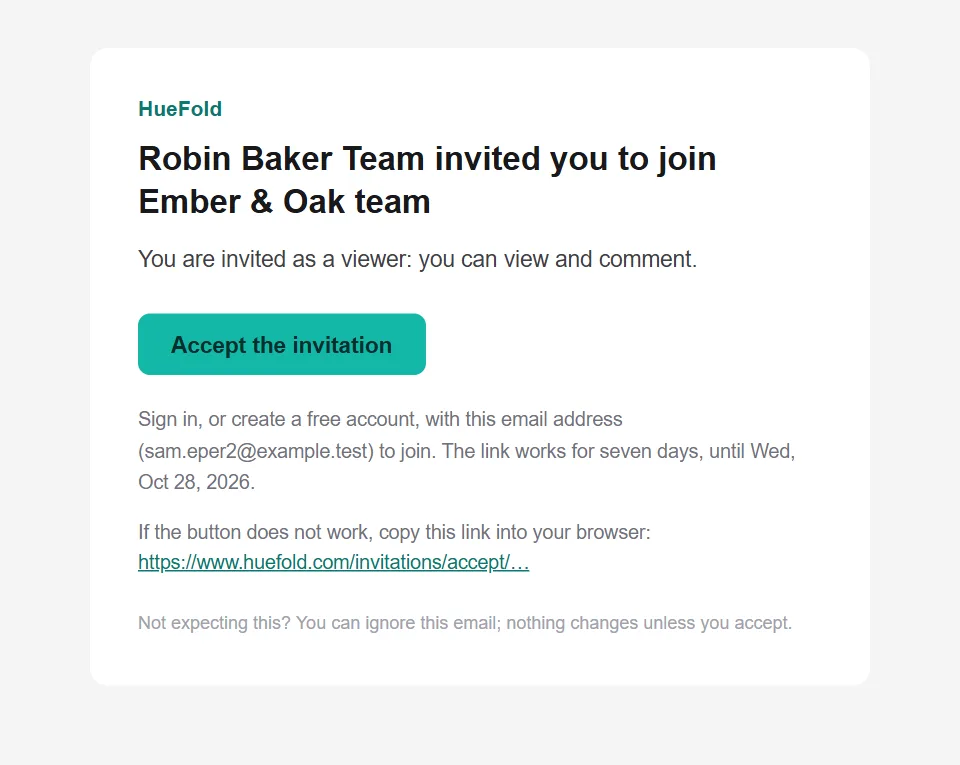
The email names who invited the person and to which workspace, says the role and what it can do, and has an Accept the invitation button. It names the address it was sent to, says the link works for seven days and gives the date, and tells anyone not expecting it that nothing changes unless they accept.
The link carries a 64-character secret, unique to that invitation. HueFold never shows it to other members: the member list shows only who was invited, with which role, and until when.
What happens when they click the link?
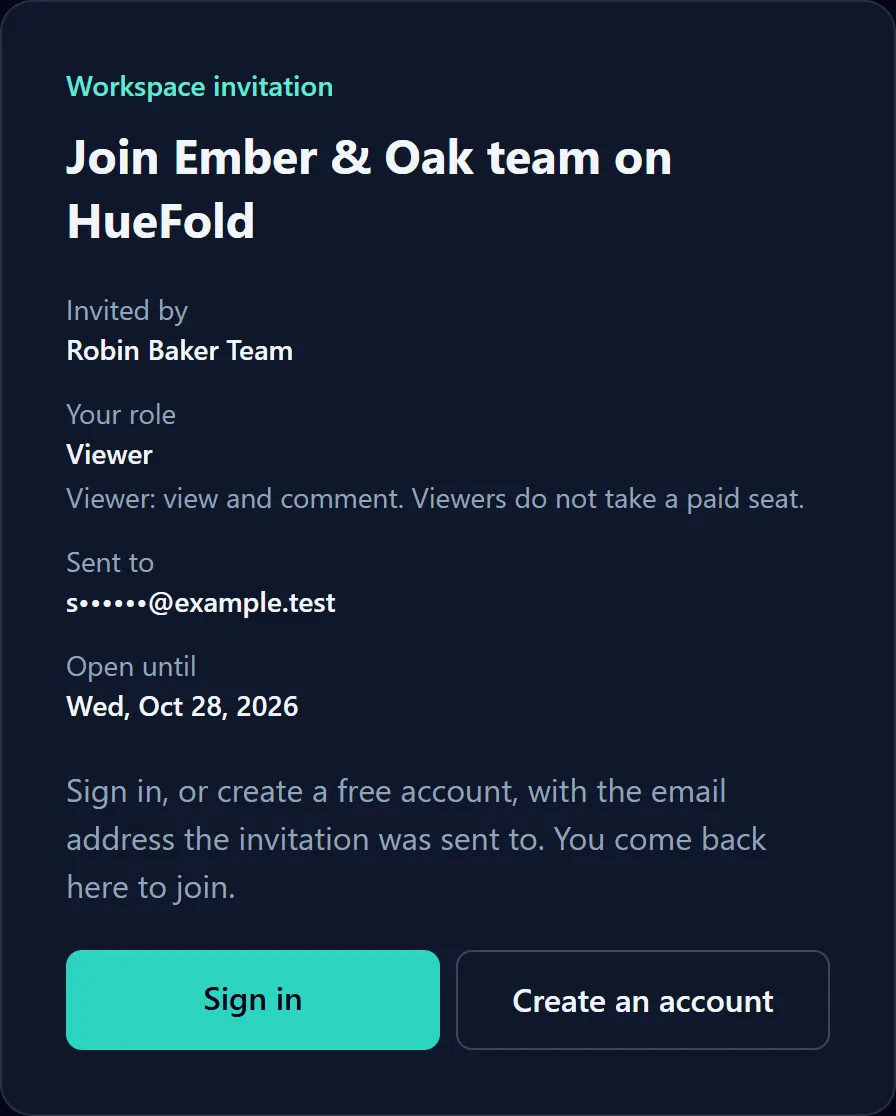
They see an invitation page with the workspace, who invited them, their role and what it allows, the address the invitation was sent to (partly hidden) and the date it runs out. If they are not signed in, it asks them to sign in or make a free account with that address, and brings them back.
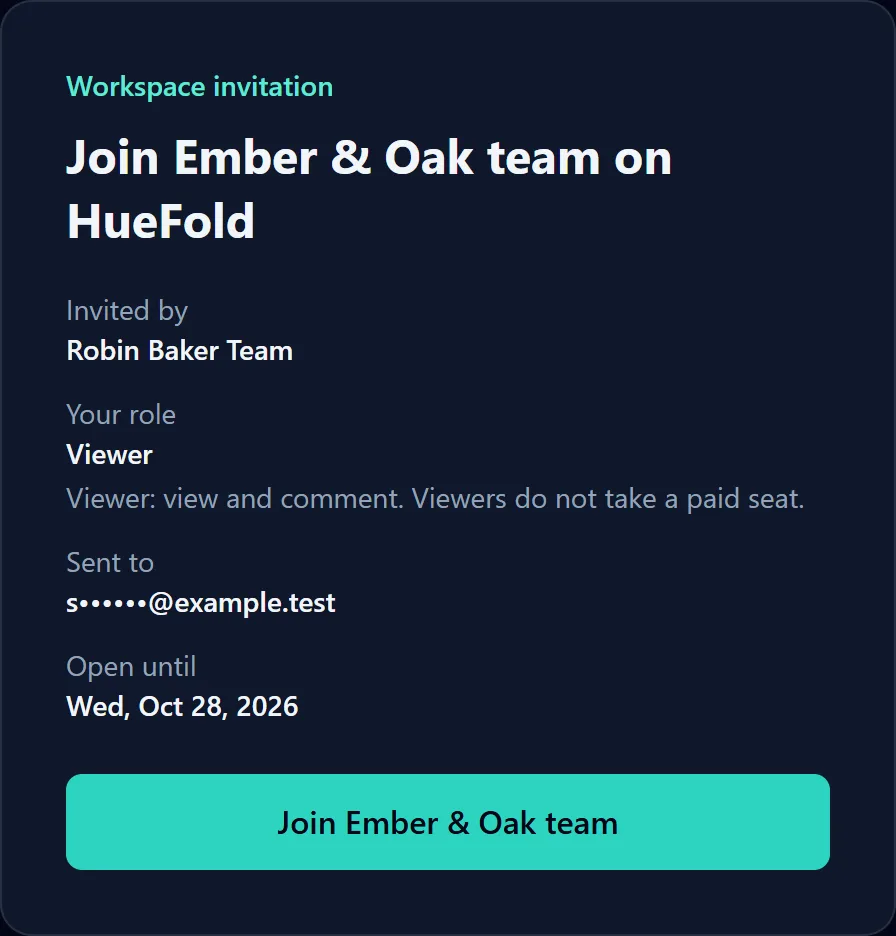
Signed in with the right address, they press Join and are in, with their role, and taken to the workspace. Signed in with a different account, the page says so and asks them to switch; the invitation only works for the address it was sent to. A link that has run out, or was already used, says that too.
How do I know they joined?
The workspace's member list on this page shows each member with their role, and each invitation still waiting with its role and the date it runs out. When someone joins, they move from waiting to members. On our test, Sam joined as a Viewer, and the workspace listed its Owner and Sam.
Later, the Owner or an Admin can give a member another role, or remove them from the workspace; each change is recorded in the workspace's activity log.
Can I invite someone to just one design?
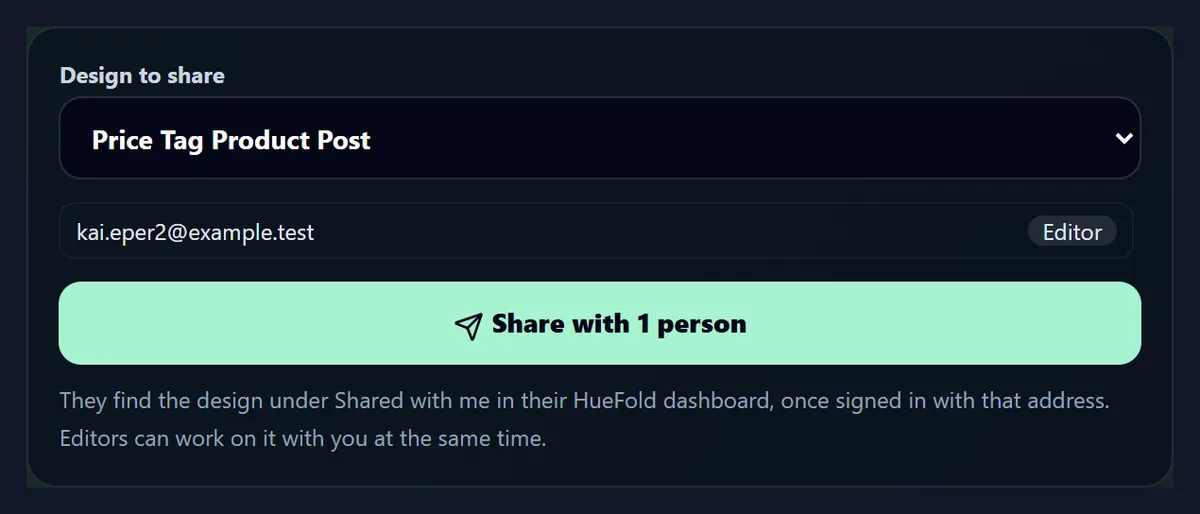
Yes: the One design tab. Choose one of your designs, paste the addresses, and give each person a design role: Viewer opens the design, Commenter can also comment, Editor can also edit it, live with you. The tool makes an invite-only share link for the design and invites each person to it.
They find the design under Shared with me in their HueFold dashboard once signed in with that address. Someone outside your workspace joins as a guest of that one design, not as a member of the workspace; if your workspace's sharing rules ask for guests to be approved, the guest waits for that approval before they can open it.
Workspace or one design: which should I use?
Invite people to the workspace when they work with you all the time: they see the workspace's designs and, as Members, make new ones there. Share one design when someone helps with one piece of work, such as a client approving a flyer or a freelancer editing a single video.
A design share does not take a workspace seat, and gives the person that design only; workspace members see the workspace's designs and stay until they leave or are removed.
Is inviting people safe?
Nothing is sent until you press Send or Share; the addresses are checked on this page first. Each invitation works only for the address it was sent to, only once, and only for seven days, and accepting it needs that person to sign in.
Every invitation is listed in the workspace's activity log, so the Owner and Admins can see who invited whom. Invite people as Viewers first if you are unsure, and change the role later.
What about invitations that are not accepted?
They stay in the workspace's list as waiting to join, each with the role it gives and the date it runs out, so you can see at a glance who has not joined yet. After seven days the link stops working; to try again, invite the same address again.
An invitation is only used once: when someone joins with it, it is marked accepted, and the link no longer works for anyone. If the person was already a member, accepting simply confirms it.
How do I set up a team well?
Give each person the smallest role they need: Viewers for reviewers and clients, Members for the people who make the designs, and an Admin or two to manage the team with you. Admins can invite people and manage billing, so keep that role for people you trust with both.
Name the workspace after the team or the client, so the invitation email makes sense to whoever gets it, and use one workspace per client if you are an agency.
Frequently asked questions
How do I invite people to my HueFold team?
Paste their email addresses, choose a role for each and your team workspace, and press Send. Each gets an email with a link to join.
What roles can I give?
Admin, Member or Viewer in a workspace; Viewer, Commenter or Editor for a single design.
Do viewers take a paid seat?
No. Owners, Admins and Members take seats; Viewers do not.
What does Seats full mean?
The workspace has no free seat for an Admin or Member. Upgrade the plan, or invite the person as a Viewer.
How long does an invitation last?
Seven days. After that the link stops working, and you can invite the person again.
Does the person need a HueFold account?
Yes, a free one is enough. They can make it from the invitation, with the address you invited.
Can someone else use the invitation link?
No. It works only when signed in with the address it was sent to.
Can I invite someone to one design only?
Yes, on the One design tab. They find it under Shared with me.
How many people can I invite at once?
Up to 50 addresses in one paste.
Can I change someone’s role later?
Yes. The Owner or an Admin can change a member’s role or remove them.
Is inviting people free?
Sending invitations is free. How many Admins and Members a workspace can have depends on its plan; Viewers take no seat.
What if someone signs in with a different email?
The invitation page says it was sent to another address and asks them to switch accounts; it only works for the address it was sent to.
Related tools
- Huefold Live — See who is working on a design right now.
- Content Management — Sort your files into folders before the team uses them.
- Brand Kit — Give the whole team the same colours and fonts.
- Content Planner — Plan the month’s posts with your team.
- Premium Content — Licence premium templates for client work.
- Animator — Animate a design and export it as a video.