Change Photo Background
Upload a photo, let AI cut out the subject, then give it a new background: a colour, a gradient, the original blurred, your own image or an AI scene.
Updated

How do you change the background of a photo?
Cut the subject out of the photo, then put something else behind it. On this page that is two clicks: upload the photo and click Remove the background, and HueFold's AI separates the subject — a person, a product, a pet — from everything around it. Then pick the new background and download the photo.
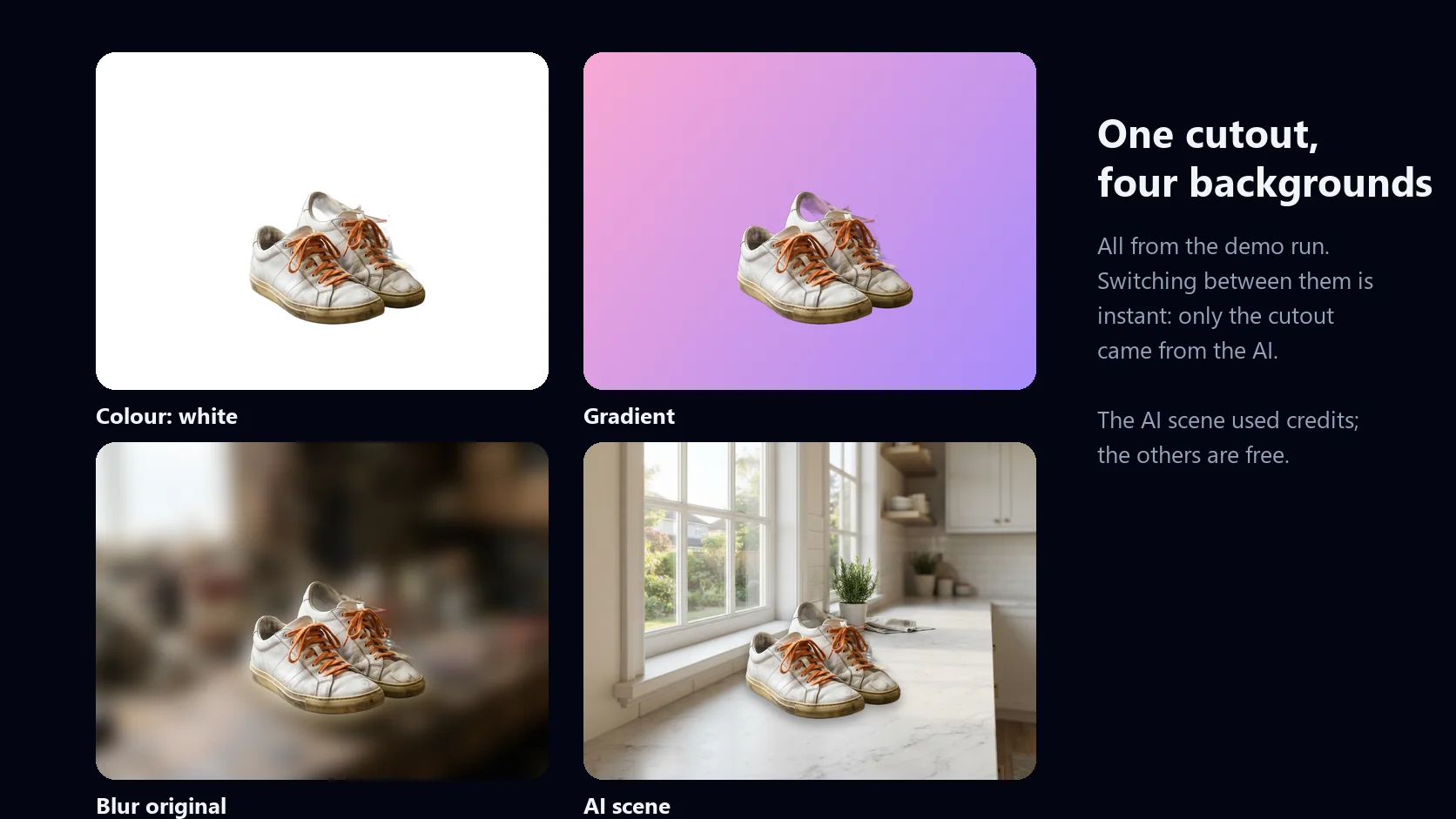
There are six kinds of background: transparent, a plain colour, a gradient, your own background blurred like a portrait-mode photo, any image you choose, or a scene the AI paints from a sentence you write. Switching between them is instant, because only the cutout comes from the AI; the rest is put together in your browser.
The cutout is free with a HueFold account and uses no AI credits. Only AI scenes use credits. If the AI misses something — a strap, a strand of hair — or keeps a scrap of the old background, a brush lets you restore or erase it before you download.
How to change a photo background
- Upload a photo Drop a JPG, PNG or WebP photo of up to 20 MB on the tool, or try the sample photo. Phone photos open the right way up.
- Remove the background Click Remove the background and sign in once if asked. The AI cuts out the subject, usually within half a minute. No credits are used.
- Pick a new background Choose transparent, a colour, a gradient, your original blurred, your own image, or describe an AI scene.
- Fix and place the subject Erase leftovers or restore missed parts with the brush, drag the subject, set its size and add a soft shadow.
- Download Save a PNG — transparent if you chose that — or a JPG, at the photo's own size.
Change a photo background with AI, start to finish
A real run of the tool on this page: open a photo, cut out the subject with AI, erase what was left of the old background, try a transparent, gradient and blurred background, generate an AI scene, and download the photo.
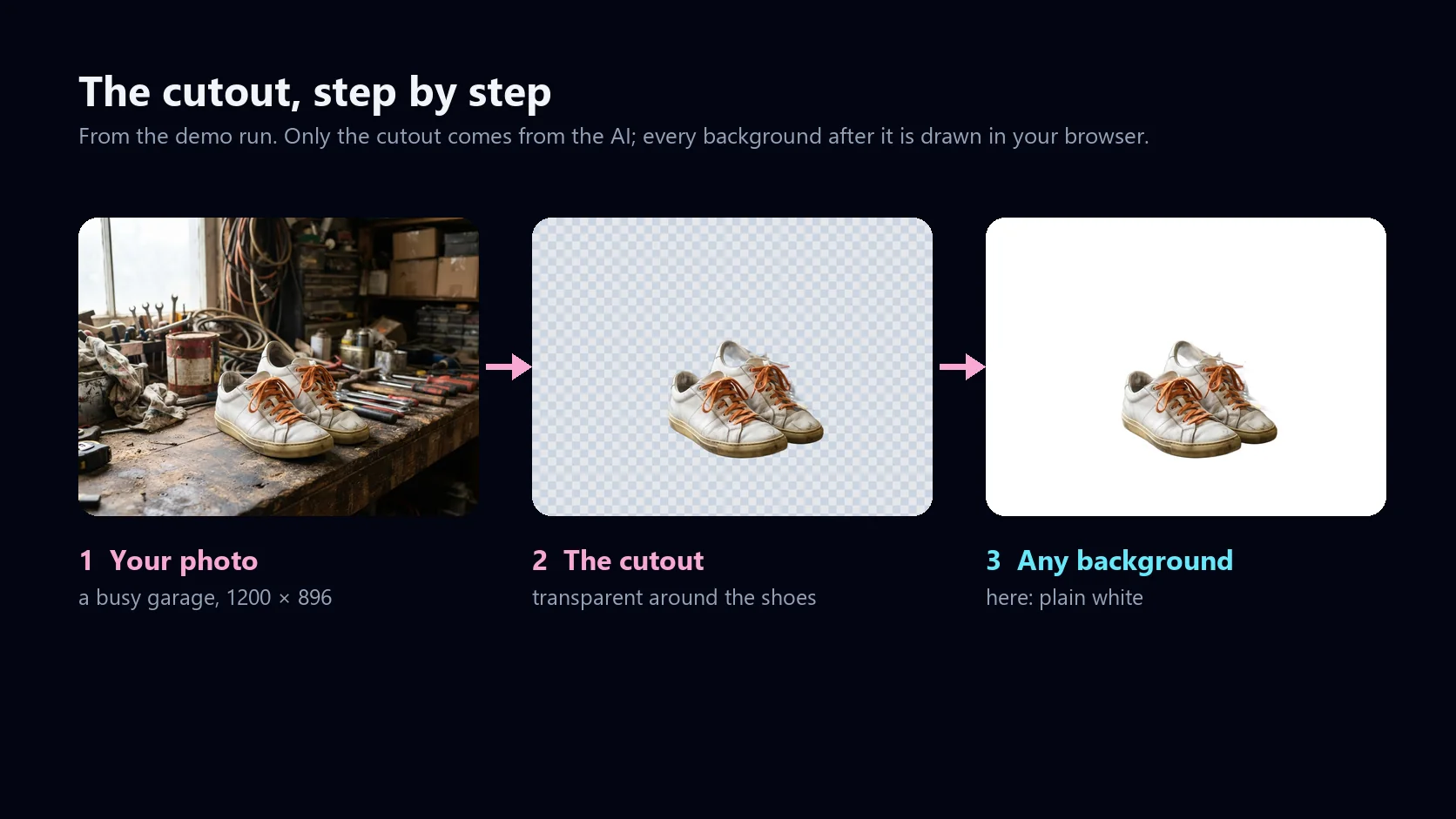
- Drop a photo onto the tool. This sample is 1200 × 896: white sneakers on a cluttered garage workbench.
- Click Remove the background. HueFold's AI cuts out the shoes.
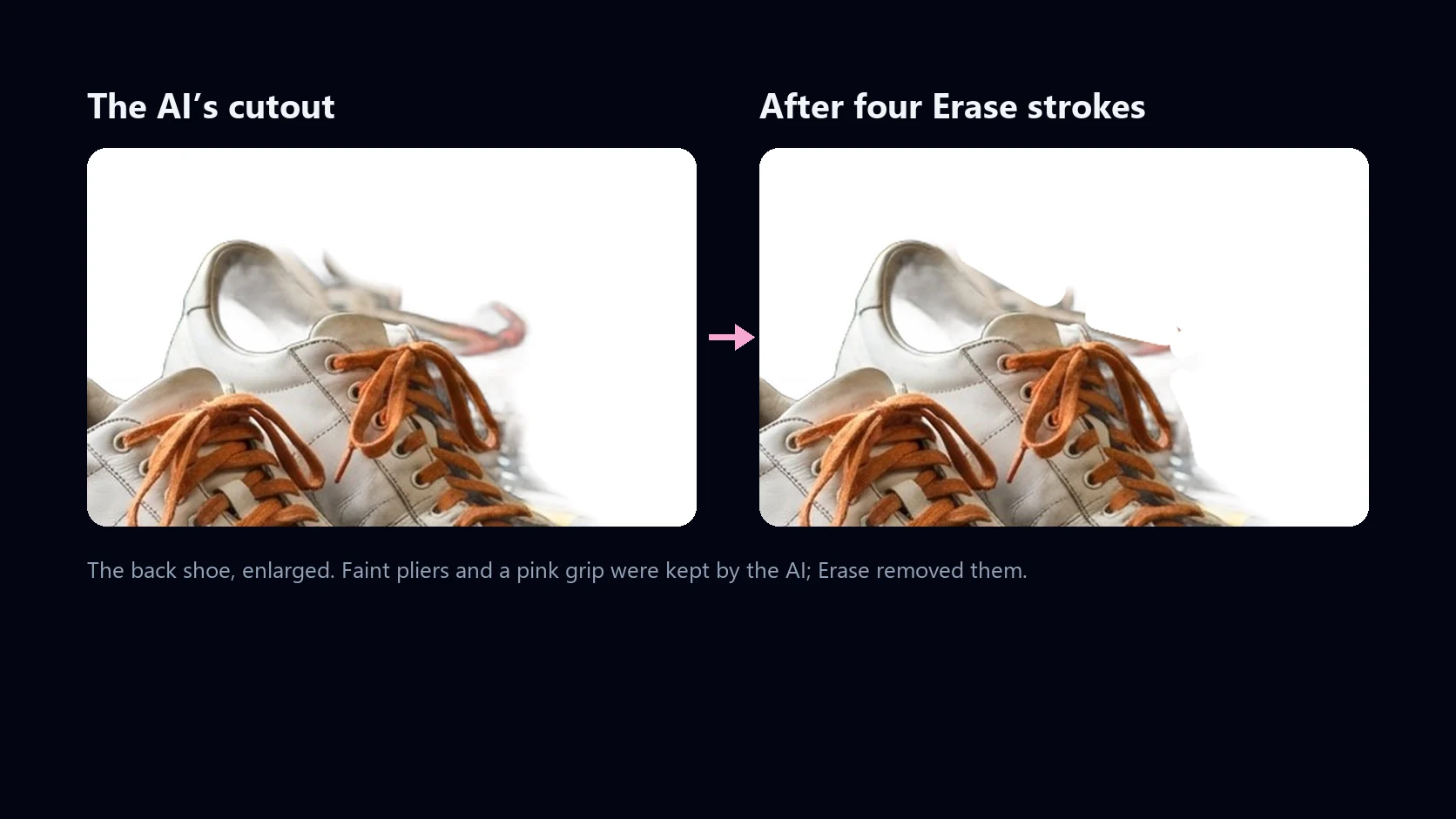
- Click Fix the cutout, choose Erase and paint over the faint pliers the AI kept behind the back shoe.
- Try Transparent, a gradient, and Blur original, which keeps the garage but softens it.
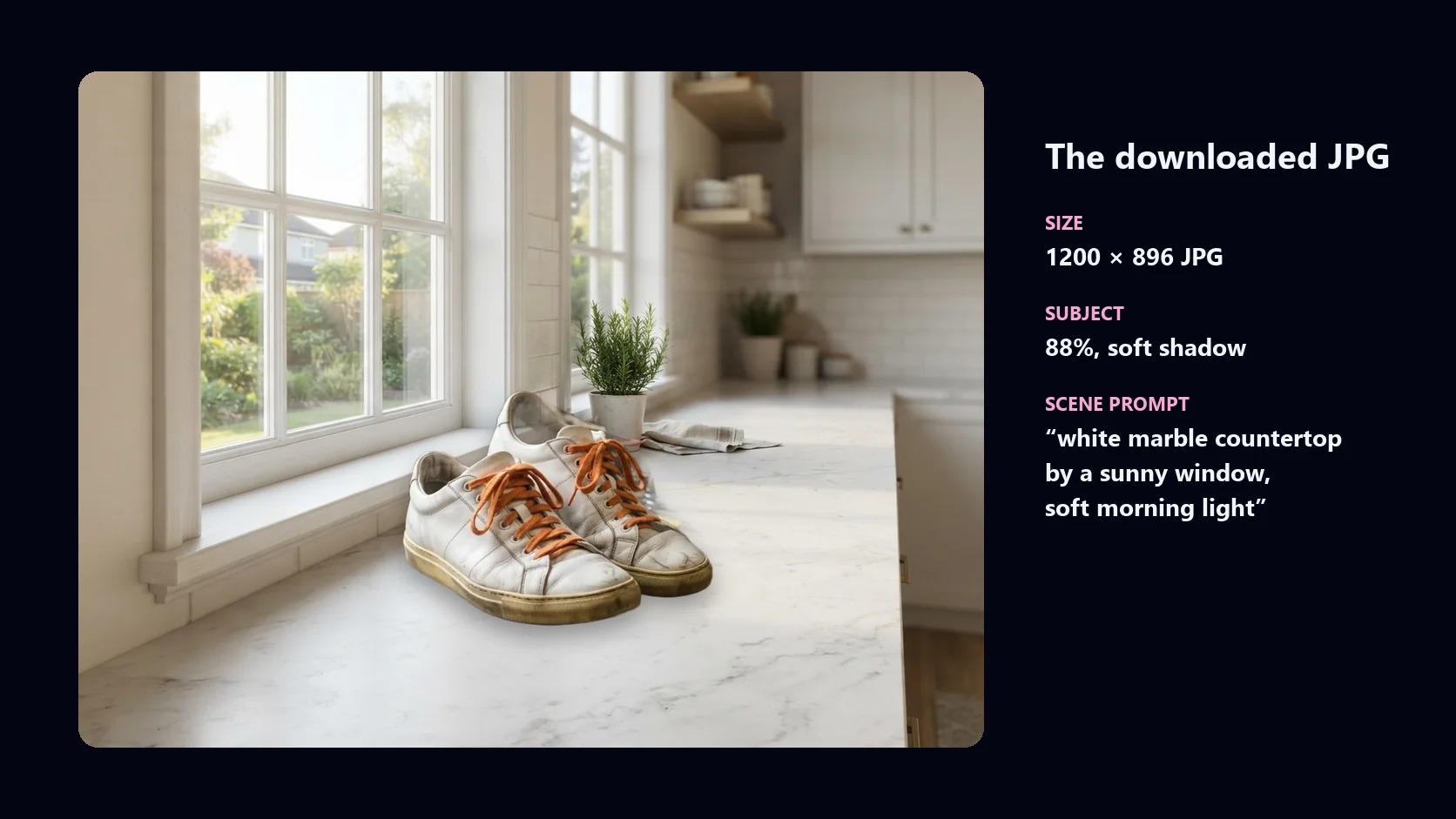
- Open AI scene, type: white marble countertop by a sunny window, soft morning light, and click Generate scene.
- Set the subject size to 88%, turn on Soft shadow, and drag the shoes down a little.
- Click Download JPG. The photo is saved from the browser at its own size, 1200 × 896.
How the background is changed
Changing a background is two jobs. The hard one is the cutout: deciding, pixel by pixel, what belongs to the subject and what is background, including the soft edges where they meet. The easy one is the new background, which is just a picture drawn behind the cutout.
On this page the cutout is done by HueFold's own AI service with two segmentation models working together: one draws crisp edges, the other confirms what is really subject, so faint copies of busy background objects next to the subject are dropped. A copy of your photo, at most 2048 pixels on its long edge, is sent for the cutout; the answer is a transparency mask, which the tool lays over your full-size photo so the subject keeps every one of its own pixels.
Everything after that happens in your browser: the brush, the backgrounds, the shadow and the download. Your photo is not saved to your HueFold account.
Six kinds of background
Every background works with the same cutout, so you can try them all in seconds and download whichever looks best. Transparent is the cutout on its own, for logos, stickers and putting the subject into another design. Colour and gradient give clean, even backdrops that suit product listings and profile photos. Blur original keeps your own background but softens it, which keeps the setting while making the subject stand out.
Your image puts any photo you choose behind the subject, fitted to cover the frame; it never leaves your device. An AI scene is painted from your description by an image model, sized to the photo's shape.
| Background | Options | Uses AI credits |
|---|---|---|
| Transparent | PNG keeps the transparency | No |
| Colour | 10 colours, or any colour you pick | No |
| Gradient | 6 two-colour gradients | No |
| Blur original | Strength 1 to 30 | No |
| Your image | Any JPG, PNG or WebP, fitted to cover | No |
| AI scene | Describe it in up to 300 characters | Yes |
Fixing the cutout with Erase and Restore
No cutout model is right every time. Busy backgrounds are the hardest case: an object right behind the subject, or touching it, can be kept as a faint shape. Thin parts of the subject — straps, laces, hair — can be dropped.
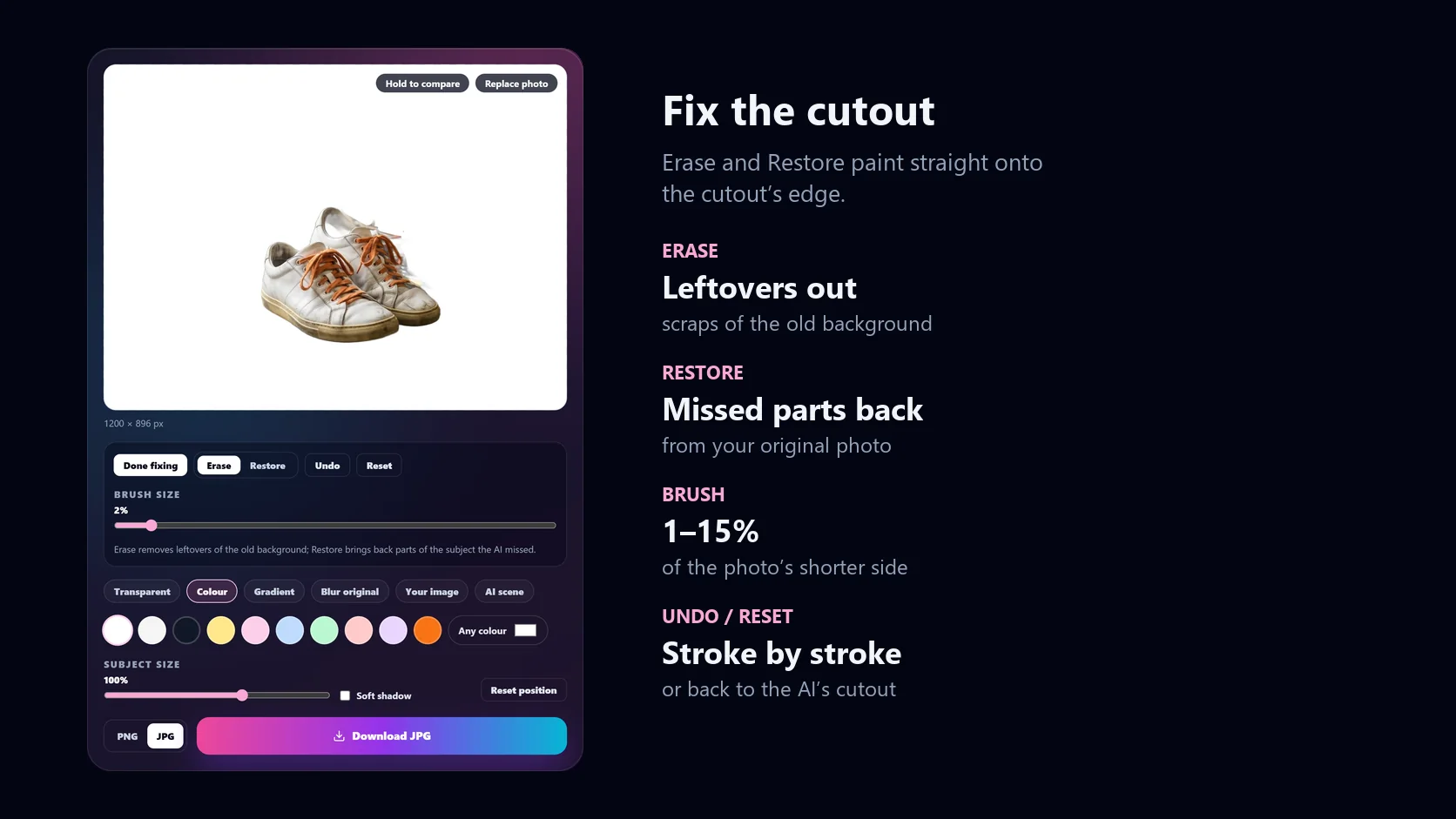
Click Fix the cutout and paint over the problem. Erase removes what should not be there; Restore brings back what the AI missed, from your original photo. The brush runs from 1% to 15% of the photo's shorter side, Undo steps back one stroke at a time, and Reset returns to the AI's cutout. In the demo, four short strokes removed a pair of pliers and its handle that the AI had kept behind the back shoe.
AI scenes: describe the background
An AI scene is a new background painted from a sentence. Describe the place, not the subject: "white marble countertop by a sunny window" works better than "put my shoes on a counter". The scene is generated empty, sized to the nearest shape the image model supports, and fitted behind your cutout. Every scene you make is kept as a thumbnail, so you can switch between them.
A scene is a separate photo, so its light may not match your subject's exactly. Making the subject a little smaller and adding the soft shadow usually settles it into the scene. Each scene uses AI credits from your account; the tool says how many when it finishes, and a scene that comes back without an image is not charged.
- Studio and paper backdrops: plain, soft and even, good for product shots.
- Surfaces: marble, wood, concrete, linen — for things that sit on something.
- Places: a beach at sunset, a café table, a city street at night.
- Say the light you want: soft morning light, warm evening light, overcast.
Moving, sizing and shadow
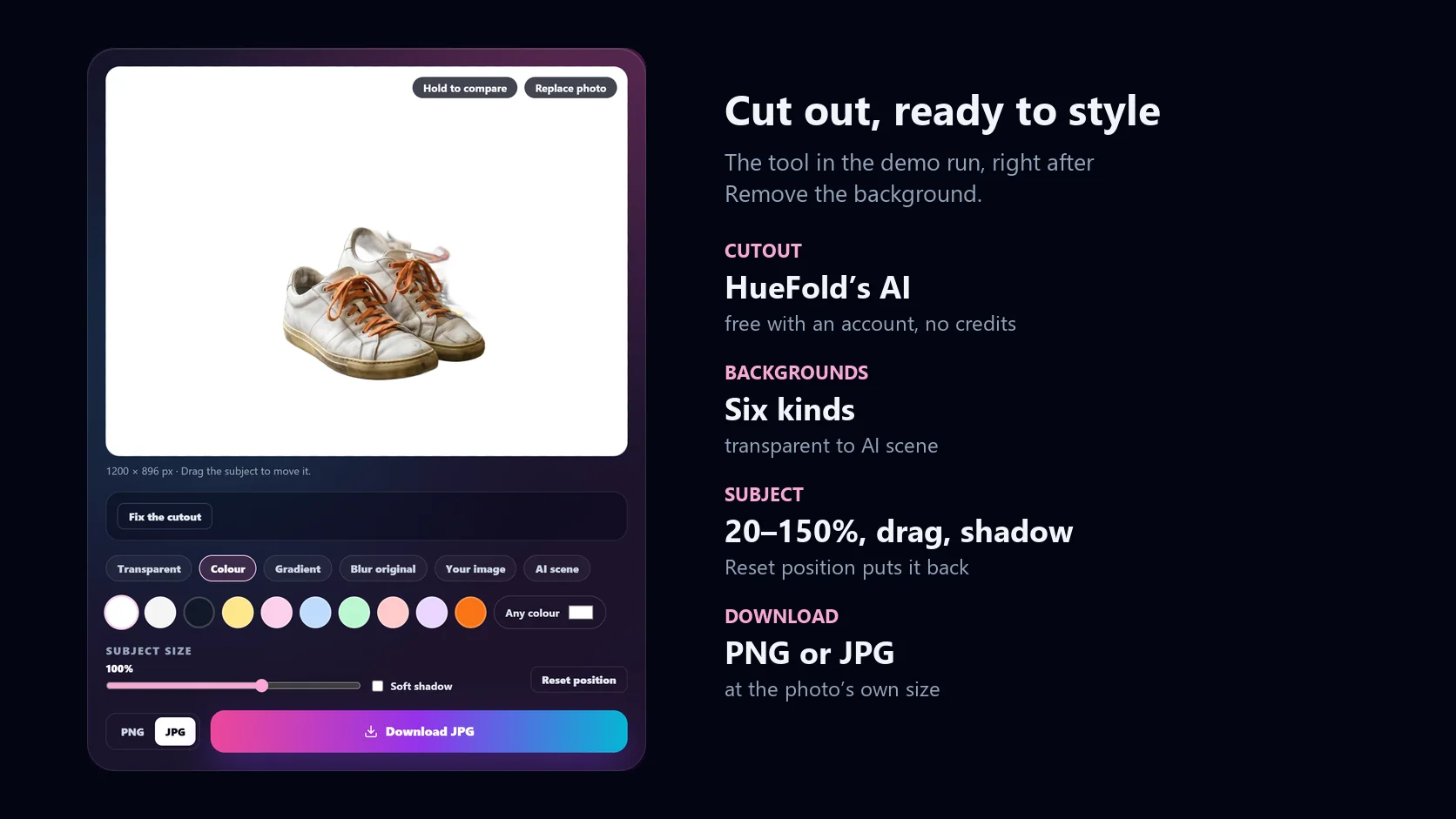
The subject starts exactly where it was in your photo. Drag it to move it, and set its size from 20% to 150%; it grows or shrinks around the middle of the photo. Reset position puts it back. Soft shadow adds a gentle drop shadow under the subject, which helps it sit on a surface rather than float in front of it. Hold to compare shows your original photo for as long as you hold the button.
Download as PNG or JPG, at full size
The photo is downloaded at its own size, up to 4096 pixels on the long edge; larger photos are scaled to that when they open. PNG keeps transparency, so choose it with the Transparent background. JPG is smaller and right for every other background; it is saved at quality 92, and a transparent background becomes white.
| What | Limit |
|---|---|
| Photo you upload | JPG, PNG or WebP, up to 20 MB |
| Editing size | Your photo's own size, up to 4096 px on the long edge |
| Cutout | HueFold's AI, free with an account, no credits |
| Fix brush | Erase or Restore, 1–15% of the shorter side, Undo and Reset |
| Subject size | 20–150%, drag to move, optional soft shadow |
| AI scene prompt | Up to 300 characters; uses AI credits |
| Photo you download | PNG, or JPG at quality 92 |
Ideas for new backgrounds
A few places where a new background does the job.
- Product listings: the product on white or light grey, for marketplaces that ask for it.
- Profile photos: you on a plain colour or a soft gradient instead of a messy room.
- Social posts: the same product on three AI scenes, one per post.
- Portrait look: blur your own background instead of replacing it.
- Stickers and design assets: the cutout on transparency, saved as PNG.
- Seasonal campaigns: one cutout, a new scene for each season.
Troubleshooting
The problems people run into most, and what fixes them.
- A scrap of the old background is still there: click Fix the cutout, choose Erase and paint over it.
- Part of the subject is missing: choose Restore and paint it back in from the original photo.
- The edges look hard or soft: the AI follows the photo's focus; a sharper photo gives a sharper edge.
- The subject floats over an AI scene: make it a little smaller and turn on Soft shadow.
- The transparent background came out white: JPG cannot store transparency. Switch to PNG.
- The photo will not open: the tool takes JPG, PNG and WebP up to 20 MB. If your phone saves HEIC, share the photo as JPG.
When you need more than a background
This page does one job: a new background for one photo. For text, layouts, brand colours, several pictures in one design or social post sizes, open HueFold Studio, the full editor.
The background changer is in Studio too. Select any image in a design, open Edit and choose Change Background: the same cutout, Erase and Restore, backgrounds and AI scenes as on this page, applied to the image in place, with Restore original to undo it. A transparent result keeps its transparency in the design.
Frequently asked questions
How do I change the background of a photo?
Upload the photo, click Remove the background, then pick a new background — a colour, a gradient, your original blurred, your own image or an AI scene — and download the result.
Is changing a photo background free?
The cutout, the colour, gradient, blur and image backgrounds, and the download are free with a HueFold account and use no AI credits. AI-generated scenes use credits.
Do I need an account?
Yes, for the cutout: it runs on HueFold's AI service. A free account is enough, and you sign in without leaving the page.
Is my photo stored?
No. A copy is sent to HueFold's AI service for the cutout and is not saved to your account; everything else happens in your browser. AI scenes you generate are stored in your account like other HueFold AI images.
Can I make the background transparent?
Yes. Choose Transparent and download a PNG. JPG cannot store transparency, so a transparent background saved as JPG becomes white.
Can I use my own background picture?
Yes. Choose Your image and pick any JPG, PNG or WebP. It is fitted to cover the frame and stays on your device.
What if the AI cuts out too much or too little?
Click Fix the cutout. Erase removes leftovers of the old background and Restore brings back parts of the subject from the original photo. Undo and Reset are there if you overdo it.
Can I blur the background instead of replacing it?
Yes. Choose Blur original and set the strength from 1 to 30. Your own background stays, softened, so the subject stands out.
How do AI scenes work?
Describe the background you want and click Generate scene. An image model paints it to fit your photo's shape, and the tool places it behind the cutout. Each scene uses AI credits; scenes that come back without an image are not charged.
Will the photo lose quality?
No. It is saved at its own size, up to 4096 px on the long edge, and the subject keeps the original photo's pixels. PNG is lossless; JPG is saved at quality 92.
What image formats can I upload?
JPG, PNG and WebP photos up to 20 MB.
Can I change a background inside a design?
Yes. In HueFold Studio, select an image, open Edit and choose Change Background. It works like this page and replaces the image in your design; Restore original undoes it.
Related tools
- Background Remover — Cut the subject out of a photo.
- Blur Background — Soften what is behind your subject.
- AI Generative Fill — Remove or replace one part of a photo.
- White Background — Put a product on clean white.