Background Remover
Upload a photo and HueFold’s own AI cuts out the subject. Fix any edge with a brush, then download a transparent PNG at full size, or put something new behind it.
Updated

How do you remove the background from an image?
To remove the background from an image, the subject has to be told apart from everything behind it, and every pixel given a transparency: fully kept, fully gone, or in between at soft edges like hair and fur. On this page an AI matting model does that for you. Upload a photo — a person, a product, a pet — and in a few seconds the background is replaced by transparency, shown as a checkerboard.
The AI decides only how transparent each pixel is. The colours are your photo's own, at its own size, so the subject is not redrawn or softened. Where the AI gets it wrong, an Erase brush removes leftovers and a Restore brush brings back anything it cut, and a clean-up of edge colours stops the old background tinting soft edges.
Removing the background is free with a HueFold account and uses no AI credits. Download a transparent PNG, crop it to the subject, or put a colour, gradient, blur or your own picture behind it.
How to remove the background from an image
- Upload a photo Drop a JPG, PNG or WebP photo of up to 20 MB on the tool, or try the portrait, product or pet sample. Phone photos open the right way up.
- Remove the background Signed in, it starts by itself; otherwise sign in from the button. The AI cuts out the subject, usually in 5 to 20 seconds.
- Fix the edges Click Fix the cutout. Erase leftovers of the old background, Restore anything the AI cut, and hold Compare to check against the photo.
- Choose a background Keep it transparent, or pick a colour, gradient, your own photo blurred, or another picture.
- Download Save a PNG with transparency at full size, cropped to the subject if you like, or continue editing in HueFold Studio.
Remove the background from a product photo
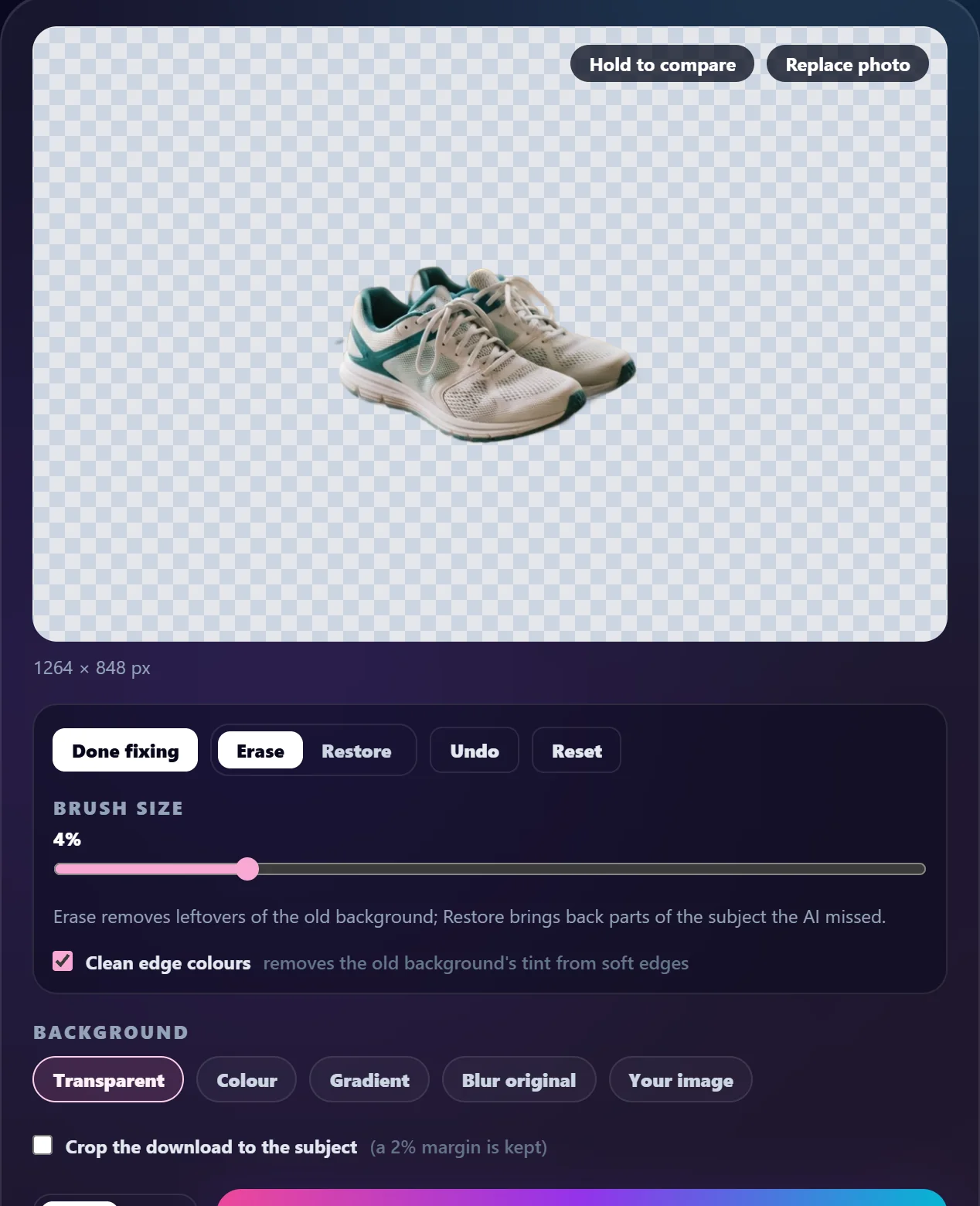
A real run of the tool on this page: the background of a product photo is removed by itself, a leftover mug is erased with the brush, and the cutout is cropped to the subject and downloaded as a transparent PNG.
- Open the product sample, a pair of sneakers on a cluttered desk, 1264 × 848 pixels.
- Signed in, the background is removed by itself; this run took 19 seconds.
- Hold to compare shows the original photo.
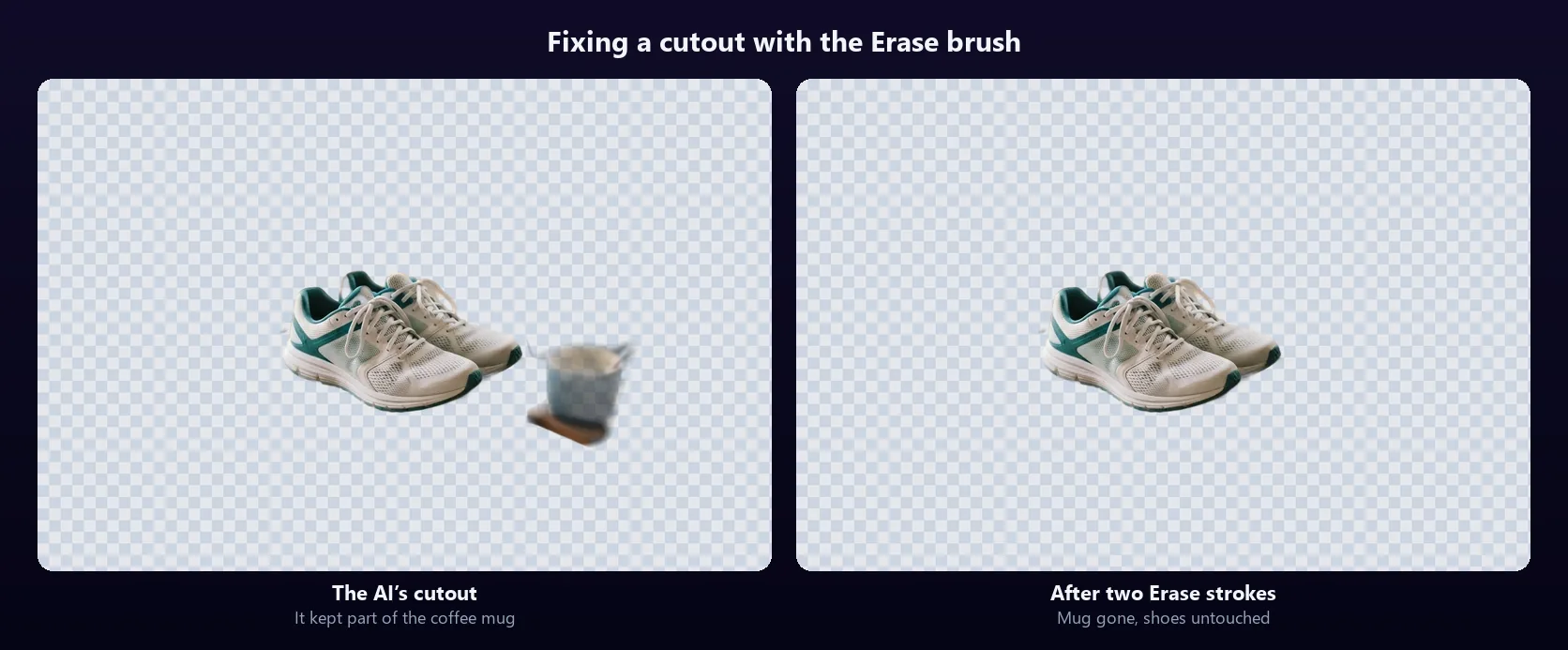
- The AI kept part of a coffee mug. Click Fix the cutout and erase it with two strokes, keeping clear of the shoes.
- Tick Crop the download to the subject and download the PNG: 440 × 263 pixels.
- Choose Colour and a pale pink to see the shoes on a background.
How the background remover works
When you open a photo it is drawn in your browser at its own size, up to 4096 pixels on the long edge. A JPEG copy of up to 2048 pixels is sent to HueFold's own AI service, which runs two matting models on it: IS-Net, which looks at the photo at 1024 pixels and draws crisp edges round hair and thin parts, and U²-Net, which looks at it at 320 pixels and has a broader idea of what the subject is. IS-Net's answer is kept only where U²-Net also sees the subject, which drops the faint copies of busy background objects IS-Net tends to keep.
What comes back is used only for its transparency. That mask is scaled to your photo's full size and applied to the photo's own pixels in your browser, so the subject keeps every detail of the original rather than a re-encoded copy. In our tests on the three samples the models took 4 to 10 seconds, and the whole cutout, upload to result, took 10 to 20 seconds; it can take longer when the service is busy, and after two minutes the tool stops waiting and asks you to try again.
If no clear subject can be found — a photo of a plain wall, say — the tool says so instead of returning an empty picture.
Fixing the cutout: Erase and Restore
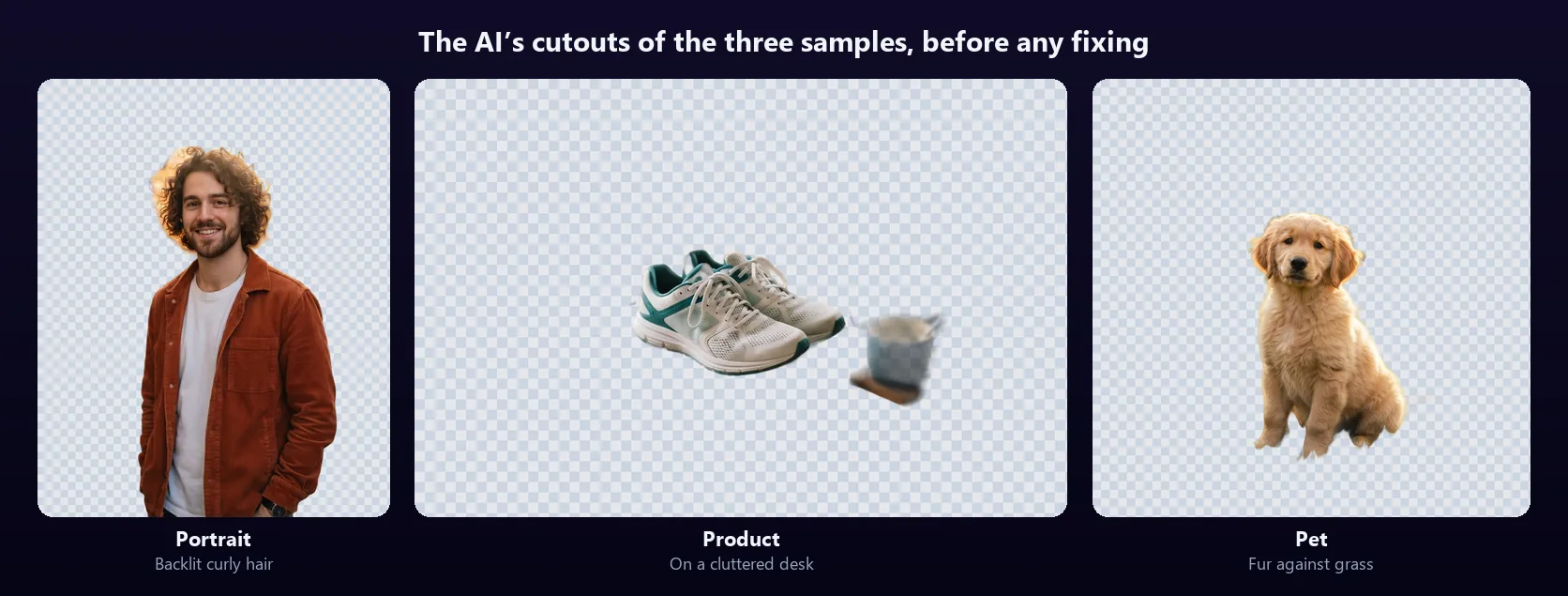
No matting model is right every time. On the product sample, a pair of sneakers on a desk crowded with a laptop, headphones, a notebook and a coffee cup, the AI correctly dropped almost everything but kept a faint coffee mug next to the shoes. Two strokes of the Erase brush removed it, which is what the demo video shows.
Click Fix the cutout to brush on the photo. Erase makes what you paint transparent; Restore brings back what you paint from the original photo, for a hand, an ear or a strap the AI cut off. The brush runs from 1% to 15% of the photo's shorter side, and its outline follows the pointer so you can see what it will touch. Undo takes back the last stroke and Reset all of them, returning to the AI's own cutout. Hold to compare shows the original photo for as long as you hold the button.
Brushing is done in your browser on the full-size mask, so it costs nothing and needs no connection.
Clean edge colours for hair and fur
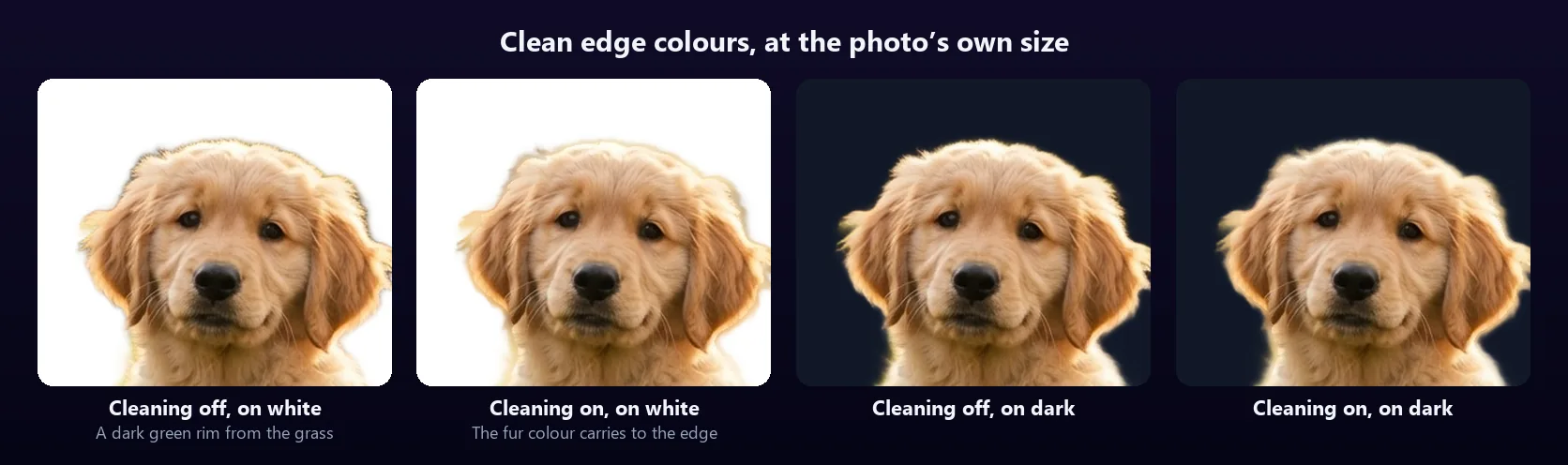
Soft edges are where cutouts usually give themselves away. A pixel at the edge of a puppy's fur is partly fur and partly the grass behind it, so it keeps some of the grass's green; put the cutout on white and a thin dark-green rim appears round the head.
Clean edge colours, on by default, fixes that. For every pixel the AI made between 2% and 98% opaque, the colour is replaced with the subject's own colour from just inside the edge, taken from a slight blur of the cutout itself. Its transparency is left as the AI made it, and pixels that are fully kept or fully removed keep the photo's colour, so Restore still brings back the real photo. On the pet sample, the share of soft-edge pixels that were greener than they were red fell from 3.3% to 0.4%, and the rim on white disappeared. Untick it in the fix panel to compare.
People, products, pets and logos
The models look for the most prominent subject in the photo, so the remover works best when there is one clear one, like the three samples on this page: a person, a product and a pet. When several things stand out about equally, it may keep more than one of them, or not the one you meant.
Some photos need a little fixing. In the portrait sample the sun was behind the man's head, and the AI kept a patch of the bright glare beside his hair as if it were hair; one Erase stroke removes it. Hair and fur against a busy background are the hardest edges: the AI keeps the outline, but not every strand. Very thin things — a bicycle's spokes, a fence behind someone — may be filled in or dropped. And in a cluttered scene, as with the product sample, the AI may keep a second object next to the one you want.
For a logo or a signature on plain paper, a colour remover is often better than an AI cutout, because it removes the paper's colour everywhere, including inside letters. HueFold's Remove White Background and Remove Color From Image tools do that.
Transparent, or a new background
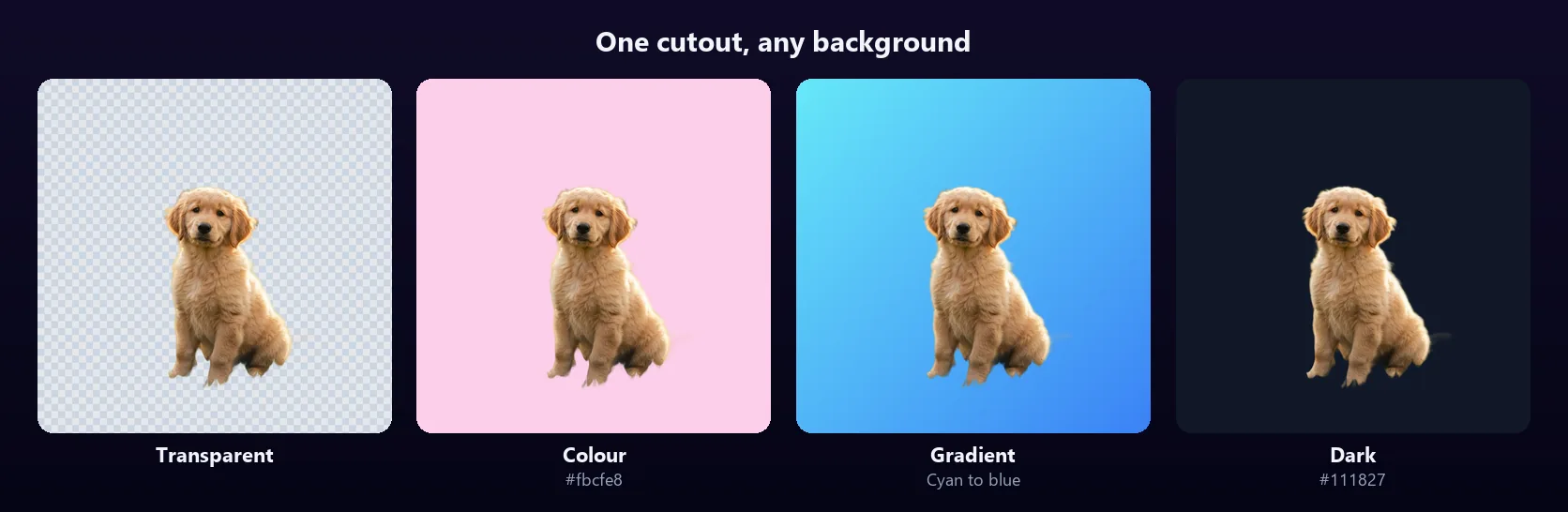
The remover starts on Transparent, which is what you want for a sticker, a product listing, a logo or a layer in a design. The Background row puts something behind the subject instead: one of ten colours or any colour you pick, one of six gradients, your own photo blurred like a portrait-mode shot (blur 1 to 30), or another picture from your device, fitted to cover the frame.
With a background chosen, the subject can be dragged to a new spot, scaled from 20% to 150%, and given a soft shadow. A transparent cutout stays exactly where it was in the photo. For AI-generated scenes behind the subject, use Change Photo Background, which is the same tool with AI scenes added; they use AI credits.
Download a transparent PNG, or crop to the subject
Download saves a PNG by default, because only PNG keeps transparency. It is your photo's full size, up to 4096 pixels on the long edge, and named after your photo with -no-bg added. A JPG is smaller, but has no transparency, so a transparent background is saved as white; a JPG is saved at quality 92.
Crop the download to the subject trims away the empty transparent area around it, keeping a margin of 2% of the subject's longer side. The demo's sneakers went from a 1264 × 848 photo to a 440 × 263 PNG, ready to drop into a design. Faint haze under about 3% opacity does not count as subject, so it does not widen the crop.
| What | Limit |
|---|---|
| Photo you upload | JPG, PNG or WebP, up to 20 MB |
| Working size | Your photo's own size, up to 4096 px on the long edge |
| Sent to the AI | A JPEG copy of up to 2048 px; only the transparency is used |
| Account and cost | Free HueFold account, no AI credits, up to 20 cutouts a minute |
| Time | 10 to 20 seconds in our tests; the tool gives up after 2 minutes |
| Brush | Erase or Restore, 1–15% of the shorter side; Undo, Reset |
| Edge colours | Cleaned where the AI made a pixel 2–98% opaque |
| Backgrounds | Transparent, 10 colours or any colour, 6 gradients, blur, your image |
| Crop to subject | A 2% margin is kept |
| Download | PNG with transparency, or JPG at quality 92 on white |
What is uploaded and stored
Opening the photo, fixing the cutout, choosing a background and saving all happen in your browser. Removing the background sends one JPEG copy of the photo, at up to 2048 pixels, to HueFold's own AI service, which runs the models on HueFold's servers rather than a third party's; the copy is kept only while the cutout is made and is not saved to your account. Nothing else is uploaded unless you click Continue editing in HueFold Studio, which uploads the cutout and your original to your account to make the design.
What people remove backgrounds for
Common jobs for a background remover.
- Product photos on a clean white or transparent background for a shop or marketplace listing.
- A headshot for a profile, a team page or a CV, on a plain colour.
- Stickers and cut-out pets for social posts and messages.
- A person or object as a layer in a thumbnail, poster or slide.
- Collages that mix several cut-out photos.
- A photo of a car, a plant or furniture placed on a new backdrop.
Troubleshooting
The problems people run into most, and what fixes them.
- Part of the background was kept: click Fix the cutout and Erase it.
- Part of the subject was cut off: choose Restore and paint it back from the original photo.
- A light or dark rim shows on a new background: make sure Clean edge colours is ticked, or Erase the rim with a small brush.
- The wrong thing was kept: the AI keeps the most prominent subject. Crop the photo closer to what you want first, or Erase the rest.
- "No clear subject was found": the photo has nothing that stands out from its background. Try a photo with a clear subject.
- The downloaded JPG has a white background: JPG has no transparency. Choose PNG.
- The cutout is taking long: the AI service may be busy. After two minutes the tool stops waiting; try again.
Removing backgrounds in HueFold Studio
Continue editing in HueFold Studio opens your picture in a new design the shape of the photo, ready for text, stickers and layouts. A transparent cutout arrives as a background-removed image, with your original kept, so Show original and Restore original work on it there.
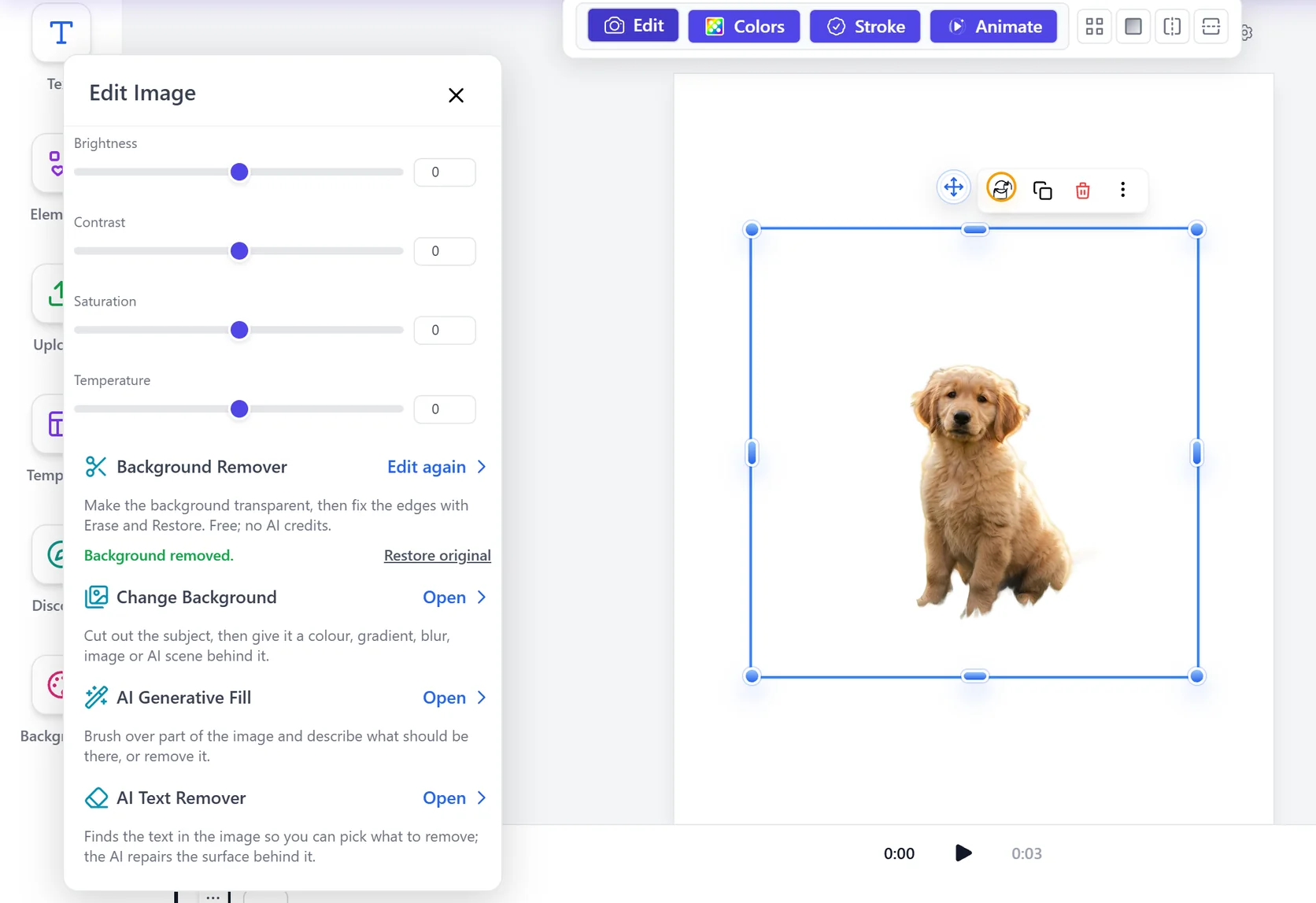
The same remover is in Studio for any image in a design. Select it, open Edit and choose Background Remover: the cutout starts by itself, with the same brushes and edge cleaning, and Apply replaces the image. Edit again works from the original photo rather than the cutout, and Restore original brings the background back. The toolbar's one-click Remove background now uses the same models and records its result the same way.
Frequently asked questions
How do I remove the background from an image?
Upload the photo to the tool on this page. Signed in, the background is removed automatically in a few seconds. Fix any edge with Erase or Restore, then download a transparent PNG.
Is the background remover free?
Yes, with a free HueFold account. Removing backgrounds uses no AI credits; you can make up to 20 cutouts a minute.
Do I need to sign in?
Yes. The cutout runs on HueFold’s AI service, which needs an account. Signing up is free, and the cutout starts by itself once you are signed in.
Does it make a transparent PNG?
Yes. The background is transparent and the download is a PNG by default, at your photo’s own size up to 4096 pixels.
Does it lower the quality of my photo?
No. The AI only decides which pixels are transparent; the subject keeps your photo’s own pixels at full size.
What if the AI misses something?
Click Fix the cutout. Erase removes leftovers of the background, Restore brings back parts of the subject, and Undo or Reset take strokes back.
Does it work on hair and fur?
Yes. The outline of hair and fur is kept with a soft edge, and Clean edge colours removes the old background’s tint from it. Single stray strands against a busy background may be lost.
Can I crop the image to the subject?
Yes. Tick Crop the download to the subject and the PNG is trimmed to the subject with a 2% margin.
Can I put a new background behind it?
Yes. Choose a colour, a gradient, your photo blurred, or your own picture. For AI-generated scenes, use Change Photo Background.
Is my photo stored?
No. A copy is sent to HueFold’s AI service to make the cutout and is not saved to your account. Everything else happens in your browser.
Can I remove backgrounds in the editor?
Yes. In HueFold Studio, select an image, open Edit and choose Background Remover. Restore original brings the background back.
What files can I use?
JPG, PNG or WebP up to 20 MB. Download a PNG with transparency, or a JPG on white at quality 92.
Related tools
- Change Photo Background — Put a new background or an AI scene behind the subject.
- Remove Green Screen — Key out a green or blue screen in a photo or video.
- Remove White Background — Take a plain white background out of a logo or scan.
- Remove Color From Image — Make any colour transparent.
- AI Generative Fill — Remove or replace anything in a photo.
- AI Image Expander — Make a photo bigger to fit any shape.