Add a white background
Upload a product photo, portrait or graphic. HueFold separates the subject from its old backdrop, lets you refine the edge, and places it on a true white canvas.
Updated

How do you add a white background to an image?
To add a white background to an image with a non-white backdrop, first separate the subject from the original background. HueFold uses its background-removal service for that cutout, then composites the subject over solid white (#FFFFFF) in your browser. Sign in to run the AI cutout, inspect and repair the edges, and download the finished image as a JPG or PNG. Simply placing an opaque photograph on a white canvas does not replace the pixels behind its subject.
This page is for a specific finish: a plain, even white behind a person, product or graphic. It is useful when you want consistent catalog cards, clean profile imagery or a neutral base for a larger design. The tool accepts JPG, PNG and WebP files, up to the configured 20 MB upload limit, and works at no more than 4096 pixels on the longer side. Those limits keep canvas processing practical across browsers; the tool shows when it resized a larger source.
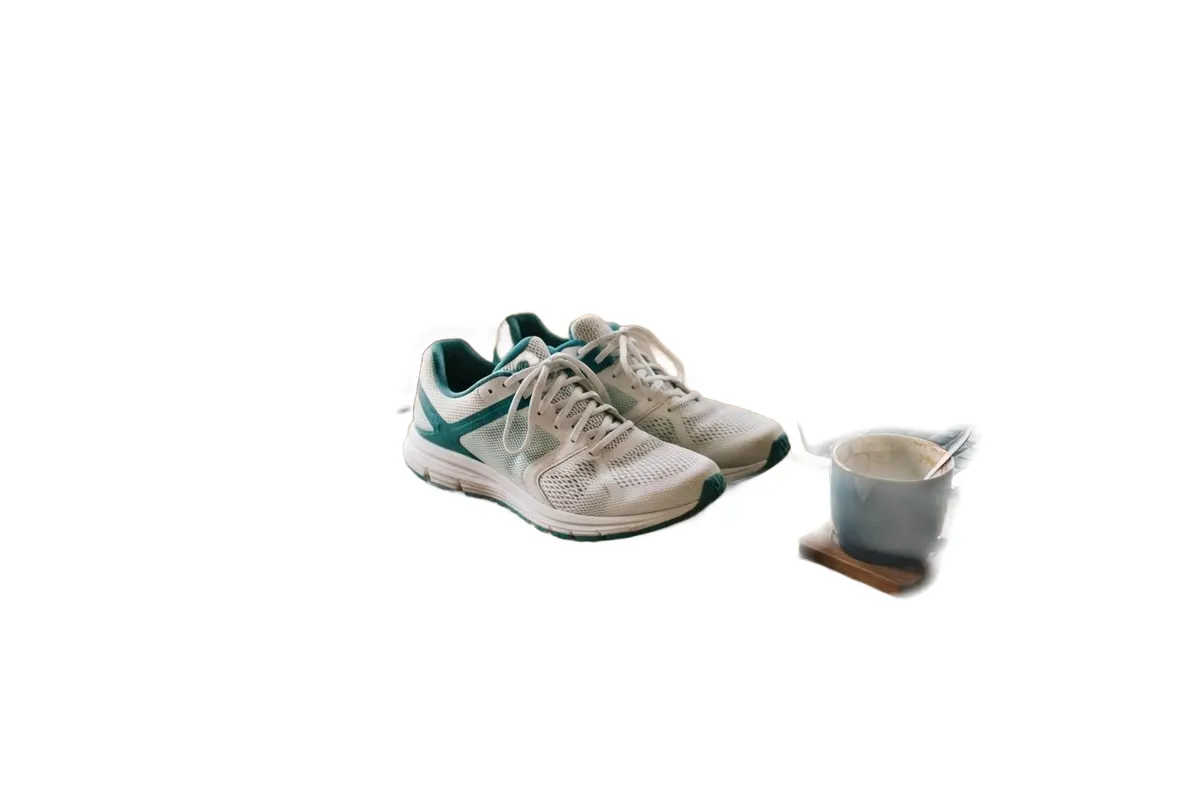
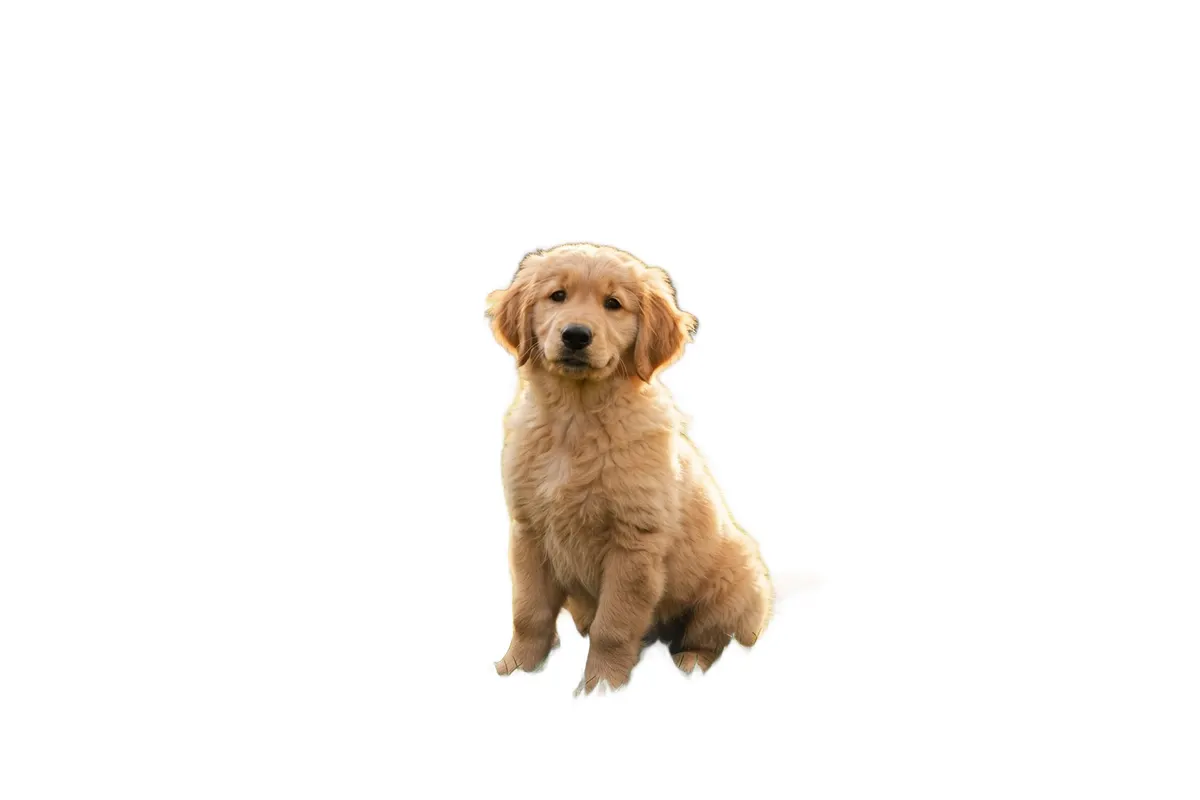
A PNG or WebP that already contains transparent pixels goes directly onto white in the browser, without the AI step or sign-in. After either route, you can erase leftover background, restore parts of the subject, move or resize it and optionally add a soft shadow. White is fixed in this focused mode. Downloading composes the finished pixels in your browser. Opening the result in HueFold Studio is an optional next step that uploads it into a saved design. For another colour or an AI scene, use Photo Background Change instead. The portrait, puppy and sneaker before-and-after figures below use HueFold's actual background-removal service on its public samples; the labelled graphics are simple compositing illustrations.
How to make an image background white
- Choose your image Upload a JPG, PNG or WebP, or try the portrait, puppy, sneaker or transparent-graphic samples. The page reads its dimensions before processing.
- Separate the subject A transparent PNG or WebP works immediately. For an opaque image, sign in to run the AI cutout and remove the old backdrop.
- Inspect the white result Review the edge on white. Erase leftovers, restore missing details, and adjust the subject size or position.
- Download or edit Choose JPG or PNG and download the composed white-background image, or open a signed-in Studio design.
How to put a puppy photo on a white background with HueFold AI
Watch a real HueFold session: select an opaque puppy photo, sign in, run the AI cutout, inspect the white result, add a soft shadow and download a JPG.
- Open the white-background tool and choose the puppy photo sample.
- Click Remove the background. HueFold asks you to sign in before processing an opaque photo.
- Sign in to the test account. The AI service separates the puppy from its park background; the waiting portion is sped up.
- Inspect the actual puppy cutout on solid white and use Hold to compare against the original.
- Enable a soft shadow, keep JPG selected and download the 1024 by 1024 white-background result.
Why does an opaque photo need a cutout before a white canvas?
A JPG normally has no transparency. If a product is photographed against a kitchen wall, the wall is part of every pixel in that rectangular file. A white page behind that rectangle remains invisible. This is why merely changing a page background to white does not create a white product photo. You need an alpha mask that distinguishes subject from backdrop, then a composite that fills the transparent area with white. HueFold performs those steps in that order.
The matting service predicts the subject boundary and returns transparency. The tool uses the transparency while retaining the source photo's subject pixels, rather than replacing the person or product with a generated lookalike. This matters for labels, garment texture and distinctive shapes. It still needs inspection: soft hair, translucent objects, reflections and pale items on a pale background can confuse any automatic cutout. Use the Erase and Restore brushes where the result needs help.
An existing transparent PNG or WebP already has an alpha channel. The white-background tool detects that transparency and can make the composition locally without a model request. Keep a copy of the original and compare the preview before downloading. The white result is a new file; the page does not change or delete the original on your device.
| Input | What the tool does | What to check |
|---|---|---|
| Opaque JPG | Predicts alpha and composites on #FFFFFF | Subject edges and retained details |
| Opaque PNG or WebP | Separates background before white composite | Pale areas and soft edges |
| Transparent PNG or WebP | Uses existing alpha and composes on white locally | Original transparency and fine details |
How do you prepare a white background for product photos?
Start with the clearest source photograph you have. A sharp, well-lit product with separation from its surroundings gives the cutout a better boundary than a dark, blurred snapshot. Upload the image and wait for the subject to appear against white. Zoom your attention to packaging edges, transparent lids, straps, cables and shadows. Where the original room remains in the result, Erase can remove the stray pixels. Where a small piece of the product was removed, Restore can bring it back.
White makes inconsistencies easier to notice. Look for an off-white fringe around the item or a halo left by the old background. Keep Clean edge colours enabled when the original backdrop has tinted a soft boundary. Try the Soft shadow option if the object appears to float; the shadow is a visual treatment, not a replacement for a correctly isolated subject. Reposition or scale the object until its margins feel balanced.
Download a trial and inspect it outside the tool, especially if it will be displayed as a small catalog card. Marketplace image rules vary by destination, category and time, so confirm the current requirements directly with the marketplace before publishing. A white canvas alone does not guarantee compliance with crop, resolution, subject-coverage or content rules. This page deliberately does not promise acceptance by any specific marketplace.
Can you put a portrait or headshot on a white background?
Yes. A clean white backdrop can make a portrait easier to place in a profile card, team page or presentation. Upload a portrait with the face and shoulders clearly visible, then let the cutout finish before judging the result. Fine hair, earrings and soft clothing edges are the areas most likely to need attention. Work carefully with the Restore brush; large strokes can bring back unwanted pieces of the original environment.
The subject size control lets you give a headshot more or less breathing room without changing the image frame. You can drag the cutout to centre it or leave asymmetric space for text in a later Studio composition. Consider the intended crop before export: a wide portrait composed on white may look right in a banner but too small as a square avatar. The downloaded image uses the working frame size, while Studio can be used for a fuller design.
Do not use background replacement to misrepresent the context of a documentary image or identity-sensitive photo. For routine presentation and profile use, tell collaborators that the backdrop was edited if that matters to the purpose of the image. A white background is a visual choice, not evidence that the photograph was taken in a studio.
What about logos, stickers and other transparent graphics?
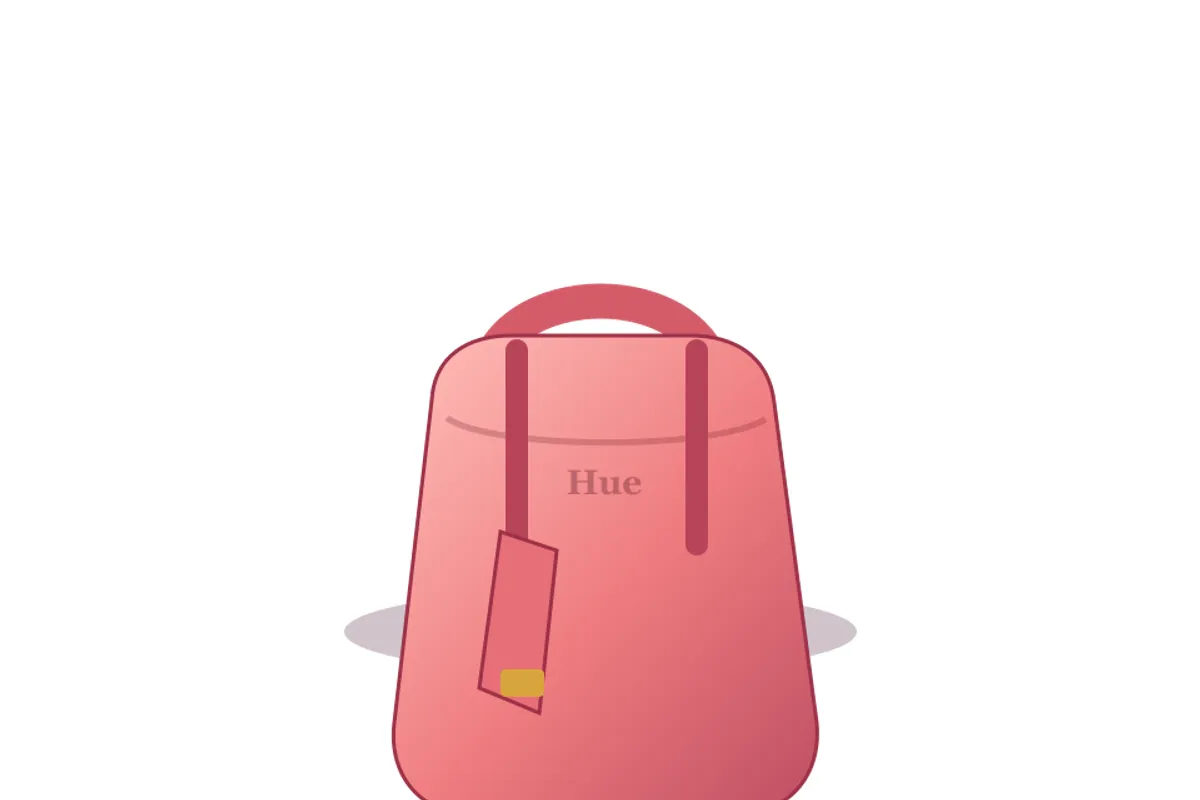
A transparent graphic can be shown over white to make its shape and colours easier to evaluate. The pink bag illustration on this page demonstrates that compositing step and is labelled as a graphic, not a photograph or live editor screenshot. The portrait, puppy and sneakers are separate photographs processed by HueFold's AI service. If you need to preserve transparency for another background later, download a transparent version through a different HueFold workflow instead of flattening it on white.
Check the colours in the graphic itself. White lettering or a pale icon may disappear on white even though the file contains it. Add a dark outline in an editor or choose a different background when contrast is insufficient. Fine semi-transparent pixels can look different after matting; compare the source and export at normal viewing size. A logo set inside an opaque box will not become a clean transparent logo merely because the canvas behind it is white.
For brand assets, keep the original master file and use this page for an output copy. If the mark belongs to a client or another organisation, follow their brand and usage rules. You can continue the finished composition in Studio for a wider layout, but avoid claiming the original vector quality survives a raster JPG or PNG export.
How do you fix a halo or missing edge after background removal?
Move around the preview and inspect the complete outline. A halo is often a soft fringe of the original background colour left in semi-transparent pixels. HueFold's Clean edge colours control estimates colours from just inside the retained subject and uses them to soften that fringe. It cannot reconstruct detail that the source never captured. On hair, fur or translucent material, compare with the original using the preview control before applying heavy corrections.
Erase removes unwanted remnants of the background. Restore brings back portions of the subject that the cutout missed. Set a small brush when working near fingers, leaves, laces or text. Broad strokes are useful only when a large region is clearly wrong. The undo and reset controls let you back out of brush edits without uploading another file. For a difficult edge, several deliberate small corrections usually look more natural than one large sweep.
A bright white background reveals dark halos especially clearly. Conversely, a white shirt or pale object can merge into the new background; the object may need a subtle shadow or a different presentation colour. If the boundary remains unacceptable, try a better source photograph with stronger contrast and more even lighting. Automatic masking is a starting point, not a guarantee of a perfect edge for every subject.
Should you download the white-background result as JPG or PNG?
Both downloads contain the visible white background in this mode. JPG is a common choice for photographic product and portrait images and can make a smaller file at the tool's export setting. PNG is useful when you want lossless encoding of crisp graphics or text-like edges. It does not preserve the subject's cutout transparency once the white background has been composited; the white pixels are part of the result. Choose a transparent-background workflow if alpha is what you actually need.
The tool limits the working canvas to a maximum 4096-pixel side. If you upload a larger source, it resizes the working image and says so near the preview. The AI cutout request is prepared at up to 2048 pixels on its longest side, then its alpha is scaled to the working canvas. Those are implementation limits, not claims about the file formats themselves. Inspect small text and fine product edges in the downloaded file, especially if the source exceeded the working limit.
A downloaded copy is created in the browser after AI processing, or immediately for an already-transparent input. Opening in Studio is different: it saves an uploaded result in a new design so you can place it with text, shapes and other assets. If you only need a white-background file, downloading is the direct path. Keep the original image alongside the export so you can revisit a crop or mask later.
Do you need an account to make a white background?
Only the AI cutout for an opaque image requires a HueFold account. A PNG or WebP with meaningful transparent pixels can be placed on white and downloaded locally without signing in. For an opaque photo, the original backdrop is not removed until the authenticated refine request runs. The page opens the existing sign-in flow and resumes processing afterward. The cutout uses HueFold's configured background-removal service and does not consume the AI credits used by generative scene features. Check the product's current account terms for other limits.
An opaque image is sent to HueFold for the AI cutout. Once the alpha result returns, edge repair, positioning, white compositing and the JPG or PNG download run in the browser. An already-transparent graphic stays in the browser for this local composition. Continuing in Studio uploads the result into a new saved design. Do not upload an image you lack permission to process, and take care with sensitive portraits or confidential product photographs. The demonstration samples are for learning the workflow; use your own authorised files for production work.
If sign-in is cancelled, the page should leave the selected opaque image visible but will not pretend that a white-background result exists. Retry the cutout after authentication. If the service is unavailable, an error is displayed instead of a fake finished image. This distinction matters: a plain white canvas under an opaque original cannot deliver what the page promises.
Why does the background still look grey or uneven?
First verify that the AI cutout completed and the white-background preview is visible. If you still see an old wall or floor, the mask may have retained part of it. Use Erase around the unwanted area, then examine the transition at full preview size. A genuinely white output should have #FFFFFF behind transparent parts of the cutout; shadows and pale subject areas may still contain their own non-white pixels. The tool does not bleach the subject itself, because doing that could destroy its true colour and detail.
If the image is entirely unchanged, check the status or error message. The cutout needs a signed-in session and a supported JPG, PNG or WebP within the configured limits. Try a different, clearer source if the model struggles with the scene. If the result looks soft, verify whether the source exceeded 4096 pixels and was resized for the browser canvas. A blurry original cannot become sharply detailed just because its background is white.
If a transparent region looks checkerboard in another viewer, make sure you downloaded from this white-background mode rather than the Background Remover's transparent mode. If the JPG or PNG appears cropped unexpectedly, check the current preview and subject placement before exporting again. Keep the source file, and use the contact or issue reporting route when a repeatable failure cannot be corrected with the visible controls.



Frequently asked questions
How can I change a photo background to white?
Upload a JPG, PNG or WebP, sign in for the AI cutout, inspect the subject on #FFFFFF, then download the result.
Will a white canvas hide my photo’s original background?
Not if the photo is opaque. The original background must first be removed or made transparent.
Is the white background pure white?
The focused tool composites the cutout over #FFFFFF. The subject and any intentional shadows retain their own colours.
Can I use this for a product photo?
Yes. Inspect labels, straps and edges before publishing, and check your marketplace’s current image requirements separately.
Can I make a portrait background white?
Yes. Review hair and clothing edges, then reposition or resize the cutout for your intended crop.
Do I need to sign in?
Only opaque images need the signed-in AI cutout. A PNG or WebP that already has transparency can be placed on white without an account.
Does the AI cutout use generative credits?
The configured cutout service requires sign-in but does not use the AI credits reserved for generative scene features.
What files can I upload?
The tool accepts JPG, PNG and WebP images, with a configured 20 MB upload limit and a 4096-pixel working-canvas limit.
Can I fix a bad cutout?
Use Erase to remove leftovers and Restore to bring back parts of the subject; the edge-colour cleanup can reduce a halo.
Is the downloaded result transparent?
No. This mode places the subject over visible white. Use Background Remover for a transparent result.
Can I continue editing in Studio?
Yes. Open the completed composition in Studio to save it as a design and add other elements.
Related tools
- Background Remover — Keep the subject transparent instead of placing it on white.
- Photo Background Change — Try a different colour, a blur, your own image or a generated scene.
- Remove White Background — Take white out of a source image when you need transparency.
- Transparent Images — Prepare reusable transparent graphics for layouts.
- Image Cutout — Isolate a subject for another composition.
- Add Watermark to Photo — Place a text or logo mark on the finished white-background image.