Blur Background
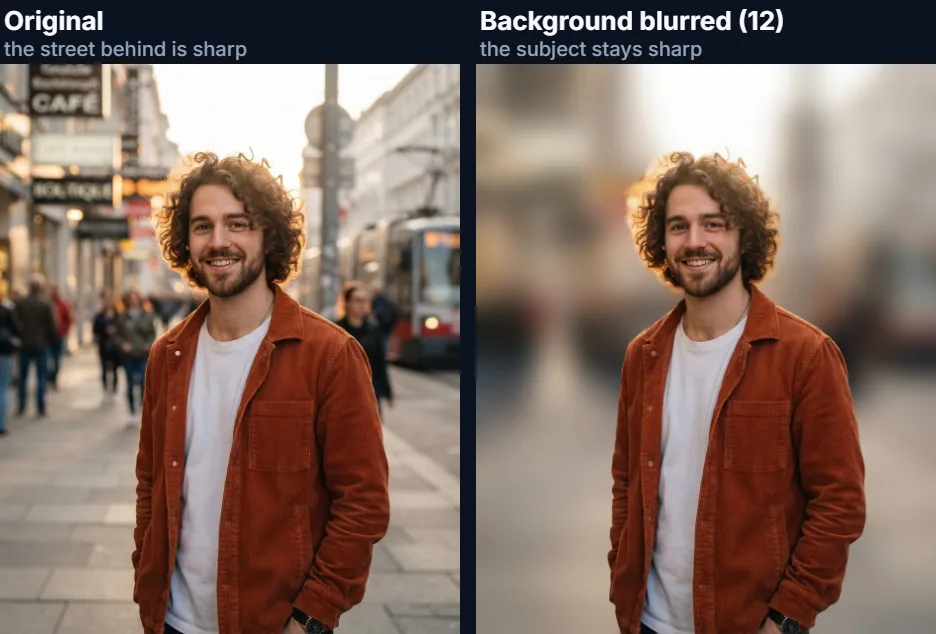
Blur the background of a photo like a portrait lens. HueFold’s AI cuts out the subject, the rest of your own photo is blurred to the strength you choose, and the subject goes back on top, sharp, without a halo.
Updated

How do you blur the background of a photo?
Open the photo and sign in to your free HueFold account. HueFold's AI cuts out the subject, a person, pet or product, and the background behind it is blurred at once. Move the Blur slider until the background is as soft as you want, fix any edge the AI missed, and download the photo at full size.
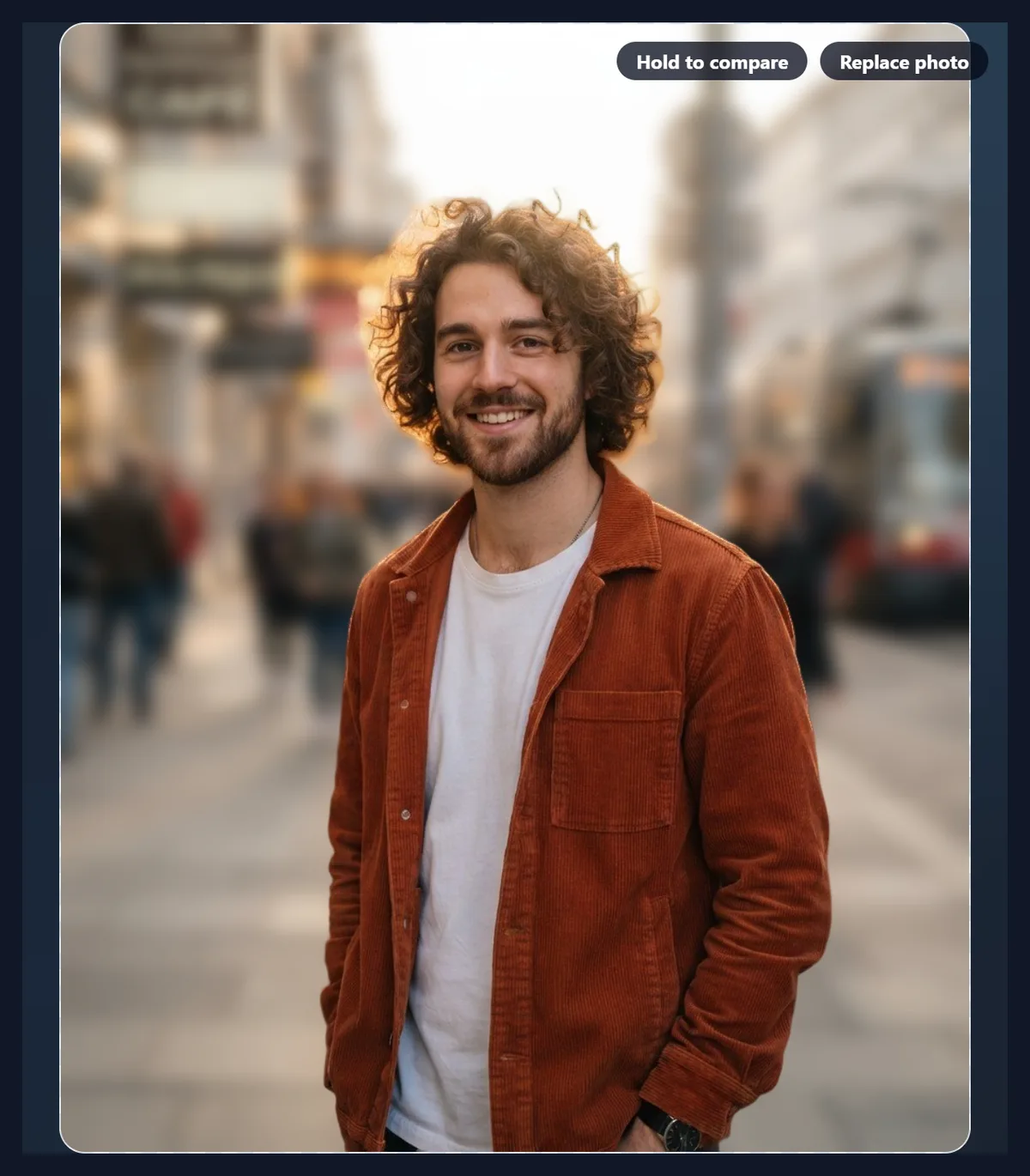
The blur is your own background, softened: nothing is invented. On the 928 × 1152 sample the default setting is a 27.8 pixel blur, enough to turn a busy street into a soft backdrop while the man in front stays sharp.
The cutout is free with an account and uses no AI credits. The person in the sample is fictional, made with AI.
How to blur a photo background
- Open the photo Choose a JPG, PNG or WebP, drop it on the preview, or try the sample.
- Let the AI cut out the subject Signed in, the cutout starts by itself; it is free.
- Set the blur Move the Blur slider from 1 to 30; fix any missed edge with Erase or Restore.
- Download Save the photo as JPG or PNG, or continue in HueFold Studio.
Blur a photo background
A real recording of this tool: the sample portrait cut out by HueFold’s AI, the blur slider moved from light to strong and back, and the download.
- The sample street portrait opens and HueFold’s AI cuts out the man.
- The background is blurred; the slider is moved to 4, 20 and back to 12.
- The photo is downloaded.
How strong should the blur be?
Strong enough that the background stops competing with the subject, and no stronger. The Blur slider runs from 1 to 30, and the blur radius it gives grows with the photo: it is the photo's short side times the setting, divided by 400. That way a setting looks the same on a small photo and a large one, and the download matches the preview. On the 928 × 1152 sample the default of 12 is a 27.8 pixel blur; 4 is 9.3 pixels and 30 is 69.6.
Around 8 to 14 looks like a portrait lens at a wide aperture: the background is soft but you can still tell it is a street, a room or a garden. Above 20 shapes dissolve into colour, which suits product photos and profile pictures where the background should just be a pleasant wash.
| Setting | Blur radius | What it looks like |
|---|---|---|
| 1 | 2.3 px | A hint of softness |
| 4 | 9.3 px | Light: shapes still readable |
| 12 | 27.8 px | Default: a portrait-lens look |
| 20 | 46.4 px | Strong: shapes dissolve |
| 30 | 69.6 px | Strongest: a soft wash |
How does it keep the subject sharp?
In two steps. First HueFold's own AI finds the subject (a person, a pet, a product) and cuts it out with a soft, detailed edge, so hair and fur stay fine. Then the background, which is the rest of your own photo, is blurred, and the sharp subject is put back on top.
The subject is taken out of the background before it is blurred, so its colours do not smear into a glow around it: a red jacket does not leave a red halo on the street behind. Without that step, which is what simple blur filters do, every subject gets a soft coloured outline of itself.
How is this different from portrait mode on a phone?
Portrait mode does the same thing at the moment you take the photo: the phone estimates how far away each part of the scene is, often with two cameras or a depth sensor, and blurs more the further away it is. This tool works on any photo afterwards, including ones taken without portrait mode, with a single even blur behind the subject.
A real lens blurs things more the further they are behind the focus, so a wall a metre behind someone is softer than the ground at their feet. An even blur is simpler and looks right for most portraits and products; for a photo with a long receding background, such as a road or a beach, a lighter setting looks more natural.
When does a strong blur work best?
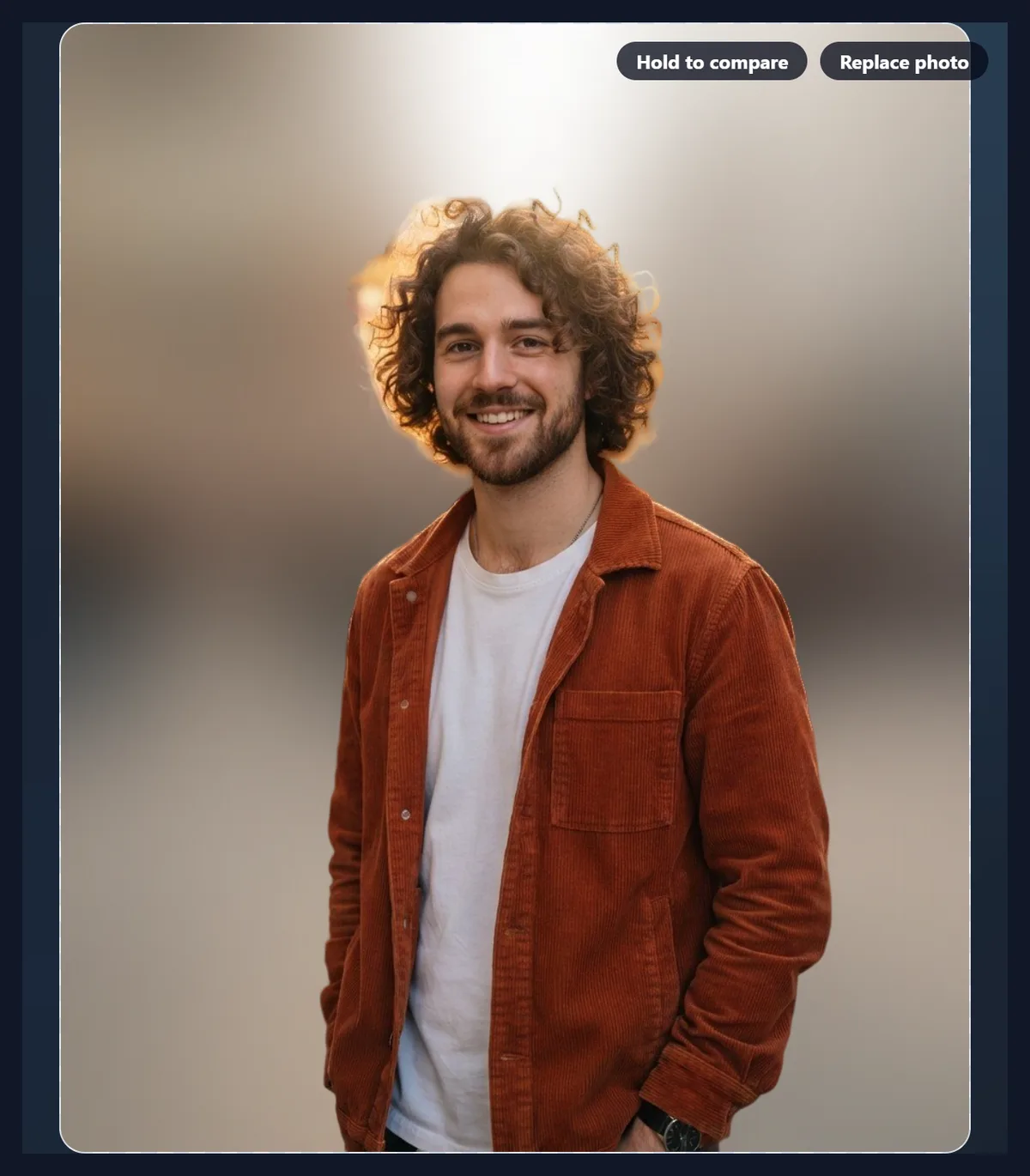
When the background has nothing to say: a messy room, a crowded street, an office, a car park. A strong blur turns it into soft colour and light, keeps the mood of the place, and leaves the eye only one thing to look at. It also hides details you may not want to share, such as house numbers, number plates or other people.
At 30 the sample's street became a 69.6 pixel wash in which only the light from the sky and the warm shop windows remain. That suits profile pictures and product shots well, and is a good choice when the photo will be shown small.
Why is there a glow around the hair?
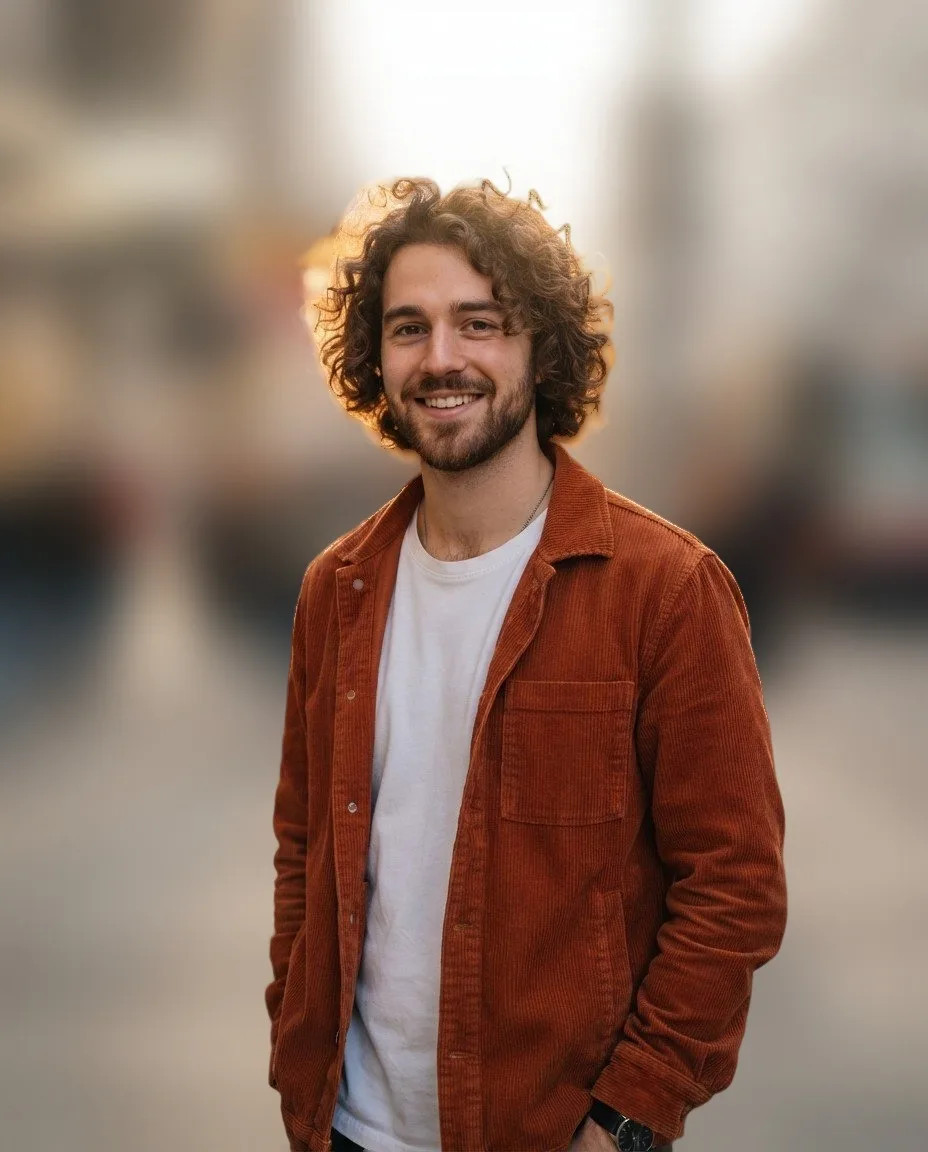
Fine hair, fur and other wispy edges are the hardest thing for any cutout. The AI keeps them by making the edge partly transparent rather than cutting a hard line, and around very curly or backlit hair that soft edge can include a little of the original, sharp background. On the sample, whose hair is backlit by the sun, a faint patch of the bright street stays around the curls.
To fix it, press Fix the cutout and paint over the patch with Erase; Restore brings back anything the AI missed. The brush works on the cutout itself, so the blur behind updates at once.
Can I move or resize the subject?
Yes. Drag the subject on the preview to move it, and use Subject size, from 20% to 150%, to make it smaller or larger; Reset position puts it back. That is handy for making space for text in a social post or a thumbnail. Soft shadow adds a gentle drop shadow under the subject, which can help it sit on a strongly blurred background.
If you move the subject far from where it was, its old position shows as a softer, blurred patch of the original subject, because that part of the background was never photographed. Small moves are fine.
Can I use a different background instead of a blur?
Yes: the same tool can put the subject on a transparent background, a colour, a gradient, your own image or an AI-generated scene. Pick another tab under the preview. The blur and the cutout are kept, so you can compare a blurred background with a plain one and choose.
For a new scene described in words, the AI background generator starts on that tab; for a plain transparent cutout, the background remover does.
Do I need an account, and does it cost credits?
You need a free HueFold account, because the cutout runs on HueFold's own AI on its servers. The cutout does not use AI credits, and neither does the blur, which is done in your browser. Once you are signed in, the cutout starts by itself when you open a photo.
Only AI scenes, on the AI scene tab, use credits; blurring your own background never does.
Which photos work best?
Photos with one clear subject in front of a background that is at least a little way behind it: a person on a street, a pet in a garden, a product on a table, a plant against a wall. The AI finds people, animals and objects; the clearer the edge between subject and background, the cleaner the cutout. Photos where the subject touches or overlaps the background, such as someone leaning on a wall, still work, but check the place where they meet.
For group photos, check that everyone was kept sharp, especially people at the edges of the frame, and paint anyone the cutout missed back in with Restore. Photos with no subject at all, such as a landscape, have nothing to keep sharp; use Photo Blur for those instead.
Is it good for profile pictures and thumbnails?
Very. A profile picture is shown small, often as a circle, and a busy background makes the face harder to read at that size. A blur between 12 and 20 keeps the feel of the place while making the face the only sharp thing. For video thumbnails and social posts, a blurred background also gives text something calm to sit on.
Move the subject to one side with a drag before you download to leave room for a title, then add the text in HueFold Studio with Continue editing.
Which files work, and what happens to my photo?
You can open JPG, PNG and WebP photos up to 20 MB; convert iPhone HEIC photos to JPG first. The finished photo is saved as JPG or PNG at the photo's own size, up to 4096 pixels on its long side: the sample came out at 928 × 1152 pixels and 152,504 bytes as a JPG. Continue editing in HueFold Studio opens it in the editor instead, to add text, frames or more photos.
For the cutout, a copy of the photo, at most 2048 pixels on its long side, is sent to HueFold's AI and the mask comes back; the blur, the preview and the download are made in your browser. The sample is a street portrait of a fictional person made with AI.
Why does part of the subject look blurred?
Because the AI left it out of the cutout: thin objects such as a bag strap, a glass or the end of a stick are the usual misses. Press Fix the cutout and paint them back with Restore. The opposite, a sharp patch of background next to the subject, means the cutout took too much: paint it away with Erase.
If the subject itself looks soft, the photo was soft to begin with; blurring the background makes a slightly soft subject look sharper by comparison, but it cannot add detail. If the cutout does not start, check that you are signed in, then press Cut out the subject.
Frequently asked questions
How do I blur the background of a photo?
Open it, sign in so the AI can cut out the subject, set the Blur slider, and download.
Is it free?
Yes, with a free HueFold account; the cutout and the blur use no AI credits.
Will the subject stay sharp?
Yes. The subject is cut out by AI and put back on top of the blurred background.
How strong can the blur be?
Up to 30, which on a 928 × 1152 photo is a 69.6 pixel blur.
Can I fix the edges?
Yes. Fix the cutout gives you Erase and Restore brushes.
Does it work on product photos?
Yes. Any clear subject in front of a background works: people, pets and products.
Can I move the subject?
Yes. Drag it and set Subject size; Reset position puts it back.
Is my photo uploaded?
A copy is sent to HueFold’s AI for the cutout; the blur and the download are made in your browser.
Which formats can I download?
JPG or PNG, at the photo’s own size.
Related tools
- Photo Blur — Blur the whole photo, or part of it.
- Background Remover — A transparent cutout instead.
- AI Background Generator — A new scene behind the subject.
- Change Background Colour — Replace a plain backdrop with a colour.
- Make Passport Size Photo — A plain background for ID photos.
- AI Photo Editor — Change the light or season with words.