Remove Green Screen
Drop in a green screen photo or video. The screen colour is found for you; tune the key, put a new background behind the subject and download.
Updated

How do you remove a green screen?
Removing a green screen means making every pixel of the screen's colour see-through, so whatever you want can go behind the subject. The technique is called chroma keying, and it is how weather maps get behind presenters and how video calls swap a room for a beach. On this page it takes one step: drop the photo or video on the tool and the screen is gone.
The tool reads the screen's colour from the edges of the frame, so a green or a blue screen works without any setup. Three sliders tune the result — how much of the screen is removed, how soft the edges are, and how much of the green glow on the subject is taken away — and a matte view shows exactly what is kept. Lights or stands at the edge of the shot are cropped away. Then pick a transparent background, a colour, a gradient or a picture of your own, and download.
It all runs in your browser on your device's graphics chip. Nothing is uploaded, there is no account to make and no credits are used. Photos save as PNG or JPG; videos save as MP4 with their sound.
How to remove a green screen
- Add your photo or video Drop a JPG, PNG or WebP photo of up to 20 MB, or an MP4, WebM or MOV video of up to 200 MB and 60 seconds, on the tool. Or try a sample.
- Check the screen colour It is read from the edges of the frame. If the result is patchy, click Pick from the frame and click the screen.
- Tune the key Raise Key strength until the screen is gone, use Edge softness for hair and Spill removal for green edges. Check the Matte view.
- Pick a background Transparent, one of 10 colours or any colour, one of 6 gradients, or your own picture. Crop the edges if a light stand shows.
- Download Save a photo as PNG or JPG. Export a video as MP4 with its sound, or save any frame as a transparent PNG.
Remove a green screen from a video, start to finish
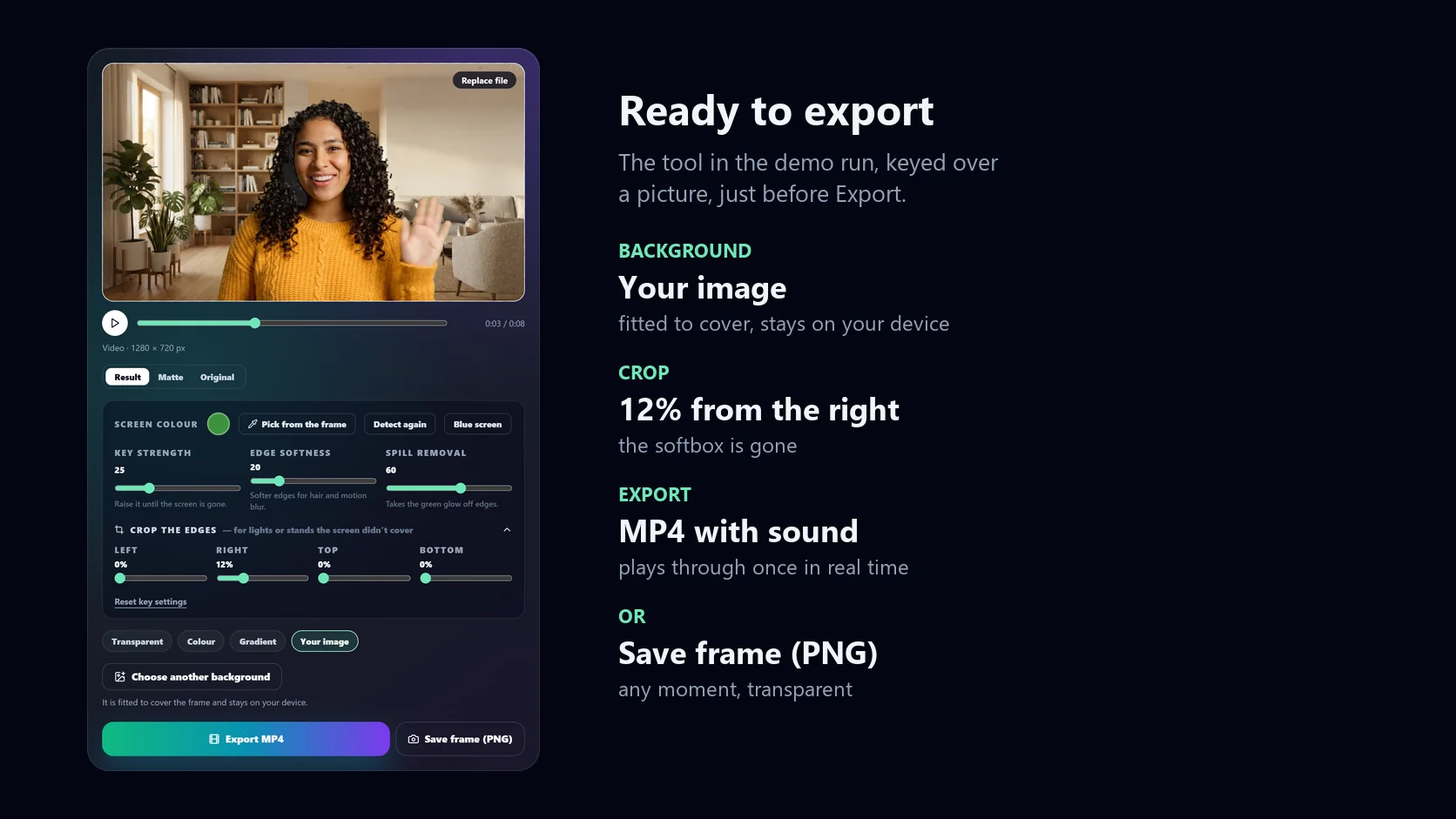
A real run of the tool on this page: open a green screen video, check the matte, crop away a light stand, play it keyed, try a gradient and a background picture, export the MP4 and play the file it saved.
- Drop a green screen video on the tool. The sample is 8 seconds, 1280 × 720: a woman waving in front of a green screen, with a softbox at the right edge.
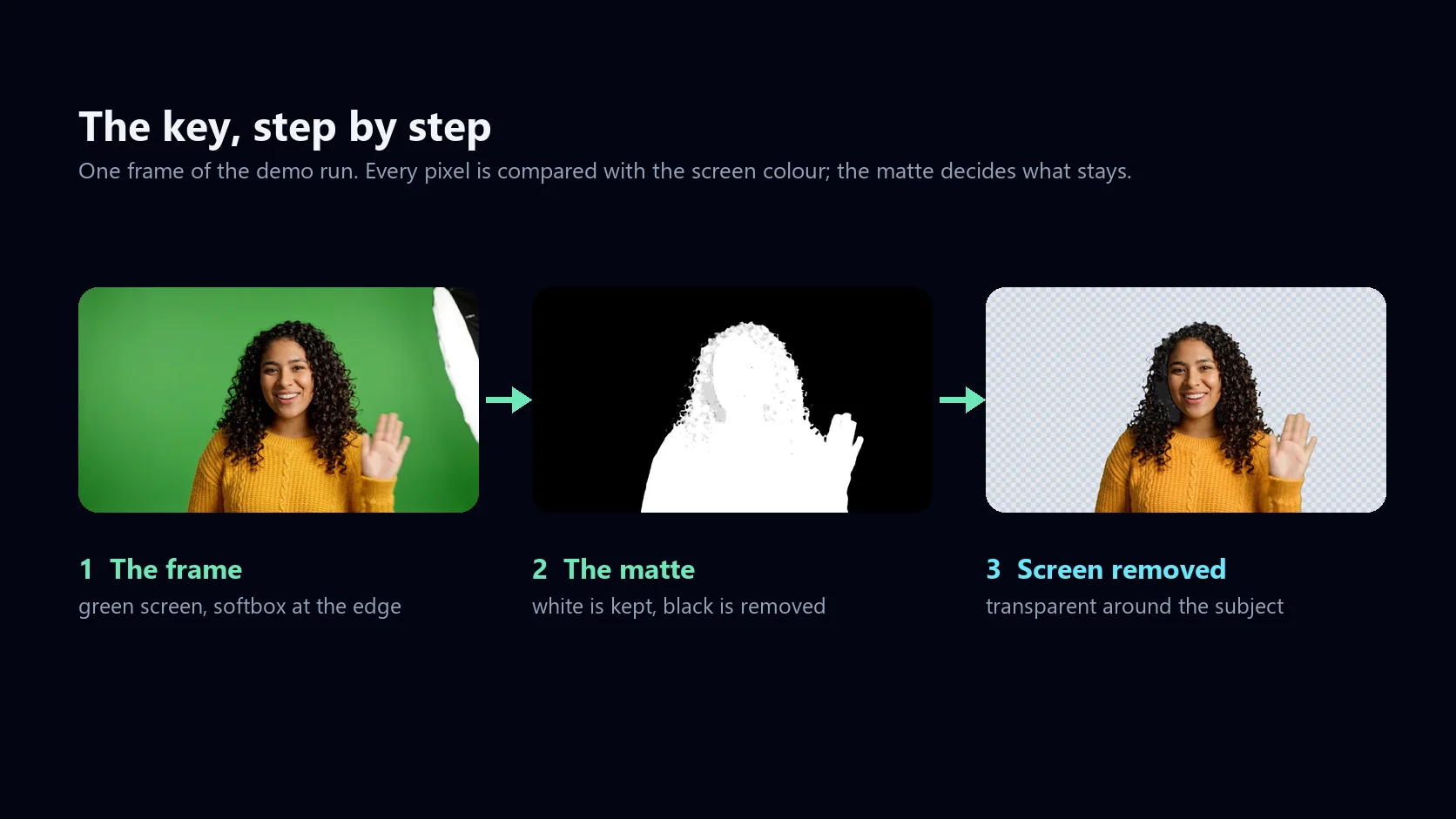
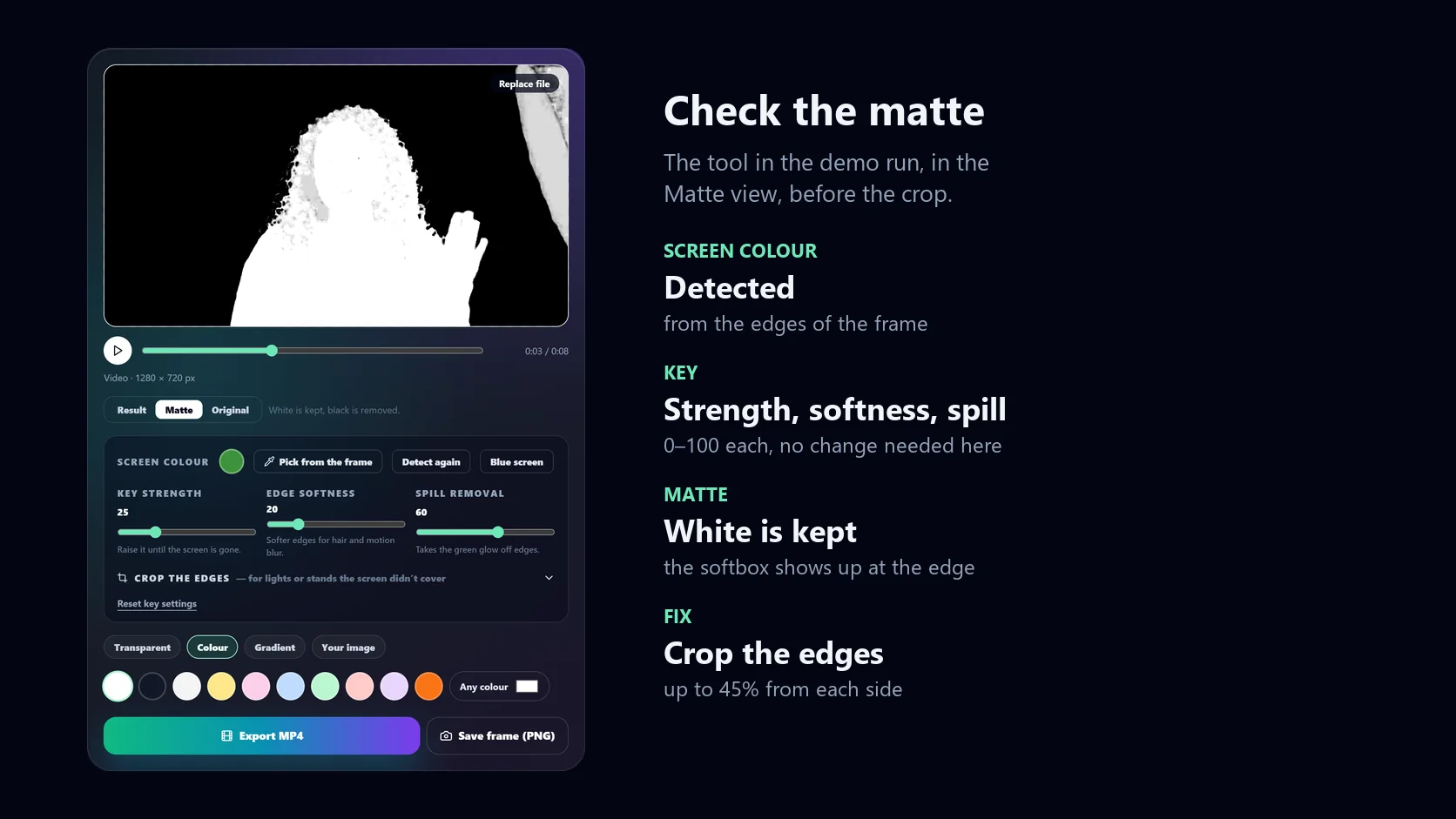
- The screen colour is detected from the edges of the frame and removed at once. Switch to the Matte view: the softbox shows up white.
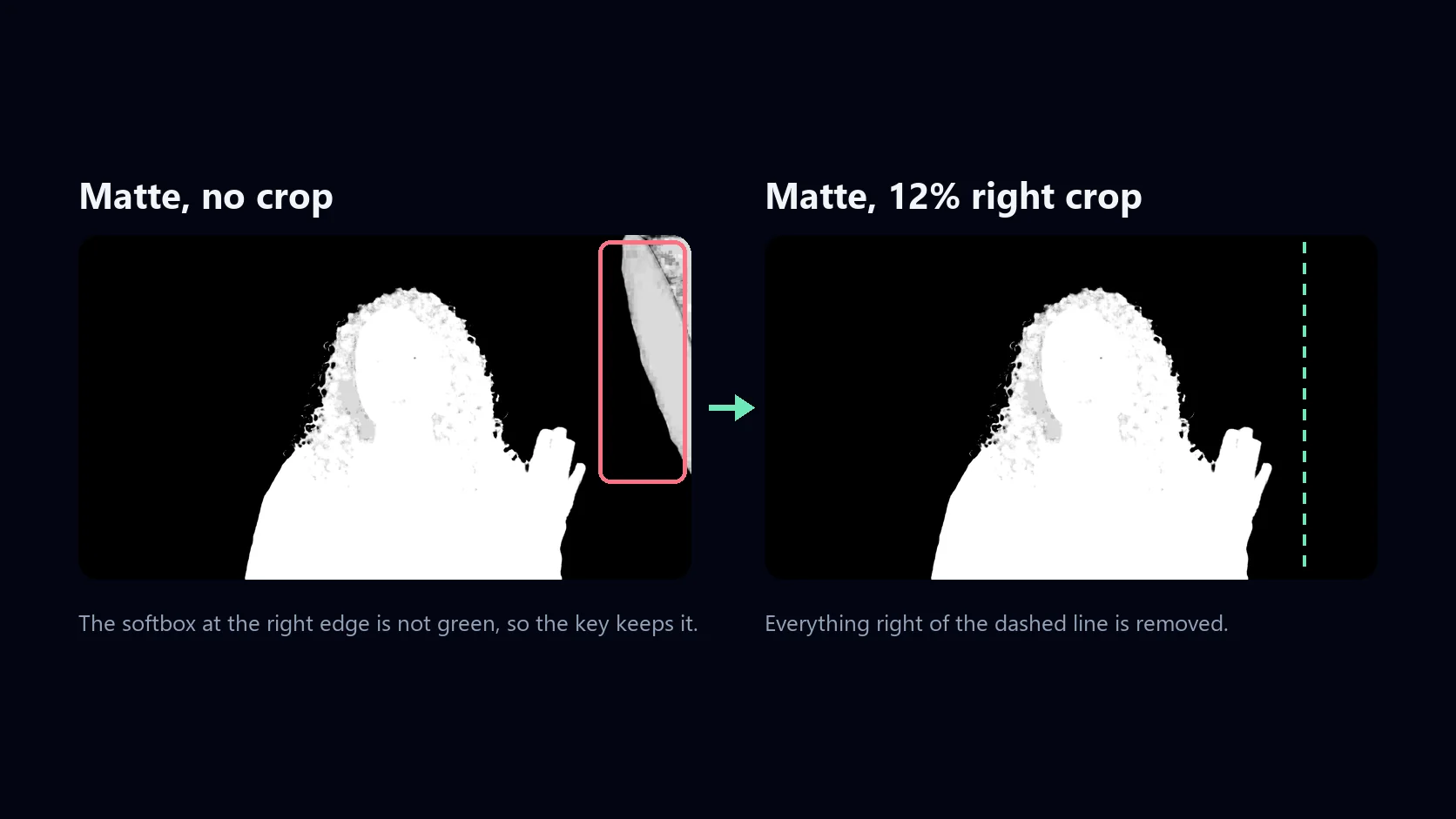
- Open Crop the edges and slide the right side in to 12%. The softbox is gone.
- Press play. Every frame is keyed as it plays.
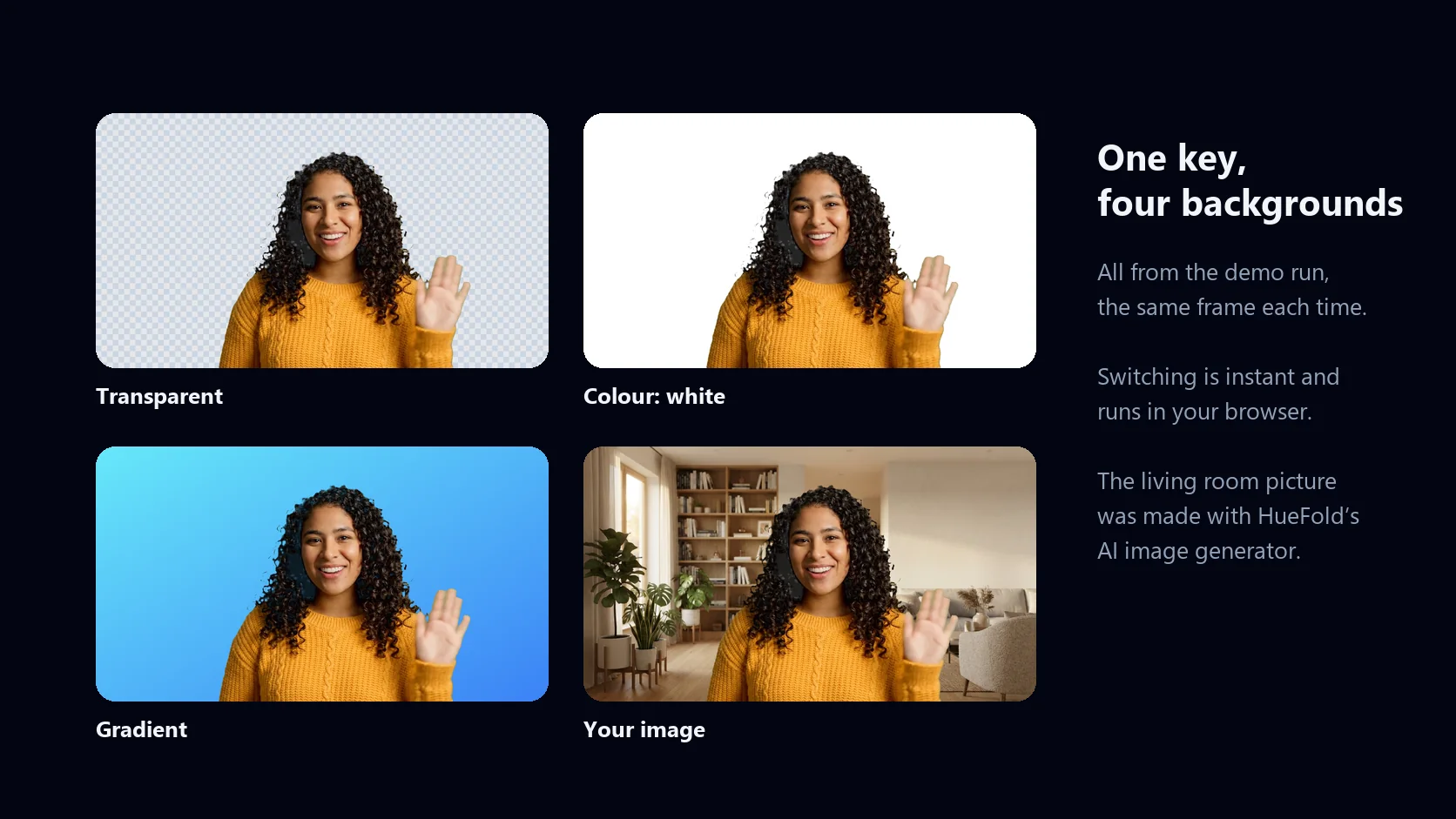
- Choose a gradient, then Your image, and pick a living room picture.
- Click Export MP4. The video plays through once while the browser records it.
- Click Save MP4. The file is 1280 × 720 with the original sound.
How the green screen is removed
A green screen works because almost nothing in a person, a product or a room is that exact green. The tool compares every pixel with the screen's colour and decides how close it is. Pixels very close to it are the screen and become transparent; pixels far from it are the subject and stay; pixels in between — the edges, strands of hair, motion blur — become partly transparent, which is what makes a key look natural instead of cut out with scissors.
The comparison is made on colour, not brightness. A screen is almost never evenly lit: it is brighter in the middle and darker at the folds and corners. Measuring the colour lets the bright and the dark parts of the same green screen key as one. Dark pixels get one more step, so a shadow the subject casts on the screen still keys out while black hair and dark clothes stay.
The result is a matte: a black and white picture of what is kept (white) and what is removed (black). The tool shows it to you in the Matte view, because it is the honest way to judge a key — a grey patch where there should be white means part of the subject is turning see-through.
Key strength, edge softness and spill removal
The key starts at settings that suit a well-lit screen, and most files need no change. When one does, each slider does one job.
Key strength sets how far from the screen's colour a pixel can be and still be removed. Raise it if patches of screen remain, usually in shadows or creases; lower it if the subject starts to turn see-through, which happens with green clothes or green reflections. Edge softness sets how gradual the change from removed to kept is. More softness keeps hair, fur and motion blur natural; less gives a crisper edge on hard objects. Spill removal takes away the green glow that a screen throws back onto the subject, which shows as a green rim on shoulders and hair; it takes the screen's colour out of what stays, without changing its brightness.
| Control | Range | What it changes |
|---|---|---|
| Screen colour | Detected, picked or any colour | Which colour is removed |
| Key strength | 0–100, starts at 25 | How much of the screen is removed |
| Edge softness | 0–100, starts at 20 | How soft the edges and hair are |
| Spill removal | 0–100, starts at 60 | How much green glow is taken off edges |
| Crop the edges | 0–45% from each side | Clears lights and stands at the edges |
Green screen, blue screen, any screen
When a file opens, the tool looks at a band around the edges of the frame, where the screen nearly always is, and takes the typical colour of the clearly green or clearly blue pixels there. That is the colour it removes. Detect again repeats this, which helps after you change frames in a video.
If the detected colour is off — the screen is unevenly lit, or the subject fills the edges of the shot — click Pick from the frame and click the screen itself. The tool switches to the original picture, averages a small patch of pixels under your click so one noisy pixel does not throw it off, and goes back to the result. Blue screen sets a standard blue, and the colour swatch takes any colour at all, so the same tool removes a pink, grey or black backdrop if it is even enough.
Crop away what the screen did not cover
A green screen rarely fills the whole shot. Light stands, softboxes, the end of the screen or the studio wall creep into the edges, and since they are not green the key keeps them. In the Matte view they show up as white shapes at the edge of the frame.
Open Crop the edges and slide the side in from the left, right, top or bottom, up to 45% of the frame on each side. Everything outside the crop is removed whatever its colour, which video editors call a garbage matte. In the demo, a softbox at the right edge of the sample video was cleared with a 12% crop from the right; the subject's waving hand stays well inside it.
Put something behind the subject
Once the screen is gone, the background is your choice, and switching is instant. Transparent keeps the subject on its own, for a PNG to place in another design, a thumbnail or a sticker. Colour gives 10 ready colours and a picker for any other. Gradient gives 6 two-colour gradients that run corner to corner. Your image puts any JPG, PNG or WebP behind the subject, scaled to cover the frame without stretching; it stays on your device like everything else.
For a video the same background is used on every frame. Browsers cannot save a see-through video, so a video needs a colour, gradient or image to export; you can still save any single frame as a transparent PNG.
Removing a green screen from a video
Videos are keyed live: press play and every frame is keyed as it is shown, so you can check the whole clip before saving. The controls work the same while it plays, and the scrubber jumps to any moment.
Export saves a new file. The browser plays the video through once in real time, keys each frame and records the result together with the original sound, so an 8 second clip takes about 8 seconds and a 60 second clip about a minute. Keep the tab open while it works. The file is an MP4 (H.264 video, AAC sound) in browsers that can record MP4, otherwise a WebM, at the video's own size up to 1920 pixels on the long edge. When it is ready, click Save to download it. Changing the key or the background afterwards clears the export, so what you save always matches what you see.
| What | Limit |
|---|---|
| Photo you upload | JPG, PNG or WebP, up to 20 MB |
| Photo size | Its own size, up to 4096 px on the long edge |
| Video you upload | MP4, WebM or MOV, up to 200 MB and 60 seconds |
| Video you save | MP4 or WebM with sound, up to 1920 px on the long edge |
| Photo you save | PNG, or JPG at quality 92 |
| Account or credits | Neither; it runs in your browser |
Shooting a green screen that keys cleanly
A better shot makes a better key than any slider. These help most.
- Light the screen evenly, with its own lights if you can; shadows and hot spots key worst.
- Leave space between subject and screen, a metre or more, so the screen's glow does not spill onto them.
- Avoid clothes and props in the screen's colour. If green is unavoidable, use a blue screen.
- Keep the screen smooth: folds and wrinkles make darker lines that are harder to remove.
- Use a fast shutter for movement; motion blur mixes subject and screen.
- Shoot at a good bitrate. Heavily compressed video smears colour at the edges.
Troubleshooting
The problems people run into most, and what fixes them.
- Patches of screen remain: raise Key strength, or pick the screen colour from the patch itself.
- Parts of the subject turn see-through: lower Key strength; check the Matte view for grey inside the subject.
- A green rim around hair or shoulders: raise Spill removal.
- Hard, jagged edges: raise Edge softness a little.
- A light or stand stays at the edge: open Crop the edges and slide that side in.
- The video will not open: the browser must be able to play it. MP4 with H.264 plays everywhere; some MOV files (HEVC or ProRes) do not.
- The export stutters: other heavy tabs or apps compete for the same computer. Close them and export again.
Removing a green screen inside a design
This page does one job: removing the screen and putting something behind the subject. To build a whole design around green-screen footage — text, logos, music, more clips, social sizes — use HueFold Studio, the full editor, where the same tool is built in.
Select an image or a video in a design, open Edit and choose Remove Green Screen. It opens the tool from this page with the same controls. Apply saves the key on the element rather than making a new file: the screen disappears on the canvas, whatever is behind the element in your design shows through, and downloads and video exports include it. The original picture or clip is untouched, so you can open the key again to adjust it, or click Turn off.
Frequently asked questions
How do I remove a green screen background?
Drop the photo or video on the tool. The screen colour is detected and removed straight away; tune Key strength, Edge softness and Spill removal if needed, pick a background and download.
Can I remove a green screen background online?
Yes. This page does it in your browser: nothing is installed and nothing is uploaded, so it works for private footage too.
Is it free?
Yes. The green screen remover runs on your own device, so there is no account to make and no AI credits are used.
Can I remove a green screen from a video?
Yes. Videos up to 60 seconds and 200 MB are keyed live as they play. Export plays the video through once in real time and saves an MP4 (or WebM in browsers that cannot record MP4) with the original sound.
Does the video keep its sound?
Yes. The original sound is recorded into the exported file along with the keyed picture.
Can I make a transparent video?
No. Browsers cannot save see-through video, so a video needs a colour, gradient or image behind it. You can save any frame as a transparent PNG, and photos can be saved as transparent PNGs.
Does it work with a blue screen?
Yes. A blue screen is detected the same way as a green one, and the Blue screen button sets a standard blue. The colour swatch takes any colour, for other even backdrops.
What formats can I upload?
Photos: JPG, PNG and WebP up to 20 MB. Videos: MP4, WebM and MOV up to 200 MB and 60 seconds, in a format your browser can play; MP4 with H.264 plays everywhere.
Is my video uploaded anywhere?
No. The keying, the backgrounds and the export all run in your browser on your device. Your files never leave it.
Why is there still green around the edges?
That is spill: green light from the screen reflected onto the subject. Raise Spill removal, which takes the green out of what stays. If whole patches stay green, raise Key strength.
Part of my subject disappeared. What do I do?
Lower Key strength until it comes back, and check the Matte view: the subject should be solid white. Green clothes or props will always key out with a green screen; a blue screen avoids that.
Can I use green screen cutouts for thumbnails and ads?
Yes. Save a transparent PNG and place it in a thumbnail or ad design, or put a colour, gradient or your own image behind it here. Use footage you have the rights to.
Can I keep editing after the green screen is removed?
Yes. Upload the PNG or MP4 you saved to a design in HueFold Studio to add text, other images, music and more, or key the original right in Studio.
Can I remove a green screen inside a design?
Yes. In HueFold Studio, select an image or a video, open Edit and choose Remove Green Screen. The key is saved on the element, so your design shows behind the subject and exports include it; Turn off brings the original back.
Is this different from a general background remover?
Yes. A background remover uses AI to find the subject in any photo. This tool removes one colour — the screen — which is faster, works on video frame by frame and keeps fine hair well, but only when the shot was made in front of an even, single-colour backdrop.
Related tools
- Video Background Remover — No green screen? Remove a video background.
- Change Photo Background — AI cutout and a new background for any photo.
- Remove Color From Image — Make any one colour transparent.
- Background Remover — Cut the subject out of a photo.