Video Background Remover
Remove the background from a video with AI, no green screen needed: the subject is cut out frame by frame and set on a colour, a green screen, the original blurred, or your photo.
Updated
How do you remove the background from a video?
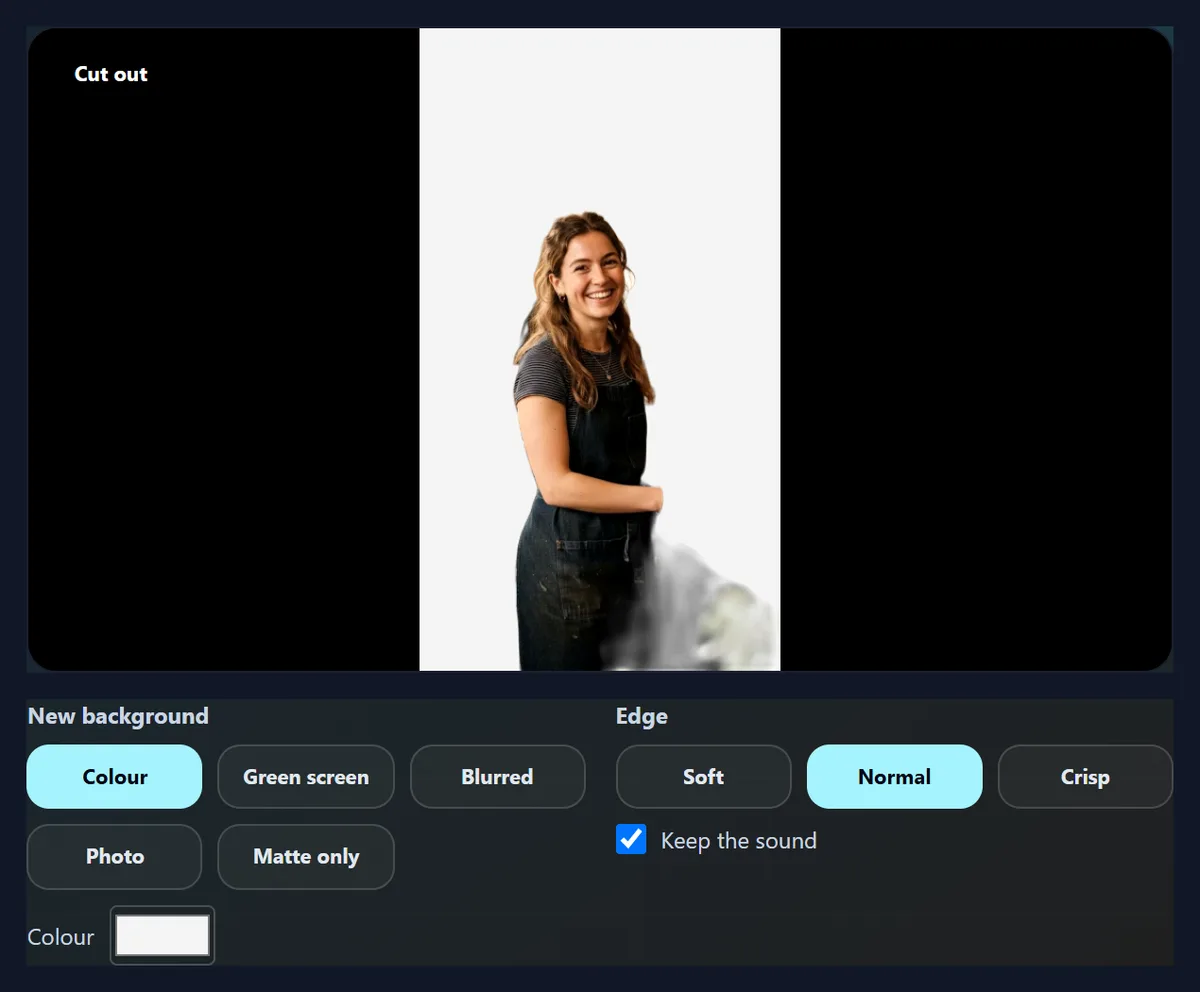
Press Remove the background: an AI model cuts the subject out of each sampled frame and smooths the edge over time, then you choose what goes behind and make the MP4, with the sound kept.
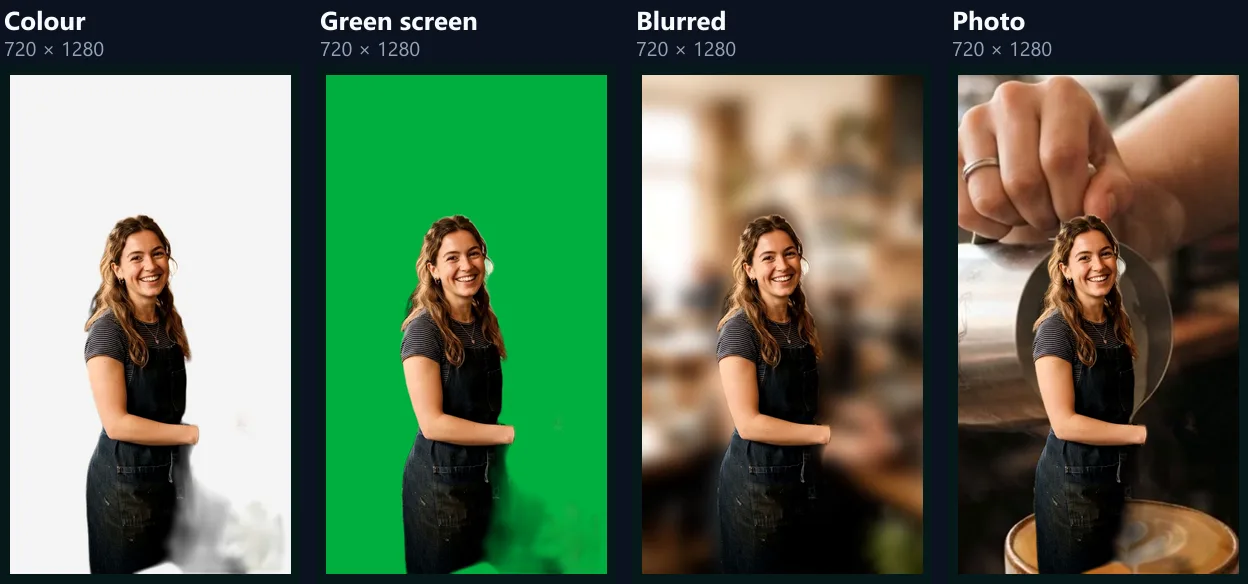
Three seconds of the busy café sample took 10 seconds at Fast and 43 at Balanced; the barista was set on a colour, a green screen, her café blurred and a photo.
How to remove a video background
- Open the video Choose up to 15 seconds.
- Remove the background Fast, Balanced or Best detail.
- Choose what goes behind Colour, green screen, blur or a photo.
- Make the MP4 Every frame, with the sound.
Remove a video background with AI
A real recording of this tool: the café sample opened, the background removed at Fast detail, green screen, blurred and colour backgrounds tried, and the MP4 made.
- The café sample is opened.
- The background is removed at Fast detail.
- Green screen, the café blurred, and a plain colour are tried behind her.
- The MP4 is made and plays.
How do I remove the background from a video?
Open the video, choose the part to cut out and the level of detail, and press Remove the background. An AI model finds the subject in each sampled frame on HueFold's server and smooths its edge from frame to frame; back in your browser, choose what goes behind (a colour, a green screen, the original blurred, or a photo) and make the MP4.
On the busy café sample the cut-out took 79.2 s at Balanced detail, from pressing the button to the preview.
Which level of detail should I choose?
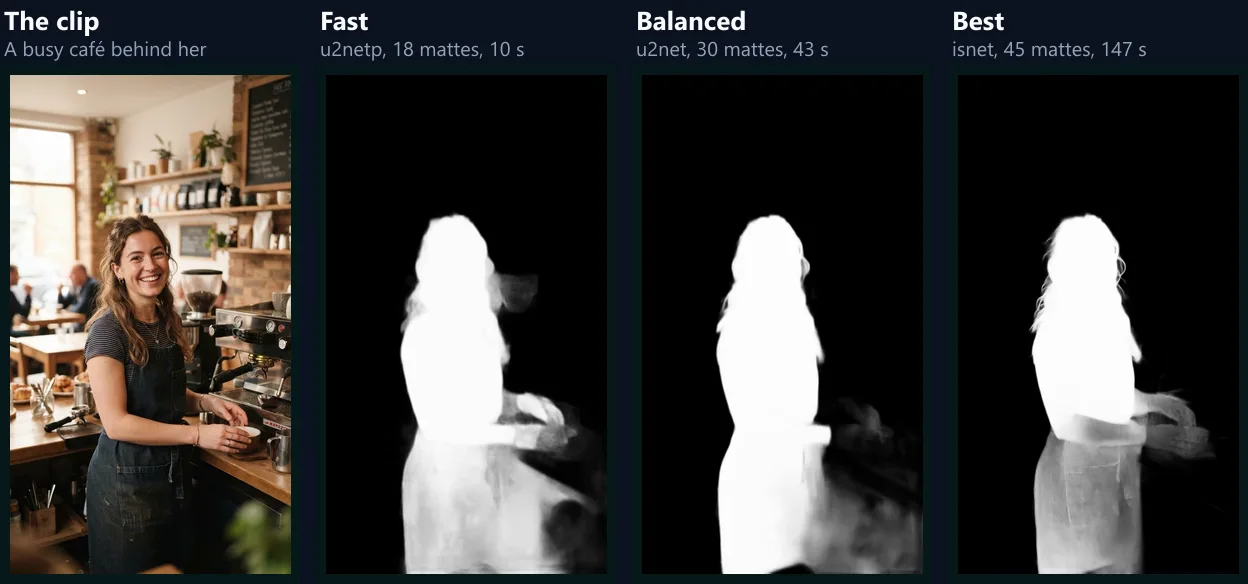
Balanced for most videos. Fast looks at 6 frames a second with a small model, and is quickest; Balanced at 10 with U²-Net; Best at 15 with IS-Net, at a larger size, which keeps more of the hair. On the same 3 seconds of the café sample they took 10, 43 and 147 seconds.
Because Best takes so long, it cuts out up to 3 seconds at a time; Balanced up to 8 and Fast up to 15. Between the frames the model looked at, the edge is blended from the nearest two, so it moves smoothly at the video's own frame rate.
| Detail | Took | Mattes | Matte size | Model |
|---|---|---|---|---|
| Fast | 10 s | 18 (6 a second) | 270 × 480 | u2netp |
| Balanced | 43 s | 30 (10 a second) | 360 × 640 | u2net |
| Best | 147 s | 45 (15 a second) | 540 × 960 | isnet |
How good is the cut-out?
Good on a clear subject, imperfect on a busy scene. The models find the most noticeable object, usually a person; things the person holds or touches can be half in or out. On the café sample all three kept the barista; Fast also took in some of the coffee machine, Balanced dropped the cup in her hand and left a faint smudge of the counter beside it, and Best kept the most hair but left her apron partly see-through.
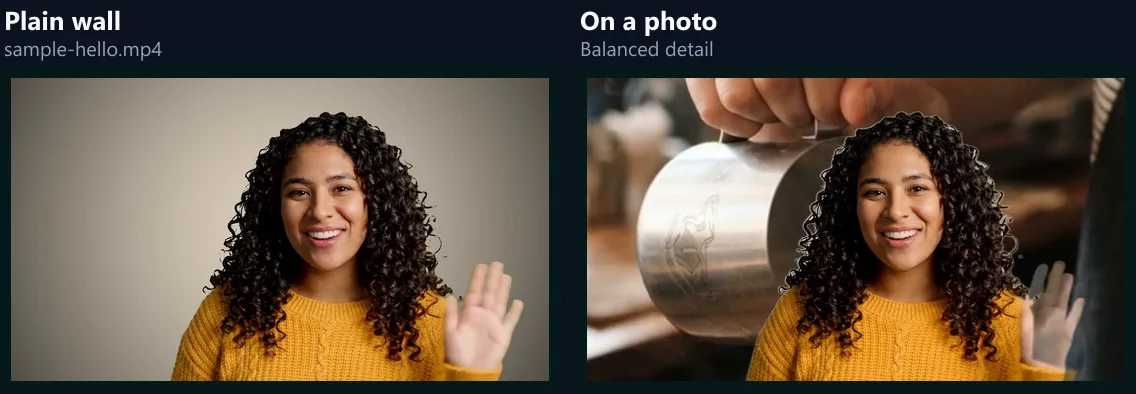
A plain background behind the subject helps most. The plain-wall sample cut out cleanly at Balanced.
What can go behind the subject?
A colour you choose; green screen green (#00B140), for keying it again in another editor; the original video, blurred, which keeps the place but softens it like a portrait lens; or a photo of your own, filled to the frame. Matte only saves the black-and-white matte itself, for editors that take a separate matte.
The preview plays the cut-out part on a loop with the new background, as the MP4 will show it.
Can I make the edge softer or crisper?
Yes. Normal trims the faintest and strongest edge values to see-through and solid; Soft keeps the matte as the model drew it, with a gentle fade at the edge; Crisp cuts it harder, for busy backgrounds where a halo would show. The edge setting is applied in the browser, so changing it does not need another cut-out.
Hair and motion blur look most natural with Soft or Normal.
What do I get?
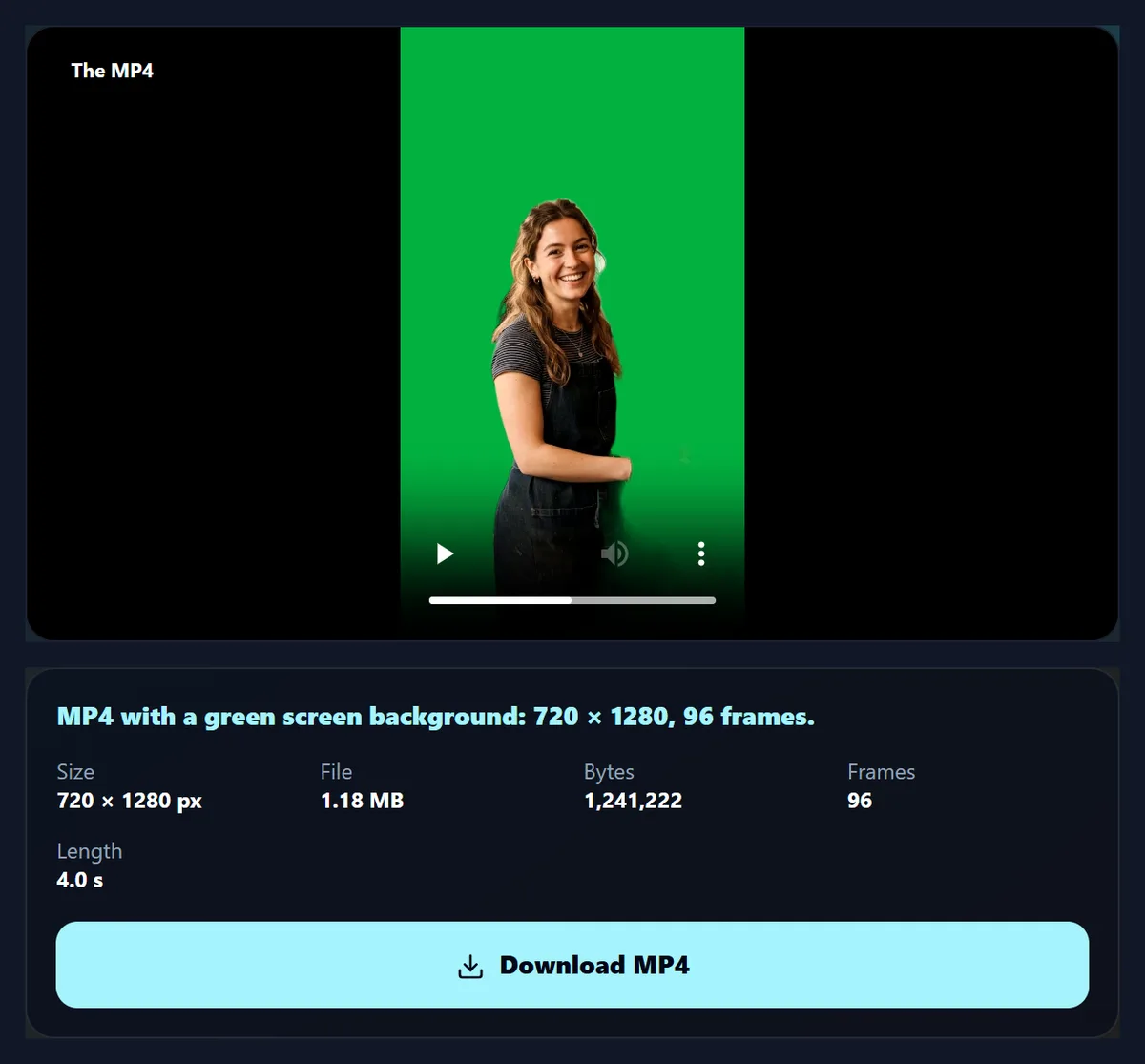
An MP4 at the video's own size, every frame of the chosen part composited at its own time, with the sound kept. The green-screen version of the café sample was 720 × 1280, 96 frames.
Making it plays the part through once at half speed, so no frame is missed.
Does a plain background help?
A lot. The plain-wall sample, someone waving in front of a grey wall, cut out with a clean edge at Balanced (40 mattes (10 a second, 640 × 360)), and was set on a café photo.
If you are filming for this, stand a step away from a plain wall, with light on your face rather than behind you.
Do I still need a green screen?
Not for most uses. A real green screen still gives the cleanest edge, especially for hair, glass and fast movement, because the keyer knows exactly which colour to remove; the remove green screen page does that in your browser. Without one, this tool's AI finds the subject wherever you filmed.
To use the cut-out in another editor, choose Green screen as the background and key it out there.
How long a video can it handle?
Up to 15 seconds at a time at Fast, 8 at Balanced and 3 at Best: the model runs on every sampled frame, on HueFold's server, and each request must finish within five minutes. For a longer video, cut out one part, then the next, and join them with Merge Videos.
Videos over 30 MB are sent as a smaller copy of just the chosen part; the result is drawn at the original size from your own file.
How does the cut-out work?
On HueFold's server, the chosen part of the video is sampled at the level's rate and each sample goes through a salient-object model (U²-Net, its small version, or IS-Net), which marks how sure it is that each pixel belongs to the main subject. Each new matte is blended with the running one, 60% new, more when the subject moves, so the edge does not flicker; a sudden change of picture, a cut, starts afresh. The mattes come back as a small black-and-white video.
In your browser, every frame of the original is matched to the two nearest mattes in time, blended between them, sharpened by the edge setting and used to cut the subject out over the new background.
How do I film for a clean cut-out?
Give the model an easy subject: one person or object, clearly in front, a step or two away from a plain or out-of-focus background, lit from the front rather than from behind. Avoid colours that match the background, very fast movement (motion blur has no clean edge) and objects crossing in front of the subject.
Things the subject holds are the hardest part: hold them close to the body, or accept that they may be cut out partly.
Can I get a video with a transparent background?
Not as an MP4, which has no transparency. For editing elsewhere there are two ways: choose Green screen, and key the green out in the other editor, as with a real green screen; or choose Matte only, which saves the black-and-white matte as its own video, for editors that take a separate matte (track matte, luma matte).
Both keep your original video as it is; the matte or the green version goes alongside it.
How is this different from removing a photo’s background?
A photo is one picture, so its cut-out can take its time over one frame; a video needs the same subject found in every frame, consistently, or the edge flickers. That is why this tool samples the video, smooths the mattes over time and blends between them, and why it limits the length. For still pictures, the background remover is quicker and sharper.
The video tool needs a free account because every sampled frame is a model run on HueFold's server.
Does it work on a phone?
Yes, in a current browser: the cut-out runs on the server, and the new background and the MP4 are made in your browser, which plays the part through once at half speed. Keep the screen on until it is done. Videos larger than 30 MB are sent as a smaller copy of just the part you chose, so phone videos are fine.
The result is saved to your downloads, ready to share.
What is it good for?
Talking-head videos filmed in a busy room, set on a clean colour or your brand's background; product clips put on white; a presenter on green screen, to be keyed over slides or footage in another editor; and keeping a person sharp while the room behind them is softened with Blurred.
Short clips work best: a greeting, a hook, a product turn, a reaction.
Should I blur the background or replace it?
Blur when the place matters but distracts: the viewer still sees a café or an office, softly, and edges that are not perfect are hardly noticed, because the blurred background is the real one. Replace it when the background has to go entirely, for a clean brand colour or a different scene; there, check the edges in the preview before making the MP4.
The preview loops the chosen part with the new background, so each choice can be judged before anything is encoded.
Is the sound kept?
Yes: the MP4 has the original sound of the chosen part, in step with the picture, unless you untick Keep the sound. Matte only is saved without sound, since it is meant to be laid under the original in another editor.
The server uses only the picture to make the matte, and keeps nothing afterwards.
What is the matte for?
Editors such as Premiere Pro, DaVinci Resolve and After Effects can use a black-and-white video as a track matte or luma matte: white shows the clip above, black hides it. Laying the original over any background with this matte gives the same cut-out as the tool, with full control over the edge and colour in the editor.
It is the same matte the preview uses, at the video's size.
Is it free?
Yes, with a free HueFold account: the cut-out uses no credits. The chosen part of the video goes to HueFold's server only to be cut out, and is not kept; everything after that happens in your browser.
Signing in is what keeps the server free for everyone.
Frequently asked questions
How do I remove the background from a video?
Press Remove the background, choose a new background and make the MP4.
Do I need a green screen?
No: the AI finds the subject. A green screen still gives the cleanest edge.
How long a video can it do?
Up to 15 seconds at Fast, 8 at Balanced and 3 at Best, a part at a time.
How long does it take?
Seconds to minutes: 3 seconds took 10 s at Fast and 43 s at Balanced.
Can I put it on green screen?
Yes, green screen green (#00B140), to key in another editor.
Can I use my own photo behind it?
Yes, filled to the frame.
Is the sound kept?
Yes.
Is it free?
Yes, with a free account. No credits are used.
Related tools
- Remove Green Screen — Key out a real green screen.
- Background Remover — Cut out a photo’s background.
- Blur Background — Soften a photo’s background.
- Merge Videos — Join the parts you cut out.
- Video Splitter — Cut a long video into parts.
- Photo Background Change — A new background for a photo.