Remove Color From Image
Click any color in your image to make it transparent. The preview is instant and runs entirely in your browser. Sign in with a free HueFold account to download the result or keep editing it in Studio.
Updated

Remove a specific color from an image, free and online
Drop in a PNG, JPG or WEBP, click the color you want gone, and it turns transparent straight away. The tolerance slider decides how close a pixel has to be to the color you picked before it is removed, so you can take out one flat background or a whole shade range. Edge softness feathers the cut so the result does not look jagged, and despill strips the leftover colour fringe that a strong background leaves around hair and thin edges. When it looks right, download a transparent PNG.
How to Remove Color From Image
- Upload your image Drag in a PNG, JPG, WEBP or GIF, paste an image from your clipboard, or choose a file. Nothing leaves your device.
- Click the color to remove Use the eyedropper on the image, or type a hex code. The picked colour becomes transparent immediately.
- Tune tolerance and edges Raise the tolerance to catch more shades of that colour, and add edge softness or despill to clean the outline.
- Download or keep editing Sign in to save the result as a transparent PNG, WEBP, JPG or PDF rendered by HueFold, or open it in Studio to carry on designing.
Counted live from real use of the tool on this page — not a marketing figure. Every removal runs in the visitor's own browser.
AI precision where it is needed
Flat colour is removed by exact arithmetic. When an edge is genuinely hard — hair, fur, motion blur — AI refine runs a segmentation model over it and rebuilds the boundary.
Batch colour removal
Drop in up to 20 images at once. Each one's background colour is detected separately, or pick a single colour for the whole set, then download the results as a ZIP.
Your images stay on your device
Picking colours, tolerance, despill and the preview all run on a canvas in your browser — one image or twenty. Nothing is uploaded until you ask for a download, an AI refine, or Studio.
Real transparency, not white
Results carry a true 8-bit alpha channel, and any transparency the file already had is preserved rather than flattened onto a white rectangle first.
Watch a colour come out of a photo
Fourteen seconds, start to finish: drop in a photo shot on a green backdrop, let the tool detect the background, drag the tolerance down until the backdrop is gone and the subject is intact, check the cutout on four backdrops, and download a transparent PNG.
- Drop a PNG, JPG or WEBP onto the tool, or paste one from the clipboard.
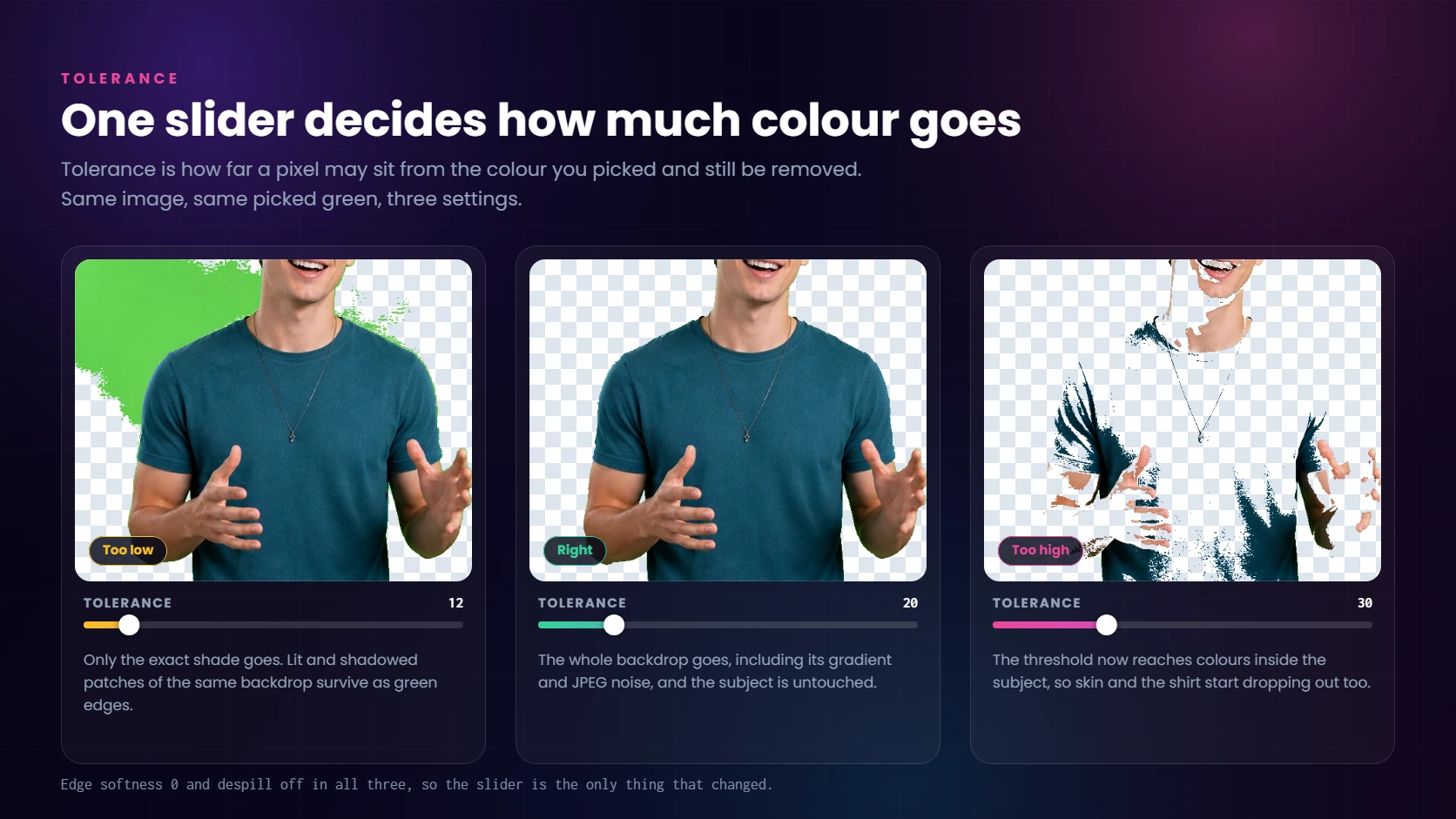
- The background colour is detected automatically — here #49b633, at the default tolerance of 32.
- At 32 the threshold also reaches the subject, so the shirt and skin start dropping out.
- Drag tolerance down to 18: the backdrop goes completely and the subject comes back intact.
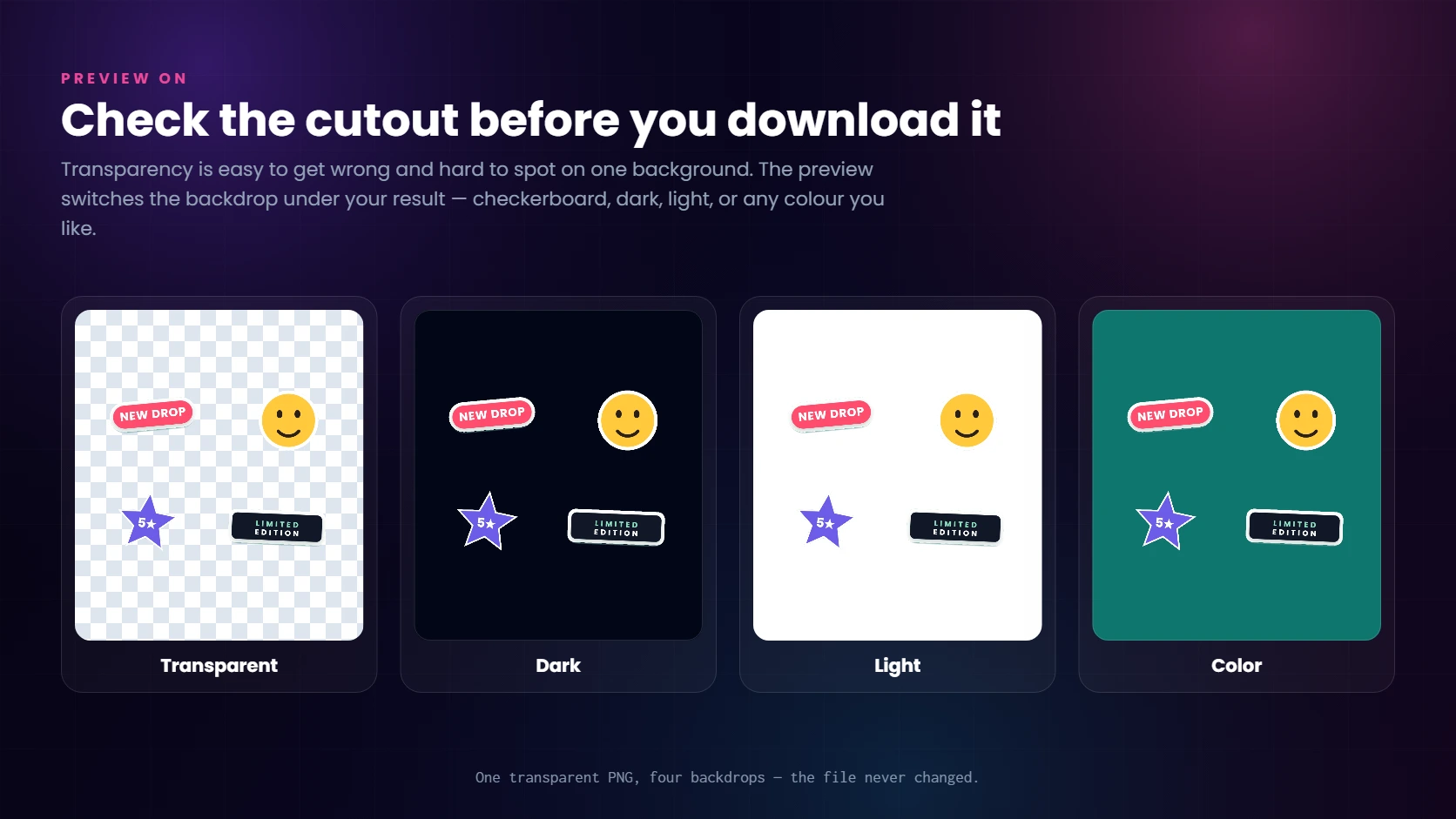
- Check the result on a checkerboard, a dark background, a white background and a colour.
- Download it as a transparent PNG, with no watermark.
Remove colour to transparent in one click
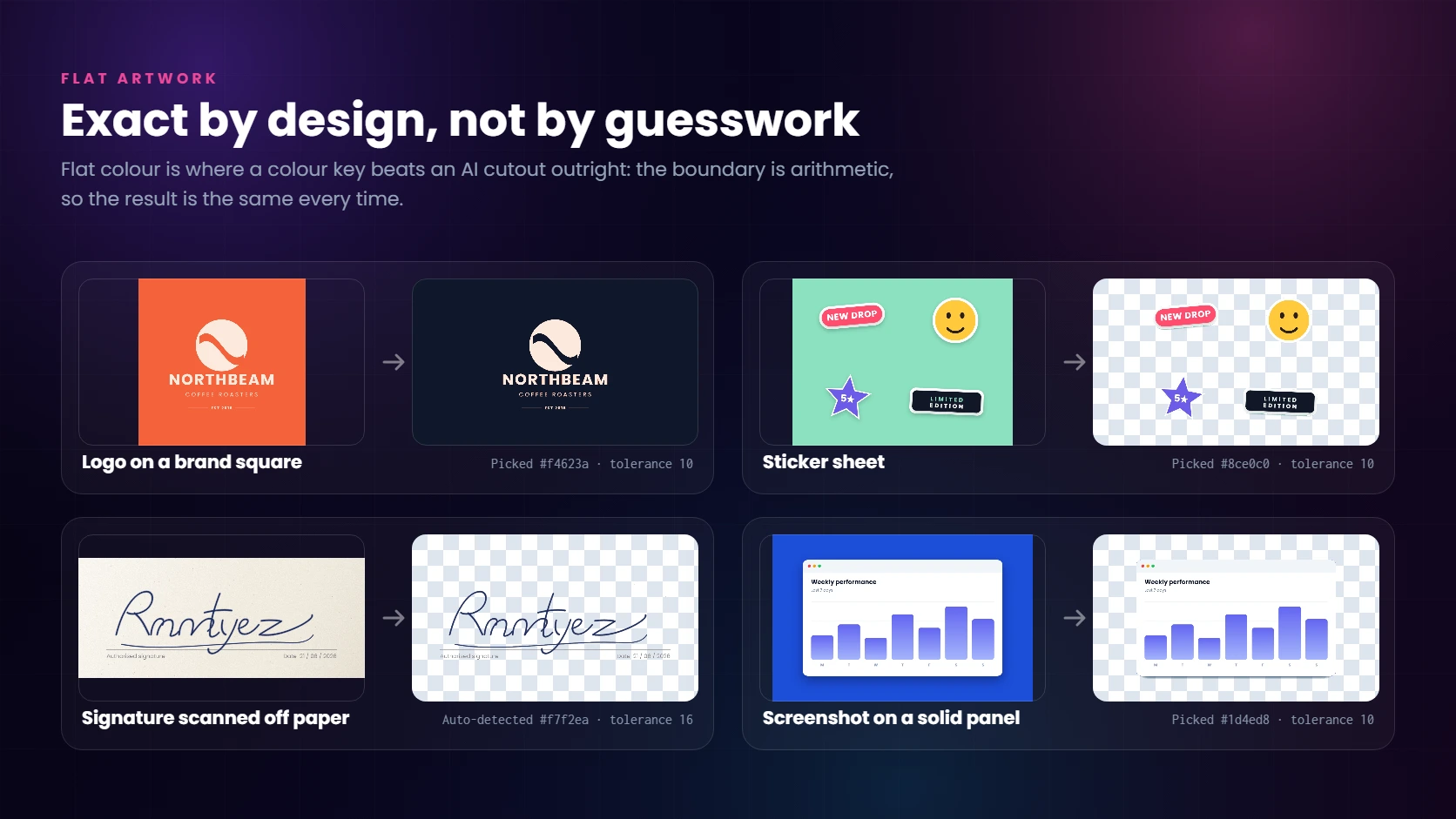
Most background removers only handle white or a full subject cutout. This one removes the exact colour you point at, which is what you want for flat artwork: a logo saved on a coloured square, a sticker sheet, a scanned stamp, a screenshot with a solid panel behind it.
- Remove white, black, green, blue or any custom hex colour.
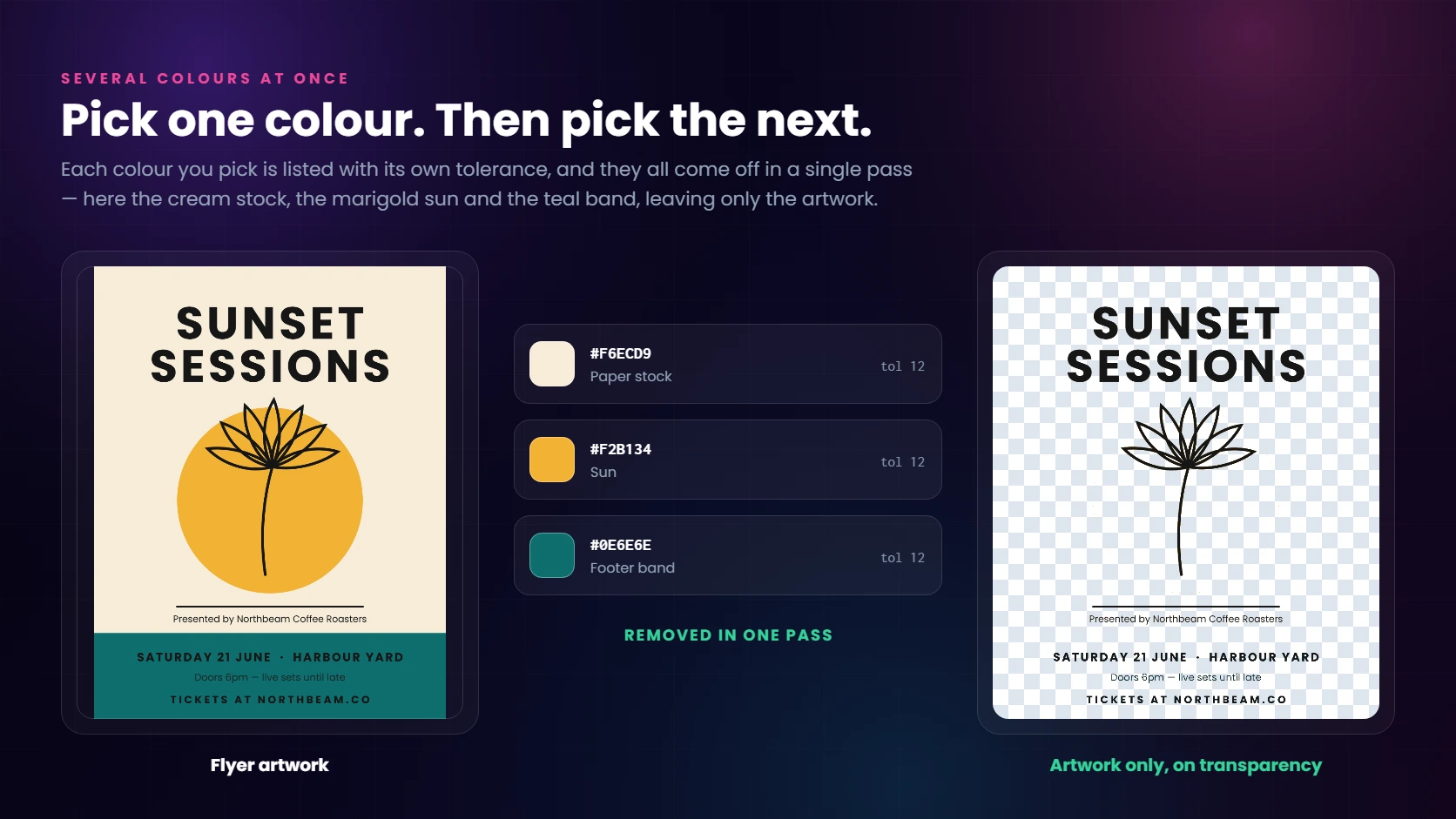
- Remove several colours in one pass by picking them one after another.
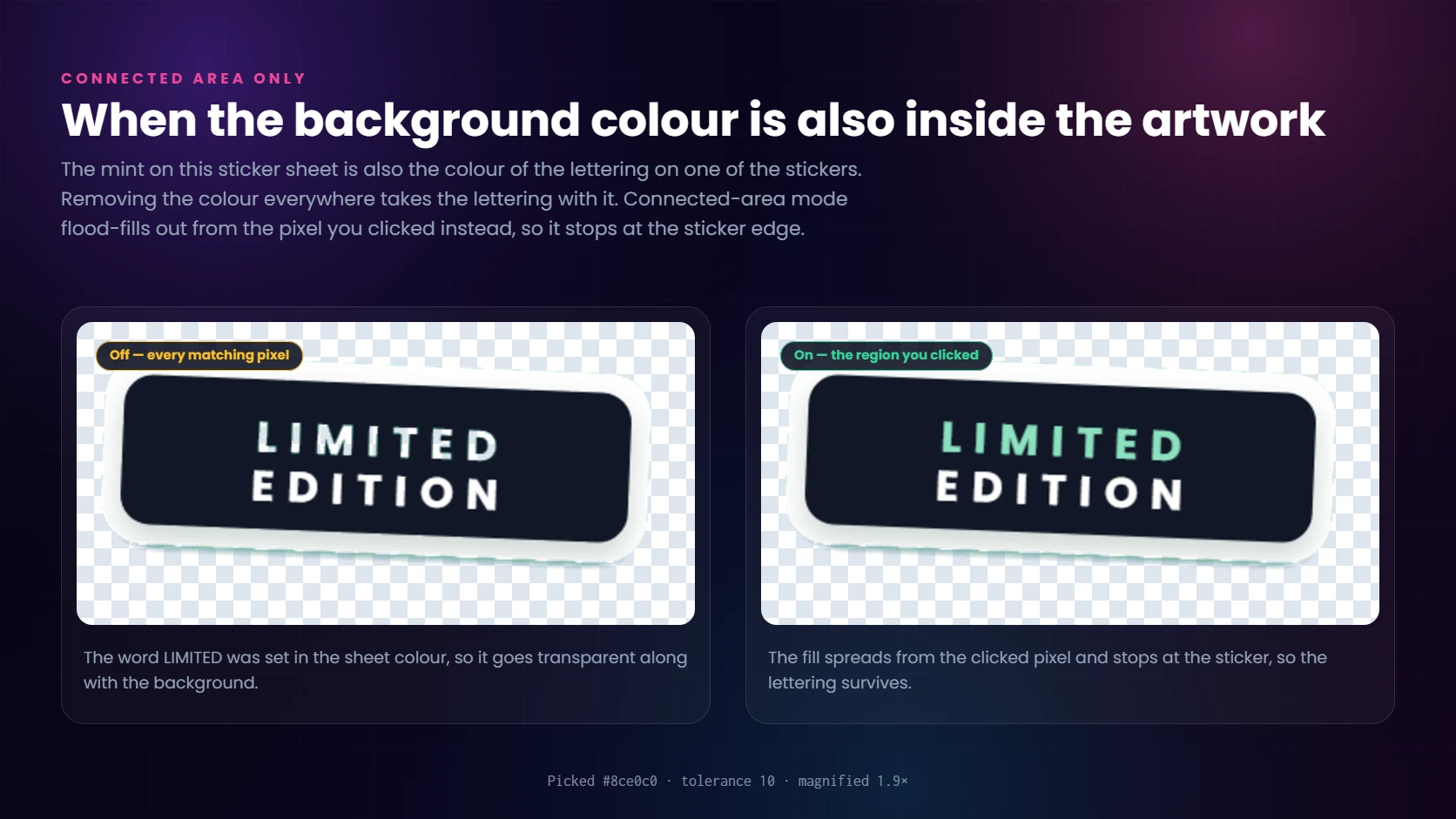
- Contiguous mode removes only the connected region you clicked, so matching colours inside the subject survive.
Remove a color from a PNG and keep real transparency
The result is written with a true alpha channel, so it stays transparent over a dark background, a photo or a slide. Open a PNG and any transparency it already had is preserved, with the colour you picked simply joining it. JPG cannot store an alpha channel at all, which is why exports default to PNG, with WEBP there when you need a smaller file.
- True 8-bit alpha, not a white rectangle pretending to be transparent.
- Existing PNG transparency is kept, not flattened onto white first.
- Checkerboard preview so you can see exactly what is transparent.
- Check the cutout against dark, light and coloured backdrops before you download.
Remove a colour from a whole set of images
Drop in up to twenty images and they are processed one after another, on your own device, exactly the way a single one is. Each image can have its own background colour detected from its border, which suits a folder of mixed artwork, or you can name one colour and apply it to everything, which suits a product set shot on the same backdrop. The results come back as a grid you can check before you take them, and download as a single ZIP.
- Up to 20 images at once, processed in the browser — nothing is uploaded.
- Per-image colour detection, or one picked colour applied across the set.
- One tolerance, softness and despill setting for the whole batch, re-applied with a click.
- Download everything as a ZIP of transparent PNGs or WEBPs.
When the edges are hard, let AI finish the job
Flat colour removal is exact maths and handles most artwork perfectly. Photographs with soft hair, motion blur or shadows are harder, because the background colour bleeds into the subject. For those, the AI refine step runs a trained segmentation model over the image and rebuilds the edge.
- Instant browser result first, AI only when you ask for it.
- Keeps the transparency you already made and cleans the boundary.
- Useful for portraits, product photos and anything shot against a coloured backdrop.
Create remove color from image results with AI image models
Once a colour is gone, the cleaned cutout becomes a starting point. Open it in HueFold Studio and use an image model to generate a new backdrop, restage a product shot, or build the rest of the layout around it.
- GPT Image 1 (openai)
- DALL-E 3 (openai)
- Imagen 4 (google)
- Dola-Seedream-5.0-pro (seedream)
- Dola-Seedream-5.0-lite (seedream)
- ByteDance-Seedream-4.5 (seedream)
- ByteDance-Seedream-4.0 (seedream)
- Nano Banana 2 Lite (google)
- Nano Banana 2 (google)
- Nano Banana Pro (google)
- Nano Banana (google)
- Gemini Flash Image / Nano Banana (gemini)
Exact colour targeting
The removal itself is deterministic maths, not a guess: the colour you pick is the colour that goes, with tolerance and edge softness under your control.
AI where it actually helps
Segmentation cleans up hair, fur and soft edges that a flat colour key cannot reach, and image models generate whatever you want behind the subject.
Straight into the editor
Every model listed here opens in HueFold Studio with your cutout on the canvas, so generating and designing happen in one place.
Frequently asked questions
How do I remove a specific color from an image?
Upload the image, click that colour on the picture with the eyedropper, and it becomes transparent. If some of the colour survives, raise the tolerance slider until the rest disappears. If too much is removed, lower it.
Is it free?
Yes. Removing the colour and previewing the result cost nothing and need no account. Downloading the file, or opening it in HueFold Studio, needs a free HueFold account. There is never a watermark.
Is my image uploaded to a server?
Not while you are working. The colour removal runs entirely in your browser on a canvas, so nothing leaves your device while you pick colours and tune the result. The image is only sent to us when you ask for something we render for you: a download, AI refine, or opening it in Studio.
What does the tolerance slider do?
It sets how far a pixel can differ from the colour you picked and still be removed. A low tolerance removes only that exact shade, which suits flat graphics. A higher tolerance also catches the gradients and compression noise around it, which suits photographs and JPGs.
Can I remove a colour from several images at once?
Yes. Switch to the Batch tab, or just drop more than one file onto the tool and it switches for you. Up to twenty images are processed one after another in your browser, either detecting each image's own background colour or using one colour you pick for the whole set, and the results download as a ZIP. A free HueFold account is needed to download, the same as for a single image.
Does batch processing upload my images?
No. Batch works the same way as a single image: every file is decoded and processed on a canvas in your own browser. The limit of twenty at a time is there because the work happens on your device, not because of a server quota.
Can I remove more than one colour?
Yes. Pick a colour, then pick another. Each one is listed and can be removed from the list or given its own tolerance.
Why is there a coloured fringe around my subject?
That is spill: pixels on the boundary are a blend of the subject and the background colour. Turn on despill to neutralise it, and add a little edge softness to feather the remaining outline.
Which formats can I use?
You can open PNG, JPG, WEBP and GIF. Downloads are rendered as PNG, WEBP, JPG or PDF. Choose PNG or WEBP if you need the transparency kept, because JPG cannot store an alpha channel and will flatten it.
How do I remove a color from a PNG?
Open the PNG, click the colour you want gone, and download the result as a PNG again. A PNG already supports transparency, so any alpha the file had is preserved and the colour you removed simply becomes transparent alongside it.
Can I remove all the colour from an image instead?
That is a different job: stripping all colour means converting to black and white, not making anything transparent. Use the Grayscale Image tool for that. This page removes one specific colour and replaces it with transparency.
Does it work on a phone?
Yes. The tool works in mobile browsers, and you can tap the image to pick a colour instead of using a mouse.
Can I remove the colour from a scanned signature or logo?
That is one of the things it does best. Scans and logos are usually flat colour on flat paper, so picking the paper colour with a moderate tolerance leaves a clean transparent mark you can drop onto a document.
Take your cutout further with a template
Every one of these is built around a transparent image, so the colour you just removed becomes the subject. Open one and it arrives in the editor with your cutout already in place.
- Sticker Drop Instagram Post — 1080 × 1080
- Logo Reveal Post in Soft Gradient — 1080 × 1080 Plus
- Product Sale Instagram Story — 1080 × 1920
- High Contrast YouTube Thumbnail — 1280 × 720 Plus
- Portfolio Poster for Transparent Art — 1080 × 1350
- Signed Letterhead with Clear Signature — 1240 × 1754 Plus
- Profile Badge with Ring Frame — 1080 × 1080
- Price Tag Product Post — 1080 × 1080
- Quote Story with Cutout Subject — 1080 × 1920 Plus
- Team Introduction Banner — 1584 × 396 Plus
Related tools
- Remove White Background — Clean white backgrounds and make transparent cutouts.
- Remove Green Screen — Chroma key green and blue screen photos.
- Background Remover — AI subject cutout for photos with busy backgrounds.
- Change Color Of Image — Recolour artwork instead of removing a colour.
- Transparent Images — Make and edit transparent PNG assets.
- Grayscale Image — Remove all colour instead of one: convert to black and white.