Translate
Paste a text or open a TXT, Word or PDF file, choose a language, and get a translation you can edit, compare side by side, copy or download.
Updated

Translate a text with AI
This translator turns a text into any of 41 languages with Gemini 2.5 Flash Lite, Google's fast text model, run through HueFold's AI service. Paste or type the text, or open a TXT, Word or PDF file, choose a language and press Translate.
Long texts go in parts and come back with their paragraphs in place, right-to-left languages read right to left, and Side by side pairs every paragraph with its translation. Each part costs one AI credit.
How to translate a text
- Add your text Type or paste it, or open a TXT, Word or PDF file; up to 20,000 characters at a time.
- Choose the language Pick one of 41 languages to translate into; you do not need to say which language the text is in.
- Translate Press Translate and sign in if asked; long texts go in parts of up to 4,000 characters, one credit each.
- Check and save Read it side by side with your text, edit anything that needs it, then copy it or download a .txt file.
Translate a text into Spanish
The shop notice sample translated into Spanish with this tool, then read side by side with the English.
- The shop notice sample goes into the box: two paragraphs with a date, a time, a price and an email address.
- Spanish is chosen from the 41 languages.
- Translate runs the text through Gemini 2.5 Flash Lite; the Spanish appears beside the English with its length, parts, credits and time.
- Side by side pairs each English paragraph with its Spanish translation.
How much of the meaning comes back?
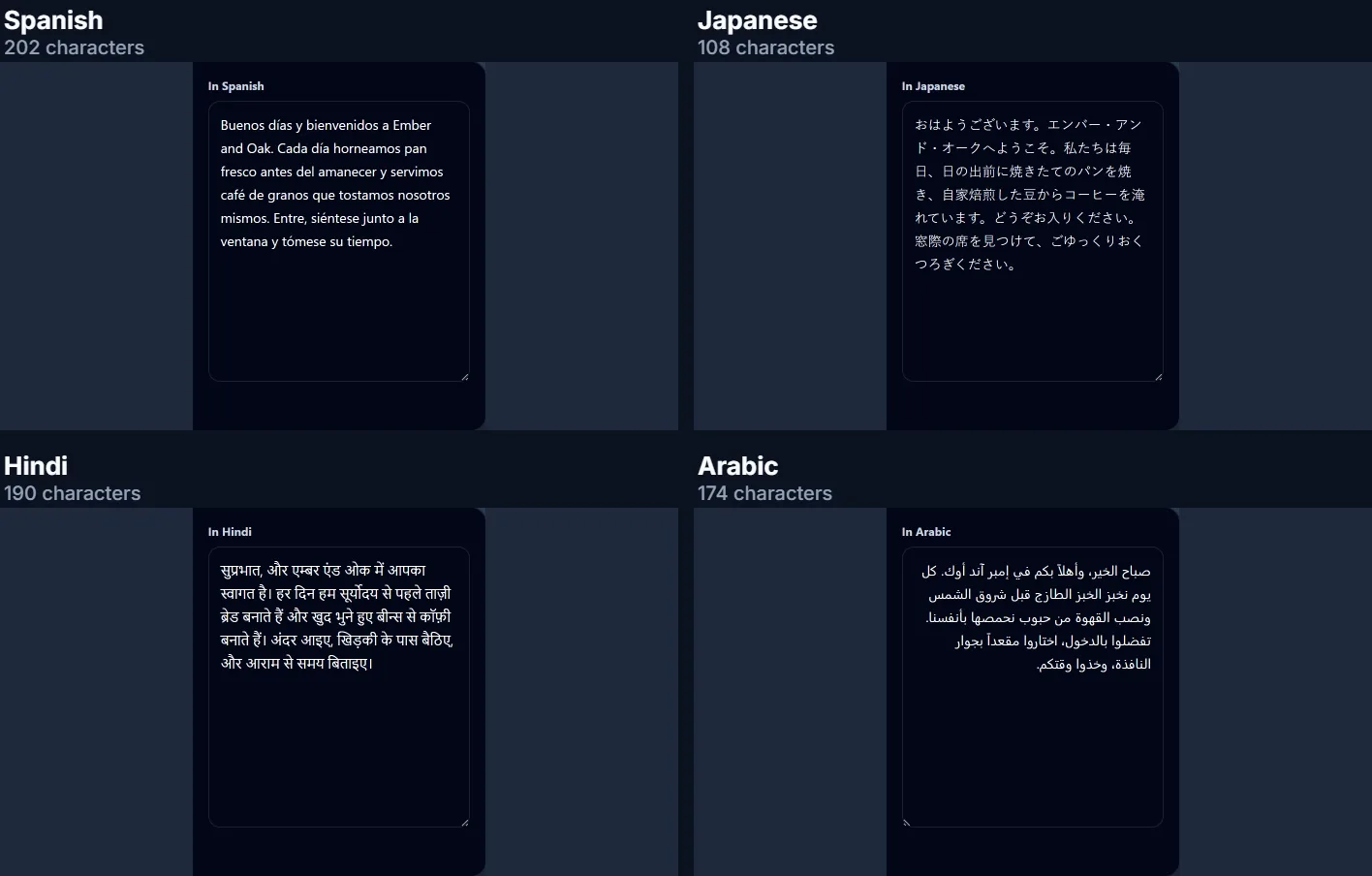
To check the translations, the café welcome on this page (191 characters, 36 words) was translated by this tool into four languages, and each translation was translated back into English with the same tool. The table counts how many of the original's 36 words came back in the same order.
Arabic came back closest, with 33 of 36 words (91.7%); Japanese came back with 25 (69.4%). A round trip is a strict test: the Spanish came back with “before dawn” for “before sunrise” and “sit by the window” for “find a seat by the window”, which lose words without losing meaning, and two translations are involved, not one. So read it as a rough sign that the meaning survived, not as a score for each language.
| Language | Characters | Words back in order | Of the original |
|---|---|---|---|
| Spanish | 202 | 86.1% | 31 of 36 |
| Japanese | 108 | 69.4% | 25 of 36 |
| Hindi | 190 | 72.2% | 26 of 36 |
| Arabic | 174 | 91.7% | 33 of 36 |
How do I translate a text?
Type or paste the text into the box, or open a TXT, Word or PDF file, choose the language to translate into, and press Translate. The translation appears beside your text, ready to edit, copy or download as a .txt file, and Side by side lines up each paragraph with its translation.
You don't choose the language of your text: the model works it out. Translating the café welcome took between 2.7 and 6.5 seconds, depending on the language, and 1 AI credit each time.
Which languages can I translate into?
Forty-one: Arabic, Bengali, Chinese (Simplified and Traditional), Czech, Danish, Dutch, English, Filipino, Finnish, French, German, Greek, Gujarati, Hebrew, Hindi, Hungarian, Indonesian, Italian, Japanese, Korean, Malay, Marathi, Norwegian, Persian, Polish, Portuguese (Brazil and Portugal), Punjabi, Romanian, Russian, Spanish, Swahili, Swedish, Tamil, Telugu, Thai, Turkish, Ukrainian, Urdu and Vietnamese.
The text you start from does not have to be in one of these: the list is what the menu offers to translate into. Each language is shown with its own name too, such as 日本語 for Japanese, so it is easy to find.
Does it handle right-to-left languages?
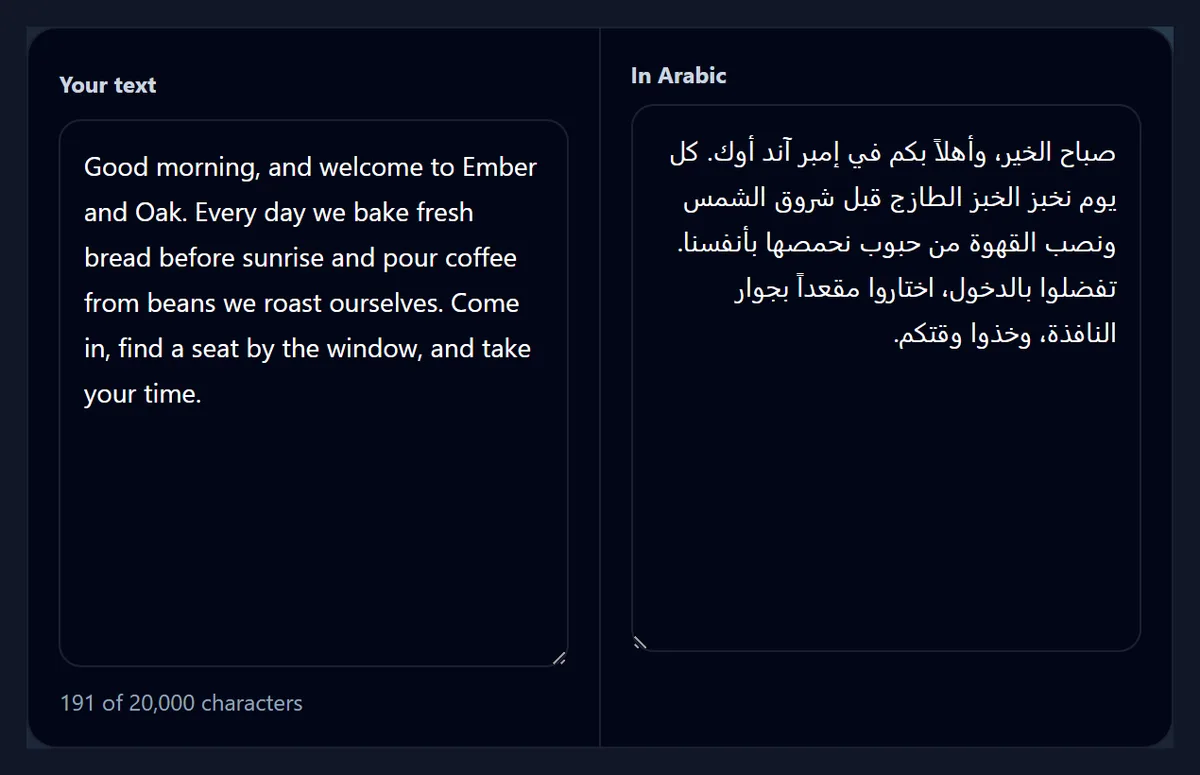
Yes. Arabic, Hebrew, Persian and Urdu are written right to left, and their translations are shown that way, with the text aligned to the right and the punctuation where a reader of that language expects it. The side-by-side view does the same for the translated column.
The Arabic café welcome came to 174 characters, from 191 in English. Lengths change from language to language, which matters when a translation has to fit a fixed space such as a button or a slide.
Can I translate a Word file or a PDF?
Yes, the text in it. Open a file reads TXT and Markdown files, Word .docx files and PDFs, and puts their text in the box, paragraph by paragraph, in your browser; then you translate it like typed text. The translation comes back as text, which you can copy into your document or download as a .txt file.
The file's layout is not kept: fonts, tables, pictures and page breaks stay in your original. A scanned PDF holds pictures of pages rather than text, so it has nothing to translate; the PDF converter on this site tells you whether a PDF has text.
How long can the text be?
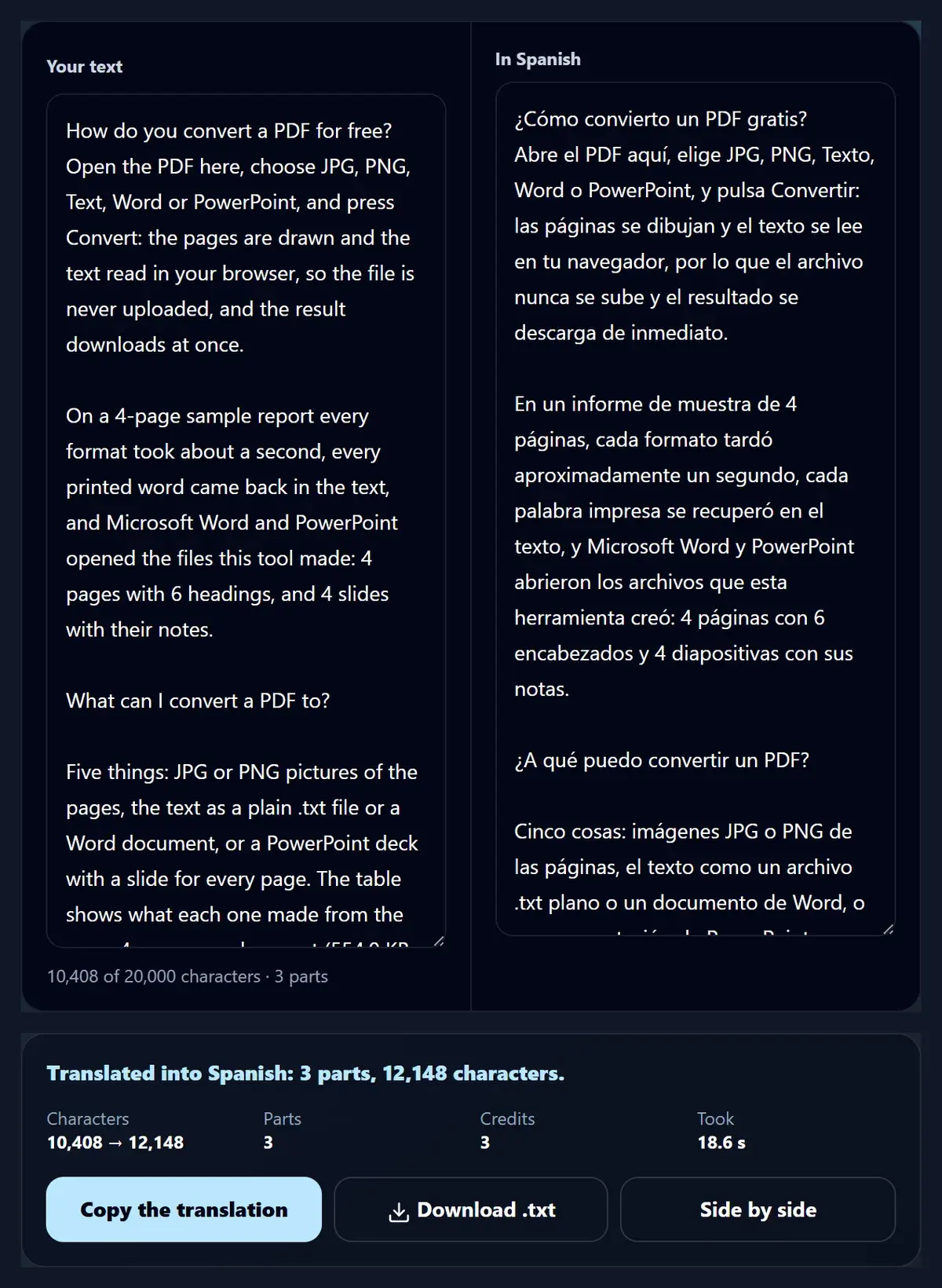
Up to 20,000 characters at a time; the long sample below is about half that. Anything over 4,000 characters is translated in parts: the text is cut between paragraphs (between sentences if one paragraph is longer than a part), each part is translated in its own run, and the parts are joined back in order, so the paragraphs come back as they were.
The long sample on this page, a guide of 10,408 characters in 59 paragraphs, went in 3 parts and came back as 12,148 characters of Spanish in 59 paragraphs, in 18.6 seconds, for 3 credits: one for each part.
Can I compare the translation with the original?
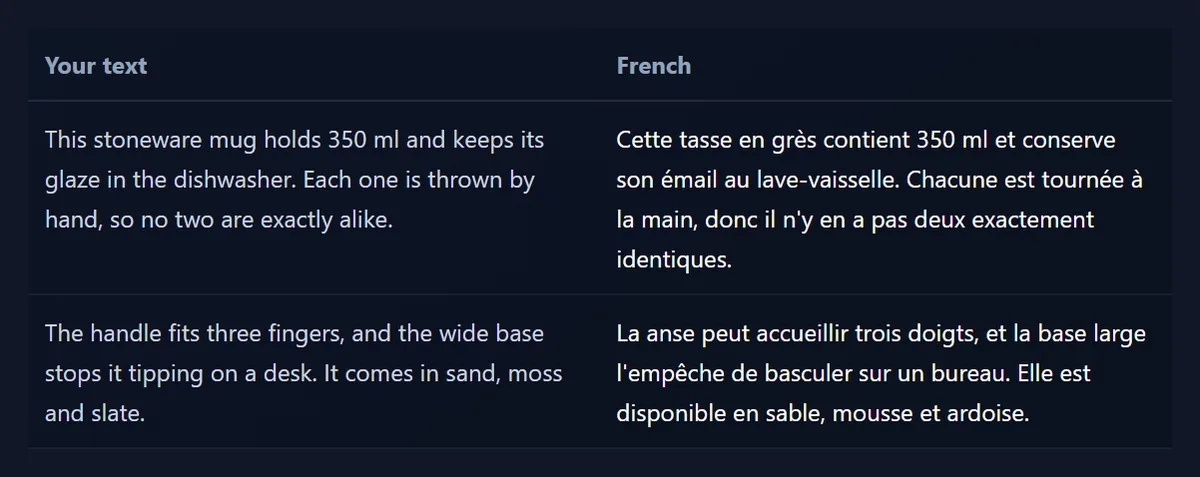
Yes: Side by side shows each paragraph of your text next to its translation, in two columns. The product page sample has two paragraphs and came back from French with 2 rows, one for each, which makes it easy to check a translation paragraph by paragraph or to spot one that was left out.
If the translation has a different number of paragraphs from your text (a model can merge two short ones), the view shows the two whole texts next to each other instead, so nothing is paired wrongly.
Are names, numbers and prices kept?
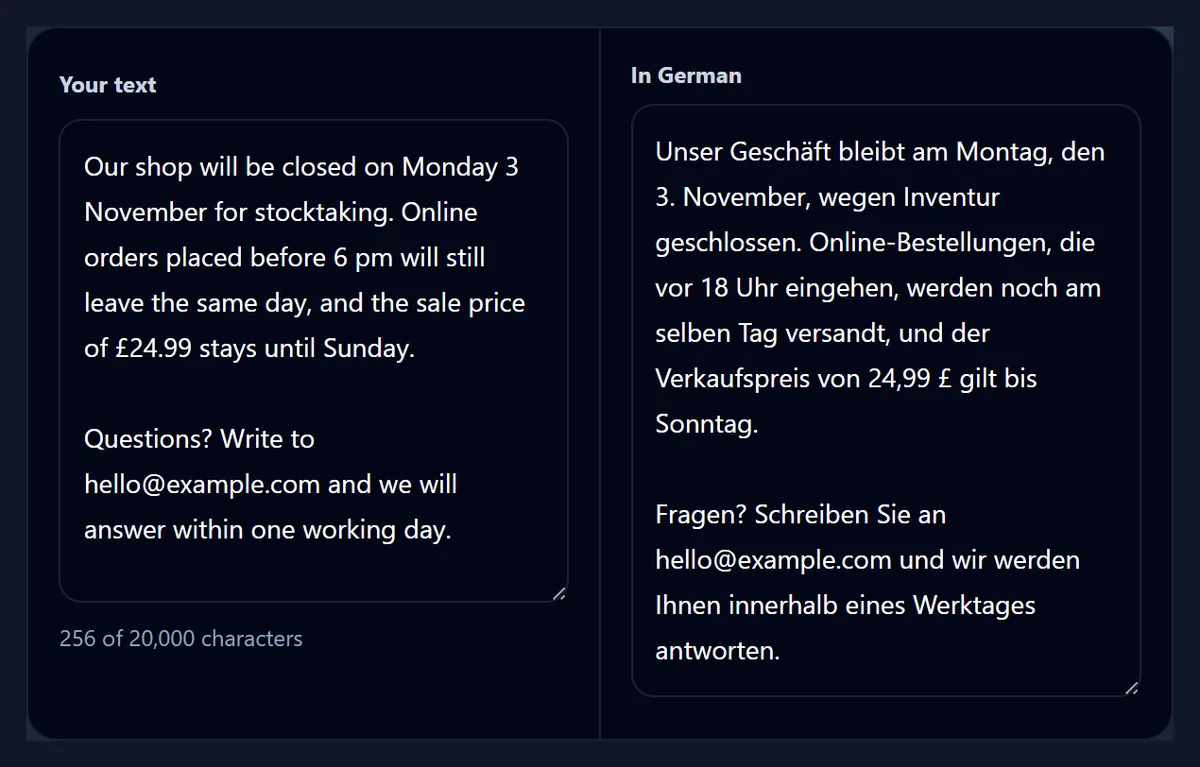
The model is asked to keep names, numbers, prices, web addresses, email addresses and code exactly as they are, and to translate the words around them. The shop notice sample tests that: it has a date, a time, a price and an email address.
In the German translation, the date became “3. November”, the German way of writing it; “6 pm” became “18 Uhr”, the 24-hour clock Germans use; the price became “24,99 £”, with a decimal comma; and the email address was left exactly as it was. So it kept the values but wrote the time and price as a German reader expects them, which is what a good human translator would do too; if you need them exactly as in the original, change them in the translation box.
Which AI does the translating?
Gemini 2.5 Flash Lite, a fast text model from Google, run through HueFold's own AI service. The page sends your text with a short instruction: translate it into the language you chose, keep the meaning, the tone and the paragraph breaks, keep names and numbers as they are, and reply with the translation only. The model is run at a low temperature (0.2), which keeps its wording steady rather than creative.
It reads a whole part at a time, up to 4,000 characters, so each sentence is translated with the paragraphs around it in view rather than on its own. The same model translates the captions on the video translator.
Is the translator free?
Translating uses AI credits from your HueFold account: one credit for each part, so a text under 4,000 characters costs one credit. You see the price before it runs and the credits it used in the result. The free plan includes 25 AI credits a month.
Reading a file, splitting it into parts, the side-by-side view, copying and downloading cost nothing; only the translation itself does. If a run fails, it is not charged.
What happens to my text?
Your text is sent to HueFold, which has Gemini 2.5 Flash Lite translate it through Google's API, and the result comes back to this page. Like every AI generation on HueFold, the request and its result are kept in your account's AI history, where you can see what you translated and what it cost.
Opening a file happens in your browser: only the text you choose to translate is sent, never the file itself. Do not translate passwords, bank details or anything you would not put in an email.
How accurate is it?
Good enough to understand a text and to write a first draft, but a machine translation can still be wrong, in ways that read fluently: a word with two meanings, a name translated when it should not be, an idiom taken literally, or a number moved. Check names, numbers, dates and anything legal, medical or financial, and have important texts read by a fluent speaker before you publish them.
The round trips in the table above show both sides. Most of the café welcome's words came back, and most of the rest were swapped for words with the same meaning, such as “make yourself at home” for “take your time” through Japanese. But through Hindi the café's name came back as “Amber & Oak”: the name was written in Devanagari letters by sound and read back as a different English word, which is exactly the kind of slip to look for in names.
How do I get a better translation?
Write complete sentences and keep them short; a sentence that is clear in your language is easier to translate well. Spell out abbreviations the reader may not know, avoid slang and puns, and keep each idea in its own paragraph so the side-by-side view can pair them.
If one paragraph comes back wrong, edit it in the translation box rather than translating the whole text again, or translate just that paragraph and paste it in. For product names and brand words that must not change, check them after translating: the model is told to keep names, but a name that is also an ordinary word can still be translated.
Can I translate a video or a document instead?
For a video, the video translator on this site writes captions from the speech and translates them sentence by sentence, keeping the captions' times, then burns them in or saves SRT and VTT files. For a PDF you want to keep as a document, convert it to Word with the PDF converter first, translate the text here, and paste it back.
To shorten a long text before translating it, the summarizer picks its key sentences in your browser, without AI.
Frequently asked questions
Is this translator free?
It uses AI credits from your HueFold account: one credit for each part of up to 4,000 characters. The free plan includes 25 credits a month, and a failed run is not charged.
Which languages can I translate into?
Forty-one, including Spanish, French, German, Chinese, Japanese, Korean, Hindi, Bengali, Arabic, Portuguese, Russian and Turkish. The text you start from does not have to be in English.
Do I have to say which language my text is in?
No. The model works out the language of your text; you only choose the language to translate into.
Can I translate a PDF or a Word file?
Yes, its text: open the file and its text goes into the box, in your browser. The layout, pictures and tables are not part of the translation.
How long can the text be?
Up to 20,000 characters at a time. Texts over 4,000 characters are translated in parts, split between paragraphs, and joined back in order.
Which AI model translates the text?
Gemini 2.5 Flash Lite from Google, run through HueFold's AI service at a low temperature, with an instruction to keep the meaning, the tone, the paragraphs, names and numbers.
Are numbers and names kept?
The model is told to keep names, numbers, prices, web and email addresses exactly as they are. Check them anyway: a name that is also an ordinary word can be translated.
Is my text saved?
The request and its result are kept in your account's AI history, like every AI generation on HueFold. Files are read in your browser; only the text you translate is sent.
Does it work for right-to-left languages?
Yes. Arabic, Hebrew, Persian and Urdu translations are shown right to left, in the result and in the side-by-side view.
Can I edit the translation?
Yes. The translation box is editable; what you copy or download is the text as you left it.
Related tools
- Video Translator — Captions from a video’s speech, translated sentence by sentence with their times kept.
- Summarizer — The key sentences of a long text, in your browser, without AI.
- Free PDF Converter — A PDF’s text as Word or plain text, or its pages as pictures or slides.
- AI Caption Generator — Every word of a video’s speech, timed and styled.