Video Translator
Captions written from the speech, translated into any of 41 languages with their times kept, then burnt in or saved as SRT and VTT.
Updated

A video translator for subtitles
This video translator writes captions from a video's speech with Whisper speech recognition, then translates them caption by caption into any of 41 languages with Gemini 2.5 Flash Lite, keeping every caption's timing.
Burn the translated captions into the video as an MP4, or download them as SRT, VTT or text, named with their language. The video stays in your browser; only its sound and the caption text are sent.
How to translate a video
- Open a video Choose an MP4, MOV, MKV or WebM file up to three minutes long, or try the Spanish sample.
- Write the captions Choose the language spoken, or Detect it, and press Write captions with AI; sign in if asked.
- Translate them Pick one of 41 languages and press Translate: each caption is translated and keeps its times.
- Save Burn the captions into an MP4, or download them as SRT, VTT or text named with the language.
Translate a Spanish video into English subtitles
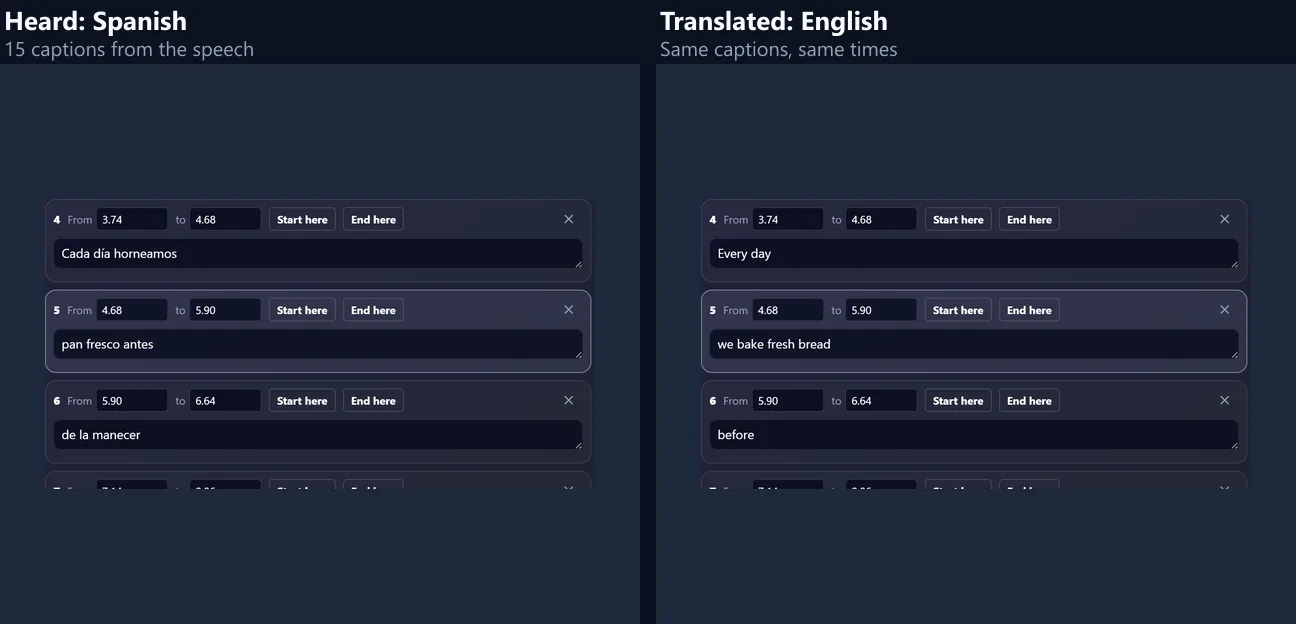
The Spanish sample captioned from its speech, then translated into English caption by caption with this tool, and played back.
- The Spanish sample video opens in the tool.
- Spanish is chosen as the language spoken, and Write captions with AI has speech recognition write the captions with their times.
- English is chosen under Translate the captions; each caption is translated and keeps its times.
- The video plays with its English captions.
- The captions can be saved as SRT, VTT or text, or burnt into an MP4.
How do the captions change from language to language?
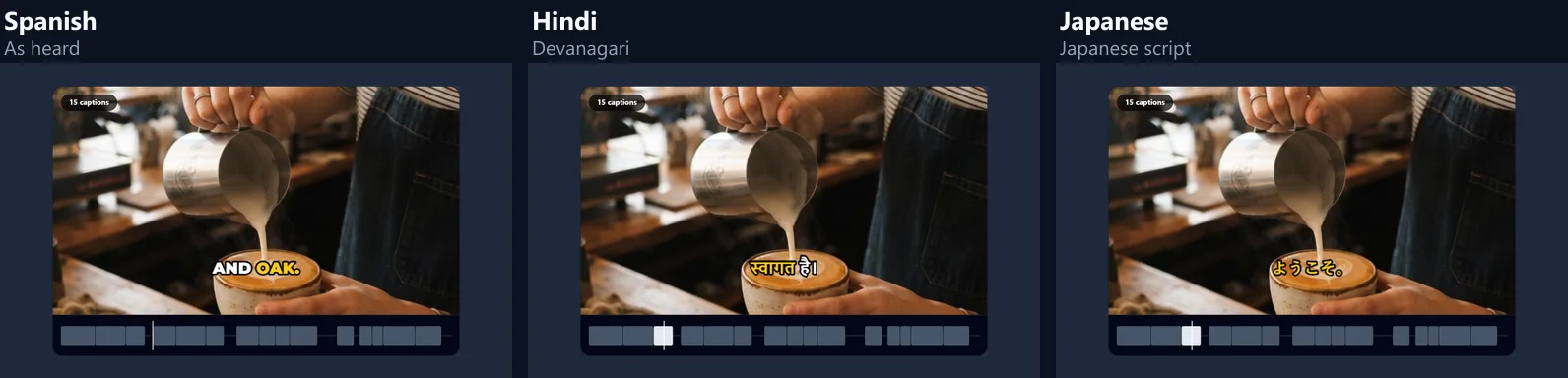
The Spanish sample's 15 captions were written from its speech and then translated by this tool into Hindi, Japanese and English. Every caption kept its times, so the table shows how much reading each language puts on screen in the same 15.9 s of speech, as the tool measures it.
Characters a second is the number to watch for captions: subtitle guidelines commonly aim for about 15 to 20, and the tool warns above 20. Japanese packs the same meaning into far fewer characters, so it reads slower on screen; words a minute is less useful for Japanese, which does not put spaces between words.
| Language | Captions | Characters a second | Words a minute |
|---|---|---|---|
| Spanish (as heard) | 15 | 14.2 | 167 |
| Hindi | 15 | 12.1 | 176 |
| Japanese | 15 | 6.1 | 66 |
| English | 15 | 13.1 | 162 |
How do I translate a video?
Open a video, choose the language spoken (or leave Detect it) and press Write captions with AI: speech recognition writes every word with its time. Then choose a language under Translate the captions and press Translate; each caption is replaced by its translation and keeps its place on the timeline. Burn the captions into the video, or download them as SRT, VTT or text.
On the 15.9 s Spanish sample, speech recognition heard 38 words in 16.1 seconds, and translating the captions took between 4.8 and 9.5 seconds a language, 1 AI credit each.
How does it work?
In two steps, each done by the tool best at it. First, the video's sound (only the sound, as a small 16 kHz recording) goes to Whisper, a speech recognition model run on HueFold's own server, which returns the words with their start and end times. The tool groups the words into captions of up to three words, or one or six if you prefer.
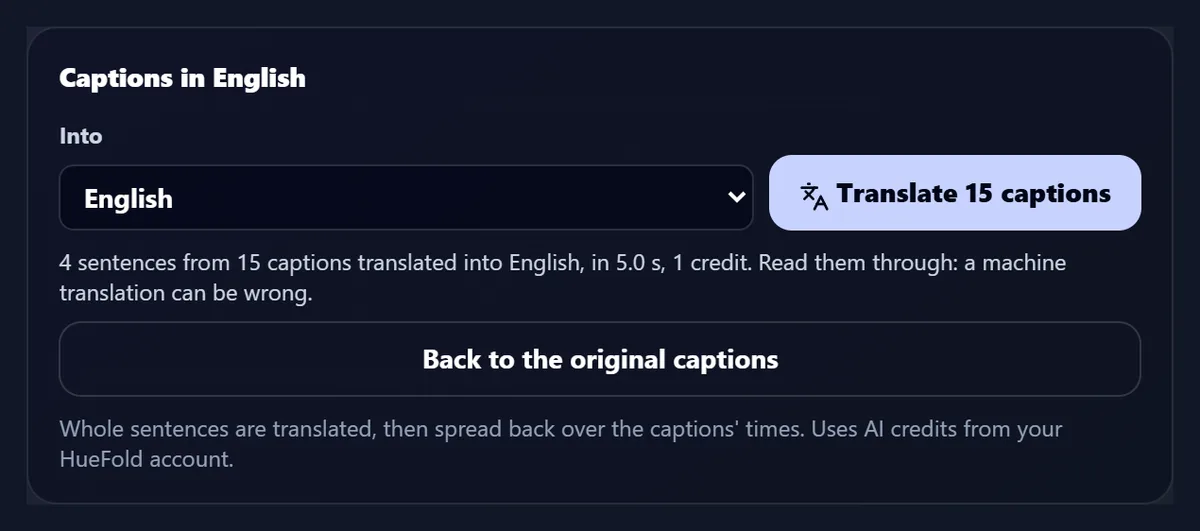
Second, the captions are joined into sentences (the sample's 15 captions made 4), and the sentences go to Gemini 2.5 Flash Lite, a text model from Google, as a list; it answers with a list of the same length, one translation per sentence. Each translated sentence is then spread back over the captions it came from, in proportion to how long each was on screen. If the answer ever came back with a different number of sentences, nothing would be changed and you would be asked to try again.
Do the captions keep their timing?
Yes. In every translation of the sample, all 15 captions kept exactly the start and end times speech recognition gave them, in every language. Whole sentences are translated rather than the two or three words of each caption, because word order changes from one language to another: a Hindi sentence puts its verb last, so a caption-by-caption translation would scramble it. The translated sentence fills the same captions, so each caption still shows during the right sentence, though not always word for word under the same spoken words. If a translation has fewer words than there were captions, two short neighbouring captions are joined rather than one being left empty.
The spoken words' own times are dropped, since translated words are not said at those moments; the word-by-word styles still light up one word after another, with times shared out across each caption by word length, as for typed captions. Back to the original captions returns the captions as they were heard, and translating again into another language always starts from the original, not from a translation.
Can it write captions in other scripts?
Yes: the translated captions are drawn on the video in the script of the language, such as Devanagari for Hindi or Japanese kana and kanji, and saved that way in SRT and VTT files. When the caption font has no letters for a script, the browser draws them with a system font that does.
Right-to-left languages such as Arabic and Hebrew are drawn right to left. Check long captions in a language whose words are longer than the original's: they may need splitting to stay on screen.
What about translating into English?
There are two ways. Write the captions in English, under the speech recognition settings, has Whisper translate the speech into English as it listens, at no cost; it only goes into English. Translate the captions works from the captions in their own language into any of 41 languages, English included, for AI credits.
On the sample, the English captions translated from the Spanish had a word error rate of 6% against the script the Spanish voiceover was recorded from; the Spanish captions themselves, as heard, had 11% against the Spanish script. A word error rate counts every word changed, missing or added, so a translation that is right in other words still scores above zero.
Will the translated captions be readable?
Usually, but check the speed line under the captions. The Spanish captions as heard ran at 14.2 characters a second; the English at 13.1. A language that takes more letters to say the same thing raises the number, and above 20 characters a second the tool tells you so.
If captions are too fast, lengthen the busiest ones by dragging their end time, merge two short ones, or shorten the wording by hand: the caption text is editable after translating.
Can I burn the translated captions into the video?
Yes. Choose a caption style, font, size and position, and press Burn the captions into the video: every frame is drawn with its caption and saved as an MP4 with the original sound, in your browser. The English sample came out as a 1280 × 720 H264 video at 5.3 Mbit/s with AAC sound, 15.9 seconds and 10.25 MB.
Burnt-in captions show everywhere, including players and sites that ignore caption files, but can't be switched off or changed afterwards; keep the SRT if you may need another language later.

Can I download the subtitles as a file?
Yes: SRT, VTT and plain text, from the buttons under the captions. A translation is saved with its language in the name, such as sample-talk-es.en.srt, so files in several languages don't overwrite each other. The English SRT of the sample held 15 captions in 694 bytes.
Upload the SRT or VTT next to your video on YouTube, Vimeo, LinkedIn or a website player and viewers can turn the subtitles on or off; YouTube and Vimeo let you add a file for each language.
Which languages can I translate captions into?
The same 41 as the text translator on this site, including Spanish, French, German, Portuguese, Hindi, Bengali, Arabic, Chinese, Japanese and Korean. The language spoken in the video can be any of the 14 the speech recognition menu offers, or left to Detect it.
The sentences go in groups of up to 4,000 characters of text, one run each. The 15.9 s sample needed one run; at its pace (38 words in 15.9 s), three minutes of speech would be about 430 words, which still fits in one.
How long can the video be?
Up to three minutes for the AI captions, the limit of the speech recognition step; longer videos can be cut into parts with the video splitter on this site, or captioned by hand or from an SRT file and then translated. Translating the captions has no limit of its own beyond your credits.
The tool reads MP4, MOV, MKV, WebM and M4V files that your browser can play.
What is sent, and where?
Only what each step needs. For the captions, the video's sound goes to HueFold's speech recognition, run on HueFold's own server, which returns the words and keeps nothing. For the translation, only the captions' text goes to HueFold, which has Gemini translate it through Google's API and keeps the request in your account's AI history.
The video itself never leaves your device: it is played, drawn with its captions and encoded inside this browser tab.
Does it dub the video?
No: it translates the words on screen, not the voice. Subtitles keep the speaker's own voice and still work with the sound off. For a voiceover in another language, translate the captions, download them as text, and turn the text into speech with the AI voice generator on this site.
Always have a translation checked before it goes out under your name: speech recognition can mishear a name, and a translation can be fluent and still wrong.
Frequently asked questions
Is the video translator free?
Writing the captions from speech is free with a HueFold account. Translating them uses AI credits: one credit a run, and a short video needs one run. The free plan includes 25 credits a month.
Which languages can I translate a video into?
Forty-one, including English, Spanish, French, German, Portuguese, Hindi, Arabic, Chinese, Japanese and Korean.
Does it keep the captions in sync?
Yes. Whole sentences are translated and spread back over the captions they came from, which keep the start and end times speech recognition gave them.
Can I download translated subtitles as SRT?
Yes, as SRT, VTT or plain text, named with the language, such as video.en.srt.
Does it dub the voice?
No. It translates the captions; the original voice stays. For a voiceover, send the translated text to the AI voice generator.
How long can my video be?
Up to three minutes for AI captions. Longer videos can be split first, or captioned from an SRT file and then translated.
Is my video uploaded?
No. Only the sound goes to HueFold's speech recognition and only the caption text to the translation model; the video is encoded in your browser.
Which AI models does it use?
Whisper for speech recognition, run on HueFold’s own server, and Gemini 2.5 Flash Lite from Google for the translation.
Can I edit the translated captions?
Yes. Every caption’s text and times stay editable, and Back to the original captions undoes the translation.
Can it translate a video into English for free?
Yes: tick Write the captions in English before writing the captions, and speech recognition translates the speech into English as it listens, at no cost.
Related tools
- Translate — Text, Word and PDF text in 41 languages, side by side with the original.
- AI Caption Generator — Every word of a video’s speech, timed and styled word by word.
- Auto Caption — Word-by-word captions for Reels, Shorts and TikTok.
- AI Voice Generator — Turn the translated text into a voiceover.