Free PDF Converter
Convert a PDF in your browser: its pages to JPG or PNG, its text to a .txt or Word file, or the pages to a PowerPoint deck. Free, no sign-up, and nothing is uploaded.
Updated
How do you convert a PDF for free?
Open the PDF here, choose JPG, PNG, Text, Word or PowerPoint, and press Convert: the pages are drawn and the text read in your browser, so the file is never uploaded, and the result downloads at once.
On a 4-page sample report every format took about a second, every printed word came back in the text, and Microsoft Word and PowerPoint opened the files this tool made: 4 pages with 6 headings, and 4 slides with their notes.
How to convert a PDF
- Open the PDF Drop it on the tool or choose it.
- Pick a format JPG, PNG, Text, Word or PowerPoint.
- Choose pages and options A range such as 1-3, resolution, quality.
- Convert and download One file, or a ZIP of page pictures.
Convert a PDF to JPG, text and Word
A real recording of this tool: the sample report opened, its pages saved as JPGs, its text read, and a Word file made.
- The sample PDF opens and its four pages appear.
- JPG is chosen and the pages are converted.
- Text is chosen and the words are read out of the PDF.
- Word is chosen and a Word document is made.
What can I convert a PDF to?
Five things: JPG or PNG pictures of the pages, the text as a plain .txt file or a Word document, or a PowerPoint deck with a slide for every page. The table shows what each one made from the same 4-page sample report (554.0 KB as a PDF): pictures of the pages weigh hundreds of times more than the words on them, and PNG keeps every pixel exactly, so it is the heaviest.
Pick by what you will do next. Share or post a page: JPG. Put a page into a design or a slide where it must stay crisp: PNG. Quote, edit or translate the words: Text or Word. Present the document on a screen: PowerPoint.
| Format | What you get | Size | Opens in |
|---|---|---|---|
| JPG | Each page as a picture, 150 dpi, quality 90, in a ZIP | 647.5 KB | Any image viewer, websites, chat apps |
| PNG | Each page as a lossless picture, 150 dpi, in a ZIP | 2,501.0 KB | Image editors, slides, print |
| PowerPoint | A picture slide per page, text in the notes | 592.0 KB | Microsoft PowerPoint (checked) |
| Word | The text as paragraphs and headings | 4.2 KB | Microsoft Word (checked) |
| Text | The words only, as plain text | 2.5 KB | Any text editor |
How do I convert a PDF for free?
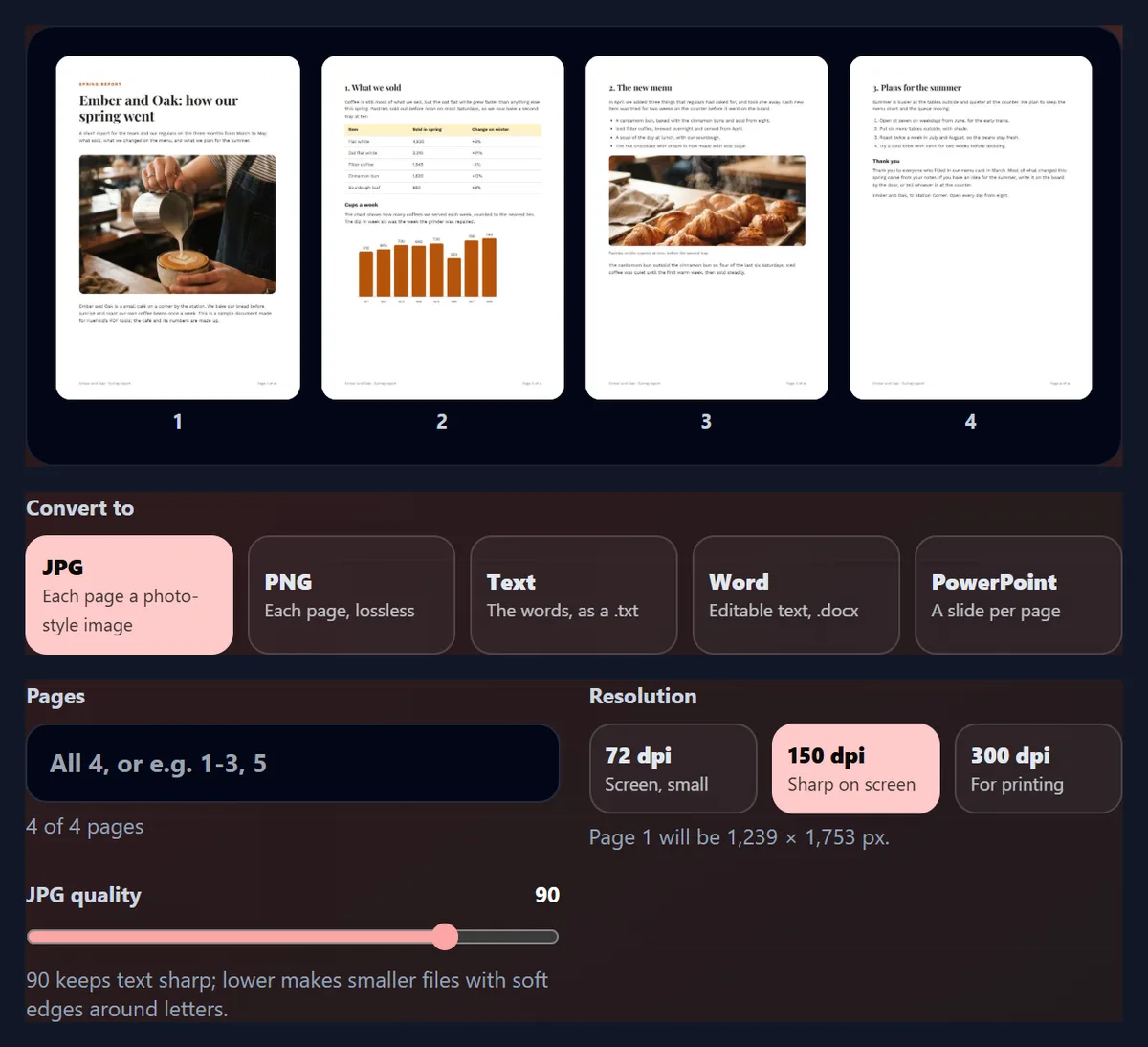
Drop the PDF on the tool or choose it, and its pages appear as small pictures. Choose what to convert to, list the pages you want if not all of them (for example 1-3, 5), set the resolution or the options for that format, and press Convert. When it is done, the result shows what was made, with a preview, and Download saves it.
On the sample report every format took about a second on the test laptop: 1 s for four JPGs, 0.6 s for the Word file. There is no sign-up, no watermark and no limit on how many files you convert.
How does the converter read a PDF?
A PDF describes each page as instructions: put this text in this font here, draw this line, place this photo there. The converter uses pdf.js, the PDF reader built by Mozilla for Firefox, to follow those instructions inside your browser tab. For pictures it draws each page onto a white canvas at the resolution you chose; for text it reads the words the PDF stores, with their positions and sizes, and puts them back in reading order.
Because the text is read rather than recognised from a picture, it comes out exactly as it was typed, accents and all. Lines that sit close together become one paragraph, and type at least 15% larger than the body text is treated as a heading.
Does it get the text right?
On the sample, yes: every one of the 484 words printed on its four pages came back, in order, with nothing changed. The only differences the check found were on page 4, where the PDF prints the numbers of a numbered list (1. to 4.) that the original document's text did not include, so those four are extras, not mistakes.
The check compared the text this tool saved with the words of each page as they were written before the PDF was made, the same word-by-word comparison the caption pages use. PDFs made by scanning paper are different: see the question on scanned PDFs below.
| Page | Words compared | Differences |
|---|---|---|
| 1 | 96 | 0 |
| 2 | 128 | 0 |
| 3 | 123 | 0 |
| 4 | 137 | 4 (the list numbers 1. to 4.) |
What does the text file look like?
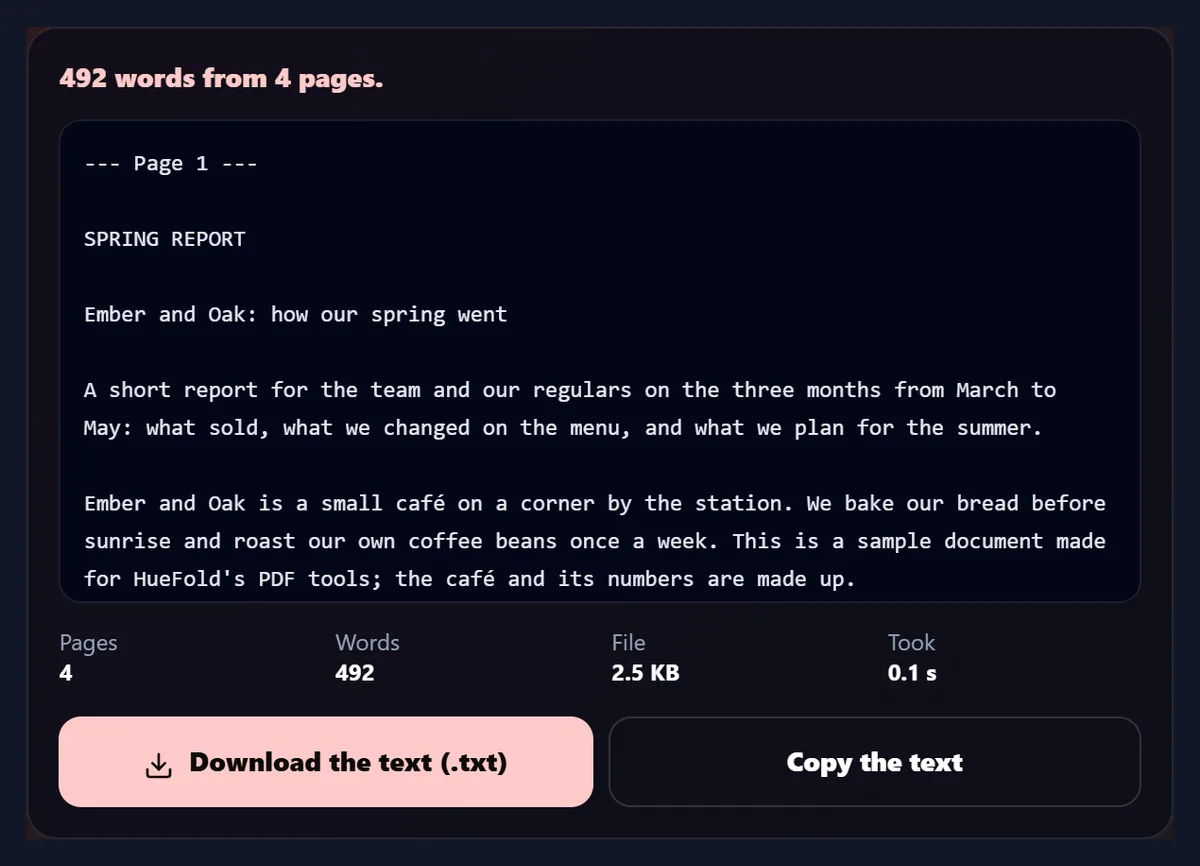
Plain UTF-8 text. With Paragraphs (the default), lines are joined into paragraphs with a blank line between them; with Lines, every line breaks where it did on the page, which suits poems, addresses and code. Mark where each page starts adds a line such as --- Page 2 --- before each page. The sample's 492 words made a file of 2,569 bytes.
Copy the text puts it on your clipboard straight from the result, so you can paste it into an email, a document or a translator without saving a file.
Can I convert a PDF to Word?
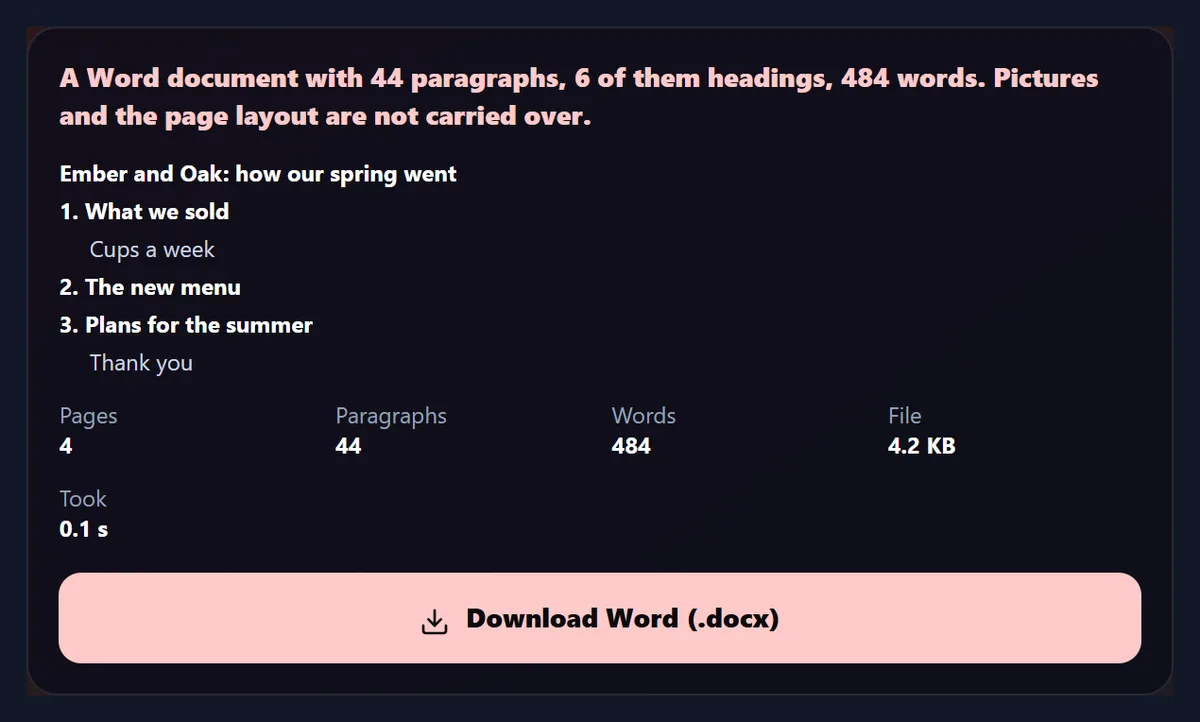
Yes, for the words. The Word file holds the PDF's text as real paragraphs with Word's own Heading 1 and Heading 2 styles, each PDF page starting on a new page. Microsoft Word opened the sample's file as 4 pages of 488 words, with 4 Heading 1 and 2 Heading 2 headings found from the type sizes, so the navigation pane lists the report's sections. The file is only 4.2 KB.
What it does not carry over is the look: pictures, colours, columns and exact positions are left out, and tables become one line per row. That makes it the right choice for editing, quoting or translating the words, and the wrong one for reproducing a designed page; for that, convert the pages to PNG and place them.
What happens to tables and charts?
A table comes out as one line per row, its cells separated by spaces, in the order they appear: the sample's sales table became lines such as Flat white 4,820 +6%. That is easy to paste into a spreadsheet and split into columns, but the grid itself is not rebuilt.
A chart drawn in the PDF is shapes, so only its labels are text: the sample's bar chart came out as its numbers and week names in a row (610 W1 640 W2 and so on). To keep a chart as it looks, convert that page to PNG.
Should I save the pages as JPG or PNG?
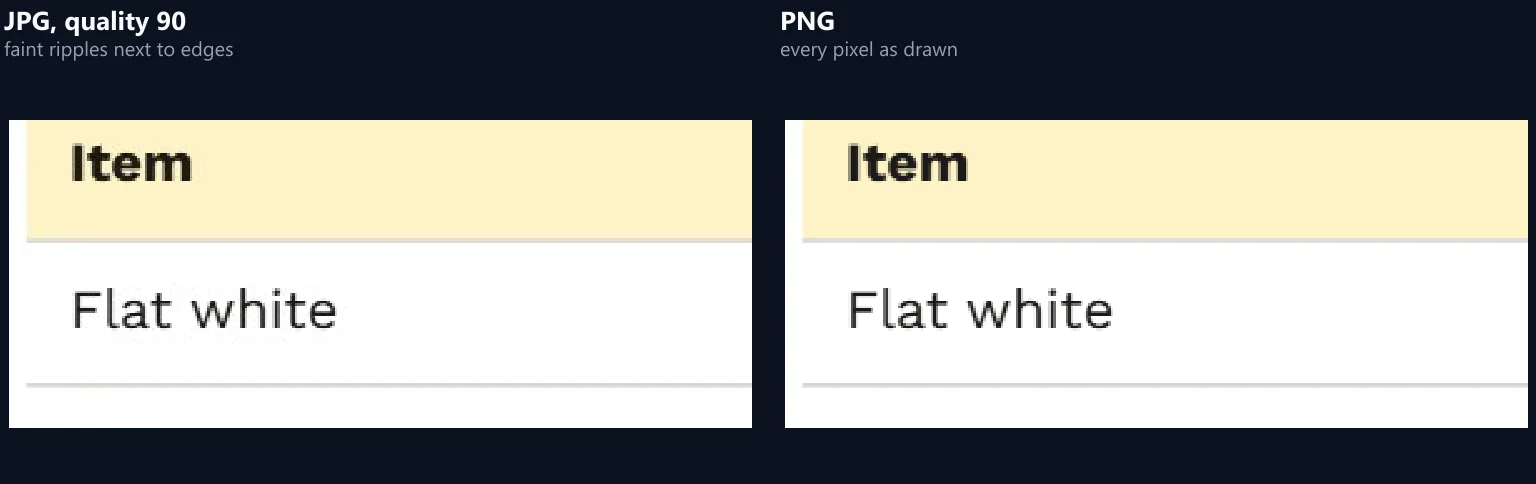
JPG for photos and for sharing; PNG when every edge must stay exactly as drawn. At 150 dpi the four sample pages were 647.5 KB as JPGs at quality 90 and 2,501.0 KB as PNGs: almost four times as much. Up close, the JPG shows faint smudges next to the edges of letters and lines; the PNG has none.
The difference matters most for pages that are mostly text on white, which PNG stores efficiently anyway. For pages that are mostly photo, JPG is far smaller and looks the same.
What resolution should I choose?
150 dpi for looking at the pages on a screen, 300 dpi for printing them, 72 dpi for small previews. Dots per inch counts pixels per inch of paper, so an A4 page is 594 pixels wide at 72 dpi, 1,239 at 150 and 2,478 at 300. The tool shows the exact pixel size of the first page you chose before you convert.
Very large pages are drawn at the most a phone browser can handle, 16,777,216 pixels: an A3 page at 300 dpi becomes 295 dpi, and the tool says so. The PDF to JPG page measures how resolution and JPG quality change the file size, page by page.
Why are the letters smoothed in grey?
Because coloured smoothing would spoil them. Screens smooth text with coloured edges tuned to their own pixels, and Chrome did the same when this tool first drew PDF pages for saving: on the sample, 71% of the pixels along the edges of the letters were strongly blue or orange. On another screen, in print or enlarged, those fringes show.
The converter now draws text with grey smoothing: on the same page, no edge pixels are strongly coloured, and the 300 dpi JPG at quality 90 shrank from 367 KB to 329 KB, since grey edges are easier to compress.
Can I turn a PDF into PowerPoint slides?
Yes: every page becomes a slide holding a picture of that page, in the PDF's own shape, with the page's text in the speaker notes. PowerPoint opened the sample's deck as 4 portrait slides, because the report is A4; a landscape PDF makes landscape slides. The deck was 592.0 KB.
The pages look exactly as in the PDF, but their words are part of the picture, so they cannot be edited on the slide; copy them from the notes. The PDF to PPT page shows slides as PowerPoint draws them and compares the picture qualities.
How do the formats compare side by side?
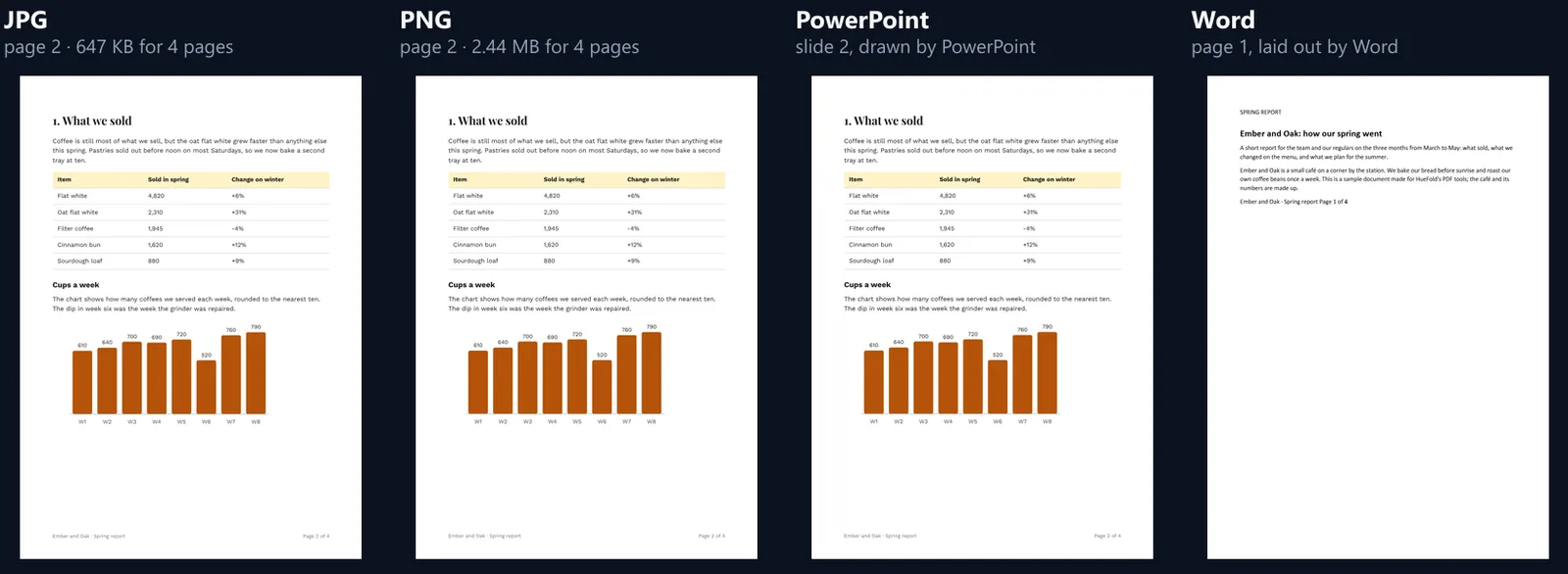
The figure shows page 2 of the sample as the JPG and the PNG this tool saved, as the slide PowerPoint drew from the deck, and page 1 of the Word file as Word laid it out. The three pictures look the same at this size; the Word file has the same words in plain Calibri type, without the photo or the table’s colours.
That is the choice in one look: pictures keep the design and lose the editable words; Word keeps the words and loses the design.
Why do I get no text from a scanned PDF?
A scanned PDF holds photos of paper, not text, so there are no words to read: the result says no text was found and suggests JPG or PNG instead. Some PDFs also turn their text into shapes when they are made, often to protect a font; those look like text but read as pictures too.
Getting words out of a picture needs optical character recognition (OCR), which this converter does not do. You can still save the scanned pages as images here.
Can I convert a password-protected PDF?
Yes, if you know the password: the tool asks for it, opens the file with it in your tab, and keeps it nowhere. A wrong password gets a clear message to try again. A PDF that opens without a password but forbids copying or printing is converted like any other.
If you have lost the password of your own file, this tool cannot open it; nothing here tries to break a password.
Why does a page look slightly different?
Most PDFs carry their own fonts, and then the pages come out exactly as designed. When a PDF only names a font without including it, the reader has to stand in a similar one: for the standard PDF fonts, such as Helvetica and Times, pdf.js uses the free Liberation and Foxit fonts, and for other names the closest font on your device.
Characters in Chinese, Japanese and Korean PDFs are looked up in Adobe's character maps, which this page loads only when a PDF needs them.
Is my PDF uploaded?
No. The PDF is opened, drawn and read inside this browser tab, and the JPG, PNG, text, Word and PowerPoint files are made there too; nothing is sent to HueFold or anywhere else, and no copy is kept. The reader, its fonts and its character maps are the only things downloaded, from this site.
pdf.js is open source under the Apache 2.0 licence, linked under the tool. The file's own JavaScript, which some forms contain, never runs.
Are there any limits?
No page or file limit is set; the limit is your device's memory. Pages are converted one at a time and each picture is saved before the next is drawn, so long documents work, more slowly. The first 48 pages are shown as thumbnails; the rest are still converted.
Several pictures are saved together as one ZIP, with each page's number in its file name, and every picture can also be downloaded on its own from the result.
Does it work on a phone?
Yes, in a current browser on Android or an iPhone: open the PDF from your files, choose a format and download. Phones have less memory than computers, so for long PDFs at 300 dpi convert a range of pages at a time.
On an iPhone, downloads go to the Files app; on Android, to Downloads.
Can I make a PDF from pictures instead?
Yes, with the JPG to PDF tool: it puts photos on pages in the order you choose, without re-compressing JPGs. This converter goes the other way, from a PDF to other formats.
To make a PDF from a design, the HueFold editor exports PDF directly.
Frequently asked questions
Is this PDF converter free?
Yes: no sign-up, no watermark and no limit on files.
Is my PDF uploaded?
No. It is converted inside your browser tab.
What can I convert a PDF to?
JPG, PNG, plain text, Word (.docx) or PowerPoint (.pptx).
Can I convert only some pages?
Yes: type a range such as 1-3, 5 or 8-.
Does PDF to Word keep the layout?
No: it keeps the words, paragraphs and headings, not pictures or exact positions.
Can it read scanned PDFs?
It can save their pages as pictures, but it has no OCR to read words from a scan.
Can I convert a protected PDF?
Yes, with its password, which stays in your tab.
Which resolution should I use?
150 dpi for screens, 300 dpi for printing.
Does it work on a phone?
Yes, in a current browser on Android or iPhone.
Related tools
- PDF to JPG — Every page as a JPG, with sizes measured.
- PDF to PPT — A slide for every page.
- JPG to PDF — Photos into one PDF.
- Image Converter — JPG, PNG, WebP and more.
- Compress an Image to 100 KB — Make a page picture smaller.
- PNG to JPG — Smaller files from PNG pages.