AI Sketch Generator
Describe an idea, choose pencil, ink, product-design or soft-colour drawing, and generate a sketch you can download or continue editing in HueFold Studio.
Updated

What is an AI sketch generator?
An AI sketch generator turns a written description into a drawing. In the tool on this page, you describe the subject, choose a drawing direction and select a canvas shape. HueFold sends that instruction through its existing AI image pipeline and returns a full-resolution image that is also saved with your AI assets. You can download the result immediately or open it in HueFold Studio as an editable image inside a new design.
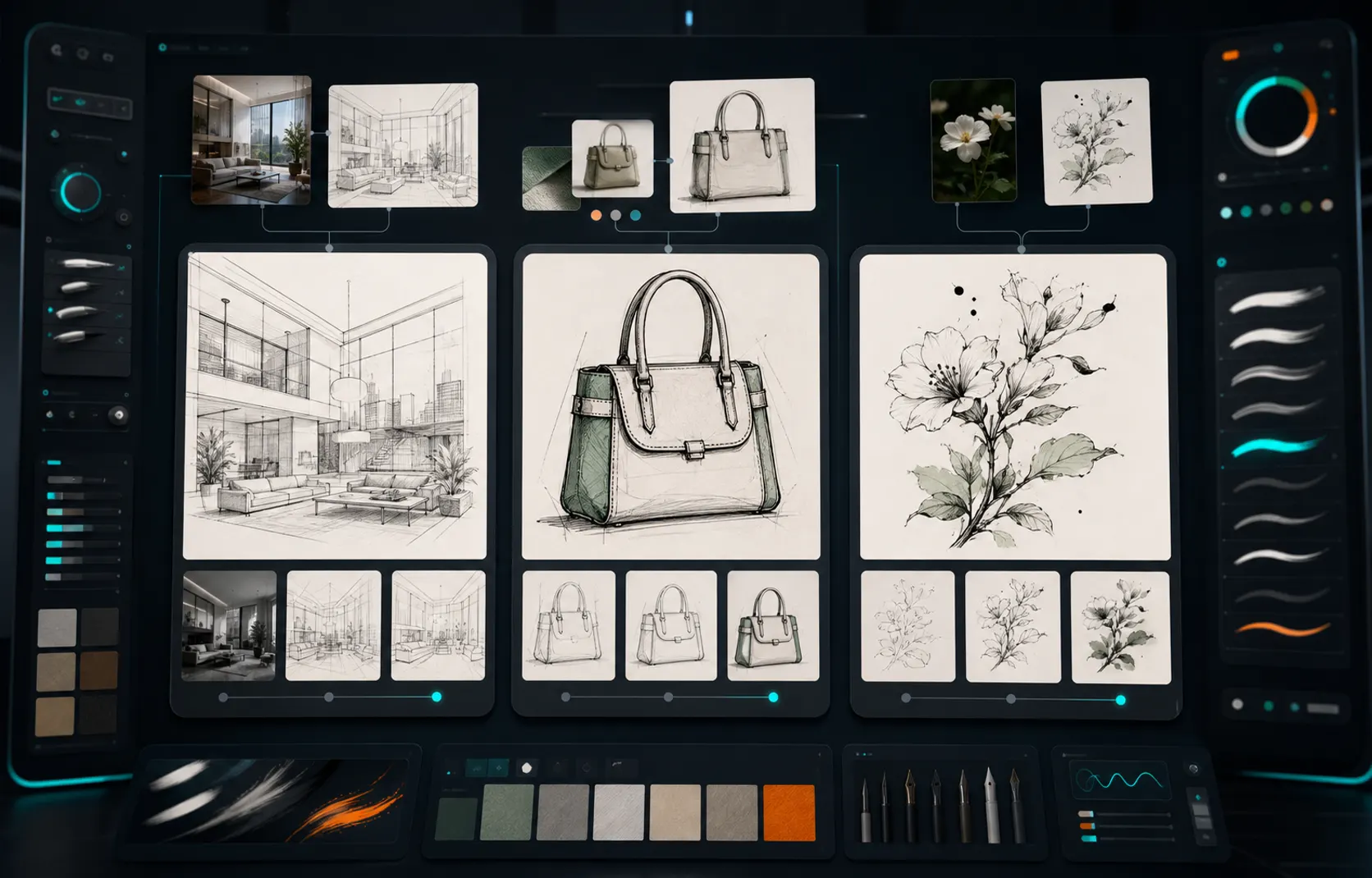
The four style choices are deliberate rather than decorative labels. Pencil asks for graphite texture, construction lines and shading. Ink line art asks for crisp contours and varied line weight. Product design asks for perspective construction and marker accents. Soft colour asks for pen linework with restrained watercolour washes. The prompt you type remains the subject of the image; the selected style adds a consistent visual instruction around it.
AI-generated sketches are useful for exploring visual directions quickly, not for replacing technical drawings or promising that an object can be manufactured. Treat each result as a concept: check proportions, labels, anatomy and small details before publishing it, and use Studio to crop, place, caption or combine the drawing with the rest of your design.
How to make an AI sketch online
- Describe the subject Write what should be drawn, the viewpoint, materials, mood and the details that matter. The prompt can be up to 1,000 characters.
- Choose a sketch style Pick Pencil, Ink line art, Product design or Soft colour. Each choice adds a specific drawing instruction to your prompt.
- Choose the canvas Use square 1:1, portrait 4:5 or wide 16:9. HueFold requests dimensions that match the selected shape.
- Generate and continue Generate with your HueFold account, download the result, draw another version or open the image in HueFold Studio.
Create an AI fox sketch in HueFold
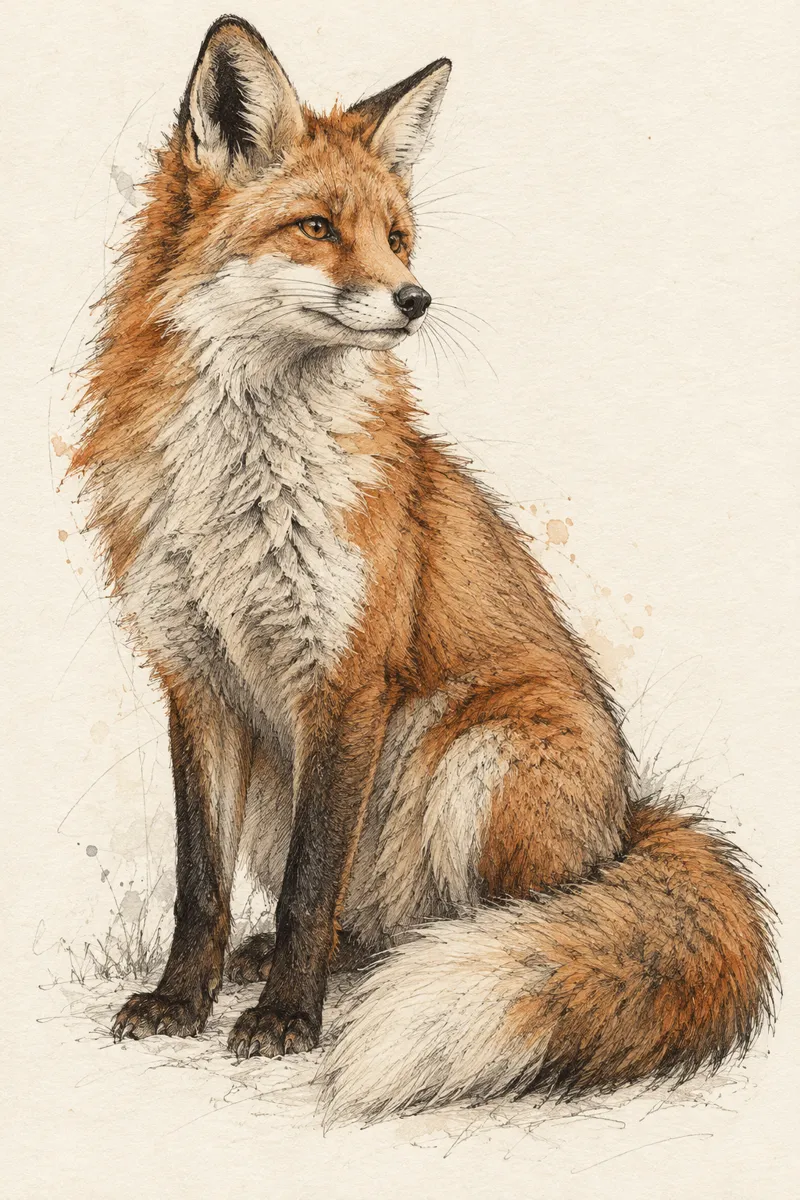
A real feature-page recording from prompt to completed Seedream 5 sketch: choose ink line art and a portrait canvas, sign in, wait for generation, then review the fox drawing and its next actions.
- The feature-page prompt describes a red fox beside fern leaves in three-quarter view, with fine ink contours on warm paper.
- Select Ink line art for the drawing style.
- Select Portrait 4:5 for the canvas, then choose Generate sketch.
- HueFold asks the visitor to sign in. The recording signs in with a disposable local QA account; the prompt and settings stay in place.
- The Seedream 5 generation wait is shown at eight times normal speed. The request continues through HueFold’s real AI image service.
- The completed fox drawing appears on the feature page. Draw another, Download and Edit in Studio are available below it.
How do you write a good AI sketch prompt?
A useful sketch prompt answers four questions: what is the subject, which view should the drawing use, which details must survive, and what kind of presentation should the result have? “A chair” leaves almost every decision to the model. “A compact lounge chair made from bent plywood, three-quarter front view, broad curved back and slim black steel legs” gives the model a structure it can try to follow. You do not need to fill the prompt with art jargon because the style control already supplies the drawing medium.
Put the essential nouns and geometry first. If you are drawing a product, state the object, view and construction: side view, exploded view, symmetrical front view, rounded enclosure, visible hinge or translucent shell. For a room, name the camera position and major surfaces. For a character, specify pose, clothing silhouette and expression. For a botanical study, name the plant and whether you need one specimen, a branch or a full composition. Then add the mood and level of finish.
Avoid conflicting instructions. “Loose thumbnail with perfectly polished photorealistic detail” asks for two different outputs. Generate a loose pencil direction first, then make a separate polished version. Also avoid asking the image to carry important paragraphs or exact labels. Generated lettering may be wrong. Add real text in HueFold Studio, where it remains readable and editable. If an exact feature matters, say it plainly, generate more than one option and inspect that feature before using the image.
| Prompt part | What to include | Example |
|---|---|---|
| Subject | The main object, person, place or scene | A compact electric kettle |
| View | Camera angle or drawing projection | Three-quarter front view, slightly above |
| Key details | Features that identify the idea | Cork handle, short spout, one round switch |
| Composition | Placement, background and number of objects | Single object centred on plain paper |
| Finish | How resolved the concept should feel | Early industrial-design concept, confident lines |
Which AI drawing style should you choose?
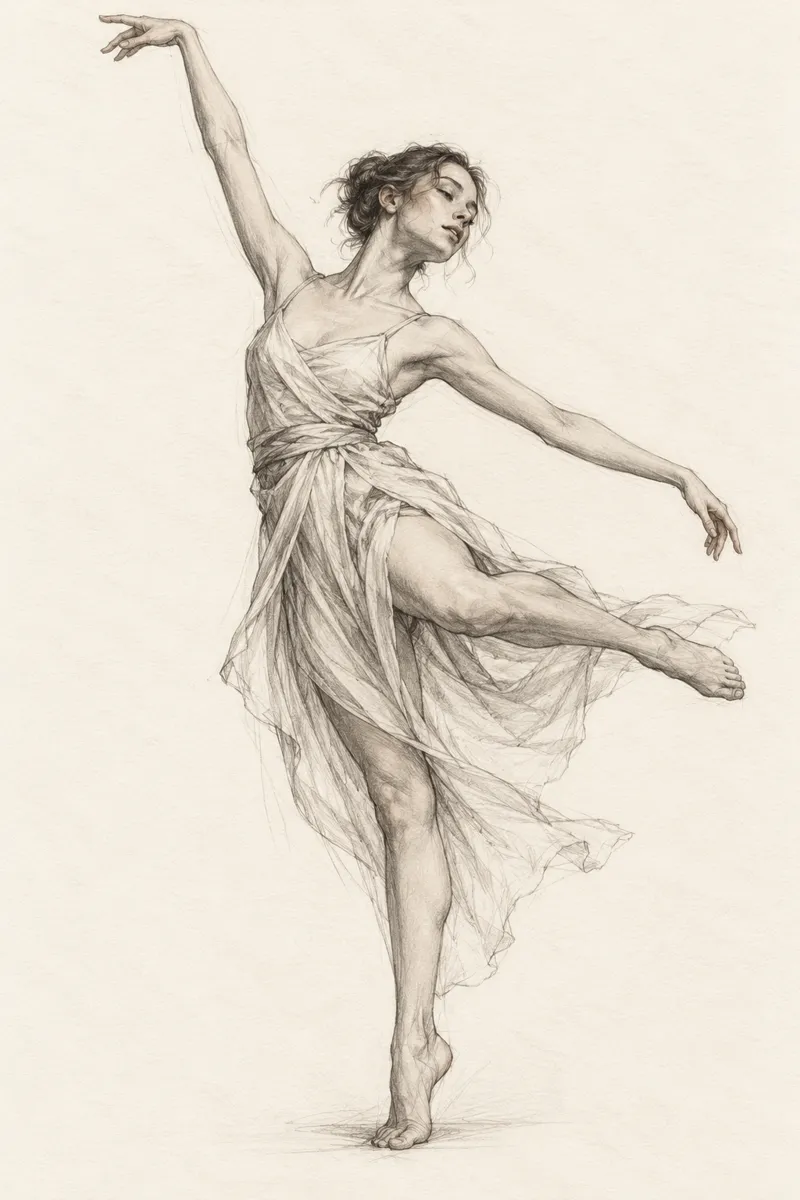
Choose Pencil when you want visible thinking: construction lines, graphite grain and light shading can make an early idea feel exploratory. Pencil suits thumbnails, characters, interiors and form studies. Choose Ink line art when the silhouette and edges matter more than tone. Its white background and stronger contours work well for icons, colouring-page directions, editorial spots and drawings that will be placed over a layout.
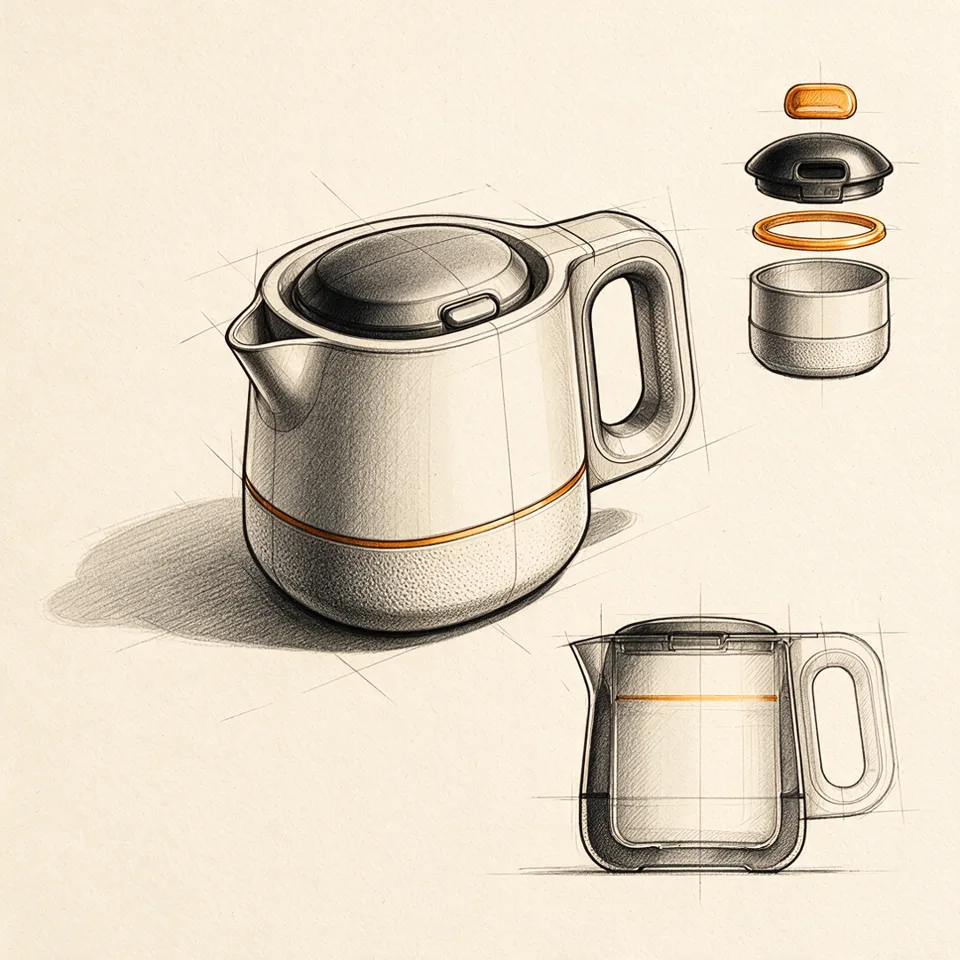
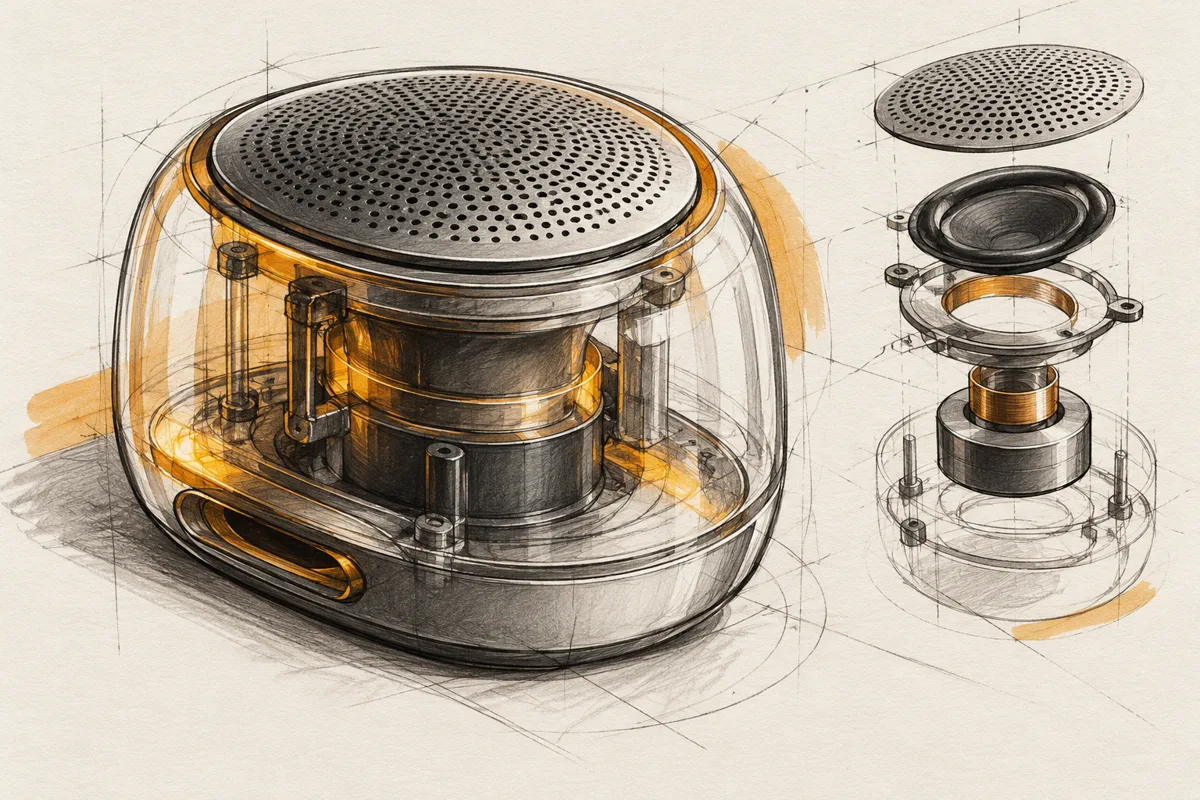
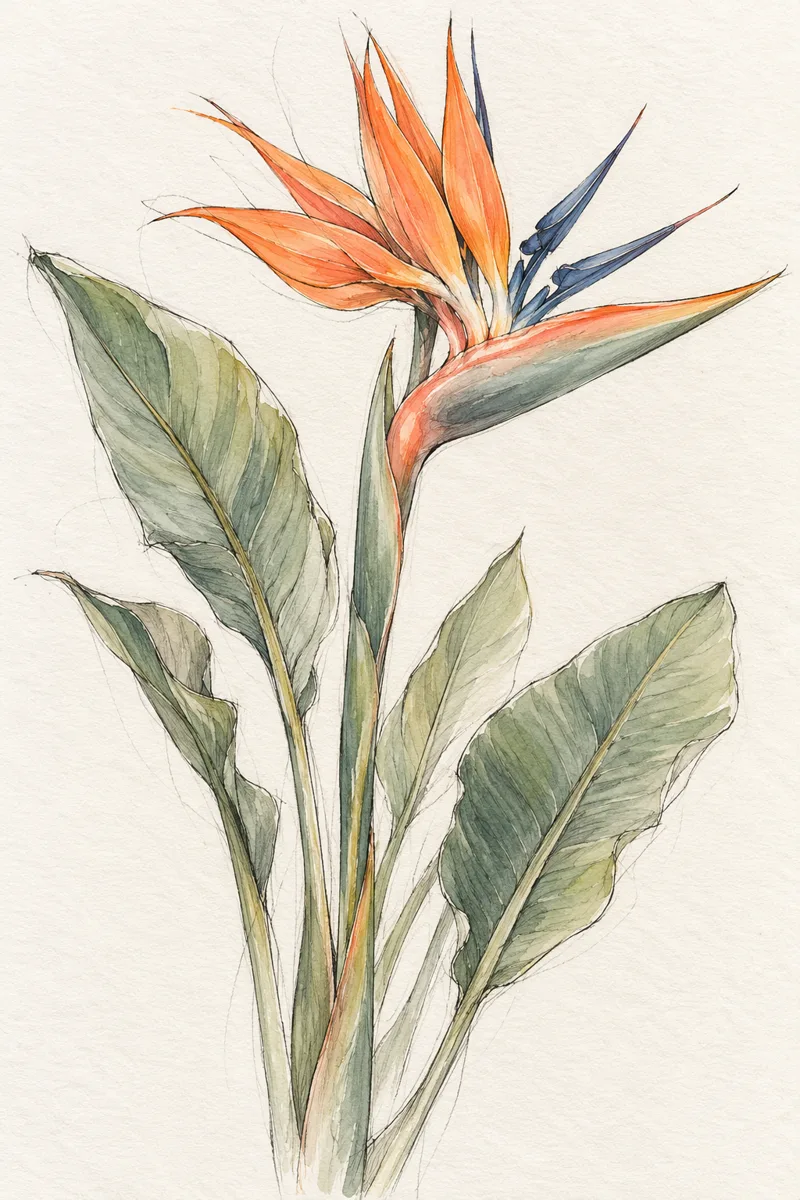
Product design is aimed at concept presentation. It asks for perspective construction, marker accents and an annotation-free sheet, which makes it useful for shoes, furniture, packaging and device forms. It is still concept art, not a dimensioned engineering drawing. Soft colour combines drawn edges with restrained washes. It is a good direction for food, plants, travel scenes, invitations and editorial illustration where pure black linework would feel too rigid.
The selected style is part of the request, so changing it and generating again creates a fresh image rather than applying a browser filter to the previous result. That distinction matters: a filter can change colour and contrast, but it cannot reliably redraw contours, construction marks or perspective. Keep the subject prompt the same when you want a fair comparison between styles.
What canvas shape works for a sketch?
Square 1:1 gives the subject equal room in both directions and is the safest choice for a single object, avatar, icon direction or centred study. Portrait 4:5 gives vertical subjects more breathing room: fashion figures, plants, posters, book-cover concepts and social feed graphics. Wide 16:9 is suited to rooms, landscapes, storyboards, environments and presentation slides. The tool requests 1024 × 1024 for square, 1024 × 1280 for portrait and 1344 × 768 for wide. The active image model can normalise those dimensions to the closest size it supports.
Choose the shape before generation because changing the crop afterward cannot invent missing surroundings. If you know the drawing will become a portrait post, generate it in 4:5 rather than cutting a square result. Leave space in the prompt when you plan to add a headline: phrases such as “subject in the lower half with open paper above” or “object on the right with negative space on the left” can help, though composition is never guaranteed.
The generated image is downloaded at the resolution returned by the model. Opening it in Studio preserves that image and places it into a new design, where you can choose the final document size, crop it, add type and combine it with other assets.
| Canvas | Requested size | Good starting uses |
|---|---|---|
| Square 1:1 | 1024 × 1024 | Objects, avatars, icons, centred studies |
| Portrait 4:5 | 1024 × 1280 | Fashion, plants, posters, social posts |
| Wide 16:9 | 1344 × 768 | Rooms, landscapes, storyboards, slides |
How do you improve an AI-generated sketch?
First inspect the large structure instead of zooming straight into details. Is the silhouette right? Is the subject shown from the intended view? Does the composition leave the space you need? If not, revise the nouns and viewpoint rather than adding vague quality words. “Make it better” gives the model no measurable change; “lower the heel, widen the toe box and show the shoe from a strict side view” does.
Change one group of instructions at a time. Keep the subject and canvas fixed while comparing Pencil with Product design, or keep the style fixed while changing the viewpoint. This makes the effect of each change understandable. Save the useful versions rather than expecting a later generation to reproduce them exactly. AI image generation is variable, and the same prompt can return a different composition on another run.
When the concept is close, stop regenerating for changes that ordinary editing handles better. Crop and position the image in Studio. Add accurate type, brand colours, captions, shapes and backgrounds there. If a generated detail makes a factual claim — a product mechanism, a map, a medical diagram or a building connection — verify it with an appropriate expert before sharing it as information.
What happens when you edit the sketch in HueFold Studio?
Edit in Studio transfers the generated image into HueFold's existing design workflow. If you are not signed in, the handoff asks you to sign in and continues afterward. The image is opened at its generated dimensions inside a new design, while the prompt and selected sketch style travel with the handoff metadata. The page and the editor therefore use the same account-owned AI asset rather than asking you to copy a screenshot.
Inside Studio, treat the sketch as a visual building block. Resize and crop it, put it behind a mask, add a background, combine it with photographs, and add typography that is real text. This is the appropriate place for a product name, measurements, captions, a call to action or accessible reading order. The editor's AI panel also uses the same AI image-generation backend, entitlements and account credits, so the generation experience stays compatible with the rest of HueFold instead of creating a second model or billing path.
Download is available directly on the feature page when you only need the image. Use Studio when the sketch is part of a larger deliverable such as a pitch board, social post, storyboard, cover, product sheet or presentation visual.
Accuracy, authorship and responsible use
An AI sketch can look confident while being wrong. Hands, repeated parts, reflections, perspective, text and small mechanisms deserve close inspection. A product concept may show a connection that cannot be manufactured. An architectural sketch may ignore structure or access. A scientific-looking botanical drawing may not preserve identifying features. Use generated work as creative material unless you have independently checked the information it appears to communicate.
Write prompts and upload references only when you have the right to use them. Do not ask for a living artist's signature or present generated work as that person's original. Do not use the tool to impersonate a person, deceive viewers or create prohibited content. HueFold's AI policy applies to generation, and a first-time user may be asked to accept it before the request runs.
Be transparent when context requires it. In a private mood board, the role of a generated sketch may be obvious. In journalism, education, competitions, client approvals or marketplace listings, label AI-generated concept imagery so a viewer does not mistake it for a measured drawing, photograph or hand-made original. Add that label as real text in Studio rather than asking the image model to draw it.
Account, credits and where the result is stored
Generating an image requires a signed-in HueFold account. The request goes through the same server-side AI image service used by the editor. That service checks whether the current workspace is allowed to use AI image generation, checks the selected model and available credits, applies prompt analysis and provider capabilities, and records the result as an AI asset. The tool does not promise that generation is free or attach a made-up credit number: model access and the effective credit charge come from the account configuration.
The prompt can contain up to 1,000 characters on this page. The generated request also contains the selected drawing style, requested canvas and metadata identifying the feature. The result URL returned by HueFold is shown on the page. Download uses that asset; Edit in Studio reads the same result and transfers it through the established Studio handoff.
Because model availability, plan entitlements and credit costs are administered elsewhere in HueFold, they may differ by account and can change without this guide inventing a fixed price. If generation is unavailable, the page shows the server's explanation. If the AI returns no usable image, the page reports the failure instead of displaying a fabricated result.
Practical ways to use AI sketches
Use the generator at the beginning of a project, when seeing several directions is more valuable than perfecting one. A product team can compare silhouettes before CAD. A designer can establish a visual language for a campaign. A creator can turn a scene description into a storyboard frame. An educator can make an illustrative starting point and then verify and label it. An interior project can explore composition and atmosphere before measured plans exist.
For product concepts, describe one object and one view at a time. For storyboards, keep the style and ratio unchanged across prompts and describe each shot's camera distance and action. For editorial illustration, identify the idea or metaphor, the intended negative space and whether the result should feel serious, playful or restrained. For botanical or food art, Soft colour often supplies a more natural presentation, while Ink line art is easier to place over coloured layouts.
The linkable asset on this page is the prompt table: it separates subject, view, key details, composition and finish so a prompt can be diagnosed rather than padded. The same framework works across all four styles and is easier to cite, teach and reuse than a list of magic adjectives.
- Product and packaging concepts before technical development.
- Storyboard frames for reels, presentations and short films.
- Interior, landscape and event mood-board directions.
- Editorial, botanical and food illustration starting points.
- Character silhouettes, poses and costume explorations.
- Social posts and presentation graphics finished in Studio.
Troubleshooting AI sketch generation
If the button asks you to sign in, complete sign-in and return; the preserved prompt can run afterward. If HueFold asks you to accept the AI policy, read the linked policy and choose whether to continue. If the server reports that your plan cannot use AI image generation or that credits are unavailable, use the account and plan controls shown by HueFold rather than repeatedly submitting the same request.
If the result ignores the requested view, put the viewpoint near the start of the prompt and remove competing camera descriptions. If the drawing contains unwanted words, keep “no text” in the style instruction and add all necessary wording later in Studio. If the composition is crowded, ask for a single subject on plain paper and state where negative space should remain. If small details are wrong, simplify the scene, describe the important feature in concrete terms and generate another option.
If Download opens the asset in a new tab, use the browser's save control; cross-origin asset storage can prevent a page from forcing a filename. If Edit in Studio cannot read the result, keep the generated asset, refresh your session and retry. A failed handoff does not delete the AI asset from the account.
Frequently asked questions
What is an AI sketch generator?
It is an AI image tool that turns a written description into a drawing. HueFold offers pencil, ink line art, product-design and soft-colour directions.
How do I generate a sketch from text?
Describe the subject and viewpoint, choose a style and canvas, then click Generate sketch. A HueFold account with access to AI image generation is required.
Is the AI sketch generator free?
The page does not claim a fixed free allowance. Generation uses the AI image access and credits configured for your HueFold account; the account shows the applicable charge.
Which sketch styles are available?
Pencil, Ink line art, Product design and Soft colour. Each option adds a distinct medium and presentation instruction to the prompt.
Which image sizes can I make?
Choose square 1:1, portrait 4:5 or wide 16:9. The tool requests 1024 × 1024, 1024 × 1280 or 1344 × 768, subject to the active model’s supported dimensions.
Can I download the generated drawing?
Yes. After generation, use Download to save or open the full result supplied by HueFold.
Can I edit the sketch in HueFold Studio?
Yes. Edit in Studio opens the generated image in a new design so you can crop, resize, add accurate text, combine assets and export a finished composition.
Can AI sketches contain mistakes?
Yes. Check anatomy, perspective, repeated parts, labels and mechanisms. Treat the result as concept imagery unless the information has been independently verified.
Can I use an AI sketch as a technical drawing?
No. A generated sketch is not a dimensioned engineering, architectural or scientific drawing. Use qualified tools and professionals for technical decisions.
How long can the prompt be?
The prompt field accepts up to 1,000 characters. Clear subject, view and detail instructions are usually more useful than filling the full limit.
Why did the result include bad lettering?
Image models can draw text inaccurately. Ask for no text, then add the real wording as editable type in HueFold Studio.
Where is the generated image stored?
The result is recorded with your HueFold AI assets by the same AI image service used in the editor.
Related tools
- Photo to Sketch — Turn an existing photo into a sketch-style image.
- AI Cartoon Generator — Create a more graphic, character-led illustration.
- AI Photo Editor — Refine and compose images with AI editing tools.
- AI Generative Fill — Replace or repair a selected part of an image.
- AI Image Expander — Generate new space around an existing image.
- Background Generator — Create a scene for a product or composition.