AI Photo Editor
Describe the change you want and an AI model edits the photo: new light, a different season, another colour, people removed from the background, or a whole new style. Edits stack, any of them can be undone, and you see what each one cost.
Updated

How do you edit a photo with AI?
Open a photo, type what should change, such as 'change the light to warm golden-hour sunlight', and press Edit with AI. The photo and your words go to an image model, Nano Banana 2 Lite from Google, which paints a new version with the change made and the rest kept. Apply another edit on top, undo any of them, compare with the original, and download.
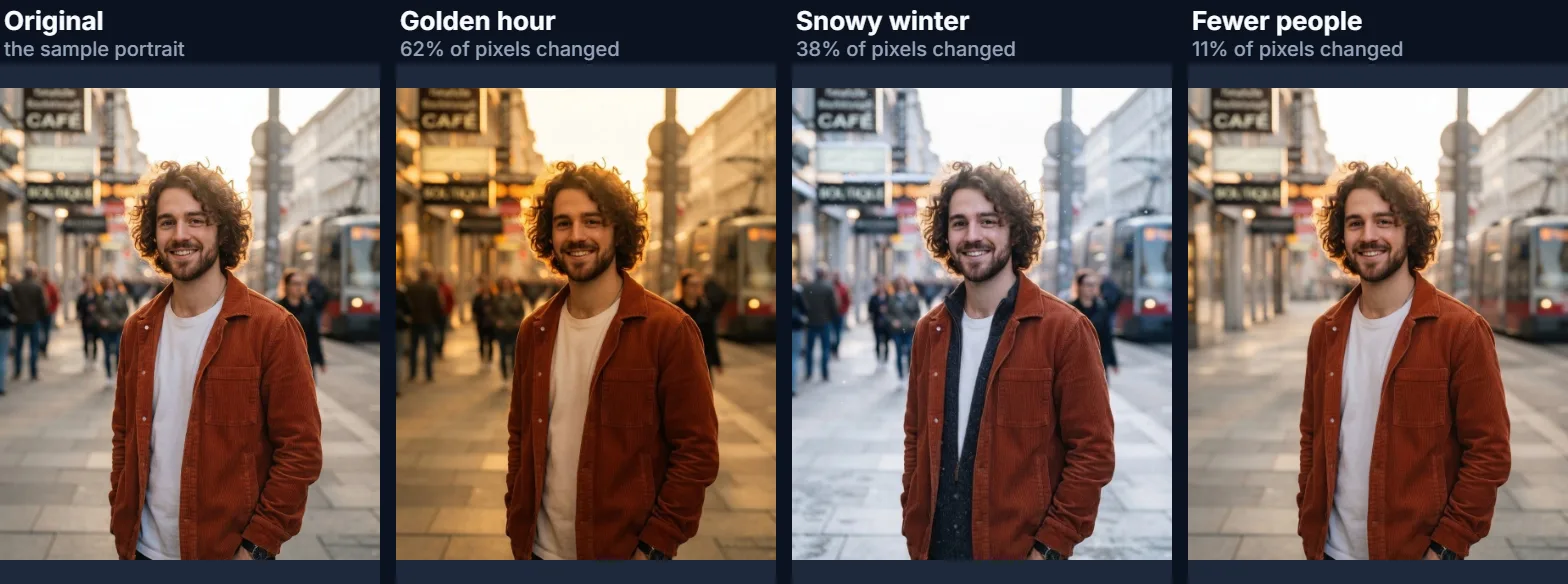
On the sample street portrait, three one-line instructions changed 62%, 38% and 11% of the pixels, took 22, 13 and 10 seconds, and used 5 credits each. The page shows every result as it came back, including the edit that only did part of what it was asked.
Edits use AI credits and need a free HueFold account. The person in the sample is fictional, made with AI.
How to edit a photo with AI
- Open the photo Choose a JPG, PNG or WebP, drop it on the preview, or use the sample portrait.
- Describe the change Type one main change, or pick an idea such as Golden hour or Fewer people.
- Edit with AI Sign in if asked; the edited photo appears in about 10 to 25 seconds.
- Stack, undo or download Apply another edit, undo the last one, compare, and save JPG, PNG or WebP.
Edit a photo with words
A real recording of this tool: the sample portrait, the Green jacket idea sent to the AI model, the result compared with the original, and the download.
- The sample street portrait opens, and the Green jacket idea fills in the instruction.
- Edit with AI sends the photo and the instruction to the model; the edited photo appears.
- Hold to compare shows the original while it is held.
- The edited photo is downloaded.
How much of the photo does an edit change?
As much as the instruction needs, and the model decides where. The three sample edits were compared pixel by pixel with the original, counting a pixel as changed when its red, green and blue moved by more than 24 levels out of 255 on average, about 10%. Golden hour changed 62% of the pixels, because new light touches everything; Snowy winter changed 38%; Fewer people changed 11%, mostly where the passers-by had been.
Every edit is a fresh picture painted by the model from your photo and your words, not a filter laid over it, so even the parts you did not ask about can shift slightly: a crease in a sleeve, a sign in the background, the exact shade of the sky. Each sample edit took between 10 and 22 seconds from pressing the button to the result appearing, and each used 5 credits.
| Edit | Pixels changed | Time | Credits |
|---|---|---|---|
| Golden hour | 62% | 22.2 s | 5 |
| Snowy winter | 38% | 13.2 s | 5 |
| Fewer people | 11% | 9.8 s | 5 |
How does editing with words work?
Your photo and your instruction are sent to an image model that can edit as well as generate: it looks at the photo, reads what you want changed, and paints a new version that keeps what you did not mention. Here that model is Nano Banana 2 Lite, from Google. The page tells the model to keep the framing, the composition, the people and the details, and adds your words to that.
Edits stack. Apply another edit works on the result of the last one, so you can change the light, then the season, then a colour, one step at a time, and Undo last edit steps back. Back to the original starts again. Hold to compare shows the original photo while you hold it.
What kinds of edits work well?
Changes to the whole scene work best: light (golden hour, overcast, night, studio light), season and weather, time of day, colour grading, and turning the photo into a style such as watercolour or a pencil sketch. Changing one clear thing works well too: the colour of a jacket, a background behind a person, an object added to a table, people removed from the background.
Precise, measured changes work less well: moving something by a set distance, matching an exact brand colour, writing specific text, or changing one person in a crowd. For those, a mask-based tool such as generative fill, which only repaints the area you brush, gives more control.
Why did the model only do part of what I asked?
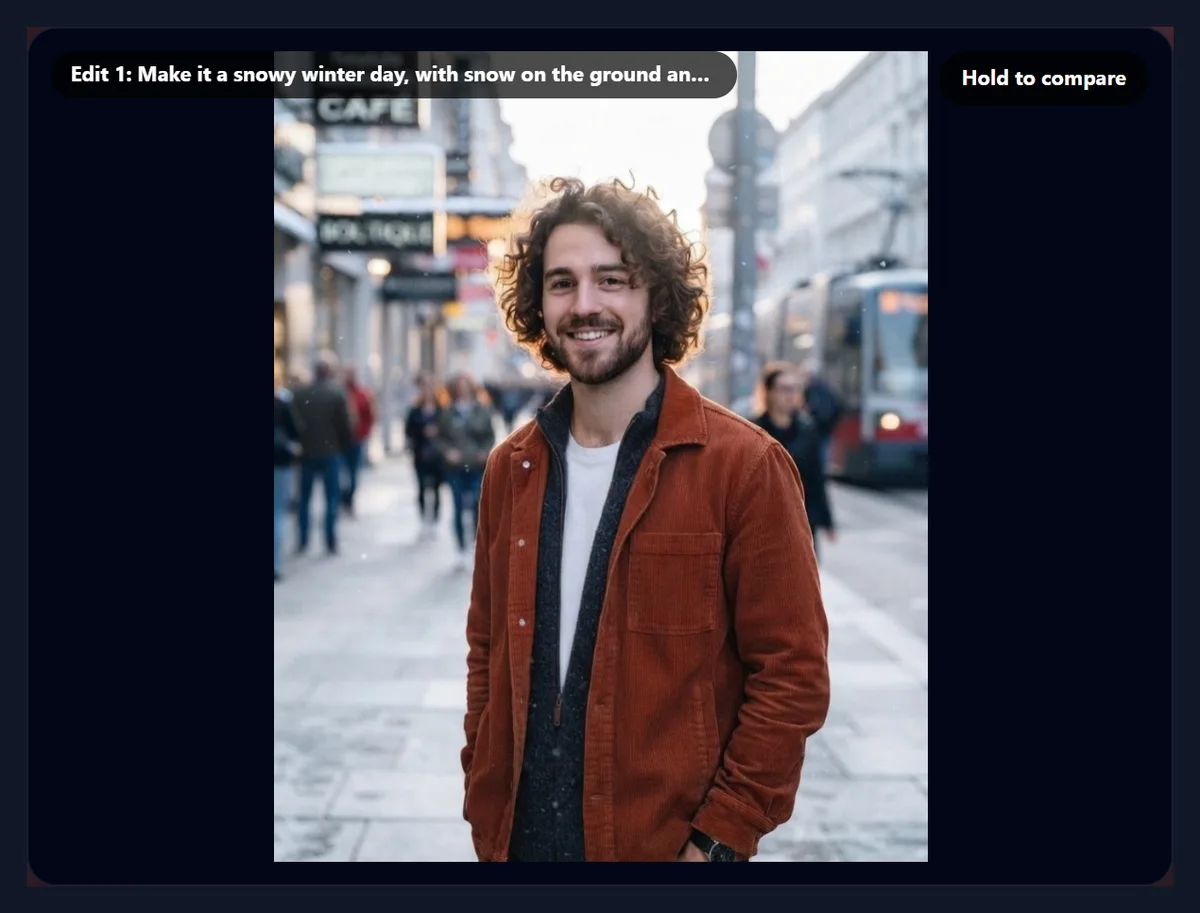
Because an instruction is a request, not a recipe. Snowy winter asked for a snowy day with snow on the ground and the person in a warm coat. The model cooled the light, made the street paler and gave the man a dark scarf and layer under his jacket, but it did not lay visible snow on the pavement; that edit changed 38% of the pixels against 62% for the simpler golden-hour change.
When that happens, apply the missing part as its own edit (for example 'Add a layer of snow on the pavement and on the tram'), or rewrite the instruction around the one thing that matters most. Short, concrete instructions with one main change are followed more reliably than long lists.
Can it remove people or objects?
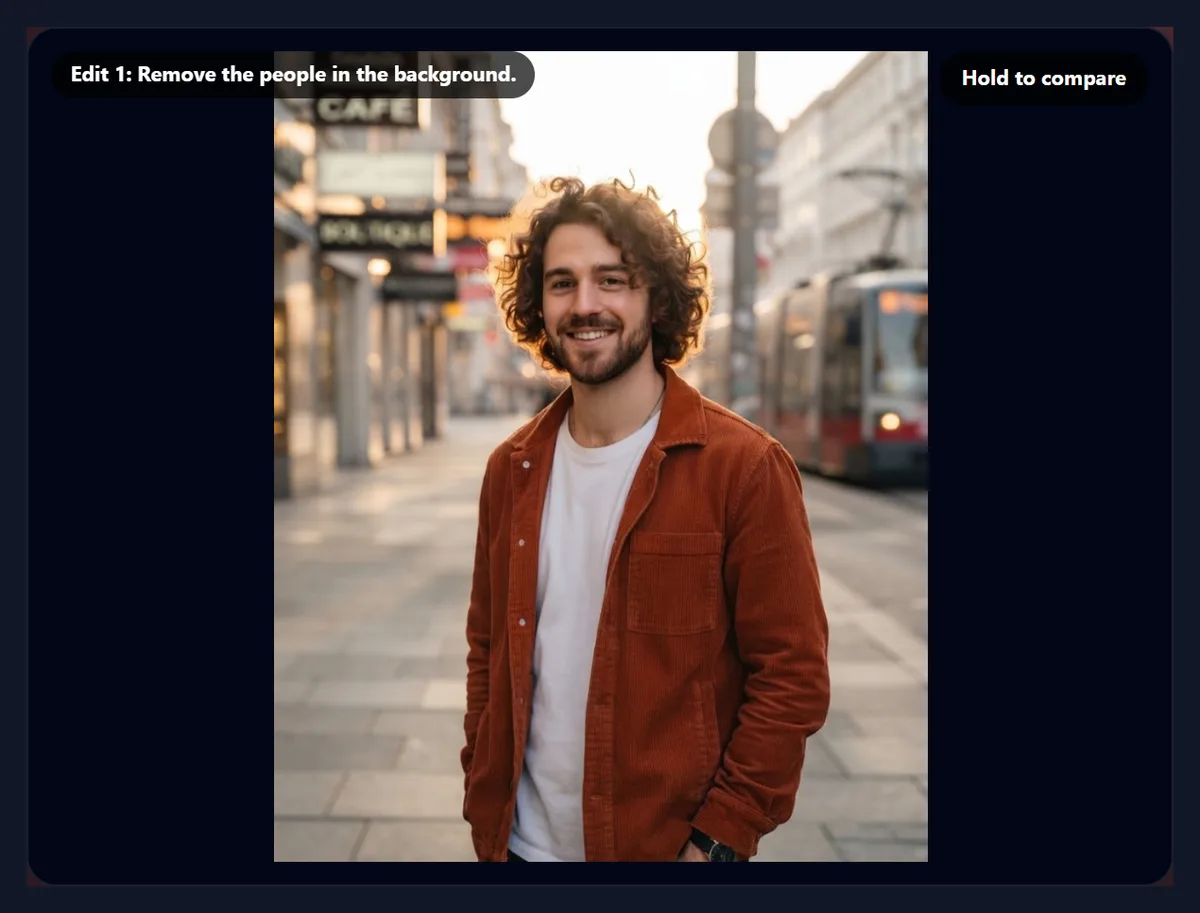
Yes, when you describe them clearly. Fewer people asked the model to remove the people in the background, and it replaced the passers-by with empty street while keeping the man, the tram and the shopfronts; only 11% of the pixels changed. For a single object in a known spot, the magic eraser or generative fill, where you brush the area, is more predictable.
Describe what to remove and what should be there instead, if it matters: 'Remove the car and continue the pavement' is clearer than 'remove the car'.
How should I write the instruction?
Say what should change and, if it helps, what it should look like afterwards: 'Change the jacket to dark green, keeping its style and fit' rather than 'green'. Name the thing the way you would to a person: 'the man's jacket', 'the sky', 'the table in front'. Mention what must stay if the model tends to change it: 'keep his face exactly the same'.
One main change per edit gives the most reliable results; stack several edits rather than writing one long instruction. If an edit misses, undo it and rephrase rather than piling a correction on top, so mistakes do not accumulate.
Can it turn a photo into a painting or a sketch?
Yes. Style edits are some of the most reliable, because they apply to the whole picture: 'turn the photo into a loose watercolour painting', 'make it a pencil sketch on white paper', 'make it look like a 1970s film photo'. The Watercolour idea is one example. The composition stays, while every surface is repainted in the new style.
Faces in a strong style change more than in a light one, so a painted portrait may not look exactly like the person; for a likeness, keep the style light or use a filter that keeps the photo's own pixels, such as the vintage filter.
What size is the edited photo?
The size the model returns, which is around a megapixel for most photos. The model accepts only a few shapes (square, 3:4, 4:3, 9:16 and 16:9), so the photo is sent in the nearest of them, at most 1536 pixels on its long side, with its own edges stretched into the spare bands, and those bands are cut off the answer. The 928 × 1152 sample came back as a 896 × 1112 photo, the same shape and slightly smaller.
For a larger file, run the result through the AI image upscaler afterwards. Very wide or very tall photos, such as panoramas, are sent with wide bands and keep less of their own detail; crop them closer to one of the shapes first if you can.
How much does an edit cost?
Each edit uses AI credits from your HueFold account; the sample edits used 5 credits each, and the tool shows what the last edit used under the button. You are asked to sign in before the first edit, and new accounts are asked once to accept HueFold's AI policy. Opening a photo, comparing, undoing and downloading cost nothing.
If an edit fails, for example because the model returned no picture, the request is not completed and nothing is added to the photo. Check your balance in your account before a long editing session.
What happens to my photo?
Nothing leaves your device until you press Edit with AI. Then the photo, at most 1536 pixels on its long side, is uploaded to HueFold and sent with your instruction to the AI model, and the result is stored so it can be shown to you. The preview, the comparison and the download are made in your browser.
Photos of people are fine to edit, but do not use the tool to change someone's appearance in a way that could mislead or hurt them; HueFold's AI policy applies to every edit. The sample is a street portrait of a fictional person made with AI.
Which files work?
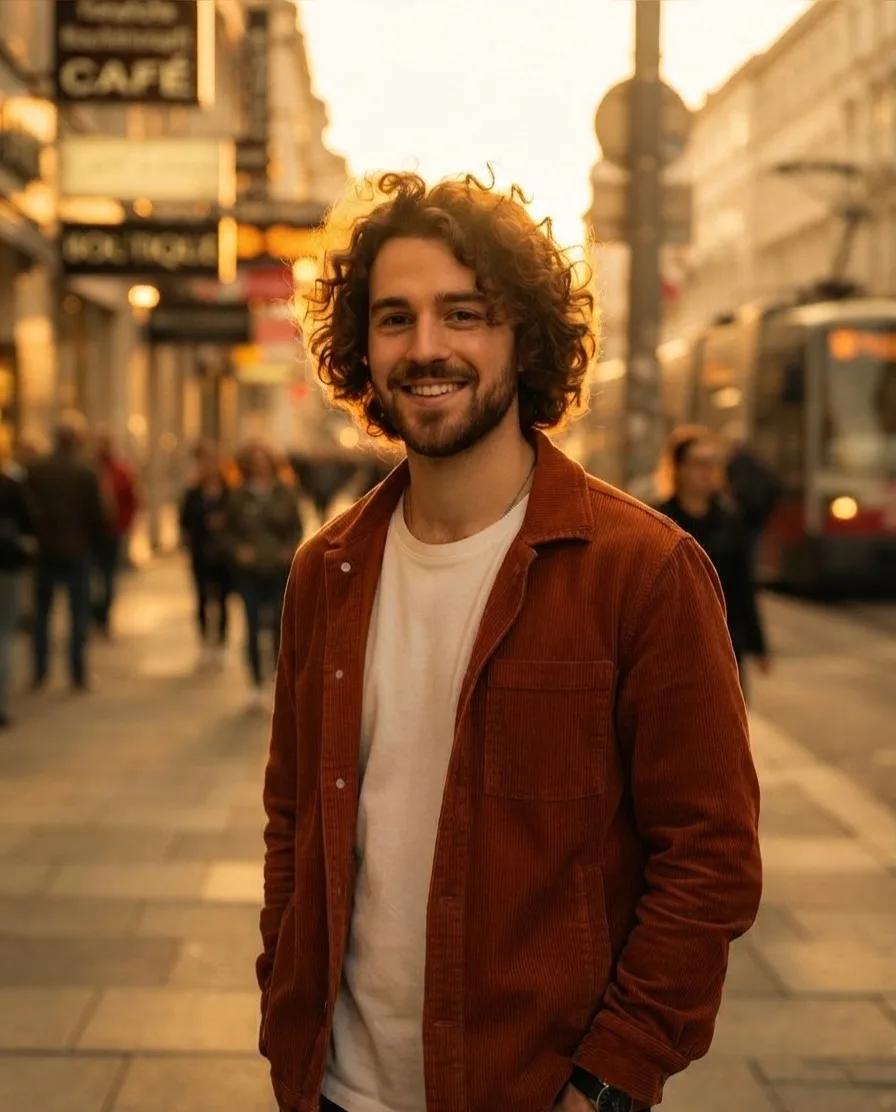
You can open JPG, PNG and WebP photos; convert iPhone HEIC photos to JPG first. The edited photo is saved as JPG, PNG or WebP at the size the model returned: the golden-hour sample was 896 × 1112 pixels and 176,665 bytes as a 92% JPG. The download carries no EXIF data from the original.
To keep working on the edited photo, adding text, a frame or other photos, download it and open it in HueFold Studio or any other editor.
Why does my edit look wrong?
If the edit changed too much, such as a face that looks different or text that turned into nonsense, undo it and add 'keep everything else exactly the same' or name what must not change. If it changed too little, make the instruction more concrete and put the main change first. If the result looks soft, the photo was probably large: the model works at about a megapixel, so fine detail is redrawn rather than kept.
Faces, hands, small text and logos are the hardest things for image models to keep exactly; check them in Hold to compare before you download. For an exact change to one area, use generative fill and brush just that area instead.
Frequently asked questions
How do I edit a photo with AI?
Open the photo, describe the change in words, press Edit with AI, and download the result.
Which AI model edits the photo?
Nano Banana 2 Lite, an image model from Google.
How much does an AI edit cost?
Each sample edit used 5 credits; the tool shows what every edit used.
Can I undo an AI edit?
Yes. Undo last edit steps back one edit; Back to the original starts again.
Can I apply several edits?
Yes. Each edit works on the result of the last one.
Why did the AI ignore part of my instruction?
Models sometimes follow only part of a long instruction; apply the missing part as its own edit.
Can it remove people from a photo?
Yes, when you describe them; for one object, the magic eraser is more precise.
Is my photo uploaded?
Only when you press Edit with AI: it is sent to HueFold and the AI model.
Do I need an account?
Yes, a free HueFold account with AI credits.
Related tools
- AI Generative Fill — Brush an area and repaint only that.
- Magic Eraser — Brush away one object.
- AI Image Expander — Make a photo wider or taller.
- AI Image Upscaler — Enlarge the edited photo.
- AI Background Generator — A new scene behind the subject.
- Vintage Filter — An old film look, without AI.