AI Background Generator
Put your subject in a new scene. HueFold’s AI cuts out the product, person or pet, you describe the background, and an AI model paints it. Move and size the subject on the scene, add a soft shadow, and download.
Updated

How do you generate a new background for a photo?
Open the photo and sign in to your free HueFold account: the subject is cut out by HueFold's own AI at no cost. Describe the scene you want, or pick an idea such as Marble countertop by a window, and press Generate scene. The new background appears behind your subject in about 15 to 30 seconds; drag the subject into place, set its size, and download.
The subject is never repainted: it is cut from your own photo, so a product's label and shape stay exactly as photographed. Only the background is generated, and each scene used 5 AI credits on this page.
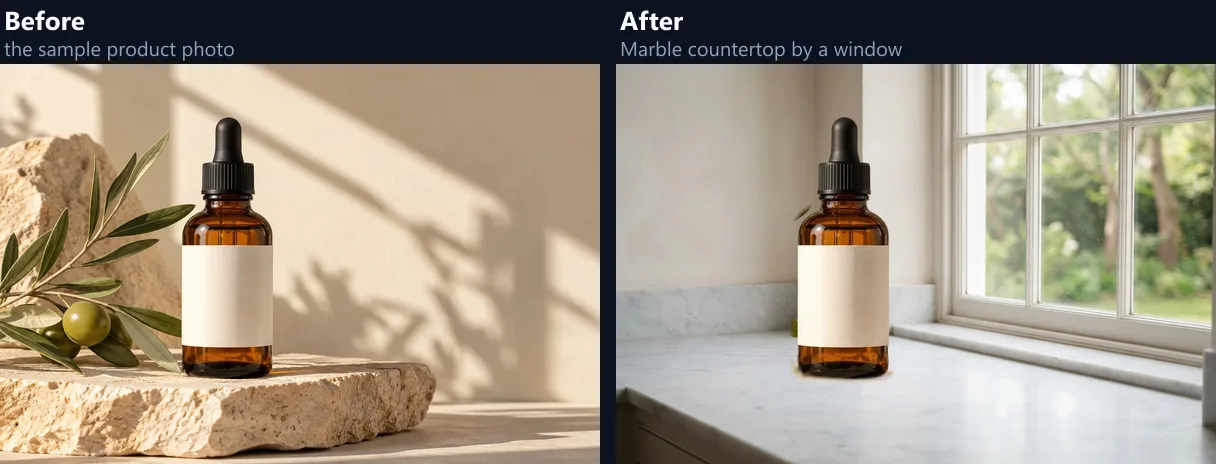
The sample is a serum bottle photographed on stone; the scenes shown were generated by the tool on this page.
How to generate an AI background
- Open the photo Choose a JPG, PNG or WebP, or try the sample product photo.
- Let the AI cut out the subject Signed in, the cutout starts by itself and is free.
- Describe and generate Type the scene or pick an idea, then press Generate scene.
- Place and download Drag and size the subject, add a soft shadow, and save JPG or PNG.
Give a product a new scene
A real recording of this tool: the sample product cut out by HueFold’s AI, the Wooden table in a café idea generated as a scene, and the download.
- The sample product photo opens and HueFold’s AI cuts out the bottle.
- The Wooden table in a café idea fills in the scene description.
- Generate scene paints the background and the bottle appears on it.
- The photo is downloaded.
How long does a scene take, and what does it cost?
Each scene on this page took between 14 and 28 seconds from pressing Generate scene to the scene appearing behind the product, and each used 5 AI credits from the account. The time is the AI model painting a new picture; cutting out the subject, moving it and downloading happen in moments and cost nothing.
Scenes are kept as thumbnails under the prompt, so you can generate a few, switch between them with a click, and download the one you like best without paying for any of them twice.
| Scene | Time | Credits |
|---|---|---|
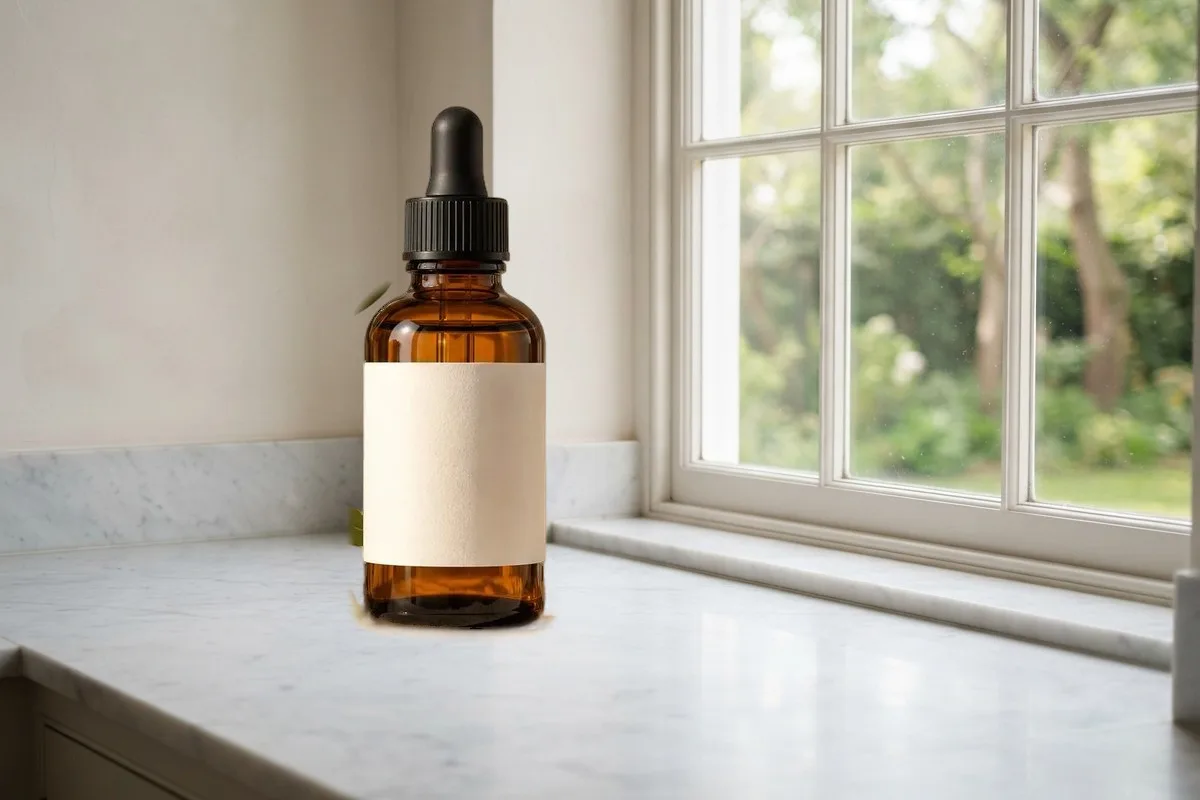
| Marble countertop by a window | 27.9 s | 5 |
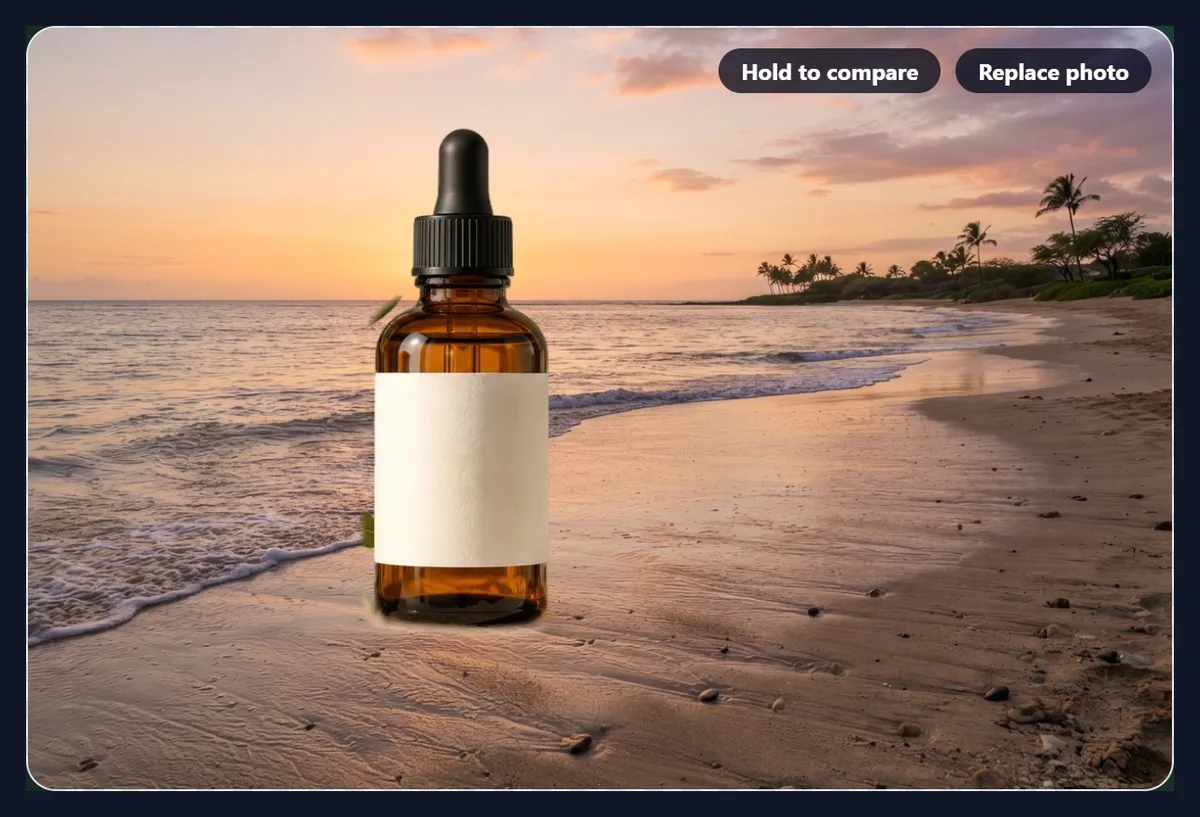
| Beach at sunset | 13.7 s | 5 |
| Wooden table in a café | 17.9 s | 5 |
How does the AI background generator work?
In three steps. HueFold's own AI finds the subject, a product, a person or a pet, and cuts it out with a soft edge; that part is free with an account. Then an image model, Nano Banana 2 Lite from Google, paints a new background from your description. Finally your subject is placed on the new scene in your browser, where you can move it, resize it and add a soft shadow before you download.
The scene is painted on its own, without your subject in it, and the page asks the model for an empty, evenly lit background with a clear area in the middle and no people, products or text. That leaves room for your subject and stops the model from inventing a second product in the shot.
How should I describe the scene?
Name a place and a surface: 'a marble countertop by a window', 'a wooden table in a café', 'a beach at sunset', 'soft pastel paper'. Add the light if it matters, such as 'morning sun from the left' or 'soft overcast light', and a colour if the photo has to match a brand. Keep it to one sentence; the scene should support the subject, not tell a story.
Match the scene to how the subject was photographed. A product shot from slightly above looks right on a table seen from above; a person photographed at eye level looks right in a scene at eye level. The six idea buttons under the prompt are starting points you can edit.
Is it good for product photos?
Yes, that is what it suits best: one product, shot on a plain or simple background, given a setting that tells the buyer how it is used or what it feels like. A skincare bottle on marble by a window, a mug on a café table, shoes on a city pavement. Generate a few scenes and keep a consistent one across a range of products.
Check marketplace rules before using a generated scene as a main product image: many marketplaces ask for a plain white background for the first picture and allow lifestyle scenes only in the others. A white studio backdrop is one of the ideas for exactly that.
What if the cutout is not perfect?
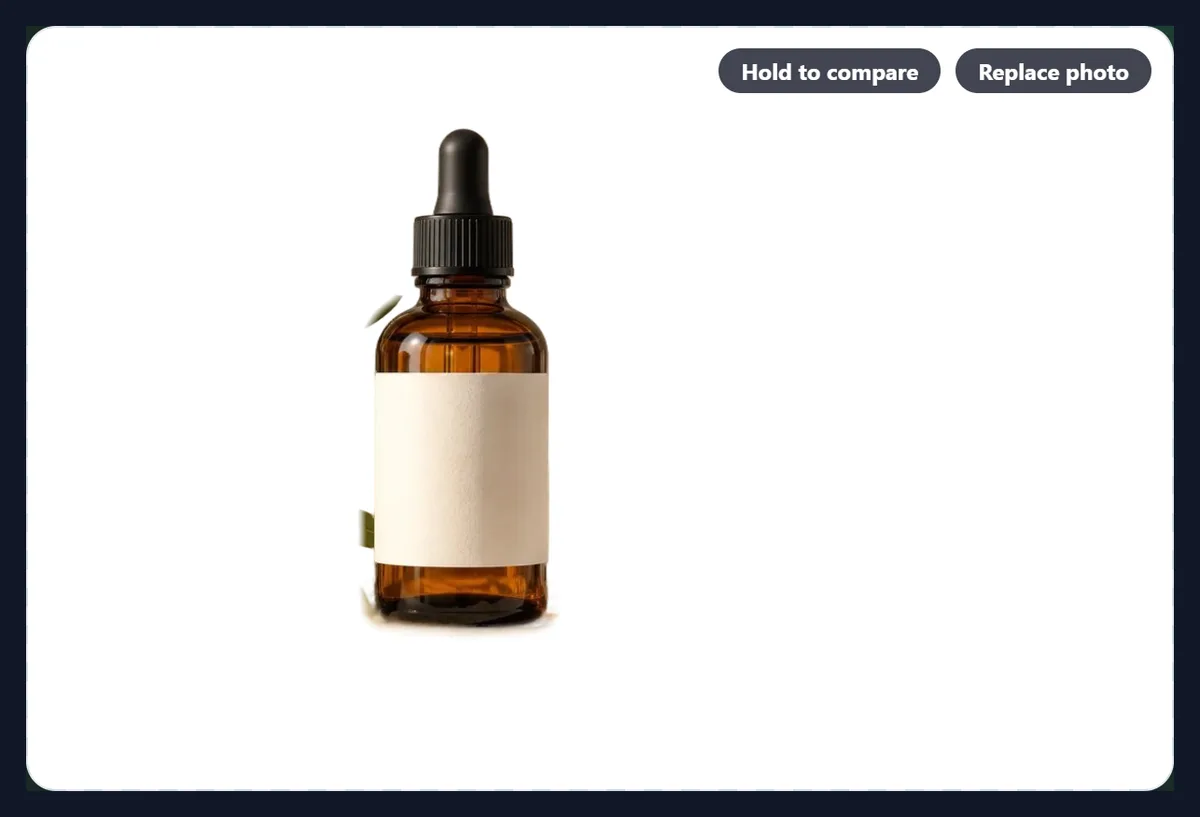
Press Fix the cutout and paint with Erase to remove leftovers of the old background, or with Restore to bring back parts the AI missed. Thin details are the usual trouble: a dropper, a strap, a stem, a few strands of hair. On the sample the cutout dropped the stone and the olive leaves around the bottle, as wanted, but kept a small green fragment of a leaf at one side, which Erase removes in a stroke.
Fix the cutout before you generate scenes: the same cutout is used on every scene you try.
How do I place the subject on the scene?
Drag it on the preview to move it, and use Subject size, from 20% to 150%, to make it smaller or larger; Reset position puts it back where it was in the photo. Soft shadow adds a gentle drop shadow beneath it, which helps a product sit on a surface instead of floating in front of it.
Put the subject where something of its size could really stand: a bottle on the countertop, not in the sky. If the scene's surface is lower or higher than the product's base, move the product down or up to meet it.
What size is the result?
Your photo's own size and shape. The model paints scenes in a few fixed shapes, so the scene is requested in the shape nearest your photo, 1536 pixels on its long side (1536 × 1152 for the 3:2 sample), and cropped to fill your photo's frame. The sample came out at 1200 × 800 pixels and 136,682 bytes as a JPG.
Your subject keeps the detail of your original photo, because it is cut from it, not repainted. Only the background is new, so a sharp product photo stays sharp on any scene.
How is this different from the AI photo editor?
The AI photo editor repaints the whole photo, including the subject, from your instruction, which suits changes to light, season or style. The background generator never touches the subject: it is cut from your photo and placed on a newly painted scene, so a product's label, shape and colour stay exactly as photographed. For a product, that difference matters.
If you only want a plain or blurred background, the background remover and blur background pages do that without credits.
Do I need an account?
Yes, a free HueFold account. The cutout runs on HueFold's own AI and is free; each generated scene uses AI credits (5 per scene on this page), shown after each scene under the button. New accounts are asked once to accept HueFold's AI policy before the first scene.
Colour, gradient, blurred and your-own-image backgrounds are on the other tabs of the same tool and use no credits.
Which of the scene ideas should I start with?
The six ideas cover the most common uses. White studio backdrop and Soft pastel paper backdrop give clean, neutral product shots for shops and catalogues. Marble countertop by a window and Wooden table in a café suit cosmetics, food, drink and homeware, where a surface and daylight tell the buyer how the product is used. Beach at sunset and City street at night are lifestyle scenes for social posts and adverts.
Each idea fills in the description, so you can edit it before generating: 'Wooden table in a café, morning light from the left, green plants in the background' is still one sentence and gives the model more to go on.
Can I make a set of product photos match?
Yes, by keeping the description identical for every product, so each scene is generated from the same words, and placing each product at the same size and height. The scenes will not be identical, because each one is painted fresh, but they will share the same place, light and colours, which is usually what a matching set needs.
Keep a note of the description that worked best and reuse it word for word, along with the same Subject size and shadow setting. Small differences between the scenes then read as natural variety rather than as photos from different shoots.
Which files work, and what happens to my photo?
You can open JPG, PNG and WebP photos up to 20 MB; convert iPhone HEIC photos to JPG first. The result is saved as JPG or PNG at the photo's own size, or opened in HueFold Studio with Continue editing to add text, logos and more. For the cutout, a copy of the photo, at most 2048 pixels on its long side, is sent to HueFold's AI; the scene is made from your words alone, and the two are put together in your browser.
The sample is a product photo of a serum bottle on stone. The scenes on this page were generated by the tool exactly as shown.
Why does my subject look pasted on?
Usually because the light does not match: a product lit from the left on a scene lit from the right, or a cool studio photo on a warm sunset. Describe light that matches the photo ('soft daylight from the left'), or generate another scene. A missing shadow is the other common cause: turn on Soft shadow and lower the subject until it meets the surface.
If the scene contains a product or text anyway, generate again or add 'empty' to the description. If the model returns no image, nothing is charged for that attempt; try again or describe the scene differently.
Frequently asked questions
How do I change the background of a photo with AI?
Open it, let the AI cut out the subject, describe a scene, press Generate scene, and download.
How much does an AI background cost?
Each scene on this page used 5 credits; the cutout is free.
Which AI model makes the scene?
Nano Banana 2 Lite, an image model from Google.
Does the AI change my product?
No. The product is cut from your photo; only the background is generated.
Can I generate several scenes?
Yes. Each scene is kept as a thumbnail, and you can switch between them.
Can I move the subject on the scene?
Yes. Drag it, set Subject size, and add a soft shadow.
Is it good for product photos?
Yes; check marketplace rules, which often ask for a white main image.
Do I need an account?
Yes, a free HueFold account with AI credits for scenes.
Is my photo uploaded?
A copy is sent to HueFold’s AI for the cutout; the scene comes from your words.
Related tools
- Background Remover — A transparent cutout, free.
- Blur Background — Soften your own background instead.
- White Background — A plain white product background.
- AI Photo Editor — Edit the whole photo with words.
- AI Image Expander — Extend a photo beyond its edges.
- Photo Background Change — Colours, gradients and your own images.