AI Image Expander
Give a photo more room. Pick a new shape, place the photo in it, and the AI paints the area around it to match, while your own pixels stay exactly as they were.
Updated

What is an AI image expander?
An AI image expander makes a photo bigger than it was taken. Instead of cropping a landscape photo down to a square or a story, or stretching it, the expander adds new picture around it — more sky, more street, more table — painted by an AI image model to continue the scene, so the photo fits the new shape whole.
On this page you pick the new shape — 1:1, 4:5, 2:3, 9:16, 4:3, 3:2, 16:9, or the photo's own shape zoomed out — choose how much of the frame the photo fills, and drag it where you want it. When you click Expand, the AI paints only the new area. Your photo is then laid back on top at full resolution, so not one of its own pixels is redrawn by the model.
Setting up the frame is free and happens in your browser. Expanding needs a free HueFold account and uses AI credits, and the finished picture downloads as a PNG or JPG of up to 4096 pixels on its long edge.
How to expand an image with AI
- Upload a photo Drop a JPG, PNG or WebP photo of up to 20 MB on the tool, or try the sample photo. Phone photos open the right way up.
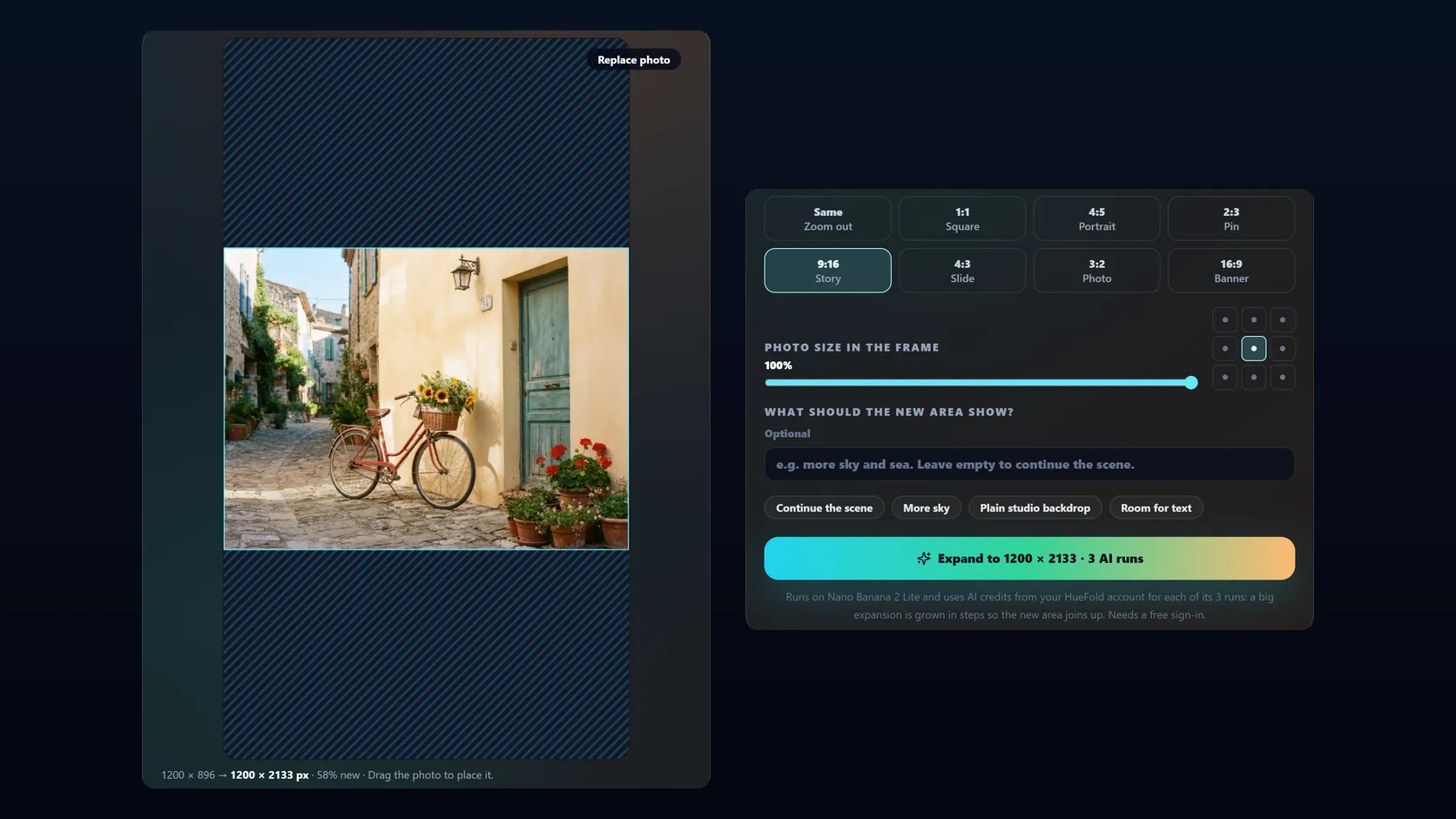
- Pick a new shape Choose 1:1, 4:5, 2:3, 9:16, 4:3, 3:2 or 16:9, or Same to zoom out. The striped area shows what the AI will add.
- Place the photo Drag the photo in the frame or pick one of nine positions, and set how much of the frame it fills, from 40% to 100%.
- Expand Optionally say what the new area should show, then click Expand. Sign in once if asked. Bigger expansions take a few AI runs.
- Download Try another version if you like, then download the expanded picture as a PNG or JPG.
Expand a photo to a 9:16 story with the AI image expander
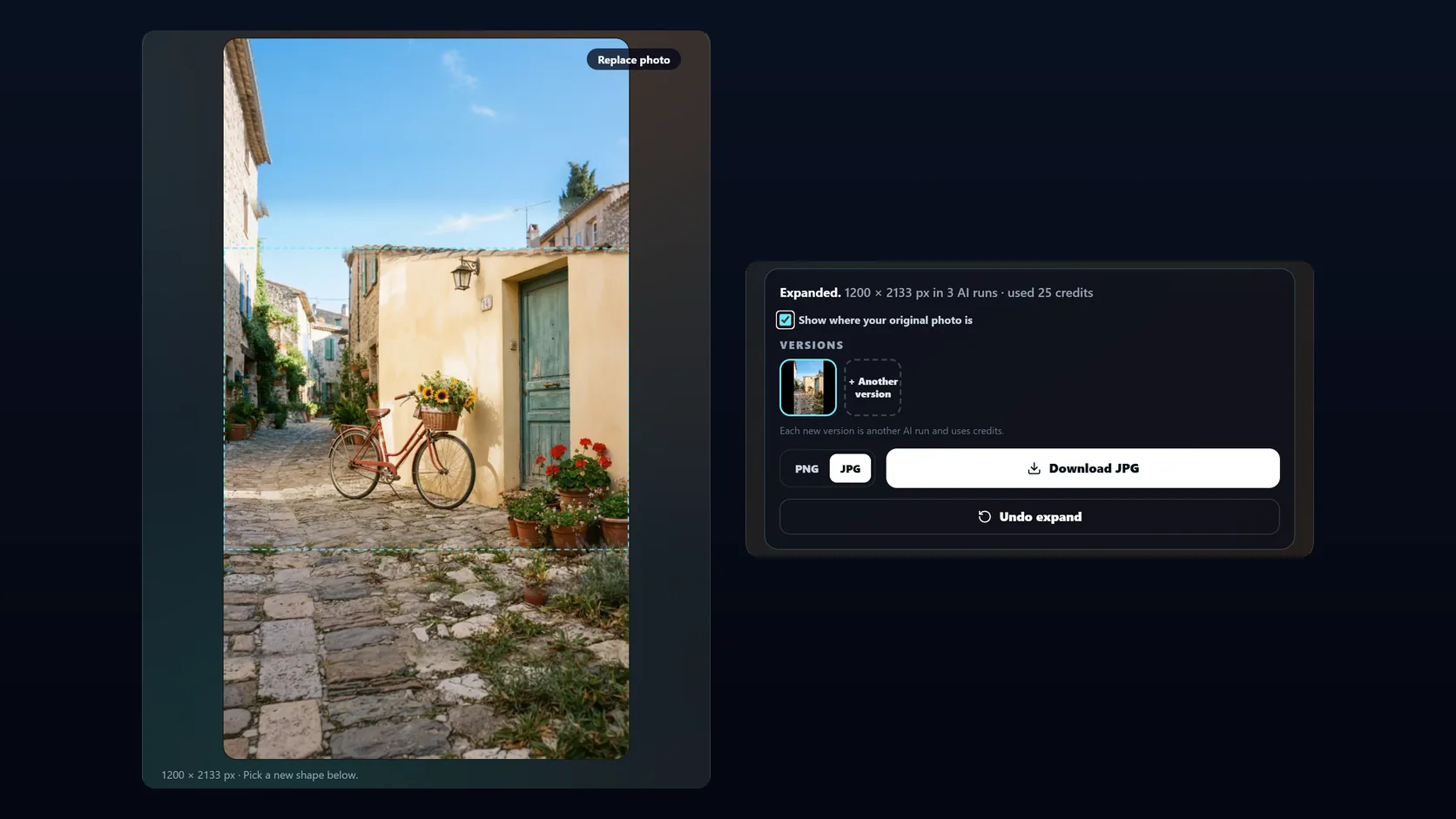
A real run of the tool on this page: open a 4:3 photo, pick 9:16, and expand it in three AI runs, then check where the original sits and download the picture.
- Open the sample photo, a 1200 × 896 street with a red bicycle.
- Pick 9:16. The frame becomes 1200 × 2133: 58% of it new, made in three AI runs.
- Click Expand. Each run grows the picture by about a third, first to 1200 × 1196, then 1200 × 1597, then 1200 × 2133.
- The expanded picture appears. Show where your original photo is outlines the 1200 × 896 original inside it.
- Click Download JPG. The three runs used 15 credits.
How the AI image expander works
The expander starts from the frame you set: the new shape, with your photo placed inside it. Everything outside the photo is the new area, shown striped in the tool, and that is all the AI is asked to paint.
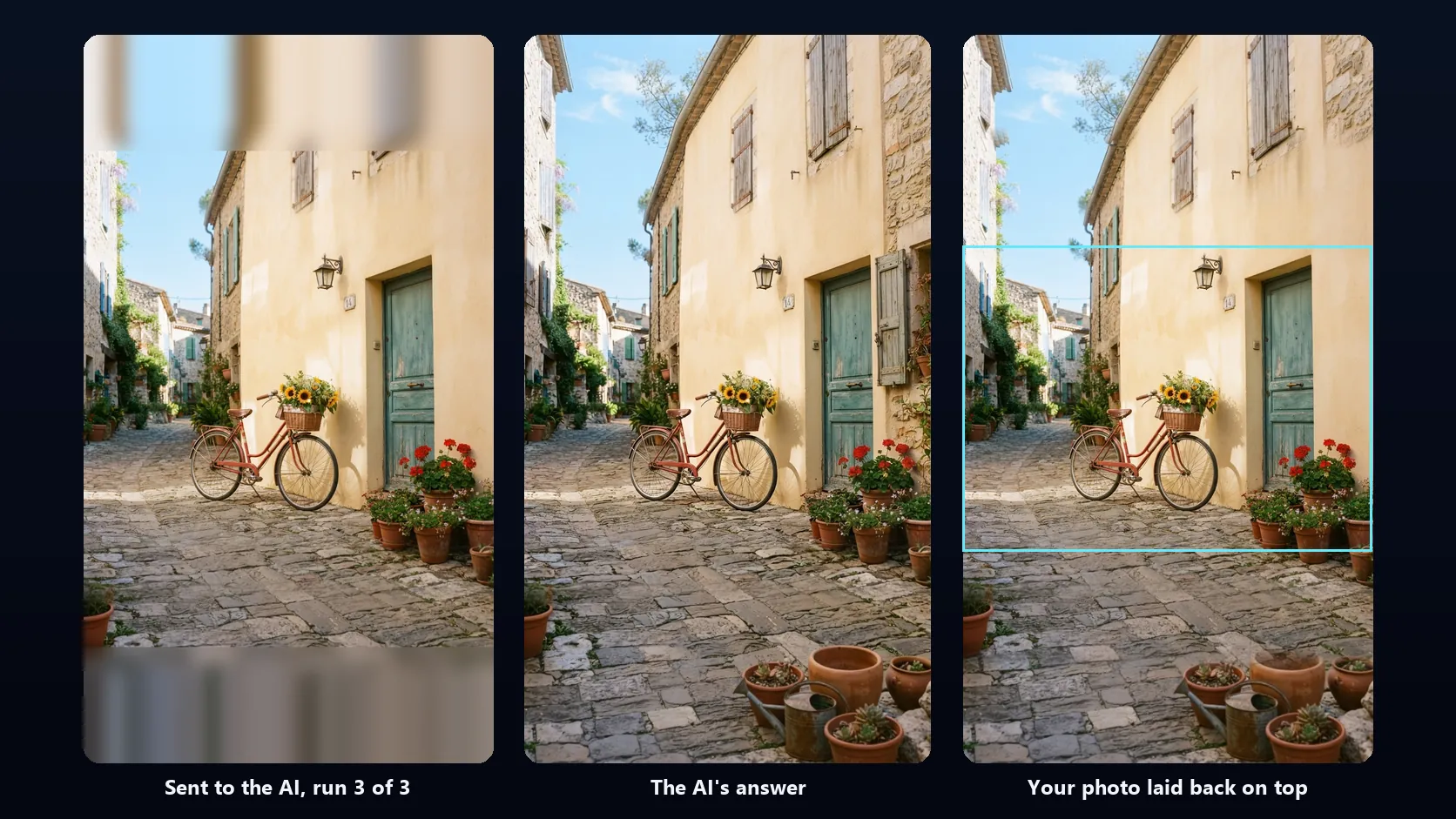
How the new area is described to the AI depends on the model running the tool. A dedicated outpainting model receives your photo and the size of each margin as numbers. A prompt-driven image model receives your photo inside a larger canvas whose new area is a placeholder: your photo's own edge rows and columns, stretched outward and blurred. It already carries the photo's colours across the join — yellow wall above yellow wall, sky above sky — and the model is asked to replace the blur with sharp detail that continues the scene. A thin band along the photo's edge, 6% of its shorter side, is sent blurred too, so the model has to draw across the join instead of starting something new exactly where your photo stops. Image models only answer in a few shapes — square, 3:4, 4:3, 9:16 and 16:9 — so for any other shape, such as 4:5, the canvas is the nearest of those that contains your frame, and the answer is cropped back to exactly your frame. Nothing is stretched.
Before an answer is used, the tool checks it three ways. If more than 6% of the new area is still placeholder blur, or the model has redrawn the photo it was told to keep, the model is asked once more, and an answer that fails again is never used. If the model's version of the edge band strays far from your photo — sky drawn where the photo has a wall, which would leave a smear — it is asked once more and the better of the two answers is kept. Finally, your photo is laid back over the answer at its full resolution, blended into the model's drawing only across that 6% band, so the join does not show as a line.
Which shape to pick: sizes for posts, stories and banners
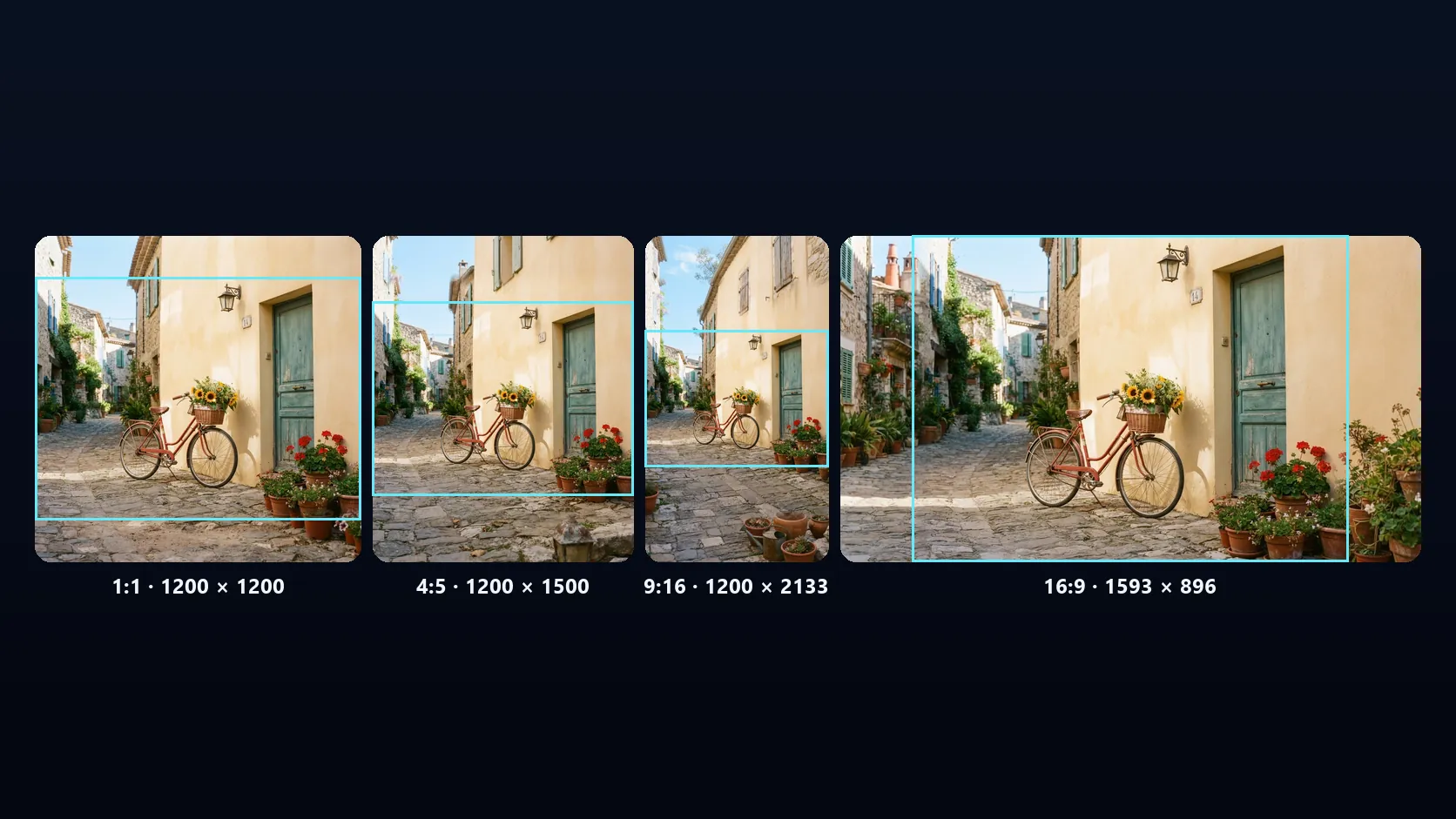
Each shape is named for where it is most often used. Pick the shape of the place the picture is going, and the expander adds just enough new area to fill it — no more, unless you lower the photo size. Same keeps your photo's own shape and zooms out, which is useful when the subject is simply too tight in the frame.
The table shows what each shape does to the 1200 × 896 (4:3) sample photo on this page at 100% photo size: the size of the expanded picture, how much of it is new, and how many AI runs it takes. The run count comes from the step rule explained in the next section, and the tool shows it on the Expand button before you click.
| Shape | Typical use | Expanded size | New area | AI runs |
|---|---|---|---|---|
| 1:1 | Square post, profile, marketplace listing | 1200 × 1200 | 25% | 1 |
| 4:5 | Portrait feed post | 1200 × 1500 | 40% | 2 |
| 2:3 | Pin, poster, print | 1200 × 1800 | 50% | 3 |
| 9:16 | Story, Reel, Short, TikTok | 1200 × 2133 | 58% | 3 |
| 3:2 | Classic photo print | 1344 × 896 | 11% | 1 |
| 16:9 | Banner, video thumbnail, slide | 1593 × 896 | 25% | 1 |
| Same, 75% | Zoom out, more room all round | 1600 × 1195 | 44% | 1 |
| Same, 50% | Zoom out a long way | 2400 × 1792 | 75% | 3 |
Why a big expansion takes several AI runs
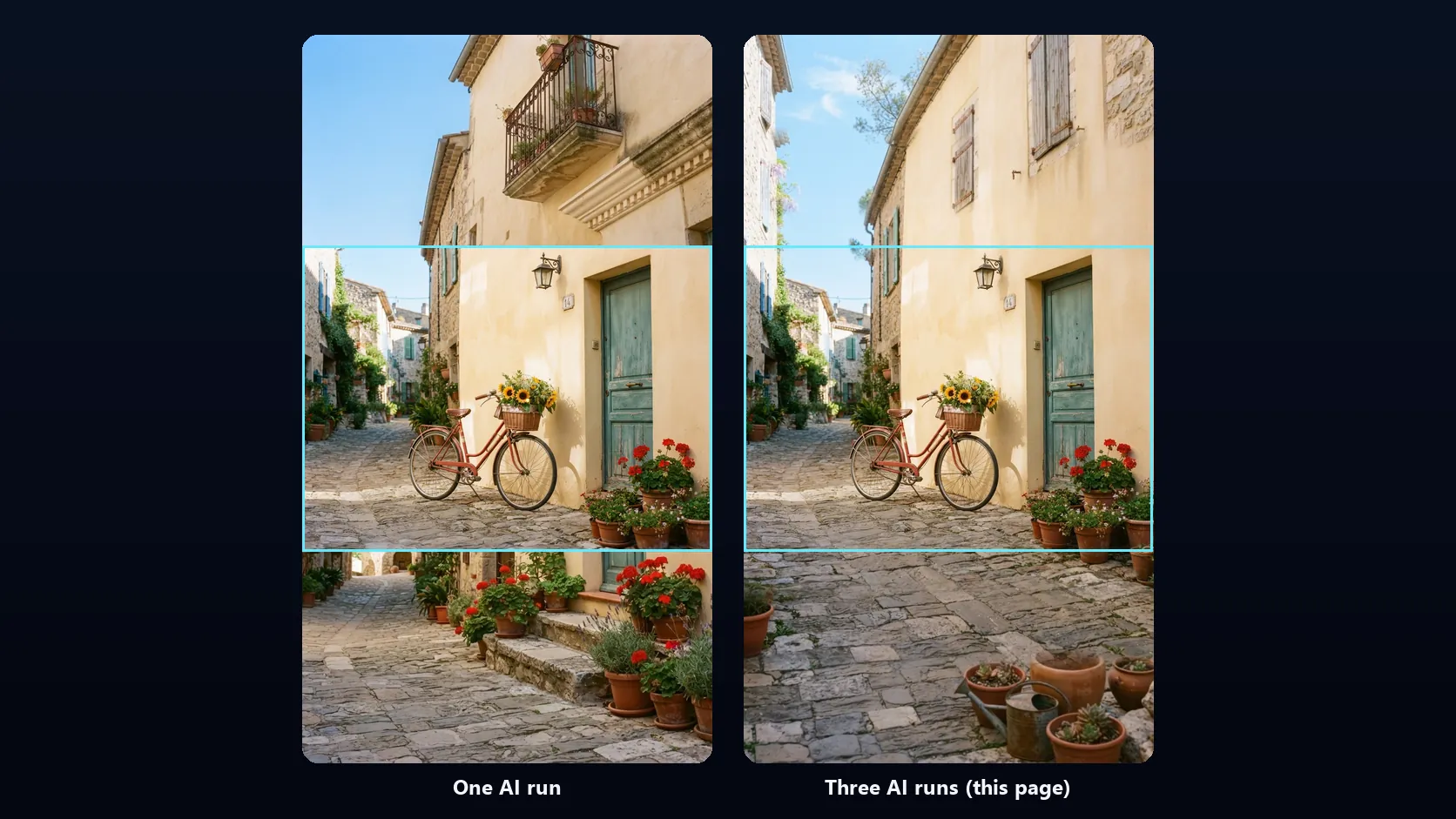
Asked to paint a large area in one go, an image model tends to treat it as separate pictures. When the 4:3 sample was expanded straight to 9:16 in a single run, the model added a different scene above the photo and another below it, each with a hard straight edge where it met the photo. Telling it not to make a collage, and blurring the photo's edges into the new area as a hint, both gave the same stacked result in a single run.
Smaller additions behave much better: 4:3 to 1:1, and 1:1 to 3:4, each came back as one photograph — and with the blurred placeholder as the starting point, the walls, sky and street carried on across the join where an empty marker colour had left straight seams. So when a prompt-driven model runs the tool, a big expansion is grown in steps. Each run makes the picture at most 1.34 times as wide or as tall as the one before, starting from what the previous runs have already painted, and the photo keeps the same relative position throughout. The largest expansions take four runs, which is the most the tool will use.
Each run is a separate AI request and uses credits, which is why the Expand button tells you the number of runs first. If a later run fails, the earlier ones have still been charged, and the tool says how many credits they used. A dedicated outpainting model, when one runs the tool, expands in a single run.
| Run | Picture before | Picture after | Shape the model paints |
|---|---|---|---|
| 1 | 1200 × 896 | 1200 × 1196 | 1:1 |
| 2 | 1200 × 1196 | 1200 × 1597 | 3:4 |
| 3 | 1200 × 1597 | 1200 × 2133 | 9:16 |
Placing the photo and making room for text
Where the photo sits decides where the new area goes. Centred, the expander adds the same amount on both sides. Drag the photo to the bottom of a 9:16 frame and all of the new area goes above it — room for a headline, a logo or a price. Drag it to the left of a 16:9 banner and the space opens up on the right for a call to action. The nine position buttons do the same for anyone who prefers not to drag.
Photo size sets how much of the frame the photo fills along the side that limits it, from 40% to 100% in steps of 5%. At 100% the expander adds only what the shape needs; lower values zoom out further and add new area on every side. Above about two thirds new area, the tool warns you: the AI has less of your photo to go on, so versions differ more from each other.
For room meant for text, the Room for text idea asks for a calm, uncluttered background, which keeps type readable.
Describing the new area
The prompt is optional. Left empty, the AI is asked to continue the photo's scene naturally, which is right most of the time: the street goes on, the sky goes up, the table goes out. Write a prompt when you want something particular in the new area — "more open sky", "a sandy beach", "a plain, softly lit studio backdrop in the same colour" — in up to 400 characters.
Describe the area, not the task, and keep it consistent with the photo. Something that could not be in the scene — a beach next to a mountain street — tends to come back looking pasted on. If the first version is not right, + Another version asks the model again with the same frame and prompt, and you can switch between up to four versions before you download.
Resolution and quality: what to expect
Your photo stays at its own resolution, up to 4096 pixels on the long edge, because it is laid back on top of the AI's answer. The new area is another matter. The image models that run tools like this one answer at about one megapixel — 1024 × 1024 for a square, 768 × 1376 for 9:16 in the runs measured for this page — and that answer is scaled up to the size of your frame. On a large photo the new area is therefore softer than the original, and the more of the picture is new, the more that shows.
Three things help. Expand only as much as you need: 100% photo size adds the least. Keep the photo near the size you will publish at: a 1080-pixel-wide story does not need a 4000-pixel source. And use the outline toggle, Show where your original photo is, to check the join at full size before you download.
Like every AI image, the new area is invented. It continues what the model can see, but it is not what was really there, and lettering, faces and fine patterns in it can come out wrong. Look over the new area before you publish.
Expand, crop or resize?
Three ways to change the shape of a photo, and what each one costs you.
- Crop when the subject is small and the edges carry nothing you need.
- Expand when cropping would cut the subject, or when you need room the photo does not have.
- Never stretch a photo of people or products: the distortion is obvious.
| Method | What happens to the photo | Keeps everything in it | Adds invented content |
|---|---|---|---|
| Crop | Cut down to the new shape; 58% of the 4:3 sample would be lost going to 9:16 | No | No |
| Resize (stretch) | Squeezed or stretched to the new shape; everything in it distorts | Yes, distorted | No |
| Pad | Bars of colour or blur added around it | Yes | No, but the bars show |
| AI expand | New scenery painted around it to fill the shape | Yes, untouched | Yes, in the new area only |
What is uploaded, stored and charged
Opening a photo, choosing the shape and placing the photo all happen in your browser, and nothing is sent until you click Expand. Then, for each run, the picture as it stands — inside its canvas, for a prompt-driven model — is uploaded to your HueFold account and sent to the AI model, and the answer is stored in your account like any other HueFold AI image. The finished picture is put together in your browser and downloaded from it.
Expanding needs a free HueFold account. Before your first AI edit you are asked to accept HueFold's AI policy, once. Each run uses AI credits from your account; the cost depends on the model, and the tool shows how many credits an expansion used when it finishes. A run that returns no image is not charged; an answer that comes back as an image is, even if the tool has to discard it and ask again. Expanding the sample to 9:16 used 15 credits in the demo, and 25 another time, when two answers were sent back for another try.
| Step | Where it happens | Account needed |
|---|---|---|
| Open the photo, pick the shape, place it | Your browser | No |
| Expand (each run) | The picture is uploaded and sent to the AI | Yes, free account; uses AI credits |
| Lay the photo back on top | Your browser | — |
| Switch versions, undo, download | Your browser | No |
Download as PNG or JPG
The expanded picture can be up to 4096 pixels on its long edge. If the frame you set would be bigger — a large photo zoomed far out, say — the whole frame, photo included, is scaled down to fit, and the tool tells you so under the preview. Download it as a PNG, which is lossless and keeps transparency, or as a JPG, which is smaller and right for ordinary photos. JPG is saved at quality 92, and any transparent areas become white.
You can also expand the result again: after an expansion the tool starts from the new picture, so a 1:1 square can become a 16:9 banner next. Undo expand takes back the most recent expansion.
| What | Limit |
|---|---|
| Photo you upload | JPG, PNG or WebP, up to 20 MB |
| Photo size when opened | Up to 4096 px on the long edge; larger photos are scaled down |
| Shapes | Same (zoom out), 1:1, 4:5, 2:3, 9:16, 4:3, 3:2, 16:9 |
| Photo size in the frame | 40% to 100%, in 5% steps |
| Position | Drag, or one of nine positions |
| Expanded picture | Up to 4096 px on the long edge |
| Prompt | Optional, up to 400 characters |
| AI runs per expansion | 1 to 4, shown on the Expand button |
| Versions | Up to 4 of the last run |
| Undo | The most recent expansion |
| Picture you download | PNG, or JPG at quality 92 |
| Cost | Free account; each AI run uses credits |
Ideas for the image expander
A few jobs that are quicker with an expander than with a crop.
- Turn a landscape photo into a 9:16 story or Reel cover without cutting off the subject.
- Make a 16:9 YouTube thumbnail or blog banner from a portrait photo.
- Put a product photo on a square marketplace listing with even space around it.
- Make room above a photo for a headline, or beside it for a call to action.
- Rescue a photo framed too tightly: zoom out with Same at 75% to 85%.
- Make one photo work across a campaign: square, portrait, story and banner from the same shot.
Troubleshooting
The problems people run into most, and what fixes them.
- The new area looks like a different photo: try + Another version, or lower the amount of new area — a larger photo size, or a shape closer to the photo's own.
- The join between old and new shows: switch on Show where your original photo is to find it, then try another version. Joins across busy detail show more than joins across sky, wall or floor.
- The AI left part of the new area blurred, or redrew your photo: the tool checks every answer for both, asks once more by itself and never uses an answer that fails. If it fails twice, try again, describe what the new area should show, or pick a shape that adds less.
- The AI returned no image: image models sometimes decline an ordinary picture. Try again, or change the shape a little. You are not charged.
- Something odd appeared in the new area: say what you want instead in the prompt, such as "plain wall" or "open sky", and expand again.
- The Expand button says Pick a new shape: the frame is the same as the photo. Pick another shape, or lower the photo size.
- The photo will not open: the tool takes JPG, PNG and WebP up to 20 MB. If your phone saves HEIC, share the photo as JPG.
Expanding images in HueFold Studio
This page does one job: make a photo bigger. For text, stickers, layouts, brand colours or a design built around the expanded picture, click Continue editing in HueFold Studio under the result. It opens the expanded picture in a new Studio design the shape of the picture, fitted to 1920 pixels on its long edge, with your original photo kept for Restore original.
The expander is in Studio too. Select any image in a design, open Edit and choose AI Image Expander: the same shapes, placement and versions as on this page. When you apply the result, the image's frame on the page grows around it so the original stays exactly where it was, and Restore original puts the image and its frame back.
And if you publish an expanded photo where it matters — news, evidence, a property listing — say that it was extended with AI. The new area looks real, which is exactly why it should be disclosed.
Frequently asked questions
What is an AI image expander?
A tool that makes a picture bigger than it was taken by painting new scenery around it with an AI image model, so it fits a new shape without being cropped or stretched. It is also called AI outpainting or uncropping.
How do I expand an image to 9:16 for a story?
Upload the photo, pick 9:16, place the photo in the frame and click Expand. A 4:3 photo takes three AI runs to reach 9:16; the button shows the number before you click.
Does the expander change my original photo?
No. The AI paints only the new area, and your photo is laid back on top at full resolution. Only a band of 6% of its shorter side, along the edges that meet new area, is blended into the AI's drawing so the join does not show.
Why does a big expansion take several AI runs?
Asked to paint a large area at once, image models tend to stack separate scenes around the photo with hard seams. Growing the picture by at most 1.34 times per run keeps the new area continuous. The most an expansion takes is four runs.
Is the AI image expander free?
Setting up the frame, switching versions and downloading are free. Expanding needs a free HueFold account and uses AI credits for each run; the tool shows how many credits an expansion used. Runs that return no image are not charged.
What shapes can I expand to?
The photo's own shape zoomed out, and 1:1, 4:5, 2:3, 9:16, 4:3, 3:2 and 16:9. You also set how much of the frame the photo fills, from 40% to 100%.
Can I choose where the photo sits in the new frame?
Yes. Drag it in the preview, or pick one of nine positions. All of the new area goes where the photo is not, so placing the photo at the bottom makes room above it.
What size is the expanded picture?
The frame you set, up to 4096 pixels on the long edge. Your photo keeps its resolution; the new area comes from the model's answer of about one megapixel, scaled up, so on large pictures it is softer than the original.
Is my photo uploaded?
Only when you click Expand. For each run, the picture is uploaded to your HueFold account and sent to the AI, and its answer is stored in your account. The frame setup and the final picture are made in your browser.
Which AI model does it use?
The image model HueFold has set for this tool. Its name is shown under the Expand button.
Can I undo an expansion or try another version?
Yes. + Another version asks the model again with the same frame, up to four versions to choose from, and Undo expand takes back the most recent expansion.
What image formats can I upload and download?
Upload JPG, PNG or WebP up to 20 MB. Download the result as PNG, or as JPG at quality 92.
Can I expand an image for Instagram stories or banners?
Yes. Pick 9:16 for a story or Reel, 4:5 or 1:1 for a feed post, and 16:9 for a banner or video thumbnail. The tool adds just the area each shape needs around your photo.
Will it stretch my photo?
No. Your photo keeps its own proportions and pixels, and the rest of the new shape is painted around it. The AI's answers are cropped to your frame, never stretched to fit it.
Can I keep editing after expansion?
Yes. Expand the result again to another shape, download it, or click Continue editing in HueFold Studio to open it in a new design for text and layouts. In HueFold Studio the expander is also in the image Edit panel: applying a result grows the image's frame so the original stays in place, and Restore original undoes it.
Related tools
- AI Generative Fill — Brush over part of a photo to remove or replace it.
- Change Photo Background — Cut out the subject and put a new background behind it.
- Background Remover — Remove the background from a photo.
- Crop Image — Trim a photo to a new shape instead of expanding it.
- AI Image Upscaler — Make a small image larger and sharper.
- Magic Eraser — Remove distractions from a photo.