AI Cartoon Generator
Turn a photo into a cartoon in eight styles, from 3D animated and comic book to anime, flat vector, claymation, storybook, pixel art and sticker art, or describe your own. HueFold’s AI redraws the whole photo and keeps the pose, clothes and setting.
Updated
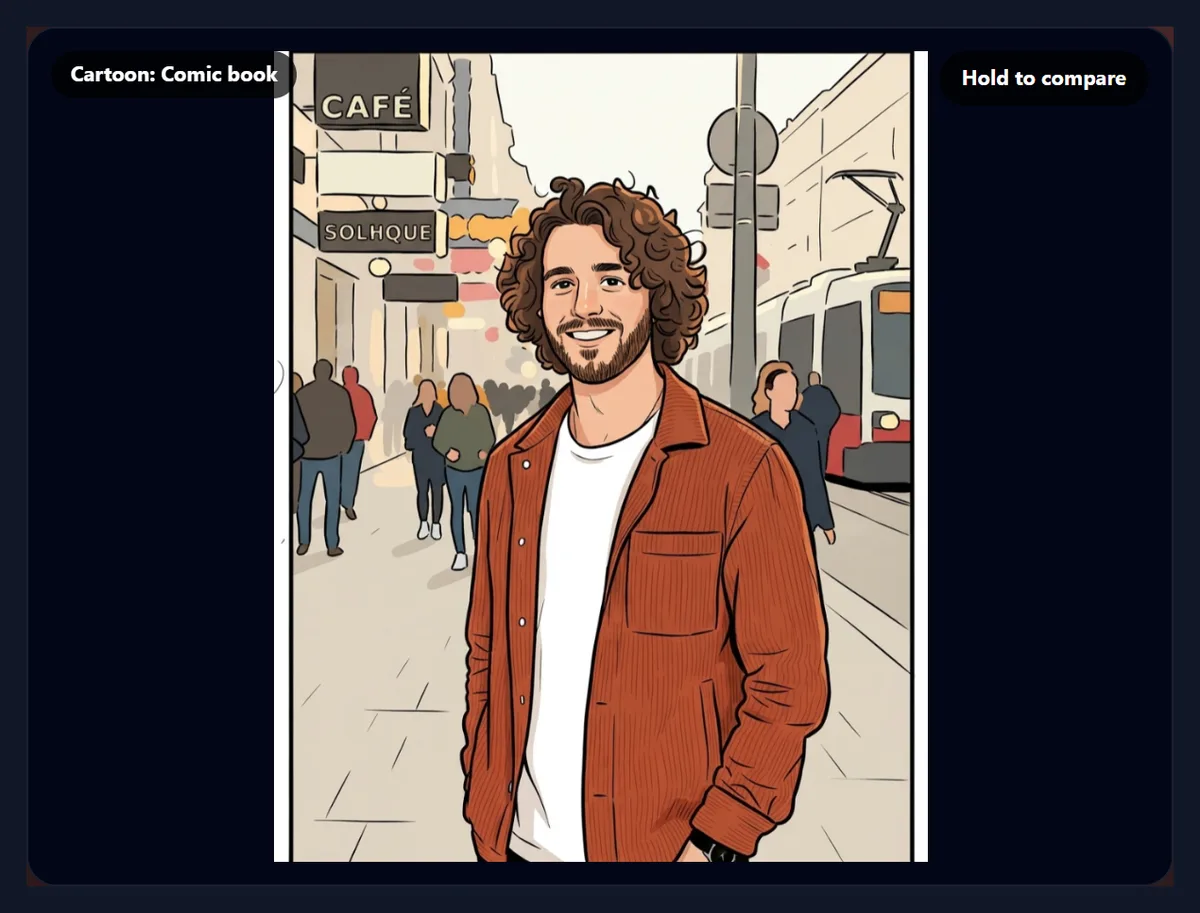
How do you turn a photo into a cartoon?
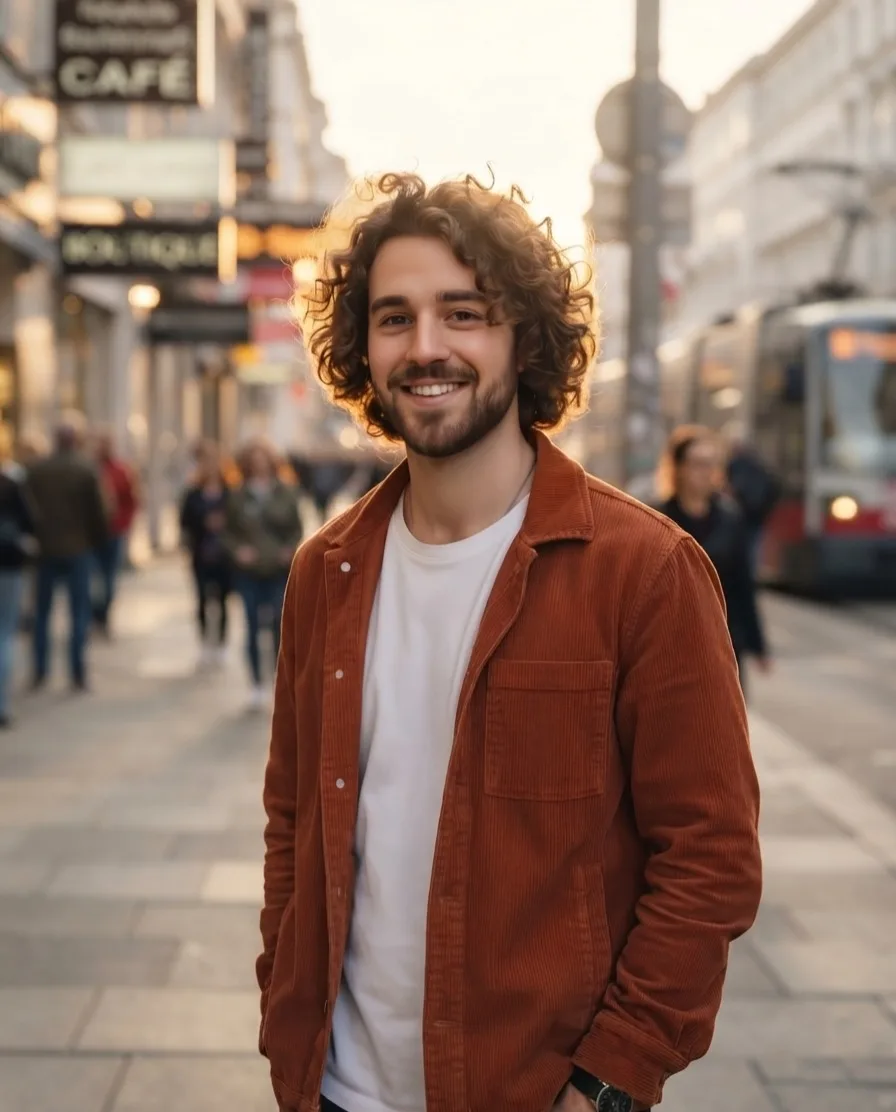
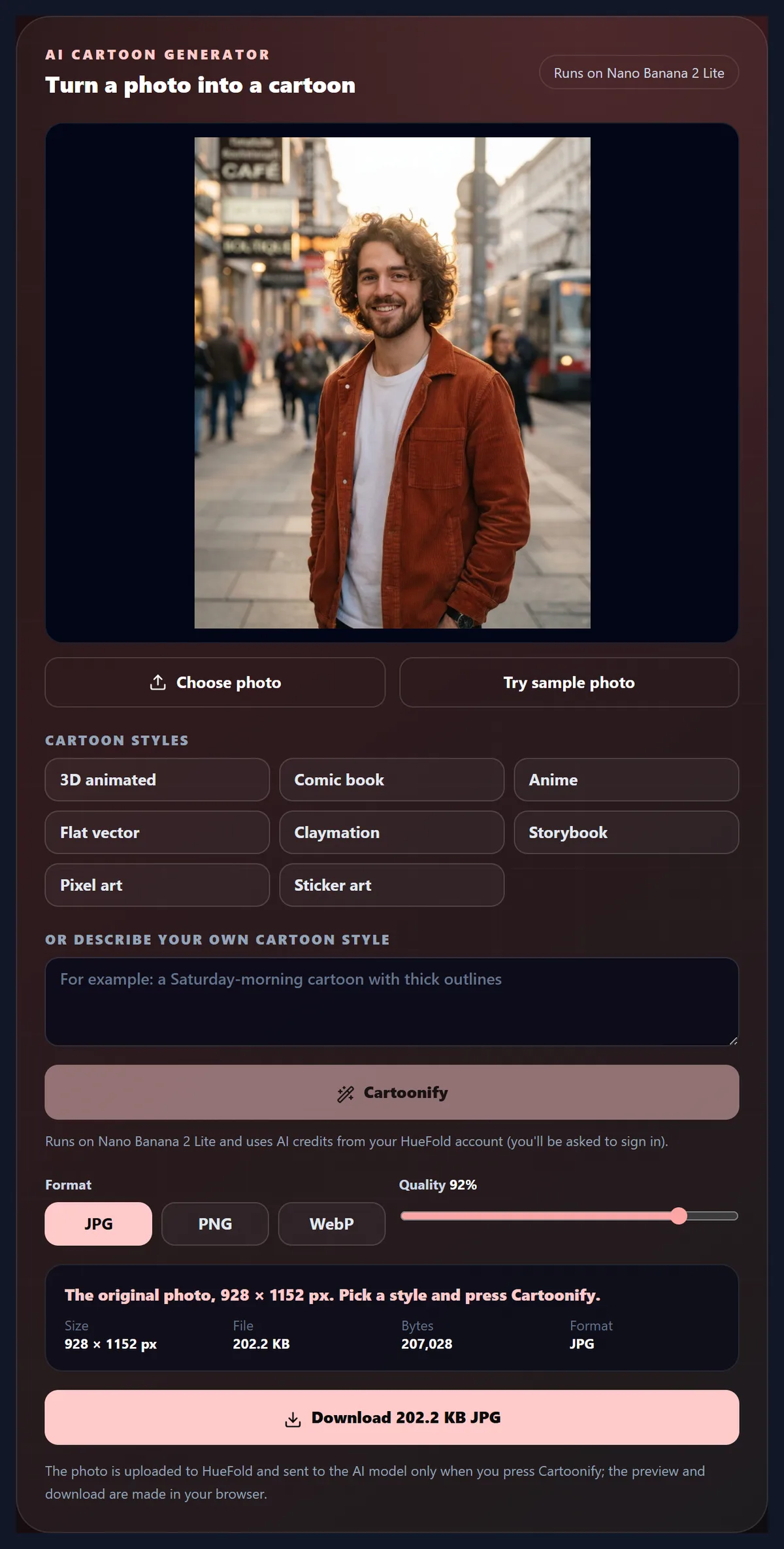
Choose a photo, or try the sample, pick a cartoon style or describe your own, and press Cartoonify. HueFold sends the photo to an image model with an instruction to restyle the whole picture while keeping its composition, pose, clothes, colours and background. Compare the cartoon with the photo, try other styles, and download the one you like.
On the street portrait, Comic book redrew 78% of the pixels in 8 seconds; each run on Nano Banana 2 Lite used 5 credits.
You need an account; each run uses AI credits, and refused runs use none.
How to make a cartoon
- Choose a photo A clear photo of a person or a pet, or the sample.
- Pick a style Eight cartoon styles, or your own.
- Cartoonify Sign in; the AI redraws the photo.
- Compare and download Hold to compare; save as JPG, PNG or WebP.
Turn a portrait into an anime still
A real recording of this tool: the street portrait, the Anime style, the AI run on Nano Banana 2 Lite, the comparison with the photo, and the download.
- The AI cartoon generator opens with the street portrait.
- The Anime style is chosen.
- Cartoonify sends the photo to Nano Banana 2 Lite and the cartoon comes back.
- Hold to compare shows the photo, and the cartoon is downloaded.
How much of a photo does a cartoon style redraw?
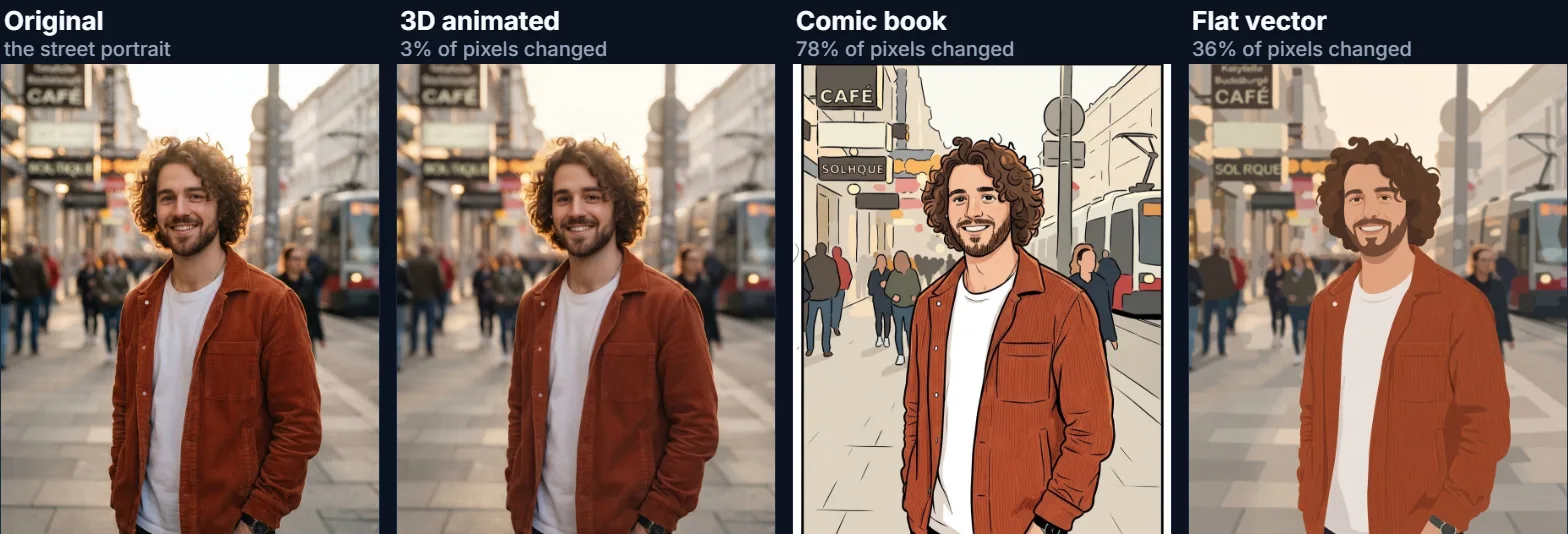
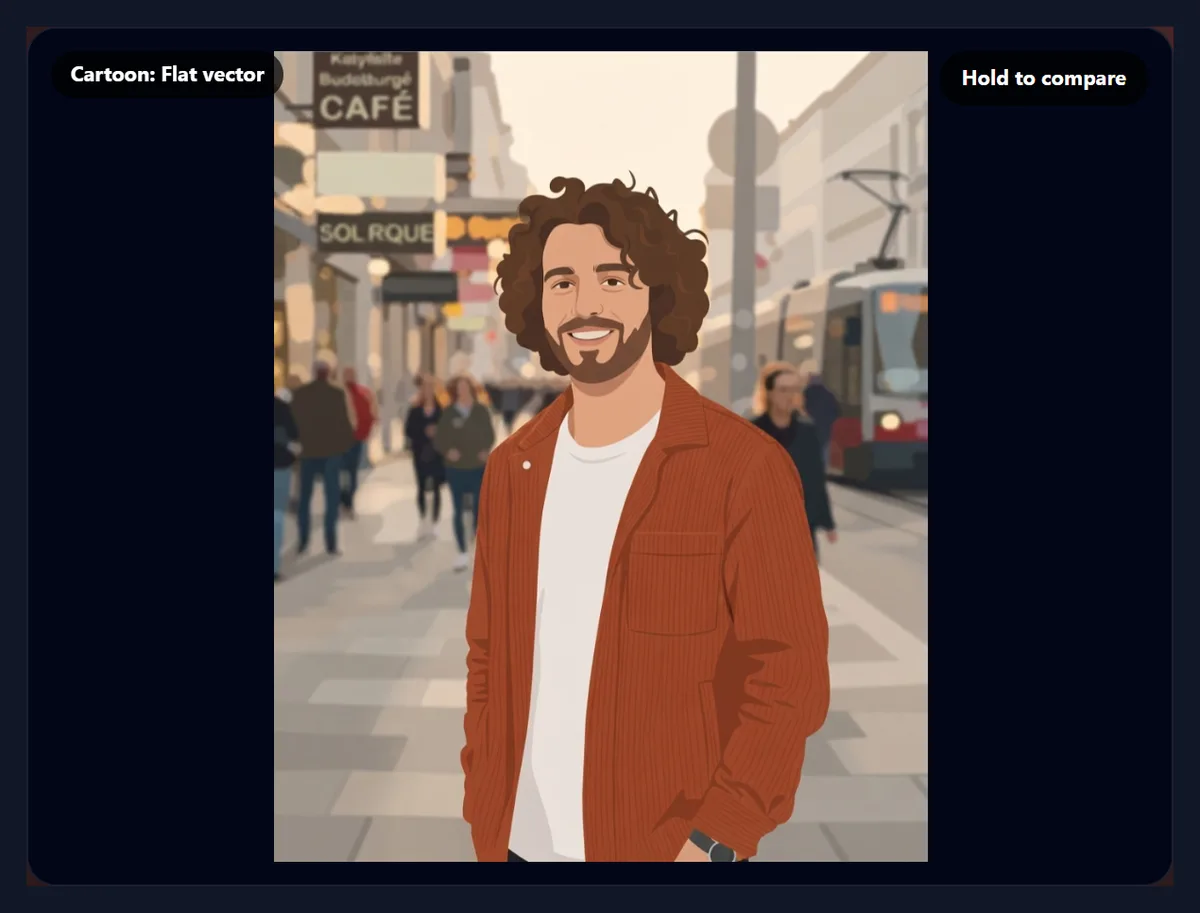
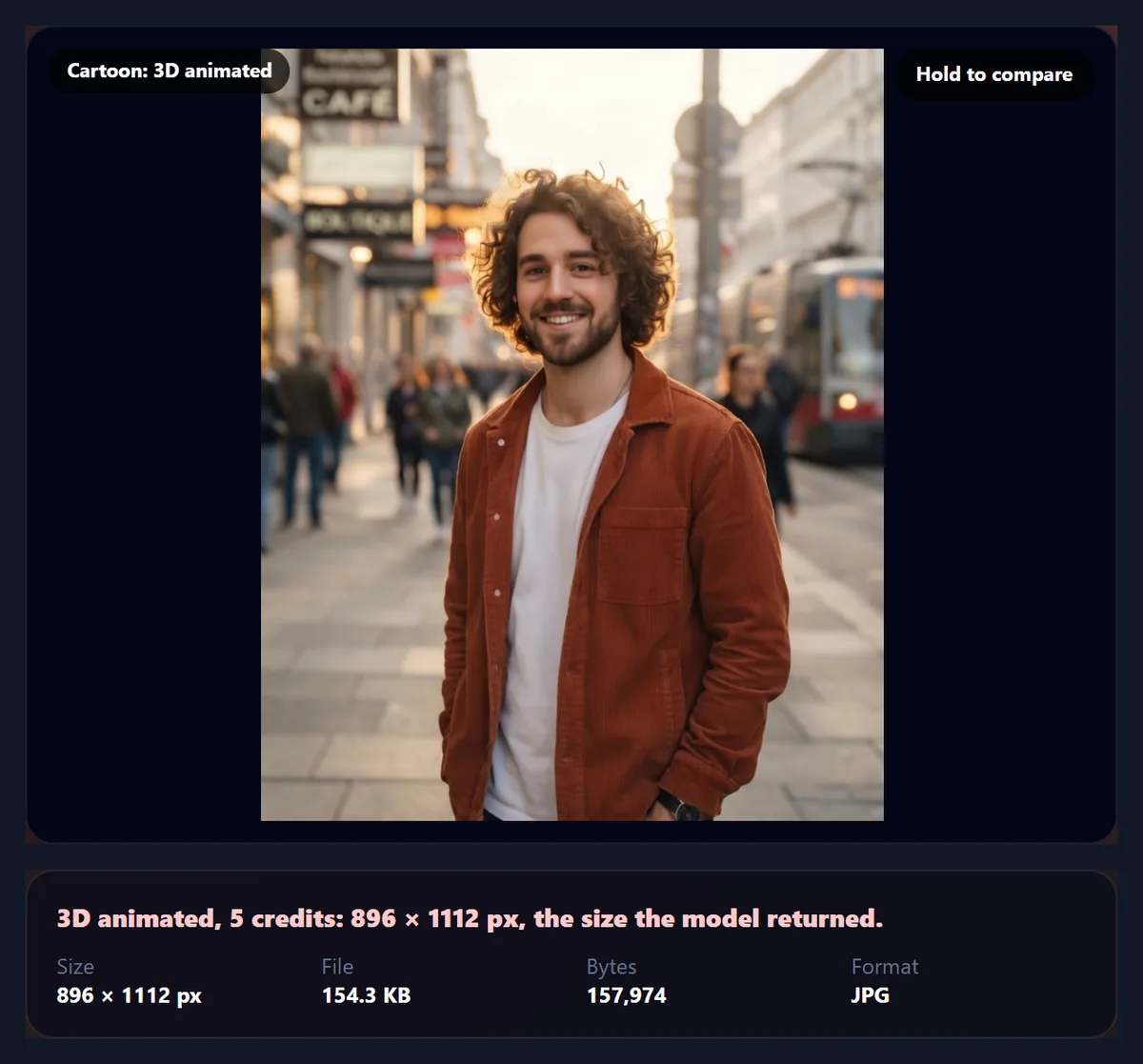
More than you might expect for some styles, and much less for others. The street portrait was turned into three cartoons on Nano Banana 2 Lite and each was compared with the original pixel by pixel. Comic book redrew 78% of the pixels, with ink outlines, flat colour and a simplified street behind; Flat vector redrew 36%, flattening the person into simple shapes while the background stayed close to the photo; 3D animated came back almost unchanged, with only 3% of the pixels changed.
So the model decides how far to go, and the same style can come out differently on another photo or another run. If a style stays too close to the photo, run it again, or describe the look more concretely in your own words ("thick black outlines, flat colours, no shading").
| Style | Pixels changed | Time | Credits |
|---|---|---|---|
| 3D animated | 3% | 19.5 s | 5 |
| Comic book | 78% | 7.6 s | 5 |
| Flat vector | 36% | 8.2 s | 5 |
How does the AI cartoon generator work?
It sends your photo to an image model with an instruction: restyle this whole photo in the chosen cartoon style, keeping the composition, the pose, the clothes, the colours and the background as they are, and changing only the style. The model draws a new picture that follows the photo. Because the instruction keeps the layout, the cartoon can be placed where the photo was, in a post, a profile or a design.
The wording matters. In testing, an instruction to turn the person into a cartoon character was refused by the model, while the same look described as restyling the whole photo was accepted, so the styles here are written that way.
Which cartoon styles are there?
Eight: 3D animated (a film still with soft lighting), Comic book (bold ink outlines and flat colours), Anime (clean line art and cel shading), Flat vector (simple shapes without outlines), Claymation (a scene made of modelling clay), Storybook (a children's book illustration in soft watercolour and pencil), Pixel art (16-bit with a limited palette) and Sticker art (a cartoon sticker with a thick white outline).
Or type your own, such as "a Saturday-morning cartoon with thick outlines"; it replaces the chosen style and is wrapped in the same instruction to keep the photo's composition.
Will the cartoon look like me?
It will keep what the photo shows around you: your pose, your clothes and their colours, your hairstyle and the setting, which together do most of the work of making a cartoon recognisable. How closely the face follows yours depends on the style and the run; a comic or flat style simplifies faces by nature.
The tool does not ask the model to copy a face exactly, which it tends to refuse for cartoon styles; if likeness matters, try a few runs and keep the closest, or choose a style that stays nearer the photo.
How many credits does a cartoon use?
Each run on Nano Banana 2 Lite used 5 credits, shown on the result. Every run starts again from your original photo, so trying three styles costs three runs, and nothing is charged for runs the model refuses: two refused test runs left the account's balance unchanged.
You need to be signed in to run the AI; choosing a photo and a style is free.
How long does it take?
Seconds: the three runs took 20, 8 and 8 seconds from the click to the finished cartoon, including the upload. The first run tends to be the slowest; times depend on the model's load.
The tool shows each stage while it works, and the badge on the result names the style.
Which photos make the best cartoons?
A clear photo of one or two people or a pet, in good light, with the face and outline easy to see: a portrait, a half-length photo or a full-length one like the sample. Busy group photos and very dark or blurred photos give muddled cartoons, because the model has less to follow.
The photo is sent at up to 1,536 pixels on its long side and kept in its own shape, so portrait photos stay portrait.
What size is the cartoon?
The size the model returns, cut to your photo's shape: the street portrait's cartoons came back at 896 × 1112 pixels. The comic version was a 229.9 KB JPG. That suits profile pictures and social posts; for print, enlarge it with an upscaler.
Download as JPG for the smallest file, PNG for further editing, or WebP for the web.
How do I describe my own cartoon style?
Describe the drawing, not the person: the medium (ink, crayon, clay, pixels), the line (thick outlines, no outlines, sketchy), the colour (flat, pastel, two colours) and, if you like, a decade or a kind of show ("a 1990s Saturday-morning cartoon"). Keep it to one sentence. Your description is wrapped in the instruction to keep the photo's composition, pose, clothes and background.
Avoid asking to change the person's body or face, such as a bigger head or different features: the model tends to refuse those, and they are the edits most likely to upset the person in the photo.
Can I turn my pet into a cartoon?
Yes. Pets make some of the best cartoons: their shapes and colours are simple and distinctive, so a cat or a dog stays recognisable in almost any style. Use a sharp photo with the pet's face clearly visible and not too much going on around it.
Comic book, Storybook and Sticker art suit pets particularly well, and a pet cartoon becomes a sticker in one more step with the sticker maker.
Can I print my cartoon?
Yes, at modest sizes. The cartoons came back at 896 × 1112 pixels, which prints sharply at about 7.5 by 9.5 cm at 300 dpi, enough for a card or a small framed print. For larger prints, enlarge the cartoon with an upscaler first; flat cartoon styles enlarge especially well.
Download it as PNG for printing, so no detail is lost to compression.
How do I make a profile picture from my cartoon?
Download the cartoon, then crop it to a circle or a square around your face with the circle crop tool; most apps show profile pictures as circles, so leave a little space above the head. A cartoon with a plain or simple background reads best at the small size of a profile picture.
To use the same cartoon everywhere, crop it once at a generous size, such as 800 pixels, and let each app shrink it.
What are AI cartoons used for?
Profile pictures and avatars, stickers and emoji-style reactions, birthday and holiday cards, comic-style posts and thumbnails, team pages with a playful look, and gifts made from pet and family photos.
For a set of avatars for a team, use the same style and wording for everyone, with photos taken in similar light against similar backgrounds.
Can I cartoonify a photo of someone else?
Only with their permission. A cartoon of a person is still a picture of them, and HueFold's AI policy, which you accept before your first run, says not to use another person's likeness without appropriate permission and makes you responsible for having the rights to the photos you submit. A cartoon should never be used to mock or misrepresent someone.
Photos of children need the permission of a parent or guardian.
Can I compare the cartoon with the photo?
Yes. Hold the Hold to compare button to see the photo, and let go to see the cartoon. Back to the original returns to the photo without spending anything, ready for another style.
Each run replaces the last cartoon, so download any you want to keep before trying the next style.
Is my photo uploaded?
Only when you press Cartoonify. The photo is then uploaded to HueFold and sent to the model with the instruction; the preview, comparison and download are made in your browser. You need to be signed in, and you accept the AI policy the first time you use AI on HueFold.
Choosing a photo and a style, and downloading the original, send nothing.
Why did my cartoon not work?
If the model refuses a photo, the tool shows its message and no credits are used; try another style, or a photo with less in it. If the cartoon looks too much like the photo, the model kept the style light: run it again or describe the style more concretely. If the tool says AI is not switched on, the model is not available on the site at the moment.
If you were signed out during a run, sign in again and it starts again automatically.
Frequently asked questions
How do I turn a photo into a cartoon?
Choose the photo, pick a style and press Cartoonify; download the result.
Which cartoon styles are there?
3D animated, comic book, anime, flat vector, claymation, storybook, pixel art and sticker art.
How many credits does it use?
5 credits a run on Nano Banana 2 Lite; refused runs use none.
Will it look like me?
It keeps your pose, clothes, hair and setting; how close the face is varies by style and run.
Do I need an account?
Yes, to run the AI.
Can I cartoon my pet?
Yes. Clear pet photos work well.
Why did the result barely change?
The model sometimes keeps a style light; run it again or describe it more concretely.
Is my photo uploaded?
Only when you press Cartoonify.
Can I use someone else’s photo?
Only with their permission.
Related tools
- AI Filter — Turn a photo into a painting or a sketch.
- AI Headshot Generator — A professional headshot from a casual photo.
- Stickers — Turn the cartoon into a die-cut sticker.
- AI Photo Editor — Edit a photo by describing the change.
- Background Remover — Cut the cartoon out of its background.
- Circle Crop — A round profile picture.