Photo Animation
Move a virtual camera over a still photo and save the result as a video: a slow zoom, a pan across a landscape, a gentle turn, a breathing pulse or a handheld drift. Choose the shape for Reels, Stories, posts or YouTube, and download an MP4 made in your browser.
Updated
How do you turn a photo into a video?
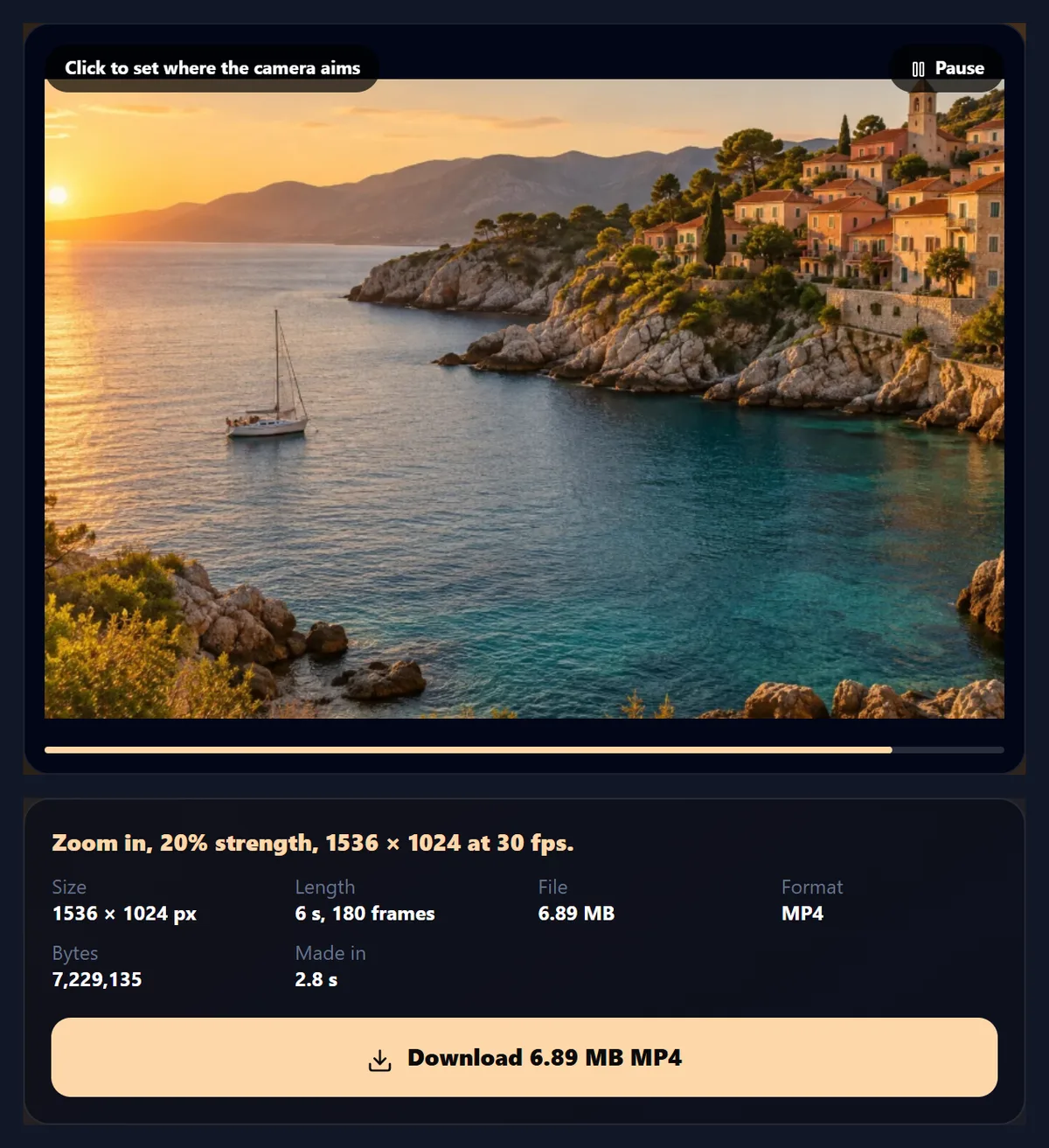
Open a photo and it starts moving at once with a slow zoom. Pick another motion, set its strength and length (3 to 15 seconds), click the preview to choose where the camera aims, pick the video's shape, and press Make the video. The MP4 is made frame by frame in your browser at 30 frames a second, and you can download it straight away.
Moving a camera across a still picture is often called the Ken Burns effect, after the documentary maker who used it to bring old photographs to life. It works because a frame is always a little smaller than the photo, so there is room to travel: the tool cuts a rectangle of the video's shape out of the photo, a little different in each frame, and never lets that rectangle cross the photo's edge, so no frame shows an empty border, even while it turns.
On the 1536 × 1024 coastal sample, a 6-second zoom came out as an H.264 MP4 of 1536 × 1024 pixels, 180 frames and 7,229,135 bytes. Nothing is uploaded: the frames are drawn and encoded on your device.
How to animate a photo online
- Open the photo Choose a JPG, PNG or WebP, drop it on the preview, or use the coastal sample.
- Pick a motion Zoom in or out, pan in four directions, slow turn, breathe or handheld. Set the strength and the length; click the preview to aim.
- Choose the shape As the photo, 9:16 for Reels and Stories, 4:5, 1:1 or 16:9, at 720p or 1080p.
- Make and download Press Make the video and download the MP4.
Turn a photo into a video
A real recording of this tool: the coastal sample zooming in, four other motions, a 9:16 shape, and an MP4 made and downloaded.
- The coastal sample opens and starts a slow zoom in the preview.
- Pan right, Slow turn, Breathe and Zoom in are tried in turn.
- The 9:16 shape is chosen for a vertical video.
- Make the video encodes the MP4, and it is downloaded.
Which motions can you add to a photo?
Nine, each a different path for the camera. Zoom in starts on the whole photo (the widest rectangle of the video's shape that fits) and closes in towards the point you clicked; Zoom out does the reverse. The four pans zoom in just enough to have room to travel, then cross that room from one side to the other, keeping the aim point in line. Slow turn rotates the frame up to 8° at full strength while staying zoomed in enough that the turned frame never reaches the photo's edge. Breathe zooms gently in and out, one cycle about every 4 seconds. Handheld drifts and tilts slightly, like a camera held by hand, with uneven, overlapping swings.
Strength, from 5% to 40%, sets how far each motion goes: the zoom depth, the distance a pan travels, the angle of a turn. Ease in and out starts and ends each move gently instead of at a constant speed, and There and back plays the move forwards and then backwards, so the video loops without a jump. Breathe and Handheld always loop, because each is made of whole cycles over the length you choose.
| Motion | Camera path | Strength sets | Loops by itself |
|---|---|---|---|
| Zoom in | Whole photo to the aim point | Zoom depth, up to 1.4× | No |
| Zoom out | Aim point to the whole photo | Zoom depth | No |
| Pan right / left | Across the photo | Zoom, and so the room to travel | No |
| Pan up / down | Up or down the photo | Zoom, and so the room to travel | No |
| Slow turn | Rotates about the aim point | Angle, up to ±8° | No |
| Breathe | Zooms in and out | Depth of the pulse | Yes |
| Handheld | Small uneven drift and tilt | Size of the sway | Yes |

What size and shape should the video be?
Choose the shape for where the video is going: 9:16 for Reels, Stories, TikTok and Shorts, 4:5 or 1:1 for feed posts, 16:9 for YouTube and presentations, or the photo's own shape. Then 720p or 1080p, the number of pixels on the short side. The tool never makes a video larger than the photo can fill with its own pixels: a 9:16 frame cut from a landscape photo is narrow, so the 1536 × 1024 sample gives at most 576 × 1024 at that shape. A 12-megapixel phone photo (4032 × 3024) gives the full 1080 × 1920.
File size follows the frame size, because the encoder's bit rate is set from the number of pixels (6 bits per pixel per second, between 4 and 16 megabits a second). The table shows a 6-second zoom of the sample at each shape, as made in the tool.
| Shape | Video size | MP4 size (KB) | Bytes |
|---|---|---|---|
| As the photo (3:2) | 1536 × 1024 | 7,060 | 7,229,135 |
| 16:9 | 1536 × 864 | 5,953 | 6,096,254 |
| 1:1 | 1024 × 1024 | 4,679 | 4,791,120 |
| 4:5 | 820 × 1024 | 3,746 | 3,836,376 |
| 9:16 | 576 × 1024 | 2,969 | 3,039,830 |
How is the MP4 made without uploading the photo?
With WebCodecs, the video encoder built into modern browsers. Every frame is drawn at exactly its own moment, frame number ÷ 30 seconds, onto a canvas the size of the video, handed to the H.264 encoder (High profile), and packed into an MP4 with its index at the front, so it starts playing before it has fully downloaded. Nothing runs against a wall clock, so a slow device makes the video more slowly but never drops or doubles a frame; on the test laptop the 6-second sample zoom took 2.8 seconds to make, and 5.1 seconds the first time, while the encoder started up. A keyframe every 2 seconds keeps the file easy to trim later.
This is the same encoder the HueFold AI Reel Maker uses. Browsers without WebCodecs record the preview in real time with MediaRecorder instead, which gives an MP4 or WebM depending on the browser and takes as long as the video itself. The video has no sound; add music afterwards with Add Music to Video.
How do you choose where the camera goes?
Click the preview. The point you click, mapped back through the camera to the photo itself, becomes the aim: zooms close in on it, the turn rotates around it, breathe pulses towards it, and the pans stay level with it. A good aim is the subject, a face, the sun on the water, the doorway of a building, so the motion leads the eye to it. Zoom out from a detail to reveal the whole scene; zoom in to end on it.
The aim is limited by the frame: the camera may not cross the photo's edge, so a zoom aimed right at a corner closes in as near as it can without showing beyond the photo.
Why does a turning photo never show its corners?
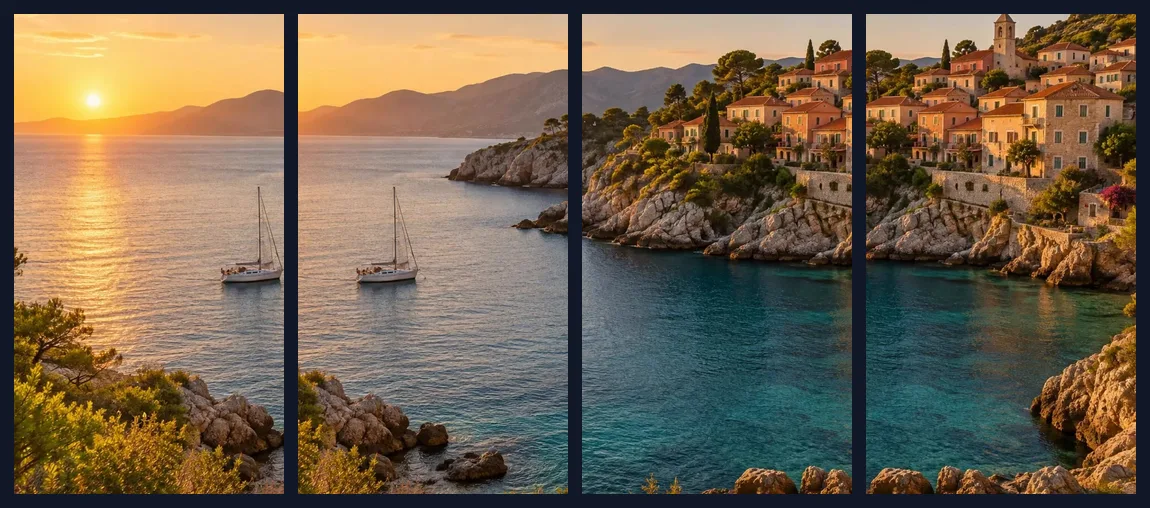
Because the frame grows smaller as it turns. A rectangle turned by an angle needs more room than it does upright: its width and height reach out by the sine of the angle times the other side. At every frame the tool works out that turned rectangle's bounding box and shrinks the frame until the box fits inside the photo, then slides it in if needed. The tool's tests check this for all nine motions, all five shapes and three strengths, at 61 moments of each video.
That is also why a strong turn looks closer than a weak one: at 8° the frame has to zoom in further to keep the corners covered.
How do you make a photo video that loops?
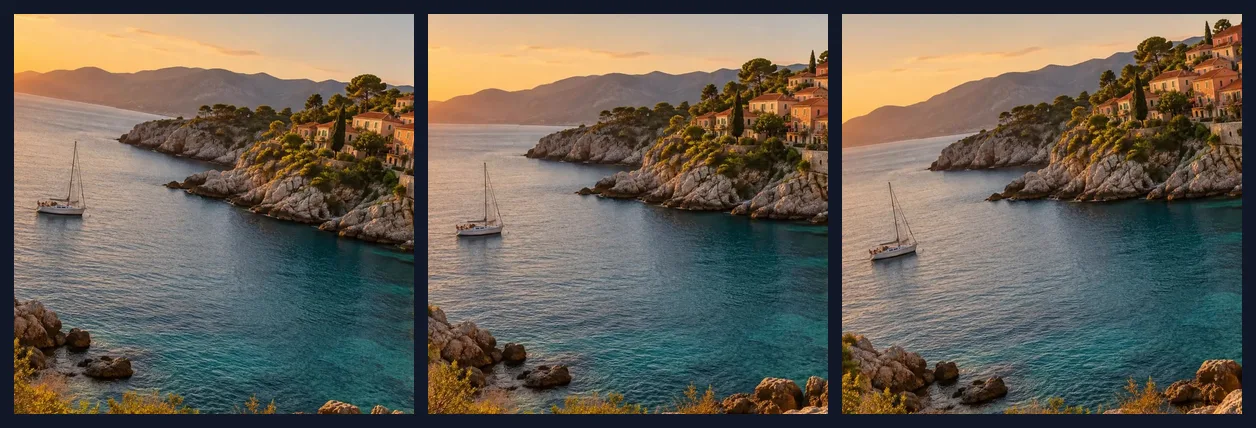
A loop needs its last frame to match its first. Breathe and Handheld are built that way: Breathe makes whole zoom cycles over the length you choose (one about every 4 seconds), and Handheld uses swings that each complete a whole number of times, so the camera is back where it started when the video ends. For the other motions, tick There and back: the camera makes the move in the first half of the video and retraces it in the second, so a zoom in becomes a zoom in and out, and a pan travels across and returns.
Platforms that repeat short videos, such as Reels, Stories and website backgrounds, then show one continuous movement with no jump. Ease in and out makes the turnaround gentle; without it, the camera reverses at full speed, which reads as a bounce.
What is photo animation good for?
Social video from photos: a Reel or Story needs movement, and a slow zoom over a travel photo, a product shot or a property photo keeps attention where a still would be scrolled past. Slideshows and memorials, where a gentle Ken Burns move gives old photos life. Presentation backgrounds and website heroes, as a short looping MP4 (choose Breathe, Handheld or There and back so it loops cleanly). Video edits, where a moving still fills a gap between clips.
For a sequence of several photos, make one clip per photo here, then join them with Images to Video or the AI Reel Maker.
Which photos work, and how long can the video be?
Any JPG, PNG or WebP up to 40 megapixels, the right way up. Larger photos give sharper video, especially at 9:16 from a landscape photo, because the frame is a narrow slice of it. The video can be 3 to 15 seconds long at 30 frames a second, so 90 to 450 frames. Transparent areas of a PNG come out black, since H.264 video has no transparency.
Nothing is uploaded and no account is needed. The MP4 is H.264 video, the format current browsers, phones and social apps play.
Why is my animated photo blurry or slow to make?
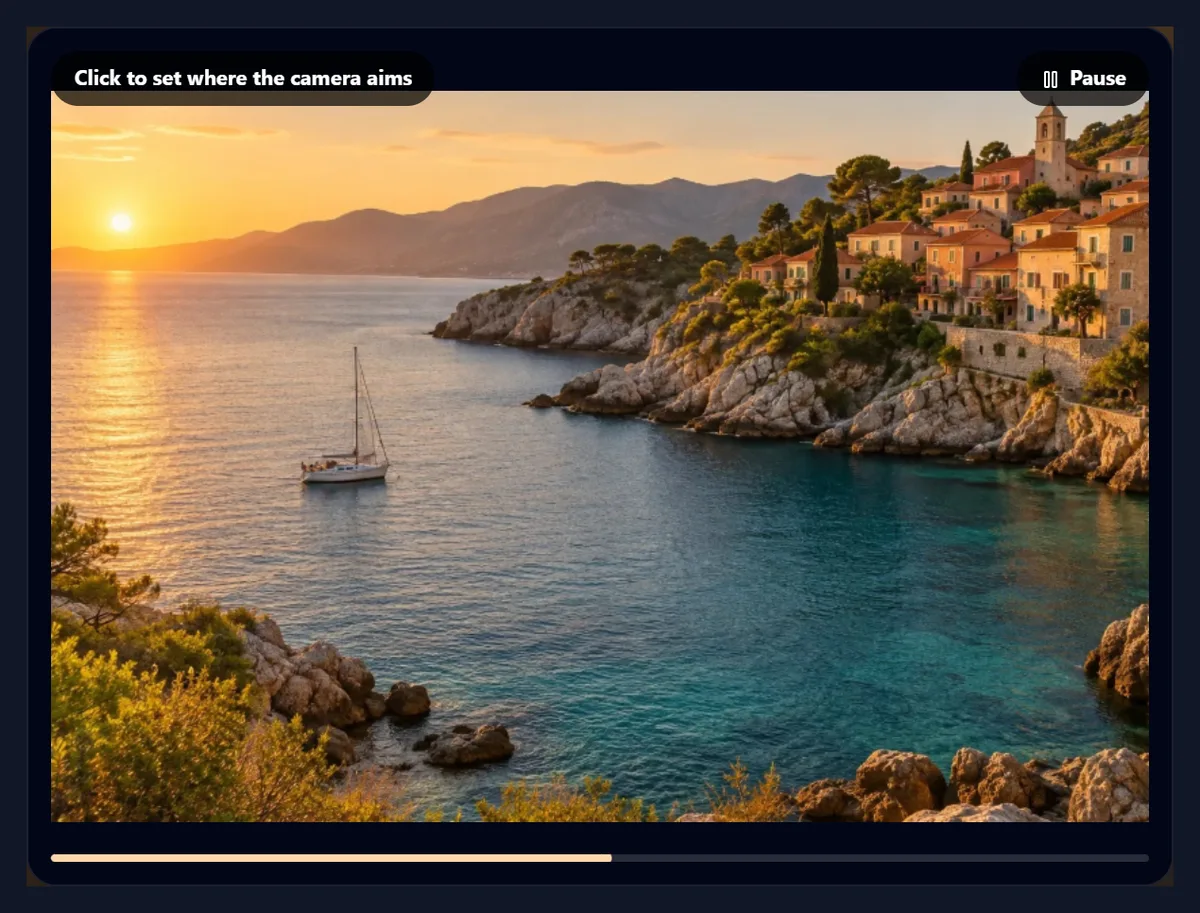
Blurry video usually means the frame is a small part of a small photo: a strong zoom, a 9:16 frame from a landscape, or a photo under 1,000 pixels across. Lower the strength, use a larger photo, or choose a shape closer to the photo's. The readout under Resolution shows the video size the photo can give at the chosen shape.
Making the video takes longer on phones and older computers, and with longer or larger videos; keep the tab open until the download button appears. If your browser cannot make videos at all, the tool says so; use a current version of Chrome, Edge, Safari or Firefox.
Frequently asked questions
How do I animate a photo?
Open it, pick a motion, the length and the shape, press Make the video, and download the MP4.
What is the Ken Burns effect?
A slow zoom or pan across a still photo, named after the documentary maker who made it famous.
Can I make a video for Instagram Reels or TikTok?
Yes. Choose 9:16 and 1080p; a large enough photo gives 1080 × 1920.
How long can the video be?
From 3 to 15 seconds, at 30 frames a second.
Will the video show black edges?
No. The camera never crosses the photo’s edge, even while turning.
Does the video loop?
Breathe and Handheld loop by themselves; tick There and back for the others.
Does it add music?
No, the video is silent. Add music with Add Music to Video.
Is my photo uploaded?
No. Every frame is drawn and encoded in your browser.
What format is the video?
An H.264 MP4 where the browser has WebCodecs; otherwise the browser’s own MP4 or WebM recording.
Is it free?
Yes, with no account or watermark.
Related tools
- AI Reel Maker — Turn several photos and clips into a reel on the beat.
- Images to Video — Join photos into one video.
- Add Music to Video — Put a soundtrack under the animation.
- Video to GIF — Make a GIF from the MP4.
- Crop Image — Frame the photo before animating it.
- Resize Video for Instagram — Fit a video to Instagram’s shapes.