Motion Path
Move a shape, an emoji or your own picture along a path you draw: nine starting paths, smooth curves or sharp corners, eased or steady, saved as an MP4 or a GIF in your browser.
Updated
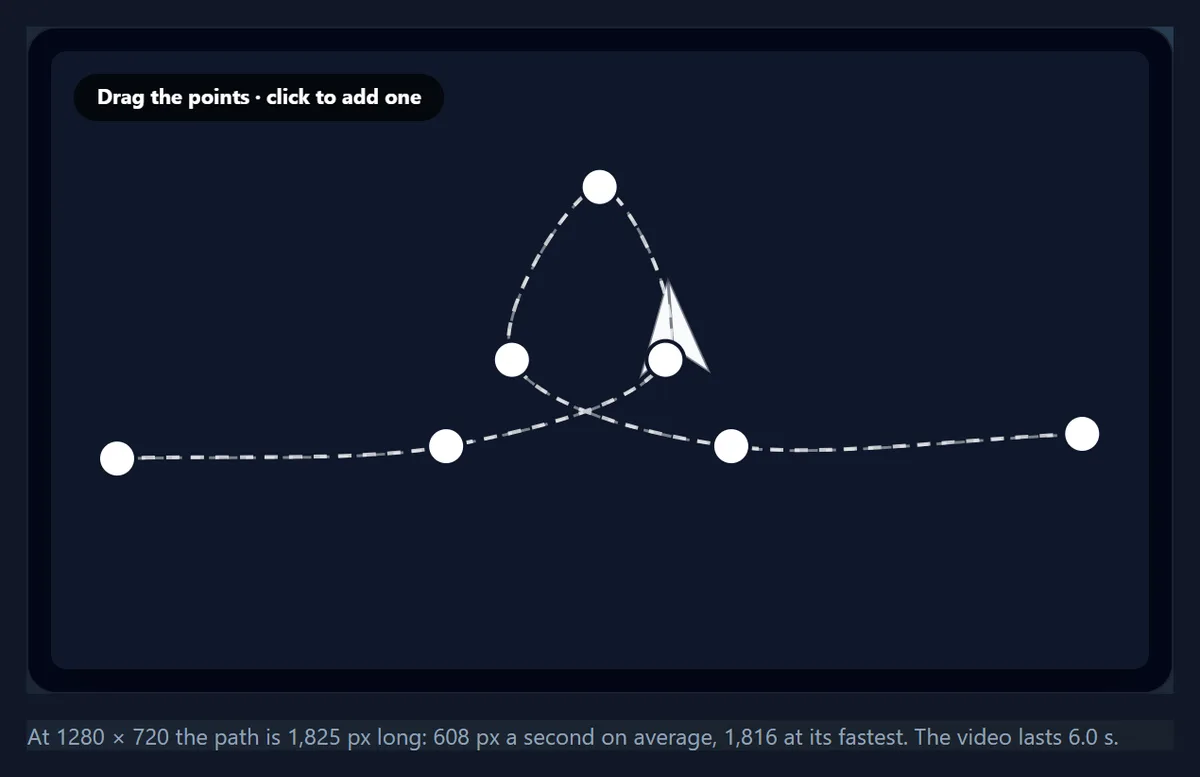
How do you make a motion path animation?
Pick a starting path or draw your own by dragging and clicking points, choose what moves along it and how long one trip takes, then press Make the MP4 or Make a GIF. The preview shows exactly what the file will contain.
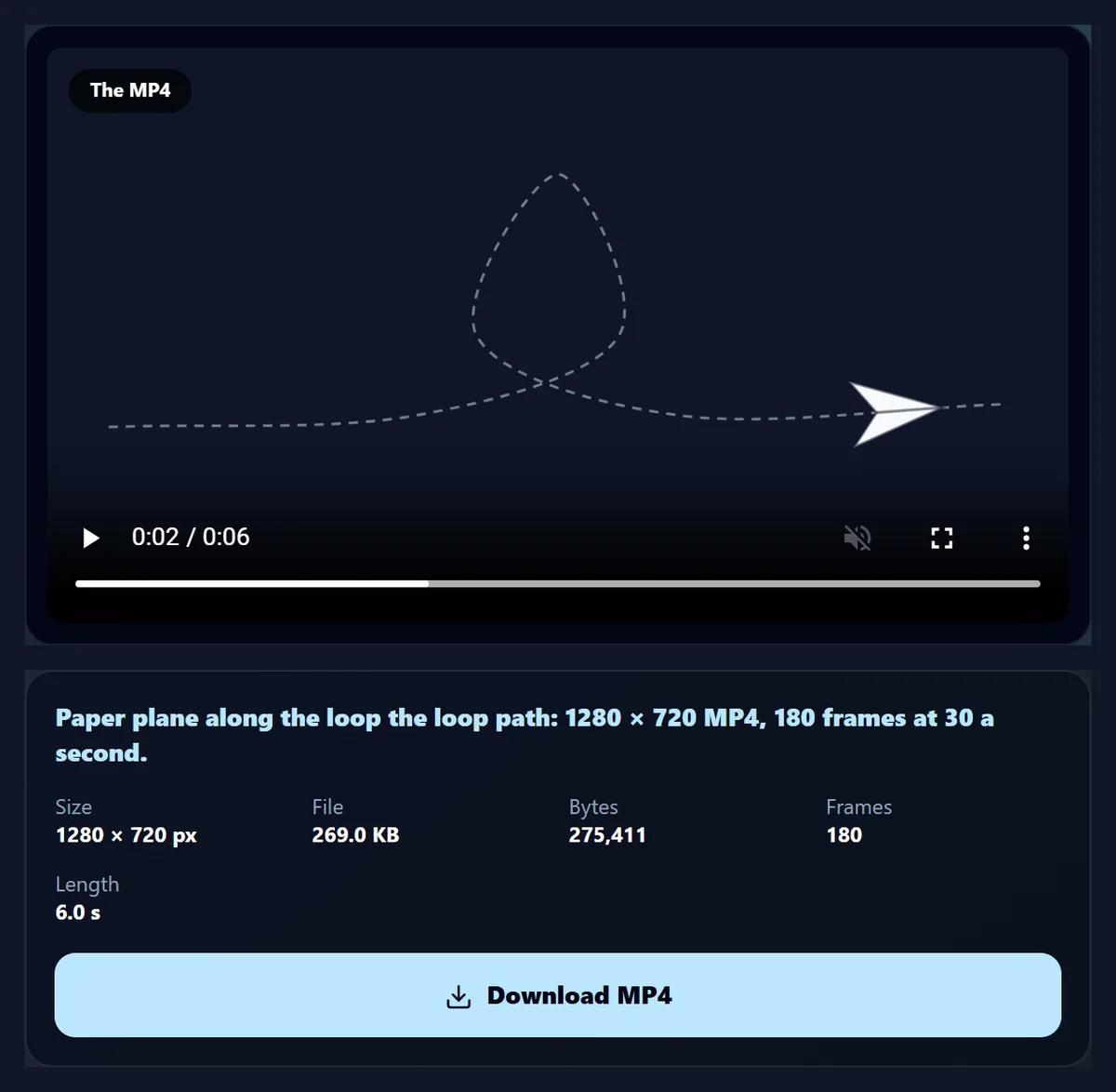
The loop the loop with a paper plane became a 1280 × 720 MP4 of 180 frames, 269 KB, made in 3.2 seconds without leaving the browser.
How to animate along a motion path
- Choose a path Start from one of nine, or click points on the frame.
- Shape it Drag the points; make sharp turns into corners.
- Pick what moves A shape, an emoji or text, or your own picture.
- Save it Set the timing, then make an MP4 or a GIF.
Animate along a motion path
A real recording of this tool: two paths tried, a point dragged, a ball with a ghost trail and steady speed chosen, and the MP4 made.
- The wave and the bounce paths are tried.
- A point of the bounce is dragged higher.
- A ball is chosen, with steady speed and a ghost trail.
- The MP4 is made and plays in the tool.
Which motion paths can I start from?
Nine: an arc, a straight line, a wave, a zigzag, a bounce, a loop the loop, a circle, a figure of eight and a spiral. Each is a set of points the tool draws a smooth curve through, and any of them can be reshaped by dragging its points. The straight line is the shortest at 1,024 pixels across a 1280 × 720 frame; the figure of eight is the longest at 2,408, 2.4 times as far.
Length matters because the object always takes the time you set for one trip: a longer path in the same seconds means a faster move. The table gives each path's length and its average speed over a 3-second trip, measured by the tool's own path maths.
| Path | Length | Average speed | Fastest | Points |
|---|---|---|---|---|
| Arc | 1,366 px | 455 px/s | 1,359 px/s | 3 |
| Straight line | 1,024 px | 341 px/s | 1,019 px/s | 2 |
| Wave | 1,907 px | 636 px/s | 1,897 px/s | 6 |
| Zigzag | 1,844 px | 615 px/s | 1,835 px/s | 6 |
| Bounce | 2,125 px | 708 px/s | 2,115 px/s | 9 |
| Loop the loop | 1,825 px | 608 px/s | 1,816 px/s | 7 |
| Circle | 1,537 px | 512 px/s | 1,529 px/s | 12 (closed) |
| Figure of eight | 2,408 px | 803 px/s | 2,396 px/s | 16 (closed) |
| Spiral in | 2,208 px | 736 px/s | 2,197 px/s | 18 |
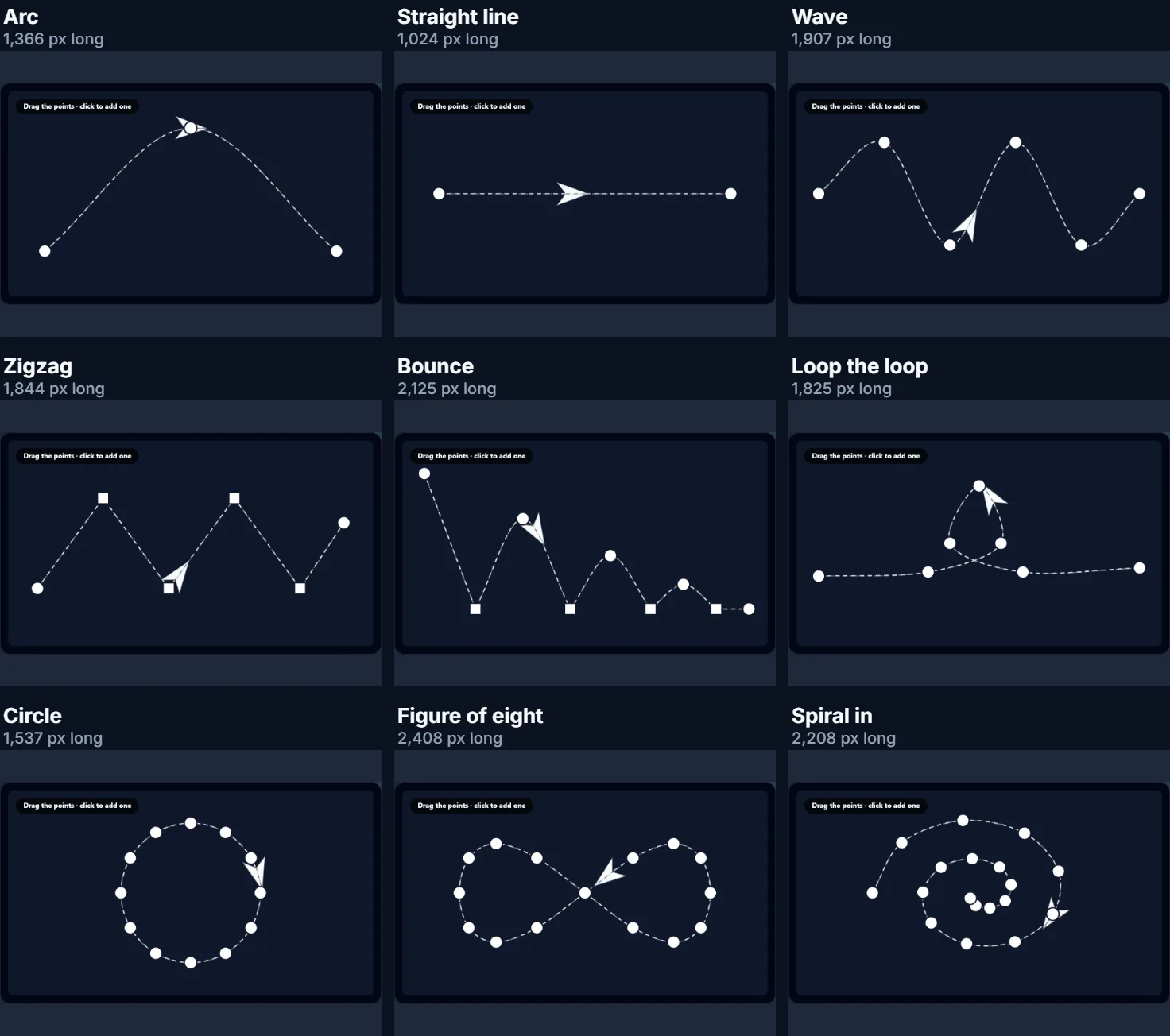
How do you animate something along a motion path?
Pick a starting path, choose what moves along it (a paper plane, a ball, a star, a heart, an arrow, a dot, any emoji or short text, or a picture of your own), set how long one trip takes and how the speed changes along the way, and watch the preview. When it looks right, press Make the MP4 or Make a GIF.
The preview and the files are drawn by the same code, frame by frame, so what you see is what you get. The loop the loop with a paper plane, one trip in 3 seconds and played twice, became a 1280 × 720 MP4 of 180 frames at 30 a second in 3.2 seconds.
How do I draw my own path?
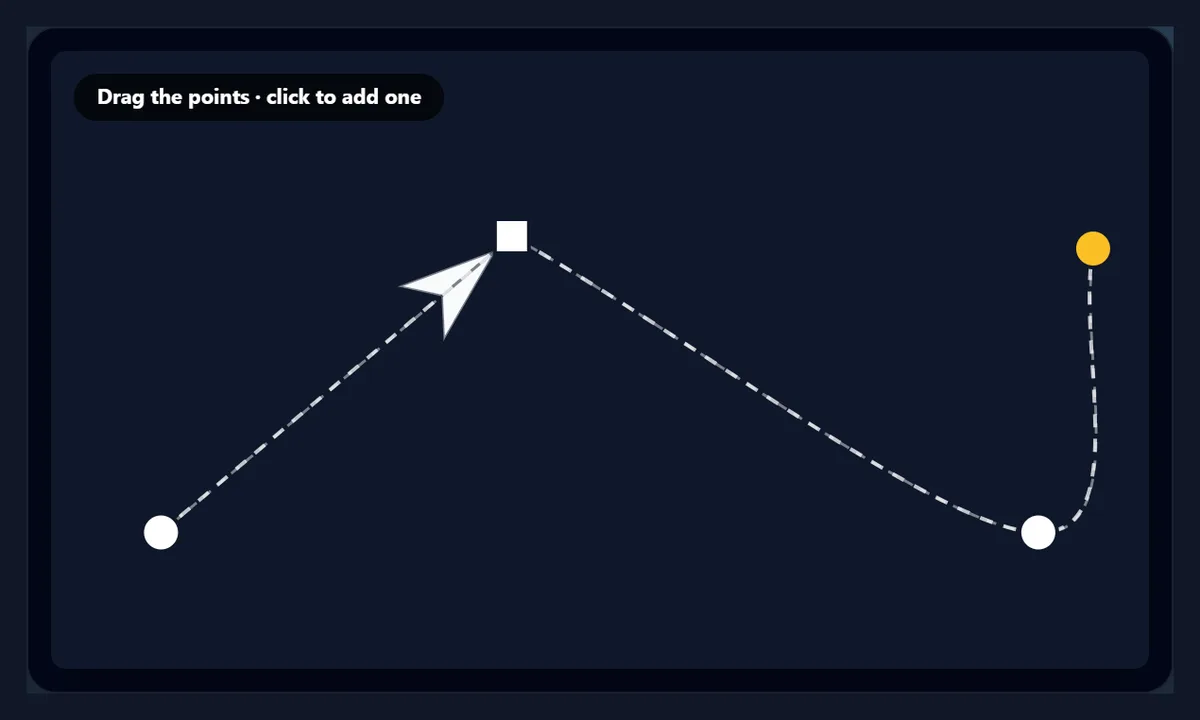
Drag any point to move it, and the curve follows. Click an empty part of the frame to add a point at the end of the path, so you can draw a route by clicking along it. Select a point and press Make point a corner for a sharp turn instead of a smooth one (or double-click it); Delete point removes the selected point. Closed loop joins the end back to the start, for an object that circles forever.
In the figure the arc's top point was dragged down and to the left and made a corner, and a point was added past the end with a click: the path grew to 1,612 pixels. Corner points show as squares, smooth ones as circles.
What do the speed settings do?
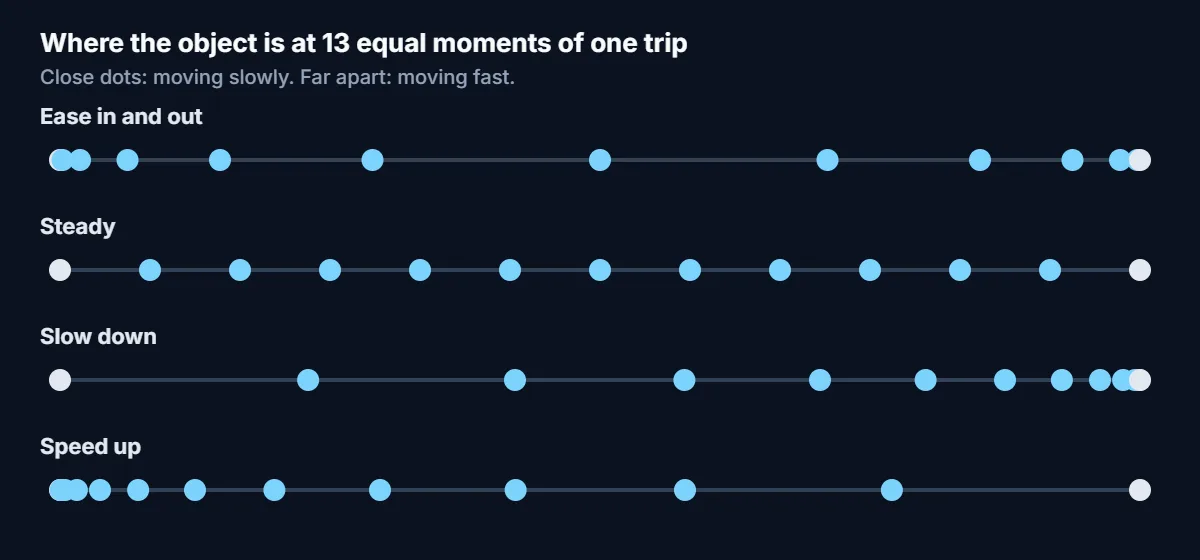
They decide how the object's speed changes along one trip. Steady moves at the same speed all the way, a twelfth of the path in each twelfth of the time. Ease in and out starts gently, is fastest halfway and slows to a stop: in the first twelfth of the time it covers 0.2% of the path, and around the middle 21%. Slow down starts fast and settles, covering 23% in the first twelfth; Speed up does the opposite, barely moving at first (0.06%) and leaving at full speed.
Ease in and out looks the most natural for things that start and stop, like a plane taking off and landing, but it also means the middle of the trip is fast: on the loop the loop over 3 seconds, the average speed is 608 pixels a second and the fastest 1,816, 3.0 times the average. Steady suits loops and background motion; Slow down suits things arriving, such as a logo landing in place.
Can the animation loop or go there and back?
Yes. Once makes one trip and holds the last frame for half a second; Loop plays the trip twice, starting again from the beginning each time; There and back goes to the end and returns. On a closed path, such as the circle or the figure of eight, Loop has no visible restart because the end is the start.
The video's length follows from the setting: one trip plus half a second for Once, two trips for Loop and for There and back. The line under the preview shows the length before you make the file. A GIF loops forever on its own, so for a GIF the one-trip Loop setting is usually all you need.
What can move along the path?
Six drawn shapes (a paper plane, a ball, a star, a heart, an arrow and a dot) in any colour; any emoji or a few characters of text, drawn with your device's own emoji font; or a picture you choose, such as a logo or a cut-out product photo. A PNG with a transparent background moves without a box around it.
With Turn with the path on, the object points the way it travels, as a plane or an arrow should; turn it off for things that should stay upright, such as a logo or text. The ball and the dot never turn, since they look the same either way. Size sets the object's width as a share of the frame's short side, from 5% to 35%.
Can the object leave a trail?
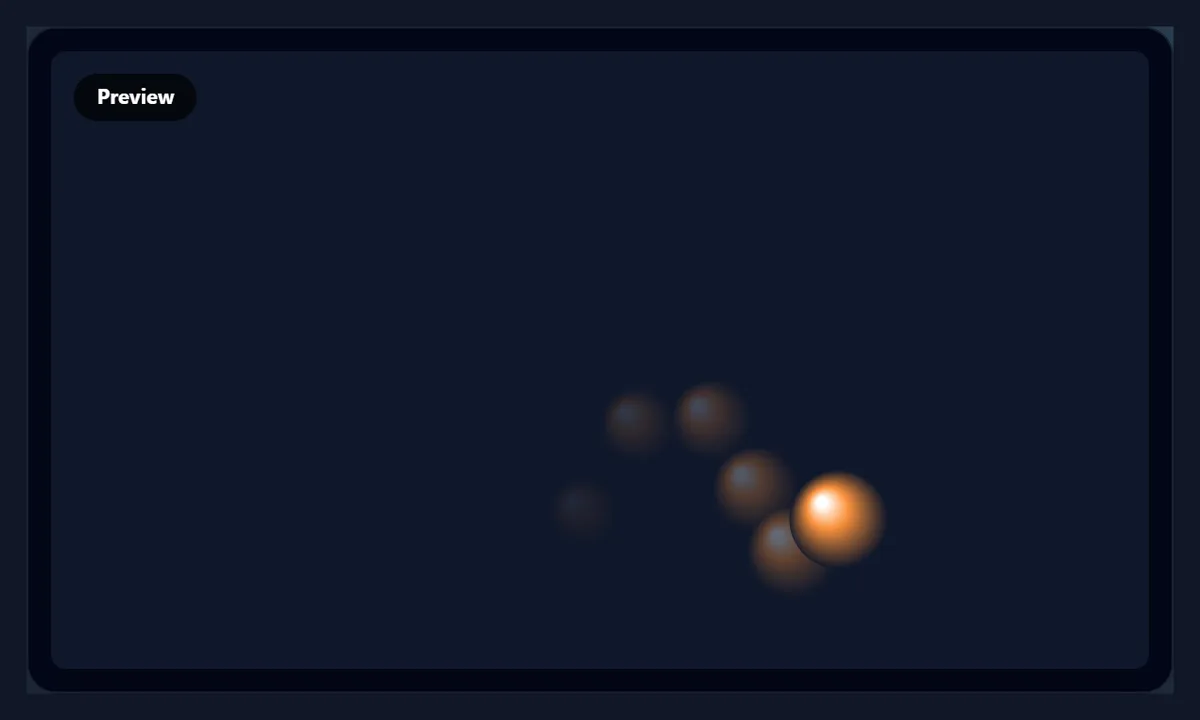
Choose Path to draw the whole route as a dashed line under the object, like a route on a map, or Ghosts for five fading copies following just behind it, which gives a sense of speed. None shows the object alone.
Ghosts are drawn at the object's own positions a fraction of a second earlier, so they bunch up where it slows down and spread out where it is fast, as in the bouncing ball in the figure.
Should I save an MP4 or a GIF?
An MP4 for anything with a player: social posts, presentations, video editors, websites with a video element. It is sharp at full size and small: the 6-second loop the loop was 269 KB at 1280 × 720. A GIF for places that only take images, such as some chats, emails and documents: the same animation as a 480 × 270 GIF at 15 frames a second was 301.1 KB, larger than the MP4 with a quarter of its width.
GIFs store every frame as a picture with at most 256 colours, which is why they are larger and why soft gradients band; the MP4 stores only what changes from frame to frame.
| File | Size | Frames | File size |
|---|---|---|---|
| MP4 16:9 | 1280 × 720 | 180 | 269 KB |
| MP4 9:16 | 720 × 1280 | 180 | 284.1 KB |
| MP4 1:1 | 1080 × 1080 | 180 | 384.1 KB |
| GIF 16:9 | 480 × 270 | 90 | 301.1 KB |
Which video shapes can I make?
Wide 16:9 at 1280 × 720 for YouTube, presentations and websites; tall 9:16 at 720 × 1280 for Reels, Shorts, TikTok and Stories; and square 1:1 at 1080 × 1080 for feeds. Changing the shape keeps the path where it is on the frame, as shares of the width and height, so check the preview after switching: a wide path squeezed into a tall frame becomes steeper.
The square video holds the most pixels of the three, which is why it was the largest file: 384.1 KB for the same 6 seconds, against 284.1 KB for the tall one.
Can I put the animation over a photo?
Yes: press Photo behind and choose a picture, and it fills the frame behind the path, cropped to the video's shape. A map with a plane flying between two cities, a product photo with an arrow pointing at a detail, or a classroom slide with a ball bouncing along a graph are all made this way. Without a photo, the background is a colour you choose.
The photo is only drawn into the video; it is not uploaded anywhere.
How long should one trip take?
Short trips, around one second, suit small accents such as an arrow pointing at a button. Two to four seconds suit most things a viewer should follow with their eyes, like a plane crossing a map. Longer trips suit slow background motion. The tool allows 1 to 10 seconds a trip.
Speed is what the eye notices: the loop the loop in 3 seconds averages 608 pixels a second, which reads as brisk on a 1280-pixel-wide frame. If a move feels rushed, lengthen the trip or shorten the path rather than switching to Steady.
What are motion paths good for?
Travel routes on a map, a delivery van crossing town, a paper plane carrying a message, a ball bouncing to show a rhythm, an arrow guiding the eye through a slide, a logo flying into place for an intro, or emoji floating up through a celebration video. Animators call it a motion path or a path animation; presentation software has offered it for years, and this page makes it as a video file you can use anywhere.
Combine it with the other tools: add a caption with add text to video, or put the finished MP4 into a longer video with merge videos.
Can I get a transparent background?
Not from this page. The MP4 and the GIF are always filled with your background colour or photo, because MP4 video has no transparency and a GIF's one-colour transparency gives jagged edges on shapes like the ball. To place the animation over a video, choose a background colour that suits it, or put the moving picture on a photo of the scene with Photo behind.
For a logo or sticker on its own, the stickers and PNG maker pages make transparent still images.
Will the motion be smooth?
Yes: every frame of the MP4 is drawn at its exact moment, 30 a second, and encoded one by one, so no frame is skipped or doubled whatever your device is doing. The GIF is made at 15 frames a second, each shown for 60 or 70 milliseconds so that they add up to the real length.
The preview runs at your screen's speed, and may stutter on a busy device; the file does not.
Can I make one on my phone?
Yes, in a current browser on Android or an iPhone: drag the points with your finger and tap the frame to add one. The MP4 needs a browser that can encode video, which current Chrome, Edge and Safari can; if yours cannot, the page says so and you can make a GIF instead.
Keep the screen on while the file is made.
Is anything uploaded?
No. The path, the preview and the files are all made inside your browser tab, including any picture or photo you add. Nothing is sent to HueFold or anyone else, and there is no watermark or sign-up.
That also means it works offline once the page has loaded.
Frequently asked questions
What is a motion path?
A route an object follows across the frame, like a plane flying along a curve.
Can I draw my own path?
Yes. Drag the points, click to add one, and make any point a sharp corner.
What can move along it?
A drawn shape, an emoji or short text, or your own picture.
Can it loop?
Yes: once, looping, or there and back.
MP4 or GIF?
Both. The MP4 was smaller and sharper: 269 KB at 1280 × 720 against 301.1 KB for a 480-wide GIF.
Which shapes can I make?
16:9, 9:16 and 1:1.
Is it free?
Yes, with no watermark and no sign-up.
Is my picture uploaded?
No. Everything is made in your browser.
Related tools
- Text Animations — Animate a line of text.
- Lottie Animation — Play and export Lottie files.
- Video to GIF — Turn a clip into a GIF.
- Add Text to Video — Put a caption on it.
- Merge Videos — Join it with other clips.
- Stickers — Make a cut-out to animate.