Mockups
Show a design the way people will see it: on a phone, a tablet, a laptop, a monitor, in a browser window, framed on a wall or printed on business cards, straight on or turned at an angle. Or drop it onto a photo of your own by dragging four corners, and let the photo's light fall across it.
Updated

How do you make a mockup?
Open your design (a PNG, JPG or WebP), pick a mockup and the picture is drawn at once; download it as a full-size PNG, JPG or WebP. Everything happens in your browser, so the design is never uploaded, and it is free with no account and no watermark.
The devices are drawn by the tool itself, sharp at any size and not any maker's product. For a real scene, choose On a photo, drag the four handles onto the corners of a sign, a poster, a screen or a page, and the design is bent into the same perspective: the sample shop sign, photographed at an angle, takes the café sign's design corner to corner.
How to make a mockup
- Open your design Or try one of the six samples.
- Pick a mockup Seven devices, or your own photo.
- Set the scene View, size, background and shadow.
- Download Full size, as PNG, JPG or WebP.
Make device and photo mockups
A real recording of this tool: the app screen put on a phone, the phone turned and laid on a table, a navy background chosen, then the banner put on a brick wall photo, a corner moved, Screen and Printed compared, and the picture downloaded.
- The app screen sample goes onto the phone.
- The phone is turned left, then laid on a table.
- A navy background is chosen.
- The banner goes onto the brick wall photo; a corner handle is moved and put back; Screen and Printed are compared.
- The full-size picture is downloaded.
How do I put my design on a laptop or phone?
Choose your design, then the device. The design goes into the screen straight away: the sample café website, 1920 × 1080 px, on the laptop makes a 1920 × 1080 px picture for a 16:9 slide, drawn in 0.02 s. Pick another picture size (4:3 slide, square, 4:5 post or 9:16 story), a background and whether the device casts a shadow, and the download is drawn again at full size.
Under the download button the tool gives the real file: its size in pixels and bytes, and how much of your design the screen cut off. Nothing is guessed: the numbers are those of the picture you save.
- Phone and tablet: upright or on their side.
- Laptop, monitor, phone and tablet: Fill the screen (cropping what does not fit) or Fit (all of it, with bands).
- Browser and poster: the window or frame takes your design's own shape, so nothing is cut.
Which mockups can I make?
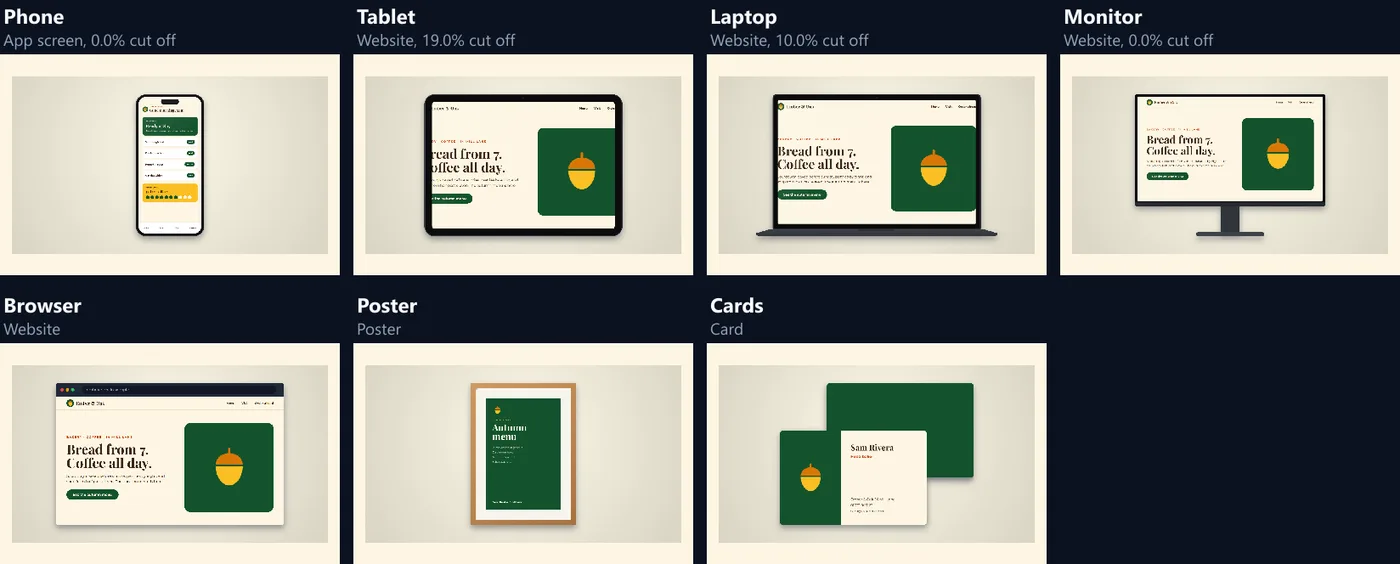
Seven devices and any photo. Each device is drawn from simple shapes (a rounded body, a bezel, a screen, a camera cut-out, a stand) in graphite, silver or white, so the mockup is crisp at any size and shows no brand's product. The table shows each with the sample that suits it, saved as a 1920 × 1080 PNG.
The phone's screen is about 9 : 19.5 (0.46 : 1), and the app sample is made for it, so nothing was cut. The website, 16 : 9, fills the monitor exactly, loses 10% on the laptop's 16 : 10 screen and 19% on the tablet.
| Mockup | Sample design | Cut off | PNG size |
|---|---|---|---|
| Phone | App screen | 0.0% | 909.9 KB |
| Tablet, on its side | Website | 19.0% | 722.2 KB |
| Laptop | Website | 10.0% | 711.5 KB |
| Monitor | Website | 0.0% | 786.2 KB |
| Browser | Website | 0.0% | 579.2 KB |
| Poster | Poster | 0.0% | 826.1 KB |
| Cards | Business card | 0.0% | 652.3 KB |
Will my design fit the screen?
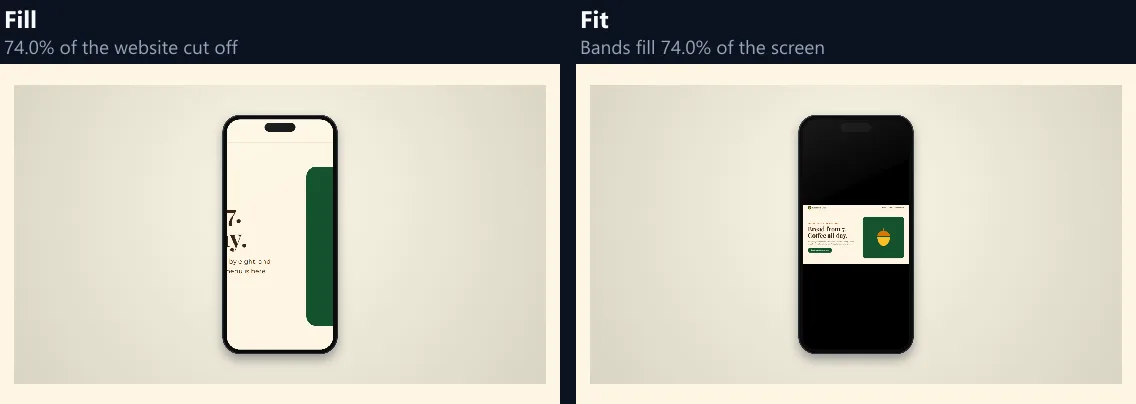
Only if it has the screen's shape. A 16 : 9 design on a 16 : 10 laptop screen is a little too wide: Fill keeps the screen full and cuts 10.0% off the design's sides, Fit shows all of it with bands across 10.0% of the screen. The share is the same either way, because what one cuts off is what the other leaves empty. The tool says which before you download.
The table gives the share for the sample website on every screen, from the same maths the tool draws with. On an upright phone, 74.0% of a website would be cut off, so make a phone-shaped design (1080 × 2340 px, say) for phone mockups, as the app sample is.
| Screen | Shape (width : height) | Cut off or bands |
|---|---|---|
| Monitor | 1.78 : 1 | 0.0% |
| Laptop | 1.6 : 1 | 10.0% |
| Phone, on its side | 2.17 : 1 | 17.9% |
| Tablet, on its side | 1.44 : 1 | 19.0% |
| Tablet, upright | 0.69 : 1 | 60.9% |
| Phone, upright | 0.46 : 1 | 74.0% |
Can I tilt the mockup?
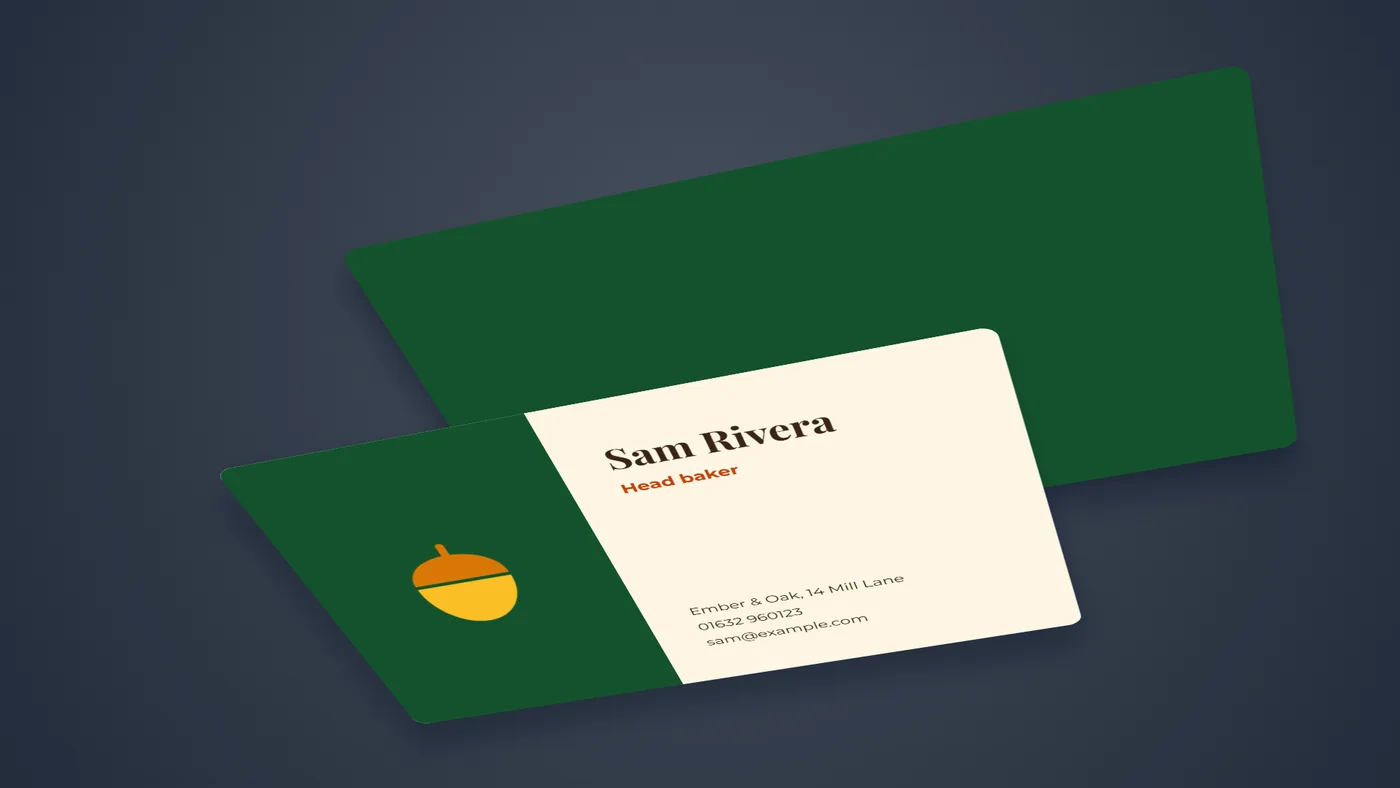
Yes, for the flat devices: the phone, the tablet, the browser window, the poster and the cards. Turned left and Turned right swing the device 36° round its upright axis, and On a table lays it back 52° and turns it a little, as if it were lying on a desk. The device is drawn flat first, then every pixel of the picture is mapped onto the tilted corners with a true perspective, so the near edge is taller than the far one and straight lines stay straight.
The laptop and the monitor stay front-on: each is two surfaces (a screen and a base or stand), and tilting a flat drawing of them would look wrong. Tilted views take longer to draw: 0.24 to 0.32 s for the phone at 1920 × 1080, against 0.02 s front-on.

How do I make a business card mockup?
Choose Cards: your design goes on the front of an 85 × 55 mm card, with a second card behind it in a colour you choose, such as your brand's. Cards are always filled, so make the design 85 : 55 (the sample is 1700 × 1100 px). On a table lays both cards back with a soft shadow, which suits a presentation slide or a brand sheet.
The figure was drawn on the navy background in 0.66 s and saved as a 1920 × 1080 PNG of 757.8 KB.
Poster and website mockups
The poster and the browser window are built round your design, so neither cuts anything off. The poster gets a frame (black, white or oak) and, if you like, a white mat round the design; hang it on a background colour that suits the room, and tilt it for a gallery look. The sample autumn menu, 2 : 3, sits in the frame exactly.
The browser window has a light, white or dark title bar with an address you type, and the page below it takes your design's shape, however long: a full-page screenshot of a website becomes a tall browser window.
How do I put a design on a photo?
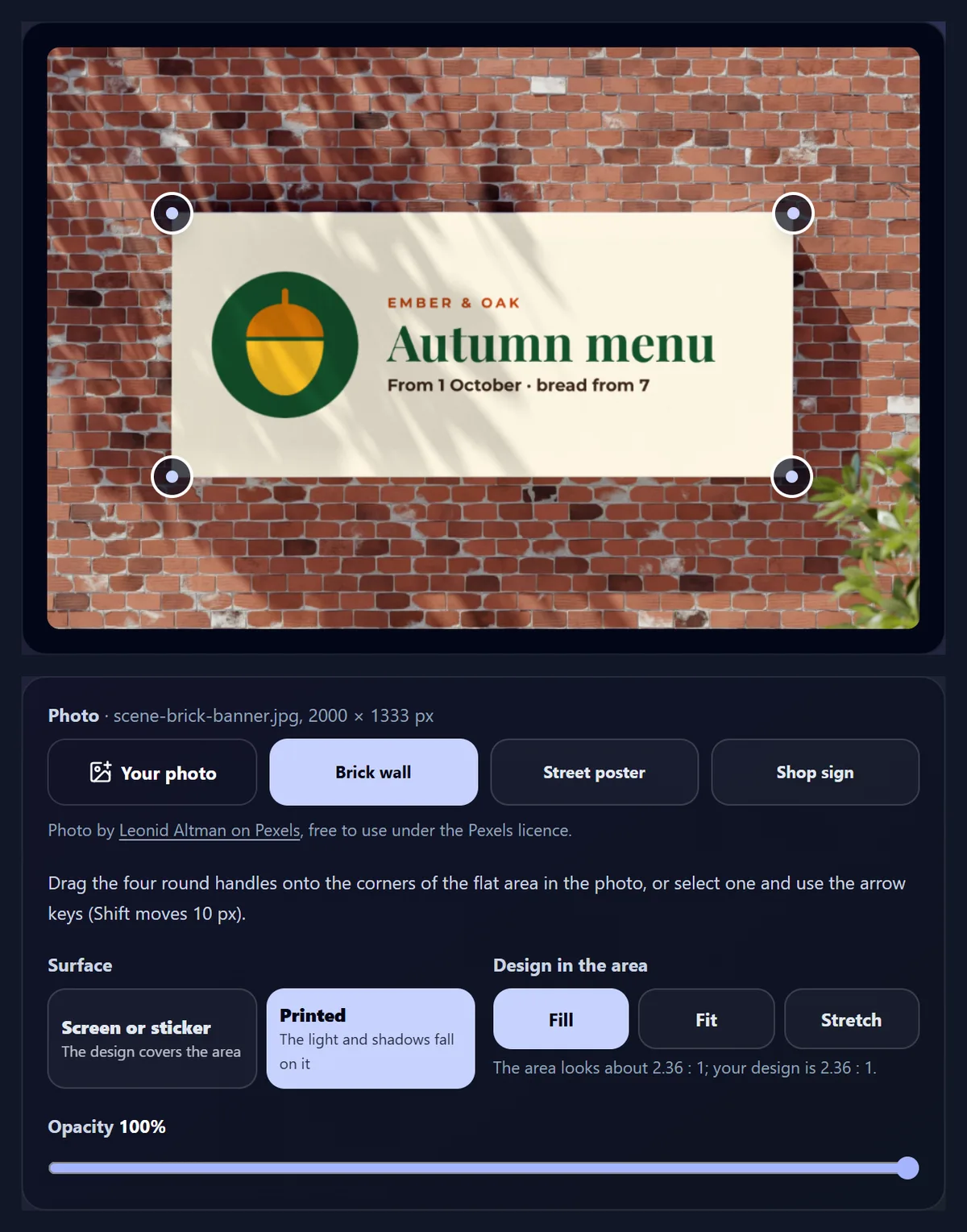
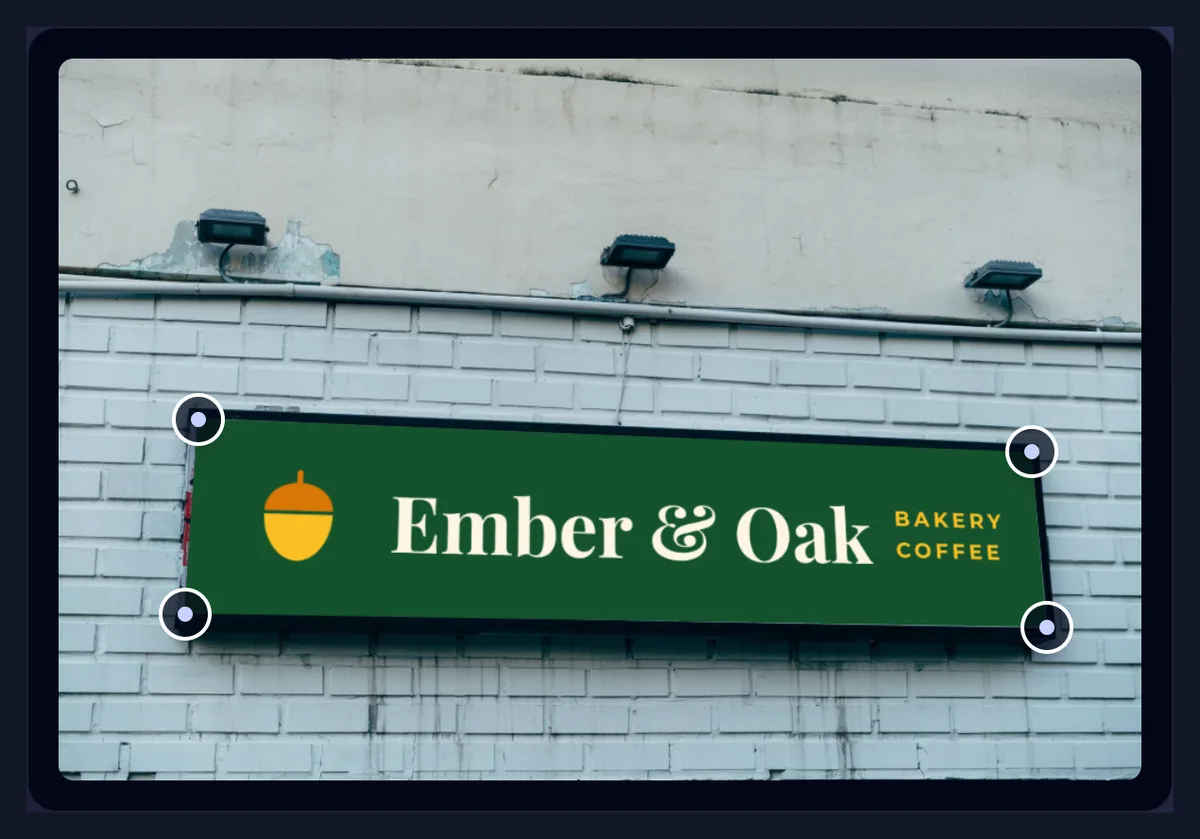
Choose On a photo, open a photo of your own (or one of the three samples) and drag the four round handles onto the corners of the flat area: a sign, a poster, a screen, a page, the side of a box. The design is fitted to those corners with a homography, the projection a camera makes of any flat surface, so it leans and narrows with the photo. Each handle can also be moved a pixel at a time with the arrow keys (10 with Shift).
The handles must make a four-sided shape; if they cross over, the tool says so instead of drawing a folded picture. Photos are drawn at their own size up to 4,096 px on the long side: the 2,000 × 1,333 px sample scenes took 0.26 to 0.39 s each.
Screen or printed: what is the difference?
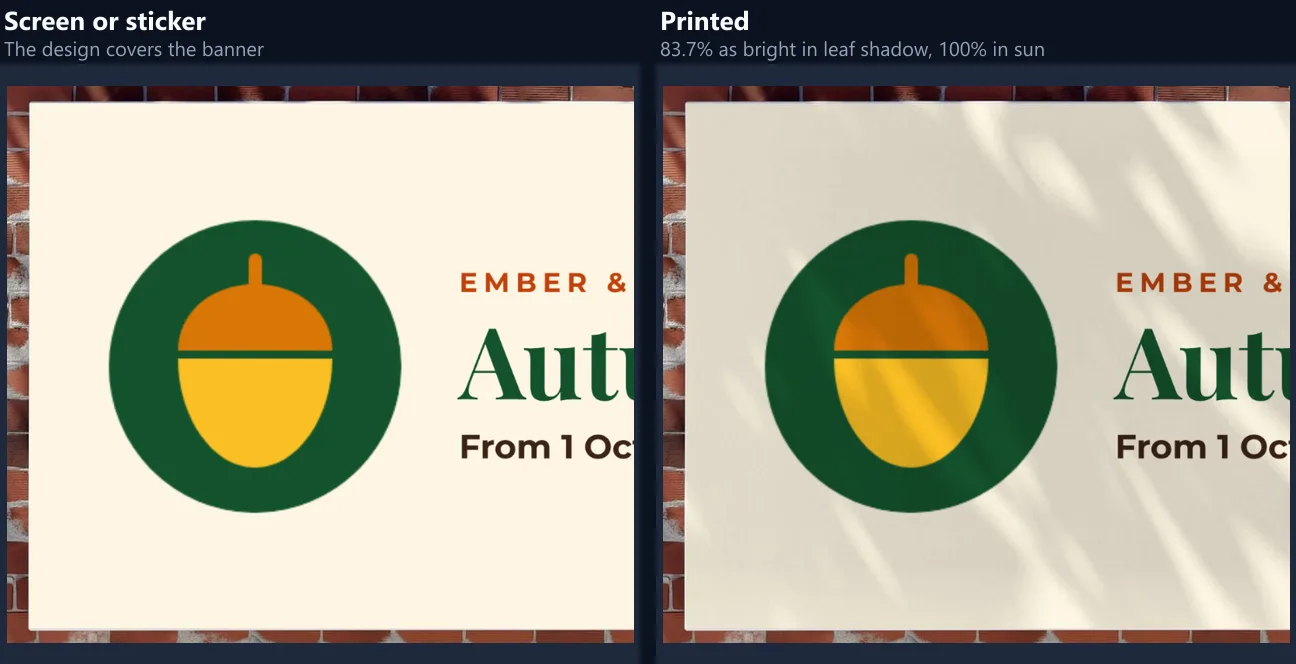
Screen or sticker lays the design on top, as a lit screen or a glossy sticker would look. Printed lets the photo's light fall across it: each pixel of the design is darkened by how much darker that spot of the surface is than the surface's brightest part, so shadows, creases and texture show through, but the surface's own colour does not tint the design.
On the brick wall sample, measured over 151,653 points of the banner's light background, the printed design was 83.7% as bright as on screen where the leaves' shadows fall (the darkest 5%), 98.4% at the median and 100% in full sun. An earlier version multiplied by the surface's colour, and the banner's pale blue-grey turned the cream design grey: looking at the figure caught it.
What if my design is a different shape from the area?
The tool estimates the area's shape from its sides and shows it next to your design's: Fill crops the design to the area's shape, Fit shows all of it with the photo showing round it, and Stretch pulls the design to the corners whatever its shape. The estimate is exact straight on; at an angle the near side looks longer, so it is a guide, not a measurement.
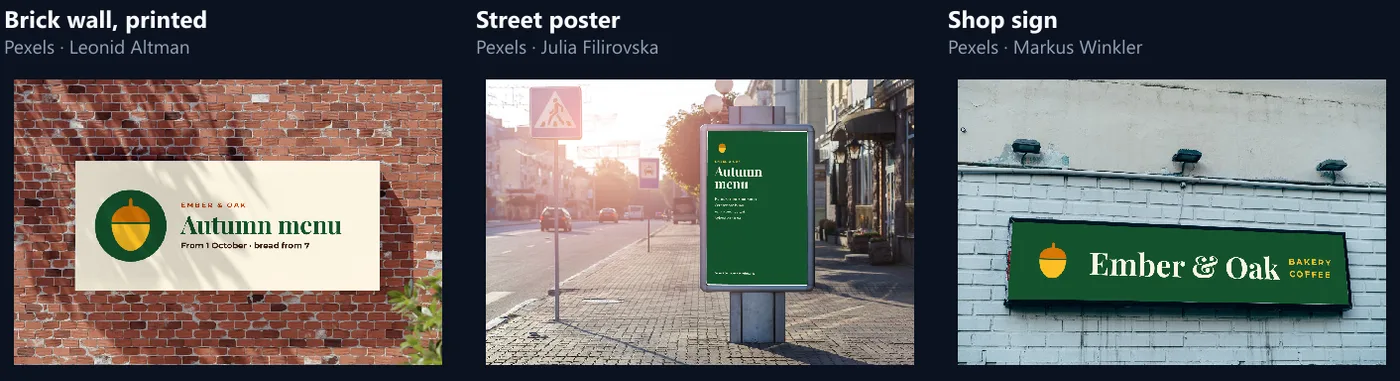
For the three sample photos it came out 2.36 : 1 (the banner, whose design is 2.36 : 1), 0.65 : 1 (the street poster, design 0.67 : 1) and 4.58 : 1 (the shop sign, design 4.71 : 1, photographed at an angle).
Where do the sample photos come from?
From Pexels, whose licence lets them be used free and changed: a white banner on a brick wall by Leonid Altman, a street poster stand by Julia Filirovska and a shop sign by Markus Winkler. Each is credited under the tool when it is open, and kept on HueFold at 2,000 px wide. Your own photo works the same way, and stays on your device.
The banner's and the street poster's corners were found from the photo's own pixels (the largest plain, light area, outlined by OpenCV), with one banner corner moved where a leaf highlight had pulled the outline off; the shop sign's were read by eye from close-ups of its four corners.
Backgrounds, shadows and transparent mockups
Pick one of six background colours or your own, and Soft light adds a gentle glow from above the device. Shadow lays a soft shadow under it, drawn from the device's own outline, so it follows rounded corners and tilted views. Transparent leaves the background out, for a mockup to place on a slide or web page of your own.
A transparent mockup keeps its shadow see-through: in the laptop's transparent PNG, 36.5% of the pixels were clear, 52.9% solid and 10.6% partly see-through: the shadow and the device's smoothed edges. Save transparent mockups as PNG or WebP; JPG has no transparency, so the tool saves PNG instead.
What size and format should I download?
Pick the picture size for where it is going: 1920 × 1080 for a 16:9 slide, 1600 × 1200 for 4:3, 1080 × 1080 square, 1080 × 1350 for a 4:5 post or 1080 × 1920 for a story. Then the format: PNG keeps every edge exact, JPG and WebP are much smaller.
The laptop mockup at 1920 × 1080 was 711.5 KB as a PNG, 108.8 KB as a JPG and 40.9 KB as a WebP, both at 90% quality. Photo mockups are drawn at the photo's size: as PNGs the samples came to 2.7 to 4.0 MB, so choose JPG or WebP for them unless you need PNG.
| Format | File size | Notes |
|---|---|---|
| PNG | 711.5 KB | Lossless, every edge exact |
| PNG, transparent | 303.8 KB | No background; soft shadow kept |
| JPG, 90% | 108.8 KB | No transparency |
| WebP, 90% | 40.9 KB | Smallest; transparency possible |
Where are mockups useful?
Anywhere a design has to be shown before it exists: a pitch deck with the app on a phone, a client presentation with the new website on a laptop, a social post announcing a menu, a brand sheet with the cards and the sign, a portfolio. A mockup answers the question "what will it look like?" faster than a flat file.
Make a set from one design: the same brand on cards, a poster and a sign, all from the samples' colours. For posts, pick the post or story size so the picture needs no cropping later.
Is my design uploaded? Can I use the mockups commercially?
Nothing is uploaded: your design and photo are opened, drawn and saved in this browser tab. The devices are drawn by HueFold's tool, so the mockups contain no one else's artwork; what you put on them is yours. The sample photos are under the Pexels licence, which allows commercial use; their photographers are credited here; the licence does not require it, but Pexels says credit is appreciated.
Mockups show generic devices on purpose. A picture of a real brand's phone or laptop can carry that brand's trademarks; these shapes carry none.
What does the mockup generator not do?
It does not bend a design round curved surfaces such as mugs, bottles or T-shirts, add folds or creases of its own, find corners in a photo by itself or animate a mockup. Tilted views are for flat devices only, the laptop and monitor stay front-on, and photos are drawn at up to 4,096 px on the long side.
It does not edit the design itself: make or change it in the HueFold editor, download it as a PNG, and open it here.
Frequently asked questions
Is the mockup generator free?
Yes: no account, no watermark and full-size downloads. Everything runs in your browser.
Is my design uploaded?
No. The design and any photo are opened and drawn in your browser tab and never sent anywhere.
Which devices are there?
A phone, a tablet, a laptop, a monitor, a browser window, a framed poster and business cards, plus any photo of your own.
Why is part of my design cut off?
Its shape differs from the screen's. Choose Fit to show all of it with bands, or make the design in the screen's shape.
Can I tilt the mockup?
Yes for the phone, tablet, browser, poster and cards: turned left, turned right or on a table. The laptop and monitor stay front-on.
How do I use my own photo?
Choose On a photo, open the photo and drag the four handles onto the corners of the flat area.
What does Printed do?
It lets the photo's light and shadows fall across the design, as on a printed poster, without tinting it.
Can I make a transparent mockup?
Yes: tick Transparent and save as PNG or WebP. The shadow stays soft and see-through.
What sizes can I download?
1920 × 1080, 1600 × 1200, 1080 × 1080, 1080 × 1350 or 1080 × 1920; photo mockups at the photo's size up to 4,096 px.
Are these real brands' devices?
No. The devices are generic drawings, so they carry no brand's trademarks.
Related tools
- Brand Kit — Your colours, fonts and logo in one place.
- QR Code — A code for your poster or card.
- Photo Frames — Frames and mats for photos.
- Design and Photo Grids — Several pictures on one slide.
- Combine Images — Mockups side by side.
- Resize Image Pixel Online — A design at the exact pixel size.