Put two to nine photos in a grid in seconds: ten layouts, square, portrait, story or landscape sizes, a gap, rounded corners and a background colour, with each photo framed by dragging and zooming inside its cell.
Updated
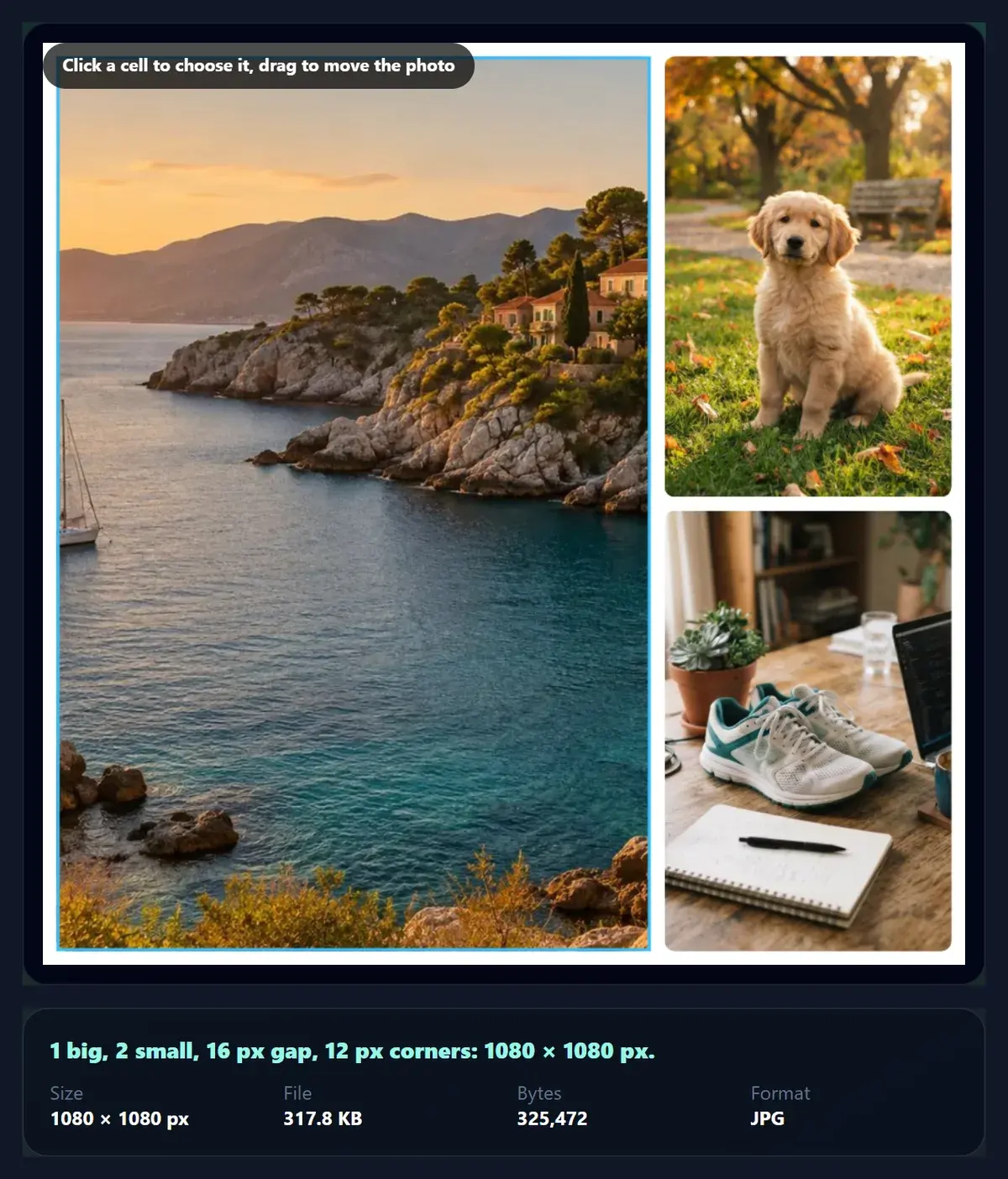
Three photos in the 1 big, 2 small layout, square 1080.
How do you make a photo grid?
Add up to nine photos, or try the six samples. Pick a layout and a size, set the gap, corners and background, then click any cell to drag and zoom its photo until the right part shows. Download the grid as JPG, PNG or WebP.
Every photo fills its cell, so the layout decides how much is cropped: with the six samples on a square canvas, 1 on top, 2 below showed 84% of each photo and 3 columns only 25%. The tool tells you the share for each cell as you go.
Everything happens in your browser: nothing is uploaded and no account is needed.
How to make a photo grid
Add photosUp to nine, or try the samples.
Pick a layout and sizeTen layouts; square, portrait, story or landscape.
Frame each photoClick a cell, drag to move, zoom to crop closer.
DownloadJPG, PNG or WebP.
Make a photo grid
A real recording of this tool: three photos in a grid, six samples tried in the 4 grid, 5 mosaic and 6 grid, a photo dragged and zoomed in its cell, the story size with wider gaps and rounded corners, and the grid downloaded.
Recorded from the live tool on this page.
The photo grid tool opens with three photos in the 1 big, 2 small layout.
Six sample photos are added and the 4 grid, 5 mosaic and 6 grid layouts are tried.
The big photo is dragged inside its cell and zoomed to 1.5×.
The size is changed to Story 1080 × 1920, and the gap and corners are widened.
The grid is downloaded.
How much of each photo does a grid show?
It depends on how close each cell's shape is to the photo's. Every photo fills its cell completely, so a photo whose shape differs from the cell is cropped. With the six sample photos (landscapes and portraits) on a 1080 × 1080 canvas with a 16 px gap, 1 on top, 2 below showed 84% of each photo on average, while 3 columns, whose cells are tall and thin, showed only 25%: a wide landscape squeezed into a narrow column loses most of its width.
So pick the layout by your photos. Landscapes suit stacked and wide cells (2 stacked showed 62%); portraits suit columns; a mix suits a grid of squares (4 grid showed 75%). The reading under the controls shows the share for the whole grid and for the chosen cell, so you can see what is cut before you download.
The six samples in each layout, 1080 × 1080, 16 px gap, 12 px corners (Chrome on the test laptop)
Layout
Shown on average
Cells
JPG
2 side by side
41%
2
309 KB
2 stacked
62%
2
340.9 KB
3 columns
25%
3
273.4 KB
1 big, 2 small
51%
3
317.8 KB
1 on top, 2 below
84%
3
371.5 KB
4 grid
75%
4
327.1 KB
1 big, 3 small
84%
4
370.4 KB
5 mosaic
61%
5
326.9 KB
6 grid
61%
6
286.8 KB
9 grid
76%
9
328.1 KB
Which layouts are there?
Ten, for two to nine photos: 2 side by side, 2 stacked, 3 columns, 1 big and 2 small, 1 on top and 2 below, a 4 grid, 1 big and 3 small, a 5-photo mosaic, a 6 grid and a 9 grid. Layouts with one big cell make a hero of the first photo; even grids treat every photo the same.
If there are fewer photos than cells, the photos repeat in order; if there are more, the extra ones wait until you choose them for a cell with Next photo here. Up to nine photos can be added.
The 5 mosaic with the sample photos.
How do I choose which part of a photo shows?
Click a cell to choose it, then drag inside it to move the photo, and use Zoom (1× to 3×) to fill the cell with a closer crop. The photo can only move as far as it still covers the whole cell, so there are never empty edges. Zooming the coastal photo in its big cell to 1.6× took it from 44% to 17% of the photo shown, the rest being the part you chose.
Next photo here swaps the chosen cell to the next photo; Replace puts a different file in that cell only. Each cell keeps its own position and zoom.
The 1 big, 2 small layout with three photos.
Which size should my grid be?
The size of where it will be posted. Square 1080 suits Instagram and Facebook posts; Portrait 1080 × 1350 is Instagram's tallest feed size and fills more of a phone screen; Story 1080 × 1920 suits stories, reels covers and phone wallpapers; Landscape 1920 × 1080 suits YouTube, slides and desktop screens.
The size changes the cells' shapes, so it changes the crop too: the 4 grid showed 75% of each photo as a square, 41% as a story (tall cells for mostly wide photos) and 76% as a landscape.
The 4 grid with the six samples at each size
Size
Shown on average
JPG
Square 1080
75%
327.1 KB
Portrait 1080×1350
60%
386.8 KB
Story 1080×1920
41%
467.2 KB
Landscape 1920×1080
76%
535 KB
What do the gap, corners and background do?
Gap is the space between photos and round the edge, from 0 to 80 px: no gap gives a seamless collage; 8 to 20 px gives the familiar framed grid. Corners round each photo, from square to 80 px; rounded corners look softer and suit a gap. The background colour fills the gaps and edges.
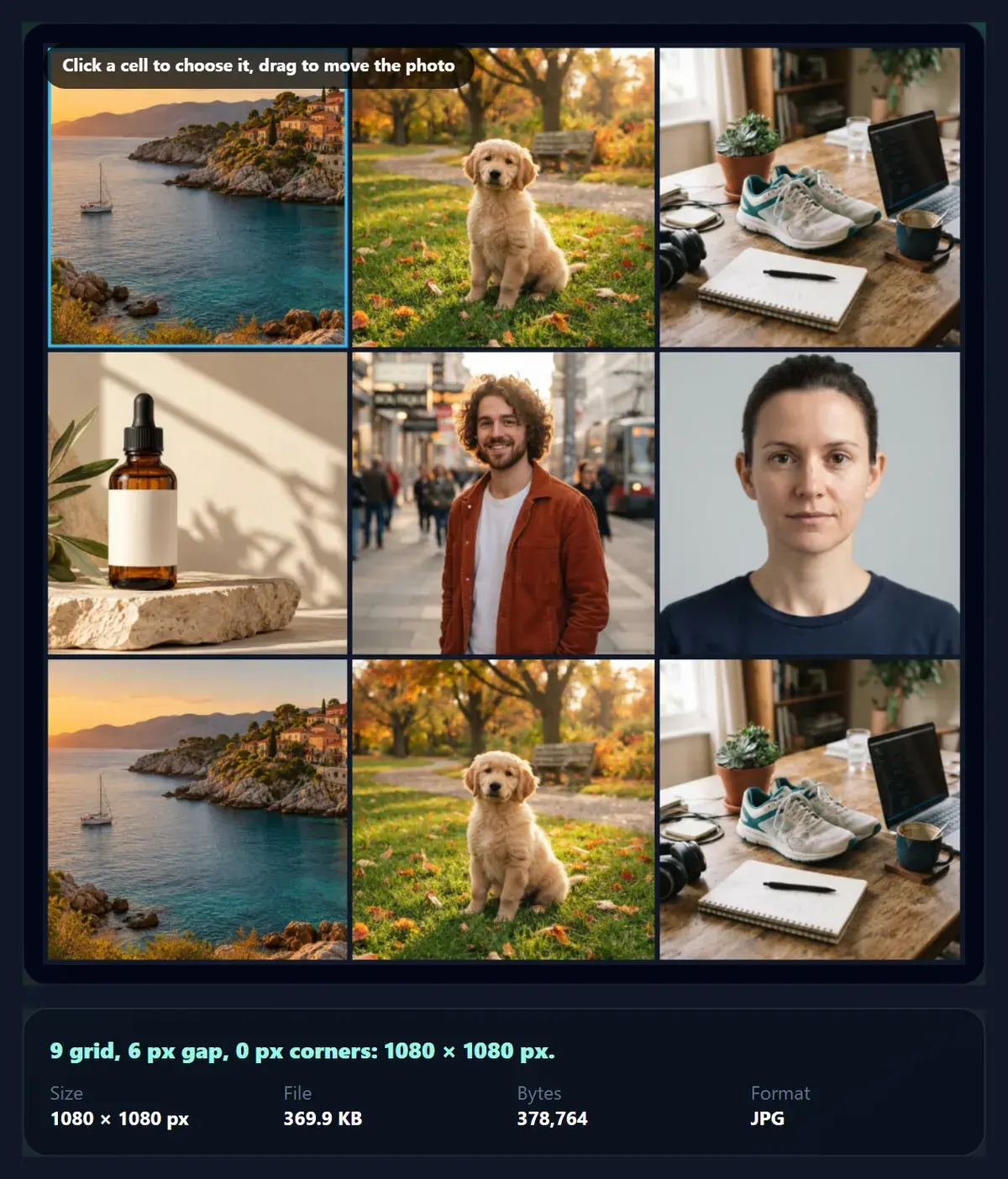
A narrow gap and a dark background give a gallery wall; white with a wide gap and rounded corners gives a light, modern card. The 9 grid with a 6 px gap and square corners on near-black was a 378,764-byte JPG.
The 9 grid with six photos, a 6 px gap and square corners; the photos repeat in order.
Can I make a grid for an Instagram story?
Yes. Choose Story 1080 × 1920 and a layout with wide cells, such as 1 on top and 2 below or 2 stacked; a tall canvas divided into columns would crop landscapes to narrow slivers. Leave some space at the top and bottom for the story's own name bar and reply box, or add a wider gap.
For a reel cover, frame the important part of each photo in the middle of its cell: covers are often shown cropped to a square in the profile grid.
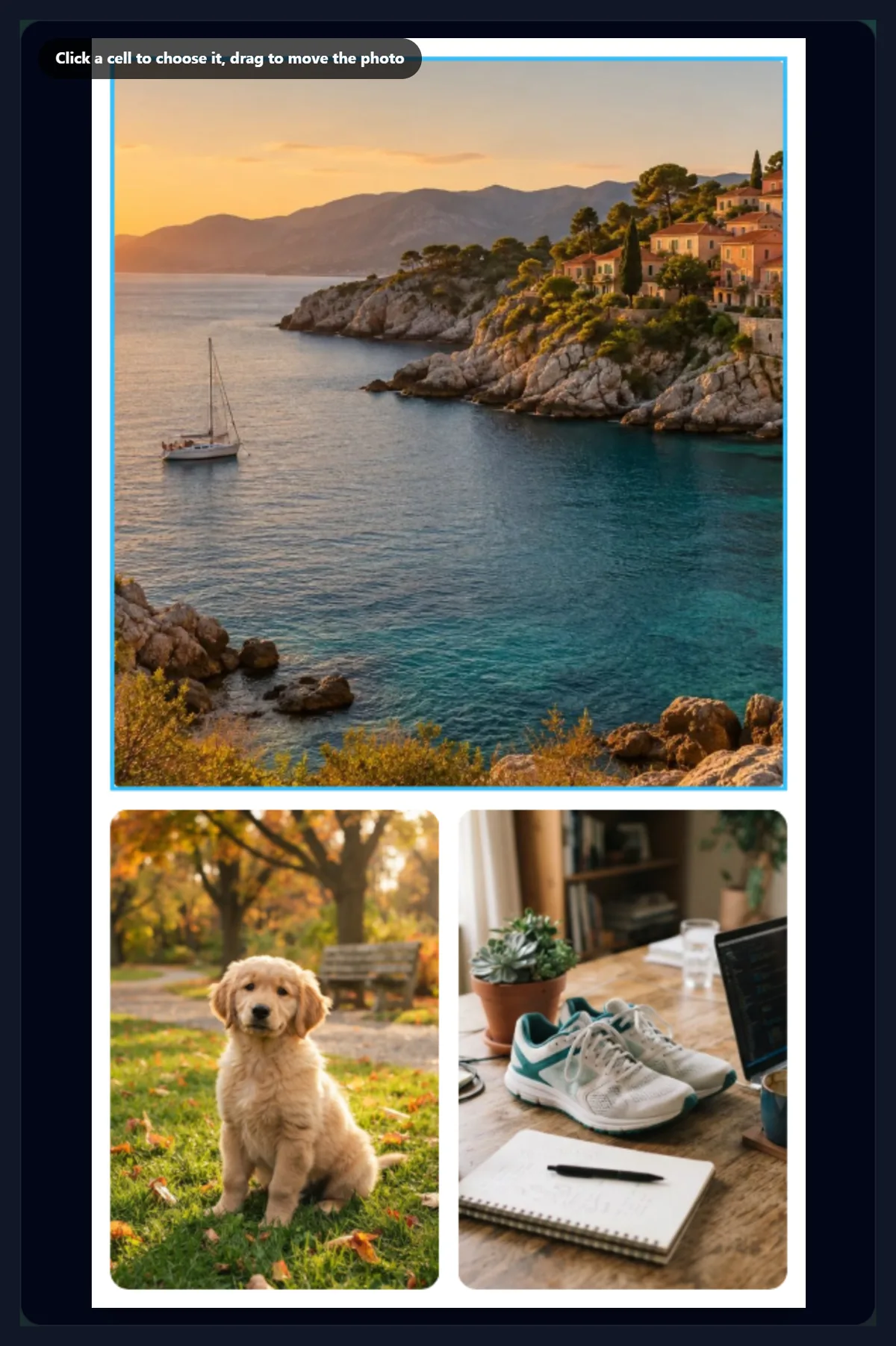
Story 1080 × 1920 with 1 on top and 2 below, a 28 px gap and 28 px corners.
JPG, PNG or WebP?
JPG for photo grids: it is the smallest for photos and every app accepts it; at 92% quality the 6 grid made a 286.8 KB file at 1080 × 1080. PNG keeps every pixel and is much larger for photos, but keeps transparency when the background is clear. WebP is smaller still, and is accepted by most websites but not by every app.
The quality slider trades size for detail on JPG and WebP; 85 to 92% is hard to tell from the original on a phone screen.
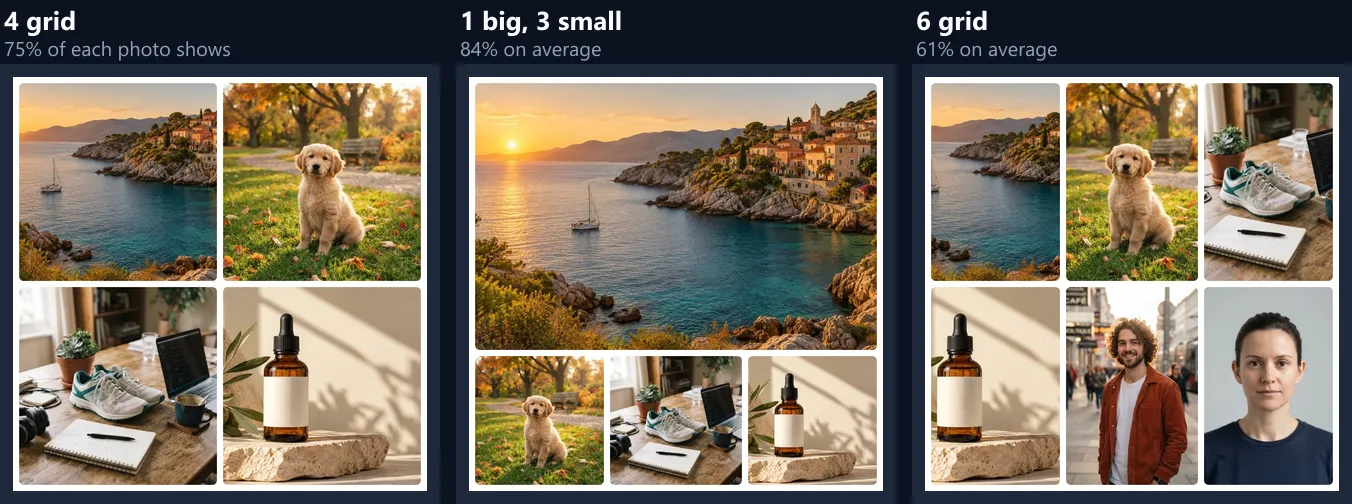
Three layouts with the same six photos, each downloaded as a 1080 × 1080 JPG.
How do I change the order of photos?
Photos fill the cells in the order they were added: the first goes in the first cell, which in layouts with a big cell is the big one. To change which photo is where, choose a cell and press Next photo here until the photo you want is in it, or use Replace to put a new file in it.
Put the strongest photo in the big cell, and alternate light and dark or busy and calm photos so neighbours do not blend into each other.
What is the difference between a grid and a collage?
A grid gives every photo a cell of a fixed shape, lined up with even gaps, so every photo is cropped to its cell; that looks tidy and balanced, and suits products, portfolios, before-and-after comparisons and sets of similar photos. A montage instead keeps each photo whole and fits the photos together in rows of different widths.
For photos that must not be cropped at all, the image montage tool arranges up to 30 of them in justified rows instead.
What are photo grids used for?
Before-and-after pairs and product sets; trip, event and wedding highlights in one post; portfolios and mood boards; recipe steps; real-estate and room views; team pages; and collage posts for a feed. A grid is also a quick way to send several photos as one image in a chat or an email.
Two photos side by side are the simplest comparison: same size, same crop, a thin gap, and the eye does the rest.
Can I print a photo grid?
Yes. Make the grid from your largest originals, choose PNG or JPG at high quality, and pick a size whose shape matches the print: Square 1080 for square prints, Portrait 1080 × 1350 for 4:5 prints such as 8 × 10 inches. At 1080 px wide, a print of about 9 cm (3.6 inches) is sharp at 300 dpi; larger prints look softer close up.
A white background and a gap of 20 px or more gives a printed grid a classic gallery look, and leaves room for trimming.
Are my photos uploaded?
No. The photos are opened, placed and drawn in your browser, and the file is made there too; nothing is sent to HueFold or anyone else, and no account is needed. Very large photos are drawn from their full size, so the grid is as sharp as your originals allow.
It takes JPG, PNG and WebP photos of up to 40 megapixels, and reads each photo's orientation tag, so phone photos stored sideways are placed upright.
Why are my photos cropped so much?
Because the cell's shape is far from the photo's. A landscape in a tall cell, or a portrait in a wide one, loses most of its width or height. Choose a layout whose cells match your photos, change the canvas size, or zoom and drag each photo so the part that matters is inside.
If a photo looks soft, it is smaller than its cell: use a larger original, or a layout where that photo gets a smaller cell. If the download looks different from the preview, check the format: JPG has no transparency, so a clear background becomes the background colour.
The 6 grid as downloaded (293,733 bytes as JPG), shown as WebP.The 5 mosaic.Story size with wide gaps.The 9 grid.Three layouts, same photos.
Frequently asked questions
How do I make a photo grid?
Add photos, pick a layout and size, frame each photo and download.
How many photos can a grid have?
Two to nine; up to nine photos can be added.
Can I make an Instagram grid post?
Yes. Choose Square 1080 or Portrait 1080 × 1350.
Can I move a photo inside its cell?
Yes. Click the cell and drag; use Zoom for a closer crop.
Can I add space between photos?
Yes. The gap goes from 0 to 80 px, with any background colour.
Can I round the corners?
Yes, from square to 80 px.
Are my photos uploaded?
No. The grid is made in your browser.
Which format should I download?
JPG for photos; PNG for transparency; WebP for the smallest file.