Resize Image Pixel Online
Set an exact width and height in pixels, keep the proportions or choose how to handle a new shape, and download a JPG, PNG or WebP. The resizing runs in your browser, so the image never leaves your device.
Updated

How do you resize an image to exact pixels?
Open the image, type the width you need and let the height follow, or unlock the ratio and type both. If the new size has a different shape from the photo, choose Fill + crop, Fit + border or Stretch. The preview shows exactly what will be saved, and the download is the size you typed, to the pixel.
Pixel size is what screens, websites and apps care about. A profile picture, a product tile or a blog header is shown at a certain number of pixels, and an image much larger than that wastes data while one much smaller looks soft. Resizing to the size you will display is the single most effective way to make an image load faster, and it often fixes upload errors about dimensions.
The examples use a 1536 × 1024 product photo of 319,721 bytes. Every size and file on this page came from the tool above.
How to resize an image in pixels
- Open the image Choose a JPG, PNG or WebP, drop it on the preview, or use the sample. Its current pixel size appears underneath.
- Type the size Enter a width; with the lock closed the height follows. Or use a preset: 1920 or 1280 px wide, 1080 × 1080, 800 px wide, 512 × 512.
- Handle a new shape When width and height change the shape, choose Fill + crop, Fit + border (pick the colour) or Stretch.
- Choose a format and download JPG for photos, PNG for graphics and transparency, WebP for small web images. Set the quality for JPG and WebP, then download.
Resize a photo to 1080 × 1080 and to an exact width
A real recording of this tool: the sample becomes a 1080 × 1080 square, is shown fitted and stretched, is given an exact 1200 px width, and is downloaded.
- The sample product photo opens at 1536 × 1024 pixels.
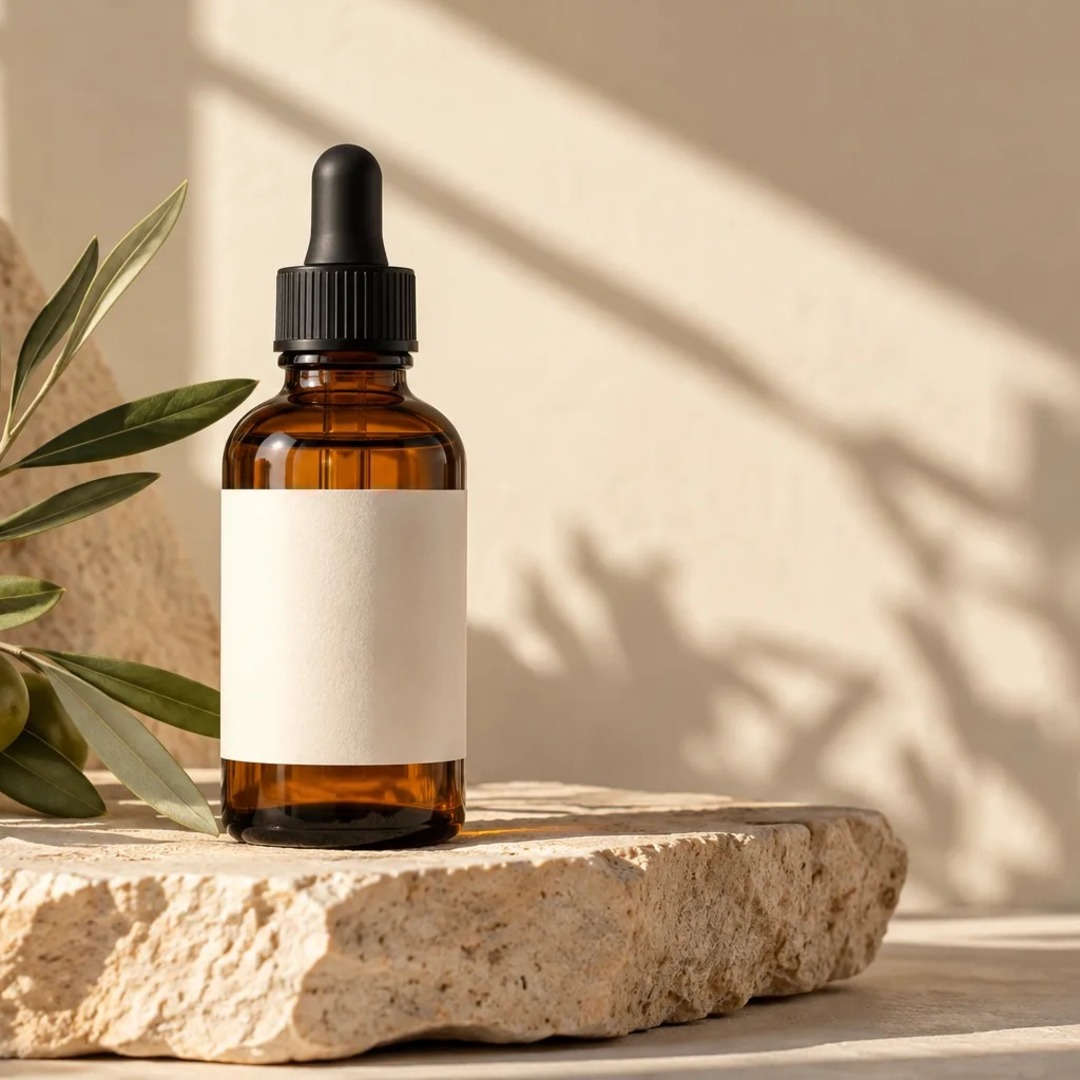
- The 1080 × 1080 preset fills the square and crops the sides.
- Fit + border shows the whole photo; Stretch distorts it; Fill + crop is chosen again.
- An exact width of 1200 pixels is typed.
- The resized file is downloaded.
How much smaller is the file when you resize?
Usually much smaller, because the number of pixels falls with the square of the width. We resized the sample to four widths and saved each as a 92% quality JPG. At its full 1536 × 1024 it was 260,996 bytes. Three quarters of the width (1152 × 768) gave 153,997 bytes, 59%. Half the width (768 × 512) gave 82,356 bytes, 32%. A quarter (384 × 256) gave 27,416 bytes, about 11%.
Halving the width leaves a quarter of the pixels, but the file fell to about a third rather than a quarter. Each remaining pixel carries more of the picture's detail, so it costs more bytes to describe. The lesson still holds: if an image will be shown 768 pixels wide, sending it at 1536 makes the visitor download three times the data for no visible gain.
| Width | Size | Bytes | Share of full size |
|---|---|---|---|
| 1536 px | 1536 × 1024 | 260,996 | 100% |
| 1152 px | 1152 × 768 | 153,997 | 59% |
| 768 px | 768 × 512 | 82,356 | 32% |
| 384 px | 384 × 256 | 27,416 | 11% |
How do you keep the aspect ratio?
Leave the lock closed. Typing a width then sets the height to keep the photo's proportions, and typing a height sets the width. The sample is 3:2, so 1200 pixels wide gives 800 pixels tall. The presets that give only a width, such as 1920 or 800 px wide, work the same way.
Open the lock when the destination demands a particular shape, such as a 1080 × 1080 square or a 512 × 512 icon. The tool then asks what to do with the part of the photo that does not fit.
Fill, fit or stretch: what is the difference?
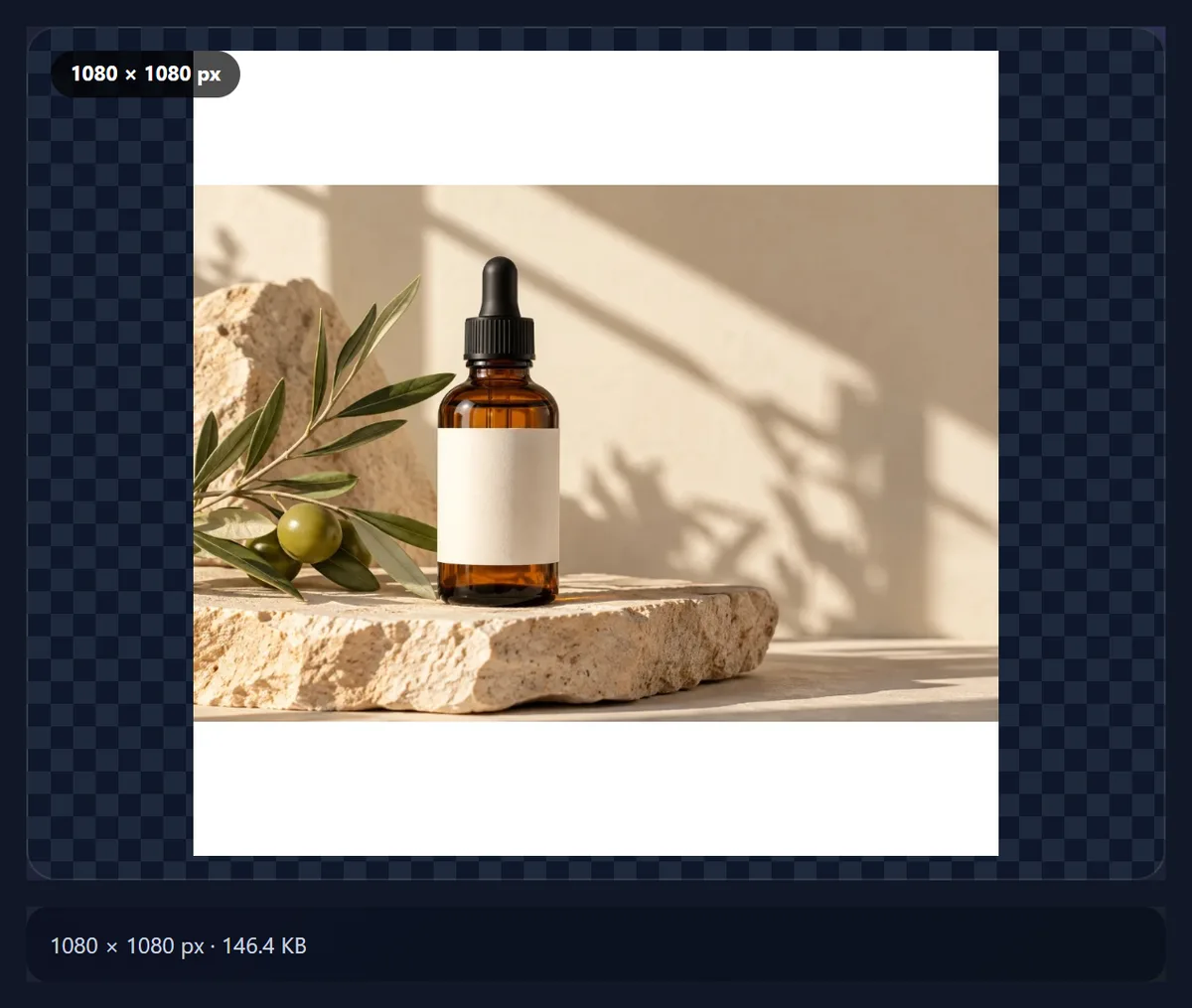
Fill + crop scales the photo until it covers the whole new size, then trims what spills over, keeping the centre. Nothing is distorted, but the edges of a wide photo are cut off in a square. Fit + border scales the photo until it fits inside the new size and fills the rest with a solid colour, so the whole picture stays visible with bars at the sides or top and bottom. Stretch squeezes the photo into the new shape, which distorts it; it is only right for patterns, textures or images that were already distorted.
The figures show the sample product photo made into a 1080 × 1080 square all three ways. For a product, Fit + border on white usually suits a shop page; for a portrait, Fill + crop keeps the face large.
| Mode | What happens to the photo | Good for |
|---|---|---|
| Fill + crop | Scaled to cover, centre kept, sides trimmed | Portraits, social posts |
| Fit + border | Scaled to fit, gaps filled with a colour | Product shots, documents |
| Stretch | Squeezed to the new shape, distorted | Textures and patterns only |
Which format should you download?
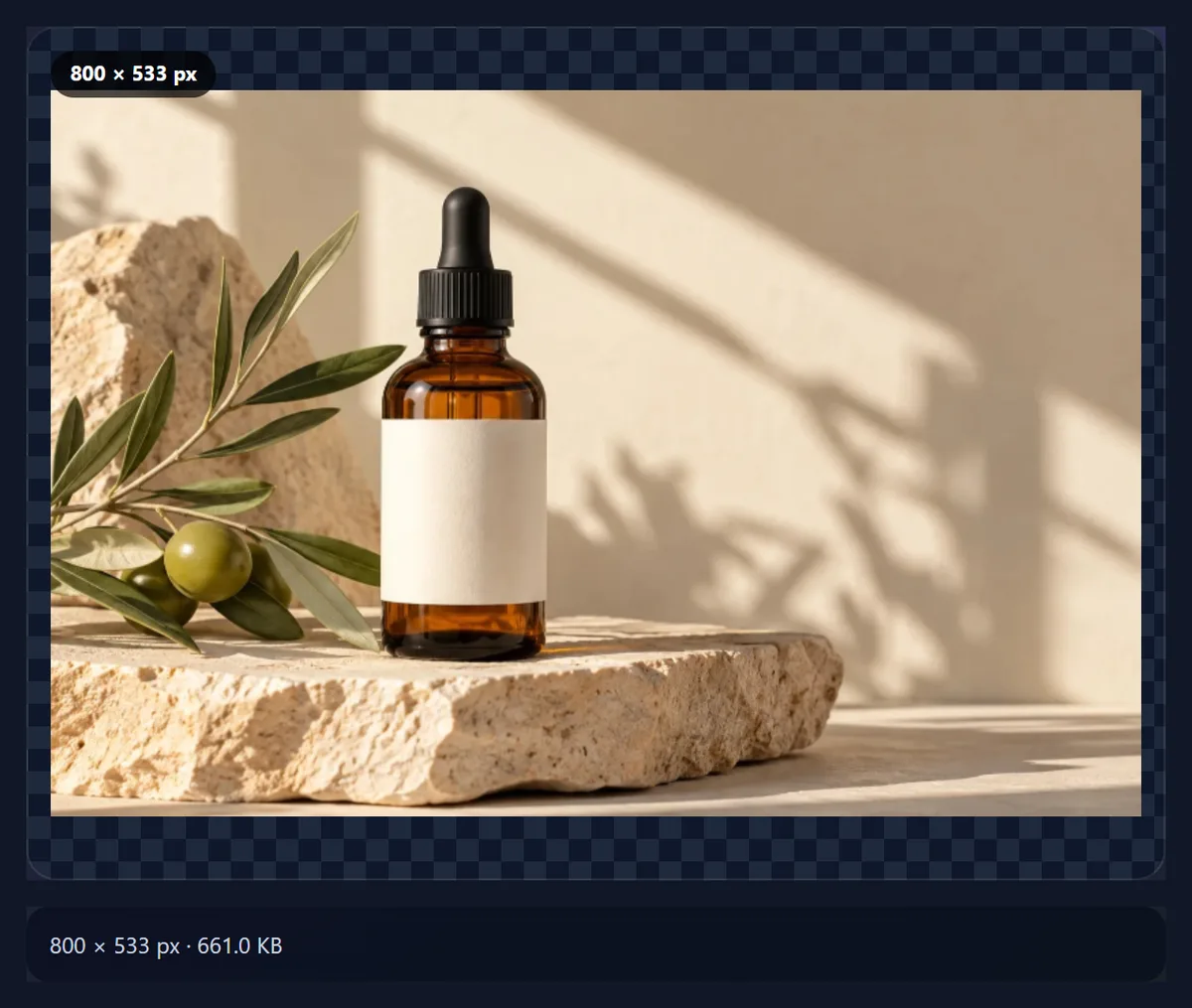
JPG for photographs: small, and accepted everywhere. The 1080 × 1080 square of the sample was 164,299 bytes at 92% quality. PNG for screenshots, logos, text and anything with transparency: it is lossless, which keeps edges crisp but makes photographs large; the sample at 800 pixels wide was 676,895 bytes as PNG. WebP for images you put on your own website: smaller than JPG at the same quality and able to keep transparency, but not accepted by every upload form.
The quality slider applies to JPG and WebP, from 40% to 100%, with 92% as the starting point. Lower it if you also need a smaller file, or use the compression tools to hit a size in KB exactly.
Can you make an image bigger in pixels?
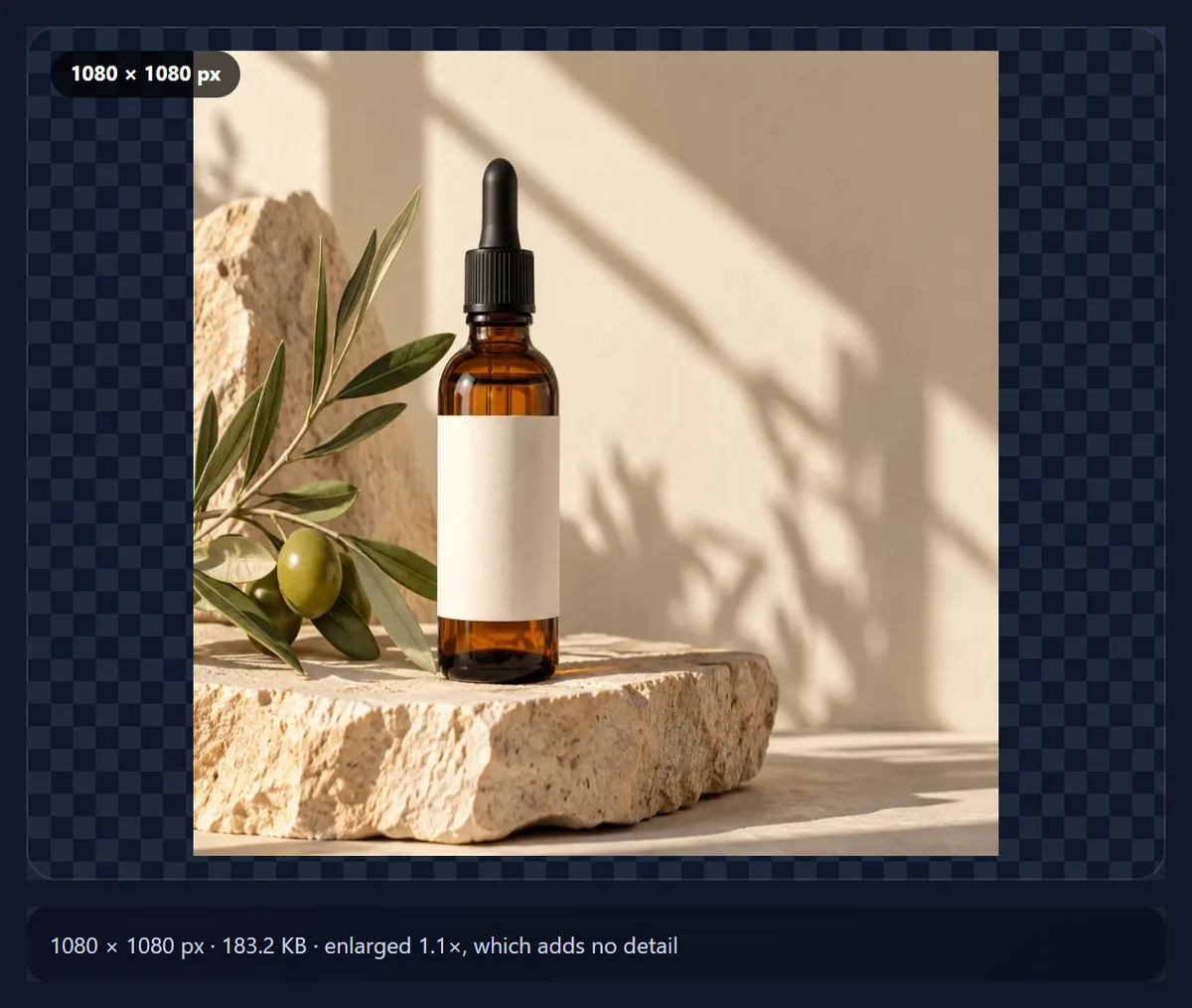
You can, and the tool will tell you how much it enlarged the picture, because enlarging adds no detail. A 400-pixel image resized to 1600 pixels has sixteen times as many pixels, all interpolated from the original sixteenth. It will look soft next to a photo that was taken at that size. Small enlargements are rarely noticeable; large ones are.
If you need a bigger version of a small image, the image upscaler uses a sharper filter for enlargements and shows the result against a plain stretch, so you can judge it at 100% before saving.
How does the resizer keep a reduced image sharp?
By shrinking in steps. A browser canvas resizes with a smoothing filter that looks at a small neighbourhood of pixels. Asked to make a 4000-pixel photo 400 pixels wide in one jump, it reads only a fraction of the original pixels for each new one and skips the rest, which turns fine patterns such as fabric, brickwork or text into jagged edges and moiré. The tool halves the picture repeatedly until it is within a factor of two of the target, then makes the final step, so every original pixel contributes to the result.
The difference is most visible on screenshots, product photos with woven or printed textures, and anything with thin lines. When enlarging, the browser's smoothing filter is used directly; for big enlargements the image upscaler's Lanczos-3 filter keeps edges cleaner.
Pixels, resolution, DPI and file size: what is the difference?
These words are often mixed up, and upload forms do not always use them carefully. Pixel dimensions are the width and height in pixels, which is what this tool sets. Resolution usually means the same thing on screens, but in printing it means DPI, the number of pixels per inch on paper. File size is how many bytes the file takes, which depends on the pixels, the format and the compression. When a form says “resolution 600 × 600”, it means pixels; when it says “300 DPI”, it is talking about printing; when it says “under 100 KB”, it is talking about the file.
| Term | Measured in | Changes the picture? | Tool |
|---|---|---|---|
| Pixel dimensions | Pixels (e.g. 1080 × 1080) | Yes | Resize Image Pixel Online |
| Print size and DPI | cm or inches at a DPI | Only the pixels needed for the size | Resize Image in Centimeter |
| File size | KB or MB | Through quality and pixels | Reduce Image Size in KB |
What are the limits, and is anything uploaded?
The tool opens JPG, PNG and WebP files up to 40 megapixels; convert iPhone HEIC photos to JPG first. Results are capped at about 16.7 million pixels, the canvas limit of Safari on iPhones and iPads, which still allows 4096 × 4096 or 5000 × 3300. Large reductions are made in halving steps rather than one jump, which avoids the jagged, shimmering edges a single big step can leave on fine detail.
Nothing is uploaded. Opening, resizing and saving all happen in your browser tab, and the new file is written from the pixels, so it carries no EXIF metadata such as camera details or GPS location.
Why was my resized image rejected or blurry?
If a site rejects it, check whether it wanted exact dimensions, a minimum size, or a file size limit as well. The line under the controls shows the final width, height and file size. To hit a size in KB after resizing, open the result in one of the compression tools.
If it looks blurry, it was either enlarged (the tool says so) or displayed larger than its pixel size by the website. Resize to the size it will be shown at, or for high-density screens to twice that size.
Frequently asked questions
How do I resize an image to a specific pixel size?
Open it, type the width and height in pixels, choose how to handle a new shape, and download.
How do I keep the proportions?
Leave the lock closed. Typing the width then sets the height automatically.
How do I make an image 1080 × 1080?
Press the 1080 × 1080 preset, then choose Fill + crop to keep it full or Fit + border to keep the whole photo.
Will resizing reduce the file size?
Usually. Halving the width of the sample cut its JPG from 260,996 to 82,356 bytes.
Can I resize without losing quality?
Reducing the size keeps the picture sharp. Enlarging cannot add detail, and the tool tells you when it enlarges.
Which formats can I download?
JPG, PNG or WebP. WebP is unavailable in the few browsers that cannot encode it.
Is my image uploaded?
No. Resizing happens on your own device.
What is the largest size I can make?
About 16.7 million pixels, such as 4096 × 4096, so the tool also works on iPhones and iPads.
Does DPI change the pixel size?
No. For screens only pixels matter. To set a printed size, use the centimetre resizer, which writes the DPI.
Is it free?
Yes, with no account, watermark or limit.
Related tools
- Resize Image in Centimeter — Set a printed size in cm at a chosen DPI.
- Compress Image to 100KB — Bring the resized image under a size limit.
- Resize Image for YouTube Banner — 2560 × 1440 with the safe area marked.
- AI Image Upscaler — Enlarge a small image with a sharper filter.
- Crop Image — Choose the framing before resizing.
- Reduce Image Size in KB — Any KB target at the best quality that fits.