Photo Frames
Put a frame around a photo in seven styles: a gallery mat, an instant print with a caption, a bevelled classic frame, a film strip, a rounded card, a double line or a neon glow. Pick the colour and thickness and download it. The frame goes around your picture, never over it.
Updated

How do you add a frame to a photo?
Open a photo, choose a frame style, set its colour and thickness and download. The frame is drawn around the picture, so the file grows by the frame's width and none of your photo is covered or cropped. Every frame is drawn by your browser in code (no stock frame images), so it fits a photo of any size and shape exactly, and nothing is uploaded.
Frame sizes follow the photo. Most styles are a fixed share of the photo's long side (the gallery mat is 11.5% on every side, the classic frame 7%), so a frame looks the same on a 600 px picture and a 6,000 px one. The instant print and film strip follow their real-world shapes: the instant print has a deep band below the picture for a caption, and the film strip has wide bands above and below for its sprocket holes.
The examples use one photo, a 1024 × 1024 px puppy in an autumn park. Every size and byte count below was produced by the tool above.
How to put a frame on a photo
- Open the photo Choose a JPG, PNG or WebP, drop it on the tool, or start with the sample. It is framed in your browser and never uploaded.
- Pick a frame Choose one of the seven styles. Each starts in its own colour; the swatches and the colour picker change it.
- Adjust it Make the frame thinner or thicker (40% to 200%) and, for the instant print, write a caption of up to 60 characters.
- Download Save the framed photo as JPG, PNG or WebP. The panel shows the new size and bytes first.
Try seven photo frames on one picture in the browser
A real screen recording of this page: a gallery mat, an instant print with a typed caption, a gold classic frame, the film strip and neon frames, a thicker frame, and the download.
- The sample photo opens in a gallery mat.
- The instant print is chosen and a caption is typed.
- The classic frame is switched to gold.
- The film strip and neon glow frames are tried.
- The thickness slider makes the frame wider.
- The framed photo is downloaded.
Which photo frames can you choose?
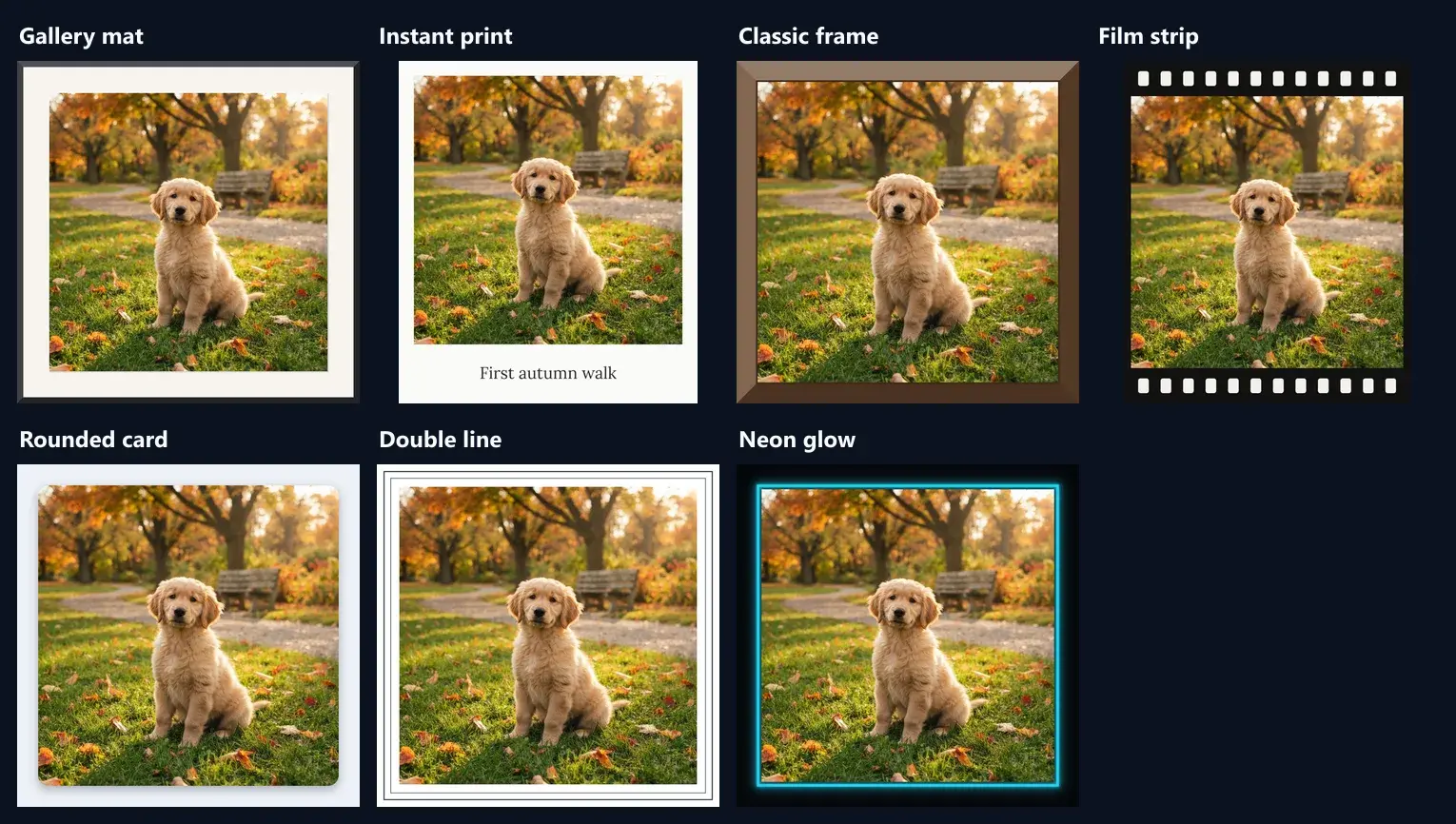
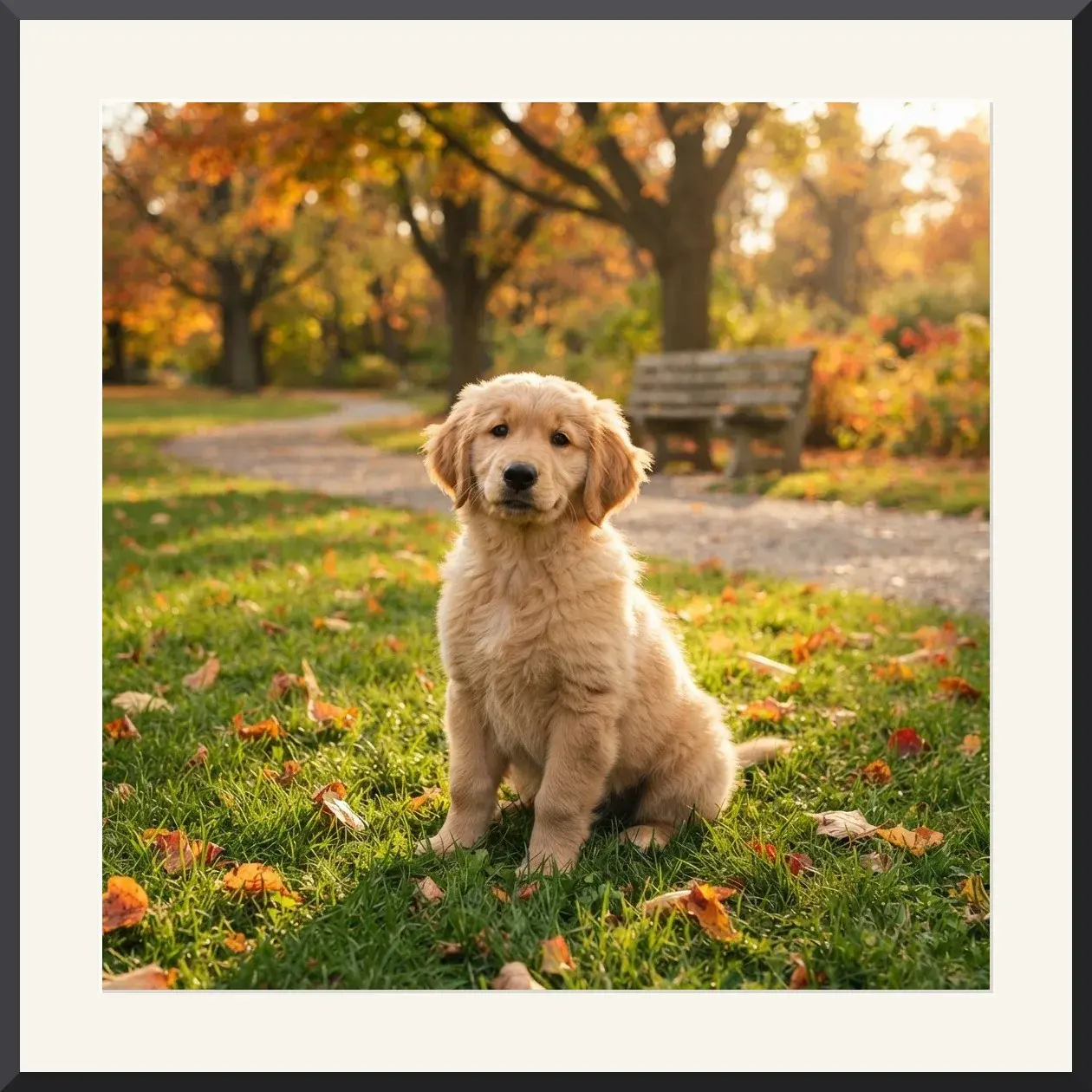
Seven, each drawn differently. Gallery mat puts a wide mat (cream by default) inside a thin dark frame, with a light bevelled cut edge around the photo, like a print shop's framing. Instant print gives even white sides and a deep bottom band where a caption is written in a serif font. Classic frame is a moulding lit from the top left, with a darker lip where it meets the picture; walnut, gold, black and white are one tap away. Film strip adds black bands with cream sprocket holes above and below.
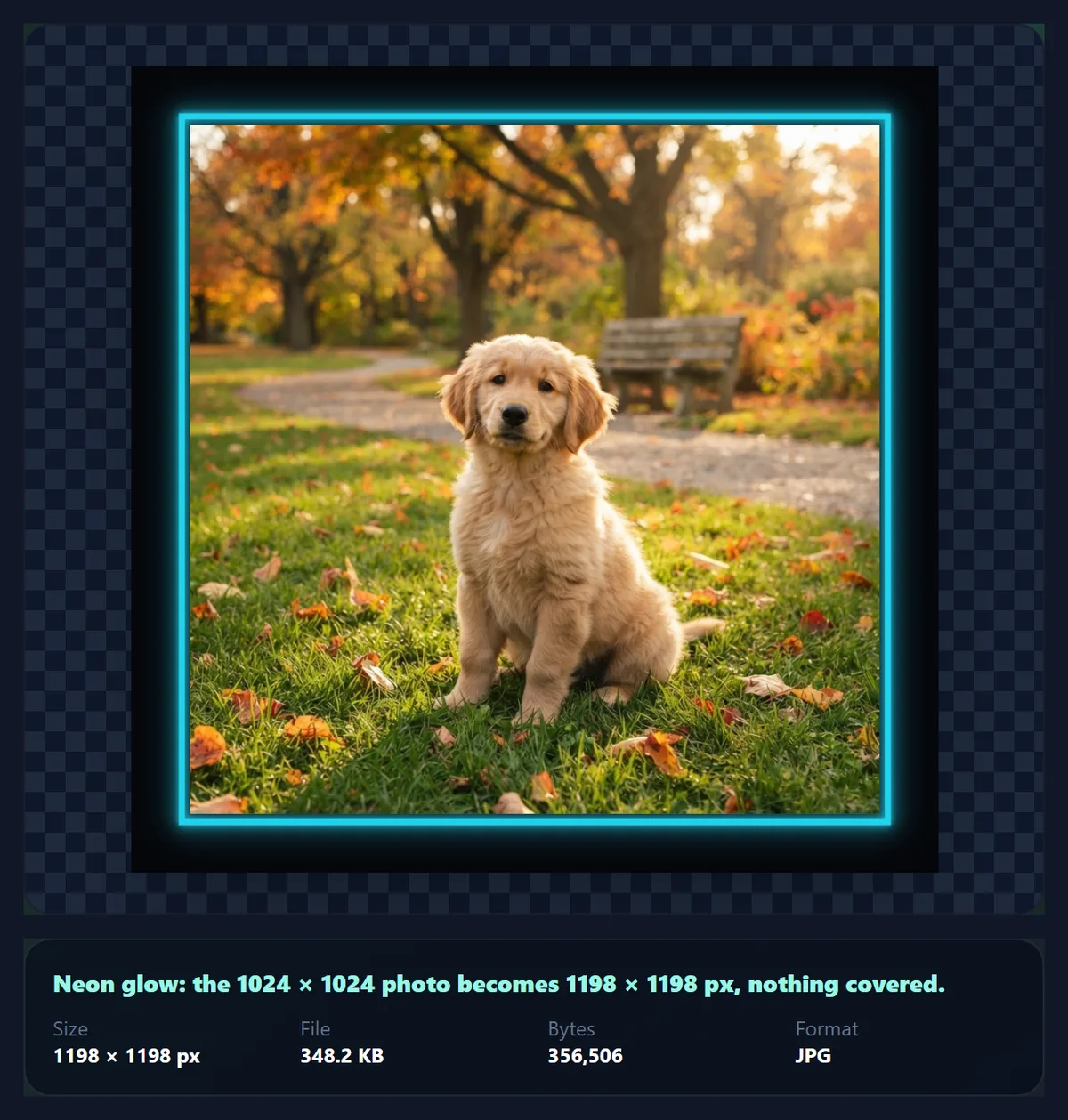
Rounded card rounds the photo's corners and floats it with a soft shadow on a plain backdrop. Double line sets two thin rules on a plain margin, in dark ink on light colours and light ink on dark ones. Neon glow draws a glowing outline in the colour you choose on a near-black backdrop.
- Gallery mat, instant print, classic frame, film strip.
- Rounded card, double line, neon glow.
- Any colour, thickness from 40% to 200%.
How much bigger does a frame make the photo?
The frame adds pixels around the photo; the photo's own pixels are untouched. On the 1024 × 1024 sample at the default thickness, the gallery mat added the most, 118 px on every side, for a 1260 × 1260 result with 51.4% more pixels. The classic frame and the rounded card each added 72 px a side (1168 × 1168, 30.1% more). The instant print added 56 px on three sides and 225 px below (1136 × 1305), and the film strip 133 px above and below but only 26 px at the sides (1076 × 1290).
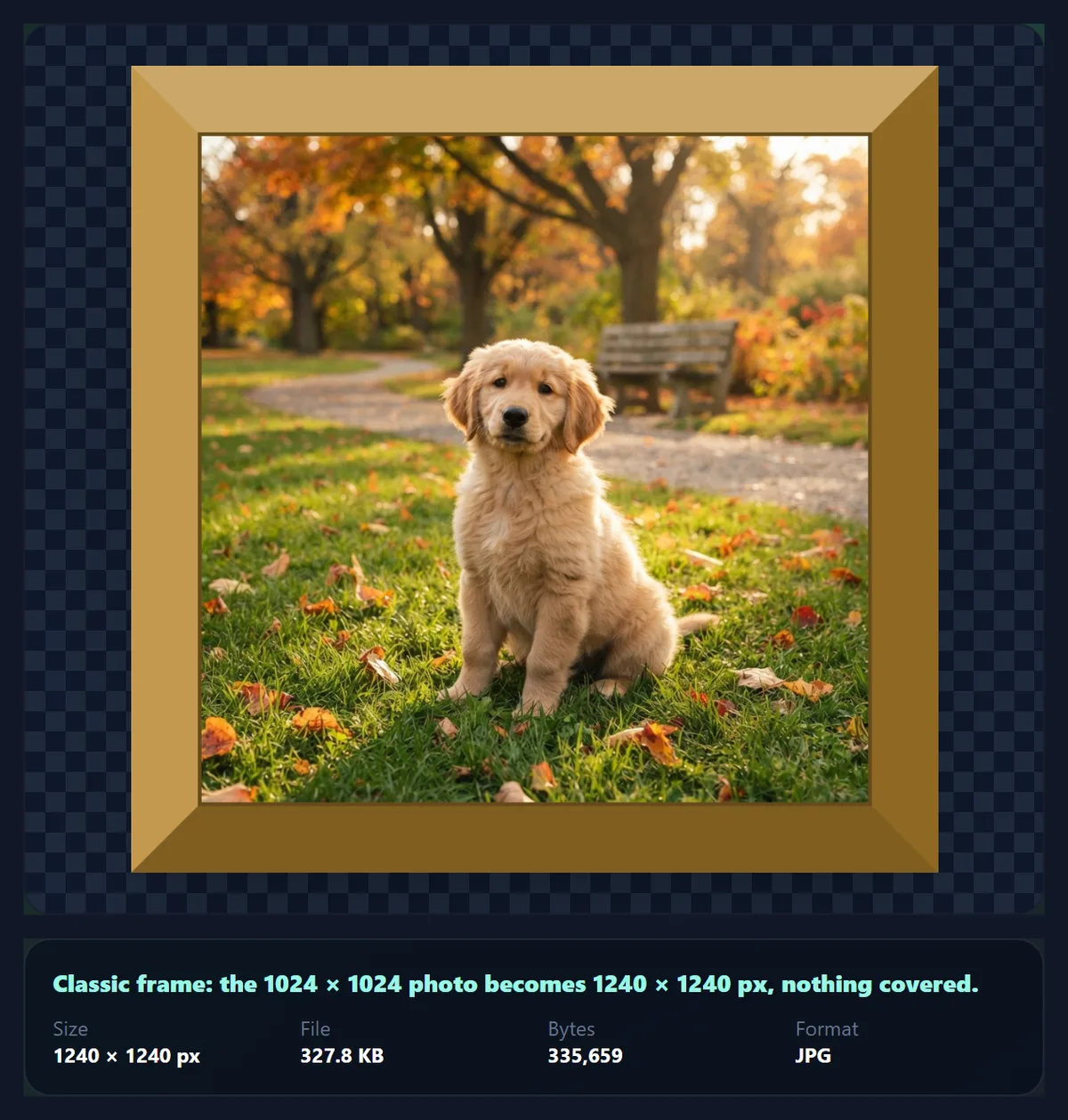
Thickness scales all of it: at 150% the classic frame became 108 px a side and the photo 1240 × 1240. If a site needs an exact final size, frame first and then resize the result with the pixel resizer, or crop the photo smaller before framing.
| Frame | Framed size | Extra pixels | JPG bytes |
|---|---|---|---|
| Gallery mat | 1260 × 1260 | 51.4% | 342,715 |
| Instant print | 1136 × 1305 | 41.4% | 322,251 |
| Neon glow | 1198 × 1198 | 36.9% | 356,506 |
| Film strip | 1076 × 1290 | 32.4% | 342,180 |
| Double line | 1178 × 1178 | 32.3% | 355,888 |
| Classic frame | 1168 × 1168 | 30.1% | 311,704 |
| Rounded card | 1168 × 1168 | 30.1% | 315,355 |
How do you make a photo look like an instant print with a caption?
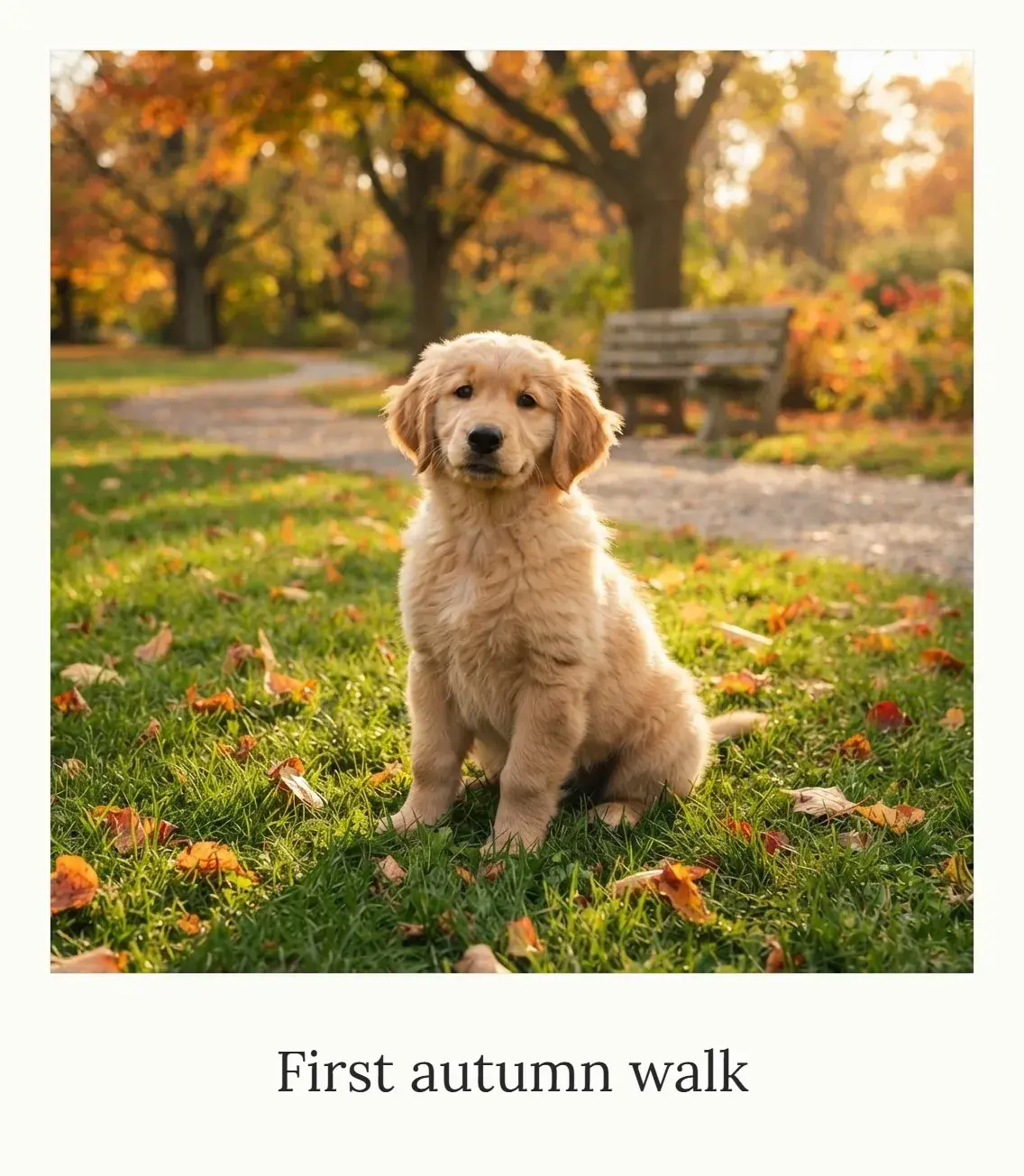
Choose Instant print and type a caption of up to 60 characters. The print has even white borders of 5.5% of the photo's width on the top and sides and a band of 22% below, the proportions people recognise from instant cameras. The caption is set in Lora, a serif typeface, centred in that band, and shrinks automatically if it would run wider than the picture.
The border colour can be changed too: black, a soft yellow or a pale blue are on the swatches. The text turns light on a dark border so it stays readable. On the sample, the print with the caption “First autumn walk” saved as a 1136 × 1305 px JPG of 322,251 bytes.
How do you change the frame colour and width?
Every style has a few colour swatches chosen for it, plus a colour picker for any shade. What the colour changes depends on the style: the mat for the gallery mat, the moulding for the classic frame, the backdrop for the rounded card, the margin for the double line and the glow for the neon frame. The film strip keeps its holes cream whatever the band colour.
The thickness slider scales the whole frame from 40% to 200% of its default width. The classic frame in gold at 150% is shown in the figure: its moulding, bevel and lip all grow together, so the frame keeps its proportions.
Which frame suits which photo?
A gallery mat makes almost any photo look considered, and suits portraits, art and products that should feel premium. The instant print suits casual, personal pictures and anything that needs a caption: a date, a name, a place. A classic frame suits traditional subjects such as family portraits, pets and landscapes, especially in walnut or gold. The film strip suits travel and street photos, and works best on landscape photos, whose shape matches a film frame.
For social posts and slides, the rounded card and the double line look clean and modern. Neon glow is for night photos, music and gaming posts, where a dark backdrop fits.
Can you print a framed photo?
Yes; the download is an ordinary image file. For printing, start from the largest photo you have and save as PNG or as JPG at a high quality, because the frame's lines and the caption look best without compression artefacts. Check the final pixel size against the print size at 300 pixels per inch: a 10 × 15 cm print needs about 1181 × 1772 px.
The frame here is a picture of a frame, drawn into the file. For a physical frame, print the photo without one, or with the gallery mat, which imitates the mat you would put inside a real frame.
Which files work, and is the photo uploaded?
The tool opens JPG, PNG and WebP up to 40 megapixels and saves JPG, PNG or WebP. The photo plus its frame is kept inside the canvas limit of phone browsers (about 16.7 megapixels), so a very large photo is scaled down just enough for its frame to fit. Nothing is uploaded and no account is needed; the saved file carries no EXIF data.
A transparent PNG does not stay transparent inside a frame: its clear areas show whatever colour the frame paints behind the photo, such as the mat, the band or the card.
Why does my caption look small, or the frame look thin?
The caption shrinks to fit the width of the picture, so a long caption on a narrow photo gets small. Shorten it, or use a wider photo. The frame's width is a share of the photo, so on a long, thin panorama the frame can look thin against the long side; raise the thickness.
If the download button stays greyed out, the photo has not opened; an error under the preview says why. The usual causes are a HEIC file or a photo above 40 megapixels.
Frequently asked questions
How do I add a frame to a photo online?
Open it above, pick one of the seven frames, set the colour and thickness and download. Free, no account.
Is my photo uploaded?
No. The frame is drawn in your browser; only the optional sample comes from HueFold.
Does the frame cover part of my photo?
No. It is added around the picture, so the whole photo stays visible and the file gets bigger.
Can I add a caption?
Yes, with the instant print frame: up to 60 characters, set in the band below the picture.
How do I make a polaroid-style photo?
Choose Instant print. It has white sides and a deep bottom band for a caption, like an instant camera print.
Can I change the frame colour?
Yes. Each style has swatches and a colour picker for any shade.
How much bigger does the photo get?
It depends on the style: from 30.1% more pixels (classic frame, rounded card) to 51.4% (gallery mat) at the default thickness.
Can I frame a PNG with transparency?
Yes, but the clear parts show the colour the frame paints behind the photo, so the result is not transparent.
Which format should I save?
JPG for sharing, PNG for printing or for the crispest lines and captions.
Does framing remove EXIF data?
Yes. The framed photo is written from pixels only, without camera details or location.
Can I just add a plain border?
Use Photo Borders for a single plain border of any width and colour.
Related tools
- Photo Borders — A plain border of any width and colour.
- Circle Crop — A round photo with a ring, for avatars.
- Photo Effects — Give the photo a look before framing it.
- Combine Images — Put several framed photos side by side.
- Add Text to Photo — Write on the photo itself, with a contrast check.
- Crop Image — Crop to a square or 4:5 before framing.
Do framed photos work in social feeds?
Yes, if the framed result has the shape the feed shows. A frame changes the picture's proportions: the square sample became 1136 × 1305 px as an instant print (a little taller than 7:8) and 1076 × 1290 px as a film strip. Feeds that show posts at a fixed shape such as 1:1 or 4:5 may then trim the edges of the frame, which looks careless.
Two fixes work. Choose a frame that is the same on every side (gallery mat, classic frame, rounded card, double line or neon) and the shape stays the same as the photo's. Or crop the photo first with Crop Image so that, with the frame added, it lands close to the shape you need, then check the size in the result panel before downloading.