Combine Images
Put two to ten photos together as one picture: side by side at the same height, stacked at the same width, or in a grid of equal cells. Set the gap, the margin and the background colour, reorder them, and download a single JPG, PNG or WebP. Nothing is uploaded.
Updated

How do you combine images into one?
Add the photos, choose side by side, stacked or a grid, and download one image. Side by side gives every photo the same height, stacked gives every photo the same width, and a grid puts them in equal cells. A gap, a margin and a background colour separate them, and the arrows under each thumbnail change the order. Everything is drawn by your browser, so the photos are never uploaded.
Combining is for comparisons (before and after, two products, two options), for telling a short story in one post, and for sending several pictures where only one is allowed. The tool's one rule is that nothing is enlarged: the shared height, width or cell size comes from the smallest photo, so no picture is stretched beyond its real pixels and the result stays sharp.
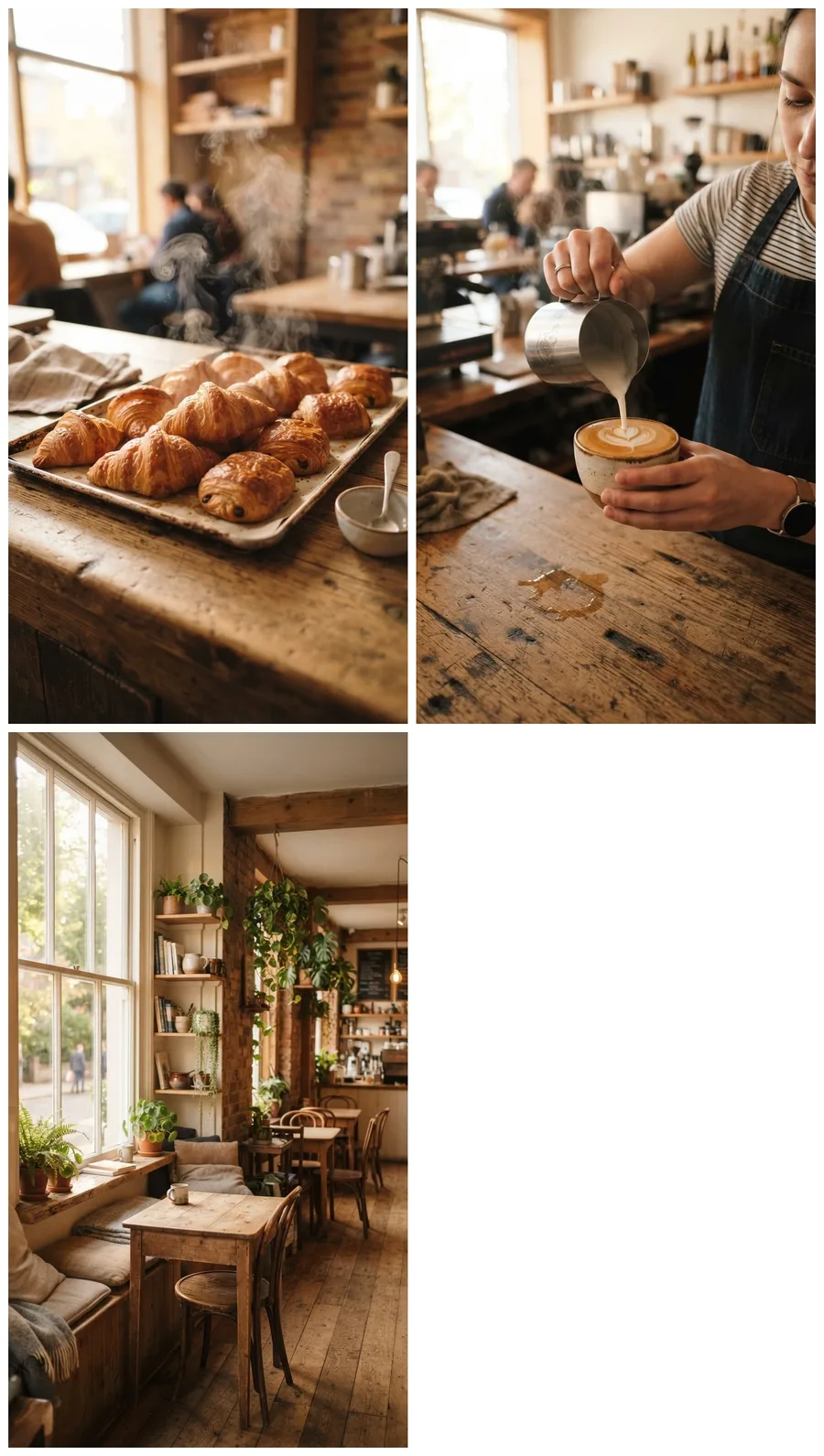
The examples use three portrait café photos of 768 × 1376 px each, plus a 1200 × 896 px landscape photo of a bakery for mixing shapes. Every size and byte count below was produced by the tool above.
How to combine photos into one image
- Add the photos Choose or drop up to ten JPG, PNG or WebP files, or try the three sample café photos. They stay on your device.
- Pick a layout Side by side, Stacked or Grid (2 to 5 columns, each picture filling its cell or fitted whole).
- Arrange and style Reorder with the arrows under each thumbnail, set the gap (0–80 px), the outer margin (0–120 px) and the background colour.
- Download Choose the longest side (1600, 2400 or 4096 px) and the format, check the size in the panel and download one image.
Combine three photos side by side, stacked and in a grid
A real screen recording of this page: three café photos side by side, stacked, in a three-column grid with a wider gap on a dark background, reordered and downloaded as one image.
- Three sample café photos open side by side.
- The layout changes to Stacked.
- Grid is chosen with three columns.
- The gap widens to 40 px on a dark background.
- The first photo is moved later in the order.
- The combined image is downloaded.
Side by side, stacked or grid: which layout should you use?
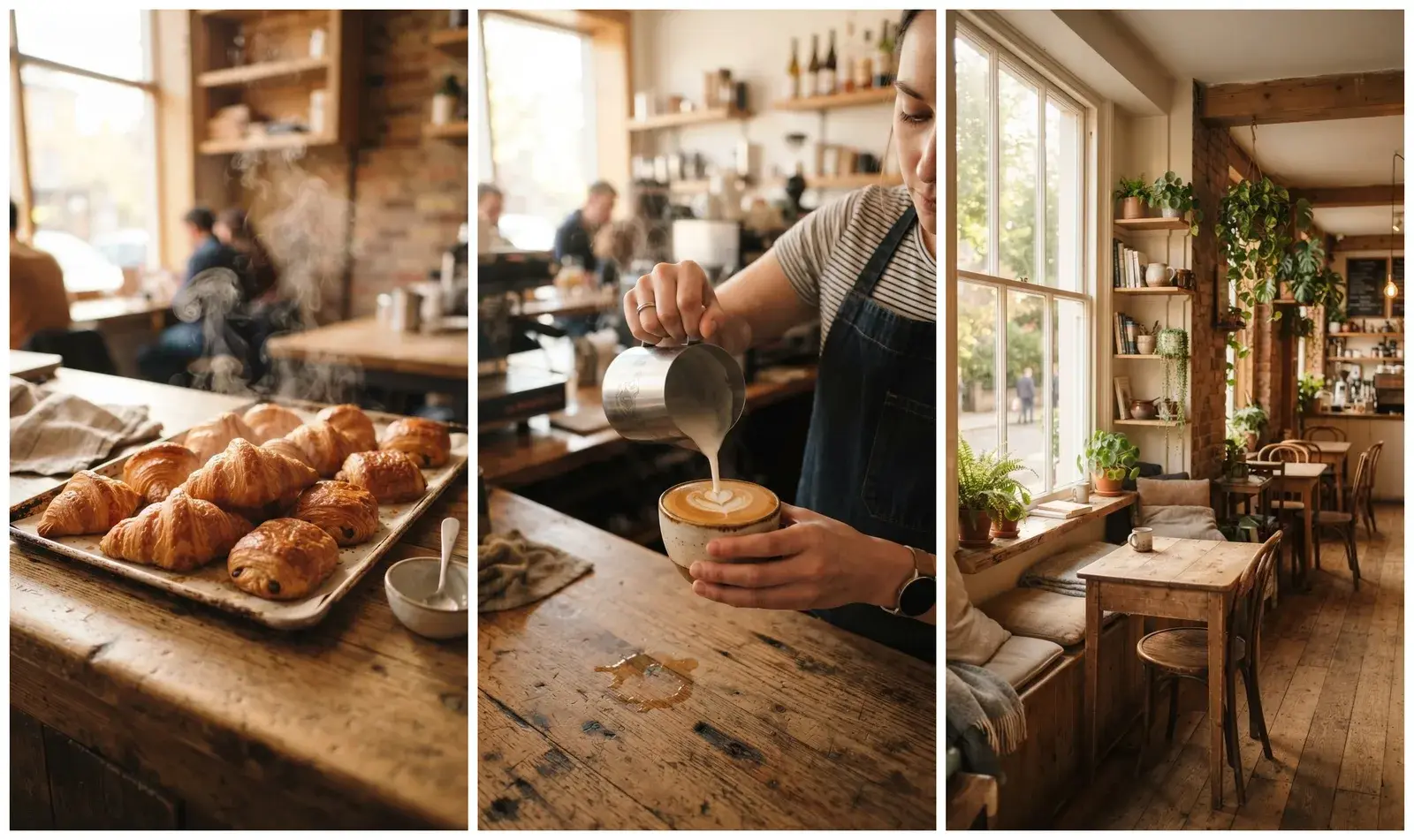
It depends on the photos' shape and where the result goes. Side by side suits portrait photos and wide destinations: the three café photos made a 2368 × 1408 px picture, 3.33 megapixels. Stacked suits landscape photos and tall destinations such as stories; for the three portrait photos it made a very tall strip, which the 4096 px limit scaled to 782 × 4096. A grid suits four or more photos, or a mix; with two columns, the three café photos made two rows, 1584 × 2800 px, with an empty cell filled by the background.
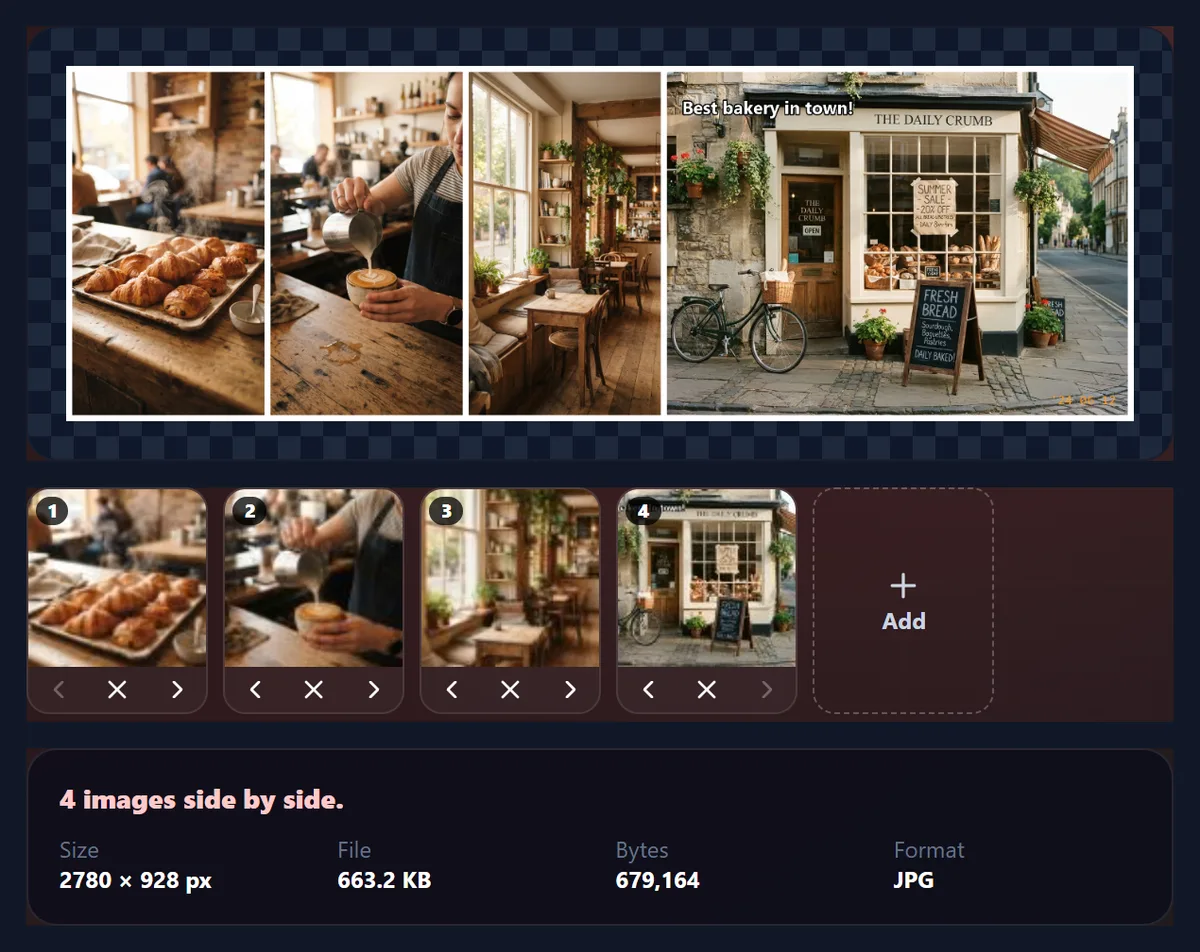
Mixing shapes is where the rule about matching sizes shows. Adding the landscape bakery photo side by side set the shared height to its 896 px, the smallest of the four, so each café photo was drawn 500 px wide and the result was 2780 × 928 px.
| Layout | Output size | Megapixels | JPG bytes |
|---|---|---|---|
| Side by side | 2368 × 1408 | 3.33 | 611,615 |
| Stacked (scaled to 4096 px) | 782 × 4096 | 3.20 | 589,101 |
| Grid, 2 columns | 1584 × 2800 | 4.44 | 628,672 |
| Side by side + a landscape photo | 2780 × 928 | 2.58 | 679,205 |
How does the tool make photos of different sizes fit together?
By scaling, never by stretching. Side by side, every photo is scaled to the height of the shortest one, keeping its own proportions, so photos of any width line up top and bottom. Stacked, every photo is scaled to the width of the narrowest one. In a grid, every cell gets the median shape of the photos, at the largest size every photo can fill without being enlarged; each photo then either fills its cell (cropped from the centre) or fits inside it whole with background around it.
If the result would be larger than the longest side you chose, or than the 16.7 million pixels a phone browser's canvas can hold, all the pictures shrink together. The gap and the margin do not: 16 px stays 16 px. Large reductions are done in halving steps, which keeps fine detail from turning into moiré.
- Side by side: shared height = the shortest photo.
- Stacked: shared width = the narrowest photo.
- Grid: equal cells; Fill cell crops, Fit whole letterboxes.
- Nothing is ever enlarged.
How do you add space between the pictures?
The Gap slider puts 0 to 80 px between neighbouring pictures, and Outer margin puts 0 to 120 px around the whole set. Both are filled with the background colour, white by default, or any colour from the picker; a dark background makes a gallery feel, white a clean catalogue look. With the gap and margin at 0, the photos touch edge to edge.
These are exact pixels in the downloaded file. On the side-by-side café image, the 16 px gap and margin account for 64 of its 2368 px of width (two gaps and two margins) and 32 of its 1408 px of height.
How do you change the order of the photos?
Use the arrows under each thumbnail to move it earlier or later, and the × to remove it. The order runs left to right side by side, top to bottom when stacked, and in reading order (left to right, then down) in a grid. Add more photos with the Add tile, up to ten; Start again clears them all.
For a before-and-after, put the before photo first so it lands on the left (or on top), where people look first.
How do you make a photo grid?
Choose Grid and 2, 3, 4 or 5 columns; the rows follow from the number of photos. Fill cell crops each photo from its centre to the cell's shape, so the grid is perfectly even; Fit whole keeps each photo complete and pads it with background, which suits photos whose edges matter, such as screenshots or documents.
A grid of photos that all have the same shape looks the same as side by side when there is only one row: three equal photos in three columns are exactly the side-by-side picture. A last row that is not full is left as background.
How do you make a before-and-after image?
Add the two photos with the before photo first, choose Side by side for photos taken in landscape, or Stacked for portrait photos on a phone screen, and keep a small gap so the two read as separate pictures. Because both are scaled to the same height (or width), they line up even when one was taken closer or at a higher resolution.
For the comparison to be fair, the two photos should show the same view from the same distance; crop them to the same shape first with Crop Image if one is wider. Then label them: Add Text to Photo can put “Before” and “After” on the combined image, and its contrast check makes sure the labels can be read on both halves.
Can you combine screenshots?
Yes, and two settings help. Choose PNG, which keeps text in screenshots perfectly sharp, where JPG would blur its edges slightly. In a grid, choose Fit whole rather than Fill cell, so no part of a screenshot is cropped away. Phone screenshots of the same device share a size, so they line up exactly side by side; mixing a phone and a desktop screenshot works too, but the desktop one will be scaled down to the phone's height.
What size and format is the combined image?
The panel shows the exact pixel size and bytes before you download. Choose the longest side the result may have: 1600 px for chat and email, 2400 px for most social posts and web pages, or 4096 px (the default) for the most detail a phone browser can safely handle. Save JPG for photos (90% quality by default), PNG for screenshots and graphics with sharp text, or WebP for the smallest file on the web.
If a site also has a KB limit, run the combined image through Reduce Image Size in KB afterwards.
Which files work, and are the photos uploaded?
The tool opens JPG, PNG and WebP files up to 40 megapixels each, up to ten at a time. Nothing is uploaded and no account is needed: the photos are decoded, arranged and saved in your browser tab. The combined image carries no EXIF data, so no camera details or locations are passed on. HEIC photos from recent iPhones need converting to JPG first.
Why is one picture tiny, or the result smaller than expected?
One tiny picture means one photo is much smaller than the rest. Everything is matched to the smallest photo, so a 400 px wide photo among 4000 px ones pulls the whole set down. Replace it with a larger version, or crop the large photos so their shapes match.
A smaller result than expected means the longest-side limit or the canvas limit applied; the summary line says when the pictures were scaled and by how much. Choose 4096 px, or use fewer photos. If a photo will not open, an error under the thumbnails names the file and the reason.

Frequently asked questions
How do I combine two photos into one?
Add both above, choose Side by side or Stacked, set the gap and download one image. Free, no account.
How many images can I combine?
Two to ten at a time.
Are my photos uploaded?
No. They are combined in your browser; only the optional sample photos come from HueFold.
Can I combine photos of different sizes?
Yes. They are scaled to the same height (side by side) or width (stacked), never stretched or enlarged.
How do I put photos side by side with a white line between them?
Choose Side by side, keep the white background and set the gap to the line width you want.
Can I make a photo grid?
Yes. Choose Grid and 2 to 5 columns; each photo fills its cell or fits inside it whole.
Can I change the order?
Yes. Use the arrows under each thumbnail; remove one with ×.
Does combining reduce quality?
Only if the result has to shrink to fit the size limit, and JPG adds normal compression. Nothing is enlarged.
What format is the combined image?
JPG, PNG or WebP, your choice; JPG at 90% quality by default.
How big can the combined image be?
Up to 4096 px on the longest side and about 16.7 megapixels in total.
Does it remove EXIF data?
Yes. The combined image is written from pixels only.
Related tools
- Crop Image — Crop each photo to the same shape before combining.
- Image Montage — More layouts for many photos at once.
- Photo Frames — Frame the combined image.
- Reduce Image Size in KB — Shrink the combined file to a KB limit.
- Add Text to Photo — Label a before-and-after or a collage.
- Stock Photos — Find free photos to combine.