QR Code
Make a QR code for a web link, a Wi-Fi network, a contact card, an email, a phone call, a text message or a file, then give it your colours, a logo and a caption. The tool reads the finished picture back, module by module, and tells you whether it will still scan before you print it.
Updated

How do you make a QR code?
Choose what the code should open, type the details, and the code appears straight away. Download it as a PNG, an SVG or a vector PDF. It is free, it never expires, and nothing you type leaves your browser: the code is made and checked in the page.
Each code is checked twice before it is offered as working. The tool reads its own drawn pixels back and counts which codewords a logo or a colour choice spoils; then, for this page, every saved file was decoded again by two independent readers from OpenCV. On 140 logo sizes the two checks agreed 139 times.
How to make a QR code
- Pick what it opens A link, Wi-Fi, a contact, email, a call, a text or a file.
- Type the details The code appears as you type.
- Style it Colours, module shape, a logo, a caption.
- Check and download PNG, SVG or a print-ready PDF.
Make a QR code with a logo and check it scans
A real recording of this tool: a link typed, a Wi-Fi code made, a logo, colours and a caption added, the logo grown until the check warns, and a PNG downloaded.
- A menu link is typed and its code appears.
- Wi-Fi is chosen and a network name and password are typed.
- Back on the link, the acorn logo is added, the code turns green with rounded modules and a caption.
- The logo is grown to 26%, 32% and 38% of the width while the check reports the damage, then set back to 22%.
- A 2048 PNG is downloaded.
How do I make a QR code for a link?
Choose Link and paste the address. The code changes as you type, and the panel under it says what it holds: the starting link on this page, https://www.huefold.com/features/qr-code, is 40 characters, which makes a version 3 code of 29 × 29 modules (the small squares) at error correction level M.
A bare address such as example.com/menu is fine: https:// is put in front of it. Then choose a size and press PNG, SVG or PDF. The code points straight at your link, with no redirect in between, so it keeps working for as long as the link does.
- Version: the size of the grid, from 1 (21 × 21 modules) to 40 (177 × 177). More content needs a bigger version.
- Correction: how much of the code can be damaged and still read. The tool picks the level unless you choose one.
- Space used: how full the chosen version is. At 100%, one more character moves the code up a version.
What can a QR code open?
Anything a phone can do with a short piece of text: open a web page, join a Wi-Fi network, save a contact, start an email, call a number or write a text message. The text is all the code holds, so its length sets the code's size. The table shows the samples made for this page, each at the level the tool chose on its own (Auto).
A phone number makes the smallest code, version 2, and Auto raised it to level Q for free, because the extra correction still fitted in the same size. A contact card with seven details is 193 bytes and needs version 10, almost twice as many modules across.
| Content | What the code holds | Bytes | Version | Modules across |
|---|---|---|---|---|
| Phone call | tel:+441632960123 | 17 | 2 | 25 |
| Short link | https://www.huefold.com/l/D3QfDBr | 33 | 3 | 29 |
| Wi-Fi network | Ember & Oak Guest, WPA password | 50 | 4 | 33 |
| Text message | A number and "Table for 4, Saturday 7pm" | 58 | 4 | 33 |
| An address and a subject line | 67 | 5 | 37 | |
| Link with campaign tags | A 110-character menu link | 110 | 7 | 45 |
| Plain text | A 161-character note with opening hours | 161 | 9 | 53 |
| Contact card | Name, company, job, phone, email, website | 193 | 10 | 57 |
How do I make a Wi-Fi QR code?
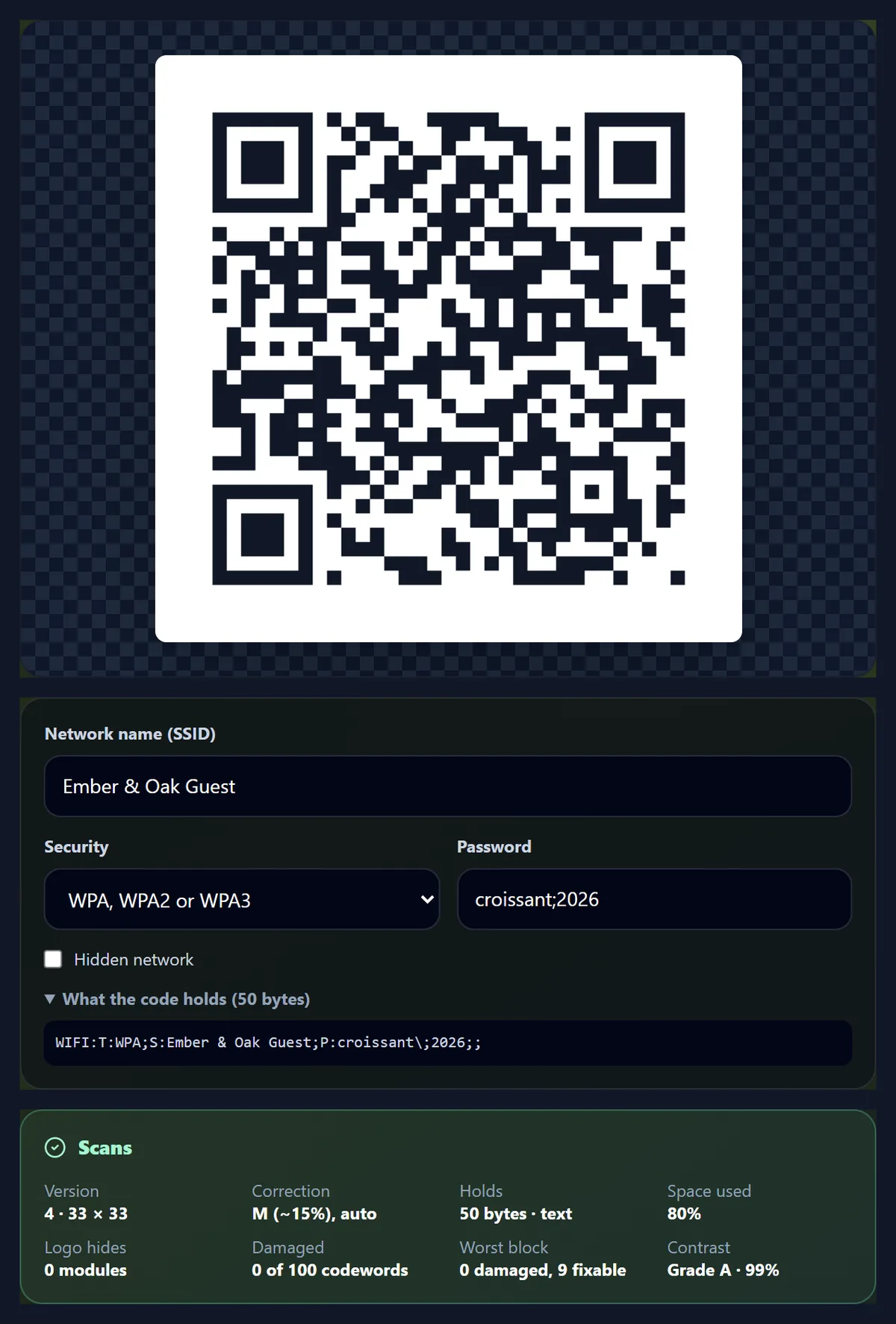
Choose Wi-Fi, type the network name exactly as it appears on a phone, choose the security and type the password. Anyone who scans the code is offered the network without typing anything. The code holds the details in the WIFI: format that camera and scanner apps read, here WIFI:T:WPA;S:Ember & Oak Guest;P:croissant\;2026;; for the sample café network.
Notice the backslash in the password: semicolons, colons, commas, quotes and backslashes have a special meaning in that format, so the tool puts a backslash in front of each one. Without it, a password with a semicolon in it is cut short and the phone cannot join. WPA covers WPA2 and WPA3 networks too; a WPA password has 8 to 63 characters, and the tool says so when it does not. The sample is 50 bytes, a version 4 code, and both OpenCV readers read it back exactly.
Can a QR code save a contact?
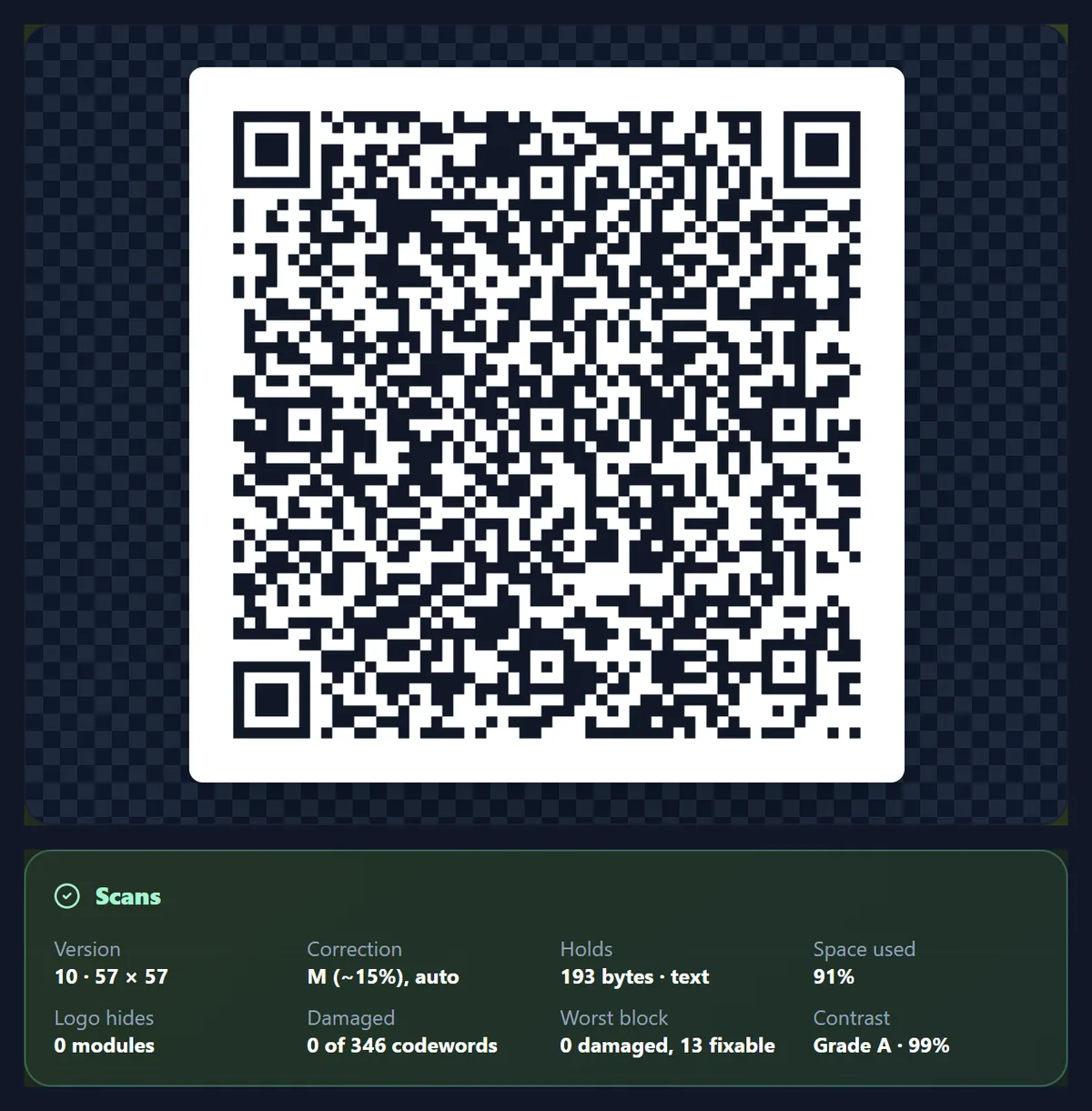
Yes. Choose Contact and fill in what you want to share; scanning it offers to save the person to the phone's contacts. The tool writes a vCard 3.0, the standard contact file format, with each line separated the way the standard asks and commas, semicolons and line breaks escaped. The sample, a head baker with seven details, is 193 bytes and makes a version 10 code of 57 × 57 modules.
Every detail you add makes the code denser, so leave out what people do not need: an address alone adds tens of bytes. If the card is long, a link to a page with the details makes a smaller code, and the page can be changed later; the code itself cannot.
Can you put a logo in a QR code?
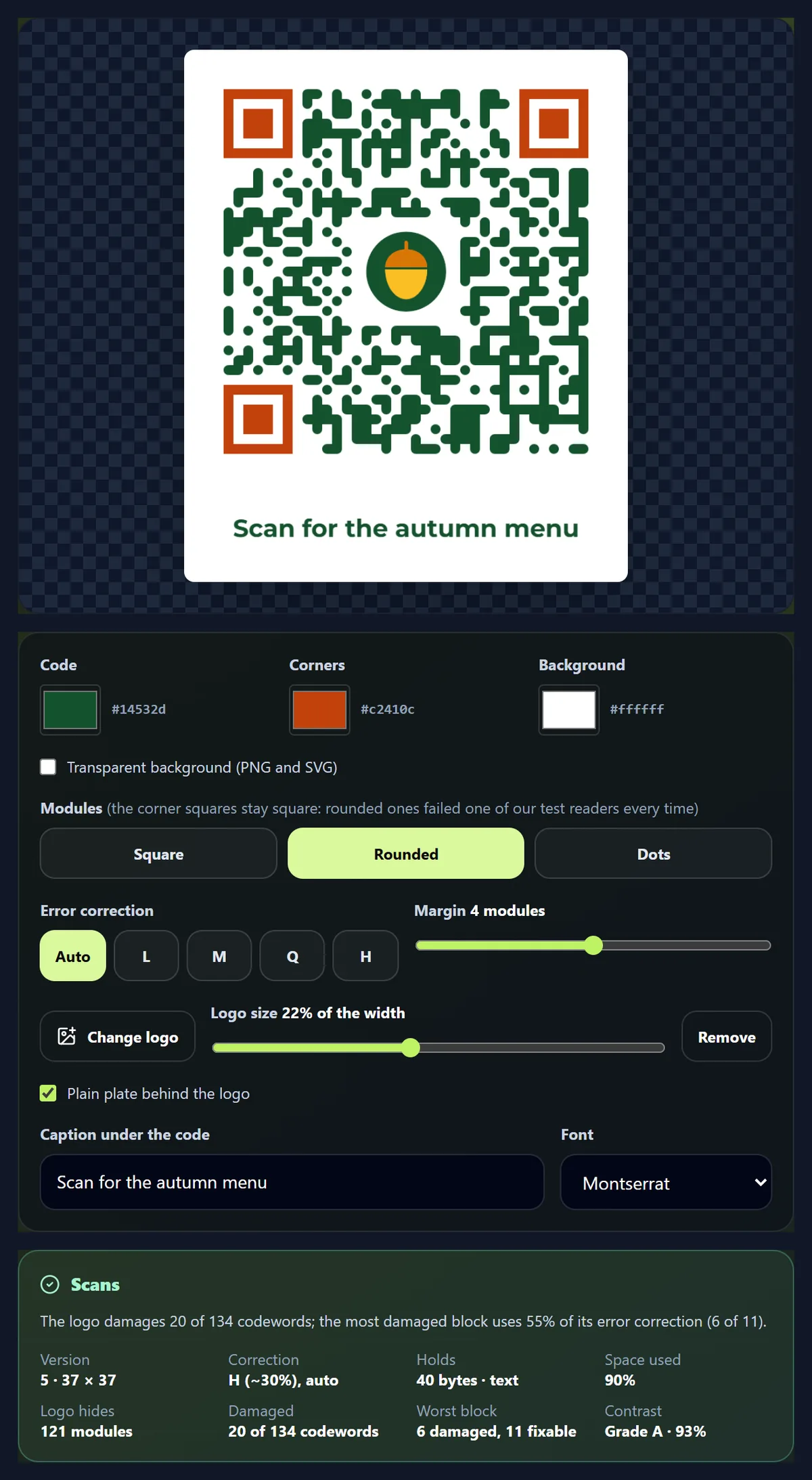
Yes, because a QR code carries spare data. Error correction (Reed–Solomon codes, the same kind CDs use) lets a reader rebuild codewords that are missing or wrong, so a logo can cover part of the code. The tool clears the modules under the logo, puts the logo on a plain plate, and then checks the result: the Ember & Oak acorn at 22% of the code's width hides 121 modules and damages 20 of 134 codewords, and the most damaged block uses 6 of the 11 it can fix.
With a logo, Auto picks the lowest level that still leaves room to spare: for the sample at 20% and 22% wide it chose H, which made the code version 5 instead of 3. At 30%, H still read but used 8 of its 11 (73%), so the tool says it scans "with little to spare": smudges, glare or a curved surface could push it over.
How big can a QR code logo be?
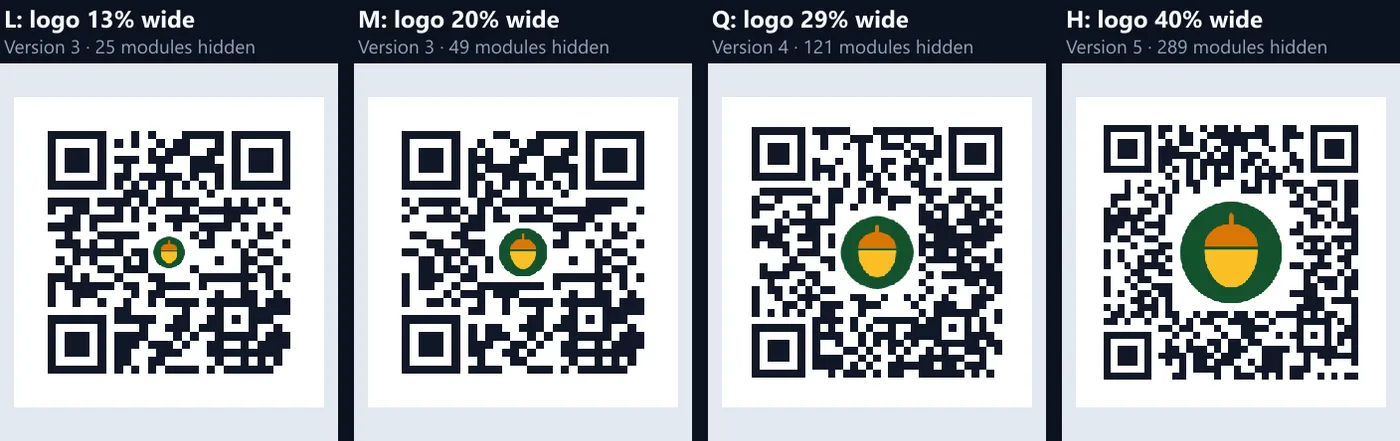
It depends on the error correction level. To find out, the same 40-character link was drawn at each level with the acorn logo grown one per cent of the width at a time, from 6% to 40%, the largest the tool offers. Each of the 140 pictures was checked by the tool and decoded by both OpenCV readers. The table gives the largest logo that read, with every smaller size reading too.
Level H carried the logo at 40% of the width; L managed only 13%. The share of modules hidden is well under the levels' nominal 7%, 15%, 25% and 30%, because a square plate in the middle spoils more codewords than modules: a codeword is 8 modules, and one hidden module is enough to spoil it, and the damage falls unevenly on the code's blocks. The tool and the readers disagreed once in 140: at level Q with a 30% logo the worst block was damaged exactly as much as it can fix, the tool called it "with little to spare", and both readers failed.
| Level | Version | Largest logo that read | Modules hidden | Share of modules hidden |
|---|---|---|---|---|
| L (~7%) | 3 | 13% | 25 | 3.0% |
| M (~15%) | 3 | 20% | 49 | 5.8% |
| Q (~25%) | 4 | 29% | 121 | 11.1% |
| H (~30%) | 5 | 40% | 289 | 21.1% |
How does the tool know a code will scan?
It reads the picture it drew. The colour at the centre of every module is sampled, the picture is split into dark and light at one threshold worked out from the samples alone (Otsu's method), and each module that came out the wrong way is traced to the codeword it belongs to. A code is split into blocks, and each block can fix up to half its error correction codewords; if any block has more damage than that, the code will not scan.
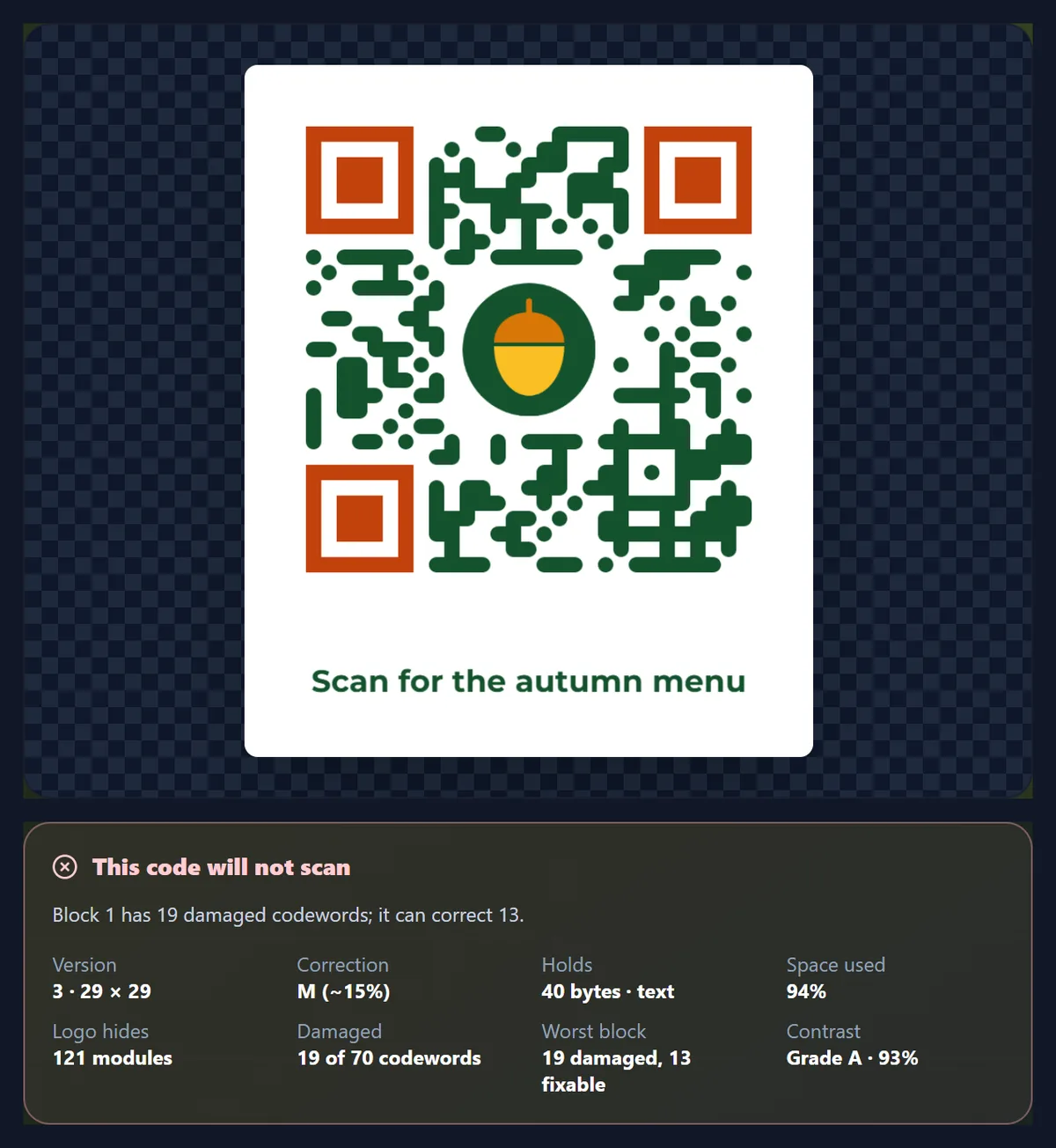
It also checks the format information (the level and mask, stored twice), the version information on larger codes and the three corner squares a reader uses to find the code. Forced to level M with a 30% logo, the sample spoiled 19 codewords in a block that can fix 13: the tool says This code will not scan, and neither OpenCV reader could read the saved file. On Auto it would have moved to H.
- Scans: every block has damage to spare (no block past 60% of what it can fix).
- Scans, with little to spare: it reads, but a block is past 60%, or the colours or margin are risky.
- This code will not scan: a block is past its limit, a corner square is spoiled, or the format information is lost.
Which error correction level should I choose?
Leave it on Auto unless you have a reason. Without a logo, Auto uses M and moves up while the code stays the same size, which costs nothing. With a logo, it tries M, Q and H in turn and keeps the first one the check calls comfortable. Choose L for the smallest code when it will only ever be shown clean on a screen, and H when the code will be printed small, outdoors or on a curved or textured surface.
Higher levels hold less. The table shows how many bytes of text fit each version, from the standard's capacity tables as the tool's encoder uses them. A 40-character link fits version 3 at L or M, but needs version 4 at Q and version 5 at H.
| Version | Modules across | L | M | Q | H |
|---|---|---|---|---|---|
| 1 | 21 | 17 | 14 | 11 | 7 |
| 2 | 25 | 32 | 26 | 20 | 14 |
| 3 | 29 | 53 | 42 | 32 | 24 |
| 5 | 37 | 106 | 84 | 60 | 44 |
| 10 | 57 | 271 | 213 | 151 | 119 |
| 20 | 97 | 858 | 666 | 482 | 382 |
| 25 | 117 | 1,273 | 997 | 715 | 535 |
| 40 | 177 | 2,953 | 2,331 | 1,663 | 1,273 |
Can QR code modules be round?
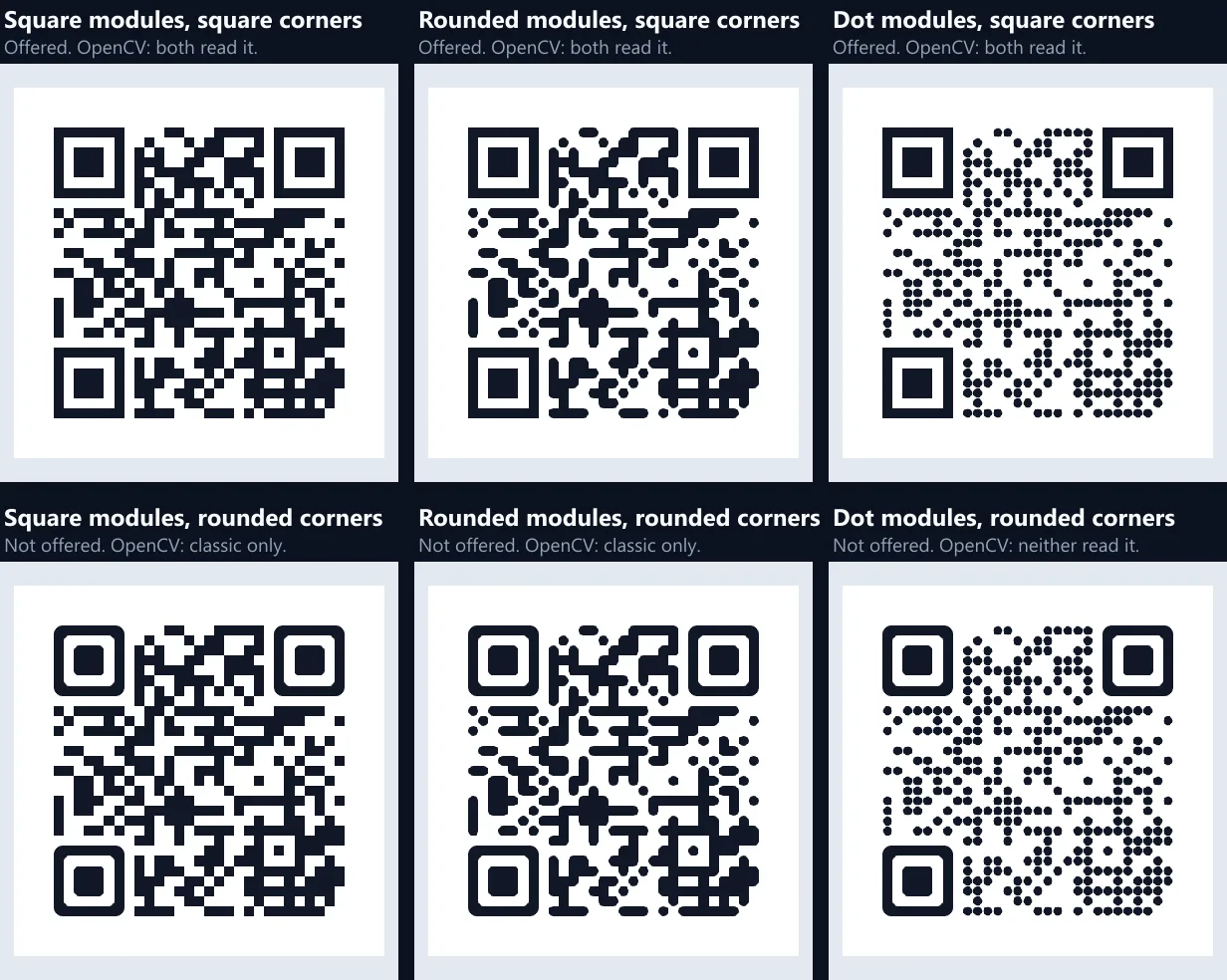
Yes. The tool offers square, rounded and dot modules; all three read in both OpenCV readers. The corner squares stay square on purpose. Drawn with rounded corners by the same code, the codes read in one reader only, or in neither when the modules were dots too, so the tool does not offer them.
Readers find a code by its three corner squares, looking for their dark, light, dark, light, dark rhythm across the middle. Rounded data modules change nothing a reader relies on, because the check reads each module at its centre, where all three shapes are dark.
| Modules | Corner squares | Offered | OpenCV readers |
|---|---|---|---|
| Square | Square | Yes | Both read it |
| Rounded | Square | Yes | Both read it |
| Dots | Square | Yes | Both read it |
| Square | Rounded | No | Classic reader only |
| Rounded | Rounded | No | Classic reader only |
| Dots | Rounded | No | Neither read it |
Can a QR code be in colour?
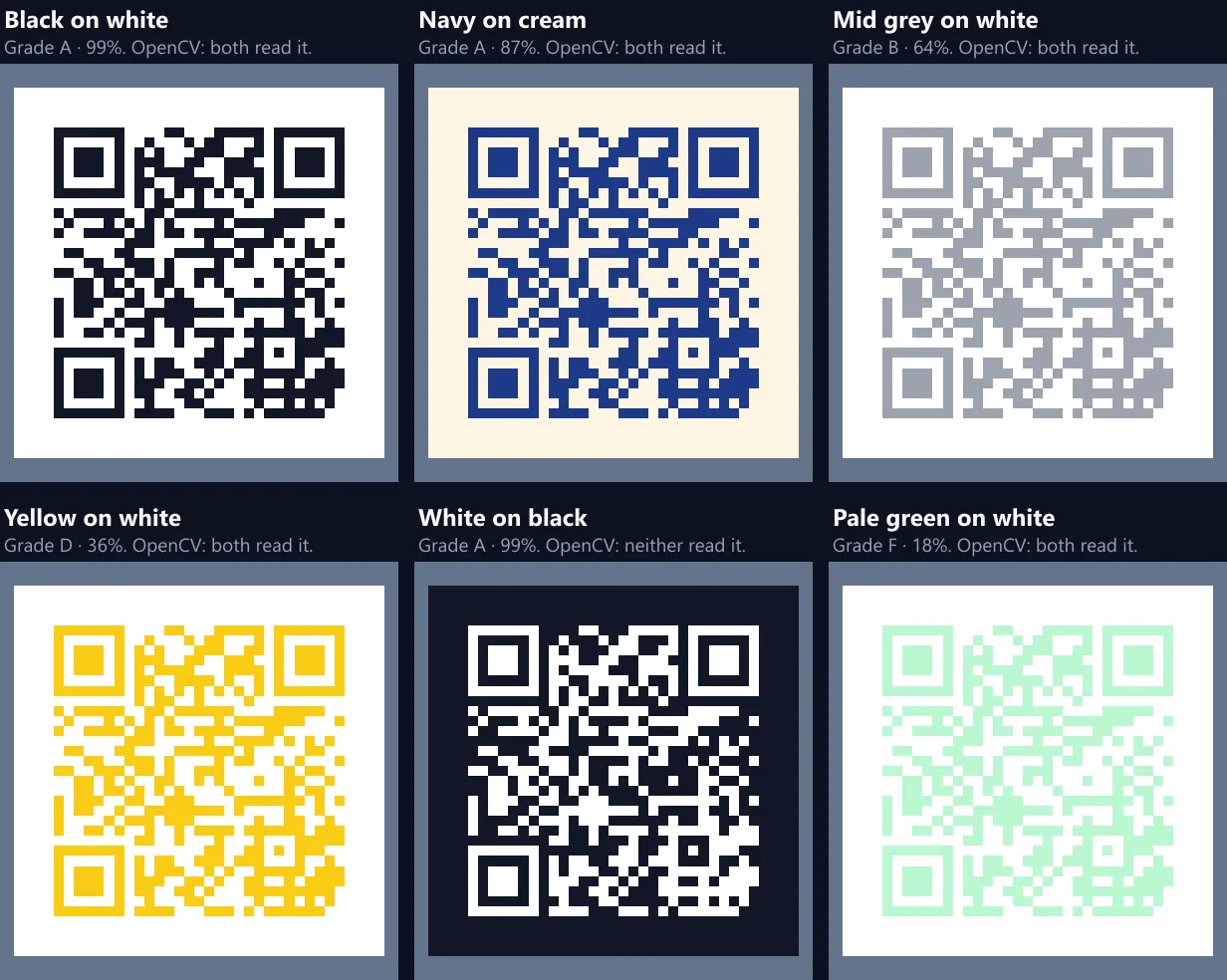
Yes, as long as the code is clearly darker than its background. The tool grades the difference with the symbol contrast bands of ISO/IEC 15415, the standard for print quality of 2D codes: A from 70%, B from 55%, C from 40% and D from 20% of light–dark difference. Navy on cream is an A at 87%; mid grey on white is a B; yellow on white is a D at 36%; pale green on white is an F at 18%.
Both OpenCV readers still read the yellow and the pale green files, because a clean file on a screen is the easiest case there is. Printed, lit badly or photographed at an angle, the light–dark difference shrinks further, so the tool warns from grade D down. Light on dark is the other trap: white on black has the best contrast of all, yet neither reader read it, so the tool warns that some scanners only read dark codes on a light background.
| Colours | Contrast grade | The tool says | OpenCV readers |
|---|---|---|---|
| Black on white | A (99%) | Scans | Both read it |
| Navy on cream | A (87%) | Scans | Both read it |
| Mid grey on white | B (64%) | Scans | Both read it |
| Yellow on white | D (36%) | Little to spare | Both read it |
| Pale green on white | F (18%) | Little to spare | Both read it |
| White on black | A (99%) | Little to spare (light on dark) | Neither read it |
How much space does a QR code need around it?
The QR standard asks for a clear margin, the quiet zone, four modules wide on every side, and the tool adds it by default. With the margin at 4 and at 1, both OpenCV readers read the saved file; with no margin at all, neither did. A transparent PNG with no margin can still work once it is placed on a plain light area, because the space round it becomes the margin, but on a busy background it cannot.
The caption follows the same rule: it starts below the full four-module margin, so the text never sits in the space a reader needs to see clear.
Why make a short link for a QR code?
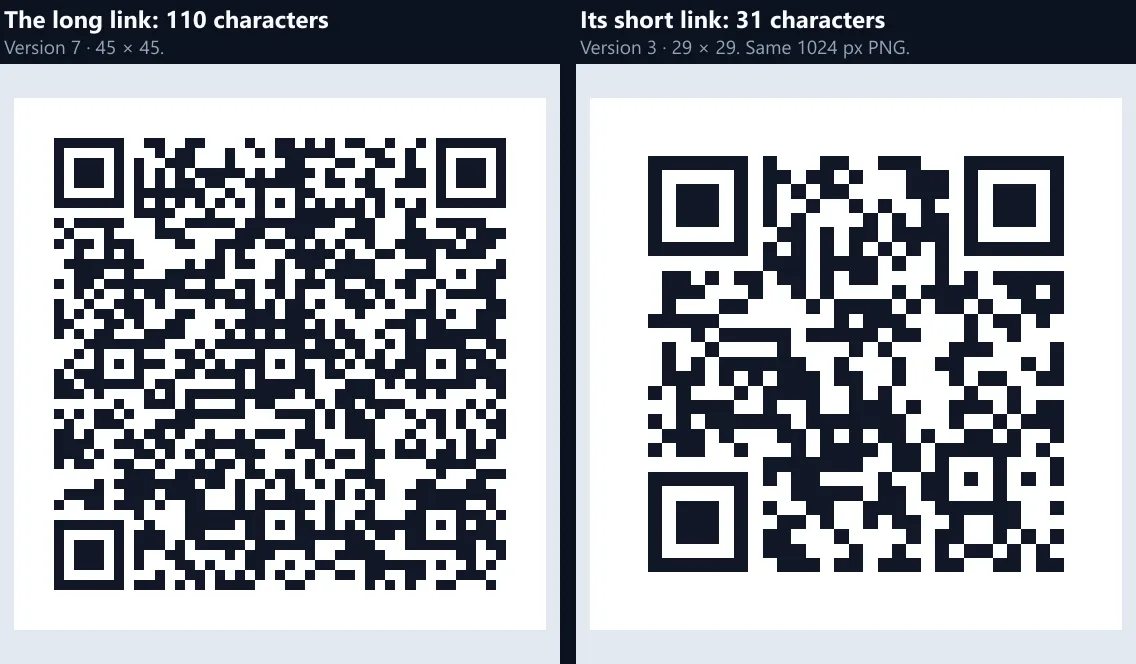
A shorter link makes a simpler code. The sample menu link with three campaign tags is 110 characters: version 7, 45 × 45 modules. Tick Use a HueFold short link and the tool makes a short link for it (free with an account): on HueFold's test server that link was 31 characters and the code version 3, 29 × 29, and on HueFold itself a short link is 33 characters, also version 3. That is 841 modules instead of 2,025, so at the same printed width each module is 1.55 times larger and easier for a camera to resolve.
A short link also counts its scans: each scan opens the link once, and the URL Shortener page lists how often each of your links was opened. Like every short link, it points at one address for good; to send a code somewhere else, make a new one.
Can a QR code open a file?
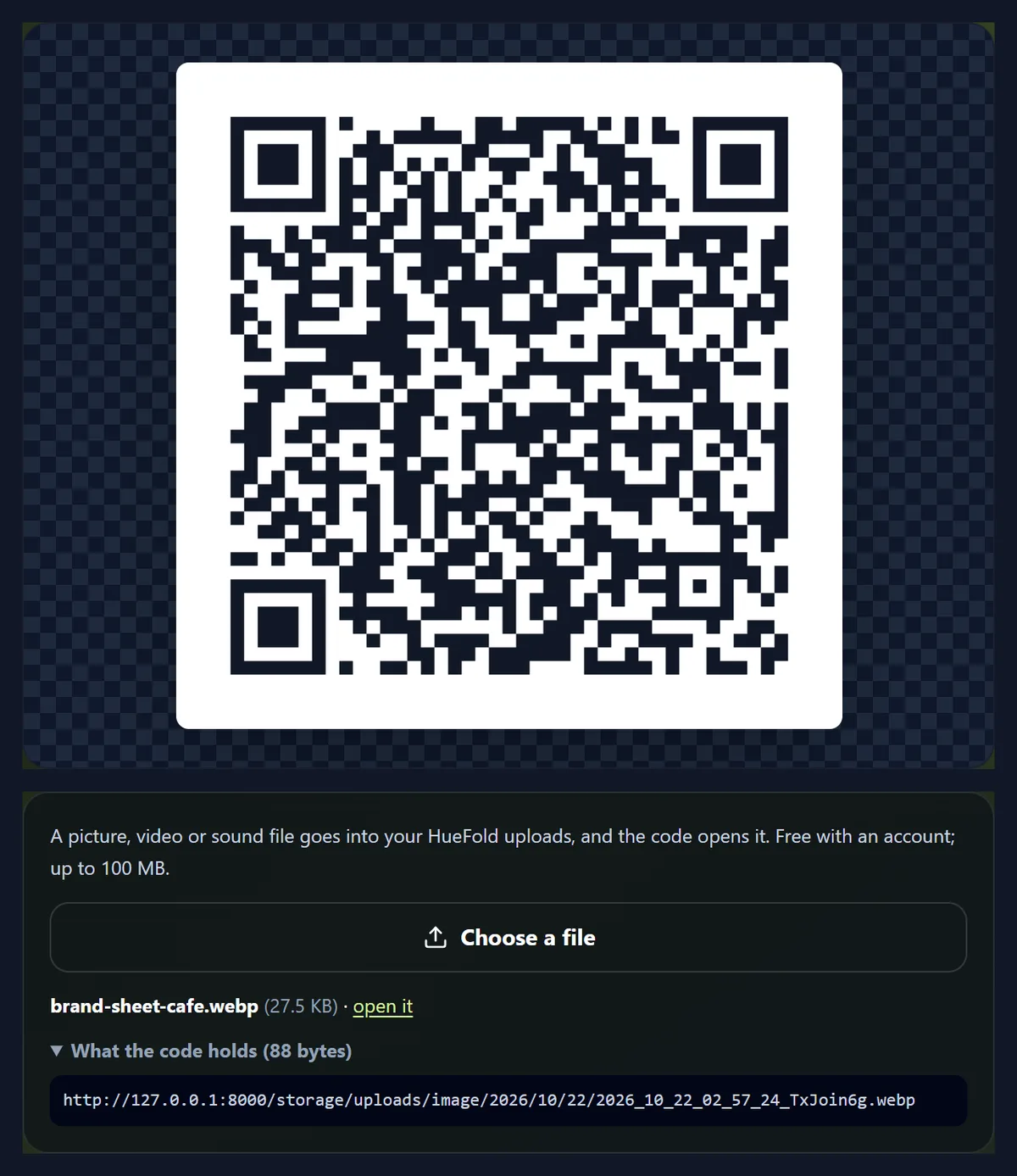
A QR code can only hold a little text, so a file has to be online for a code to open it. Choose File, pick a picture, video or sound file (up to 100 MB) and the tool uploads it to your HueFold uploads, then makes a code for its link. Uploads are free with an account; the file stays in your library, where you can see it or delete it, and the code stops working if you delete the file.
For the figure, a 27.5 KB picture was uploaded on the test server, and its 88-character link made a version 6 code; the link answered with the picture (HTTP 200, image/webp). HueFold uploads take pictures, video and sound; for a PDF or another document, put it online and make a Link code to it.
PNG, SVG or PDF: which should I download?
PNG for the web, documents and social posts; SVG or PDF for print, because they are vector files that stay sharp at any size. PNG sizes are rounded down so every module is a whole number of pixels, which keeps the edges crisp: 1024 gives 999 × 999 px for the starting link, 27 pixels a module. The PDF is drawn at the width you choose, as vector shapes, with any caption in its own font.
The table shows the starting link's downloads. With a logo, a caption and rounded modules the files grow: the 1024 PNG was 90.8 KB, the PDF 46.6 KB, and the SVG 282.9 KB, because it carries the caption's font inside so it looks the same anywhere. Every file was decoded by both OpenCV readers (files over 1,200 px wide were scaled to 1,000 px first, the way a camera sees a code; both readers missed one perfectly clean 4,070 px file at full size).
| Download | Size | Module size | File size |
|---|---|---|---|
| PNG 512 | 481 × 481 px | 13 px | 7.3 KB |
| PNG 1024 | 999 × 999 px | 27 px | 24.5 KB |
| PNG 2048 | 2,035 × 2,035 px | 55 px | 87.2 KB |
| PNG 4096 | 4,070 × 4,070 px | 110 px | 322.8 KB |
| SVG | Vector | Any | 5.2 KB |
| PDF 40 mm | 40 × 40 mm, vector | 1.08 mm | 6.1 KB |
How do I print a QR code so it scans?
Download the PDF or SVG at the width it will be printed, so nothing is enlarged later. The PDF choices are 25, 40, 60 and 100 mm wide, and the tool shows the module size each gives: the starting link at 40 mm has modules of 1.08 mm, and at 25 mm of 0.68 mm. A denser code at the same width has smaller modules, which is another reason to keep the content short.
Before printing a run, print one proof at the real size on the real paper and scan it with two or three different phones, in the light where it will be used. Avoid glossy laminate in direct light, folds through the code and curved surfaces such as cups, and keep the margin clear of other print.
Are these QR codes free, and do they expire?
They are free and they never expire, because the code is simply the text you typed, drawn as a picture. There is no account needed, no watermark and no limit on how many you make. Codes made here are static: a scan goes straight to what the code holds, not through HueFold, so HueFold never sees who scans them.
Two choices are different, and both are optional and need a free account. A short link sends scans through HueFold's link, which counts them; an uploaded file lives in your HueFold uploads. Everything else, including the logo you add, stays in your browser tab.
What does this QR code generator not do?
It makes standard QR codes only, not Micro QR, colour-layered or animated codes. It does not let you change where a code goes after it is printed: for that, make a short link and print a code for it, then make a new code if the destination changes. It reads the drawn picture, not a camera, so blur, glare and low light come on top of what it checks.
Text is encoded as UTF-8 without an extra character-set header; both OpenCV readers read a sample with accents, a euro sign, Japanese and Hindi back exactly that way. The largest code, version 40 at level L, holds 2,953 bytes; anything longer belongs on a page with a link to it.
Frequently asked questions
Is this QR code generator free?
Yes. Codes are made in your browser with no account, no watermark and no limit. Only short links and file uploads need a free account.
Do the QR codes expire?
No. A code holds your text itself, so it works for as long as what it points to does.
Can I add a logo to a QR code?
Yes. Add it, set its size, and the tool checks the code still scans; on Auto it raises the error correction level as needed.
How big can the logo be?
On the sample link: 13% of the width at level L, 20% at M, 29% at Q and 40% at H, checked with two OpenCV readers.
Which error correction level is best?
Leave Auto on. It uses M, or higher when a logo needs it or when the higher level fits in the same size.
Can I make a Wi-Fi QR code?
Yes: choose Wi-Fi, type the network name and password, and scanning it offers to join the network.
Can a QR code be any colour?
Yes, if it is clearly darker than its background. The tool grades the contrast and warns about light-on-dark codes.
Which file is best for printing?
The PDF or SVG: they are vector files that stay sharp at any size. Download the PDF at the printed width.
Can a QR code track scans?
Only through a HueFold short link, which counts how often it is opened. Plain codes are not tracked.
Can I change the link after printing?
No. A printed code always opens what it holds. Make a new code if the destination changes.
Related tools
- URL Shortener — Short links that count their clicks.
- Link In Bio — One page for all your links.
- Brand Kit — Your colours and logo in one place.
- Mockups — Show a design on a phone, laptop or poster.
- Content Planner — Plan the posts your code appears in.
- PNG Maker — Small, sharp PNGs for the web.