PDF to PNG
Convert PDF pages to PNG images in your browser: every page or the ones you list, at 72, 150 or 300 dpi, on white or with a transparent background, in full colour or as a much smaller 256- or 16-colour PNG. Free, no upload.
Updated
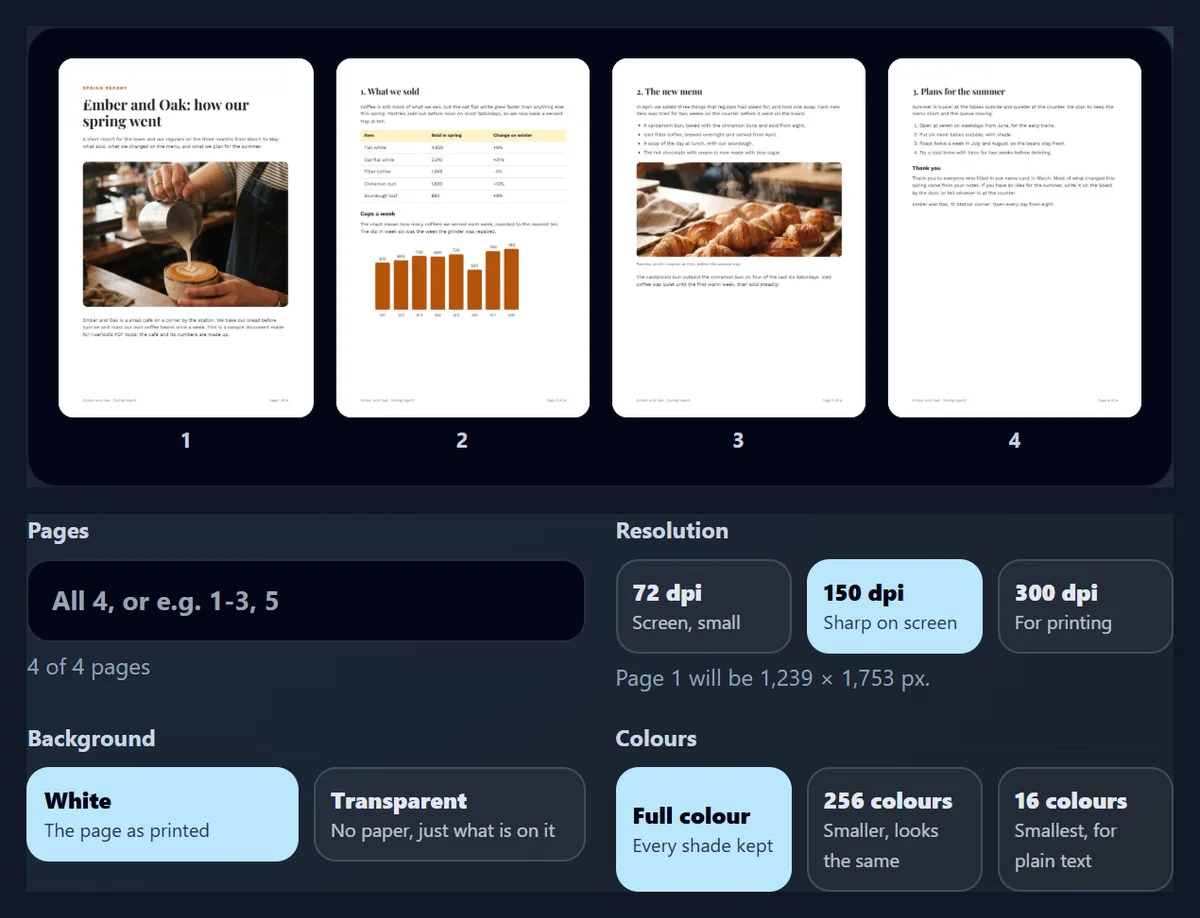
How do you convert a PDF to PNG?
Open the PDF here, list the pages you want or leave the box empty for all of them, choose a resolution (150 dpi for screens, 300 dpi for printing), a background and how many colours to keep, and press Convert to PNG. One page downloads as a PNG; several come as a ZIP. The PDF never leaves your browser.
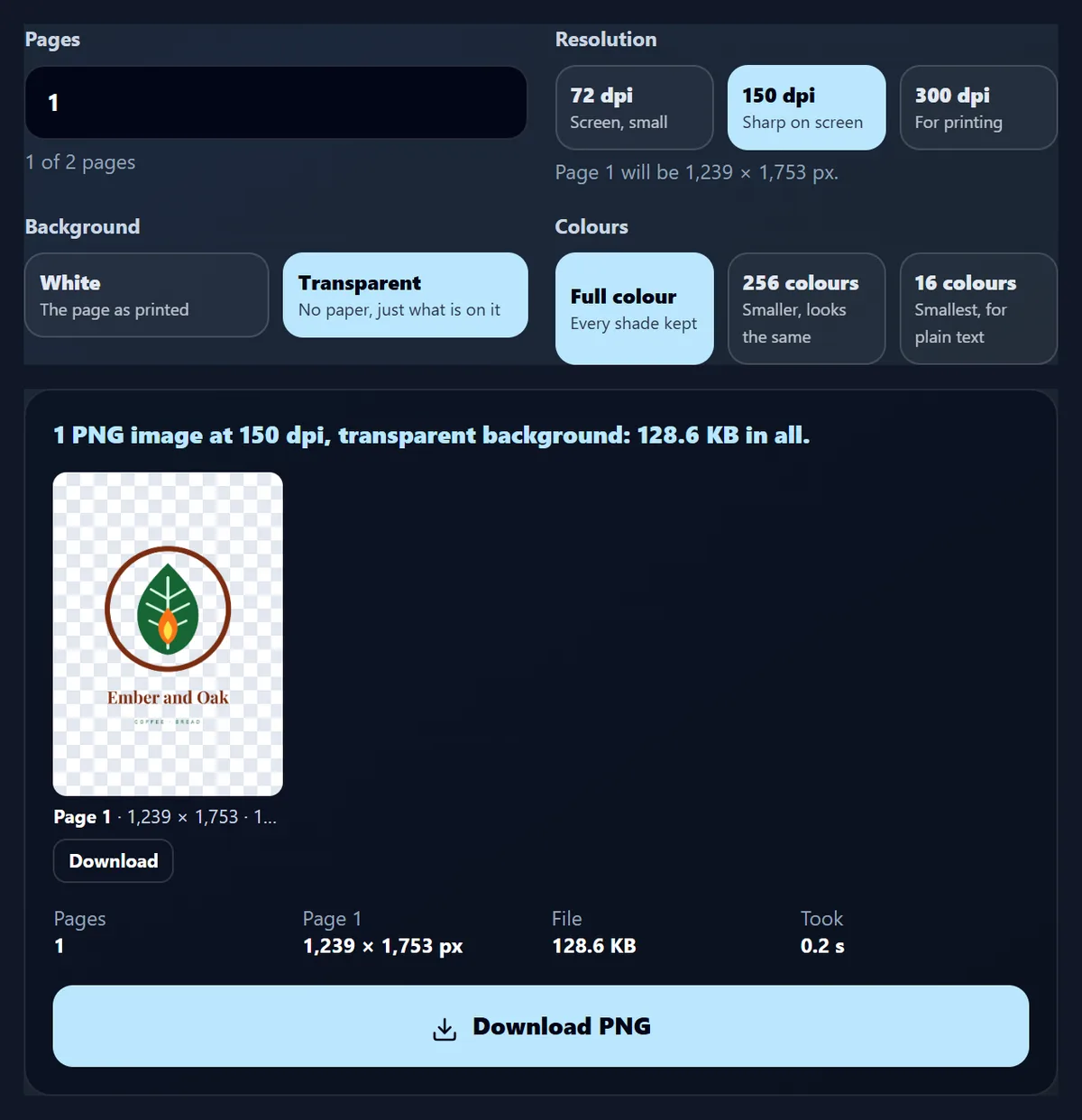
At 150 dpi in full colour, the four pages of the sample report took 0.6 s and made PNGs of 1.16 MB, 175.2 KB, 969.1 KB and 173.4 KB, 1,239 × 1,753 pixels each. The same text page saved with 256 colours was 52.1 KB and looked the same.
How to save PDF pages as PNG
- Open the PDF Drop it on the tool or choose it.
- Choose the pages All of them, or a list such as 1-3, 5.
- Set resolution, background and colours 150 dpi, white, full colour to start.
- Download A PNG, or a ZIP of every page.
Convert a PDF to a transparent PNG
A real recording of this tool: the sample logo sheet opened, a transparent background, 256 colours and 300 dpi chosen, and the pages saved as PNGs.
- The sample logo sheet opens and its two pages appear.
- Transparent is chosen, so the paper is left out.
- 256 colours and 300 dpi are chosen.
- The pages are converted and the PNGs are ready to download.
How big is each PNG?
It depends on the resolution and the colours more than on the PDF. Page 2 of the sample report, a page of text with a table and a bar chart, made a full-colour PNG of 64.2 KB at 72 dpi, 175.2 KB at 150 dpi and 460.8 KB at 300 dpi. Going from 150 to 300 dpi makes four times the pixels, but the file grew only 2.6 times, because most of the extra pixels are plain paper, which PNG stores almost for nothing.
Fewer colours make a much smaller file: at 150 dpi the same page was 52.1 KB with 256 colours and 30.4 KB with 16, against 175.2 KB in full colour.
| Setting | Resolution | Colours | PNG size |
|---|---|---|---|
| 72 dpi · full colour | 72 dpi | Full colour | 64.2 KB |
| 72 dpi · 256 colours | 72 dpi | 256 colours | 19.0 KB |
| 150 dpi · full colour | 150 dpi | Full colour | 175.2 KB |
| 150 dpi · 256 colours | 150 dpi | 256 colours | 52.1 KB |
| 150 dpi · 16 colours | 150 dpi | 16 colours | 30.4 KB |
| 300 dpi · full colour | 300 dpi | Full colour | 460.8 KB |
| 300 dpi · 256 colours | 300 dpi | 256 colours | 121.0 KB |
| 300 dpi · 16 colours | 300 dpi | 16 colours | 75.2 KB |
How do I convert a PDF to PNG?
Drop the PDF on the tool or choose it, and its pages appear as thumbnails. Leave Pages empty for all of them or type the ones you want, choose the resolution, the background and the colours, and press Convert to PNG. One page downloads as a PNG; several come as one ZIP, and each page can also be saved on its own from the result.
The line under the resolution buttons shows the size each page will have, in pixels, before you convert.
PNG or JPG: which is better for PDF pages?
For pages of text, tables and charts, PNG. It keeps every pixel exactly as the page was drawn, so letters and thin lines stay crisp, and with 256 colours it is also smaller than a JPG. The table compares page 2 saved both ways: the JPG at quality 90 (from the PDF to JPG tool) and the PNG in full colour and with 256 colours.
At 150 dpi the JPG was 128.6 KB and differed from the exact page by a PSNR of 44.6 dB; the 256-colour PNG was 52.1 KB at 54.3 dB, closer to the page and less than half the size. For pages that are mostly photos, JPG wins: see below.
| Resolution | JPG, quality 90 | PNG, full colour | PNG, 256 colours |
|---|---|---|---|
| 72 dpi | 44.9 KB | 64.2 KB | 19.0 KB |
| 150 dpi | 128.6 KB | 175.2 KB | 52.1 KB |
| 300 dpi | 328.8 KB | 460.8 KB | 121.0 KB |
What do 256 colours and 16 colours mean?
A full-colour PNG stores every pixel as its own colour. A palette PNG stores a short list of colours, at most 256 or 16, and each pixel as a small number pointing into the list. Pages of text use few colours: page 2 of the report at 150 dpi had 928 different colours, almost all of them the greys along the edges of the letters, and its 256-colour version kept them in 177. The palette is chosen from the page's own colours, so the red bars of the chart stay that red.
Measured against the full-colour page, the 256-colour PNG scored 54.3 dB and the 16-colour PNG 46.9 dB (PSNR, a measure of how far the pixels moved; higher is closer, and 50 dB is very close). The close-up shows one word of body text at 300 dpi, enlarged three times without smoothing: 16 colours leave fewer shades along the curves.

What about pages with photos?
Photos have many colours, so they make big PNGs and do not survive a short palette well. Page 1 of the sample is mostly a photo of a latte being poured: at 150 dpi it had 151,429 different colours and made a 1,182.8 KB PNG in full colour. With 256 colours it was 276.4 KB at 42.5 dB, close enough for a preview; with 16 colours it was 98.3 KB at 33.4 dB, and the photo shows bands of flat colour.
For a page that is mainly a photo, use PDF to JPG instead: at quality 90 the same page was 209.7 KB there. Keep PNG for pages where sharp text and lines matter more than the photo.
| Colours | Distinct colours | PNG size | PSNR against full colour |
|---|---|---|---|
| Full colour | 151,429 | 1,182.8 KB | exact |
| 256 colours | 254 | 276.4 KB | 42.5 dB |
| 16 colours | 16 | 98.3 KB | 33.4 dB |
Can a PNG from a PDF be transparent?
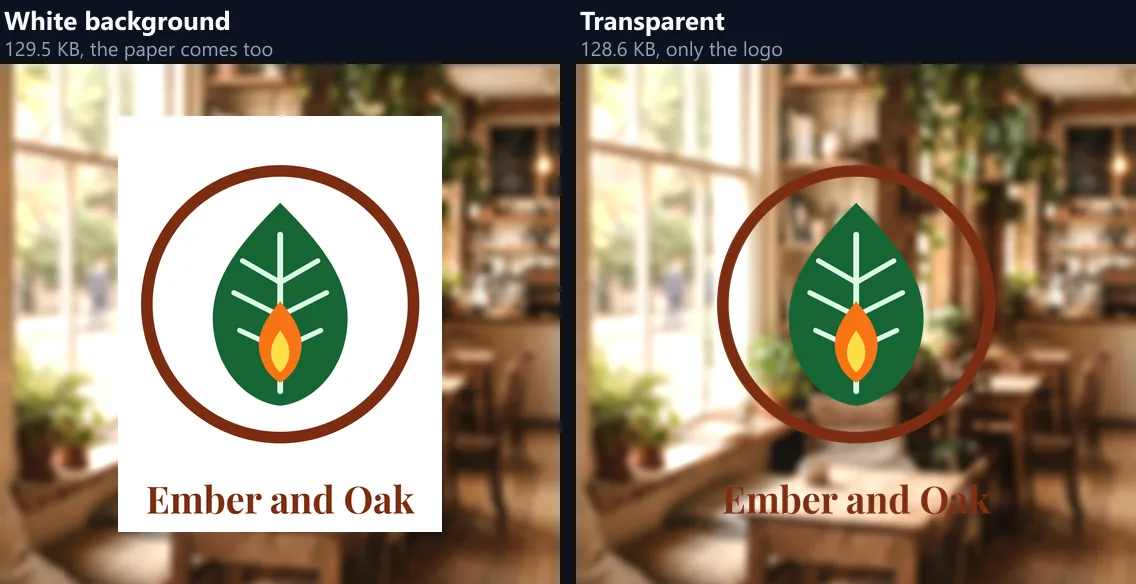
Yes, when the PDF does not paint its own paper. A PDF page has no background unless the file draws one, so the tool can leave the paper out and keep only what is printed on it. On page 1 of the sample logo sheet at 150 dpi, 91.0% of the pixels came out fully clear, 0.56% partly clear (the smooth edges of the shapes and letters) and the rest solid, in a 128.6 KB PNG.
The figure shows both versions on a photo of the café: the white one brings its paper with it, the transparent one is just the logo. With 256 colours the transparent logo was 33.6 KB, and its edges stayed smooth: the palette keeps a transparency level for each of its colours.
Why did my page stay white with Transparent on?
Because the PDF paints its own background. Many presentations, posters and design exports fill the whole page with a colour, and that colour is part of the page: the tool keeps it, as it should. The table shows how much of each sample page came out clear with Transparent chosen, measured at 72 dpi (the logo sheet: 90.7%, against 91.0% at 150 dpi, where its edges are finer).
Pages from Word and from a browser's Save as PDF usually have no paper of their own, so their empty areas come out clear. A slide with a cream page colour came out with no clear pixels at all.
| Page | Made by | Clear pixels |
|---|---|---|
| Logo sheet, page 1 | Chrome, Save as PDF | 90.7% |
| Report, page 2 (text and a chart) | Chrome, Save as PDF | 86.2% |
| Newsletter, page 1 | Microsoft Word | 83.6% |
| Report, page 1 (a large photo) | Chrome, Save as PDF | 63.6% |
| Slides, slide 2 (cream page colour) | Chrome, Save as PDF | 0% |
What resolution should I use?
150 dpi for reading on a screen, posting or sending; 300 dpi for printing; 72 dpi for thumbnails and quick previews. Dots per inch means pixels per inch of the paper, so the pixel size follows the page size: an A4 page was 594 × 841 pixels at 72 dpi, 1,239 × 1,753 at 150 dpi and 2,478 × 3,507 at 300 dpi.
A page that would pass 16,777,216 pixels, the most an iPhone's browser can draw, is made at the highest resolution that fits, and the tool shows the size before you convert.
How do I download all the pages?
Press Download all as ZIP. Each picture is named after the PDF and its page, such as sample-report-page-1.png, with the page number padded so the files sort in order. PNGs are already compressed, so the ZIP stores them as they are: the four pages of the sample were 2.44 MB as PNGs and as a ZIP.
Every page also has its own Download button in the result, under a preview showing its size in pixels and kilobytes.
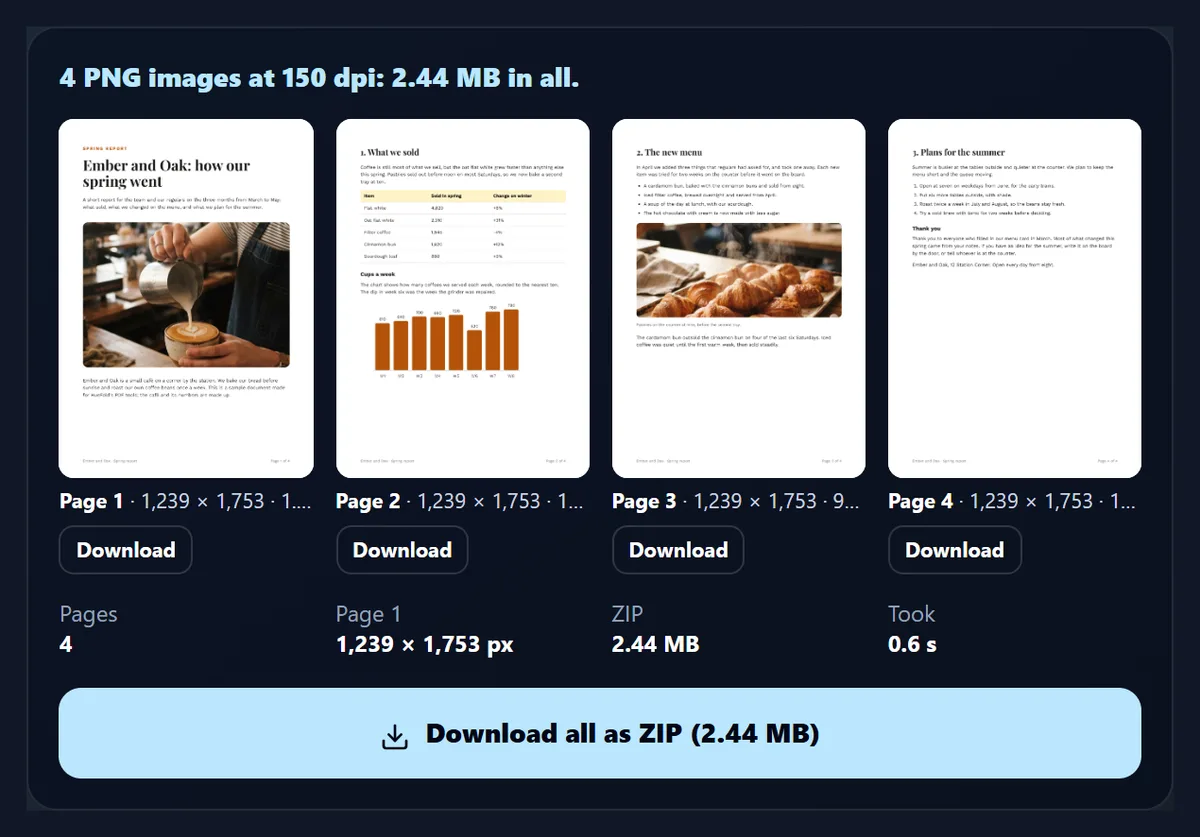
How do I know the PNG is really transparent?
The preview shows it on a checkerboard, the usual sign of see-through areas, and the line above it says transparent background. Open the PNG in an image editor or drop it onto a coloured slide and the colour shows through where the paper was.
If you then need it on white again, choose White and convert once more: the two settings are only a click apart.
Which colour setting should I choose?
Full colour when you do not know: it is exact for every page. 256 colours for pages of text, tables, charts and line drawings that you want small, such as pages for a website or a chat: on the sample's text page it cut the file by 70% with no difference you can see. 16 colours for plain black text on white, scanned forms and documents that will only be read, never printed large.
Avoid 16 colours for photos, gradients and maps with soft shading: they turn into bands of flat colour.
How long does it take?
About a second a page. On the test laptop each page of the sample took 0.7 to 0.8 s in full colour at any resolution, and the four pages together 0.6 s at 150 dpi once the PDF was open. Fewer colours take a little longer at high resolution, because every pixel is matched to the palette: page 2 at 300 dpi with 256 colours took 1.9 s.
Long documents are converted page by page, with a progress bar that counts the pages done.
Can I convert only some pages?
Yes. Type the pages into the Pages box: single pages and ranges separated by commas, such as 1-3, 5, or 8- for page 8 to the end. Pages left out are dimmed in the thumbnails, and the line under the box says how many will be converted.
Pages are converted in the order you type them, each only once, and a page number outside the PDF gets a message instead of a silent mistake.
What does lossless mean here?
That the PNG holds exactly the pixels the page was drawn as. JPG throws away detail it guesses you will not miss, a little each time a picture is saved, and shows it as faint speckle around letters; PNG keeps every pixel, so a page saved as PNG and opened again is the same page, pixel for pixel.
The palette options are the one exception you choose yourself: with 256 or 16 colours, each pixel takes the nearest colour on the palette. The PNG itself is still lossless: what is saved stays exactly as saved.
What about scanned PDFs?
A scanned PDF holds a photo of each sheet, and the PNG shows that photo at the resolution you choose. Choosing 300 dpi for a page scanned at 150 dpi makes a bigger picture, not a sharper one: the detail was never captured.
A scan of a white sheet is a photo of paper, so Transparent leaves it as it is: there is no empty area for the tool to leave out. Scans of black text are where 16 colours shines.
Is my PDF uploaded?
No. The PDF is opened and drawn inside this browser tab by pdf.js, the open-source PDF reader from Mozilla, and the PNGs, their palettes and the ZIP are made there too. Nothing is sent to HueFold or kept anywhere, and there is no watermark or sign-up.
A protected PDF asks for its password, which is used in the tab to open the file and kept nowhere.
Can I convert PDF to PNG on my phone?
Yes, in a current browser on Android or an iPhone. On an iPhone, a single PNG can be saved to Photos from the Files app; a ZIP opens in Files, which unpacks it with a tap.
Long PDFs at 300 dpi need a lot of memory; on a phone, convert them a range of pages at a time.
What else can I make from a PDF?
PDF to JPG saves pages as JPGs, the better choice for photo pages; the free PDF converter also saves the text as a .txt or Word file; PDF to PPT turns the pages into slides; Delete Pages from PDF removes the pages you do not need before you convert.
To go the other way, PNG to PDF puts pictures back into a single PDF.
Frequently asked questions
Is PDF to PNG free?
Yes: no sign-up, no watermark and no limit on pages or files.
Is my PDF uploaded?
No. The pages are drawn and saved inside your browser.
Can the PNG have a transparent background?
Yes, choose Transparent: the paper is left out wherever the PDF does not paint its own background.
Which resolution should I choose?
150 dpi for screens and sharing, 300 dpi for printing, 72 dpi for small previews.
Why is the PNG so large?
Full colour keeps every pixel; choose 256 colours for text pages, which made the sample page 70% smaller.
PNG or JPG for PDF pages?
PNG for text, tables and charts; JPG for pages that are mostly photos.
Can I convert only some pages?
Yes: type pages and ranges such as 1-3, 5 or 8-.
How do I get all the pages at once?
Download all as ZIP saves every page, named in page order.
Can I convert a password-protected PDF?
Yes, with its password, which stays in your tab.
Related tools
- PDF to JPG — Smaller files for photo pages.
- Free PDF Converter — Text, Word or PowerPoint too.
- Delete Pages From PDF — Remove pages before you convert.
- PNG to PDF — Pictures back into one PDF.
- Word to PNG — Pages of a .docx as PNGs.
- PNG Maker — Make any picture a PNG.