Word to PNG
Convert a Word document to PNG images in your browser: every page of a .docx laid out the way Word lays it out, with its fonts, lists, tables, pictures, headers and page numbers, at 96, 150 or 300 dpi. Free, and the file never leaves your device.
Updated
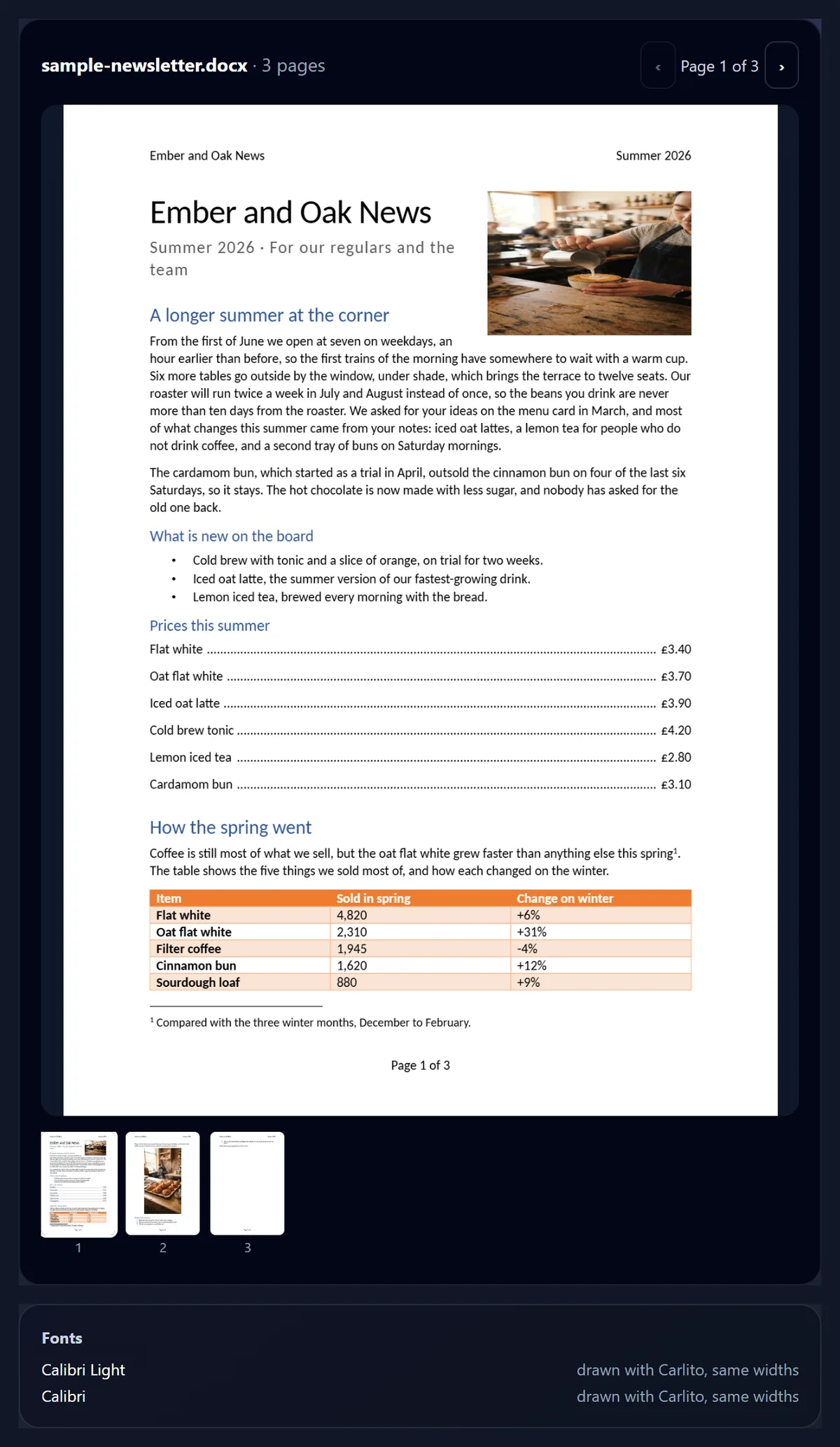
How do you convert a Word document to PNG?
Open the .docx here and its pages appear as Word would print them. Choose the pages and a resolution (96 dpi for screens, 150 dpi to zoom in, 300 dpi for printing) and press Save as PNG: one page downloads as a PNG, several as a ZIP. Nothing is uploaded.
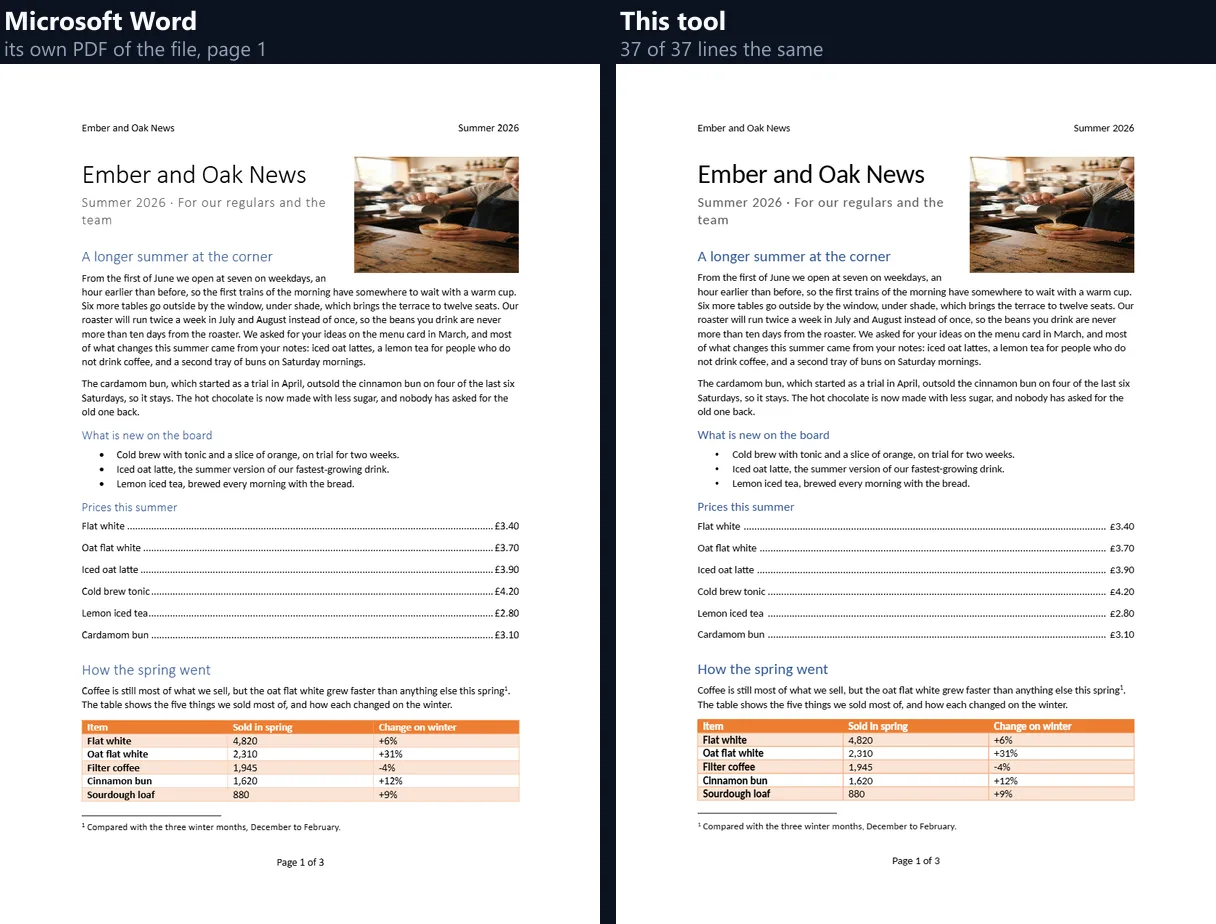
Checked against Microsoft Word's own PDF of the same files, all 50 lines of the three-page sample newsletter and all 16 lines of the sample letter broke at the same words as in Word, and the three pages took 0.8 s to save at 150 dpi.
How to save Word pages as PNG
- Open the Word file A .docx, dropped on the tool or chosen.
- Check the pages Page through them as Word lays them out.
- Choose pages and resolution All or a list; 96, 150 or 300 dpi.
- Download A PNG, or a ZIP of every page.
Convert a Word document to PNG
A real recording of this tool: the sample newsletter opened and laid out, its pages looked through, 300 dpi chosen and the pages saved as PNGs.
- The sample Word newsletter opens and its first page is laid out.
- Pages 2, 3 and 1 are looked at from the thumbnails.
- 300 dpi is chosen.
- The three pages are saved as PNGs and are ready to download.
How do I turn a Word document into PNG images?
Drop the .docx on the tool or choose it. The tool reads the document's text, styles, lists, tables and pictures, lays them out into pages the way Word does, and shows the first page with thumbnails of the rest. Leave Pages empty for all of them or type the ones you want, pick a resolution and press Save as PNG.
Under the pages the tool lists the document's fonts and the font each is drawn with, and anything it cannot draw, so nothing goes missing without a word.
Will the PNG look like the page in Word?
Very nearly. Word saved a PDF of each sample, and every line on those pages was compared with the same line here: the text it holds and the height it sits at. On the newsletter, all 50 lines on 3 pages broke at the same words as Word's, with the lines on average 0.30 points from Word's and at most 3.4 points (the footnote at the foot of page 1). On the letter, all 16 lines matched, on average 0.05 points away.
The pages also matched as pages: the same three pages, ending at the same lines, which is what keeps page numbers and references right.
| Sample | Font | Lines the same as Word |
|---|---|---|
| Newsletter, page 1 of 3 | Calibri | 37 of 37 |
| Newsletter, page 2 of 3 | Calibri | 8 of 8 |
| Newsletter, page 3 of 3 | Calibri | 5 of 5 |
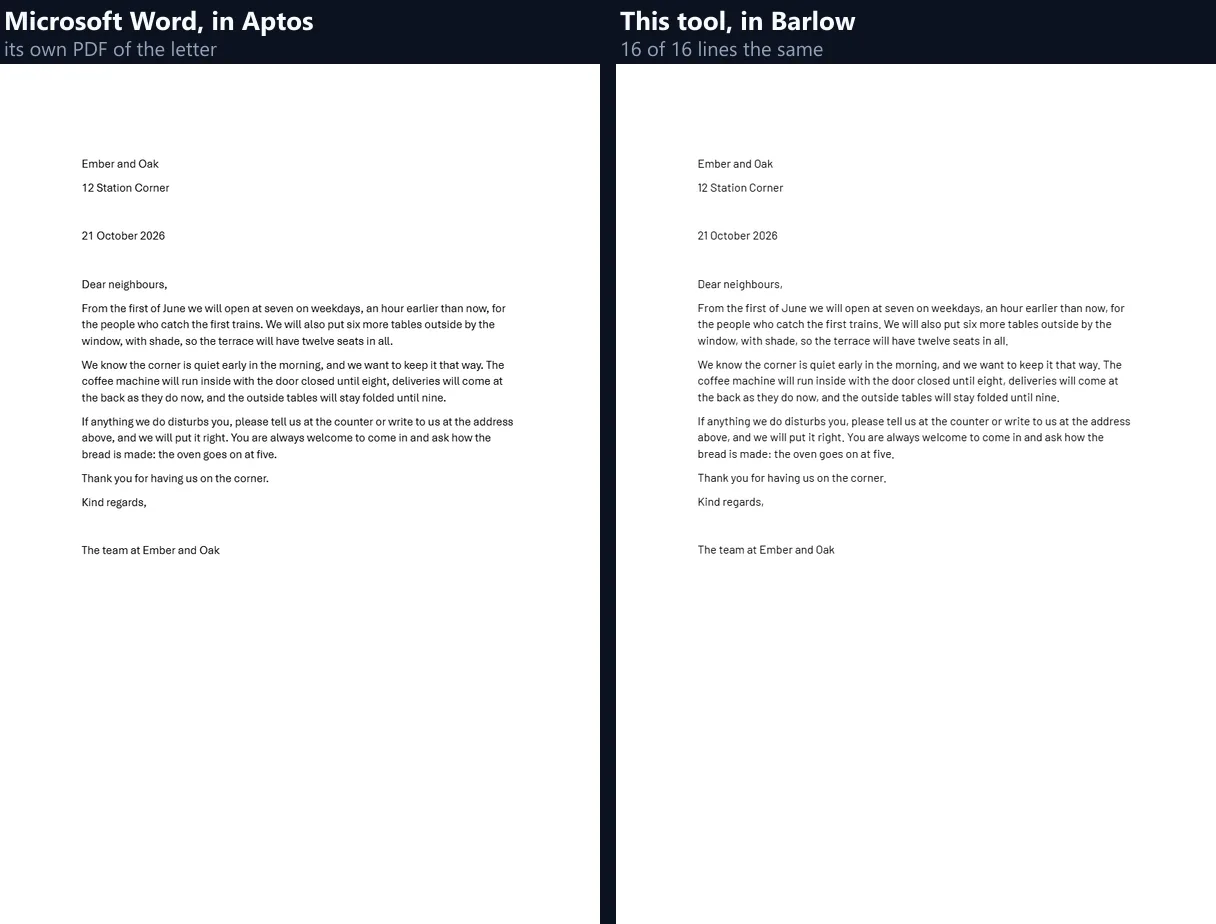
| Letter, page 1 of 1 | Aptos | 16 of 16 |
What happens to Calibri, Cambria, Arial and Times New Roman?
They are drawn with free fonts made to the same measurements: Carlito for Calibri, Caladea for Cambria, Arimo for Arial and Helvetica, Tinos for Times New Roman, Cousine for Courier New and Gelasio for Georgia, loaded from Google Fonts. Every letter is the same width as in the original font, so each line holds the same words and breaks in the same place. The letters themselves look slightly different up close.
Measured on the test laptop, where Calibri is installed, the sentence in the figure was 1,092.08 pixels wide in Calibri and 1,092.08 pixels in Carlito, at 34 pixels per em.

What about Aptos, Word's new default font?
Aptos, the default font of Word in Microsoft 365, has no free twin with the same widths, so the tool uses the closest one it was measured against. The script measured 60 Google fonts against Office's own Aptos files, word by word over the 559 words of a test text: Barlow came closest, 0.41% wider than Aptos for regular text and 2.10% narrower in bold, with single words within 3.1% on average. Aptos's own line height and baseline are kept.
On the sample letter in Aptos, all 16 lines broke where Word broke them. Long documents in Aptos will now and then wrap a word earlier or later than Word; the page text stays the same.
| Font | Regular text | Bold text | Average per word |
|---|---|---|---|
| Barlow (used) | +0.41% | −2.10% | 3.1% |
| Hind | +0.98% | +1.35% | 4.1% |
| Sarabun | +1.56% | +0.49% | 4.1% |
| Lato | +1.04% | −1.98% | 5.3% |
How big are the PNGs?
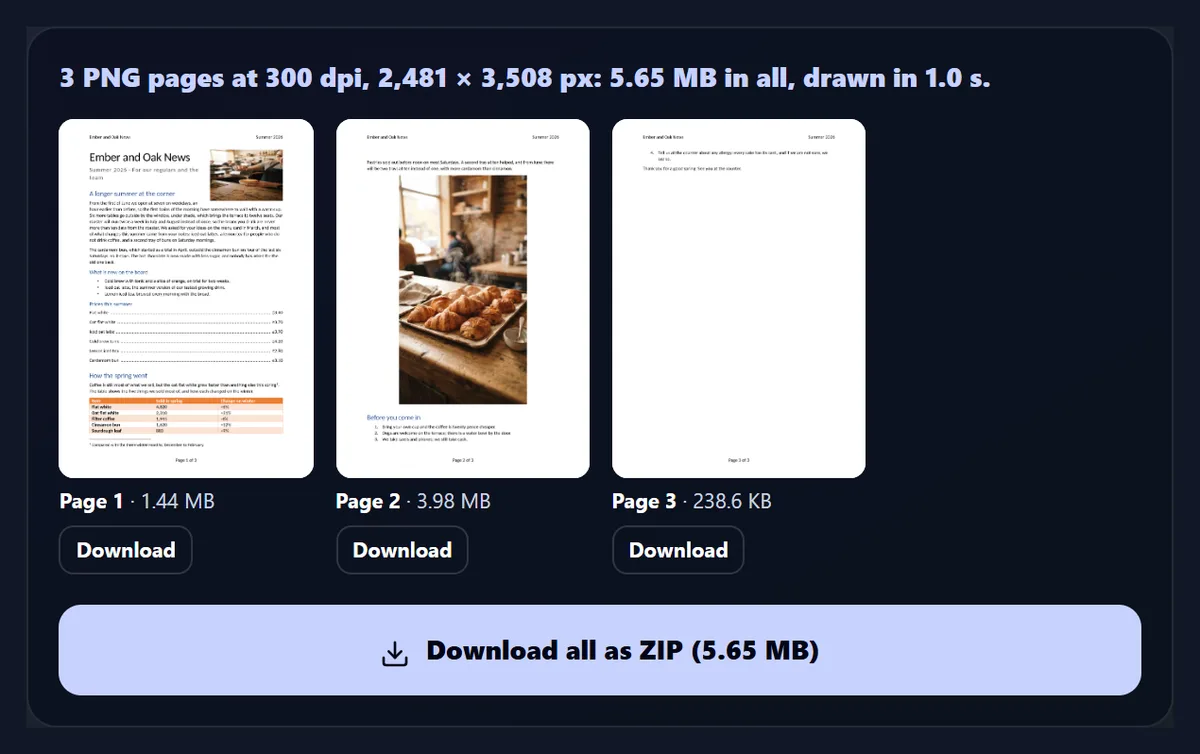
It depends on the resolution and on what is on the page. A page of text is small: page 3 of the newsletter was 37.8 KB at 96 dpi and 238.6 KB at 300 dpi. Photos are what make PNGs large: page 2, mostly a photo of pastries, was 657.4 KB at 96 dpi and 4.0 MB at 300 dpi. From 96 to 300 dpi a page has almost ten times the pixels.
An A4 page is 794 × 1,123 pixels at 96 dpi, 1,240 × 1,754 at 150 dpi and 2,481 × 3,508 at 300 dpi.
| Page | Resolution | PNG size |
|---|---|---|
| Page 1 · 96 dpi | 96 dpi | 263.2 KB |
| Page 1 · 150 dpi | 150 dpi | 526.6 KB |
| Page 1 · 300 dpi | 300 dpi | 1,476.8 KB |
| Page 2 · 96 dpi | 96 dpi | 657.4 KB |
| Page 2 · 150 dpi | 150 dpi | 1,378.2 KB |
| Page 2 · 300 dpi | 300 dpi | 4,074.4 KB |
| Page 3 · 96 dpi | 96 dpi | 37.8 KB |
| Page 3 · 150 dpi | 150 dpi | 76.3 KB |
| Page 3 · 300 dpi | 300 dpi | 238.6 KB |
How do I download the pages?
One page downloads as a PNG; several come as one ZIP, each named after the document and its page, such as sample-newsletter-page-1.png, with the number padded so they sort in order. PNGs are already compressed, so the ZIP stores them as they are: the newsletter's three pages at 150 dpi made a 1.94 MB ZIP. Every page also has its own Download button under its preview.
At 96, 150 and 300 dpi the three pages took 0.7, 0.8 and 1.6 s to draw and save on the test laptop.
What does the tool lay out like Word?
Paragraphs with their styles (the style's own settings, the styles it is based on, the document defaults and any formatting typed on the text), bold, italic, underlining, colours, highlights, small capitals, superscripts and character spacing; bullets and numbered lists, with their indents and Word's counting; tab stops, including right tabs with dot leaders as in a price list; line spacing set as a multiple, exactly or at least; keep with next, keep lines together and widow and orphan control; page and column breaks.
Tables with their column widths, merged cells, cell margins, borders and shading, built-in table styles with banded rows, and header rows repeated on each page; pictures in the text and pictures with text wrapped around them; headers and footers with page numbers such as Page 1 of 3; and footnotes at the foot of their page.
What can it not draw?
Charts, SmartArt, text boxes and shapes drawn in Word, equations, and pictures saved as Windows metafiles (EMF and WMF), which no browser can show. The tool counts them and names them under the pages, and leaves their space blank, rather than guess. Comments and tracked deletions are not drawn; tracked insertions are, as the text now reads.
A picture placed in the middle of a column with text on both sides gets text on its wider side only; Word fills both. For a document full of charts or diagrams, save it as PDF from Word and convert that with PDF to PNG: Word draws its own charts there.
How does it get the spacing right?
By following Word's own rules, which differ from a web page's. Between two paragraphs Word leaves the larger of the first one's space after and the second one's space before, not both added together: on the sample, the 8 points after a subtitle and the 18 points before a heading made an 18-point gap. Each font's line height is its own (Calibri's single line is 1.22 times its size), and extra spacing such as Word's default 1.08 lines goes below the text.
So Calibri 11 at Word's default spacing puts lines 14.5 points apart (11 × 1.22 × 1.08). On the newsletter, matched lines sat on average 0.30 points from where Word put them.
Which resolution should I choose?
96 dpi shows the page at the size Word shows it at 100% zoom on a standard screen; use it for previews and to post a page. 150 dpi is sharp enough to zoom into on a phone and stays a manageable size. 300 dpi is for printing the PNG or cutting one detail out of the page.
Pages that would pass 16,777,216 pixels, the most an iPhone's browser can draw on one canvas, are made at the largest size that fits.
Does it open old .doc files?
No: only .docx, the format Word has used since 2007. A .doc file is an older binary format; open it in Word, LibreOffice or Google Docs and save it as .docx, then convert it here. The tool says so when you drop one.
Google Docs, LibreOffice and Pages also save .docx files; they were not among the samples measured here, so check their pages before you use them.
What are PNG pages of a Word document good for?
Showing a page where a document cannot go: a social post, a chat, a slide, a web page, an image-only form upload. Putting one page into a design in the HueFold editor. Sharing a page that must look the same on every phone, whatever fonts it has installed. Making thumbnails of a set of documents.
A PNG is a picture of the page: its links stop working and its text cannot be edited. Keep the .docx for that.
PNG or PDF: which should I make?
PNG for a picture of a page to show or post; PDF for a document to send, print or keep, since it holds every page in one file and keeps the text as text. Word saves PDFs itself (File, Save as, PDF).
If you already have the PDF, PDF to PNG turns its pages into pictures, with a transparent background or fewer colours if you want them.
How were the samples made?
In Microsoft Word itself, by a script that types the text and applies Word's own styles: a three-page newsletter for a made-up café in Calibri, with a title, headings, a photo with text wrapped around it, a centred photo, bullets, numbers, a price list with right tabs and dot leaders, a table in a built-in table style, a footnote, a header and a Page X of Y footer; and a one-page letter in Aptos. Word then saved each as a PDF, which is what this tool's pages were compared with.
Both are in the tool as samples, so you can open them yourself.
Is my document uploaded?
No. The .docx is opened, laid out and drawn inside this browser tab, and the PNGs and the ZIP are made there too. The only thing fetched is the stand-in fonts, from Google Fonts; your document's text is not sent anywhere.
There is no sign-up, no watermark and no limit on pages or files.
Does it work on a phone?
Yes, in a current browser on Android or an iPhone: open the .docx from Files or Drive. A single PNG can be saved to Photos; a ZIP opens in the Files app, which unpacks it.
Long documents at 300 dpi need a lot of memory; on a phone, save them a range of pages at a time.
How long a document can it convert?
There is no page limit. Laying out a document is quick (the newsletter's three pages took 12 ms once its fonts had loaded); drawing and saving each page is what takes time, about a quarter of a second a page at 150 dpi on the test laptop, more with large photos.
Thumbnails are drawn one by one after the document opens, so a long file shows its first page at once.
Frequently asked questions
Is Word to PNG free?
Yes: no sign-up, no watermark and no limit on pages.
Is my document uploaded?
No. It is read, laid out and drawn inside your browser.
Will the pages look like they do in Word?
Very nearly: on the samples every line broke at the same word as in Word's own PDF.
What if I do not have Calibri?
You do not need it: Calibri is drawn with Carlito, which has the same letter widths.
Does it support Aptos?
Yes, drawn with Barlow, the closest of 60 fonts measured; lines can occasionally wrap differently.
Can I convert only some pages?
Yes: type pages and ranges such as 1-3, 5.
Which resolution should I choose?
96 dpi for previews, 150 dpi to zoom in, 300 dpi for printing.
Does it open .doc files?
No, only .docx: save the .doc as .docx in Word first.
Are charts and SmartArt drawn?
No: the tool names them and leaves their space blank. Save as PDF from Word and use PDF to PNG for those.
Related tools
- PDF to PNG — PDF pages as PNGs, transparent too.
- Free PDF Converter — PDF to Word, JPG or text.
- PDF to JPG — Smaller files for photo pages.
- PNG to PDF — Pictures back into one PDF.
- Compress an Image to 100 KB — Make a page PNG smaller.
- Translate — Translate a Word document's text.