PDF to JPG
Convert PDF pages to JPG images in your browser: every page or the ones you list, at 72, 150 or 300 dpi and the JPG quality you choose, as one JPG or a ZIP. Free, no upload.
Updated
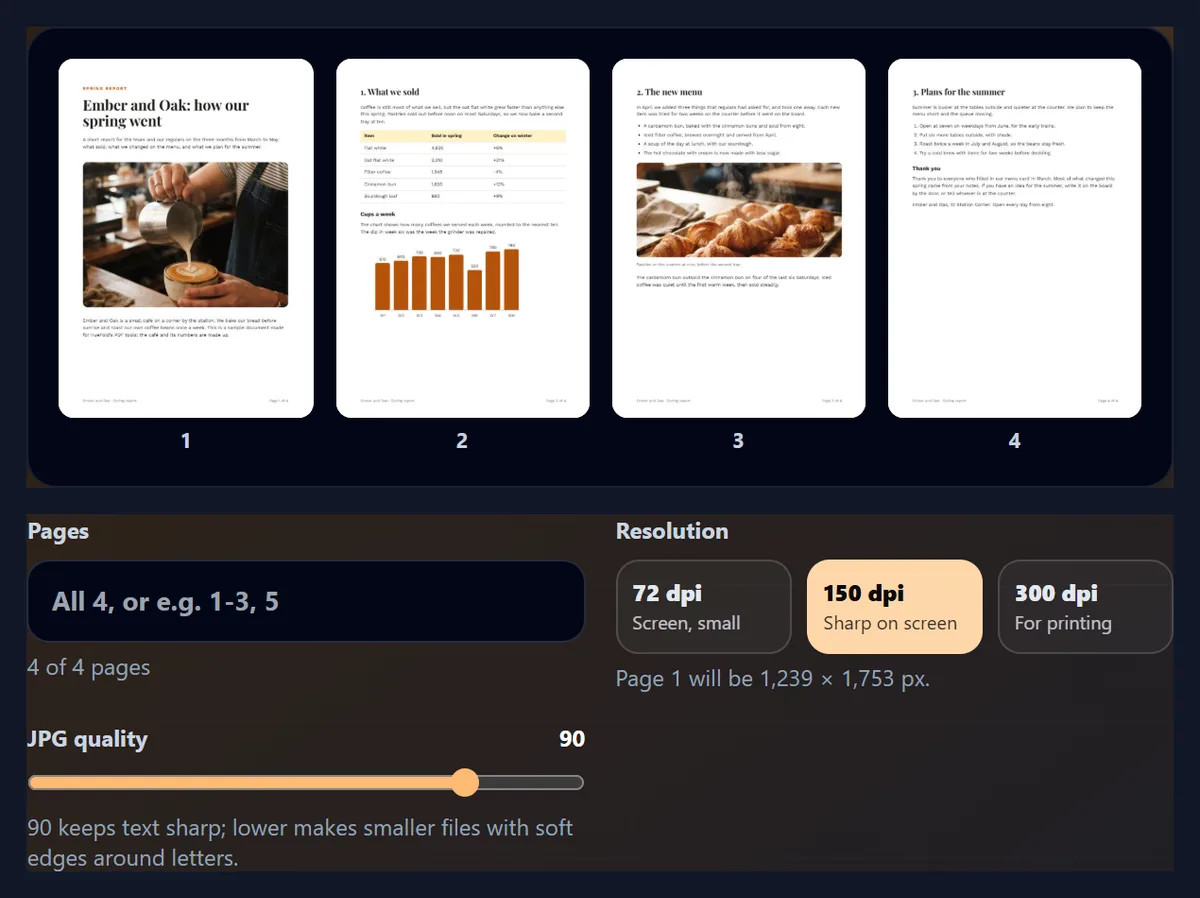
How do you convert a PDF to JPG?
Open the PDF here, list the pages you want or leave the box empty for all, choose a resolution (150 dpi for screens, 300 dpi for printing) and a JPG quality, and press Convert: one page downloads as a JPG, several as a ZIP. The PDF never leaves your browser.
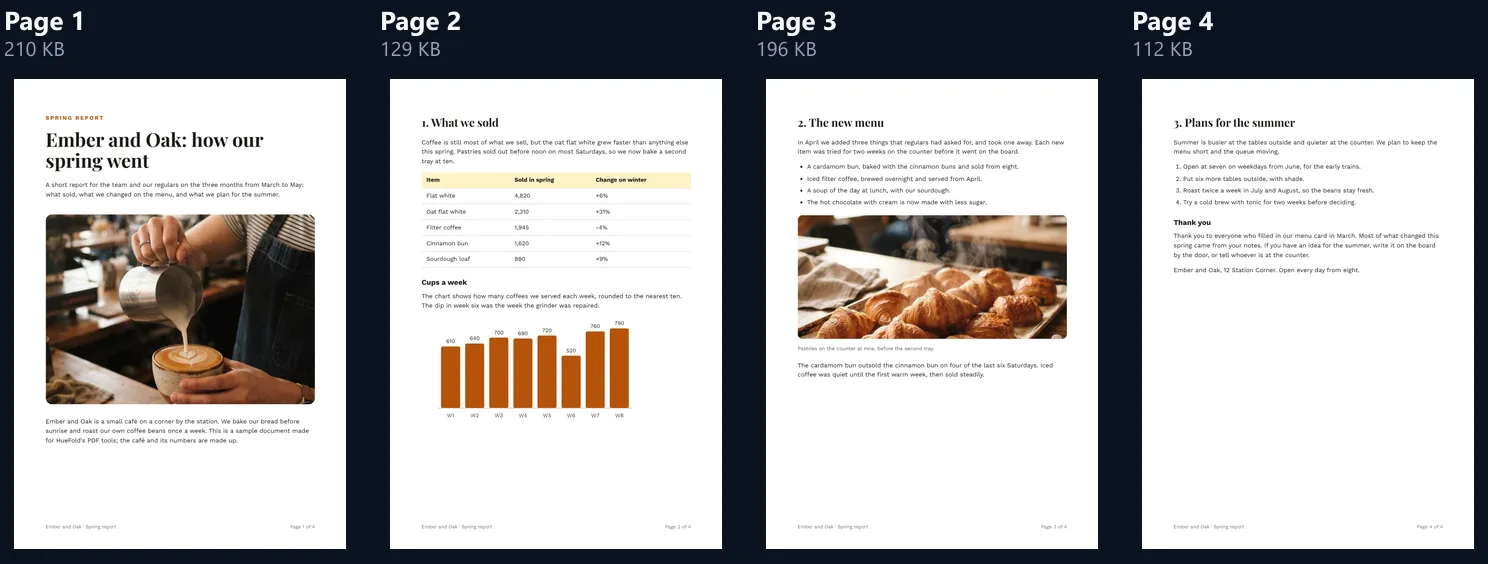
At 150 dpi and quality 90, the four pages of the sample report took about a second and made JPGs of 210 KB, 129 KB, 196 KB, 112 KB, 1,239 × 1,753 pixels each.
How to save PDF pages as JPG
- Open the PDF Drop it on the tool or choose it.
- Choose the pages All of them, or a list such as 1-3, 5.
- Set resolution and quality 150 dpi for screens, 300 for print.
- Download A JPG, or a ZIP of every page.
Convert a PDF to JPG
A real recording of this tool: the sample report opened, pages 1 to 3 chosen, 300 dpi and quality 85 set, and the pages saved as JPGs.
- The sample PDF opens and its four pages appear.
- Pages 1 to 3 are typed into the Pages box.
- 300 dpi is chosen and the quality set to 85.
- The pages are converted and the JPGs are ready to download.
How big is each JPG?
It depends on the resolution and the JPG quality more than on the PDF. Page 2 of the sample report, a page of text with a table and a bar chart, made a JPG of 44.9 KB at 72 dpi, 128.6 KB at 150 dpi and 328.8 KB at 300 dpi, all at quality 90. Doubling the resolution makes four times the pixels, but the file grew only 2.6 times, because the extra pixels are mostly smooth white paper.
Quality changes the size too: at 300 dpi, quality 100 was 2.2 times the size of quality 90 for no difference you can see.
| Setting | Resolution | Quality | JPG size |
|---|---|---|---|
| 72 dpi · 90 | 72 | 90 | 44.9 KB |
| 150 dpi · 75 | 150 | 75 | 95.6 KB |
| 150 dpi · 90 | 150 | 90 | 128.6 KB |
| 300 dpi · 75 | 300 | 75 | 244.3 KB |
| 300 dpi · 90 | 300 | 90 | 328.8 KB |
| 300 dpi · 100 | 300 | 100 | 711.6 KB |
How do I convert a PDF to JPG?
Drop the PDF on the tool or choose it, and its pages appear as thumbnails. Leave Pages empty for all of them or type the ones you want, choose a resolution, set the JPG quality, and press Convert to JPG. One page downloads as a JPG; several come as one ZIP, and each can also be saved on its own from the result.
The four pages of the sample took about a second together at 150 dpi on the test laptop, and made a 647.5 KB ZIP.
What resolution should I use?
150 dpi for reading on a screen, posting or sending; 300 dpi for printing; 72 dpi for thumbnails and quick previews. Dots per inch means pixels per inch of the paper, so the pixel size follows the page size: the table gives the exact sizes the tool makes for the two common paper sizes.
A page that would pass 16,777,216 pixels, the most an iPhone's browser can draw, is made at the highest resolution that fits, and the tool shows it before you convert: an A3 page asked for at 300 dpi comes out at 295 dpi, 3,444 × 4,870 pixels.
| Paper | 72 dpi | 150 dpi | 300 dpi |
|---|---|---|---|
| A4 (210 × 297 mm) | 595 × 841 | 1,240 × 1,753 | 2,480 × 3,507 |
| US Letter (8.5 × 11 in) | 612 × 792 | 1,275 × 1,650 | 2,550 × 3,300 |
| 16:9 slide (13.33 × 7.5 in) | 960 × 540 | 2,000 × 1,125 | 4,000 × 2,250 |
How sharp is the text at each resolution?
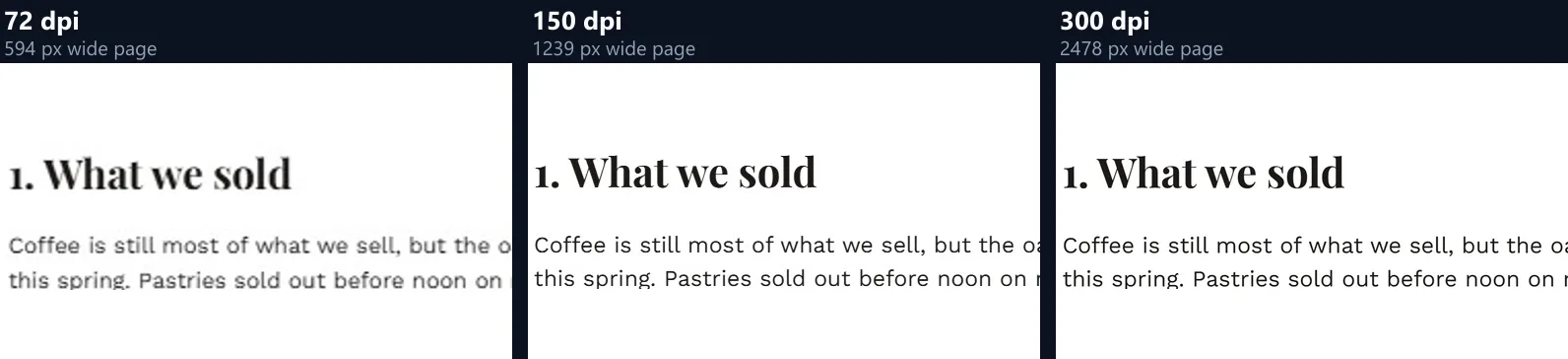
The figure shows the same heading and line of body text cut from the page at each resolution and enlarged to the same width. At 72 dpi the small body text is readable but soft, with letters blurred into the paper; at 150 dpi it is clean; at 300 dpi it is crisp enough to print.
If people will zoom into the picture, as they do with a page posted on social media, 150 dpi is the least to choose for body text.
What JPG quality should I choose?
90, the default, for pages of text: letters keep clean edges and the file stays small. Lower qualities save space at the cost of faint blotches beside the letters; at 300 dpi, quality 60 made a 207 KB page against 329 KB at 90. Quality 100 more than doubled it to 712 KB and looked the same.
The close-up shows one word of body text at 300 dpi, its pixels enlarged three times without smoothing. At this resolution the letters stay readable at every quality; the difference is in the faint speckle around them.
| Resolution | Quality 60 | Quality 75 | Quality 90 | Quality 100 |
|---|---|---|---|---|
| 72 dpi | 27.0 KB | 32.8 KB | 44.9 KB | 99.7 KB |
| 150 dpi | 80.9 KB | 95.6 KB | 128.6 KB | 287.1 KB |
| 300 dpi | 207.3 KB | 244.3 KB | 328.8 KB | 711.6 KB |

Why are some pages bigger than others?
Photos cost more than text. Page 1 of the sample is mostly a photo of a latte being poured and made a 209.7 KB JPG at 150 dpi, 1.6 times page 2's 128.6 KB of text and a chart. At 300 dpi the photo page was 543.6 KB.
JPG is made for photos, so pages like page 1 look perfect even at lower qualities. For a page of fine lines or small type, keep the quality at 90 or save it as PNG with the free PDF converter.
| Page | What is on it | JPG size |
|---|---|---|
| 1 | Title, a large photo, two paragraphs | 209.7 KB |
| 2 | Text, a table, a bar chart | 128.6 KB |
| 3 | Text, a list, a photo | 196.3 KB |
| 4 | Text and a numbered list | 112.4 KB |
Can I convert only some pages?
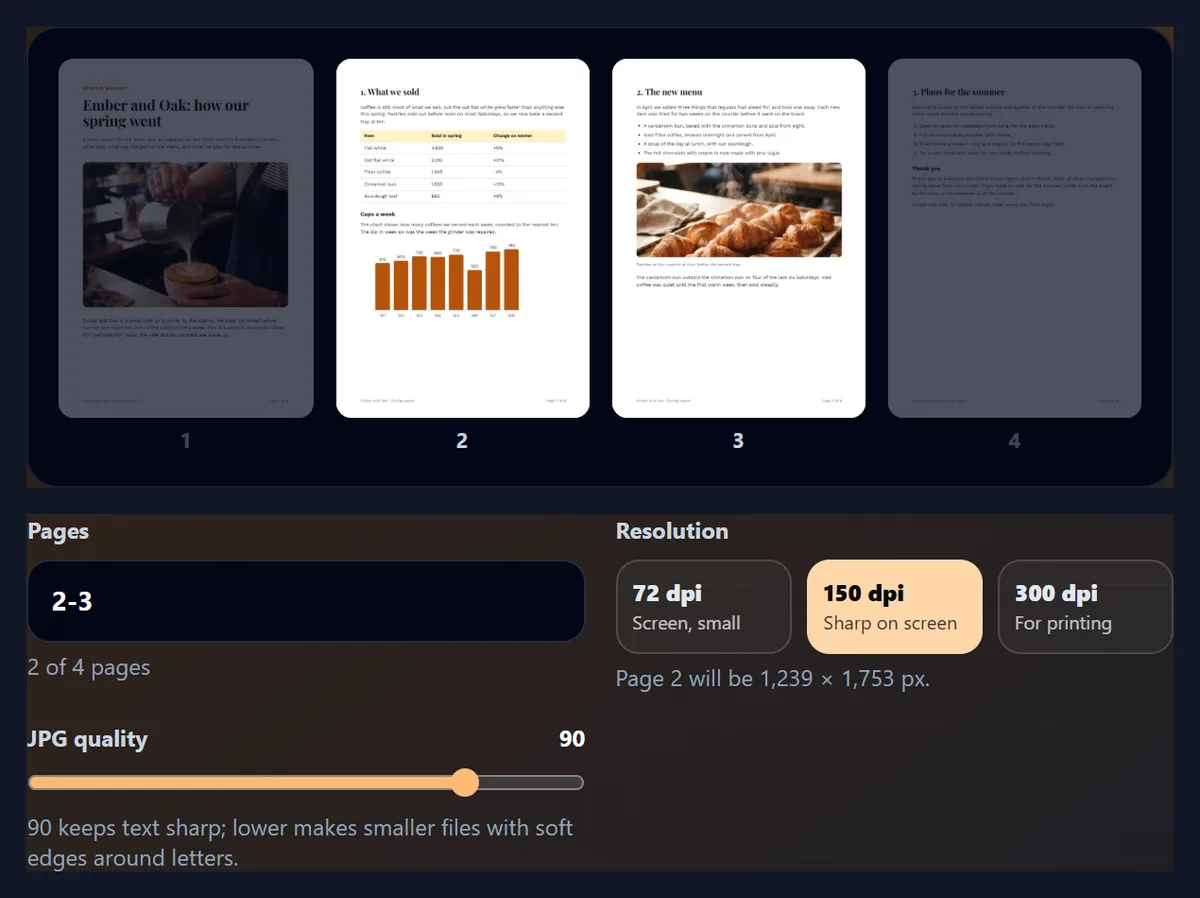
Yes. Type the pages into the Pages box: single pages and ranges separated by commas, such as 1-3, 5, or 8- for page 8 to the end. Pages left out are dimmed in the thumbnails, and the line under the box says how many will be converted: typing 2-3 into the sample showed 2 of 4 pages.
Pages are converted in the order you type them, each only once, and a page number outside the PDF gets a message instead of a silent mistake.
How do I download all the pages?
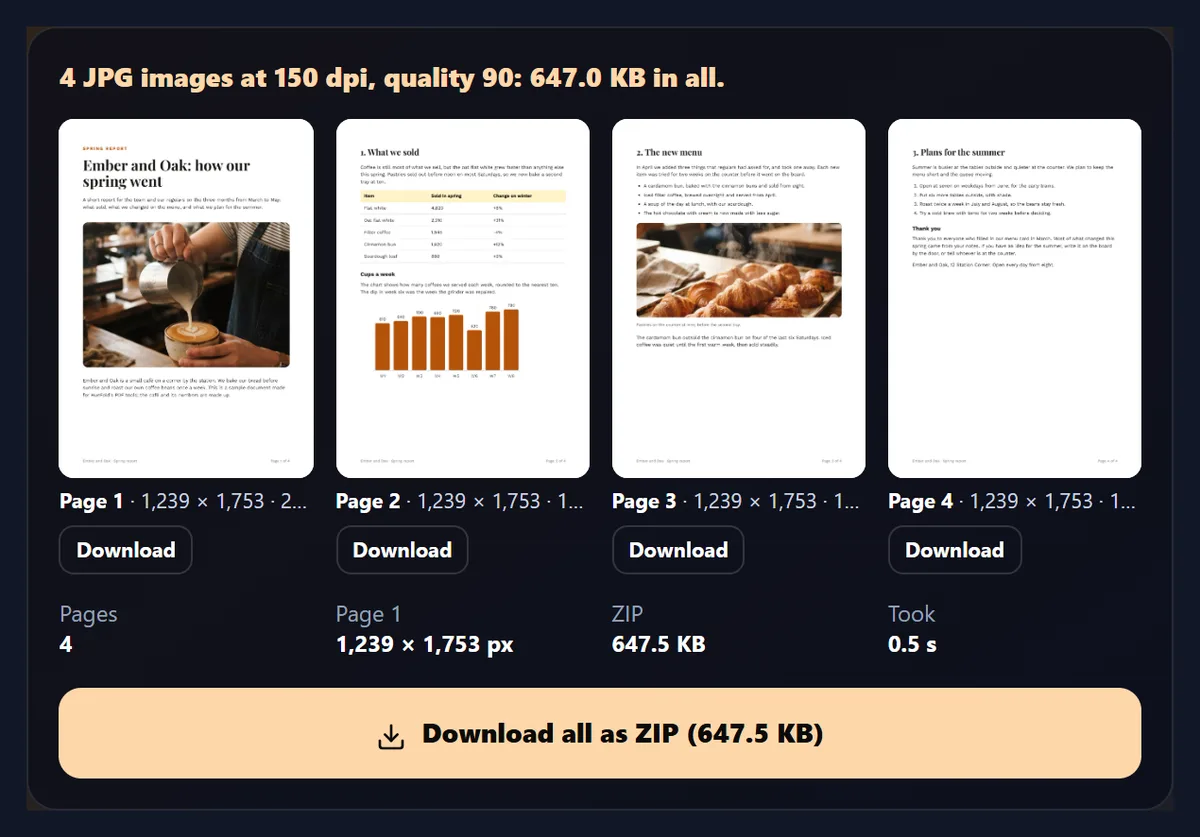
Press Download all as ZIP. Each picture is named after the PDF and its page, such as sample-report-page-1.jpg, with the page number padded so the files sort in order. JPGs are already compressed, so the ZIP stores them as they are: the sample's four pages were 647.0 KB as JPGs and 647.5 KB as a ZIP.
Every page also has its own Download button in the result, under a preview showing its size in pixels and kilobytes.
What do the JPGs look like?
Exactly like the PDF's pages, on white: the fonts, photos, table colours and chart come out as the PDF draws them. The figure shows the four JPGs of the sample as saved, side by side.
Links and form fields stop working in a picture: a JPG is only what the page looks like.
What are JPG pages good for?
Sharing one page where a PDF is awkward: in a chat, on social media, in an email that should show the page without an attachment to open. Putting a page into something else: a slide, a design in the HueFold editor, a web page or a document library's thumbnails. And keeping a copy of a form or a ticket that opens on any phone.
For a page people will read on a phone, 150 dpi is enough; for a page that will be cropped to one detail, such as a chart, choose 300 dpi so the crop stays sharp.
Why does a page look different from my PDF reader?
Usually it does not: the JPG shows the page as pdf.js draws it, and pdf.js is the reader inside Firefox. Small differences come from PDFs that name a font without including it, where every reader substitutes its own, and from optional layers, which are drawn as the PDF says they should first appear.
Annotations such as highlights and stamps that are part of the page are drawn; comments that only open in a reader's side panel are not.
Why is the background white?
A PDF page has no background of its own, and a JPG cannot be transparent, so each page is drawn on white, as a PDF reader shows it. Pages with their own coloured background keep it.
If you need a page with a transparent background, as for a logo, use HueFold's PDF to PNG tool with Transparent chosen: it leaves clear every part of the page the PDF paints nothing on. On page 1 of a sample logo sheet, 91.0% of the pixels came out clear. A page that paints its own background, such as a slide with a page colour, has nothing clear to keep.
Why do the letters have grey edges?
So that they look right on every screen. When this tool was first tested, Chrome smoothed the letters with blue and orange edges tuned for the test laptop's screen: 71% of the pixels along the text were strongly coloured, which shows as fringes elsewhere and in print. The pages are now drawn with grey smoothing, and none are.
Grey edges also compress better: page 2 at 300 dpi, quality 100, went from 1,097 KB to 712 KB.
Can I print the JPGs?
Yes: at 300 dpi each page has the pixels a printer needs for sharp text at its paper size. Set the print size to the original paper (A4 or Letter) rather than fit to page, so 300 pixels land on each inch.
For printing the whole document, printing the PDF itself is better still: it keeps text as text, sharp at any resolution.
What about scanned PDFs?
A scanned PDF holds a photo of each sheet, and the JPG shows that photo at the resolution you choose. Choosing 300 dpi for a page scanned at 150 dpi makes a bigger picture, not a sharper one: the detail was never captured.
Scans are often grey or slightly yellow rather than white; the JPG keeps what the scanner saw.
Is my PDF uploaded?
No. The PDF is opened and drawn inside this browser tab by pdf.js, the open-source PDF reader from Mozilla, and the JPGs and the ZIP are made there too. Nothing is sent to HueFold or kept anywhere, and there is no watermark or sign-up.
A protected PDF asks for its password, which is used in the tab to open the file and kept nowhere.
Can I convert PDF to JPG on my phone?
Yes, in a current browser on Android or an iPhone. On an iPhone, a single JPG can be saved to Photos from the Files app; a ZIP opens in Files, which unpacks it with a tap.
Long PDFs at 300 dpi need a lot of memory; on a phone, convert them a range of pages at a time.
What other formats can I make from a PDF?
The free PDF converter saves the same pages as PNG, the text as a .txt or Word file, or the pages as PowerPoint slides; PDF to PPT has its own page.
To go the other way, JPG to PDF puts photos back into a single PDF.
Frequently asked questions
Is PDF to JPG free?
Yes: no sign-up, no watermark and no limit on pages or files.
Is my PDF uploaded?
No. The pages are drawn and saved inside your browser.
Which resolution should I choose?
150 dpi for screens and sharing, 300 dpi for printing, 72 dpi for small previews.
Which JPG quality is best?
90 for pages of text; quality 100 doubles the file for no visible gain.
Can I convert only some pages?
Yes: type pages and ranges such as 1-3, 5 or 8-.
How do I get all the pages at once?
Download all as ZIP saves every page, named in page order.
Can I convert a password-protected PDF?
Yes, with its password, which stays in your tab.
Why is the JPG background white?
JPG cannot be transparent, so pages are drawn on white like a PDF reader shows them.
Does it work on a phone?
Yes, in a current browser on Android or iPhone.
Related tools
- Free PDF Converter — PNG, text, Word or PowerPoint too.
- PDF to PPT — A slide for every page.
- JPG to PDF — Photos back into one PDF.
- Compress an Image to 100 KB — Make a page JPG smaller.
- PDF to PNG — Pages as PNG, the paper left clear.
- Image Converter — Convert between image formats.