Delete Pages from PDF
Remove pages from a PDF in your browser: tap the pages or type them, keep only the ones you need, or let the tool find the blank ones. Bookmarks, links and form fields that pointed at the removed pages are tidied, and the rest stays exactly as it was.
Updated
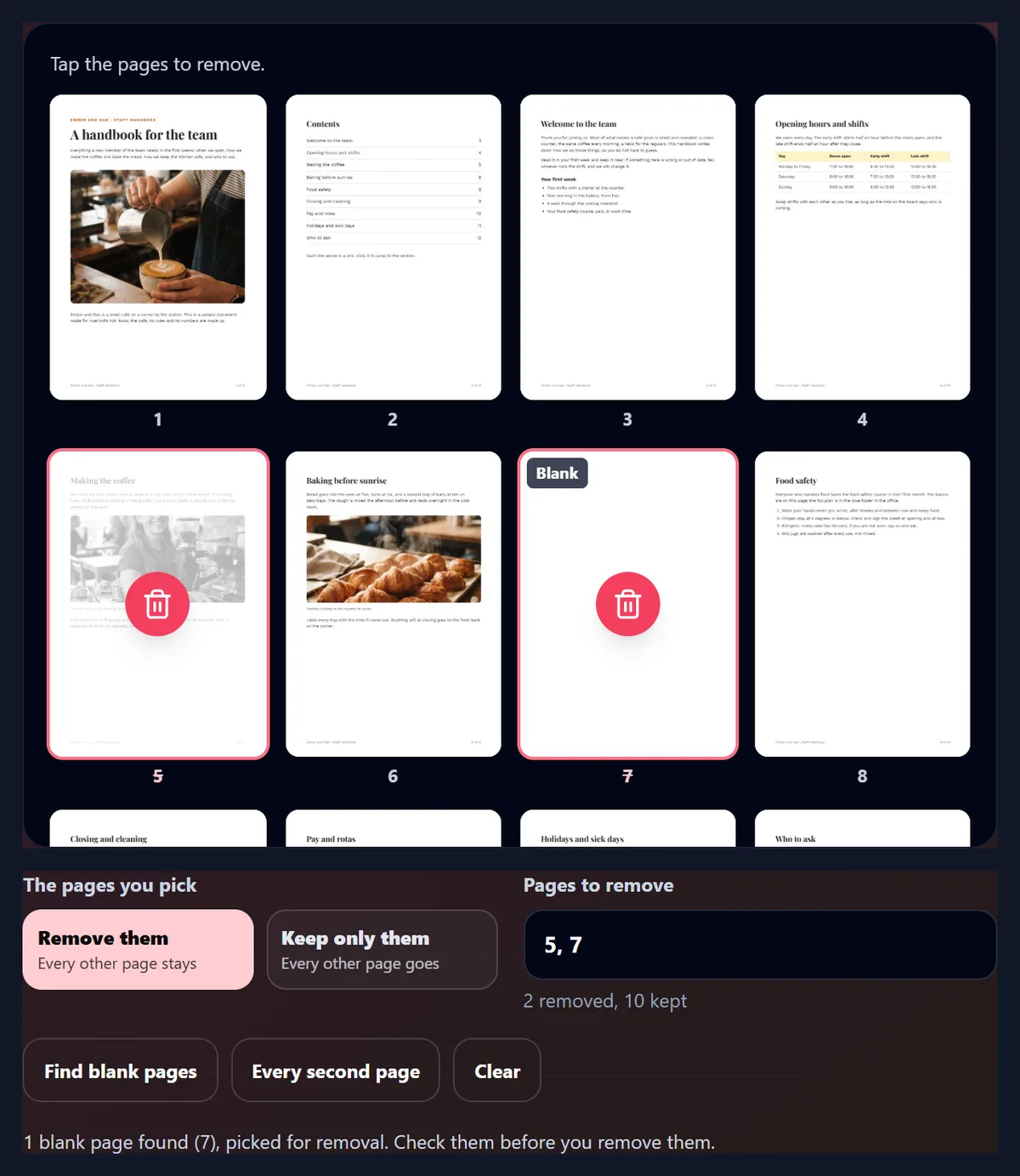
How do you delete pages from a PDF?
Open the PDF here, tap the pages you want to remove (or type them, such as 2, 5-7) and press Remove. The new PDF is written in your browser, opened again to check it, and downloaded. The pages you keep are copied as they were, so nothing is redrawn or recompressed.
Removing the blank page and a photo page from the 12-page sample handbook took 0.10 s and made a 580.3 KB PDF from 848.6 KB; every one of the 10 pages left read and looked exactly as before.
How to remove pages from a PDF
- Open the PDF Drop it on the tool or choose it.
- Pick the pages Tap them, type them or find blank ones.
- Remove them Or keep only the ones you picked.
- Download The new PDF, checked page by page.
Delete pages from a PDF
A real recording of this tool: the sample handbook opened, its blank page found, a photo page added, and both removed, with the new PDF checked page by page.
- The 12-page sample handbook opens as thumbnails.
- Find blank pages marks page 7.
- Page 5 is tapped as well.
- Both are removed and the new 10-page PDF is checked and ready to download.
How do I delete pages from a PDF?
Drop the PDF on the tool or choose it, and its pages appear as thumbnails. Tap a page to mark it for removal: it fades, with a bin over it, and its number is crossed out. The box under the thumbnails lists the pages you marked, and you can type into it instead, such as 2, 5-7, or 8- for page 8 to the end. Press Remove and download the new PDF.
The line above the button counts what is left: on the sample, 2 removed, 10 kept.
How much smaller does the PDF get?
As much as the removed pages held alone. A page of text is a few kilobytes; a page with a photo takes the photo with it, unless another page shows the same picture. The table shows the 12-page sample handbook, 848.6 KB, with different pages removed: its blank page saved 1.5 KB, a page of text 5.5 KB, the contents page 13.6 KB, and the page with a photo 268.1 KB.
Fonts and pictures used by kept pages stay, even when a removed page used them too: removing every page but the last left 22.5 KB, the last page's text and the fonts it is set in.
| Pages removed | What was on them | New file size | Smaller by |
|---|---|---|---|
| None | The whole handbook | 848.6 KB | 0.0 KB |
| 7 | A blank page | 847.1 KB | 1.5 KB |
| 8 | Text and a numbered list | 843.1 KB | 5.5 KB |
| 2 | The contents, linked to each section | 835.1 KB | 13.6 KB |
| 5 | Text and a photo | 580.5 KB | 268.1 KB |
| 1 | The cover, with a photo | 579.0 KB | 269.6 KB |
| 5 and 6 | Two pages with photos | 338.0 KB | 510.6 KB |
| 2 to 6 | Five pages, two photos | 312.5 KB | 536.1 KB |
| 1 to 11 | All but the last page | 22.5 KB | 826.1 KB |
Can it find blank pages for me?
Yes: press Find blank pages. Every page is drawn small, at 36 dpi, and the share of its pixels that carry ink is counted; a page with less than 0.1% ink counts as blank and is marked for removal, with a Blank label on its thumbnail. On the sample it took 1.07 s for 12 pages and found page 7, which had no ink at all; the emptiest other page, the last, had 1.26%.
Faint grey from a scanner is not counted as ink, but a stray mark or a page number is, so a scanned blank page with a speck on it stays. Look at what was marked before you remove it.
| Page | What is on it | Ink |
|---|---|---|
| 1 | Cover with a photo | 38.08% |
| 2 | Contents | 1.72% |
| 5 | Text and a photo | 24.43% |
| 7 | Nothing | 0.00% |
| 8 | Text and a list | 2.69% |
| 12 | Two short paragraphs | 1.26% |
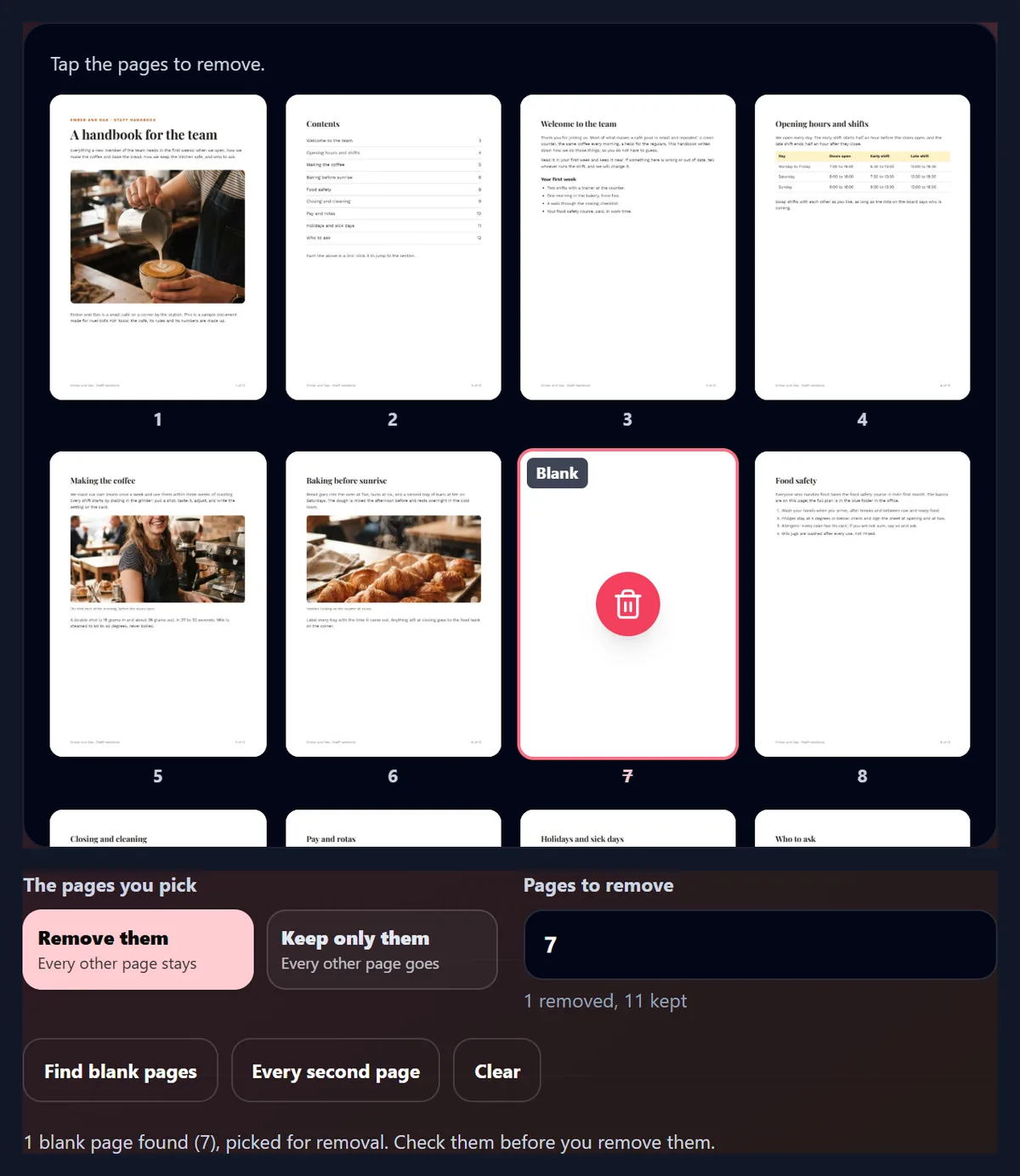
How do I keep only some pages?
Choose Keep only them, then pick or type the pages you want: every other page goes. It is the quicker way to pull two pages out of a long report, a single page out of a scanned bundle, or one chapter out of a book.
The thumbnails show the result either way: the pages that will go are the faded ones.
Are the pages I keep changed?
No. The tool does not draw the pages again: it reads the PDF's objects (the instructions that draw each page, its fonts and its pictures) and writes them into the new file byte for byte. Only the page list, the bookmarks, the links and the form fields that mentioned removed pages are rewritten.
Every new file was opened again with pdf.js and each kept page compared with the same page of the original: in 12 tests on four PDFs, all 99 kept pages had the same text and drew the same pixels. Six times the first drawing differed and a second drawing of both pages matched, which is the browser drawing two PDFs at once, not the files.
Are the removed pages really gone?
Yes. Some tools hide pages by leaving them in the file and taking them off the page list, so anyone with the right program can get them back. This tool writes a new PDF with only what the kept pages and the document still use: a removed page's content, the photos and fonts only it used, its links and its form fields are not in the new file at all.
Older versions of the document are left out too: a PDF saved with edits added at its end keeps the old text inside, and the new file has only the current one.
What happens to bookmarks?
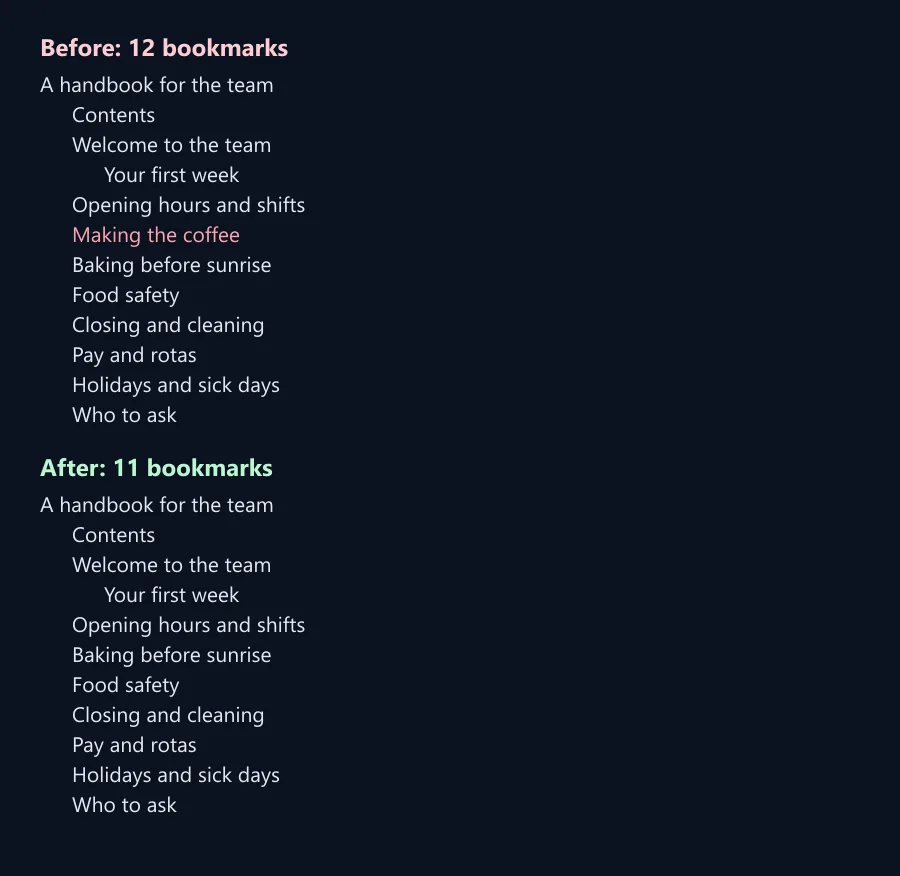
A bookmark that pointed at a removed page goes. One that still has bookmarks under it stays as a heading, without a link, so the bookmarks under it keep their place. The figure lists the bookmarks pdf.js read from the sample before and after removing pages 5 and 7: 12, then 11, with Making the coffee gone and the rest still nested under the title.
Removing the cover, which the document's title bookmark pointed at, kept that bookmark as a heading over the 11 below it.
What about links to the removed pages?
They are taken out. The sample's contents page links each line to its section; after removing page 5, its link, Making the coffee, would have jumped nowhere, so the tool removed that one link and kept the rest. Links to web pages and to other files are kept as they are.
If the PDF opened on a page that was removed, it now opens on the first page, as any PDF does.
Does it work with forms and tagged PDFs?
Yes. Form fields that only sat on removed pages are taken out of the form; a field that also appears on a kept page stays. Tagged PDFs, whose structure lets screen readers follow headings, lists and tables, keep their structure for the pages left: on the sample, removing pages 5 and 7 took out the 13 parts of the structure that belonged only to them.
Page labels, the page numbers a PDF shows such as i, ii, 1, 2, are worked out again for the pages kept, so they still count in order.
How do I know the new PDF is right?
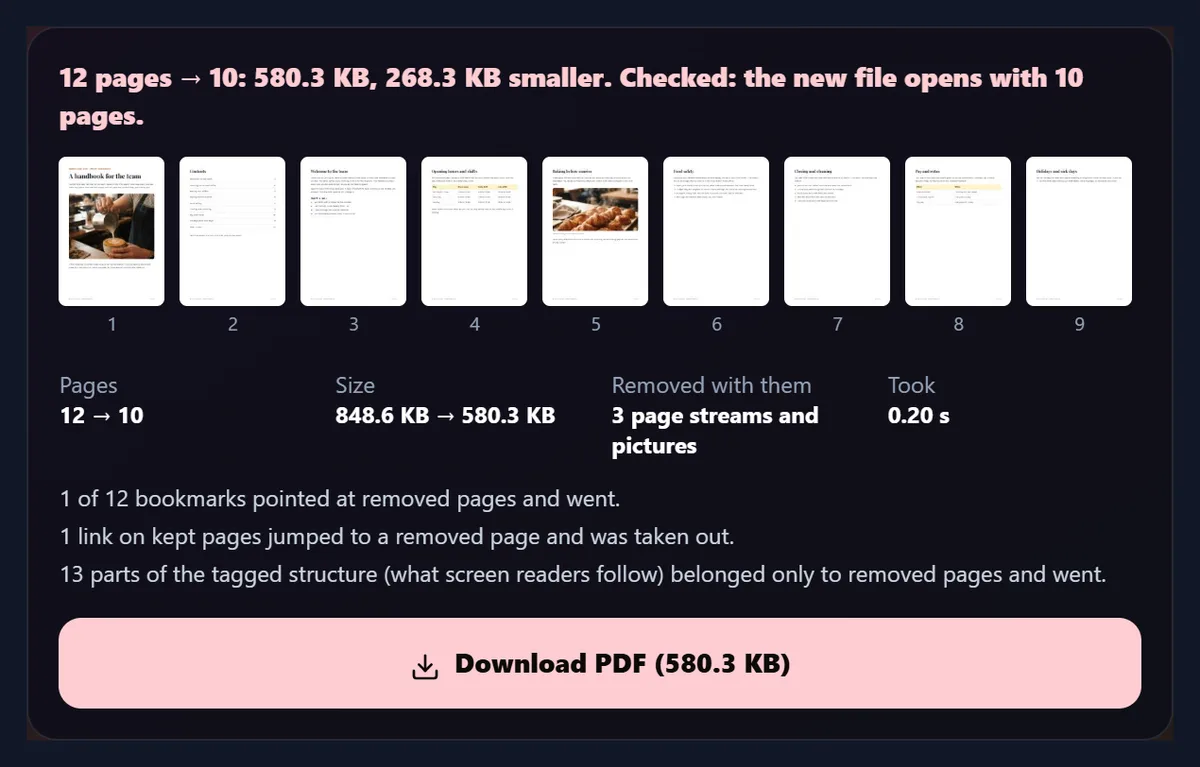
The tool checks it. The new file is opened again with pdf.js, exactly as a reader would, and its pages are counted and drawn as thumbnails in the result: if the count did not match, you would see an error instead of a download. The result also says how much smaller the file is and what went with the removed pages.
On the sample: 12 pages to 10, 848.6 KB to 580.3 KB, 3 page streams and pictures removed, 1 bookmark and 1 link taken out.
What do the pages look like before and after?
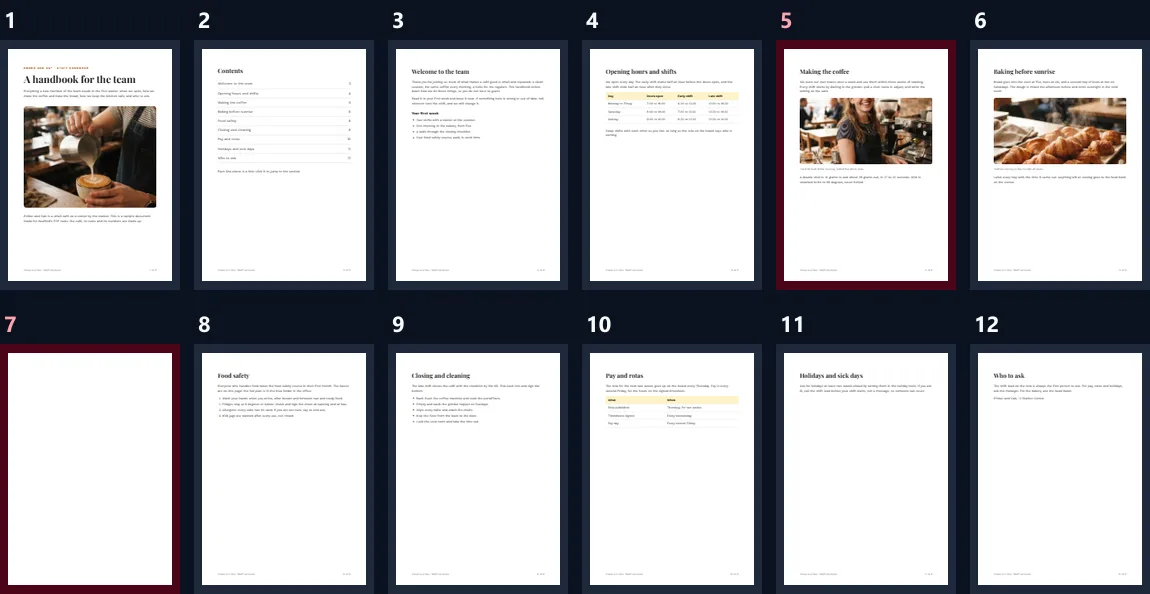
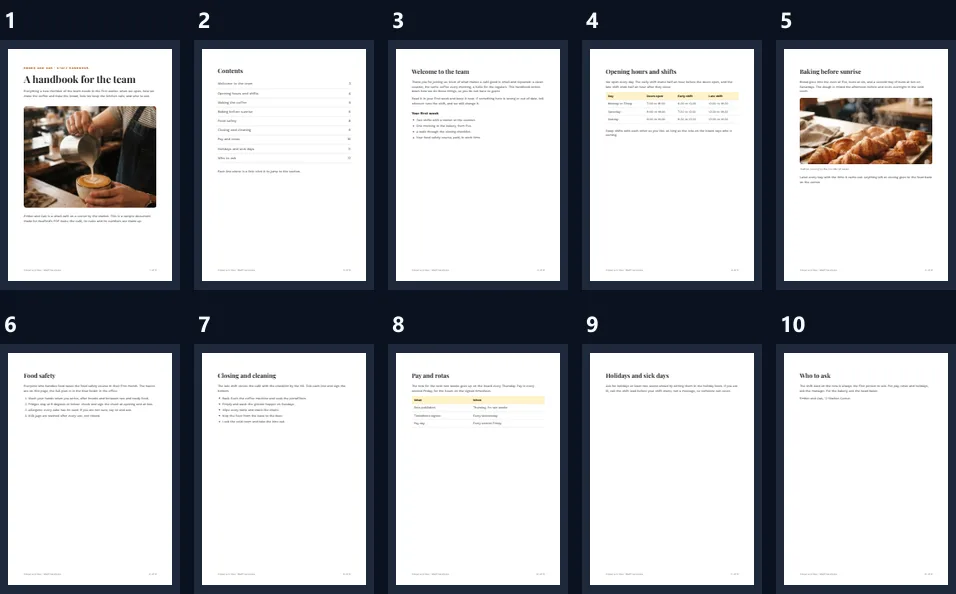
The same, minus the removed ones. The two figures show the sample's pages as pdf.js draws them from each file: the 12 pages of the original with pages 5 and 7 marked, and the 10 pages of the new PDF, in order.
Page numbers printed on the pages themselves (such as 8 of 12 in the footer) are part of each page's drawing, so they do not change; only the page labels a reader shows in its toolbar are renumbered.
And the new file?
Ten pages, the photo page and the blank page gone, everything else in its place. Its bookmarks, the contents page's links and the tagged structure follow the pages that are left.
The figure was drawn from the downloaded file, not from the tool's preview.
Which PDFs does it work with?
PDFs saved by browsers, Word, design and scanning apps, including ones that pack their objects into compressed streams, as Word and most modern apps do. It was tested on PDFs from Chrome and from Microsoft Word: removing page 2 of Word's three-page newsletter took it from 393.5 KB to 270.9 KB, and its 4 remaining bookmarks and both pages were checked.
A PDF whose index of its contents is broken, as when a program saves it badly, is read by scanning the whole file: a copy of the sample with its index pointing at the wrong place gave the same result as the original.
What about password-protected PDFs?
They have to be opened first. A protected PDF's pages are encrypted with a key that comes from its password, and the tool copies pages without decoding them, so it cannot write them into a new file. Open the PDF in a reader with its password and save or print it as a new PDF, then remove its pages here.
The tool says so as soon as you drop a protected file, instead of failing halfway.
How long does it take?
Moments. Writing the new file took 7 to 27 ms in the tests, whatever pages were removed; checking it and drawing its thumbnails takes a little longer. The thumbnails of a long PDF are drawn one by one after it opens, so you can start picking pages straight away.
Big scanned PDFs take longer only to open and draw: the file itself is copied, not recompressed.
Is my PDF uploaded?
No. The PDF is opened in this browser tab, its thumbnails are drawn there by pdf.js, Mozilla's open-source PDF reader, and the new file is written there too. Nothing is sent to HueFold or kept anywhere, and there is no watermark, no sign-up and no limit on pages or files.
That matters for the documents people most often trim: contracts, statements, applications and scans with personal details.
Can I delete PDF pages on my phone?
Yes, in a current browser on Android or an iPhone: open the PDF from Files or Drive, tap the pages and save the new file. On an iPhone it goes to the Files app, ready to share or attach.
The thumbnails are big enough to tap, and the Pages box takes numbers for long documents.
What else can I do with the PDF?
PDF to PNG and PDF to JPG save its pages as pictures; the free PDF converter turns it into Word, text or PowerPoint; PDF Translator translates its text and keeps its pages.
Remove the pages you do not need first, so the next tool has less to do.
Frequently asked questions
Is it free to delete pages from a PDF?
Yes: no sign-up, no watermark and no limit on pages or files.
Is my PDF uploaded?
No. The new PDF is written inside your browser.
Are the removed pages really gone?
Yes: they, and anything only they used, are not in the new file.
Do the pages I keep change?
No. They are copied byte for byte; every kept page in the tests read and looked the same.
Can it find blank pages?
Yes: Find blank pages marks pages with less than 0.1% ink.
Can I keep only some pages?
Yes: choose Keep only them and pick the pages to keep.
What happens to bookmarks and links?
Those pointing at removed pages are taken out; the rest are kept.
Does it work with password-protected PDFs?
Not directly: save the PDF without its password first.
Will the file get smaller?
By what the removed pages held: a few KB for text, much more for photos.
Related tools
- PDF to PNG — Save the pages you kept as PNGs.
- PDF to JPG — Pages as JPG pictures.
- Free PDF Converter — PDF to Word, text or PowerPoint.
- PDF Translator — Translate a PDF, keeping its pages.
- JPG to PDF — Pictures into one PDF.
- PDF to PPT — A slide for every page.