PDF Translator
Translate a PDF into 41 languages and keep its layout: every paragraph back in its own place and colour, then download the translated PDF, a Word file or text.
Updated

How do you translate a PDF without losing the layout?
Most translators give you the words and lose the page: the columns, the colours, where each heading sat. This one keeps the page. Your browser opens the PDF and finds its paragraphs, only their text is translated, and each translated paragraph is set back in the original's box, in the original's colour, on the original page.
Our sample café flyer, 1,213 characters on two pages, came back in Spanish, German, Hindi and Arabic in one run each, keeping between 91% and 95% of its type size. Below: how it works, what we measured, and where a translation still needs a person to check it.
How to translate a PDF
- Open the PDF Drop a PDF on the tool or try a sample. The paragraphs and characters are counted in your browser.
- Choose a language Pick one of 41 languages to translate into.
- Translate Sign in and press Translate. Each paragraph comes back in its own place and colour.
- Check and download Compare the pages side by side, then save the PDF, a Word file or text.
Translating a PDF and keeping its layout
A two-page café flyer opened in the browser, translated into Spanish, compared side by side page by page, and downloaded as a translated PDF and a Word file.
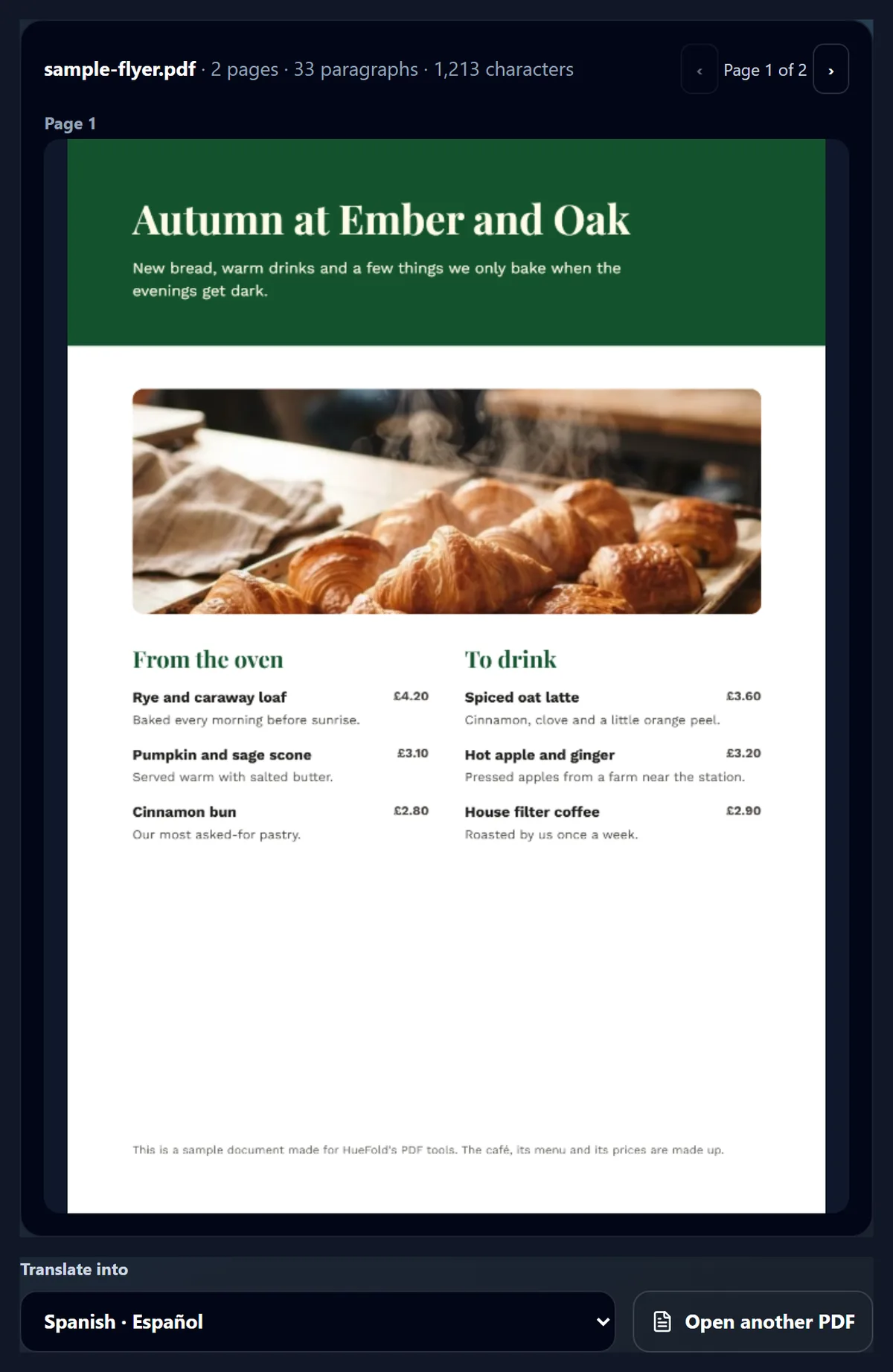
- The sample café flyer is opened: two pages, 33 paragraphs, 1,213 characters, counted in the browser.
- Spanish is chosen as the language to translate into.
- The paragraphs are translated and put back in their places, in their own colours.
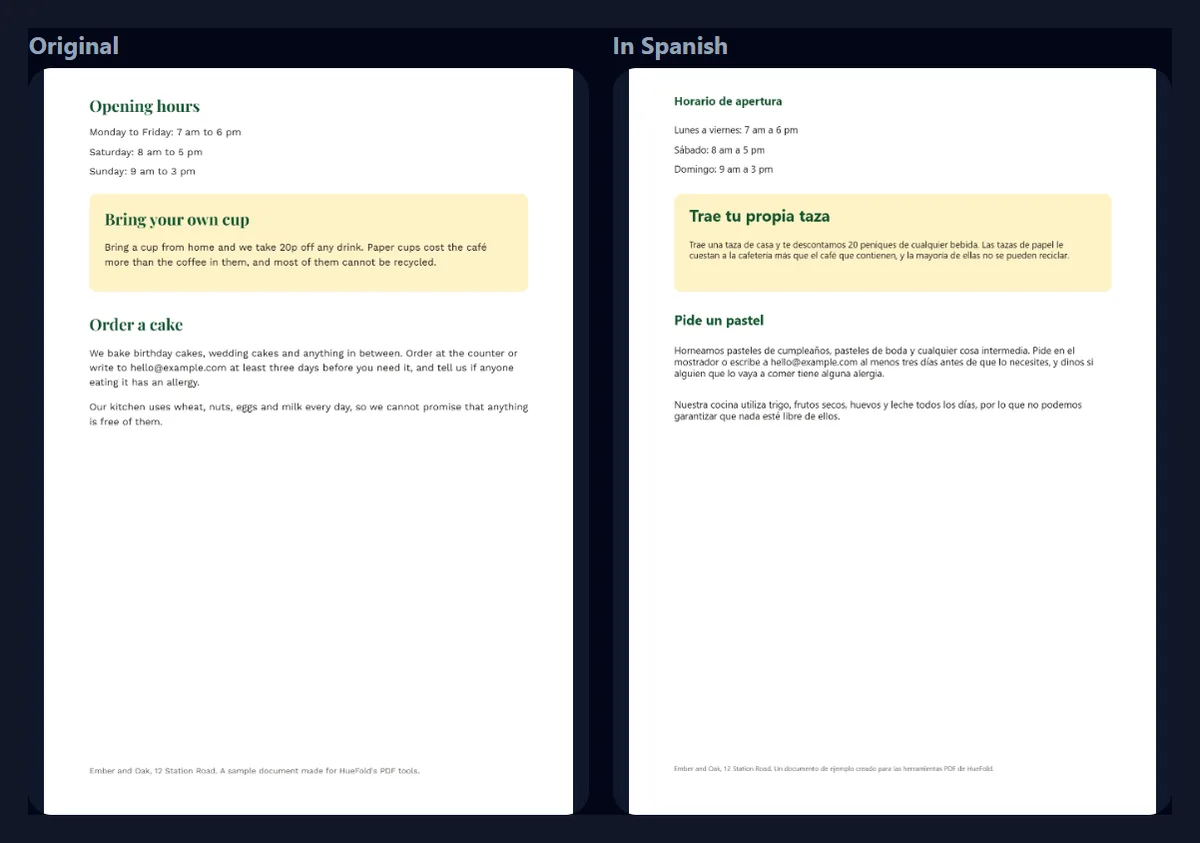
- Page two is compared with the original: the yellow panel and headings kept.
- The translated PDF and the Word file are downloaded.
How do I translate a PDF and keep its layout?
Open the PDF on the tool, or try one of the two samples, choose the language to translate into and press Translate. Your browser opens the PDF and finds its paragraphs: the headings, the lines of a menu, the small print. Only that text goes to HueFold to be translated; the pages themselves never leave your computer.
When the translation comes back, the tool puts each paragraph back where the original was: it covers the English with the colour around it, sets the translation in the same box, in the same colour, and makes the type smaller only when the translation needs more room. You see the original and the translated page side by side, and download a translated PDF, a Word file or a text file.
How does the tool find the paragraphs?
A PDF does not store paragraphs: it stores pieces of text with a position, a font and a size. The tool reads those pieces with pdf.js, joins the ones on the same line, then joins lines into a paragraph when they share a size, sit close below each other and overlap sideways. Two columns side by side stay two paragraphs, so a menu's left and right columns are not read as one long line.
The sample café flyer has two A4 pages; the tool found 33 paragraphs and 1,213 characters in them, shown above the page before anything is sent. A heading is a paragraph of its own, and so is each dish and each price.
What is sent, and what does it cost?
The paragraphs are sent as a numbered list, and the model is asked to answer with a list of the same length, each paragraph translated on its own, with names, numbers, prices, email addresses and links left as they are. A list that comes back with a different number of paragraphs is asked for once more.
Translating uses AI credits from your HueFold account, so you sign in first, and the run is kept in your AI history. The result shows the credits used. The flyer's 1,213 characters went in one part, and each of our runs used 1 credit. Longer documents are sent in parts of up to about 4,000 characters each, one run per part, and the button says how many parts there will be before you press it.
What happens when the translation is longer?
Translations are rarely the same length as the original. The flyer's 1,213 characters of English became 1,477 in Spanish (22% more) and 1,410 in German (16% more). For each paragraph the tool tries the original type size first; if the translation does not fit the paragraph's box, it tries 4% smaller, then smaller again, down to just over half the original size.
On average the Spanish flyer kept 93% of the original type size and the German 93%: most paragraphs fit at full size, and the longer ones shrank a little. Every result reports this average, so you can see at a glance how much squeezing a translation needed.
How did different languages fit?
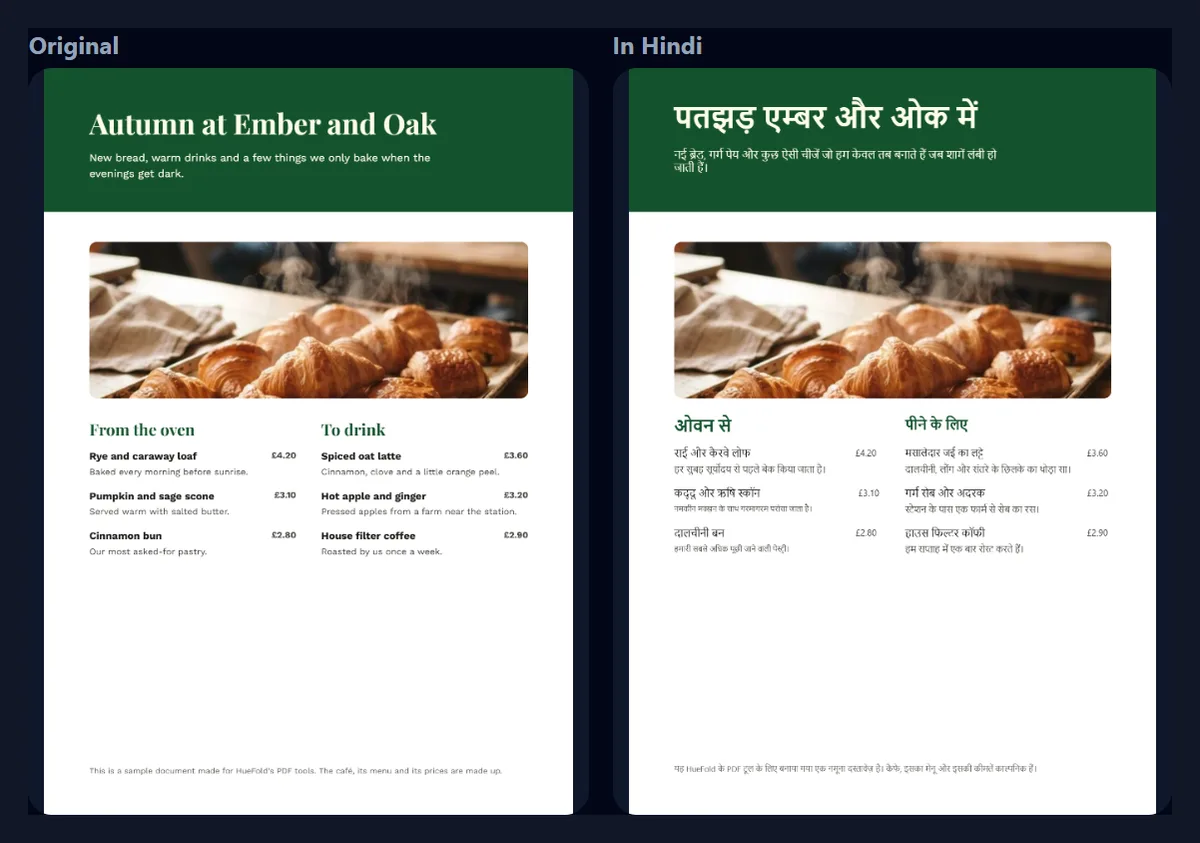
We translated the same flyer into four languages. Spanish and German are longer than English; Hindi, in Devanagari script, came to 1,341 characters and kept 95% of the type size; Arabic came to 1,232 characters, close to the English count, yet kept the least, 91%, mostly because 6 short price labels had to go down to the smallest size (more on that below).
The first run took 9.0 s and the next three between 4.9 and 5.4 seconds, from pressing the button to the translated pages on screen.
| Language | Characters after translating | Type size kept (%) | Seconds |
|---|---|---|---|
| Spanish | 1,477 | 93 | 9.0 |
| German | 1,410 | 93 | 5.4 |
| Hindi | 1,341 | 95 | 4.9 |
| Arabic | 1,232 | 91 | 5.4 |
Are prices and numbers kept?
The model is asked to leave numbers and prices as they are, but each language writes numbers its own way, and the model sometimes follows the language rather than the instruction. Check prices, dates and phone numbers in every translation before you print it.
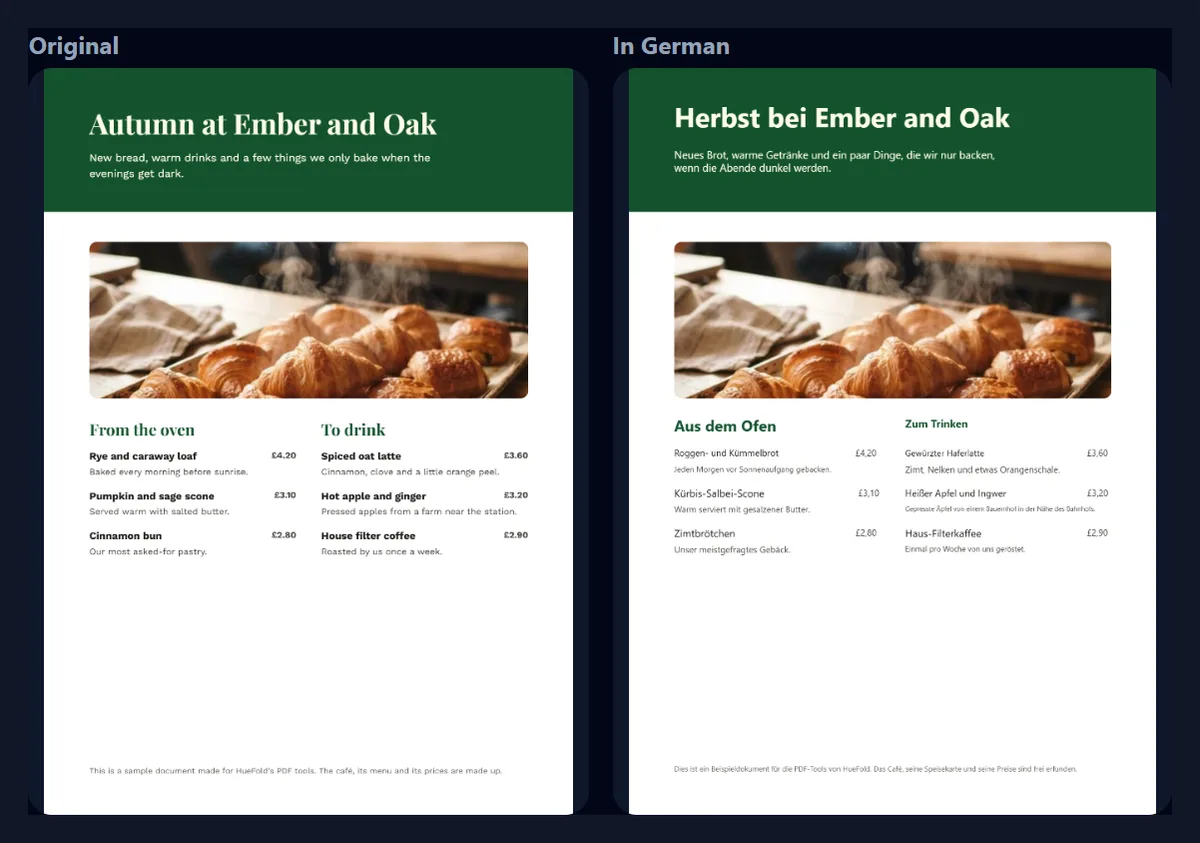
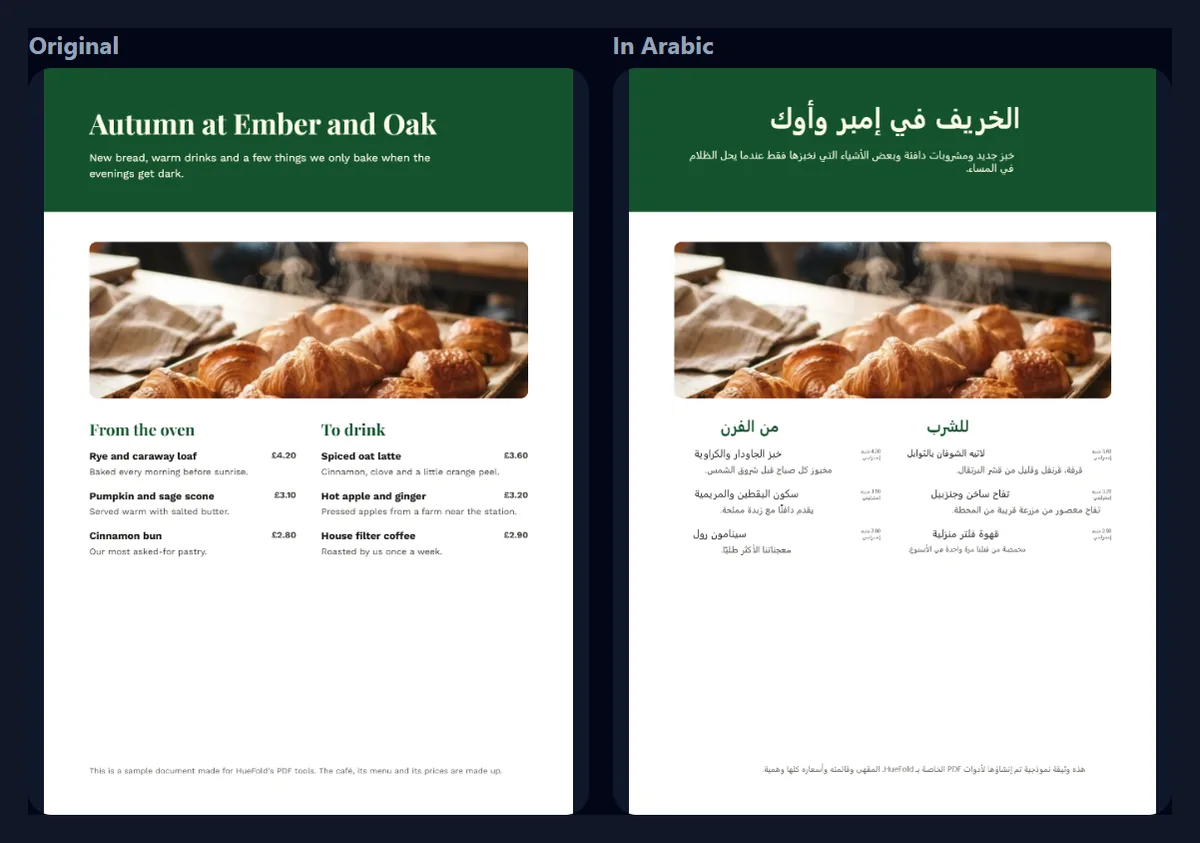
In our runs the Hindi flyer kept the prices exactly as they were (£4.20). The German one wrote them the German way, with a decimal comma (£4,20), which is right for German readers. The Arabic one spelled the currency out, writing 4.20 جنيه إسترليني (4.20 pounds sterling) in place of £4.20, which made those short price labels much longer.
Does it work for Arabic, Hebrew, Persian and Urdu?
Yes. For the four right-to-left languages in the list, each paragraph is set from the right edge of its box and written right to left, in a face that covers Arabic script. The layout of the page stays as it was: the columns are not mirrored, only the text inside each box.
Arabic shows the limit of keeping a layout. Because the prices were spelled out, 6 small paragraphs (the price labels) were longer than their space even at the smallest type size, and ran past their boxes; the result says so. When that happens, the Word file has every word of the translation, ready to set by hand.
Are the colours and fonts kept?
The colours are. Before covering a paragraph, the tool reads the colour around it (so a paragraph on a yellow panel is covered with that yellow, not white) and the colour of the letters themselves (so a green heading stays green). On the flyer, the white title on the green header, the green section headings and the dark text on the yellow panel all came through in their own colours.
Headings are set bold. The typeface itself is replaced: the translation is set in a sans-serif face that covers many scripts, or a serif face for languages written in Latin letters when the PDF marks the paragraph's font as serif. Embedded fonts often lack the letters another language needs, so reusing them would leave gaps.
What do I get?
Translated PDF is the translated pages as a PDF, same page size, same number of pages; for the two-page flyer it came to 286.0 KB. Its pages are pictures of the translated pages, so they print and share exactly as they look, but the text on them cannot be selected or searched.
Word file (.docx) has the translation as editable text, page by page, with the same page size: 3,959 bytes for the flyer. Use it to fix a word, set an overflowing paragraph by hand, or paste the text into a design. Text (.txt) is the plain translation, paragraph by paragraph (1,568 bytes).
What if the answer is not translated?
It happens: asked for Japanese, the model answered three of our runs with the English text unchanged. The tool now checks every answer. If most paragraphs with words in them come back exactly as they went, it asks once more, and if the second answer is unchanged too, it stops and says the answer came back in the original language, rather than giving you a PDF that is still in English.
Each attempt is a run, and runs use credits, so an unchanged answer still costs what it cost. If it happens to you, try again later or try a nearby language; Japanese is in the list, but in our runs it did not translate.
How long can the PDF be?
The tool translates the first 20 pages of a PDF, and up to 20,000 characters of text at a time; the header above the page shows how many characters your PDF has, and the tool says so before you translate if it is over. Split a longer document, translate the parts, and join the PDFs with a PDF merger.
A PDF made from a scan or a photo has pictures of text rather than text, so there is nothing to translate; the tool says so and suggests running text recognition (OCR) first. A PDF protected with a password asks for the password, and is opened in your browser with it.
Is my PDF uploaded?
The file is not. It is opened and drawn by your browser, and the translated pages are drawn there too. Only the text of its paragraphs is sent to HueFold, which has the AI model translate it; the translation is kept in your AI history like any other AI run.
Because the text is sent to an AI model, do not translate documents you are not allowed to share. Everything else, the pages, the pictures and the finished PDF, stays on your computer until you download it.
How do I get the best result?
Use a PDF exported from a design or word-processing app, not a scan. Leave room in the layout when you design for several languages: a heading box with space to grow keeps its full size in German or Spanish, while a box sized exactly for the English shrinks.
Always have someone who reads the language check the result, above all prices, dates, names and anything legal. Where a paragraph ran past its box, take the Word file and set that paragraph by hand.
Frequently asked questions
Is the PDF translator free?
Opening and reading a PDF is free. Translating uses AI credits from your HueFold account; the result shows how many were used.
How many languages can I translate into?
41, including Spanish, French, German, Hindi, Arabic, Chinese, Japanese and Portuguese.
Does it keep the layout?
Yes. Each paragraph is translated and put back in its own box, in its own colour, with the type made smaller only where the translation needs more room.
Can I edit the translated PDF?
Its pages are pictures, so the text cannot be selected. Download the Word file for editable text.
Is my PDF uploaded?
No. It is opened in your browser. Only the text of its paragraphs is sent to be translated.
Can it translate a scanned PDF?
Not directly: a scan has no text. Run text recognition (OCR) on it first.
How long can my PDF be?
The first 20 pages, and up to 20,000 characters at a time.
Does it work with right-to-left languages?
Yes: Arabic, Hebrew, Persian and Urdu are set right to left inside the original boxes.
Are numbers and prices kept?
The model is asked to keep them, but some languages rewrite them: German used a decimal comma, Arabic spelled the currency out. Check them.
What if the translation comes back in English?
The tool checks, asks once more, and tells you if the answer is still untranslated, instead of saving it.
Related tools
- Translate — Translate a paragraph or a list of lines.
- Document Translator — Translate a Word or text document.
- Free PDF Converter — Turn a PDF into other files, or files into a PDF.
- PDF to JPG — Save each page of a PDF as a picture.
- Video Translator — Translate the speech and captions of a video.
- Brand Kit — Keep your colours and fonts in one place.