Document Translator
Translate a Word document or a PowerPoint deck into another language and get the same file back: the same styles, pictures, tables, page numbers and slide design, with the words in the new language. Bold words and links keep their formatting, every number is checked, and the file opens in Word or PowerPoint as before.
Updated

How do you translate a document and keep its layout?
Drop a .docx or .pptx file and pick a language. The tool reads the file's paragraphs in your browser, sends their words to the AI to translate, and puts each translation back where its paragraph was, inside the file itself. Nothing else in the file is touched, so the layout is the original's.
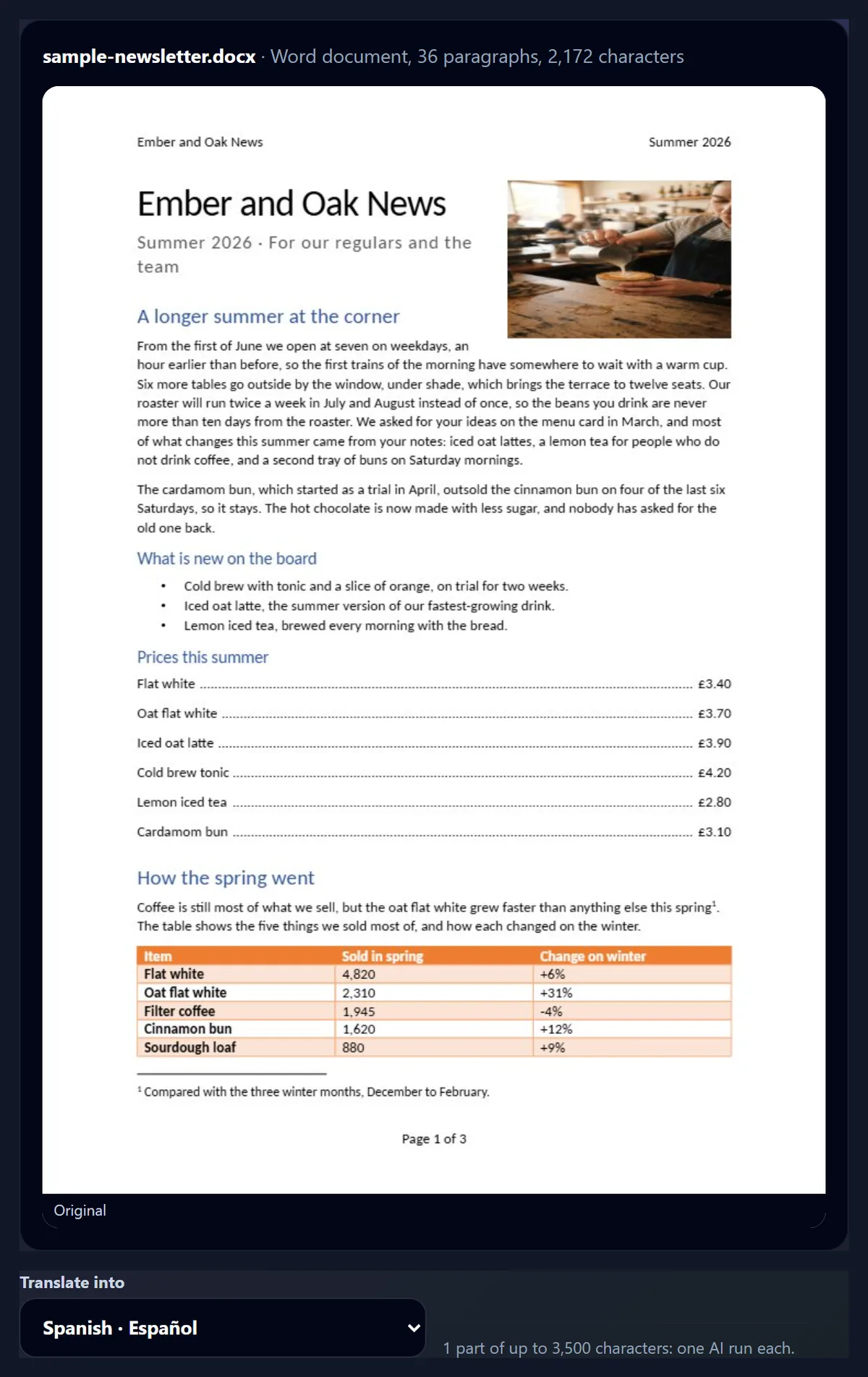
The 3-page sample newsletter went into Spanish in one AI run, 6.6 seconds and 1 credit, and opened in Microsoft Word with its 3 pages, photo, price list and table in place.
How to translate a document
- Open the document A Word, PowerPoint or text file.
- Pick the language Any of 41, from Arabic to Vietnamese.
- Translate and download The same file, in the new language.
Translate a Word document into German
A real recording of this tool: the sample newsletter opened, German chosen, and the document translated in place, the translated first page beside the original.
- The sample Word newsletter opens with a preview of its first page.
- German is chosen from the 41 languages.
- Translate sends the paragraphs to the AI and puts the German back into the file.
- The German first page appears beside the original, with the checks.
How do I translate a Word document?
Drop the .docx file on the tool or choose it. Its first page appears as a preview, with how many paragraphs and characters it holds and how many AI runs the translation will take. Pick a language and press Translate. When it is done, the original and the translated first page sit side by side, with checks on what was kept, and the translated file downloads with the language added to its name.
The figure shows the sample newsletter opened: 36 paragraphs, 2,172 characters, one part of up to 3,500 characters, so one AI run.
How well did it keep the documents?
Fully, on the samples: every paragraph was translated, every paragraph that mixed formatting kept it, every number came through, and Word and PowerPoint opened each translated file. The table lists the three translations made for this page; each took one AI run.
The checks are the tool's own, shown with every translation, so you see them for your documents too.
| Document | Into | Paragraphs translated | Mixed formatting kept | Numbers kept | Time (s) |
|---|---|---|---|---|---|
| Word newsletter | Spanish | 36 | 9 of 9 | 8 of 8 | 6.6 |
| PowerPoint deck | French | 35 | 1 of 1 | 4 of 4 | 7.5 |
| Word newsletter | Japanese | 36 | 9 of 9 | 8 of 8 | 6.9 |
What stays the same in the translated file?
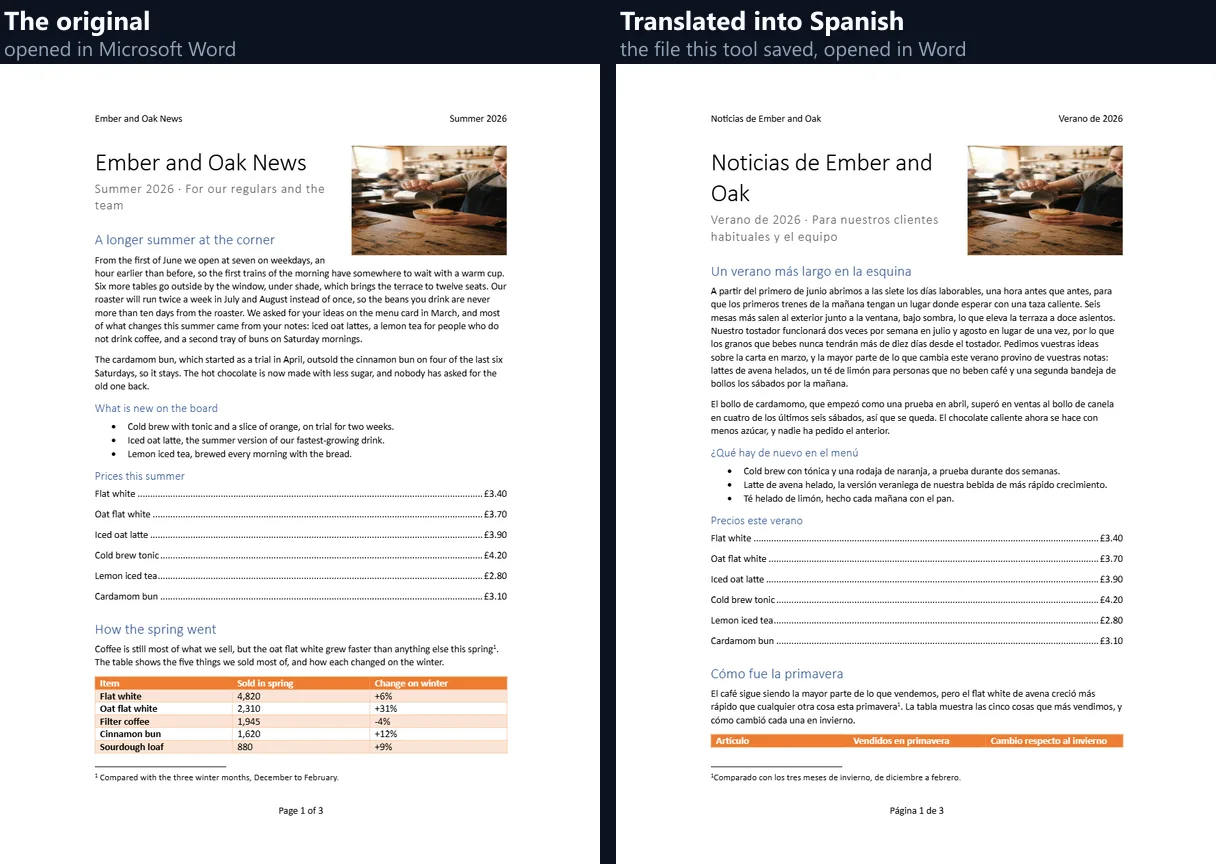
Everything but the words. A Word file is a set of parts: the text, the styles, the pictures, the headers and footers, the numbering. The tool changes only the text inside each run of words, and marks it as written in the new language so Word checks its spelling in that language. Styles, fonts, colours, pictures, tables, headers, footers, footnotes and page setup are left exactly as they were.
The figure shows Word's own drawing of the newsletter's first page, before and after: the same heading style, photo, price list with dot leaders and footnote. Spanish runs longer than English, so the table moved onto the next page, as it would in Word.
Do bold words and links keep their formatting?
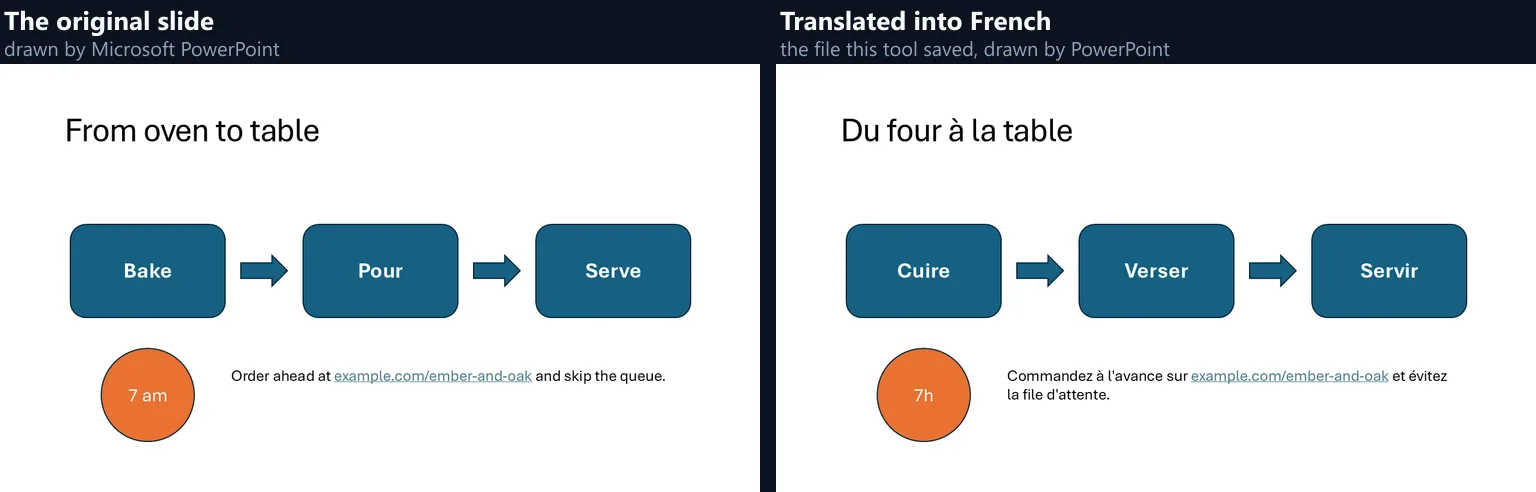
Yes. A paragraph that mixes formatting, such as a bold word, a link or a price after a tab, is sent with numbered tags around each part, which the AI keeps around the translated words; each part then goes back into its own run, with its own formatting. On the samples all 19 such paragraphs kept it, among them the deck's line with a web link, which stayed a link, underlined, in French.
If the tags ever come back broken, the whole translated paragraph goes into its first part's formatting, and the tool says how many paragraphs that happened to, so you can check them.
What about page numbers, footnotes and tabs?
They stay in their places. Page numbers, dates and other Word fields are worked out by Word, so the tool leaves them alone and translates the words around them: the footer Page 1 of 3 became Página 1 de 3 in Spanish, with Word still counting the pages. A footnote mark stays after the word it marks, and a tab keeps the price list's dot leaders between the item and its price.
In PowerPoint, slide numbers stay as they are and speaker notes are translated with the slides: the deck's note became Mentionnez le seigle du vendredi : il est épuisé avant midi.
Can I translate a PowerPoint presentation?
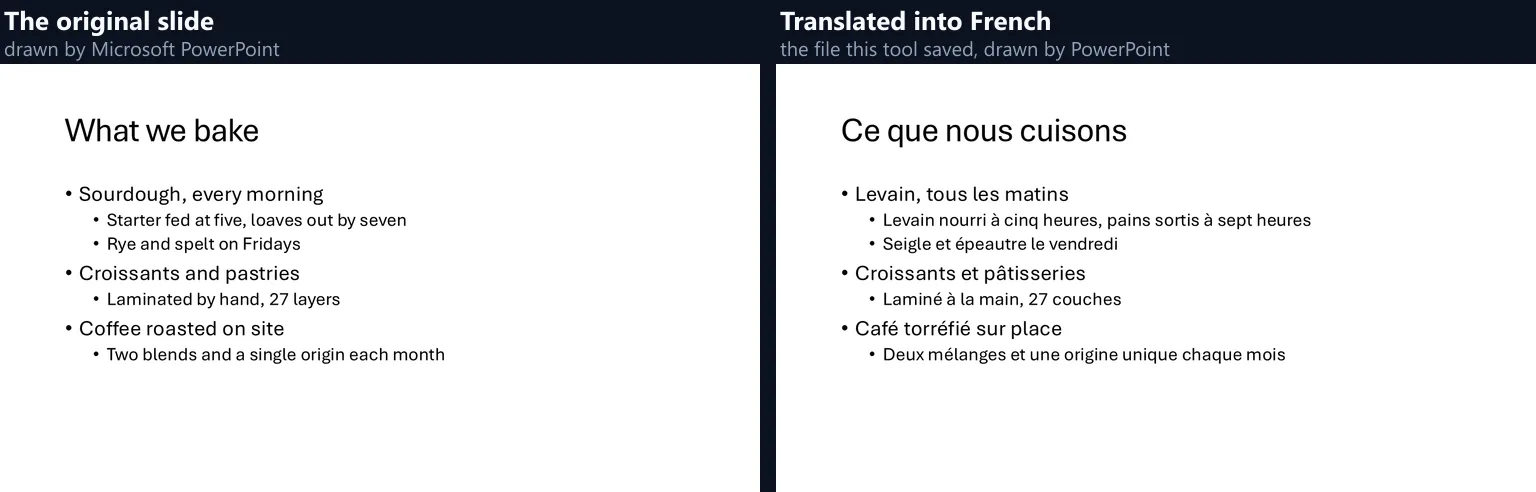
Yes: the words on every slide, in titles, bullets, text boxes, shapes and tables, and the speaker notes. The slide design, pictures, animations and transitions stay as they are, and the bullets keep their levels. The 7-slide sample deck went into French in one run of 7.5 seconds; PowerPoint opened it with its 7 slides, and the figure shows its own drawing of the bullet slide before and after.
Text in charts and SmartArt is not translated yet; the tool lists them when a file has them.
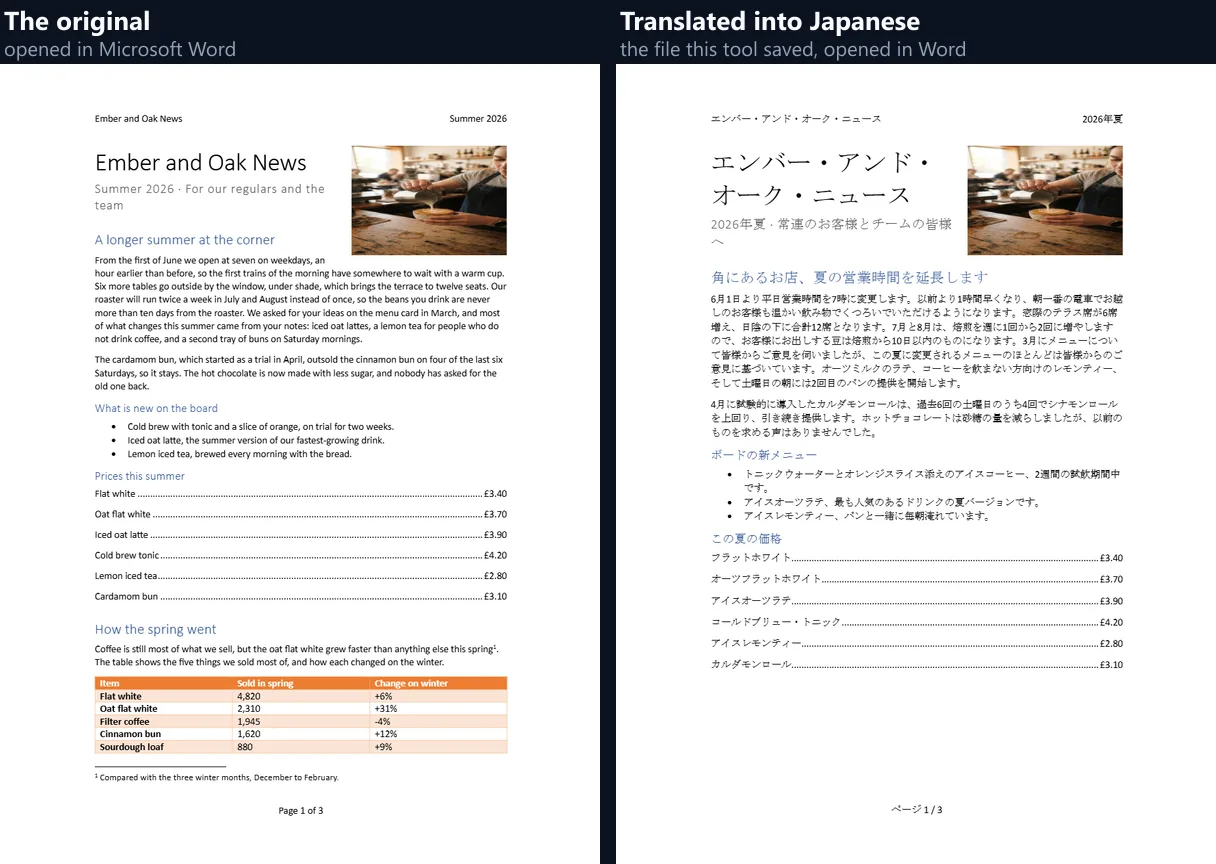
Does it work for languages in other scripts?
Yes: Japanese, Chinese, Korean, Hindi, Arabic and the other languages on the list. The figure shows the newsletter in Japanese as Word draws it, with Word choosing a Japanese font for the new text. Names may come back written in the new script: the café's name became エンバー・アンド・オーク in the Japanese header.
Arabic, Hebrew, Persian and Urdu are translated too, but the document keeps its left-to-right layout; the tool says so before you translate, so you can set the direction in Word.
How do I know the numbers are right?
The tool checks them. Every number in the original, prices, dates, quantities, is looked for in the translation, and any that is missing is named under the result. The AI is told to keep names, numbers, prices, web addresses and email addresses as they are; on the samples every number came through: 8 in the newsletter, both times, and 4 in the deck.
A number written out in words, or a time written differently, such as 7 am becoming 7h in French, still passes when its digits are kept.
What if the translation goes wrong?
The tool catches the failures it can see. While this page was being made, the AI twice sent the Japanese newsletter back untranslated, in English, as a correct-looking list: the formatting and number checks passed, because nothing had changed. The tool now spots a text sent back unchanged, asks once more, and if that fails says so instead of handing you an untranslated file. Naming the language in the request itself, as well as in the instruction, fixed the Japanese translation.
Each run costs credits whether or not it works, and the message says so.
How good is the translation?
It is a machine translation by Gemini 2.5 Flash Lite: fluent for ordinary text, but not checked by a person. It can be inconsistent: in Spanish the price list's drink names stayed in English, as menu names often do, while the same drinks were translated in the bullets above it; in Japanese both were translated. Read the result before you send it, especially names, terms you use in your business and anything legal.
For a document that matters, have a speaker of the language read it; the translated file is a good first draft for them to correct in Word.
Can I correct the translation afterwards?
Yes: the download is an ordinary Word or PowerPoint file. Its translated text is marked as written in the new language, so Word and PowerPoint check its spelling in that language and underline what looks wrong. Correct it as you would any document, or turn on Track Changes so a reviewer's corrections show.
Styles still apply: changing the Heading 1 style changes every translated heading at once.
Are headers, footers and footnotes translated?
Yes, with the body. On the sample, the header Ember and Oak News became Noticias de Ember and Oak, the footer Page 1 of 3 became Página 1 de 3, and the footnote under the table became Comparado con los tres meses de invierno, de diciembre a febrero. Endnotes are translated too.
Comments in the original are left as they are, in its language.
Is my original document changed?
No. The translation downloads as a new file with the language code added to its name, so the original stays as it was, and you can keep both. To compare them, open both in Word and use View Side by Side, which scrolls them together.
Translating the same document into several languages makes one file for each.
How long can a document be?
Up to 30,000 characters of text. The paragraphs go to the AI in parts of up to 3,500 characters, one AI run each, using AI credits from your HueFold account; the tool says how many parts a document will take before you start. Pictures, tables and layout do not count, only the words.
Each sample fitted in one part: 2,172 characters for the newsletter, 706 for the deck.
Which files can I translate?
Word documents (.docx), PowerPoint presentations (.pptx) and plain text files. Older .doc and .ppt files need saving as .docx or .pptx first, in Word, PowerPoint, Google Docs or LibreOffice. For a PDF, use the PDF Translator, which keeps a PDF's pages.
The translated file has the language code added to its name, such as sample-newsletter-es.docx, so it never replaces your original.
Is my document uploaded?
The file stays in your browser: it is opened, and the translation put back into it, in this tab. Only the paragraphs' words are sent, through HueFold, to the AI model, and they are kept in your account's AI history like other AI generations. Pictures, comments, file properties and anything else in the file are never sent.
Remove anything you would not want translated by a cloud service before you start.
What else translates here?
Translate handles pasted text in 41 languages; PDF Translator translates a PDF and keeps its pages; Video Translator translates a video's captions.
AI Converter changes a document's format, such as Word to PDF, without translating it.
Frequently asked questions
Does the translated document keep its layout?
Yes: only the words change; styles, pictures, tables and page setup stay as they were.
Which files can I translate?
Word (.docx), PowerPoint (.pptx) and text files; PDFs on the PDF Translator.
How many languages are there?
41, including Japanese, Chinese, Hindi and Arabic.
Is it free?
Translations use AI credits from a HueFold account: one run for each part of up to 3,500 characters.
Do bold words and links stay formatted?
Yes; the tool says if any paragraph could not keep its formatting.
Are page numbers and footnotes kept?
Yes: Word's fields are left alone and the words around them translated.
Are speaker notes translated?
Yes, with the slides.
How do I know the numbers are right?
Every number in the original is looked for in the translation, and missing ones are named.
Is the original file changed?
No: the translation downloads as a new file with the language code in its name.
Related tools
- PDF Translator — Translate a PDF and keep its pages.
- Translate — Pasted text into 41 languages.
- Video Translator — A video's captions in another language.
- AI Converter — Word to PDF and other formats.
- PPT to PDF — Save the translated deck as PDF.
- Word to PNG — Pictures of the translated pages.