Remove White Background
Make white or paper transparent: ink, pencil, washes and shadows keep their soft edges, grain and tint are cleared, and logos, clip art and coloured drawings lift off whole. Nothing is guessed and nothing is uploaded.
Updated

How do you remove a white background?
Open the image. The tool reads the paper or backdrop colour from the image's edge and makes it transparent with one of two methods. Dark on white unmixes every pixel from the paper, so ink, pencil, washes and shadows keep their soft, see-through edges; Object on white clears only the white around a solid object, such as a logo, clip art or a coloured drawing. Adjust the clean-up, check it on a colour, and download a transparent PNG.
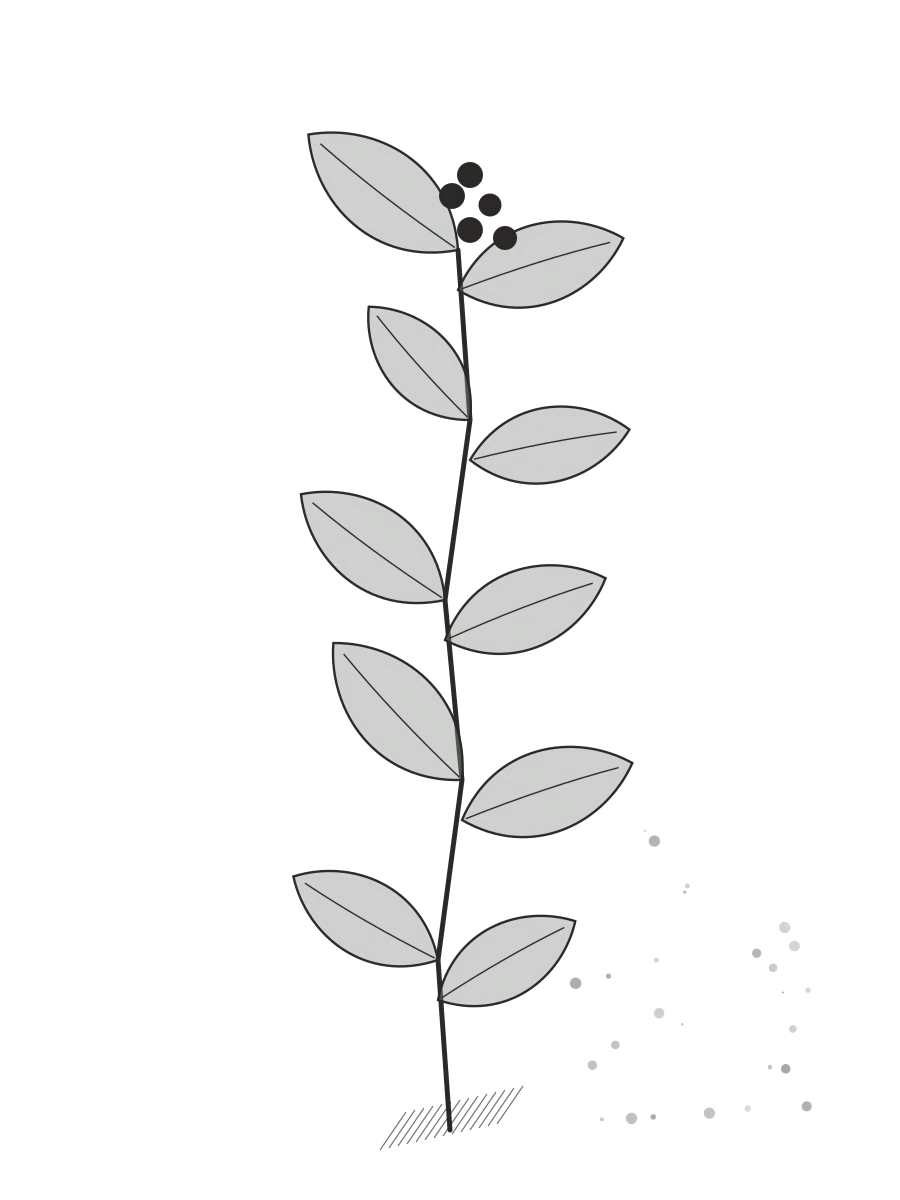
On the sample ink drawing, Dark on white cleared 89.7% of the image; the PNG was 900 × 1200 pixels and 197,978 bytes.
The image never leaves your device: the white is removed with colour maths in your browser, with no AI and no upload.
How to remove a white background
- Open the image Choose a JPG, PNG or WebP on white or paper, or try the ink or fox drawing.
- Pick the method Dark on white for ink, sketches and shadows; Object on white for logos and coloured drawings.
- Clean it up Raise Clean-up if grain remains; lower Solid from if lines look faded.
- Download Save a transparent PNG or WebP at full size.
Make paper transparent
A real recording of this tool: the ink drawing with its paper removed, the clean-up slider, the preview on a colour, the fox drawing in both methods, and the PNG downloaded.
- The ink drawing opens with its paper already removed.
- Clean-up is set to 0% and then 8%.
- The preview is switched to blue and back to checks.
- The fox drawing is tried with both methods, and the PNG is downloaded.
What does the clean-up slider clear?
Specks you cannot see. Paper is never one flat colour: it has grain, a few fibres and slightly darker spots, and each of those is a tiny bit of 'ink' to an exact unmix. On the ink drawing, whose paper the tool read as #f1ede2, the paper was cleared even at 0% clean-up: 83.9% of the image became fully clear. The rest, 16.1%, was the drawing plus thousands of faint grain specks, and they made the PNG 372 KB.
Clean-up clears every pixel less opaque than its setting. At 2% the specks went and the PNG dropped to 212 KB; at the default 4% it was 193 KB, and at 15% 168 KB. Past a few percent it starts to take the faintest parts of washes and pencil, so raise it only as far as needed.
| Clean-up | Fully clear | Partly clear | PNG size |
|---|---|---|---|
| 0% | 83.9% | 16.1% | 372 KB |
| 2% | 89.4% | 10.6% | 212 KB |
| 4% (default) | 89.7% | 10.3% | 193 KB |
| 8% | 89.8% | 10.2% | 175 KB |
| 15% | 89.9% | 10.1% | 168 KB |
How does unmixing from paper work?
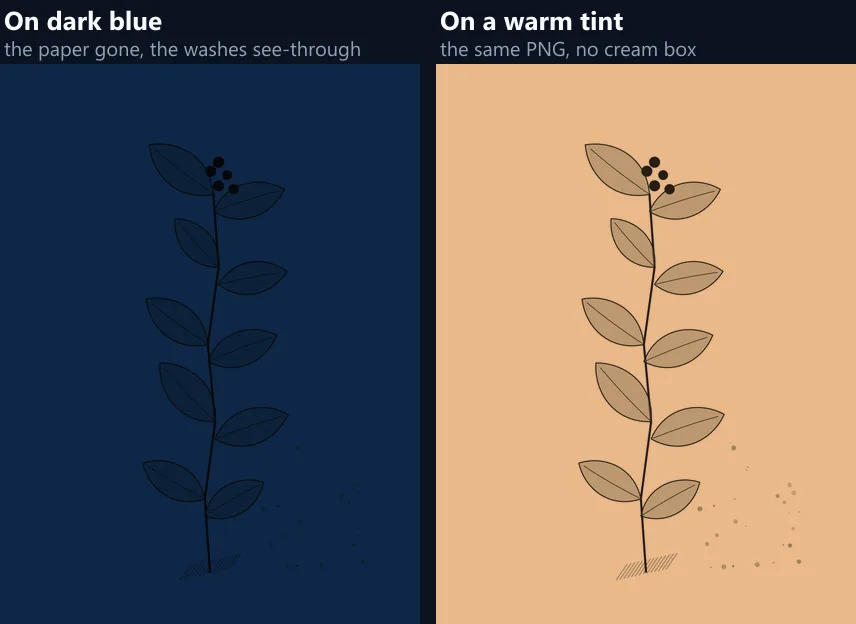
Dark on white treats every pixel as some ink laid over the paper colour with the least opacity that could produce it, and recovers that ink. A grey wash becomes a darker, partly see-through wash; a pencil line keeps its soft, grainy edge; a shadow under an object stays a shadow. Put the result back on the same paper and the drawing looks as it did.
Only darker than the paper counts. Paper grain and highlights a little lighter than the paper are paper too, so they are cleared rather than kept as faint white marks, which is what happens with a method that treats every difference from the paper as content.
What if my paper is cream, not white?
That is the usual case, and it is handled the same way. The backdrop colour is read from the image's edge rather than assumed to be white: the sample's paper was #f1ede2, a warm off-white, and the cream is what became transparent, not pure white. Scans and phone photos of paper are rarely white; a phone's white balance can turn them blue-grey or yellow.
If the edge is not paper, for example a scan with a dark border, click a clean area of the paper to pick its colour instead, or crop the border off first.
Why does a coloured drawing need the other method?
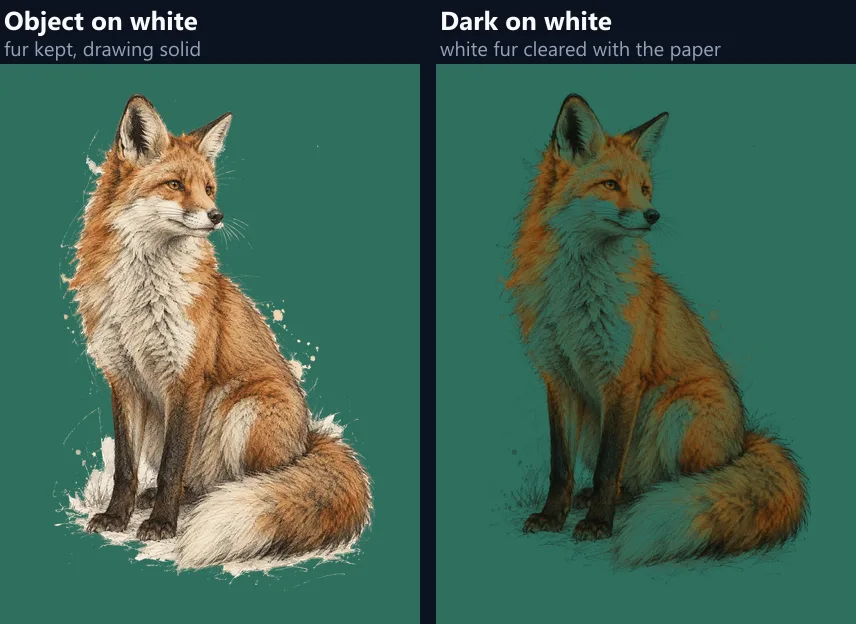
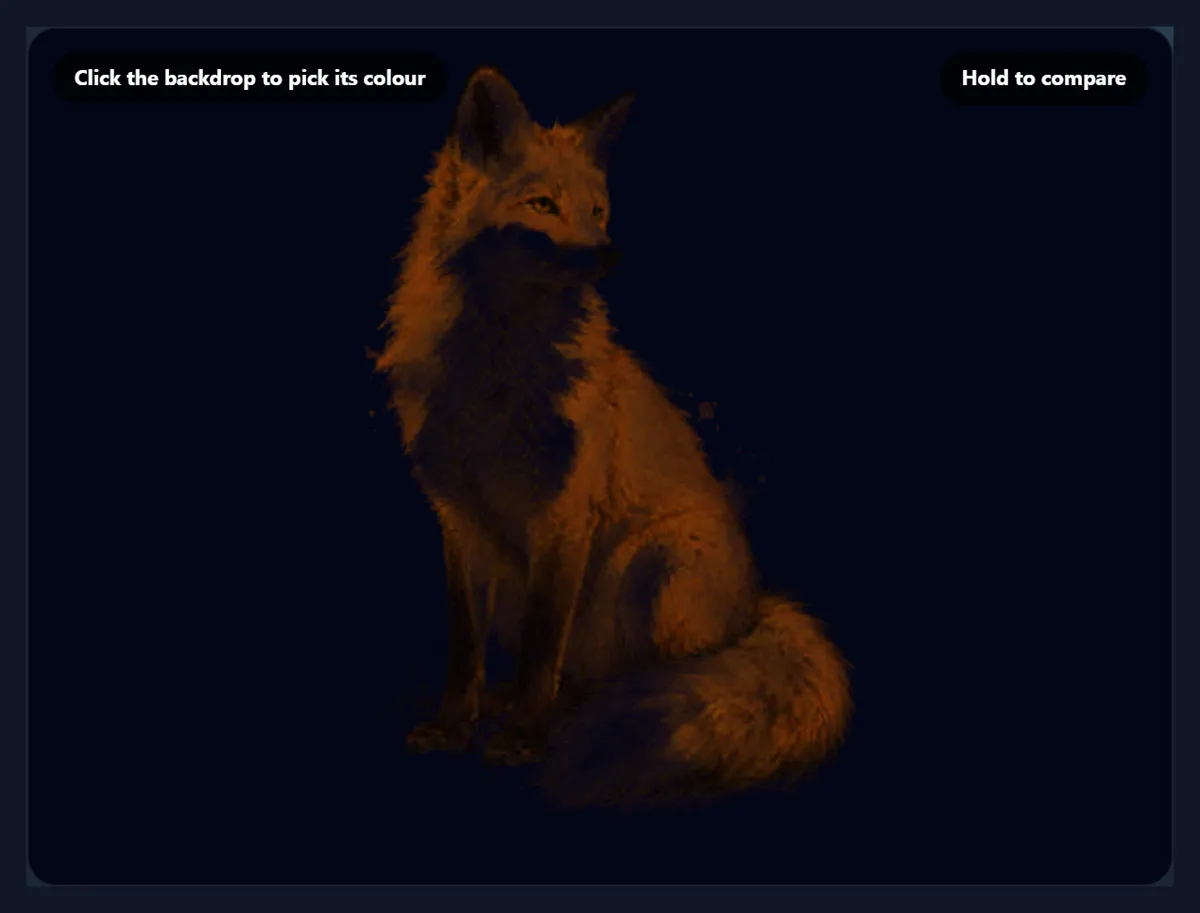
Because its white parts look like paper. The fox drawing has white chest fur and pale highlights; to Dark on white they are the same as the paper and become clear, and its coloured fur becomes partly see-through, because each colour is explained as paint over cream at less than full strength. On the fox, Dark on white left 0.0% of the image solid and 50.6% partly see-through.
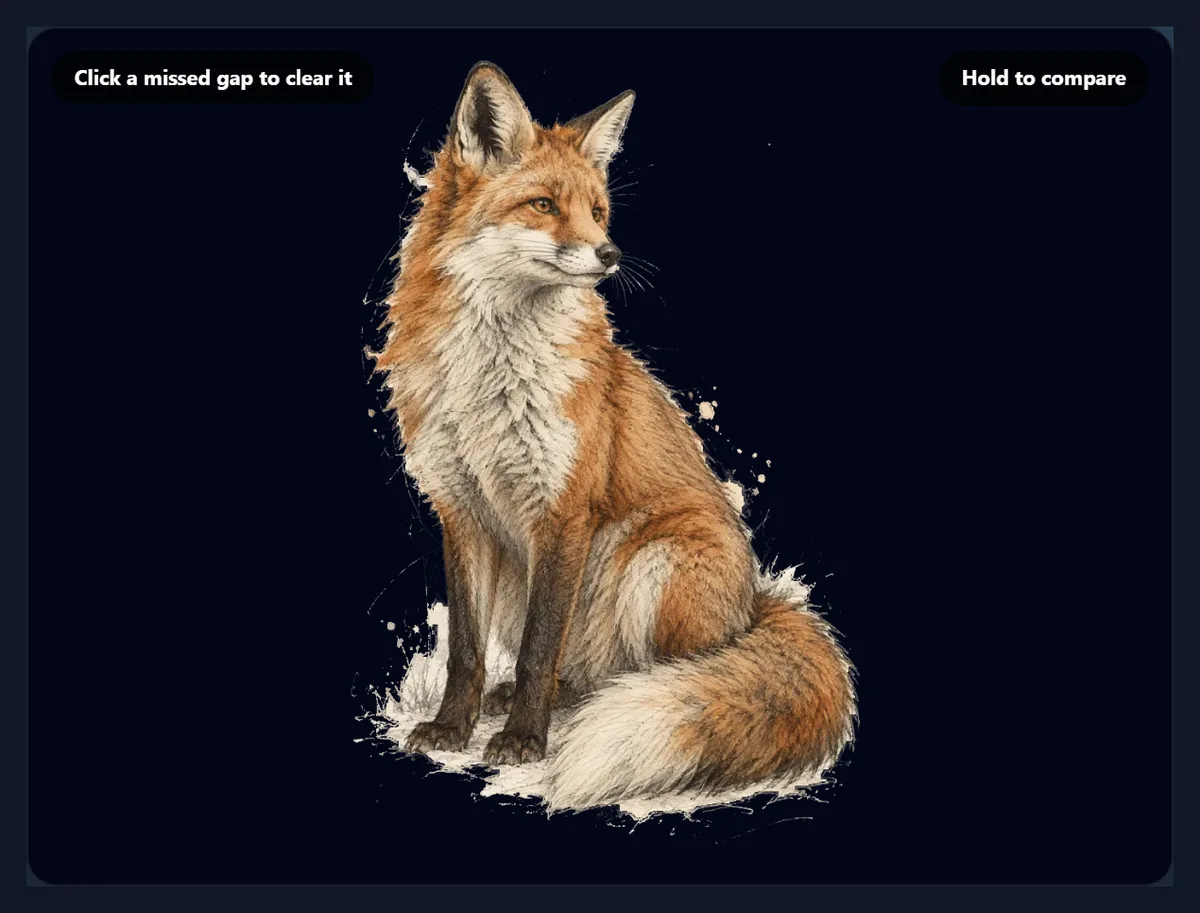
Object on white keeps the drawing whole: it clears only the paper around the outline and keeps everything inside it, white fur included, solid. The fox came out 47.8% solid with 2.1% soft edge pixels, which is why the tool opens that sample in Object on white. Solid from 60% is a middle way for Dark on white: it made 19.9% solid.
| Method | Fully clear | Partly clear | Solid |
|---|---|---|---|
| Object on white | 50.0% | 2.1% | 47.8% |
| Dark on white | 49.4% | 50.6% | 0.0% |
| Dark on white, solid from 60% | 49.4% | 30.7% | 19.9% |
What does Solid from do?
It makes every pixel at least that opaque fully solid, and stretches the softer range below it to match. Ink is rarely pure black, so in an exact unmix even the darkest lines come out slightly see-through; lowering Solid from to about 80% makes the lines solid while their soft edges and the washes stay soft.
For coloured drawings, lowering it further keeps more of the colour solid. Leave it at the top when the drawing will go on paper-coloured backgrounds and should look exactly as scanned.
When should I use Object on white?
Whenever the white is a backdrop behind something solid: a logo on white, clip art, a product photographed on a white sweep, an icon, a screenshot element, or a coloured drawing like the fox. It fills the white in from the image's edge, keeps anything the outline encloses, and unmixes the pixels along the edge so curves have no white rim.
White inside letters such as O and A is enclosed, so it stays: click inside each one to clear it (Click: clear a missed gap). Tolerance sets how far from the paper colour still counts as paper, and Soft edge how wide the fade along the outline is.
What is a transparent drawing good for?
Putting it anywhere. A drawing with its paper removed can sit on a coloured slide, a website section, a product label, a T-shirt mock-up or another photo without a white box around it. Ink drawings, pencil sketches, watercolours, hand lettering, stamps and signatures all work this way, as do diagrams photographed on a whiteboard.
Because Dark on white keeps the washes see-through, the colour of whatever is behind shows through them, the way ink on tracing paper would look.
Should I scan or photograph a drawing?
A scan if you can. A flatbed scan lights the paper evenly, so the paper is one colour from edge to edge and a single backdrop colour fits all of it; 300 dpi is plenty for most uses. A phone photo works too, as long as the light is even and the phone's shadow is not on the paper: an uneven photo is darker in one corner, and the darker paper there counts as faint ink.
Crop away anything that is not paper, such as the table or your hand, before you open the image, so the edge colour the tool reads is paper.
Can I lift a whiteboard or chalkboard drawing?
A whiteboard, yes, with Dark on white, if the photo is evenly lit: the marker is darker than the board, so it is kept and the board cleared. Glare and reflections are lighter than the board, so they are cleared too, which helps. A chalkboard is the other way round: use Remove Black Background with Light on black, and the chalk lines come out as see-through white.
For signatures in uneven light, the signature tool estimates the paper's brightness locally instead of using one colour.
Should I save PNG or WebP?
Both keep every level of transparency. PNG works everywhere: the ink drawing came out at 900 × 1200 pixels and 197,978 bytes with the default clean-up. WebP is usually much smaller and is supported by every current browser and most design apps. JPG has no transparency, so it would put the drawing back on white.
For printing on coloured paper or fabric, ask the printer which they prefer; most take a transparent PNG.
Which files work, and is anything uploaded?
You can open JPG, PNG and WebP images up to 40 megapixels (above about 16 megapixels the result is saved slightly smaller, the largest canvas iPhone browsers allow); convert iPhone HEIC photos to JPG first. Nothing is uploaded and no AI is involved: the paper is removed with colour maths inside your browser tab, so the same image and settings always give the same file.
The ink drawing was drawn for this page by a script, on paper with real grain, and saved as a JPG; the fox is the site's sample sketch on cream paper.
Why is there a grey veil, or holes in my drawing?
A faint veil over the result means grain or a tint is left: raise Clean-up a little, or click a clean area of paper to pick its exact colour. Holes in light parts of a drawing, such as white fur, highlights or white lettering, mean Dark on white is treating them as paper: use Object on white. Lines that look slightly faded on a dark background are the exact unmix of ink that was not quite black: lower Solid from.
A shadow across the paper that stays as a grey patch is darker than the paper, so it counts as ink; retake the photo in even light, or use the signature tool's local paper estimate for signatures.
Frequently asked questions
How do I make a white background transparent?
Open the image, choose Dark on white or Object on white, adjust the clean-up, and download a PNG.
Can I remove a white box around a logo?
Yes. Use Object on white; click inside letters to clear enclosed white.
Can I make a sketch or drawing transparent?
Yes. Dark on white keeps pencil, ink and washes soft and see-through.
Why did white parts of my picture disappear?
Dark on white treats them as paper; use Object on white instead.
Does it work on cream or grey paper?
Yes. The paper colour is read from the edge, or click the paper to pick it.
Is this different from adding a white background?
Yes: this takes white away; the white background tool puts white behind a cutout.
Which format keeps the transparency?
PNG and WebP; JPG has none.
Is my image uploaded?
No. The white is removed in your browser, with no AI.
Is it free?
Yes, with no account, watermark or limit.
Related tools
- Remove Black Background — The same for black, glows included.
- Remove Background from Logo — Logos on any plain colour.
- Remove Signature Background — Signatures in uneven light.
- Add White Background — The opposite: put white behind a cutout.
- Background Remover — AI cutouts for photos.
- Create Transparent PNGs — Fade or lighten a whole image.