Create Transparent PNGs
Make any image see-through: set its opacity, fade it to transparent from a side, all edges or in an oval, preview it on dark, light or a photo, and save a PNG or WebP that keeps every level of transparency.
Updated

How do you make an image transparent?
Open the image and set the Opacity slider: 100% leaves it unchanged, 50% lets half of whatever is behind it show through, 0% makes it invisible. To fade part of it instead, choose a fade (from a side, all edges, or round) and set how long it is. Preview it on dark, light or a photo, then download a PNG or WebP.
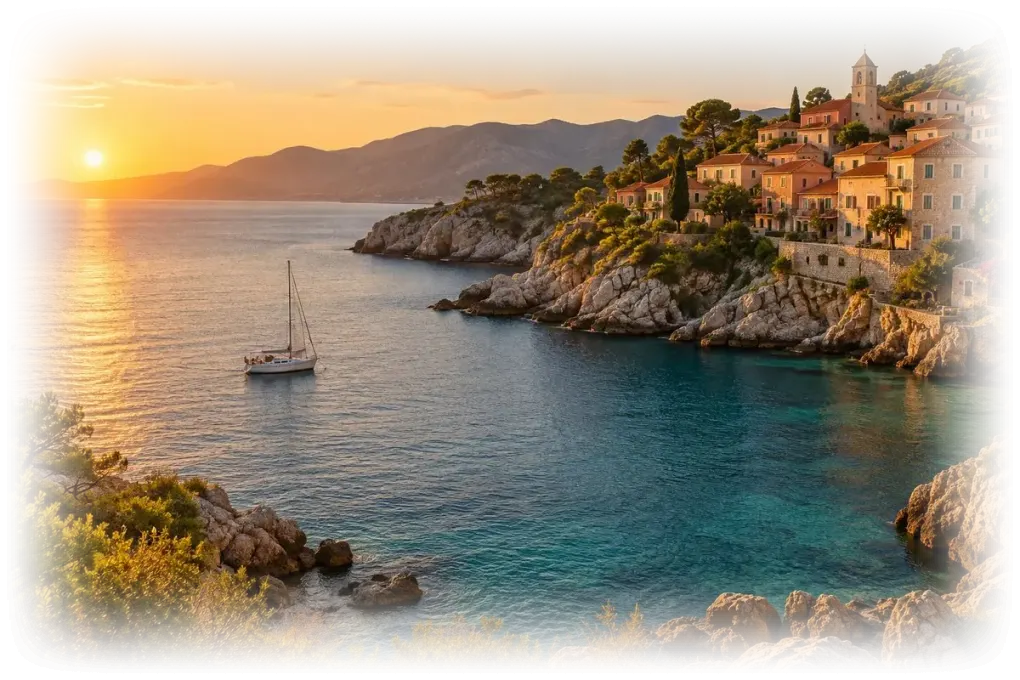
On the coastal sample with all edges faded, 2.0% of the image became fully clear and 47.0% partly see-through; the PNG kept all of it, and so did a WebP a sixth of the size.
The image never leaves your device: it is made transparent and saved inside your browser.
How to create a transparent PNG
- Open the image Choose a JPG, PNG or WebP, or try the faded photo or the watermark logo.
- Set the opacity Drag Opacity down to let what is behind show through.
- Add a fade Fade from a side, all edges or round, and set its length.
- Download Save as PNG or WebP to keep the transparency.
Make an image see-through
A real recording of this tool: the coastal photo with faded edges, the round and side fades, the fade length, the logo as a watermark with its opacity changed, and the PNG downloaded.
- The coastal photo opens with all edges faded, on dark.
- Round and From the left fades are tried, and the fade is lengthened.
- The logo sample opens at 35% over a photo, and its opacity is raised.
- The PNG is downloaded.
Which format keeps an image see-through?
PNG and WebP; JPG cannot. The coastal sample with all its edges faded was saved by the tool three ways. As a PNG it was 2,130,871 bytes with every level of transparency kept: 2.0% of it fully clear, 47.0% partly see-through and 51.0% solid. As a 92% WebP it kept the same shares of clear, see-through and solid pixels at 357,084 bytes, about a sixth of the size. As a 92% JPG it was 281,789 bytes, but every pixel was solid: JPG has no transparency at all, so the faded edges were filled with white.
Use PNG when the file goes into a design app, a document or a print job, where it is accepted everywhere. Use WebP for websites and apps, where every current browser shows it and it loads far faster. Avoid JPG for anything that needs to be see-through.
| Format | File size | Keeps transparency | Compression |
|---|---|---|---|
| PNG | 2081 KB | Yes, every level | Lossless |
| WebP (92%) | 349 KB | Yes, every level | Lossy colour, transparency kept |
| JPG (92%) | 275 KB | No: put on white | Lossy |
What does the opacity slider do?
It sets how much of the image shows, from 0%, invisible, to 100%, unchanged, by scaling the transparency of every pixel. A pixel that was already partly clear, such as the soft edge of a logo, keeps its shape and simply becomes fainter. The colours themselves are not changed: what changes is how much of whatever is behind shows through.
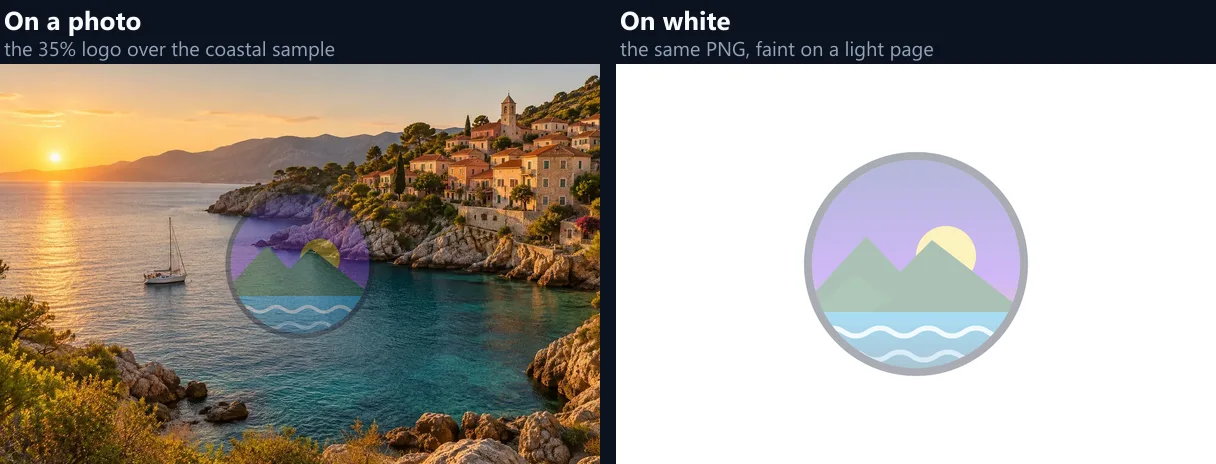
The second sample, a round logo at 35%, came out with no pixel more than 89 of 255 opaque, which is 35%, and its transparent background still fully clear.

How see-through should a watermark be?
Between about 20% and 50%. Below 20% a watermark is easily lost in a busy photo; above 50% it starts to cover what the photo is meant to show. A light logo over dark parts of a photo shows more than the same logo over light parts, so check it over the area where it will sit.
Make the watermark once here as a see-through PNG, then place it on photos with Overlay Images, or use Add Watermark to Photo to put it on many photos in the same spot.
What do the fades do?
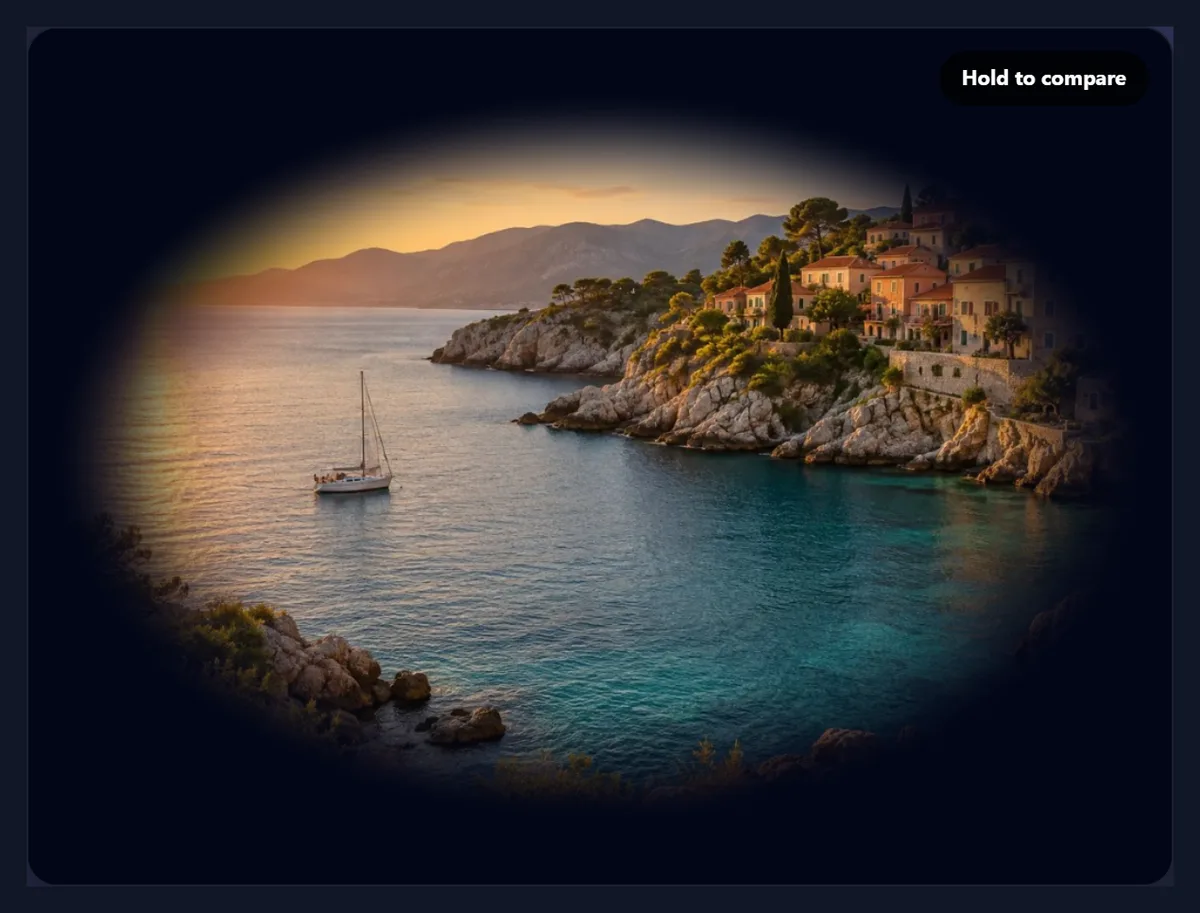
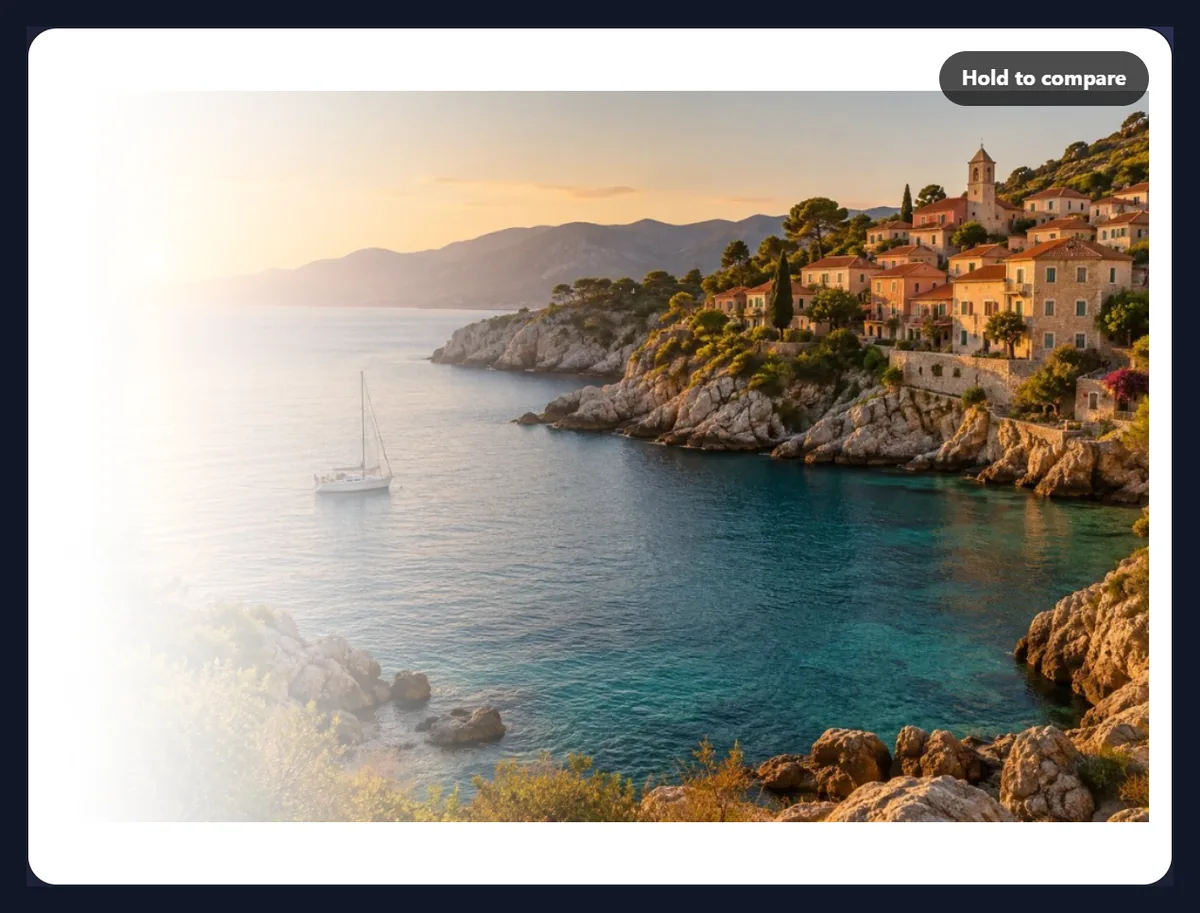
They make part of the image fade to fully transparent, so it melts into whatever is behind it instead of ending in a hard edge. From the left, right, top or bottom fades one side; All edges fades the four sides equally, with rounded corners; Round fades out from the middle in an ellipse that fits the image. Fade length sets how much of the image the fade takes: 35% of the half-width for edges, for example.
The fade follows a smooth S-shaped curve, so it has no visible start or end line. It multiplies with the opacity, so you can fade an image's edges and make the whole thing 70% opaque at the same time.
What are see-through images used for?
Backgrounds for slides and web pages, where a faded photo sits behind text without fighting it; image edges that blend into a page colour; ghosted product shots and before images; overlays and textures in designs; watermarks; and pictures for apps that place images on top of others, such as video editors, presentation software and social media story tools.
If the goal is to remove a background rather than make the whole image fainter, use a background tool instead: this one keeps the picture whole and only changes how much of it shows.
Why preview on different backdrops?
Because transparency only means something against what is behind it. The checks show exactly which parts are clear; dark and light show how the image will look on a dark or light website or slide; A photo puts it over a busy picture, which is the hardest case for a watermark. The preview changes only what is shown behind the picture on screen, never the file.
Hold to compare shows the original image while you hold it, so you can judge how much the fade or opacity has taken away.
Is a transparent image the same as a lighter one?
No. Making an image lighter changes its colours, so it looks faded on every background, and on a dark page it looks like a washed-out rectangle. Making it transparent leaves its colours alone and lets whatever is behind it show through: on white it looks lighter, on a dark page darker, on a photo it mixes with the photo. That is why a see-through image fits into a design and a lightened one sits on top of it.
If you need the faded look on one known background colour, either works; if the image will be placed on different backgrounds, use transparency.
What is an alpha channel?
The fourth value stored for every pixel, next to red, green and blue: how opaque it is, from 0, fully clear, to 255, fully solid, in 256 steps. A see-through image is one whose alpha is below 255 somewhere; a faded edge is a run of pixels whose alpha falls smoothly from 255 to 0. PNG and WebP store an alpha channel; JPG does not have one, which is why it cannot be see-through.
This tool only ever changes the alpha channel. The red, green and blue of every pixel stay as they were, so the picture itself is untouched; only how much of it shows changes.
How do I put a faded photo behind text?
Fade the photo where the text will go and keep the rest. For a title on the left, choose From the left with a long fade, about 50 to 70%, and the left side of the photo fades into the page colour while the right side stays clear. For text over the middle, lower the opacity to 20 to 40% instead. Preview it on the colour of your page or slide to judge it.
Then place the PNG on the slide or page and put the text on top; because the photo is transparent where it fades, the page colour shows through and there is no visible edge.
Can I do this with CSS instead?
On a website, yes: the opacity property and a mask-image gradient give similar results without a new file. A file is still the better choice where CSS does not reach: documents, slides, emails, social posts, video editors and design apps, or anywhere the same see-through image is used many times.
A transparent file also keeps its look when it is shared or downloaded, which a CSS effect does not.
What happens to an image that is already transparent?
Its transparency is kept and multiplied in. A PNG logo with a transparent background stays clear around the logo, and the opacity and fade apply to the logo itself. A photo has no transparency of its own, so it starts fully solid.
To make a background transparent first, use the transparent background or background remover tools, then bring the result here to fade it or lower its opacity.
Which files work, and is anything uploaded?
You can open JPG, PNG and WebP images up to 40 megapixels (above about 16 megapixels the result is saved slightly smaller, the largest canvas iPhone browsers allow); convert iPhone HEIC photos to JPG first. The result is saved at full size as PNG by default, or WebP; the faded sample was 1200 × 800 pixels. Nothing is uploaded: the image is changed and saved inside your browser tab, with no account.
The samples are the site's coastal photo and sample logo.
Why is my transparent image white?
It was saved as JPG, or opened in an app that shows transparency as white. Save as PNG or WebP; to check that the transparency is there, open the file in a browser on a dark page, or put it over a colour in a design app. Some older apps and email clients flatten transparent images onto white when they display them, even though the file is fine.
If a long fade over a smooth area looks banded, save as PNG: it is lossless, so the gradient is kept exactly.
Frequently asked questions
How do I create a transparent PNG?
Open the image, lower the opacity or add a fade, and download it as PNG.
How do I make an image 50% transparent?
Set the Opacity slider to 50% and save as PNG or WebP.
Can I make a JPG transparent?
Yes. Open the JPG here and save the result as PNG or WebP; JPG itself cannot hold transparency.
How do I fade the edges of a picture?
Choose All edges or Round and set the fade length.
Is this the same as removing a background?
No. This makes the whole image fainter or faded; use a background tool to remove a background.
Why does my transparent PNG show white?
It was saved as JPG, or the app you opened it in shows transparency as white.
Is WebP or PNG better?
Both keep transparency; WebP is much smaller, PNG works everywhere.
Is my image uploaded?
No. It is changed and saved in your browser.
Is it free?
Yes, with no account, watermark or limit.
Related tools
- Create Transparent Backgrounds — Clear a background instead.
- Add Watermark to Photo — Place a see-through logo on photos.
- Overlay Images — Blend a see-through image over a photo.
- PNG Maker — Turn other images into PNG.
- Remove White Background — Make white or paper transparent.
- Photo Effects — More looks for the same photo.