Add Watermark to Photo
Upload a photo, add a text or logo mark, adjust its opacity and placement, then download the finished image. Preview and export work in your browser without an account.
Updated

How can you add a watermark to a photo?
To add a watermark to a photo, choose the image, enter short text or upload a transparent logo, then set the mark's size, opacity and placement. HueFold shows the change immediately in a canvas preview. Download exports a PNG at the source image's pixel dimensions; opening the result in HueFold Studio is an optional signed-in step. The preview and download do not send the photo to the server.
A watermark is an identifying layer on top of an image. It might be a photographer's name, a studio mark, a shop logo or a conspicuous 'PROOF' label. A quiet corner signature lets the photograph lead. A centred or tiled mark is more visible on a draft shared for review. Neither choice provides a technical lock: someone can crop, retouch or reproduce an image. Use a watermark to communicate ownership and review status, not as a guarantee against copying.
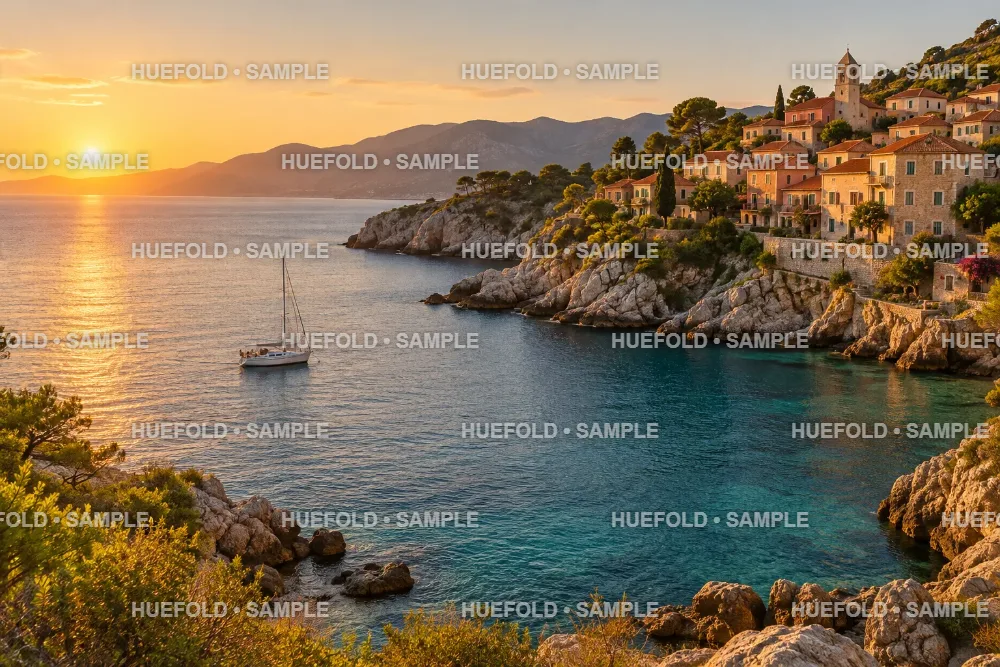
The examples below are actual previews rendered by this browser tool from the sample photographs, not invented editor screenshots. Try the cove sample to see how opacity changes visibility over both bright sky and dark water, or upload your own PNG, JPG or WebP. If your logo has a transparent background, upload a PNG, WebP or SVG so its shape stays clean. Check the whole image at the intended sharing size before you export.
How to add a watermark to a photo online
- Choose a photo Use the sample or select a PNG, JPG or WebP from your device. The browser reads the file locally and shows its pixel dimensions.
- Add a mark Type up to 80 characters or upload a transparent PNG, WebP or SVG logo. Choose a corner, the centre or a tiled proof.
- Tune the preview Move the opacity and size sliders. Inspect bright and dark parts of the image to make sure the mark is legible without masking important details.
- Download or keep editing Download a full-size PNG without signing in. To keep the source photo and watermark as separate editable Studio layers, choose Edit in Studio and sign in.
How to watermark a photo in HueFold
A real screen recording: open the sample photo, type a watermark, compare corner and tiled placement, adjust opacity, and download the result.
- The sample cove photograph is open in the on-page tool.
- Enter a short text watermark and preview it on the photo.
- Move the mark to a corner, then compare the tiled proof placement.
- Adjust opacity and return the mark to the bottom-right corner.
- Download the full-size PNG result.
Should you use a text watermark or a logo?
A text watermark is the quickest way to identify an image. Enter a short name, brand, handle or proof label; the browser draws that wording in white with a soft dark shadow so it can sit across mixed tones. Short copy usually reads better than a paragraph, particularly when a photo will appear as a small social thumbnail. The control accepts up to 80 characters, but that is a ceiling, not a target. Do not expect a text mark to replace a full caption, licensing statement or accessible image description.
A logo is useful when your audience already recognises the mark or when a batch of assets must look consistent. The logo upload accepts PNG, WebP and SVG. For a clean shape, use a file with transparency rather than a logo trapped in a white rectangle. The tool keeps its aspect ratio while you resize it. Because it draws the pixels you upload, check the logo's edges at the final size; a tiny raster logo may look soft on a large photograph.
Use text for a rapid proof or a one-off signature. Use a logo for a repeatable brand treatment. You can compare them on the same sample photo without starting over. The downloadable file contains the visible mark as part of the image pixels; the Studio handoff keeps the source photo and creates separate editable text or logo watermark layers.
| Choice | Input | Best starting use |
|---|---|---|
| Text | Up to 80 characters | Name, handle or PROOF label |
| Logo | PNG, WebP or SVG | Existing transparent brand mark |
| Both | Switch modes before export | Compare alternatives; export one at a time |
Where should a photo watermark go?
A corner mark leaves most of the subject unobstructed and looks natural on a finished portfolio or product photo. This tool offers top left, top right, bottom left and bottom right. Pick a corner with enough contrast and visual quiet. The same mark can disappear against pale sky yet dominate a dark foreground, so inspect the actual photograph instead of assuming one universal corner will work. A small inset keeps the mark away from the image edge and typical interface crops.
The centred option is more visible and is useful for draft approvals, but it covers important pixels by design. Avoid covering a face, product label, key artwork or other detail that a reviewer must assess. If the photo will be cropped into several aspect ratios, test the crop after watermarking; a corner signature may be removed by a square crop. A centre mark may survive more crops but can distract from the image.
Tiled proof repeats the mark across the image. It is the strongest visual signal that a file is for review, not publication. Because repetitions pass through both light and dark regions, keep the opacity restrained. Tiling is not copy protection: a determined editor may still retouch it. Use the appropriate sharing resolution and access controls alongside a visible proof mark when the work is sensitive.
How transparent should a watermark be?
Opacity is a balance between recognition and distraction. The slider in this tool ranges from 10% to 100%. At the low end, the image stays legible but the mark may vanish against a busy or bright area. At the high end, the mark is easy to see and may compete with the subject. Start around the middle, then look at the exported image at the size your audience will actually see. A mark that seems delicate on a large desktop monitor may be unreadable in a small feed card.
The sample cove is useful because it contains bright sky, detailed stone and dark water in one frame. Move a white text mark across those regions and notice how apparent strength changes even when the numeric opacity is constant. A soft shadow improves legibility, but it does not solve every contrast problem. With a logo, the source artwork also matters: thin pale strokes often need more size or opacity than a bold solid symbol.
For a final portfolio image, favour restraint and place the mark where it does not break the composition. For an approval proof, a more assertive centre or tiled treatment may be appropriate. There is no universal percentage that protects an image. The number is a repeatable setting for comparing versions, not a legal or technical security rating.
What size should a watermark be?
The size slider sets the watermark width as a percentage of the photo width, from 8% to 45%. That makes the control responsive to the actual source image rather than a fixed number of pixels. A narrow logo in a corner may work at the low end; a centred proof label usually needs more width. The logo keeps its natural proportions. Text is sized to fit the selected width and its length, so an unusually long phrase becomes smaller than a short word at the same slider value.
Assess size in context. Export one trial and view it on a phone or at the dimensions used by your site or marketplace. If the mark is too small, increase width or shorten the wording. If it covers the product, reduce size, reduce opacity or change placement. Do not stretch a low-resolution bitmap beyond what its edges can support. An SVG or a sufficiently large transparent PNG is a better source for a crisp logo on a large photograph.
This page keeps the source photo's dimensions for PNG download. A 1536 × 1024 source produces a 1536 × 1024 result, so the mark's pixel footprint scales with the photo. If you need a different export size or additional typography, continue in Studio after watermarking. A watermark that works on a wide hero may need separate placement on a portrait crop.
Which photo formats can you watermark and export?
Choose a PNG, JPG or WebP photo from your device. The browser decodes it into a canvas, draws the mark and exports a PNG. PNG is a broadly usable image format and retains the pixels of the drawn watermark without another lossy JPEG pass. It can be larger than a JPEG of the same scene, especially for detailed photographs. If a small file matters more than a lossless output, resize or convert the exported file in another HueFold image workflow.
The logo control accepts PNG, WebP and SVG. SVG can remain sharp when the browser rasterises it onto the photo, but the final downloaded image is still a PNG. Only upload SVG files you trust; a logo file from an unknown source should be reviewed before use. The page refuses other input types and reports a readable error rather than silently creating a blank export. It also rejects sources above 40 megapixels to avoid exhausting a typical browser tab.
The preview is drawn smaller when necessary for a responsive page, while Download redraws at the source image's dimensions. This distinction lets the controls remain responsive without sacrificing the chosen source resolution. Large images can still take longer to encode. Keep the browser tab open until the download starts, and inspect the result before sharing it.
Does adding a watermark upload your photo?
Previewing and downloading on this page happen in the browser. Selecting a photo gives the page access to that local file for the current tab, and Canvas draws the chosen mark over its decoded pixels. The preview does not need an account and the download is created locally. The sample photo is fetched from HueFold's own public image directory. The page does not claim to erase the original file or change the copy on your device: it produces a new download.
The optional Edit in Studio action is different. It asks you to sign in, uploads the source photo and any logo through HueFold's existing feature upload service, and creates a new design with separate watermark layers. That allows your result to persist in the editor. Do not choose that action for a photo you are unwilling or unauthorised to upload. The sign-in step is not required for a local PNG export.
If you are preparing client proofs, check your agreement before sending photos to any online editor or collaborator. Avoid putting sensitive personal information in a watermark, because the mark becomes visible pixels in every exported copy. The same caution applies to a logo file with embedded contact details or a location-specific signature.
What happens when you open a watermarked photo in HueFold Studio?
Edit in Studio creates a design shaped to the image, fits the photo into a page and records it as a normal image element. From there you can crop, layer, add accurate text or combine the watermarked result with a broader layout. The handoff uses the same upload and design-creation services as other HueFold feature tools; it does not send you to an unrelated watermark site. You must sign in because the uploaded asset and design belong to an account.
The source photo and watermark are separate Studio elements. A text mark remains an editable text layer; a logo remains an image layer. Select a watermark on the canvas to change its text, opacity, size and position in the editor panel. Tiled proof marks transfer as several separate layers, so you can change or remove individual repetitions. The downloaded PNG is still flattened, but the Studio design is not.
A local download is usually the shortest path when you need one protected proof. Choose Studio when the next step is a social graphic, product card, presentation slide or campaign composition. Check your exported or published file after Studio editing: a later crop may cut off a corner mark, and added elements may cover it.
Does a watermark prove copyright or prevent copying?
A watermark is a visible attribution or status cue, not proof of ownership by itself. Adding your name to a file does not make an image yours if you do not hold the rights. Before marking a client's, collaborator's or third party's work, confirm what your agreement permits. For an original photograph, preserve your source file, capture details and licensing records separately. Those records can matter more than the visible pixels when a dispute arises.
A corner signature is easy to crop. Even a tiled proof can be retouched, and screen captures can be reprocessed. Avoid presenting any watermark setting on this page as unremovable or as digital rights management. If you are sending a proof, consider a smaller preview, private sharing and clear written usage terms along with the visible mark. If you are publishing final work, pick a mark that respects the subject and does not mislead viewers about who created it.
The sample photographs on this page were generated as demonstration sources and then watermarked by the actual browser tool. They are not evidence of ownership of a real place or product. Your own usage rights depend on your original image, logo and intended destination.
Why is my watermark faint, blurry or missing?
If the mark disappears, confirm that the Text field contains visible characters or that a logo was successfully loaded. In logo mode, Download stays unavailable until a logo is present. Increase opacity and size, then try a different part of the photo. A white mark can vanish against bright sky; a dark shadow helps but cannot guarantee contrast on every background. For complex images, a slightly larger mark often reads better than pushing opacity to 100%.
If a logo looks blurry, check the source artwork. A tiny bitmap expanded across a large photo has no extra detail to reveal. Try a higher-resolution transparent PNG or a suitable SVG. If the logo has a solid box around it, remove that box from the source file; the watermark tool does not automatically extract transparency. If the source photo fails to open, save it as a standard PNG, JPG or WebP and keep it under the 40-megapixel browser limit.
If the preview looks softer than the download, remember that the on-page canvas is downscaled to fit the layout. Download redraws from the decoded source at full dimensions. Open the exported PNG to judge final quality. If Studio cannot open the result, retain your local download and retry while signed in; a failed online handoff does not erase the file on your device.




Frequently asked questions
Can I add a watermark to a photo online for free?
Yes. The browser preview and PNG download work without an account. Opening the result in HueFold Studio requires sign-in.
Can I watermark a photo without uploading it?
Yes. Selecting, previewing and downloading a local photo happen in the browser. Only the optional Studio handoff uploads the result.
How do I add a text watermark?
Choose Text, type a short name or proof label, then set opacity, size and placement before downloading.
Can I add a logo watermark?
Yes. Choose Logo and upload a PNG, WebP or SVG. A transparent background usually gives the cleanest result.
Can I put a watermark across the entire photo?
Choose Tiled proof to repeat the text or logo across the image. Reduce opacity so the photo remains readable.
Can I change the watermark opacity?
Yes. The page offers an opacity slider from 10% to 100%, with an immediate visual preview.
Where can I position the watermark?
Choose top left, top right, centre, bottom left, bottom right or a tiled proof.
Which photo files can I use?
The photo input accepts PNG, JPG and WebP. Images above 40 megapixels are rejected to protect browser performance.
What format is the download?
Download creates a PNG at the source photo’s pixel dimensions. The on-page preview may be smaller to stay responsive.
Can I edit the watermark after opening Studio?
Yes. Studio keeps the source photo and creates separate text or logo watermark layers that you can move, resize or adjust in the editor panel.
Will a watermark stop someone copying my picture?
No. A watermark signals attribution or proof status, but it can be cropped or retouched and is not a technical copy lock.
Can I use a watermark on client proofs?
Yes, if your agreement permits it. A centre or tiled mark can make review status visible; also use appropriate sharing controls.
Related tools
- Add Text to Photo — Add a caption or headline as part of a photo design.
- Photo Effects — Adjust the image before applying a watermark.
- Photo Borders — Frame a finished portrait or proof.
- Resize Image Pixel Online — Prepare a delivery size for a watermarked export.
- Transparent Images — Prepare transparent artwork for a logo mark.
- Add Watermark to Video — Protect video previews with a visible mark.