Compress Image to 100KB
Get any JPG, PNG or WebP under 100 KB at the best quality that fits. Choose whether the pixel size may change, compare the result with the original at 100%, then download it. Your image stays on your device.
Updated

How do you compress an image to under 100 KB?
Open the image above; the 100 KB limit is already selected. The tool searches for the highest JPEG or WebP quality whose file is 100,000 bytes or less, shrinking the picture only if even a low quality is too big at its full size. You see the result next to the original, with the exact byte count, and download it when you are happy. Nothing is uploaded and there is no sign-up.
A 100 KB limit is roomy compared with 20 KB or 50 KB. For many photos it is enough to keep the full size, and the choice becomes one of priorities: every pixel at a modest quality, or slightly fewer pixels at a higher one. This page shows both, measured on the same picture, so you can decide which suits your image.
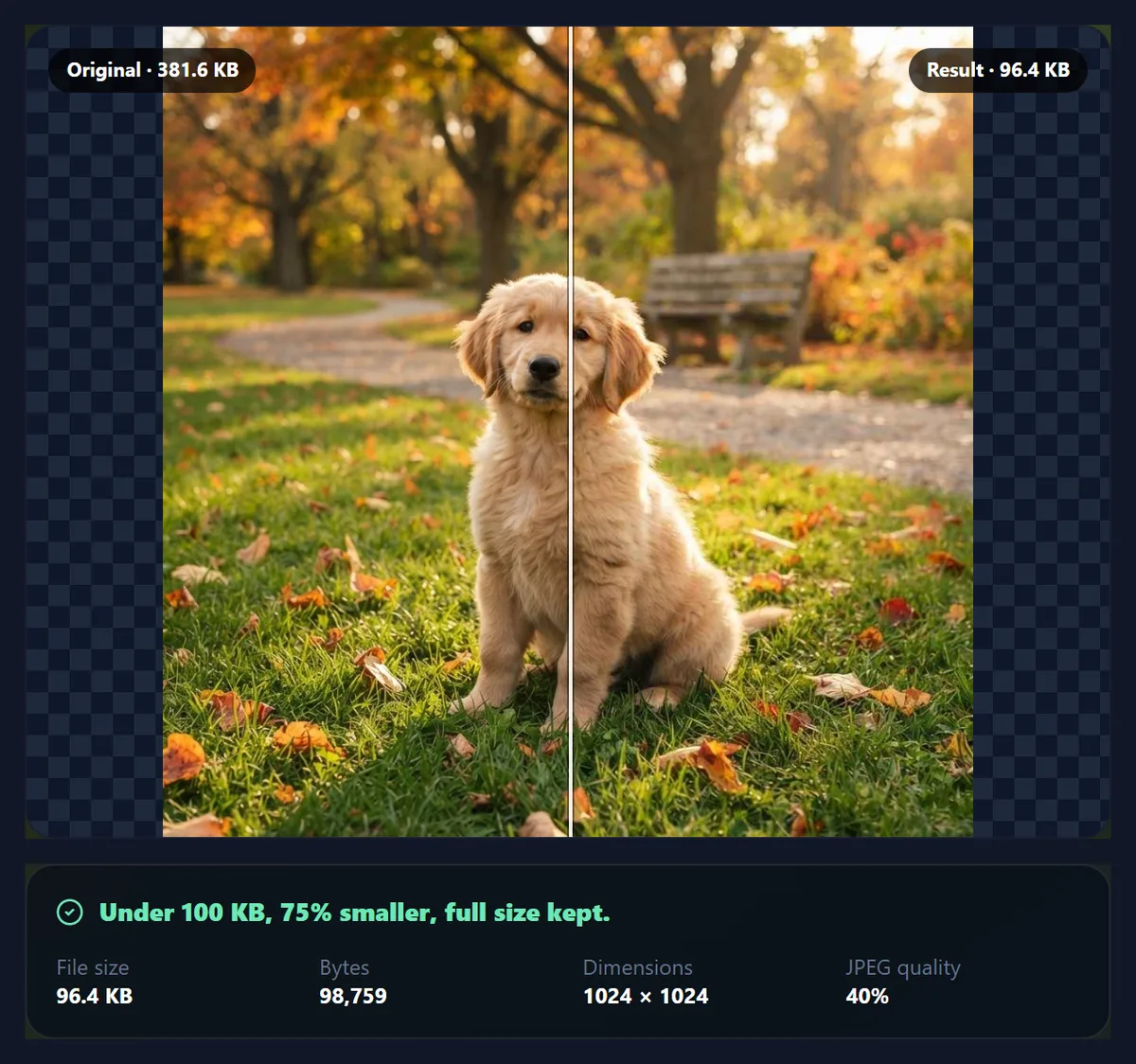
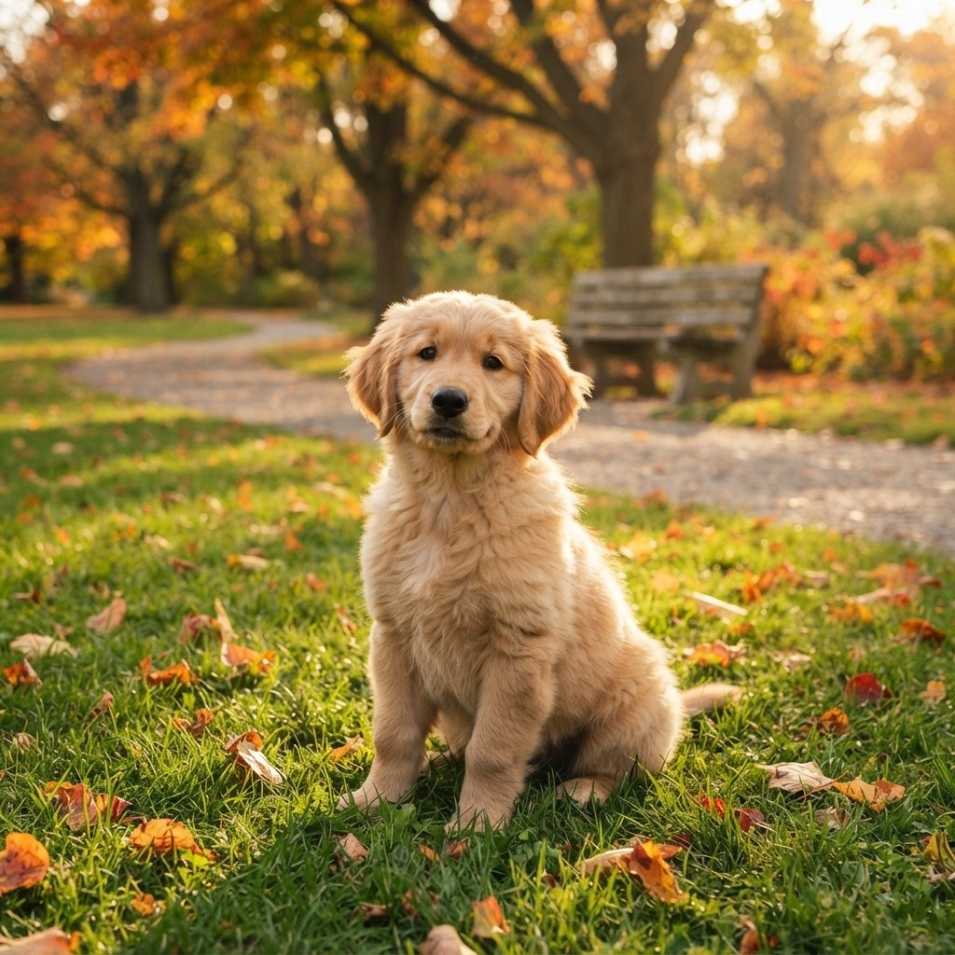
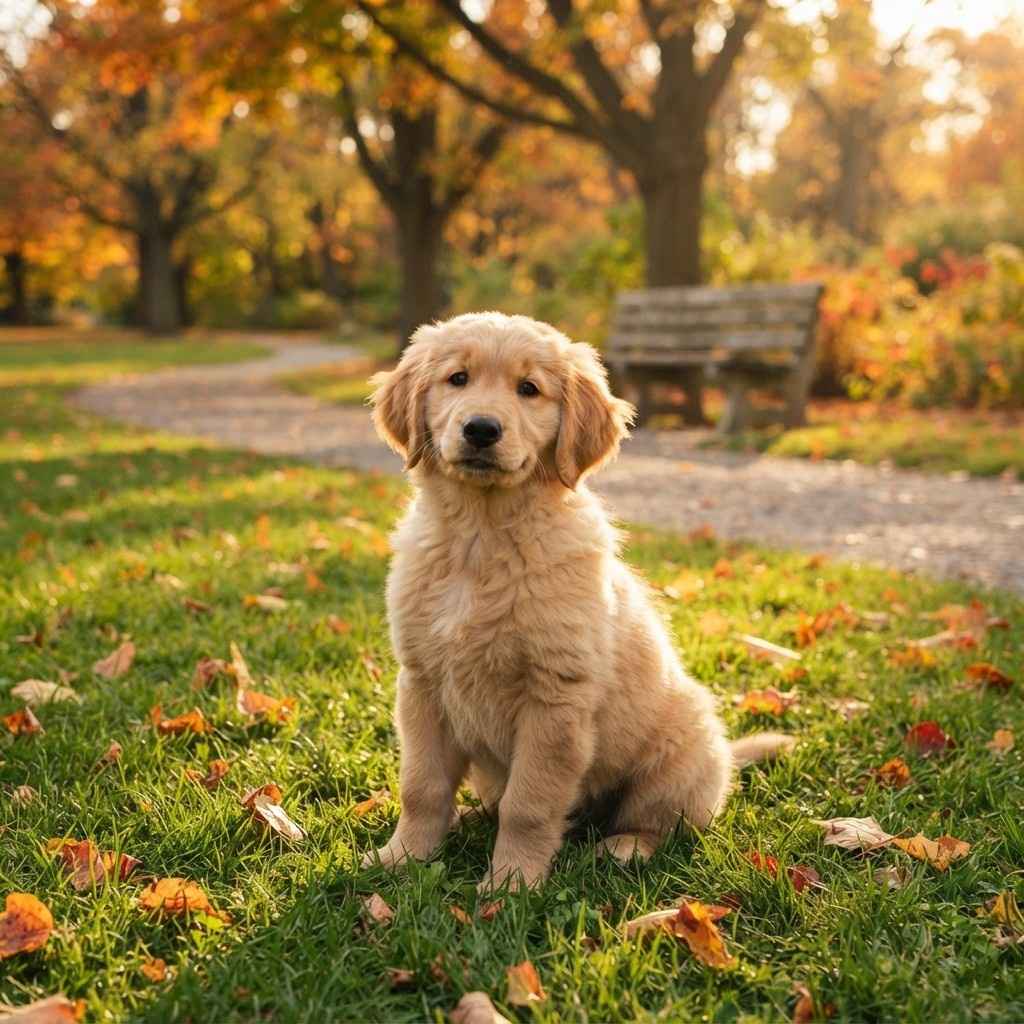
The sample is a 1024 × 1024 photo of a puppy on a leafy lawn, 390,732 bytes. Grass, leaves and fur are fine detail everywhere, which is hard to compress. Its default 100 KB result was 97,784 bytes at 955 × 955 and 51% quality; with the full size kept it was 98,759 bytes at 40%.
How to compress an image to 100 KB
- Choose the image Pick a JPG, PNG or WebP, drop it on the preview, or use the sample photo. Its original size appears below the preview in KB and bytes.
- Decide on the pixel size Leave Keep pixel dimensions off to let the tool trade a few pixels for quality, or tick it to keep the exact width and height.
- Compare Slide between original and result, or Inspect at 100% to judge fine detail such as grass, hair and text at its real size.
- Download Save the file. JPG works everywhere; WebP usually keeps more detail in the same 100 KB if the destination accepts it.
Compress a photo to under 100 KB
A real recording of this tool: the sample lands under 100 KB, is kept at full size, is compared at 100%, then is compressed to 80 KB and downloaded.
- The puppy photo is compressed under 100 KB as soon as it opens.
- Keep pixel dimensions is ticked, and the full 1024 × 1024 size is kept.
- Inspect at 100% compares the real pixels.
- Resizing is allowed again and the limit set to 80 KB.
- The file is downloaded.
Fewer pixels or lower quality: which looks better at 100 KB?
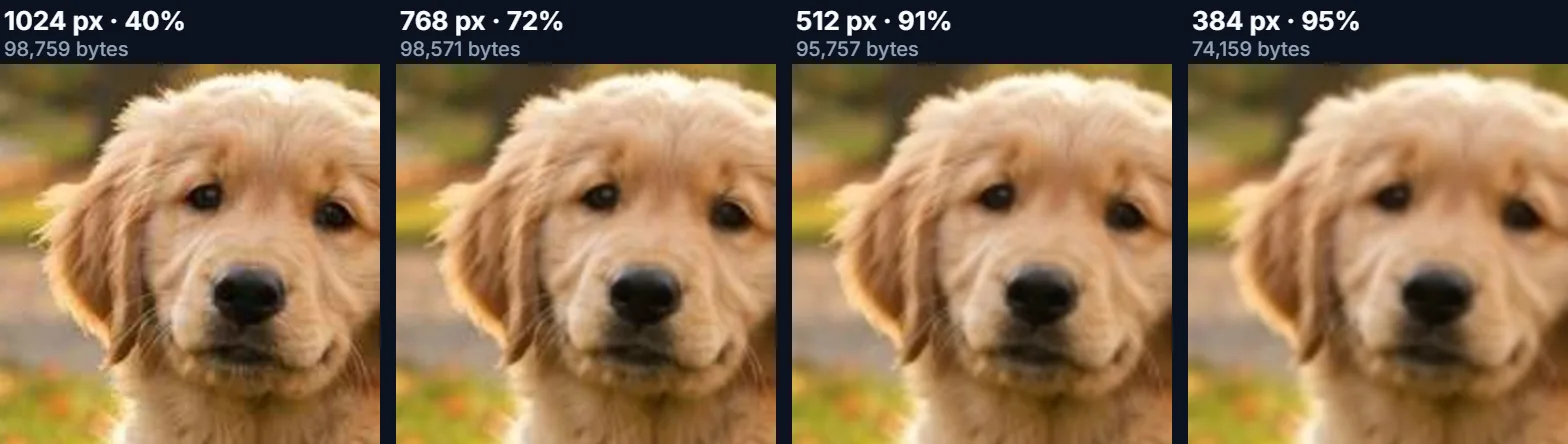
It depends on how the picture will be shown, and the numbers make the trade visible. We resized the sample to four widths and compressed each one under 100 KB with its size locked. At 1024 pixels the best quality that fitted was 40%; at 768 pixels it was 72%; at 512 pixels, 91%. At 384 pixels the file reached the tool's 95% ceiling at only 74,159 bytes, with room to spare.
If the image will be displayed small, such as a thumbnail, a profile picture or a product tile, the smaller, cleaner version is usually the better file: the viewer never sees the extra pixels, but does see JPEG blocks. If it will be zoomed, printed or cropped later, keeping the pixels at a lower quality may be the right call. The default setting takes the middle path: it keeps the full size while 45% quality or better fits and shrinks only below that.
| Width | Best quality under 100 KB | Bytes |
|---|---|---|
| 1024 px | 40% | 98,759 |
| 768 px | 72% | 98,571 |
| 512 px | 91% | 95,757 |
| 384 px | 95% | 74,159 |
Can you compress to 100 KB without changing the dimensions?
Often, yes. Tick Keep pixel dimensions and the tool searches every quality from 95% down to 5% at the original size. The puppy photo fitted at 40%: 98,759 bytes, still 1024 × 1024. A larger photo, say 4000 × 3000 from a phone, has more than eleven times as many pixels to describe in the same bytes and may not fit at any quality; the tool then reports the smallest full-size file it could make instead of quietly exceeding the limit.
When a form demands exact dimensions and a 100 KB maximum, resize to those dimensions first with the pixel resizer, then compress here with the size locked. That order gives the encoder the fewest pixels to work with and the best quality in the end.
What changes between 60 KB, 100 KB and 200 KB?
Running the same photo through several limits shows where the bytes go. Up to 100 KB the tool had to shrink the puppy as well as compress it; from 150 KB up it could keep all 1024 × 1024 pixels and spend the extra bytes on quality instead. Doubling the limit from 100 KB to 200 KB took the quality from 51% (at a reduced size) to 78% at full size.
If you set the limit yourself, for a website or a shared drive, 100 KB is a reasonable size for a sharp image around 1000 pixels across. Pictures meant to fill a large screen usually deserve more.
| Limit | Bytes | Dimensions | Quality |
|---|---|---|---|
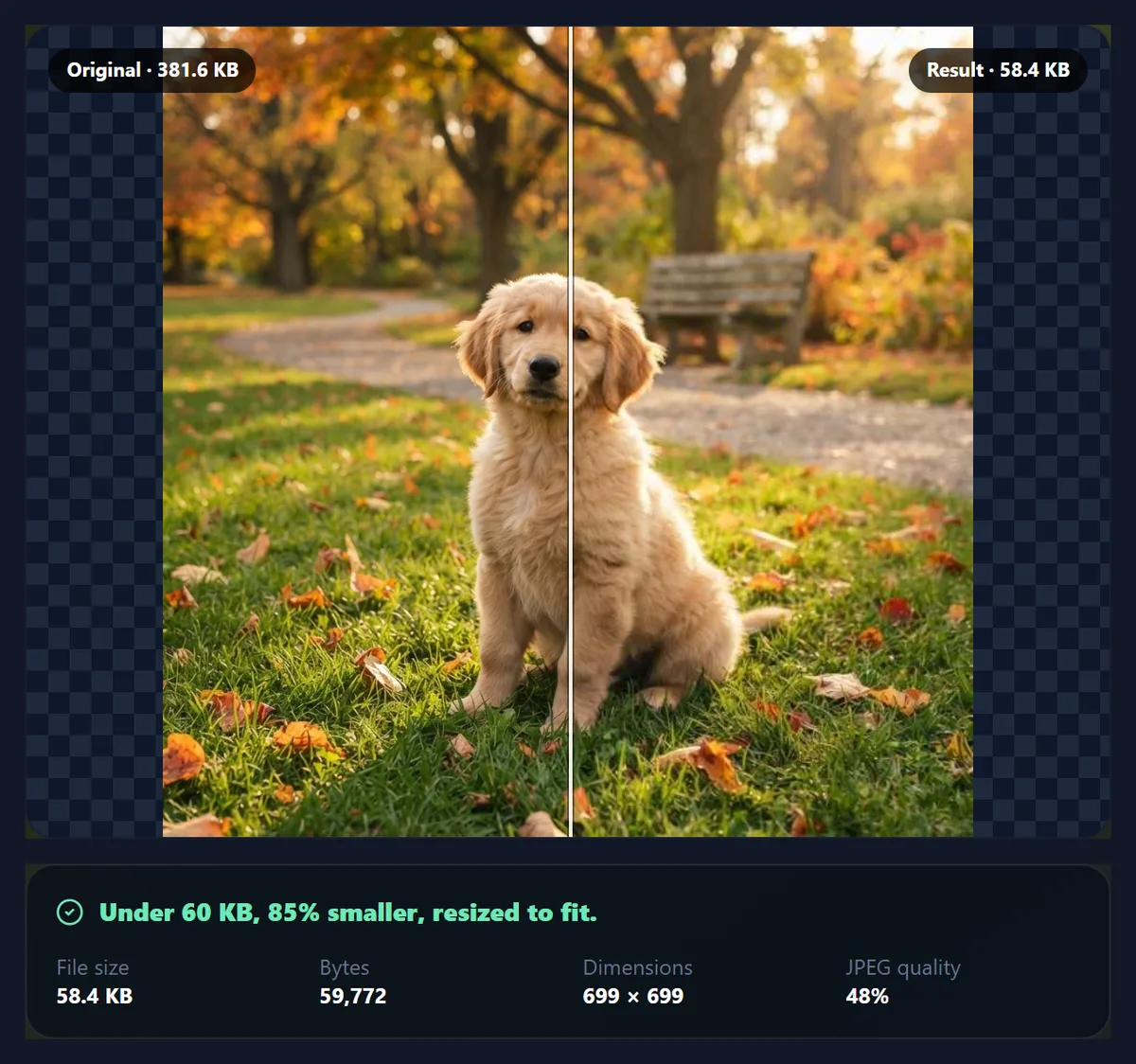
| 60 KB | 59,772 | 699 × 699 | 48% |
| 80 KB | 79,710 | 854 × 854 | 47% |
| 100 KB | 97,784 | 955 × 955 | 51% |
| 150 KB | 149,255 | 1024 × 1024 | 67% |
| 200 KB | 194,296 | 1024 × 1024 | 78% |
Does WebP help at 100 KB?
It did here. As WebP the puppy kept its full 1024 × 1024 pixels under 100 KB, at 57% quality and 99,858 bytes, where JPG had to drop to 955 × 955 to reach 51%. WebP also keeps transparency, which JPG cannot.
Use it when you control where the image goes: your own website, a messaging app, a modern content system. Stick to JPG for upload forms that list only JPG or JPEG, for email attachments to people on older software, and anywhere you are not sure. The WebP button is disabled in the few browsers that cannot produce WebP files.
Can you compress a screenshot or a graphic to 100 KB?
Yes, but look at it closely afterwards. Screenshots, charts, logos and pages of text are full of sharp edges between flat colours, which JPEG handles less gracefully than photographs: at low quality it leaves faint ripples and smudges next to letters and lines. WebP usually does better on this kind of image, and keeps any transparency, so try it first if the destination accepts it.
If text must stay perfectly crisp, reduce the dimensions rather than the quality: leave Keep pixel dimensions off, or resize the image to the size it will be shown at before compressing. A screenshot of a whole desktop shown in a 700-pixel column only needs 700 pixels.
Is 100 KB the right limit for your image?
If someone else set the limit, such as a form, a marketplace or a content system, you have no choice, and the tool makes the best of it. If you are choosing, think about where the image will appear and how large. A picture shown around 1000 pixels across on a web page is usually comfortable at 100 to 200 KB as JPG. A thumbnail or avatar shown at a few hundred pixels needs far less, and 20 to 50 KB is plenty. A full-screen hero image deserves more, and is better served by resizing to its display width than by squeezing it into a small limit.
Is the result under 100 KB on every system?
Yes, because the tool aims at 100,000 bytes, the smaller of the two meanings of 100 KB. Windows and many web forms count 1,024 bytes per kilobyte (102,400 bytes), macOS counts 1,000 (100,000 bytes). A file of 101,000 bytes would pass one and fail the other. The sample's 97,784-byte result shows as 95.5 KB in Windows File Explorer and 97.8 KB in macOS Finder; both are under 100.
Which images can you compress?
JPG, PNG and WebP files up to 40 megapixels. iPhone HEIC photos must be converted to JPG first, because browsers do not decode HEIC. Photos are turned upright using their camera orientation before compressing. PNG screenshots and graphics compress well as WebP; as JPG they lose transparency and may show faint halos around sharp text, so check them at 100%.
The output is always a new file written from the pixels, so EXIF data such as camera model, date and GPS location is left behind. Keep your original if you need that information.
Where does the compression happen?
On your device. The page loads a small piece of JavaScript that uses the browser's built-in image encoder; your photo is read from your disk into that tab and never sent to HueFold. There is no account, no watermark and no limit on how many images you compress, one at a time.
Why is my 100 KB file still rejected?
Check the other rules. Some forms require exact dimensions (for example a square image), a minimum size as well as a maximum, or a particular format. The result panel shows the bytes, width, height and quality, which covers most of them. If a site says the file is too large even though it is under 100,000 bytes, it may be measuring something else, such as the total of several files.
If the picture looks worse than you expected, look at it at 100% first: some softness from resizing is normal and invisible at normal size. If faces or text matter, crop tightly before compressing, so the bytes go where they count.
Frequently asked questions
How do I compress an image to 100 KB?
Open it in the tool on this page. 100 KB is selected; download the result when it looks right.
Will the file be under 100 KB everywhere?
Yes. The tool aims at 100,000 bytes or less, which is under 100 KB however a site counts kilobytes.
Can I keep the original width and height?
Tick Keep pixel dimensions. The tool then lowers quality only and tells you if 100 KB cannot be reached at that size.
Is the tool free?
Yes. It runs in your browser with no account and no watermark.
Is my photo uploaded?
No. Compression happens on your own device.
JPG or WebP for 100 KB?
WebP kept the sample at full size; JPG had to shrink it slightly. Use WebP only where it is accepted.
Can I compress a PNG to 100 KB?
Yes. Save it as WebP to keep transparency, or as JPG on a white background.
Why does my compressed photo look soft?
It may have been resized to fit. Use Inspect at 100% to check, and crop first to save bytes.
Does compressing remove location data?
Yes. The new file carries no EXIF metadata, including GPS.
Can I set a limit other than 100 KB?
Yes. Pick 60, 80, 150 or 200 KB, or type any number into Custom.
Related tools
- Compress Image to 50KB — Half the room: see how the search homes in.
- Compress Image to 20KB — For signatures and tiny form photos.
- Reduce Image Size in KB — Any limit, with the quality curve measured.
- Resize Image Pixel Online — Fix the dimensions before compressing.
- Increase Image Size in KB — When a form needs a minimum size instead.
- Crop Image — Crop away what you do not need first.