Add Text to Photo
Put a headline, a caption, a price or a label on a photo. Choose one of 20 fonts and a style (plain, shadow, outline, box or band), drag the text where you want it, and see at once whether it is readable. Download the photo at full size; nothing is uploaded.
Updated
How do you add text to a photo?
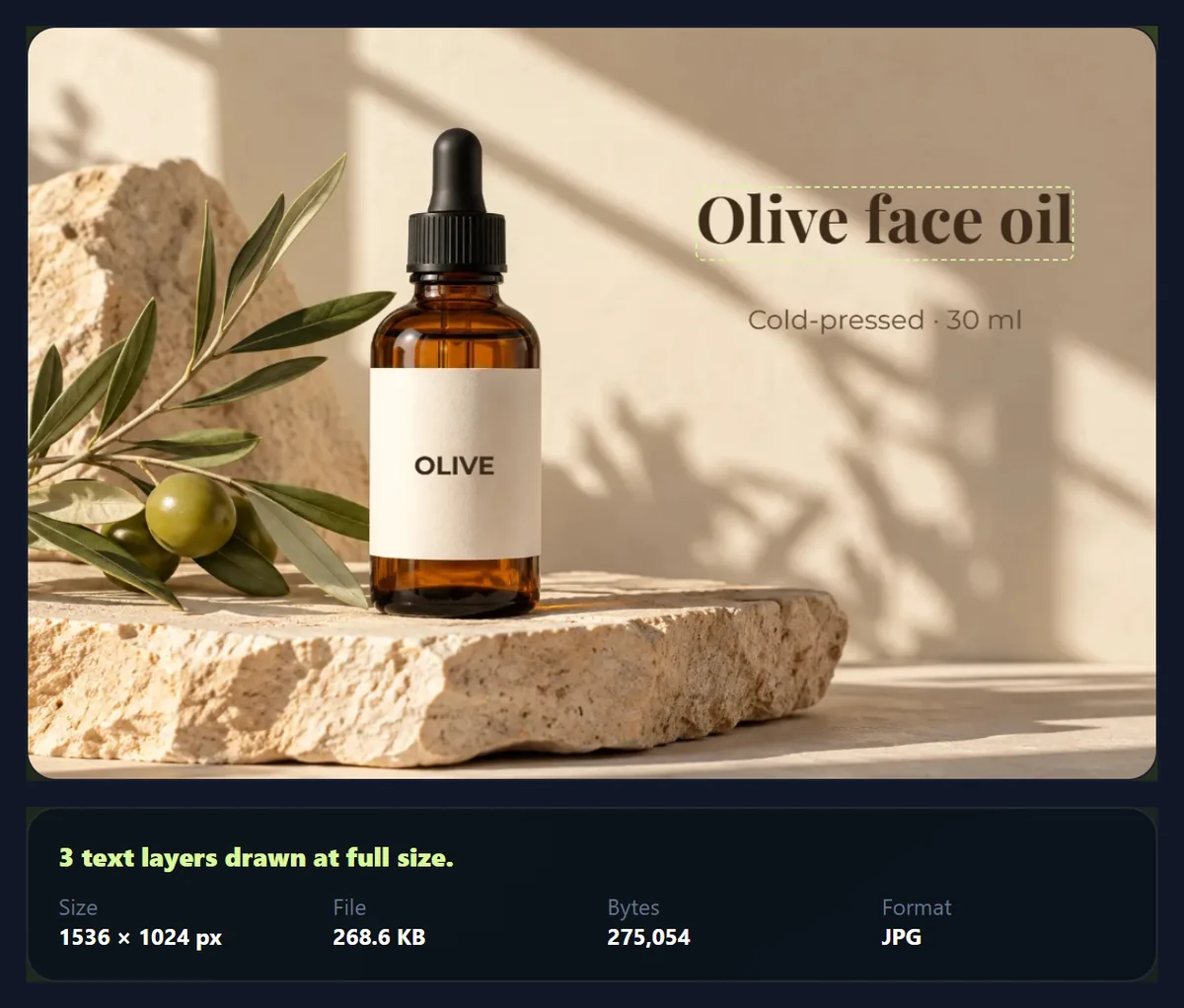
Open the photo, type your text, choose a font and a style, drag it into place and download. The tool draws the text into the photo at its full size, so a 1536 × 1024 photo comes back as a 1536 × 1024 photo with crisp lettering, not a screenshot of a preview. Everything runs in your browser; the photo is never uploaded and you need no account.
Most text on photos fails for one reason: it is hard to read against what is behind it. White words on a bright sky, or dark words on a shadow, disappear on a small phone screen. So the tool measures it. For every text layer it reports the WCAG contrast ratio between the letters and whatever is directly behind them, and says plainly when the text is fine, fine only at large sizes, or hard to read.
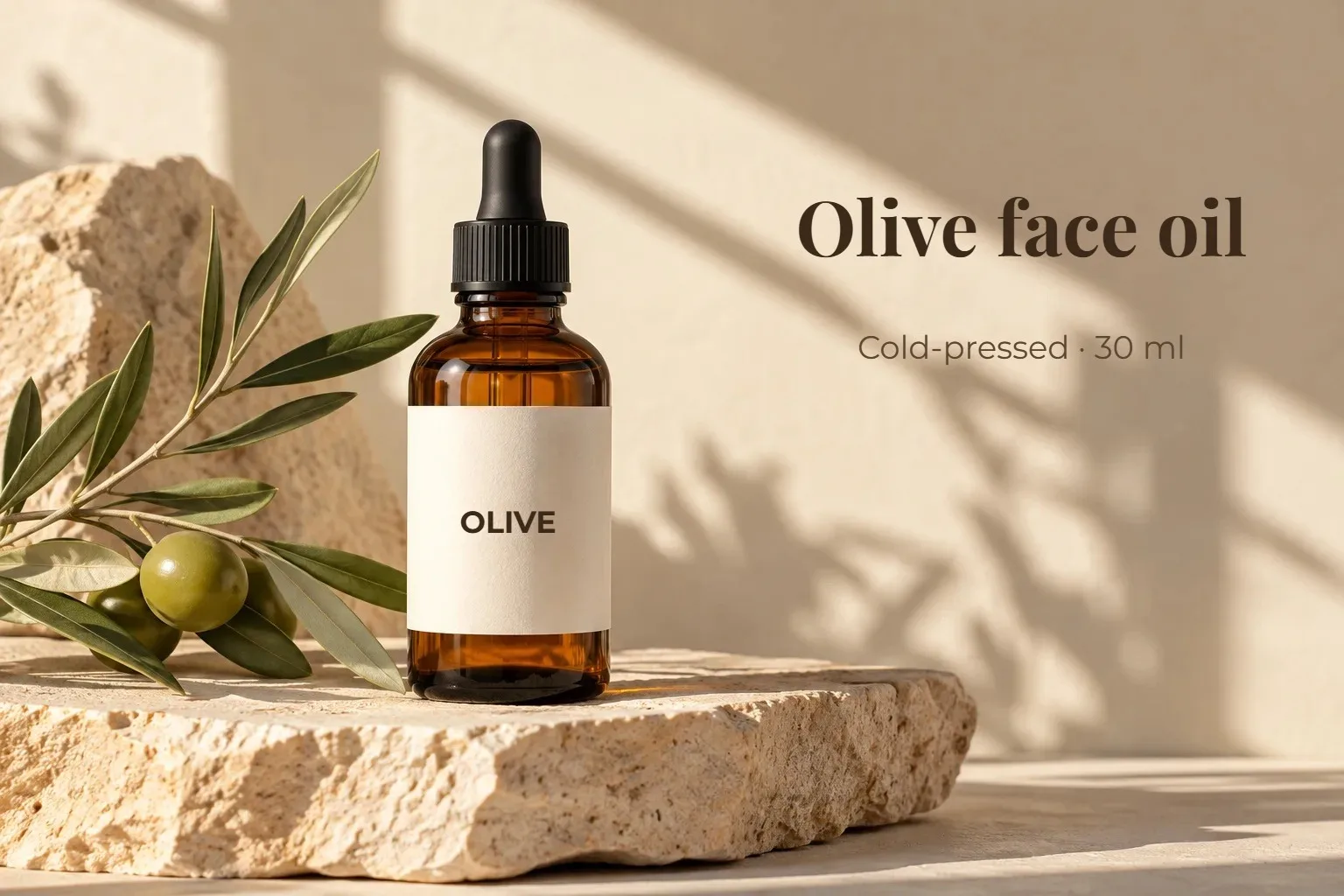
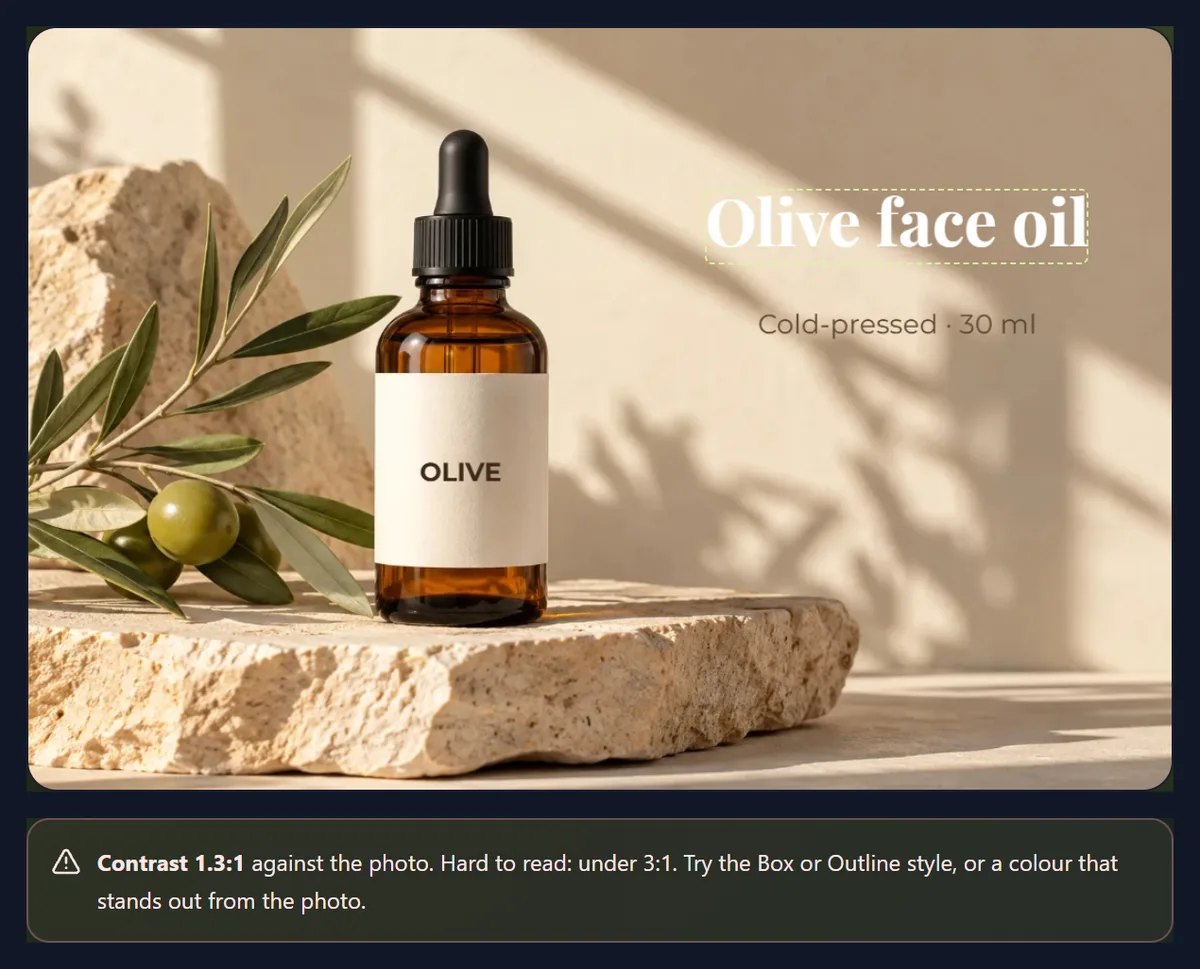
The examples use one product photo, 1536 × 1024 px, with a bare wall on the right and a blank label on the bottle. Every ratio and byte count below was produced by the tool above.
How to add text to a photo
- Open the photo Choose a JPG, PNG or WebP, drop it on the tool, or start with the sample product photo and its example headline.
- Type and style Write your text, pick a font, bold, alignment, size and colour, and a style: Plain, Shadow, Outline, Box or Band.
- Place it Drag the text on the photo or tap Top, Middle or Bottom. Add up to six text layers, each with its own style.
- Check and download Read the contrast check, fix any warning, and download the photo at full size as JPG, PNG or WebP.
Add a headline and a label to a product photo
A real screen recording of this page: the sample headline is rewritten, set in Oswald, tried as a box, dragged into place, a second line is added at the bottom, and the photo is downloaded.
- The sample opens with a headline, a subline and a bottle label.
- The headline is changed to “Pure olive oil”.
- The font changes to Oswald, and the Box style is tried and turned off.
- The headline is dragged a little higher.
- A second text layer, “New this week”, is added at the bottom.
- The photo is downloaded at full size.
How do you make text on a photo readable?
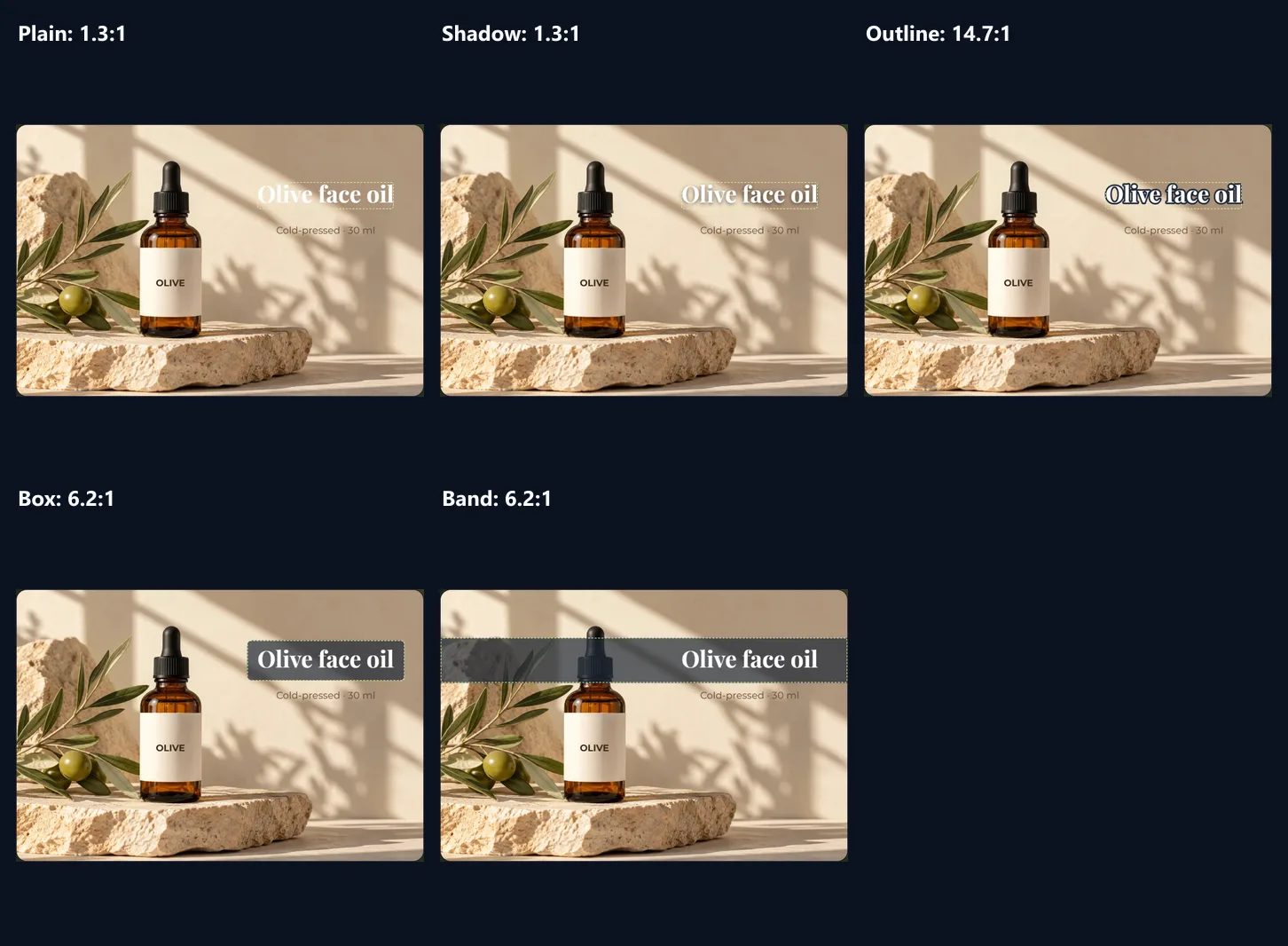
Give the letters something to stand out against. We placed the same white headline on the sample's light wall in each style and let the tool measure it. Plain white text scored 1.3:1, practically invisible. A shadow helps the eye, but WCAG has no formula for shadows, so the tool scores it like plain text: 1.3:1. A dark outline (#1f2937) scored 14.7:1, because each letter is now read against its own outline. A dark box at 70% opacity scored 6.2:1, and a full-width band the same.
WCAG 2 asks for at least 4.5:1 for normal text and 3:1 for large text. The tool marks anything at 4.5:1 or more as easy to read, 3–4.5:1 as fine for large headings only, and under 3:1 as hard to read, with a suggestion. Often the simplest fix is not a style at all: dark text on the light wall, as in the sample's own headline, reads well without any box.
| Style | Contrast | Measured against | Verdict |
|---|---|---|---|
| Plain | 1.3:1 | the photo | hard to read |
| Shadow | 1.3:1 | the photo (shadow not scored) | hard to read |
| Box, dark, 70% | 6.2:1 | the box over the photo | easy to read |
| Band, dark, 70% | 6.2:1 | the band over the photo | easy to read |
| Outline, dark | 14.7:1 | the outline | easy to read |
How does the contrast check work?
It uses the WCAG 2 definition of contrast, the one accessibility audits use: each colour's relative luminance, then (lighter + 0.05) ÷ (darker + 0.05), from 1:1 (no difference) to 21:1 (black on white). What counts as “behind the text” depends on the style. For plain and shadowed text it is the photo: the tool reads the pixels under the text block and takes the worst 2%, so one light patch behind a word is enough to lower the score. For outlined text it is the outline colour. For a box or band it is the box colour mixed with the photo at the box's opacity, again taking the worst mix.
The check runs on the preview as you type, drag and change colours, and shows for the selected layer. It cannot judge everything that affects reading, such as a very thin font or tiny text on a phone, so treat it as the minimum, not a guarantee.
Which text style should you use?
Plain suits text on a calm, even area that already contrasts with it: dark text on a light wall, white text on a dark sky. Shadow adds a soft drop shadow (about 18% of the font size), which separates letters from a slightly busy background without hiding the photo. Outline draws a stroke around each letter, 14% of the font size, which keeps text readable on any background; it is the classic meme style with white text and a black outline.
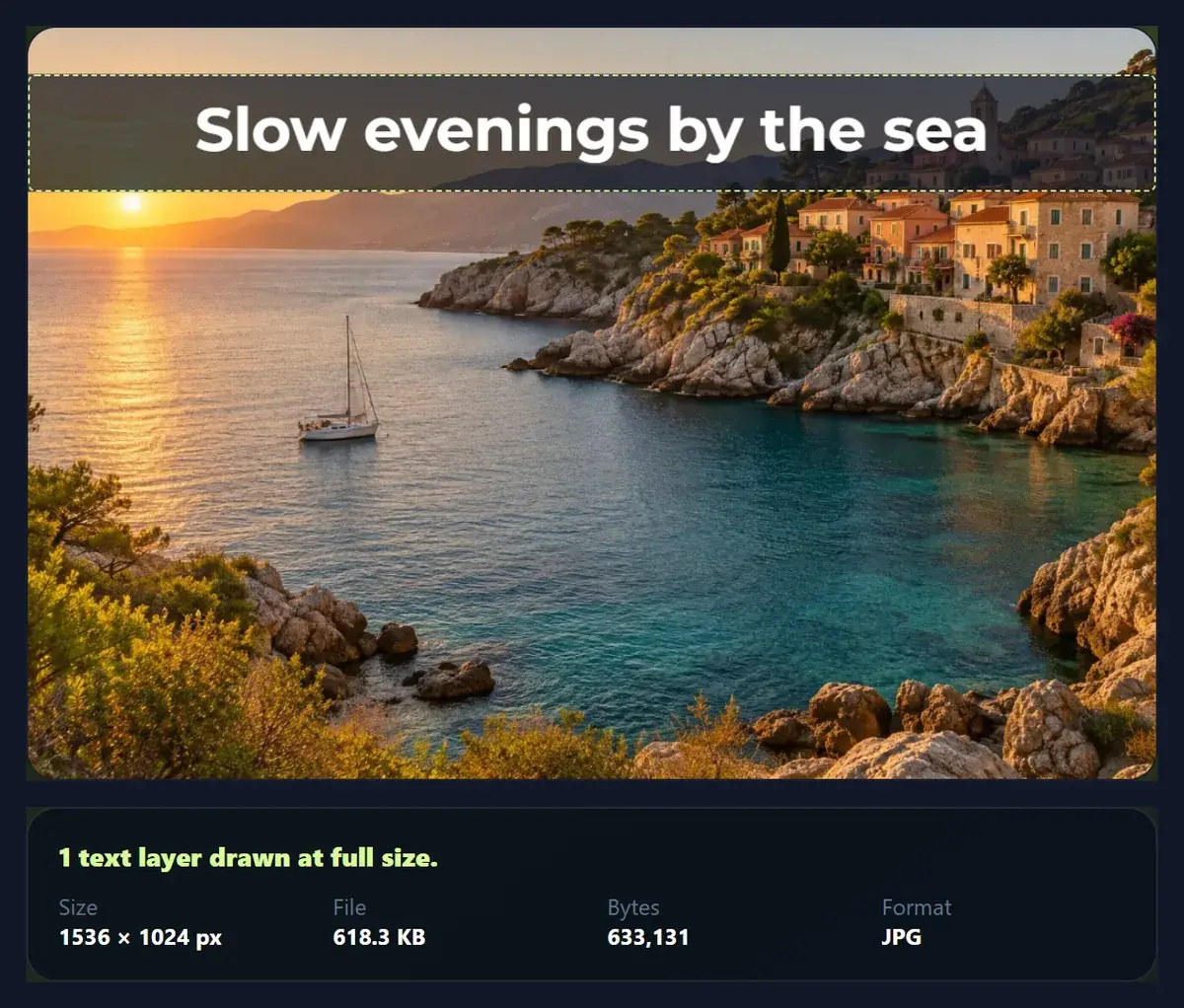
Box puts a rounded block behind the text, with adjustable opacity from 10% to 100%, ideal for prices, labels and captions on busy photos. Band runs a strip across the whole width, behind a title at the top or a caption at the bottom, like a lower third in a video.
- Plain: calm, contrasting areas.
- Shadow: a little separation on busy areas.
- Outline: readable anywhere; the meme look.
- Box: labels and prices.
- Band: titles and lower-third captions.
Which fonts can you use?
Twenty fonts, the same self-hosted set as the HueFold editor: sans-serifs such as Montserrat, Poppins, Roboto, Open Sans, Raleway, Nunito, Work Sans, Fira Sans, Ubuntu, Quicksand, Source Sans Pro and PT Sans; condensed display faces Oswald and Anton; serifs Playfair Display, Merriweather, Lora, PT Serif and Abril Fatface; and the monospaced Inconsolata. Most come in regular and bold; Anton and Abril Fatface are bold by design and have one weight, so the Bold button is off for them.
The fonts load from HueFold's own server when you choose them, and the download is drawn only after the font has loaded, so the file never falls back to a system font.
How do you size, wrap and place the text?
Size is a share of the photo's height, from 2% to 22%, so the text keeps the same proportion on the preview and in the full-size download. Line width sets how wide a line may run, from 20% to 100% of the photo; longer text wraps onto new lines at that width, and Enter starts a new line yourself. Alignment is left, centre or right within the text block.
Place the text by dragging it on the photo, or tap Top, Middle or Bottom to centre it at 14%, 50% or 86% of the height. Add up to six layers (a headline, a subline, a price, a label) and switch between them with the numbered tabs; the dashed outline on the photo shows which one is selected.
What can you make with text on a photo?
Product photos with a name, a price or “new” on a box; quote images with a short line in a band; event posts with a date and a place; thumbnails with a short, bold title in an outline; menu items and offers; labels on mock-ups, like the word on the sample's blank bottle label; captions for a photo series; and simple before-and-after labels on a combined image.
Keep it short: a headline of three to six words reads at a glance on a phone. One font family in two weights usually looks more deliberate than three different fonts.
Which files work, and is the photo uploaded?
The tool opens JPG, PNG and WebP up to 40 megapixels and saves JPG, PNG or WebP at the photo's full size (up to about 16.7 megapixels, the canvas limit of phone browsers). Nothing is uploaded and no account is needed. The saved photo is written from pixels only, without EXIF data. A transparent PNG keeps its transparency as PNG or WebP and goes on white as JPG.
The text becomes part of the picture. To change the words later, keep your original photo and add the text again.
Why is my text cut off, blurry or in the wrong font?
Cut off at the edge: the text block is centred on where you dropped it, so a wide block near an edge runs past it. Drag it inwards, lower the size, or narrow the line width so it wraps. Blurry: the preview is a scaled copy; the download is drawn at full size and is sharp. Check the downloaded file rather than a screenshot.
Wrong font on the preview: a font loads the first time you choose it, which takes a moment on a slow connection; the preview redraws when it arrives, and the download waits for it.
Frequently asked questions
How do I add text to a photo online for free?
Open it above, type your text, choose a font and style, drag it into place and download. No account, no watermark.
Is my photo uploaded?
No. The text is drawn in your browser; only the optional sample photo comes from HueFold.
Which image formats can I open?
JPG, PNG and WebP up to 40 megapixels. Convert HEIC photos to JPG first.
How many fonts are there?
Twenty, the same self-hosted set as the HueFold editor, most in regular and bold.
Can I add more than one text?
Yes, up to six text layers, each with its own font, style, colour and position.
How do I make text readable on a busy photo?
Use Outline, or a Box or Band at 60–80% opacity. The contrast check tells you when it reaches 4.5:1.
What does the contrast number mean?
The WCAG 2 ratio between the letters and what is behind them. 4.5:1 suits normal text, 3:1 large text.
Can I make meme-style text?
Yes. Choose Outline with white text and a black outline, in a bold font such as Anton.
Will the text be sharp in the download?
Yes. It is drawn at the photo’s full size, not copied from the preview.
Can I edit the text after downloading?
No. The text becomes part of the pixels. Keep your original photo to start again.
Does it remove EXIF data?
Yes. The saved photo carries no camera details or location.
Related tools
- Add Text to GIF — Captions on an animated GIF, frame by frame.
- Add Watermark to Photo — A logo or name repeated across the photo.
- Photo Effects — Grade the photo before writing on it.
- Photo Blur — Soften a busy area so text stands out.
- Crop Image — Crop to the post shape before adding text.
- Stock Photos — Find a free photo with room for a headline.