Photo Effects
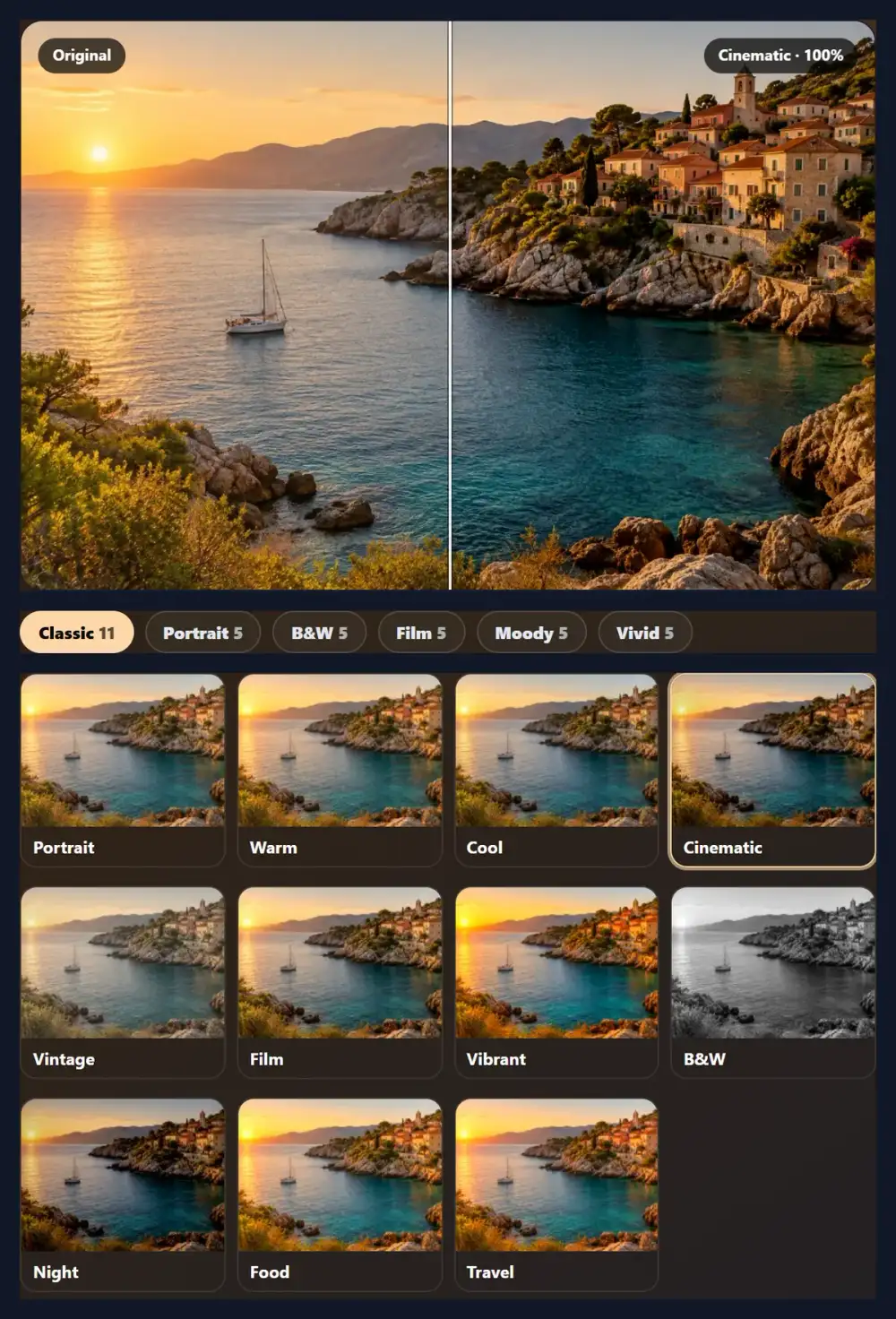
Thirty-six looks, from a gentle portrait warm-up to noir black and white, each shown as a thumbnail of your own photo. Pick one, set its intensity, compare it with the original and download the photo at full size. These are the same looks as the HueFold editor and app.
Updated

How do you add effects to a photo?
Open a photo, tap one of the 36 looks and download it. Each look is a colour grade, a set changes to brightness, contrast, saturation, warmth, tint and sometimes sepia, greyscale or a vignette, applied all at once and as strongly as the intensity slider says. Every thumbnail is drawn from your own photo, so you choose by seeing the result rather than an example of someone else's picture. Nothing is uploaded: the effects are calculated in your browser.
These are the HueFold editor's own looks, with the same names and the same values. The app's look library, the web editor and the server that exports finished designs all share one definition, so a look picked here matches the one you pick in a HueFold design, on the web or on a phone.
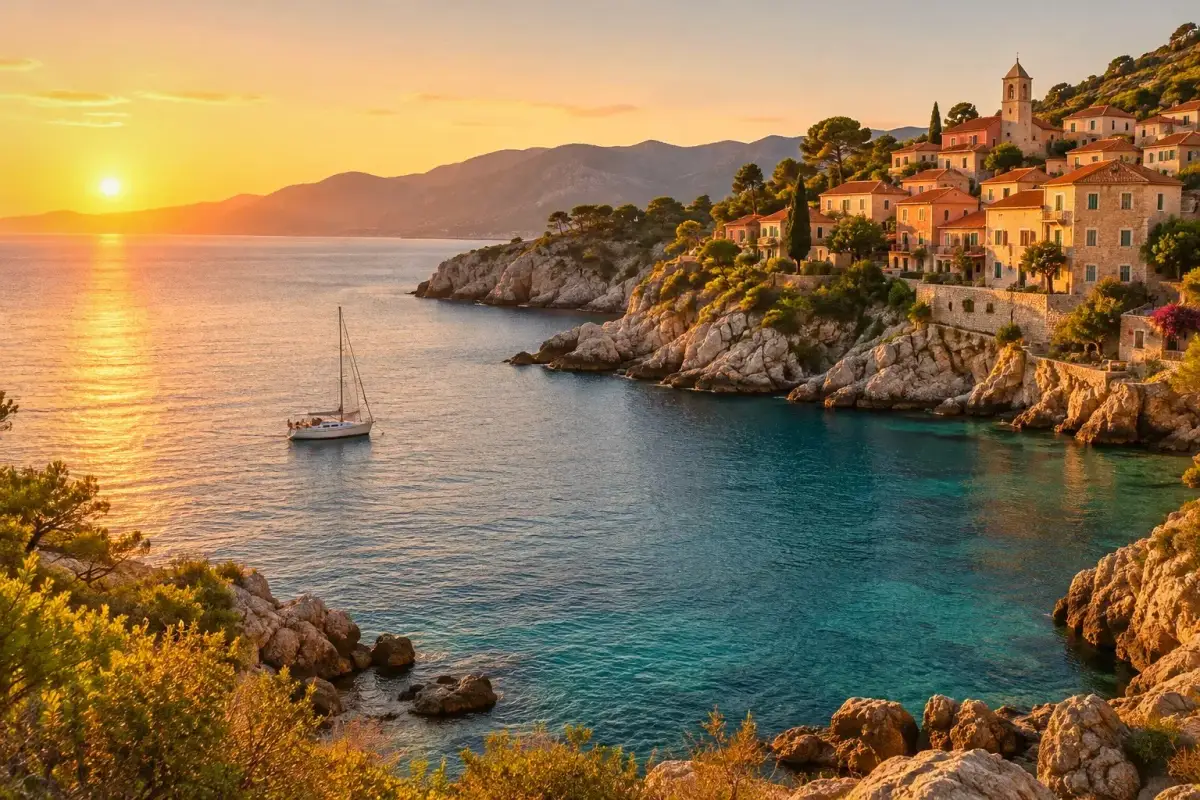
The examples use one photo, a 1536 × 1024 px sunset over a rocky cove. The numbers below, such as how far each look moves the photo, were measured by running the looks on it in the tool above.
How to add an effect to a photo
- Open the photo Choose a JPG, PNG or WebP, drop it on the tool, or start with the sample. Every thumbnail redraws on your photo.
- Pick a look Browse Classic, Portrait, B&W, Film, Moody and Vivid and tap a thumbnail. The recipe line says exactly what the look changes.
- Set the intensity Slide from 0% (the original) to 100% (the full look), and drag the compare line across the photo.
- Download Save the photo at full size as JPG, PNG or WebP. Your original file is not changed.
Try six photo effects on one photo in the browser
A real screen recording of this page: Cinematic on the sample, a comparison with the original, then Golden Hour, Noir at half strength and Fuji Green, and the download.
- The sample photo opens with the Cinematic look.
- The compare line moves across the photo to show the original.
- The Portrait group is opened and Golden Hour chosen.
- In B&W, Noir is chosen and its intensity lowered to 50%.
- In Film, Fuji Green is chosen.
- The photo is downloaded as a JPG.
Which photo effects are there?
Thirty-six looks in six groups. Classic has eleven everyday grades, from Portrait and Warm to Cinematic, Vintage and Night. Portrait has five that flatter skin. B&W has five black and white treatments, including a sepia. Film has five that imitate the colour of film stocks and old prints. Moody has five darker, cooler or dustier grades, and Vivid five saturated ones.
Under the thumbnails, the tool spells out the chosen look's recipe in the editor's own terms. Cinematic, for example, is Brightness −2, Contrast +18, Saturation −12, Temperature −10, Tint +6, Shadows +4 and Vignette +22: a little darker, punchier, less colourful, cooler and slightly magenta, with darkened corners.
| Group | Looks | Names |
|---|---|---|
| Classic | 11 | Portrait, Warm, Cool, Cinematic, Vintage, Film, Vibrant, B&W, Night, Food, Travel |
| Portrait | 5 | Soft Skin, Golden Hour, Rosy, Studio, Porcelain |
| B&W | 5 | Soft B&W, Noir, Silver, Sepia, High Key |
| Film | 5 | Gold 200, Fuji Green, Faded, Instant, 70s |
| Moody | 5 | Cinema Teal, Moody, Forest, Dusk, Desert |
| Vivid | 5 | Pop, Tropical, Ocean, Neon, Sunset |
Which effects are subtle and which are strong?
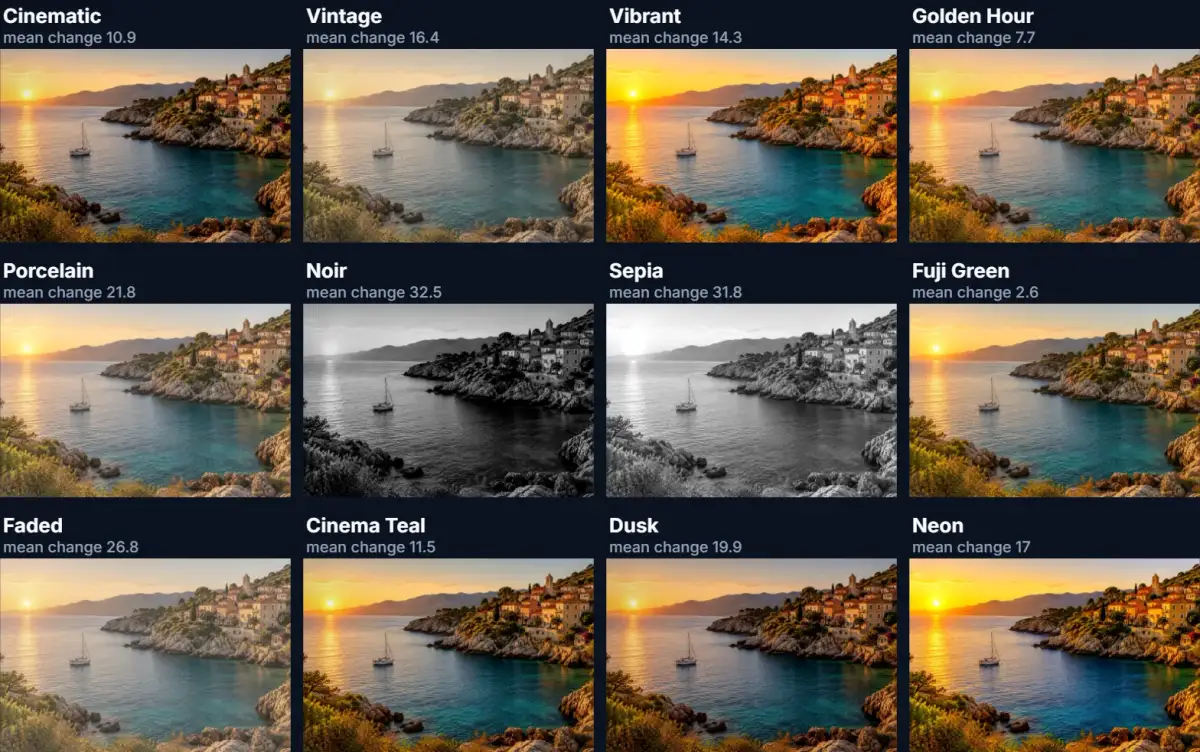
We measured it: each look was applied at 100% to the sample, and the average change per colour channel per pixel was taken, on the 0–255 scale. Fuji Green moved the photo least, by 2.6, because it only cools and greens it slightly. High Key moved it most, by 49.5, because it turns the photo black and white and lifts it hard. Noir (32.5) and Sepia (31.8) are close behind; most Classic and Portrait looks sit between 7 and 17.
A small number means a grade you might not notice on its own but which gives a set of photos a common feel. A large number means a restyle. For a natural result, pick a strong look and lower its intensity; that is not the same as choosing a weak look, because the character of the look stays.
| Look | Mean change | Group |
|---|---|---|
| Fuji Green | 2.6 | Film |
| Golden Hour | 7.7 | Portrait |
| Cinematic | 10.9 | Classic |
| Cinema Teal | 11.5 | Moody |
| Vibrant | 14.3 | Classic |
| Vintage | 16.4 | Classic |
| Neon | 17.0 | Vivid |
| Dusk | 19.9 | Moody |
| Porcelain | 21.8 | Portrait |
| Faded | 26.8 | Film |
| Sepia | 31.8 | B&W |
| Noir | 32.5 | B&W |
| High Key | 49.5 | B&W |
What does the intensity slider do?
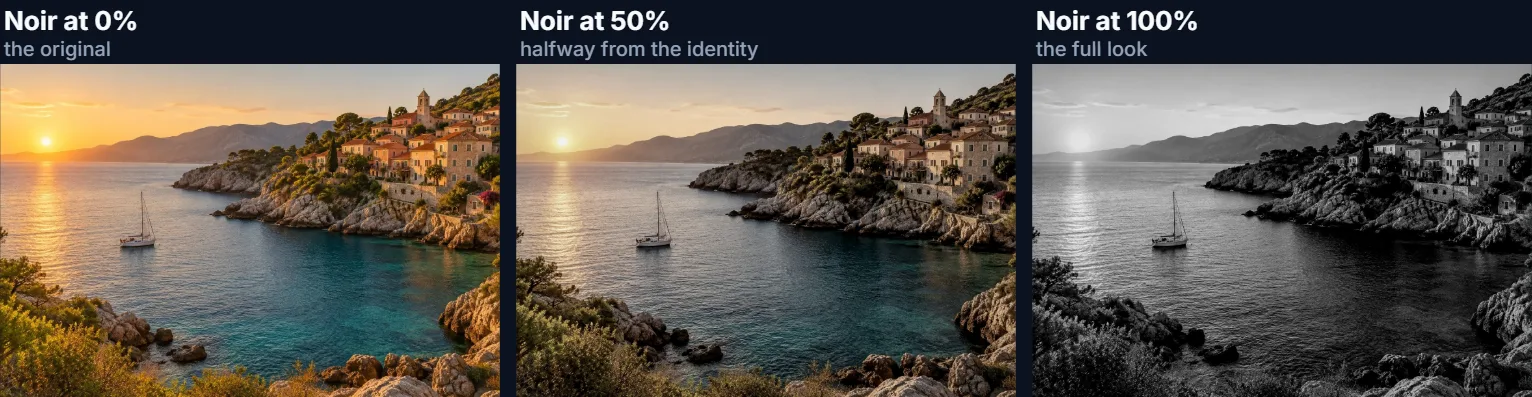
It blends between your photo and the full look. At 0% nothing changes; at 100% you get the look exactly as defined; at 50% every colour moves halfway. The look's vignette scales the same way, so Noir at 50% has half its corner darkening.
Technically each look is one 4 × 5 colour matrix, and intensity interpolates that matrix from the identity (no change) to the full look. That is why intensity never adds anything the look does not do, and why 50% of a strong look often looks more natural than 100% of a weak one. The figure shows Noir at 0%, 50% and 100%.
Are these the same filters as the HueFold editor?
Yes. The looks are read from the same library the HueFold editor uses on the web, which is generated from the Android app's own definitions, and a server-side test checks the exporter's copy against the app's so they cannot drift apart. The colour maths (the matrix for each look, and the vignette drawn as a radial fade to black from 45% of the way to the corners) is the same code the editor's canvas uses.
In practice that means you can try looks here on a single photo, then pick the same name inside a HueFold design and get the same colour, including when the design is exported.
Which effect suits which photo?
Portraits usually want gentle looks that warm skin without changing its colour much: Portrait, Golden Hour, Studio or Soft Skin. Food and products want clean, slightly vivid colour: Food, Vibrant or Pop at a lower intensity. Landscapes and travel photos take Travel, Ocean, Tropical or Cinematic well. For atmosphere, try Moody, Dusk or Cinema Teal; for an old-photo feel, Vintage, Faded, Instant or 70s.
Black and white rescues photos whose colour is a problem: mixed lighting, a strong cast, or clashing clothes. Noir adds drama with contrast and a vignette; Silver and Soft B&W stay gentle; High Key suits bright, airy subjects. For a set of photos that should look like a series, apply the same look at the same intensity to all of them.
- People: Portrait, Golden Hour, Studio, Soft Skin.
- Food and products: Food, Vibrant, Pop.
- Travel and landscapes: Travel, Ocean, Cinematic.
- Atmosphere: Moody, Dusk, Cinema Teal.
- Problem colour: any B&W look.
Should you fix a photo before adding an effect?
Yes, if it is too dark or has a colour cast. A look is a fixed recipe: Cinematic cools a photo by the same amount whatever its starting colour, so a photo that is already blue gets bluer. Correct exposure and white balance first, with the AI Photo Enhancer's Auto, and the look then lands as intended.
Effects change colour and tone only; they do not crop, sharpen detail or remove objects. Crop and straighten before, add text and frames after.
How do you give a set of photos the same look?
Use one look at one intensity for every photo in the set, and correct the photos first so they start from the same place. A look is a fixed recipe, so it treats every photo identically: that is what makes a feed, an album or a product range feel like one series, and also why a photo that started darker or bluer than the rest still stands out after the look is applied.
A practical routine: run each photo through the AI Photo Enhancer's Auto, then apply the chosen look here at the same intensity, and write that intensity down. In a HueFold design, the same look name gives the same result, so a template can carry the series' look onto new photos later.
Which files work, and is the photo uploaded?
The tool opens JPG, PNG and WebP up to 40 megapixels and saves JPG, PNG or WebP at the photo's full size (up to about 16.7 megapixels, the canvas limit of phone browsers). Nothing is uploaded and no account is needed. The saved photo carries no EXIF data, so camera details and location are not passed on. HEIC photos from recent iPhones need converting to JPG first.
Thumbnails are small copies of your photo drawn in the browser; they are not stored anywhere.
Why does the effect look different on my photo than on the thumbnail?
It should not, apart from size: the thumbnail and the full photo use the same look at 100%, and the preview uses the intensity you set. If they seem different, check the intensity slider, which applies to the big preview and the download but not to the thumbnails.
Skin looks orange or grey: lower the intensity, or choose a Portrait look, which is tuned for skin. Shadows look muddy after a dark look such as Moody or Night: they darken by design; brighten the photo first, or choose Cinema Teal. Download stays greyed out: the photo has not finished opening, or failed to; an error under the preview says why.
Frequently asked questions
How do I add effects to a photo online?
Open it above, tap a look, set the intensity and download. It is free and needs no account.
How many photo effects are there?
36 looks in six groups: Classic, Portrait, B&W, Film, Moody and Vivid.
Is my photo uploaded?
No. The effects are calculated in your browser; only the optional sample is downloaded from HueFold.
Are these the same filters as in the HueFold editor?
Yes. Same names, same values and the same colour maths, so a look here matches the editor and the app.
Can I make an effect weaker?
Yes. The intensity slider blends from 0% (the original) to 100% (the full look).
Which effect is the most subtle?
On our sample, Fuji Green changed the photo least (2.6 per channel); High Key changed it most (49.5).
Can I combine two effects?
Not in this tool: one look at a time. Download, open the result and add a second look if you want to stack them.
Do the effects reduce photo quality?
They change colours only. Saving as JPG adds normal compression; choose PNG for a lossless file.
Is there a black and white effect?
Five: Soft B&W, Noir, Silver, Sepia and High Key, plus B&W in the Classic group.
What size is the downloaded photo?
The same as your photo, up to about 16.7 megapixels, the canvas limit of phone browsers.
Does it remove EXIF data?
Yes. The download is written from pixels only, without camera details or location.
Related tools
- AI Photo Enhancer — Fix exposure and colour casts before adding a look.
- B&W Image Filter — Black and white with channel mixing and film grain.
- Photo Blur — Soften a background or hide a detail.
- Photo Frames — Put the finished photo in a mat, print border or film strip.
- Add Text to Photo — Add a caption to the graded photo.
- Vignette — Darken the corners on their own.