Crop Image
Cut a photo to the part that matters, at the shape you need: free, 1:1, 4:5, 9:16, 16:9 and five more ratios, or exact pixel values. Drag the frame or its eight handles, turn or mirror the photo, and download the crop pixel for pixel, without resizing.
Updated

How do you crop an image online?
Open the image above, choose a shape, move the frame over the part you want and download it. Cropping removes everything outside the frame and keeps what is inside exactly as it was: a 717 × 896 crop is 717 × 896 real pixels of your photo, not a resized copy. Everything happens in your browser, so the image is never uploaded.
Cropping does two jobs. It improves the picture, by cutting away a distracting edge, straightening the balance or moving the subject off-centre; and it fits the picture to a place, such as a square profile, a 4:5 feed post, a 9:16 story or a 16:9 video thumbnail. The tool's ratio buttons handle the second job; the frame and its handles handle the first.
The examples use one photo, a 1200 × 896 px boardwalk with an orange traffic cone on the right. Every crop size, percentage and file size on this page was produced by the tool above.
How to crop an image
- Open the image Choose a JPG, PNG or WebP, drop it on the tool, or start with the sample. The image is read by your browser and never uploaded.
- Pick a shape Choose Free, Original or a ratio such as 1:1, 4:5, 9:16 or 16:9. The frame jumps to the largest crop of that shape, centred.
- Place the frame Drag inside the frame to move it, drag a handle to resize it, or type exact X, Y, W and H values in pixels. Rotate or flip the photo if needed.
- Download Save the crop as JPG, PNG or WebP. The panel shows its exact size, ratio and bytes before you download.
Crop a photo for a feed post and a story in the browser
A real screen recording of this page: the sample is cropped to 4:5, the frame is moved to leave out a traffic cone, resized from a corner, switched to 9:16 and downloaded.
- The whole sample photo sits inside the crop frame.
- The 4:5 preset centres a portrait frame on the photo.
- The frame is dragged left so the orange cone falls outside it.
- A corner handle shrinks the frame, keeping the 4:5 shape.
- The 9:16 preset makes a story-shaped crop.
- The crop is downloaded as a JPG.
How much of a photo does each crop ratio keep?
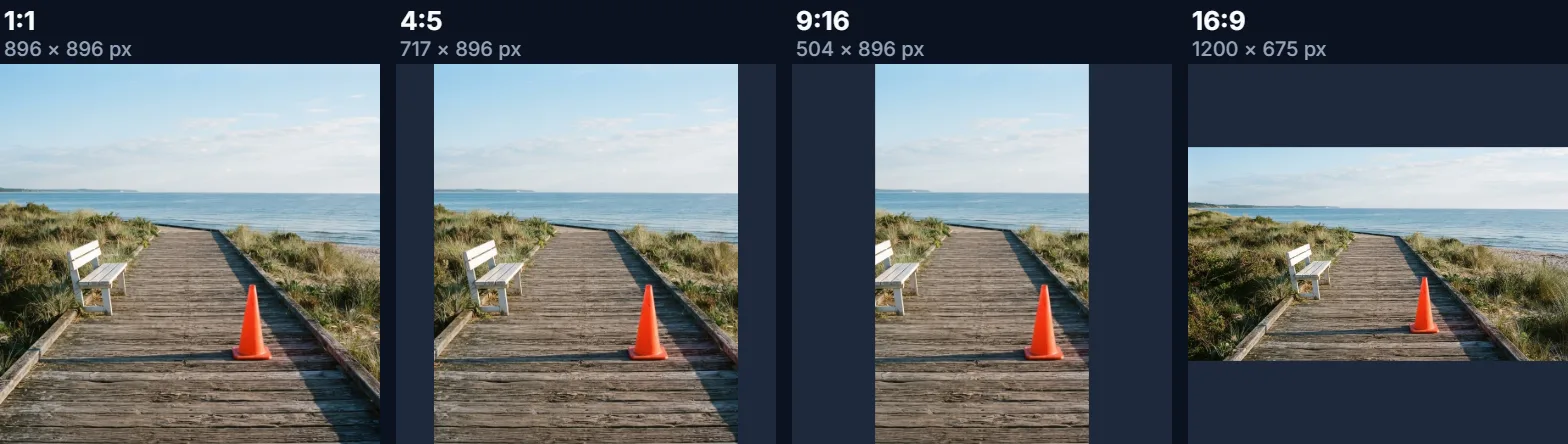
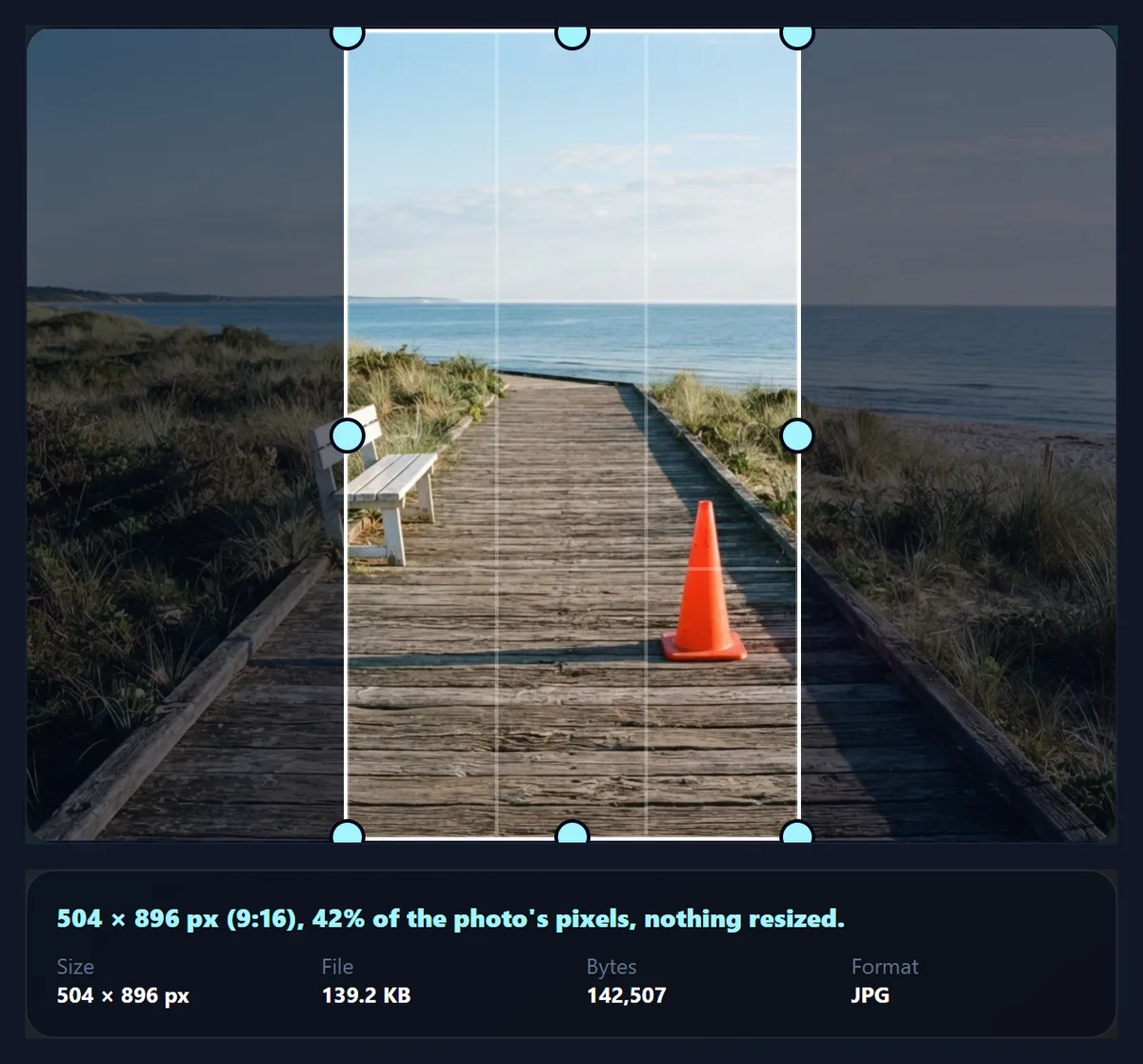
Choosing a ratio puts the largest frame of that shape in the middle of the photo. How much survives depends on how far the ratio is from the photo's own shape. The sample is 1200 × 896, slightly wider than 4:3, so 4:3 keeps 99.6% of it and 3:2 keeps 89.3%. A square keeps three quarters (896 × 896). Upright shapes cost the most: 4:5 keeps 59.8% and a 9:16 story only 42%, a 504 px wide strip of a landscape photo.
That is the reason to shoot with the destination in mind, or to accept that a landscape photo makes a narrow story. If the important part of the picture is not in the middle, drag the frame after choosing the ratio: the shape stays locked while you move it.
| Ratio | Crop size | Pixels kept | JPG bytes |
|---|---|---|---|
| 4:3 | 1195 × 896 | 99.6% | 356,644 |
| 3:2 | 1200 × 800 | 89.3% | 309,188 |
| 16:9 | 1200 × 675 | 75.3% | 290,135 |
| 1:1 | 896 × 896 | 74.7% | 247,275 |
| 4:5 | 717 × 896 | 59.8% | 205,004 |
| 3:4 | 672 × 896 | 56.0% | 181,825 |
| 2:3 | 597 × 896 | 49.8% | 169,769 |
| 9:16 | 504 × 896 | 42.0% | 142,507 |
Which crop ratio should you use for posts, stories and prints?
Use the shape the destination displays. The tool's presets cover the common ones: 1:1 for square posts and profile photos, 4:5 for portrait feed posts, 9:16 for stories, reels and phone wallpapers, 16:9 for video thumbnails, slides and most screens, 3:2 for a camera frame and 6 × 4 in prints, 2:3 for the same print upright, 3:4 and 4:3 for tablets and older cameras. Free lets the frame take any shape; Original keeps the photo's own proportions.
A ratio fixes the shape, not the pixel count. If a site also asks for exact pixels, for example 1080 × 1350, crop to 4:5 here and then resize to 1080 × 1350 with the pixel resizer; or type W = 1080 and H = 1350 into the fields, which crops exactly that many real pixels when the photo is large enough.
- 1:1: square posts and profile photos.
- 4:5: portrait feed posts.
- 9:16: stories, reels, phone wallpapers.
- 16:9: thumbnails, slides, screens.
- 3:2 and 2:3: 6 × 4 in prints, landscape and upright.
How do you crop out something you do not want?
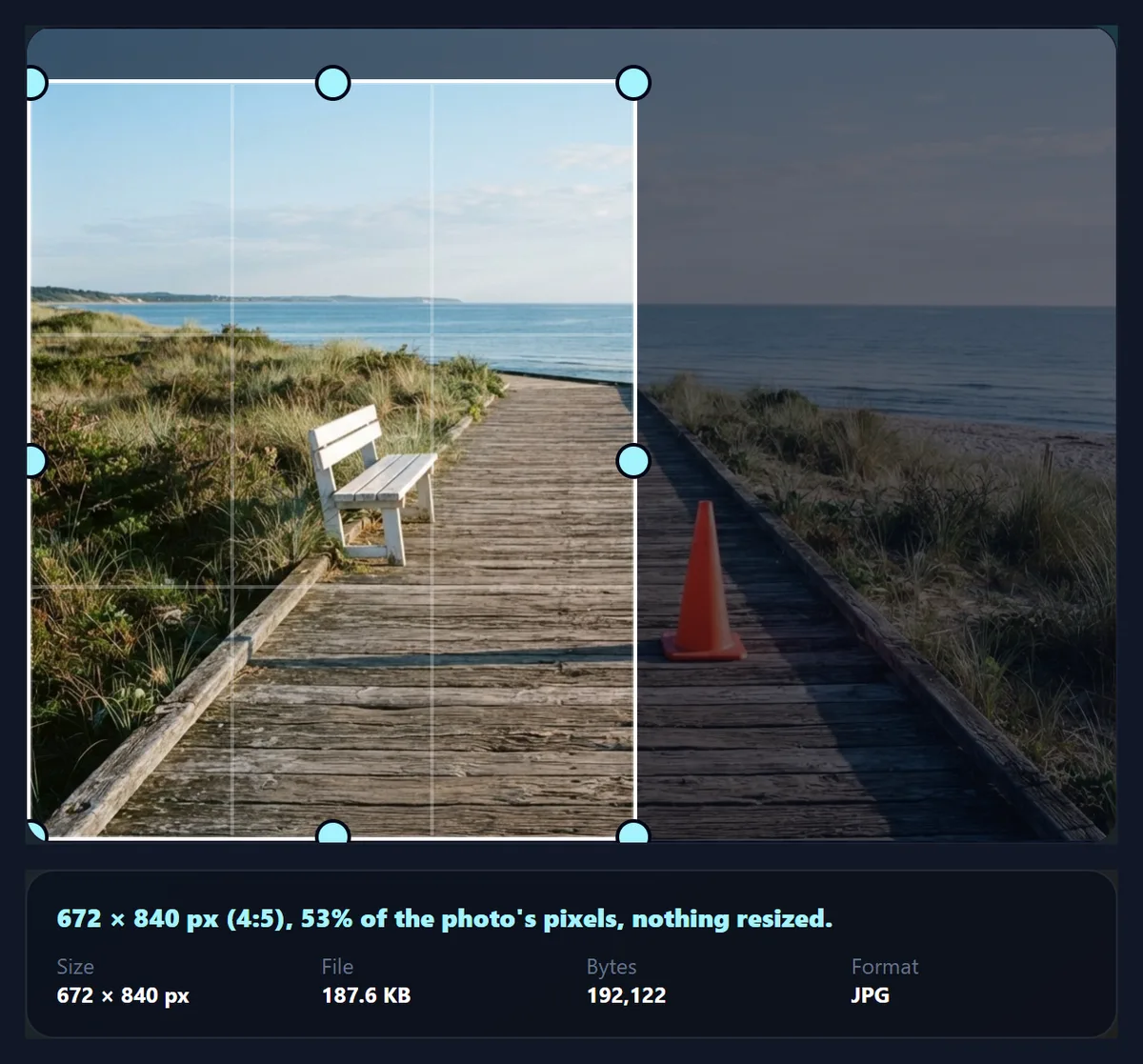
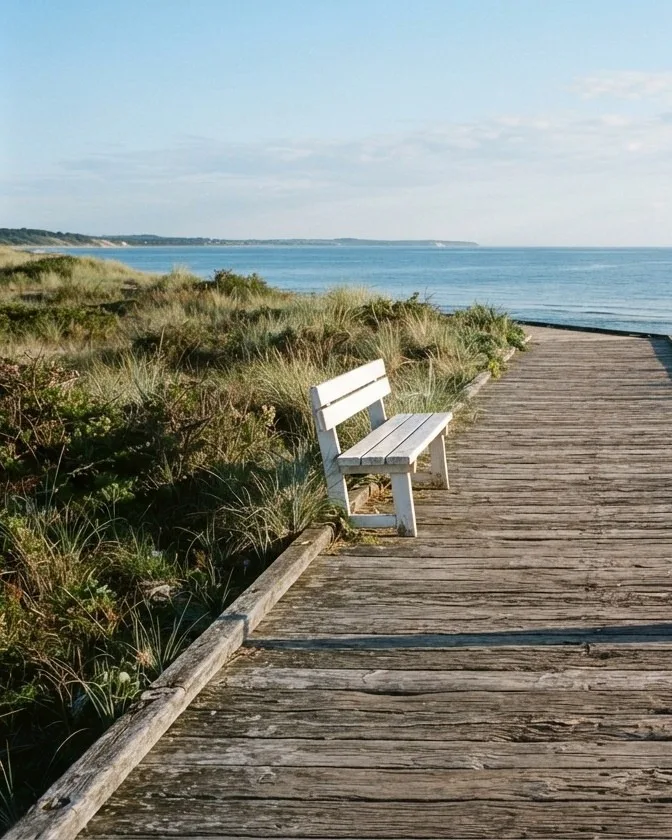
Move the frame so the unwanted part falls outside it, then tighten it if anything still pokes in. In the sample, a centred 4:5 crop spans x = 241 to 958 and contains the orange cone, which stands at about x = 705–855. Dragging the frame to the left edge (x = 0 to 717) still caught the base of the cone, so we typed W = 672, which made the locked 4:5 frame 672 × 840, and Y = 56 to keep the foreground: the cone is gone, and both numbers sit on JPEG's 8 px grid.
The frame cannot leave the photo: it stops at the edge, and if you drag a corner past an edge it slides along whichever side still has room. With a ratio locked, a corner handle grows the frame along its diagonal and an edge handle grows it about its middle, so the shape never changes. This is the same crop maths as the HueFold editor and app use.
How do you crop to exact pixel values?
Type them. X and Y are the crop's top-left corner, measured from the photo's top-left; W and H are its width and height. Values are whole pixels and are kept inside the photo: a frame typed past an edge is pulled back in. With a ratio locked, typing a width sets the height from the ratio (and the other way round); with Free, width and height are independent.
Keyboard users can also focus any handle and use the arrow keys: each press moves that edge by 1 px, or 10 px with Shift. The live label under the frame shows the crop's size and ratio while you work.
Can you rotate or flip the image while cropping?
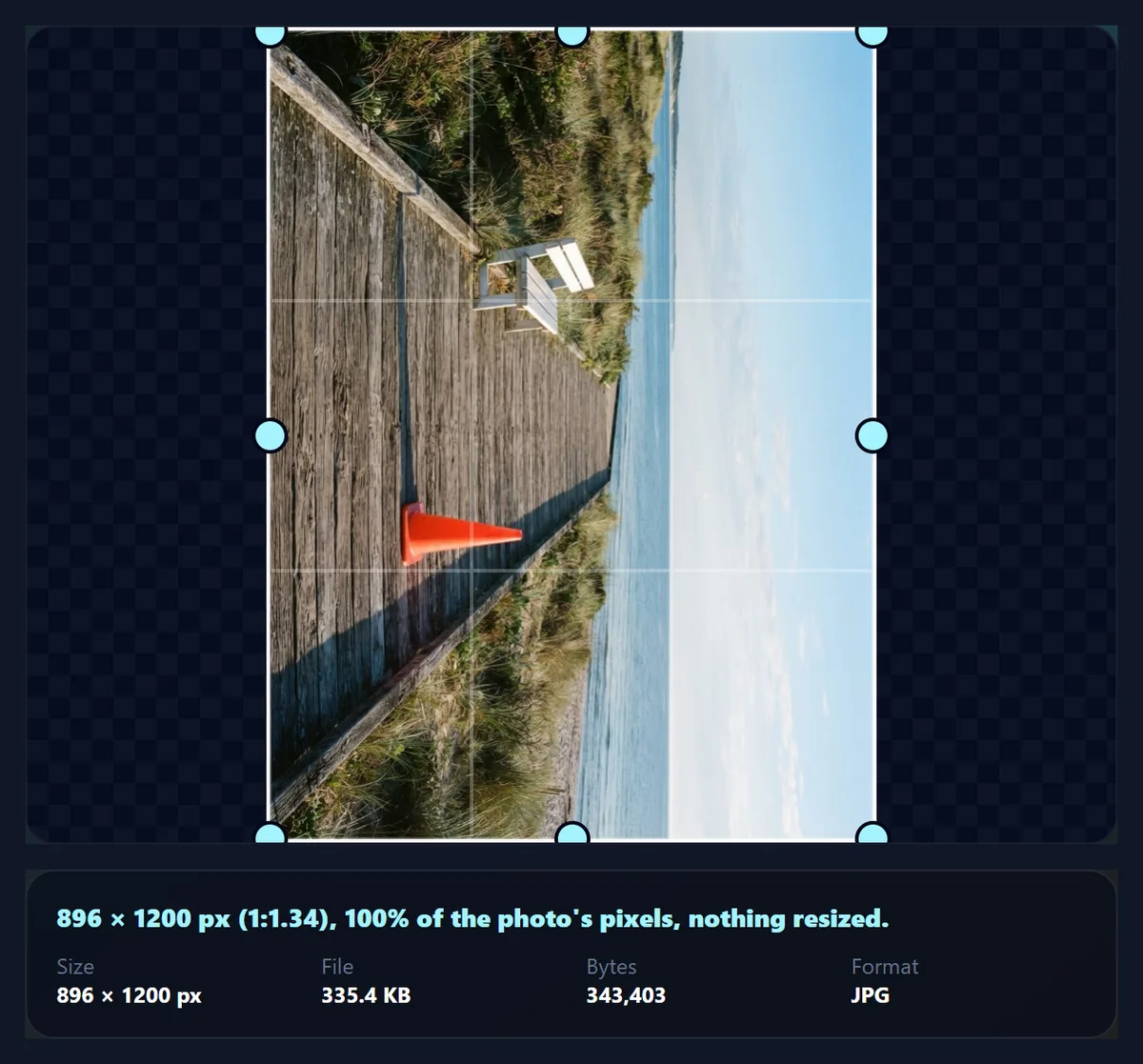
Yes, in quarter turns. Rotate left and Rotate right turn the photo 90°, swapping its width and height (the sample becomes 896 × 1200), and Flip mirrors it left to right. With a ratio locked, the frame is re-fitted to the turned photo; with Free, the frame turns with it.
Turns and flips are exact: a 90° turn moves pixels without resampling them, so nothing gets softer. The downloaded file is written already turned, so it shows the right way up everywhere, including programs that ignore the orientation tag cameras add. For a small tilt of a few degrees, use the Photo Straightener instead.
Why can a cropped JPG be bigger than you expect?
Because of the way JPEG stores pictures: in blocks of 8 × 8 pixels. A photo that was already a JPG carries faint traces of its old block edges. When a crop starts on a multiple of 8 px, the new file's blocks line up with the old ones and the photo re-encodes cleanly. When it starts a few pixels off, those old edges land inside the new blocks and cost extra bytes.
We measured it on the sample. The same 1192 × 896 crop saved at 92% weighed 335,341 bytes starting at x = 0, 337,025 bytes at x = 8, and between 353,389 and 359,111 bytes starting at x = 1 to 5: about 5–7% more for the same picture. The 4:3 preset starts at x = 2, which is why its 1195 × 896 crop (356,644 bytes) is bigger than the full photo saved the same way (337,253 bytes). If file size matters, type X and Y as multiples of 8, or save as PNG or WebP.
| Crop starts at x = | Bytes |
|---|---|
| 0 | 335,341 |
| 1 | 353,389 |
| 2 | 354,847 |
| 3 | 356,333 |
| 4 | 359,111 |
| 5 | 356,750 |
| 8 | 337,025 |
Which formats can you crop, and is the image uploaded?
The tool opens JPG, PNG and WebP up to 40 megapixels and saves JPG, PNG or WebP; it starts on the format you opened, so a PNG stays a PNG with its transparency. JPG and WebP have a quality slider, 92% by default. HEIC photos from recent iPhones need converting to JPG first.
Nothing is uploaded and no account is needed. Cropping is done by your browser and the file is saved from the cropped pixels, without the original's EXIF data, so camera details and GPS location are not passed on.
Why can’t I make the crop bigger, or why is it blurry?
The frame cannot be larger than the photo, and with a ratio locked it is limited by the photo's shorter direction: a 9:16 frame on a landscape photo can never be wider than 9/16 of its height. Switch to Free, or choose a ratio closer to the photo's own shape.
Cropping never blurs the pixels it keeps. If a crop looks soft, it is because it is small and is being shown large: a 300 px wide crop stretched across a phone screen is enlarged several times. Crop less tightly, start from a larger photo, or use the AI Image Upscaler afterwards.
Frequently asked questions
How do I crop an image online for free?
Open it above, choose a ratio or Free, drag the frame and download. No account, no watermark.
Is my image uploaded?
No. The crop is made in your browser; only the optional sample photo comes from HueFold.
Does cropping reduce quality?
No. The kept pixels are copied one for one. Only re-saving as JPG adds the usual small compression loss.
How do I crop to 1080 × 1350 pixels?
Choose 4:5 and type W 1080 and H 1350 if the photo is large enough; otherwise crop to 4:5 and resize with the pixel resizer.
What ratio is an Instagram story?
Stories and reels are vertical 9:16. Use the 9:16 preset; a landscape photo keeps a narrow strip.
Can I crop a PNG and keep transparency?
Yes. A PNG opens with PNG output selected, and its transparent areas stay transparent.
Can I rotate or flip before cropping?
Yes, in 90° turns and a left-right mirror. For a small tilt, use the Photo Straightener.
Can I type exact crop coordinates?
Yes. X and Y set the top-left corner and W and H the size, in whole pixels.
Why is my cropped JPG larger than the original?
Starting a crop off JPEG’s 8 px grid can cost 5–7% more bytes. Use X and Y that are multiples of 8.
Does cropping remove EXIF data?
Yes. The crop is saved from pixels only, without camera details or location.
Can I crop several images at once?
Not here: one image at a time. To place several in one picture, use Combine Images.
Related tools
- Circle Crop — A round crop with transparent corners, for avatars.
- Resize Image Pixel Online — Change the pixel size after cropping, with fill, fit or stretch.
- Combine Images — Put several crops side by side in one image.
- Reduce Image Size in KB — Bring the cropped file under a KB limit.
- Resize Image for YouTube Banner — A 2560 × 1440 banner with the safe area marked.
- Photo Frames — Frame the crop with a mat, a print border or a film strip.