Photo Borders
Put a clean border around a photo, or pad it out to a square, 4:5, 9:16 or 16:9 canvas so it fits a post or a story without cutting anything off. Pick the colour, or take it from the photo’s own edge; add rounded corners and a soft shadow if you like.
Updated

How do you add a border to a photo without cropping it?
Open the photo, set the border width, and choose a shape. Even puts the same border all round. 1:1, 4:5, 9:16 and 16:9 keep that border on the narrow sides and add more on the other two until the whole picture has that shape, so the photo is never cropped or stretched. Pick a colour from the swatches or the Custom colour picker, or press From the photo to continue the photo’s own edge colour; then download.
Padding is the answer when a platform wants a shape your photo is not. Instagram's feed shows square and 4:5 portrait posts, stories and reels fill a 9:16 screen, and video thumbnails are 16:9. Cropping a landscape photo to any of those loses part of the picture; padding keeps all of it and gives it a frame.
Everything happens in your browser tab, at the photo’s full resolution. The sample is a 1536 × 1024 product photo; with the default 5% border and 1:1, it came out as a 1690 × 1690 pixel square with nothing cut.
How to add a border to a photo online
- Open the photo Choose a JPG, PNG or WebP, drop it on the preview, or use the sample.
- Choose a shape and width Even for the same border all round, or 1:1, 4:5, 9:16 or 16:9 to pad the photo to that shape. Set the border width.
- Pick the colour and finish Use a swatch, the colour picker, or From the photo. Add rounded corners and a soft shadow if you want them.
- Download Save the bordered photo as JPG, PNG or WebP at full resolution.
Pad a product photo to square and 4:5
A real recording of this tool: an even white border, padding to 1:1 and 4:5, a colour taken from the photo, rounded corners with a soft shadow, and the download.
- The sample opens with an even white border.
- The photo is padded to a square, then to 4:5, without cropping.
- From the photo picks a border colour from the photo’s edge.
- Rounded corners and a soft shadow are added, then the photo is downloaded.
How much border does each shape add?
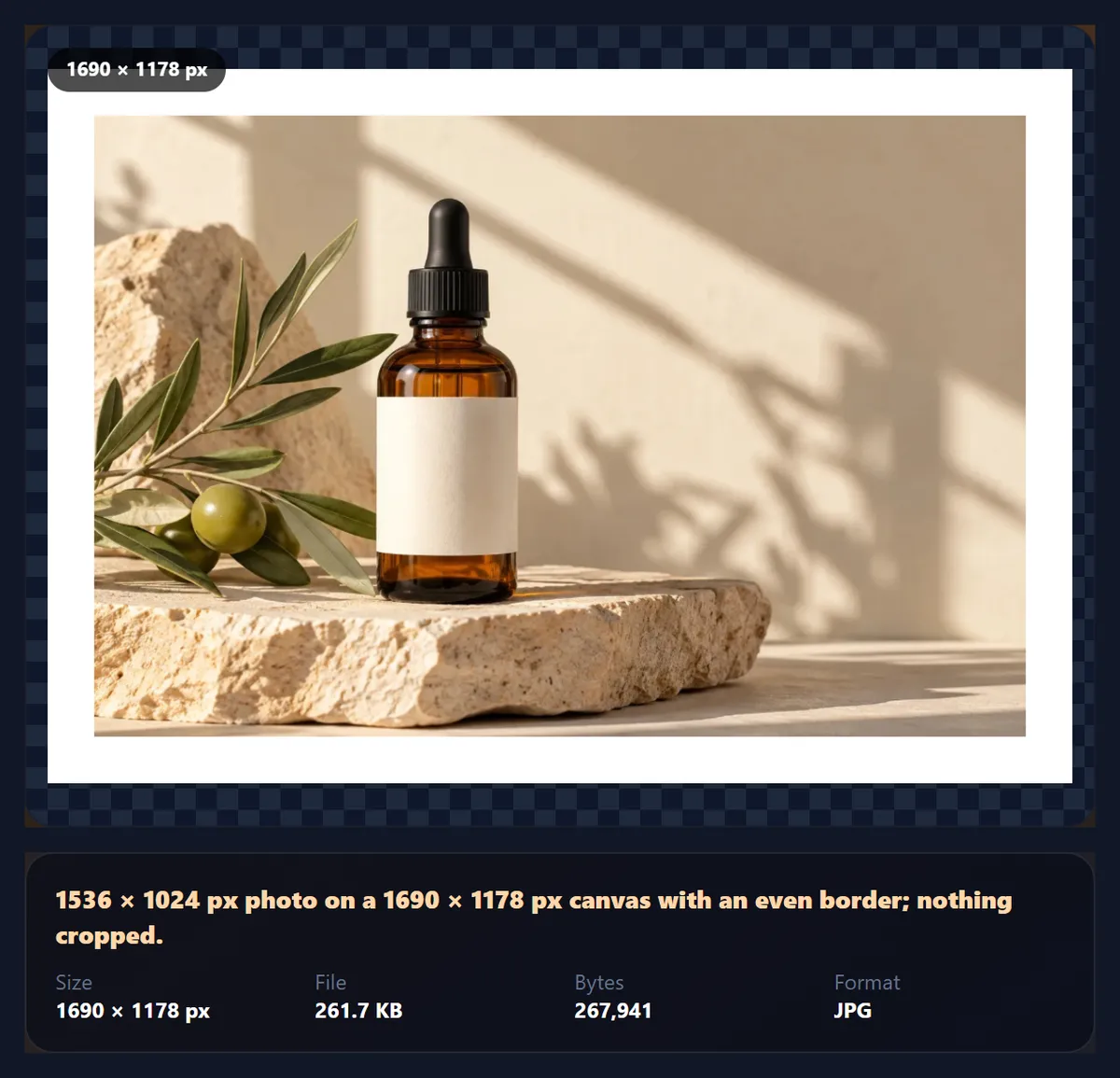
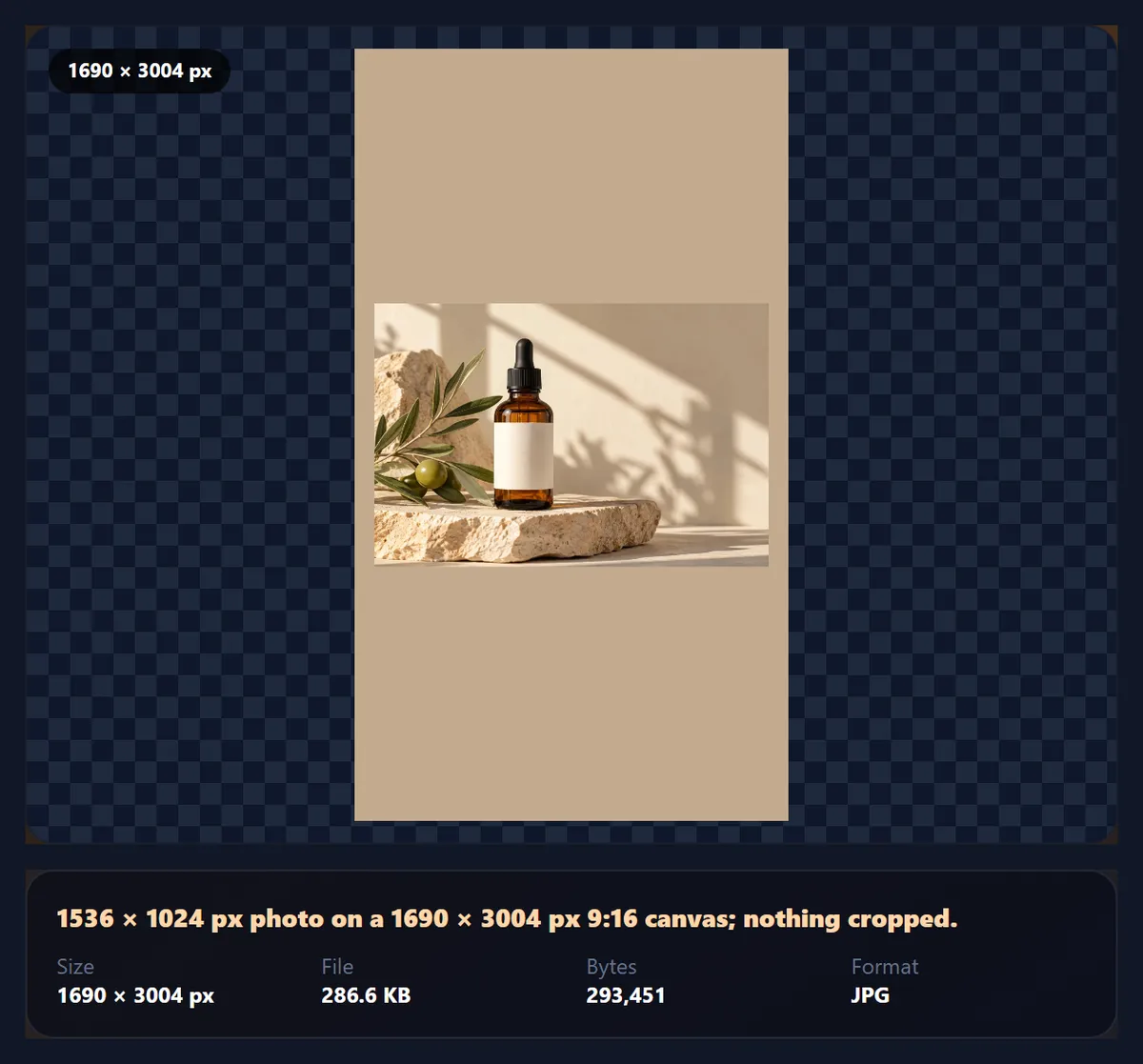
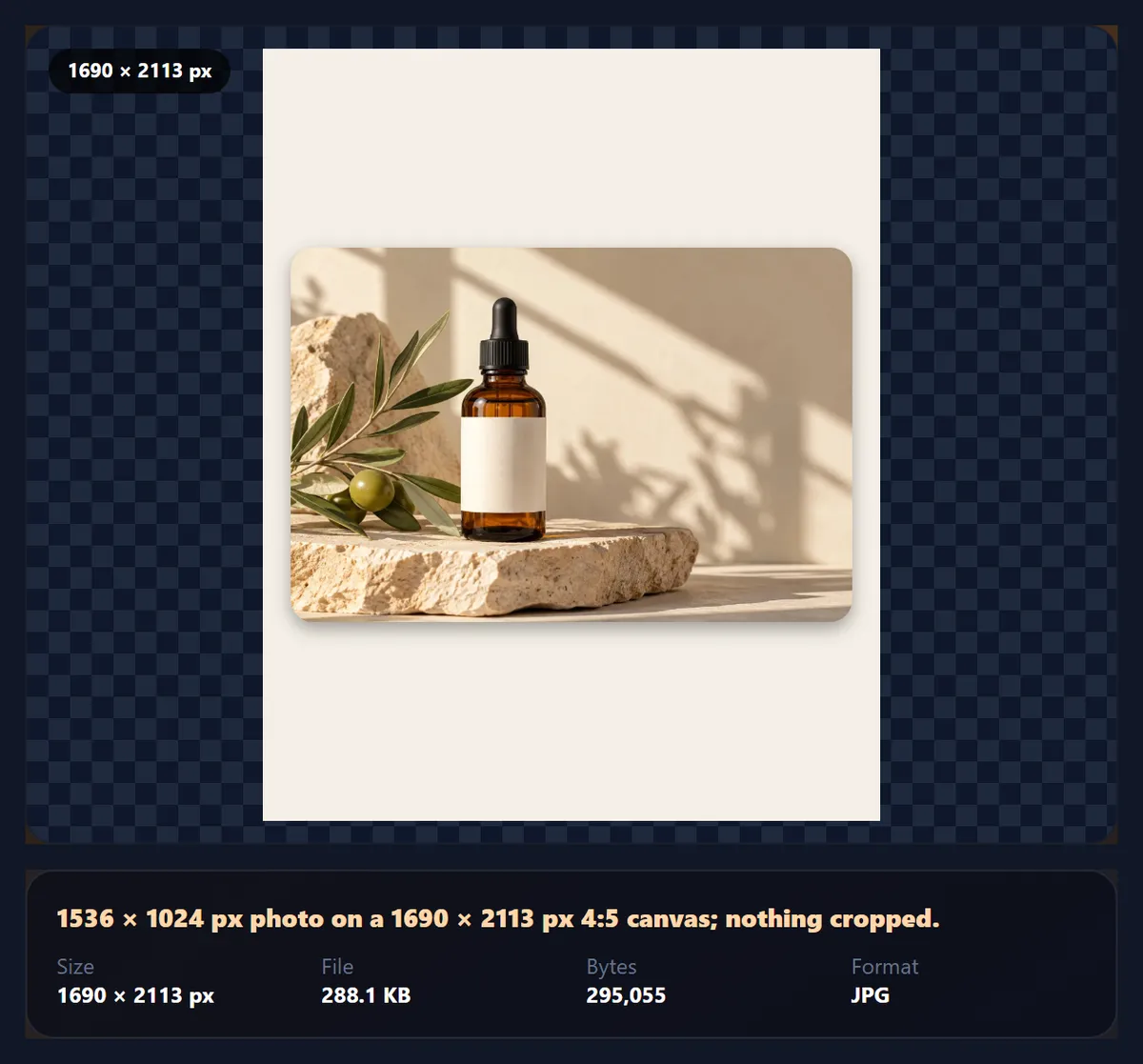
It depends on how far the photo's own shape is from the target. The sample is 3:2, a common camera shape. With a 5% border (77 pixels on its 1536-pixel long side), Even makes a 1690 × 1178 canvas that is 79% photo. Padding to 16:9 widens it to 2094 × 1178, still 64% photo, because 3:2 is already close to 16:9. Square needs a 1690 × 1690 canvas (55% photo), 4:5 a 1690 × 2113 canvas (44%), and 9:16, the tallest, 1690 × 3004, where the photo fills under a third.
In every case the photo is drawn at its full 1536 × 1024 pixels and centred; only the border grows. A portrait photo works the other way round: it needs little padding for 4:5 or 9:16 and a lot for 16:9.
| Shape | Canvas | Share that is photo |
|---|---|---|
| Even (5% all round) | 1690 × 1178 px | 79% |
| 16:9 landscape | 2094 × 1178 px | 64% |
| 1:1 square | 1690 × 1690 px | 55% |
| 4:5 portrait | 1690 × 2113 px | 44% |
| 9:16 story | 1690 × 3004 px | 31% |
How is the border width measured?
As a share of the photo's long side, from 0 to 20%. Measuring against the long side keeps a border looking the same on a small photo and a large one: 5% is 77 pixels on a 1536-pixel photo and 200 pixels on a 4000-pixel one, and in both it reads as a slim frame. Around 2–3% gives a thin keyline, 5–8% a gallery-style mat, and 15–20% a wide, airy margin.
With a shape other than Even, the width is the minimum: the two sides that would otherwise touch the canvas edge get exactly that, and the other two get whatever the shape needs. Set the width to 0 with a shape to pad without any border on the narrow sides, so the photo touches two edges.
How does From the photo choose a colour?
It averages the outermost 2% of the photo on all four sides, the pixels that will sit right next to the border, and uses that colour. The border then looks like a continuation of the picture rather than a frame around it, which suits product photos on plain backgrounds and padded stories, where a white or black band would draw attention to itself.
On the sample, a serum bottle on a beige stone and wall, the average came out as #c3ab8f, a warm sand colour. You can still change it with the colour picker afterwards.
Can a photo border have rounded corners and a shadow?
Yes. Rounded corners round the photo itself, not the canvas, by up to 15% of the photo's short side; 6% on the sample is 61 pixels. The soft shadow sits under the photo, offset slightly downwards and blurred by 3% of its long side, so the photo looks like a print lying on paper. Both look best on light borders such as white, warm paper or cool grey.
The swatches are White, Black, Warm paper, Cool grey and Charcoal; the colour picker allows any other colour.
Which shape should I pad to?
Choose the shape of the place the photo will appear. A 1:1 square works on any feed and as a profile or catalogue image. 4:5 portrait is the tallest shape most feeds show in full, so it takes the most space on a phone screen. 9:16 fills a story, reel or short-video screen. 16:9 suits video thumbnails, slides and wide banners.
When the photo is much wider than the target, as a landscape photo padded to 9:16 is, the border becomes the larger part of the picture. That space is useful for a caption or a logo: add text to the photo after downloading, or open it in the HueFold editor.
Which shape fits a print?
Print papers have their own shapes, and a lab printing a photo of a different shape either crops it or leaves uneven white margins. Padding to the paper's shape first keeps that under your control. An 8 × 10 inch print is 4:5, so pad to 4:5; a square print needs 1:1. A 6 × 4 inch (15 × 10 cm) print is 3:2, the shape of most camera photos, and an Even border makes a 3:2 photo slightly squarer than that paper, so for those prints use a thin border or none.
A border also protects the edges of a print. Borderless printing usually enlarges the picture slightly past the paper's edges, trimming a little from every side; with a border, that trim comes out of the margin instead of the photo.
Which border colour should I choose?
White is the classic: clean, neutral and the colour of photo paper; it makes a picture look finished and works on any feed. Black frames a photo the way a dark gallery wall or a cinema screen does and makes colours look stronger by contrast, which suits night shots, concerts and moody portraits. Warm paper is softer than white and suits film-style, food and wedding photos; Cool grey is calm and modern for products and interiors; Charcoal suits dark-mode apps and slides. From the photo makes the border blend into the picture, best for padded stories and squares where the photo, not the frame, should be noticed.
For a set of photos posted together, use the same colour and width on every one, so the set looks consistent side by side.
What is the difference between a border and a frame?
A border is a plain margin of one colour around the photo, with optional rounded corners and a shadow; it adds space and a shape without adding decoration. A frame imitates a physical object, such as a wooden moulding, an instant print or a film strip, and brings its own texture and style. Use a border when the photo should stand on its own or fit a shape; use the Frames page when the frame is part of the look.
Can borders make product photos line up in a shop grid?
Yes, and it is one of the most practical uses. Product photos arrive in all shapes, while shop grids and marketplaces show square or 4:5 tiles. Padding every photo to the same shape with the same border width means each product sits at a similar size in its tile, nothing is cropped, and the grid lines up. On photos taken against a plain backdrop, From the photo continues the backdrop's own colour, so the product simply appears on a larger canvas rather than inside a visible frame.
Check the marketplace's own rules before uploading: some ask for a pure white background on the main image, in which case choose the White swatch rather than a colour taken from the photo.
Which files work, and is anything uploaded?
You can open JPG, PNG and WebP photos up to 40 megapixels (above about 16 megapixels the result is saved slightly smaller, because that is the largest canvas iPhone browsers allow); convert iPhone HEIC photos to JPG first. The bordered photo is saved as JPG, PNG or WebP; the sample square came out at 1690 × 1690 pixels and 277,699 bytes as a 92% JPG. Nothing is uploaded: the photo is framed and saved in your browser tab, and no account is needed. The new file carries no EXIF data from the original.
Why does the platform still crop my bordered photo?
Check that you chose the shape the platform shows. A 4:5 post shown in a square grid is trimmed to a square in the grid view only; the full post still appears when opened. A story app may overlay buttons on the top and bottom of a 9:16 picture, so keep anything important inside the middle area of the border, or use a wider border.
If the border colour looks different after uploading, the platform has probably recompressed the photo. Plain colours survive compression well; very dark borders can show faint banding.
Frequently asked questions
How do I add a border to a photo?
Open it, set the border width and colour, choose Even or a shape, and download.
How do I make a photo square without cropping?
Choose 1:1. The photo keeps its shape and the border fills the rest of the square.
Can I pad a photo for Instagram stories?
Yes. Choose 9:16.
Can the border match the photo?
Yes. From the photo uses the average colour of the photo’s outer edge.
How wide can the border be?
Up to 20% of the photo’s long side.
Can I round the corners?
Yes, by up to 15% of the photo’s short side, with an optional soft shadow.
Does the photo lose quality?
No. It is drawn at full size; only the canvas grows.
Is my photo uploaded?
No. The border is added in your browser.
Which formats can I use?
Open and save JPG, PNG or WebP.
Is it free?
Yes, with no account, watermark or limit.
Related tools
- Frames — Decorative frames for photos.
- Image Montage — Several photos on one canvas.
- Crop Image — Crop instead of padding.
- Add Text to Photo — Use the border space for a caption.
- Vignette — Shade the photo’s edges.
- Rotate Image — Turn the photo first.