Add Watermark to Video
Add a text or logo mark to an MP4 or WebM clip, watch it move, then download a WebM proof or keep editing in Studio.
Updated

How can you add a watermark to a video?
To add a watermark to a video, open an MP4 or WebM clip, enter a short text mark or choose a transparent logo, then adjust its size, opacity and position while the clip plays. HueFold draws the mark over each preview frame in your browser. You can download a WebM proof locally or sign in to move the video and watermark into separate, editable Studio layers.
A still photograph lets you judge one background. Video changes every moment: a white mark might read against a dark room, then disappear when the camera pans into daylight. Play the whole clip before sharing it. Seek to high-contrast and busy moments, compare a corner with a centred proof label, and use the tiled option only when repeated marks are appropriate for a draft. The visible mark identifies or labels a file; it is not a technical copying lock.
The sample on this page is a HueFold reel already hosted on HueFold. Your own MP4 or WebM is previewed locally, without an upload. Studio is optional and requires sign-in because it uploads your video to your account. The examples and walkthrough below show real frames and a recording from this tool, not an imagined video-editor interface.
How to watermark a video online
- Choose an MP4 or WebM Try the HueFold sample reel or select a video up to 100 MB. Wait until the first frame and duration appear.
- Write text or add a logo Enter up to 80 characters or choose a transparent PNG or WebP logo. The mark appears over the current frame.
- Check moving frames Play and seek through the clip. Adjust opacity, size and placement where the watermark stays legible.
- Export or continue in Studio Download a local WebM proof for clips up to 60 seconds, or sign in to open editable video and watermark layers in Studio for MP4 export.
How to watermark a video in HueFold
Real feature-page recording: preview a reel, enter a text watermark, compare positions, adjust opacity, and download a watermarked WebM proof.
- Open the HueFold sample reel in the live tool.
- Type a short review watermark and play the moving video.
- Pause and compare centre with tiled proof placement.
- Lower opacity and move the mark back to a corner.
- Download a local watermarked WebM proof.
Should you use a text or logo video watermark?
A text watermark is a useful starting point when the message changes with every video. A photographer might put a name or handle in the lower corner; a reviewer might use a short PROOF label in the centre. This page accepts up to 80 characters, but shorter text is easier to read on a phone. The preview draws white bold text with a subtle dark shadow. That helps across changing tones, yet it cannot guarantee legibility over every scene. Try a second position if the mark gets lost when the camera moves.
A logo works when a recognisable visual identity matters more than changing words. Choose a PNG or WebP with real transparency so the artwork follows its own silhouette rather than carrying an opaque rectangle. The browser preserves the logo's aspect ratio while changing its displayed width. A tiny source bitmap will still look soft if enlarged; choose a sufficiently detailed file and inspect the preview near the maximum size you plan to use. The logo upload is limited to 20 MB by the existing image-upload endpoint.
The on-page tool offers one active mark mode at a time. You can switch modes to compare a text signature with a logo without replacing the source video. When opened in Studio, the source clip is a video element and the chosen mark is a separate text or image element. That separation makes the mark movable in the editor panel. If your final composition needs both a logo and a caption, add the second element in Studio rather than claiming that one on-page export contained both.
| Mark | Input | Editable Studio element |
|---|---|---|
| Text | Up to 80 characters | Text layer |
| Logo | Transparent PNG or WebP | Image layer |
| Source clip | MP4 or WebM up to 100 MB | Video layer |
Where should a watermark sit on moving video?
A corner is a good starting point for a finished creator clip because it leaves most of the action visible. HueFold offers top left, top right, bottom left and bottom right, plus centre and tiled proof. The inset is calculated from the frame dimensions, so the mark is not drawn directly on the outer edge. Even so, a later crop can cut off a corner mark. If you plan to turn a landscape video into a vertical short, check the final crop in Studio before exporting.
A centred mark is more noticeable and useful for a review copy, but it can obscure faces, product details or captions. The safest location depends on what happens throughout the clip. Seek to its busiest and brightest frames. A mark that looks balanced against a dark introduction may be unreadable when the subject crosses a pale wall. If the camera reframes, keep watching after the first few seconds instead of assuming the initial placement stays good.
The tiled proof option repeats the mark across the frame. It is a conspicuous draft signal, especially when material is being circulated for feedback. Repetition also covers more of the picture. Lower opacity helps a reviewer see the underlying footage. Tiling is not digital rights management: a determined person can still crop, retouch or screen-record parts of a video. Use access controls, suitable preview resolution and clear written terms alongside the visible proof mark when the work is sensitive.
How transparent should a video watermark be?
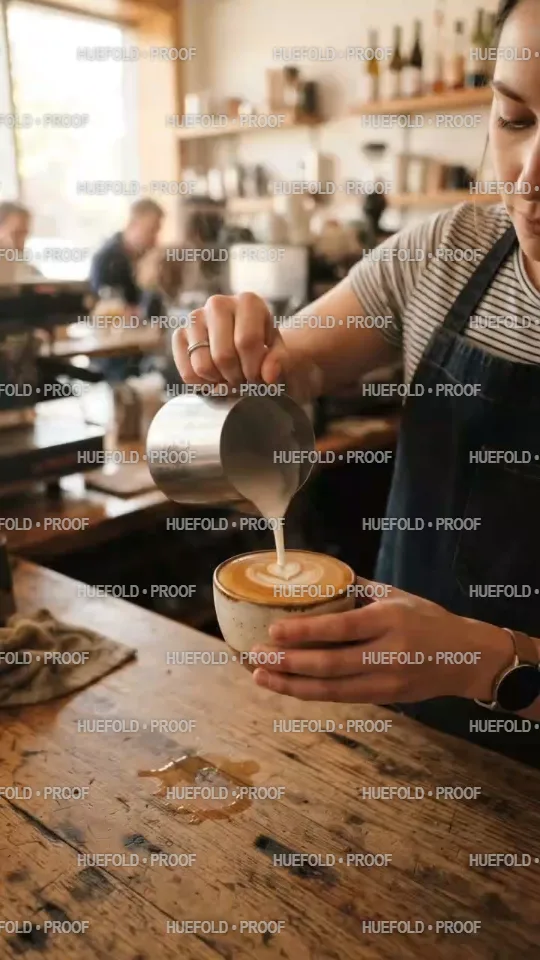
This page sets watermark opacity from 10% to 100%. At 10%, a logo or word is subtle but may vanish against bright movement. At 100%, it is obvious and can compete with the scene. Start around the middle, play the clip, and adjust from what you see rather than treating a percentage as universally safe. The example frame uses a 48% mark at a 22% width; those are demonstration settings, not a promised level of protection.
Video adds another factor: motion. A mark over a stationary background may be easy to notice, while the same mark can merge into a moving pattern or become distracting over a close-up. Compare quiet and energetic frames. Pause on a frame where the source changes from dark to light, then use Play to see whether the mark flashes, disappears or interferes with the subject. The page renders a preview at a capped size for responsiveness, so inspect a locally exported proof at its actual output size before sharing it.
For a polished public upload, a small corner identity can be less intrusive than a large translucent label. For a client draft, a centred or tiled mark may be more appropriate. These are communication choices, not security guarantees. If you have a legal obligation to identify a work, follow your agreement and the destination platform's policies. A visible overlay does not itself establish ownership of the underlying footage.

How large should a watermark be on a video?
The Size slider sets the mark's width to 8% through 45% of the video frame. A percentage keeps the treatment proportionate when you switch from a vertical reel to a wide landscape clip. A logo retains its own shape. Text is fitted to the available width, which means a long sentence becomes smaller than a short label at the same size setting. That is another reason to keep copy brief.
Check size in the setting where the video will be seen. A mark that feels prominent on a desktop preview might be hard to read in a small social feed. Conversely, a very large proof label can hide a demonstration step or a product feature. If the subject moves near the watermark, either reposition the mark or choose a smaller width. Test more than one frame; the right size cannot be judged from a thumbnail alone.
The browser preview caps its long edge at 960 pixels so the controls remain responsive. The local WebM is recorded from that preview canvas, not from the source's full native dimensions. Studio fits a new design to a 1920-pixel long edge and keeps the uploaded video as a separate element for a subsequent MP4 export. Neither path silently increases the resolution of a small source. If source detail is important, inspect the resulting file and choose a suitable original clip before publishing.

Which video formats can you upload and download?
The on-page input accepts MP4 and WebM, matching HueFold's video-upload endpoint. The endpoint limits video uploads to 100 MB. A file must also be playable by your browser to appear in the local preview. If an MP4 fails to decode, re-encode it with a common H.264 video stream; the extension alone does not determine whether the underlying codec will play. MOV is not accepted by this page's local input or the Studio upload endpoint, so the old page's MOV claim was removed.
Download from the page creates a WebM proof, not an MP4. The browser uses MediaRecorder and records the marked preview canvas in real time; local export is limited to videos up to 60 seconds to keep memory and wait time manageable. Audio is included only when the browser exposes an audio track from the source video to the recorder. The page reports when the resulting proof lacks audio. If sound is essential, use Studio and check the exported MP4.
Because recording runs in real time, a 15-second video takes about 15 seconds to export. Keep the tab open and visible while it records. A browser that does not support canvas capture or WebM recording cannot use the local download button successfully; the page shows an error and offers the Studio route. The local download stays on your device unless you choose to upload a source clip to Studio. Always open the resulting file before sending it to a client or posting it publicly.

Does a video watermark preview upload your clip?
No upload is needed to select, preview or locally download a marked video on this page. Your browser reads the chosen MP4 or WebM file and draws it into a canvas with the visible text or logo. The sample reel is fetched from HueFold's own media directory. Choosing a file from your computer does not alter the original on disk; it creates a new browser session and, if you choose Download, a separate WebM proof.
Edit layers in Studio is different. It first checks whether you are signed in, then uploads the source video and any chosen logo using HueFold's existing upload service. It creates a design with a video layer below independently editable watermark elements. Do not select Studio for a file you cannot or do not want to upload. If you have confidential client material, check the applicable agreement and your account's sharing settings before creating an online design.
A watermark itself can reveal information. Avoid placing private email addresses, internal project codes, unreleased campaign names or location details in a clip that may be shared. Even a low-opacity mark can be read or enhanced. For rights claims, keep the source file, license and collaboration records separately. A visible overlay is helpful context for viewers, but it cannot substitute for those records or prevent copying.
What happens when you continue in HueFold Studio?
After you sign in, HueFold uploads the video you selected and the logo file if you are using one. It creates a design whose page matches the source video's aspect ratio, up to a 1920-pixel long edge. The video element sits below the chosen watermark text or logo element. That means the mark is not burned into the uploaded video. Select it on the canvas to move, resize or adjust it, and use the editor's text controls to change a text mark.
A tiled proof is represented by several separate watermark elements. You can remove or move an individual tile, but changing every tile globally is a separate editing task. The page duration is set from the clip metadata, and the video layer spans that duration. The source file is kept as a video asset, so subsequent Studio work can add captions, music or other layers without first flattening the mark. The Studio render/export path is where you create an MP4 from that layered design.
The browser's live preview and Studio's final render use different engines, so small differences in font metrics, shadow softness or color are possible. Inspect the editor canvas and the exported result. If the source video fails to upload, the page shows an error instead of claiming the design was created. Retain your local source and any downloaded WebM proof; neither is erased by a failed handoff.

Can a watermark prevent copying or prove ownership?
A watermark is a visual identifier, not a lock. It can remind viewers who made a clip or tell reviewers that a version is not final. A corner mark may be cropped away; a centred or tiled mark may be retouched or hidden behind another element. Screen recording also produces a new copy. Do not promise a client that a visible overlay makes footage impossible to reuse.
Adding your name to a video does not grant you rights in footage you did not make or license. If the video includes licensed music, people, products or protected artwork, those permissions still matter after a watermark is added. Keep your original project files and agreements. Where a platform requires a disclosure or a credit, use the platform's relevant fields as well as a visible mark if appropriate; a tiny graphic may not satisfy the requirement.
The HueFold sample reel exists to demonstrate how an actual tool responds to text, position and opacity changes. Its frames are examples of appearance, not evidence that the tool protects the contents of someone else's clip. Use a review workflow, access control and written terms for sensitive work, and judge the final exported video before distributing it.
Why is a video watermark missing, blurry or silent?
If no mark appears, confirm that Text contains visible characters or that a PNG or WebP logo has loaded. Increase opacity or size, then scrub to another frame. A white mark can disappear against a bright scene even when the slider is not at zero. Try a different corner or the centre, and inspect the mark during playback instead of only when paused. If a logo has a solid box around it, the source image lacks transparency; choose an appropriately transparent file.
If the source clip stays blank, the browser may not support its underlying codec. Try a standard H.264 MP4 or a browser-compatible WebM. The page rejects files outside MP4 and WebM and videos larger than 100 MB for Studio compatibility. If local Download reports unsupported recording, use a browser that supports MediaRecorder with WebM or open the clip in Studio. For local export, remember the 60-second limit and the real-time recording wait.
If the downloaded proof is silent, the browser did not expose an audio track to the canvas recorder. The page reports that condition. Open the output file to check its video and sound; do not infer success solely from a download notification. When preserving audio or delivering MP4 is essential, use the layered Studio route and inspect the final render. A local failure does not change your original source file.
Frequently asked questions
Can I add a watermark to a video online for free?
Yes. The browser preview and local WebM proof download do not require sign-in. Studio editing requires an account.
Can I preview a video watermark without uploading?
Yes. Select an MP4 or WebM and the preview is drawn in your browser. Only the optional Studio handoff uploads the clip.
Can I add a logo watermark to a video?
Yes. Logo mode accepts a PNG or WebP up to 20 MB. A transparent file gives the cleanest shape.
Can I add text instead of a logo?
Yes. Enter up to 80 characters, then adjust size, opacity and placement while the clip plays.
Can I tile a watermark across a video?
Yes. Tiled proof repeats the chosen text or logo across the preview and Studio handoff.
How long can a locally exported video be?
The local WebM proof recorder supports clips up to 60 seconds. Studio can be used for a longer edit.
Which video formats can I choose?
The on-page tool accepts MP4 and WebM videos up to 100 MB, matching HueFold’s video upload endpoint.
Is the browser download an MP4?
No. Local download produces WebM. Open the layered design in Studio if you need an MP4 export.
Will my video keep its sound?
Local WebM includes audio only if the browser exposes the source audio track. The page reports a silent result; check the file before sharing.
Can I edit the watermark in Studio?
Yes. Studio receives the source video and separate text or logo watermark elements, not a flattened marked clip.
Does a watermark stop others copying a video?
No. It is a visible attribution or proof cue, not digital rights management. It can be cropped, retouched or screen-recorded.
Why is my MP4 not playing?
The browser may not support the codec inside the file. Try a standard H.264 MP4 or a browser-compatible WebM.
Related tools
- Add Watermark to Photo — Mark a still image before sharing it.
- Add Text to Video — Add captions and labels to a clip.
- Video Resizer — Prepare a video for a different aspect ratio.
- Video Filters — Adjust the look of a video in Studio.
- Remove Audio from Video — Create a silent version of a clip.
- AI Reel Maker — Build a new short video from scenes.