Video Filters
Give a video a look in your browser: 36 filters from warm and cinematic to film, moody and black and white, previewed on your own video, at any strength, with the sound kept.
Updated
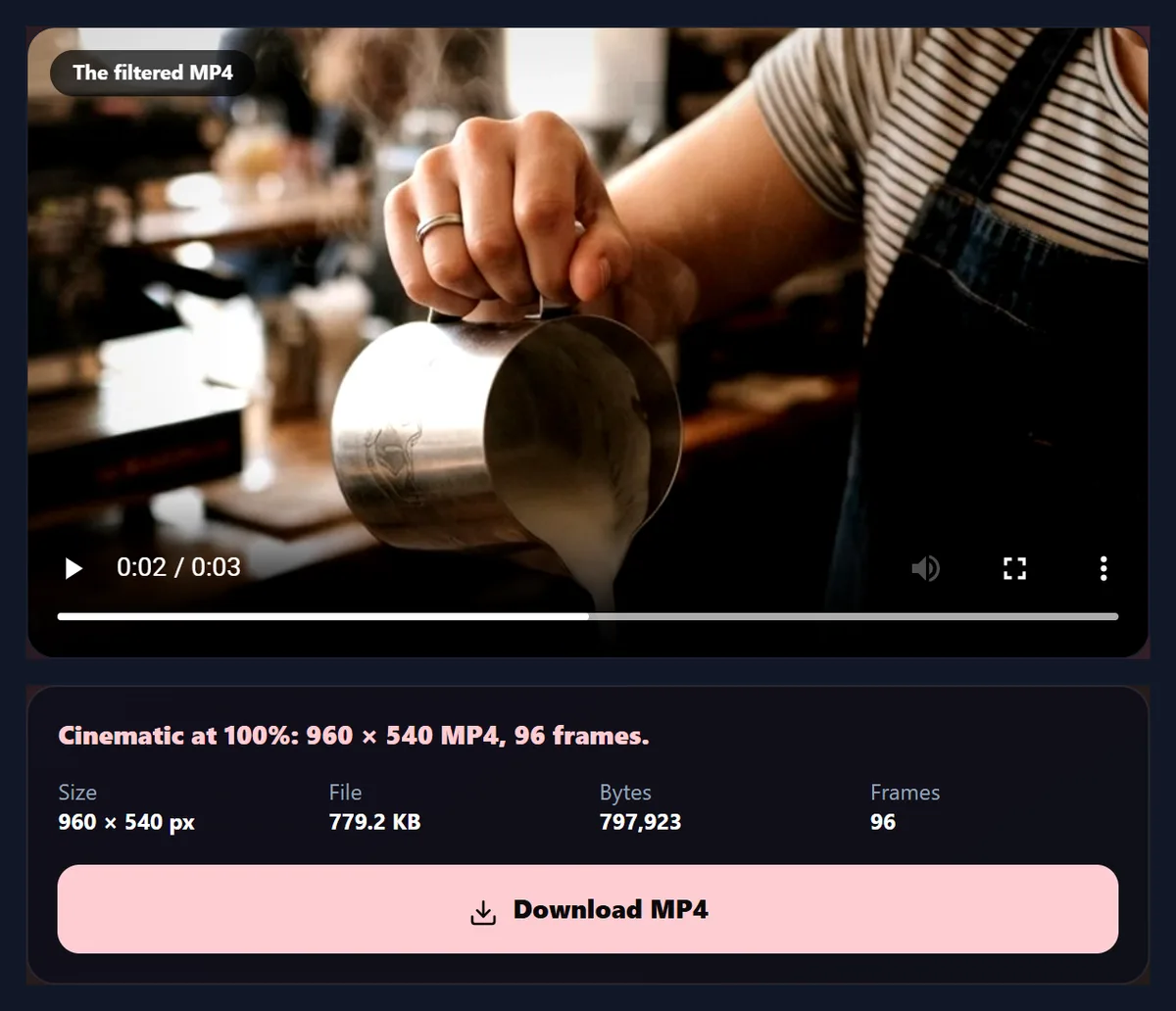
How do you add a filter to a video?
Open a video, pick a look from the six groups (each button shows your video in that look), set the strength, and press Apply the filter. The MP4 keeps the sound and every frame.
The café sample with the Cinematic look became a 960 × 540 MP4 of 0.76 MB. Nothing is uploaded and there is no watermark.
How to add a filter to a video
- Open a video It plays in the preview.
- Pick a look 36 in six groups, shown on your video.
- Set the strength Compare with the original.
- Apply and download An MP4 with the sound.
Give a video a look
A real recording of this tool: the café sample opened, four looks tried, the strength set, and the filtered MP4 made.
- The café sample is opened.
- Warm, a film look, black and white and Cinematic are tried.
- The strength is set to 60%.
- The filtered MP4 is made.
How much does each filter change the picture?
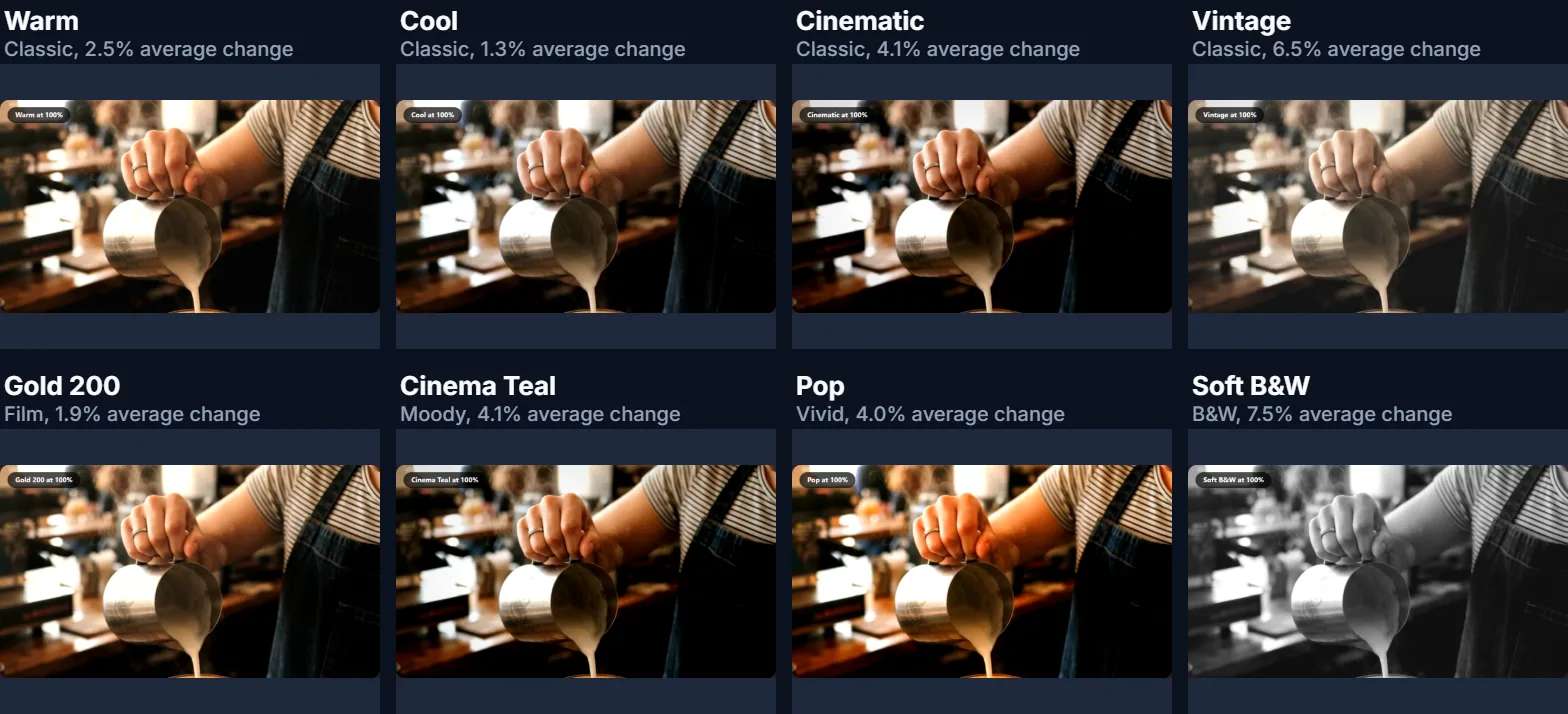
Some barely, some a lot. On the same frame of the café sample, Cool changed each pixel by 1.3% on average and Soft B&W by 7.5%. Looks that only shift the white balance, such as Cool and Warm, are gentle; Vintage, which fades and tints, and black and white, which removes colour, changed it the most.
Every look has a Strength slider, so a bold look can be used lightly. The measurement here is the average difference between the filtered and the original frame, over every pixel and colour channel, as a share of the full range.
| Look | Average change | Group |
|---|---|---|
| Cool | 1.3% | Classic |
| Gold 200 | 1.9% | Film |
| Warm | 2.5% | Classic |
| Pop | 4.0% | Vivid |
| Cinematic | 4.1% | Classic |
| Cinema Teal | 4.1% | Moody |
| Vintage | 6.5% | Classic |
| Soft B&W | 7.5% | B&W |
How do you add a filter to a video?
Open the video; it plays in the preview. Pick a group (Classic, Portrait, B&W, Film, Moody or Vivid), then a look: each button shows a frame of your own video with that look. Set the strength, press Original to compare, and press Apply the filter. The video plays through once while every frame is graded and encoded into an MP4 with the sound.
The café sample with the Cinematic look became a 960 × 540 MP4 with all 96 frames.
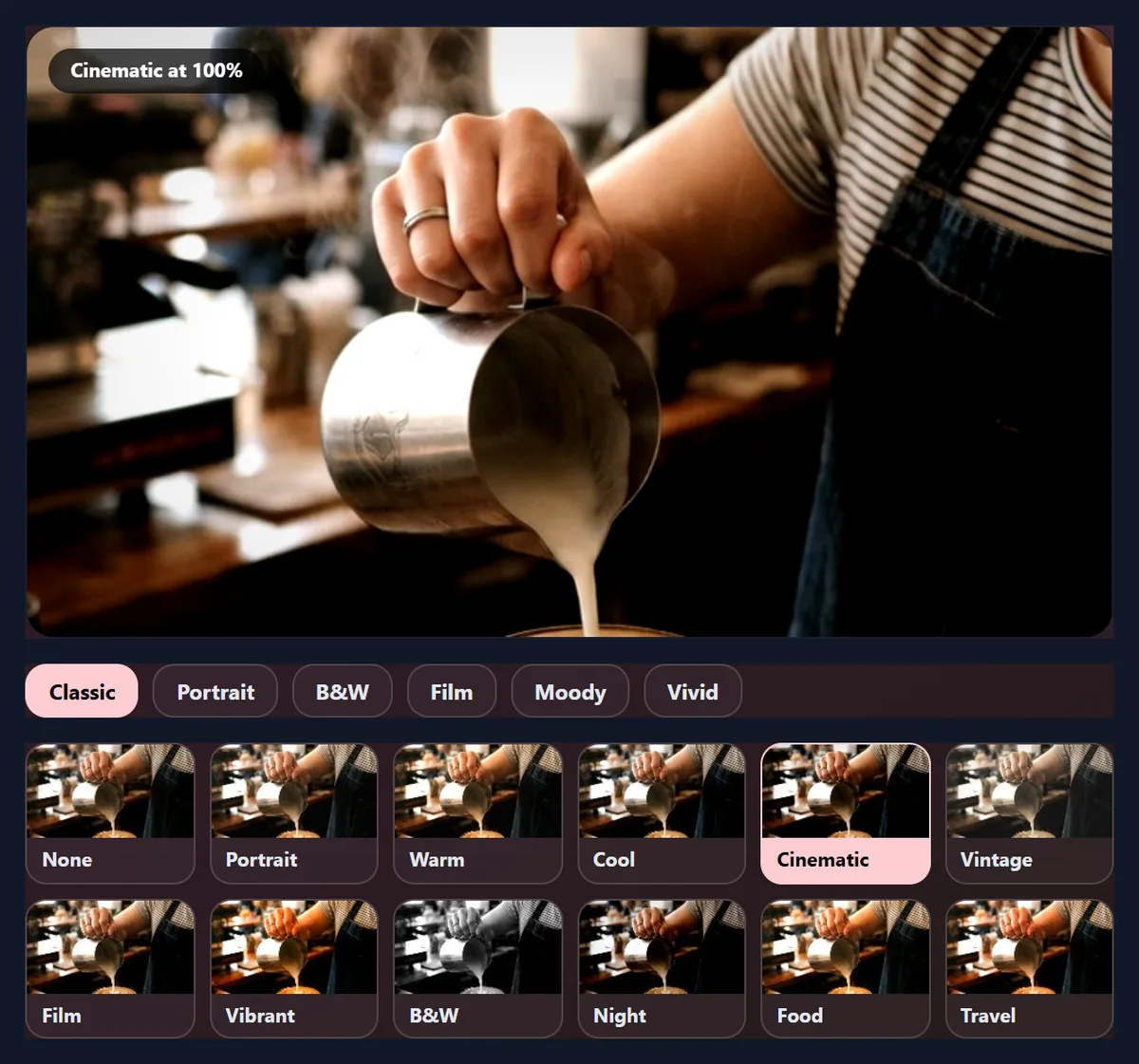
Which filters are there?
36, the same one-tap looks as the HueFold editor and app. Classic has eleven everyday looks such as Portrait, Warm, Cool, Cinematic and Vintage; Portrait, B&W, Film, Moody and Vivid have five each. They are the same numbers the editor, the Android app and HueFold's own exporter use, so a look applied here matches one applied there.
The figure shows the same frame in eight of them, with how much each changed it.
Can I make a filter weaker?
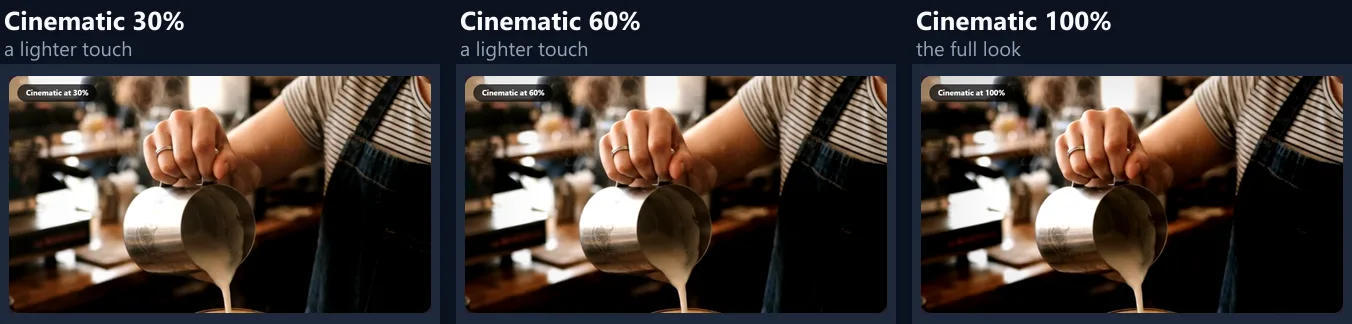
Yes. Strength runs from 0 to 100%: at 50% the look is mixed half way between the original colours and the full look, and any vignette it has is scaled the same way. Many looks are at their best between 40% and 70%, especially on faces.
The figure shows Cinematic at 30%, 60% and 100%.
How are the filters applied to every frame?
Each look is a colour matrix: twenty numbers that say how much of the original red, green and blue go into each new colour, plus an offset, and for some looks a vignette that darkens the corners. The tool sends each frame of the video to the graphics card, applies the matrix and the vignette in one pass, and encodes the result. On a computer without WebGL 2 it does the same on the processor, more slowly.
Because a look is a fixed set of numbers, it treats every frame identically: no flicker, and the same look on two clips makes them match.
Which look should I choose?
For people, a Portrait or Warm look keeps skin natural. For travel and food, Vivid or a warm Classic look makes colours sing. For drama, Cinematic or a Moody look; for nostalgia, Vintage or a Film look; for mood or to hide mismatched colours between clips, black and white.
Use the same look at the same strength on every clip of one video, so they match when joined.
Should I fix the video before adding a filter?
If it is too dark, too blue or flat, yes: a look works on the colours it is given, so a well-exposed clip gives a better result. Use the video enhancer first to correct exposure and white balance, then add the look here.
Filters are for style, the enhancer is for correction.
Does a filter lower the quality?
The picture is re-encoded as H.264 at its own size (or smaller if you choose) and a generous bitrate, at least 4 megabits a second. The filtered sample was 0.76 MB.
The sound is kept as it is, unless you choose to remove it.
How long does it take?
About twice the video's length: it plays through at half speed (a quarter for 4K) while every frame is graded and encoded, so that none is missed. The page says how long before you start.
Keep the tab in front while it works; browsers slow hidden tabs.
What are the Classic looks?
Eleven everyday looks for most videos: Portrait is a touch brighter and warmer with gentler colour, Warm and Cool move the white balance, Cinematic adds contrast, cools the colours and darkens the corners, Vintage fades the colours with a sepia tint and a vignette, and the others brighten, deepen or simplify colour in a single tap. Most are gentle, which makes them a good place to start.
On the café sample, Cool changed each pixel by 1.3% on average and Vintage by 6.5%.
What are the other groups for?
Portrait looks are tuned for skin; B&W has Soft B&W, Noir, Silver and High Key, from gentle to hard contrast, and Sepia; Film looks such as Gold 200, Fuji Green, Faded, Instant and 70s give the colour of film photos; Moody looks add contrast and mostly cool the colours, while Desert warms them; Vivid looks raise saturation by a quarter to a half for food, travel and products.
Each look's button shows a frame of your own video, so you can compare them before choosing.
Why do some looks darken the corners?
Some looks include a vignette, a gentle darkening towards the corners that draws the eye to the middle of the frame, as old lenses did. It is part of the look, and it scales with the strength like the colours do. It is drawn the same way as in the HueFold editor: starting 45% of the way from the centre to the corners.
On a video with something important in a corner, choose a look without a vignette or lower the strength.
Will every frame look the same?
Yes. A look is a fixed colour change applied identically to every frame, so there is no flicker or drift from one moment to the next, unlike a filter that measures each frame and adjusts. Two clips with the same look at the same strength match each other.
If the light changes within the clip, the look follows the light, as it would on a camera.
When are video filters useful?
To give a series of videos one recognisable look; to make clips filmed on different phones match; to set a mood, warm and nostalgic or cool and dramatic; to make food, products or travel look appetising; or to turn a clip black and white for a flashback or a memory.
Social apps have filters too, but applying the look before posting means the same look everywhere you post.
How do I compare a look with the original?
Press Original under the preview: the video shows as it is while the button is on, and with the look when you press it again. Pause on a frame with faces or important colours to judge the look properly.
The preview is drawn with the same code as the finished MP4, so what you see is what you get.
Which videos can I filter?
Any video your browser can play: MP4 and MOV from phones, WebM, MKV and more. The result is always an MP4 with H.264 video and, if you keep it, the original sound as AAC.
If a video will not open, convert it with the video to MP4 converter first.
Which black and white look should I choose?
Soft B&W for portraits and gentle scenes; Silver for a clean, bright black and white; Noir for drama, with deep blacks, strong contrast and dark corners; High Key for a bright, airy look; Sepia for an old photograph's warm brown tone. Black and white also hides mismatched colours between clips filmed in different light.
On the café sample, Soft B&W changed each pixel by 7.5% on average, the most of the eight looks measured, because every colour is removed.
Can I still edit the video after adding a look?
Yes: the filtered MP4 is an ordinary video, so you can add text, music or sound effects, crop it, or join it with other clips. Add text after the look, so the text keeps its own colours.
To change the look later, start again from the original rather than filtering a filtered video, which would stack the two looks.
What strength looks best?
For people, 40% to 70% keeps skin believable while still giving the look; for food, products and landscapes, 70% to 100% often works. Bold looks such as Noir, Neon or Pop are usually best at partial strength, and gentle ones such as Warm or Cool at full.
Judge on a frame with a face or a familiar colour: if it stops looking real and you did not mean it to, lower the strength.
Can I add filters on my phone?
Yes, in a current browser on Android or an iPhone. The look buttons show your own video, so you can choose with your thumb. Save the MP4 to your downloads when it is done.
For long 4K clips, choose Up to 1080p.
Is my video uploaded?
No. The video is graded and encoded inside your browser tab. Nothing is sent to HueFold or anyone else, and there is no watermark or sign-up.
The looks are fixed colour maths, not an AI model.
Why do the look buttons show no pictures?
They are made from a frame in the middle of your video once it has been read; wait a moment after opening it. If the video will not open at all, your browser cannot play its codec: try Chrome or Edge, or convert it to MP4 first.
If the page says it cannot write MP4 at this size, choose Up to 1080p.
Frequently asked questions
How do I add a filter to a video?
Open it, pick a look and press Apply the filter.
How many filters are there?
36, in six groups.
Can I make a filter weaker?
Yes, from 0 to 100% strength.
Is there a black and white filter?
Yes, five in the B&W group.
Do the filters match the HueFold editor?
Yes. They are the same looks with the same numbers.
Does the video keep its sound?
Yes, unless you remove it.
Is my video uploaded?
No. Everything happens in your browser.
Is there a watermark?
No.
Related tools
- Video Enhancer — Fix light and colour first.
- Photo Effects — The same looks for photos.
- Vintage Filter — An old-photo look.
- BW Image Filter — Black and white photos.
- Merge Videos — Join filtered clips.
- Add Text to Video — Titles and captions.