AI Reel Maker
Add your photos and clips. AI picks the order and writes a hook and captions, the cuts land on the beat of your music, and you download a vertical MP4 or keep editing in HueFold Studio.
Updated

How do you make a reel with AI?
To make a reel with AI, give it the pieces you already have — the photos and short clips on your phone — and let it do the editing work you would otherwise do by hand: deciding the order, writing a hook that stops people scrolling, putting a short caption on every scene and timing the cuts. That is what the reel maker on this page does. Add up to ten photos or clips, describe the reel in a sentence if you like, and click Write my reel with AI.
The AI looks at your media, puts it in the order that tells the story best, writes the captions and a closing line, and suggests a length for each scene. Add music and every cut moves to the nearest beat. Choose how the captions look and how scenes change, play it back, and change anything you disagree with: every caption and every length stays editable.
The finished reel is made in your browser as a vertical MP4, usually in a few seconds, and nothing is uploaded. Or open it in HueFold Studio as an editable design, one page per scene, with the music on it.
How to make a reel with AI
- Add your media Drop up to 10 photos or clips on the tool (JPG, PNG, WebP, MP4, MOV or WebM), or try the café sample. They open in your browser.
- Let AI write it Optionally say what the reel is about and pick a tone and length, then click Write my reel with AI. It takes about 10 seconds.
- Add music Add your own track or the sample beat. Cut on the beat moves every cut to the nearest beat of the music.
- Pick a look Choose the shape (9:16, 4:5 or 1:1), the caption style and position, the transition and the slow zoom on photos.
- Export Make the MP4 and save it, or click Continue editing in HueFold Studio to keep working on it as a design.
Make a reel from photos with the AI reel maker
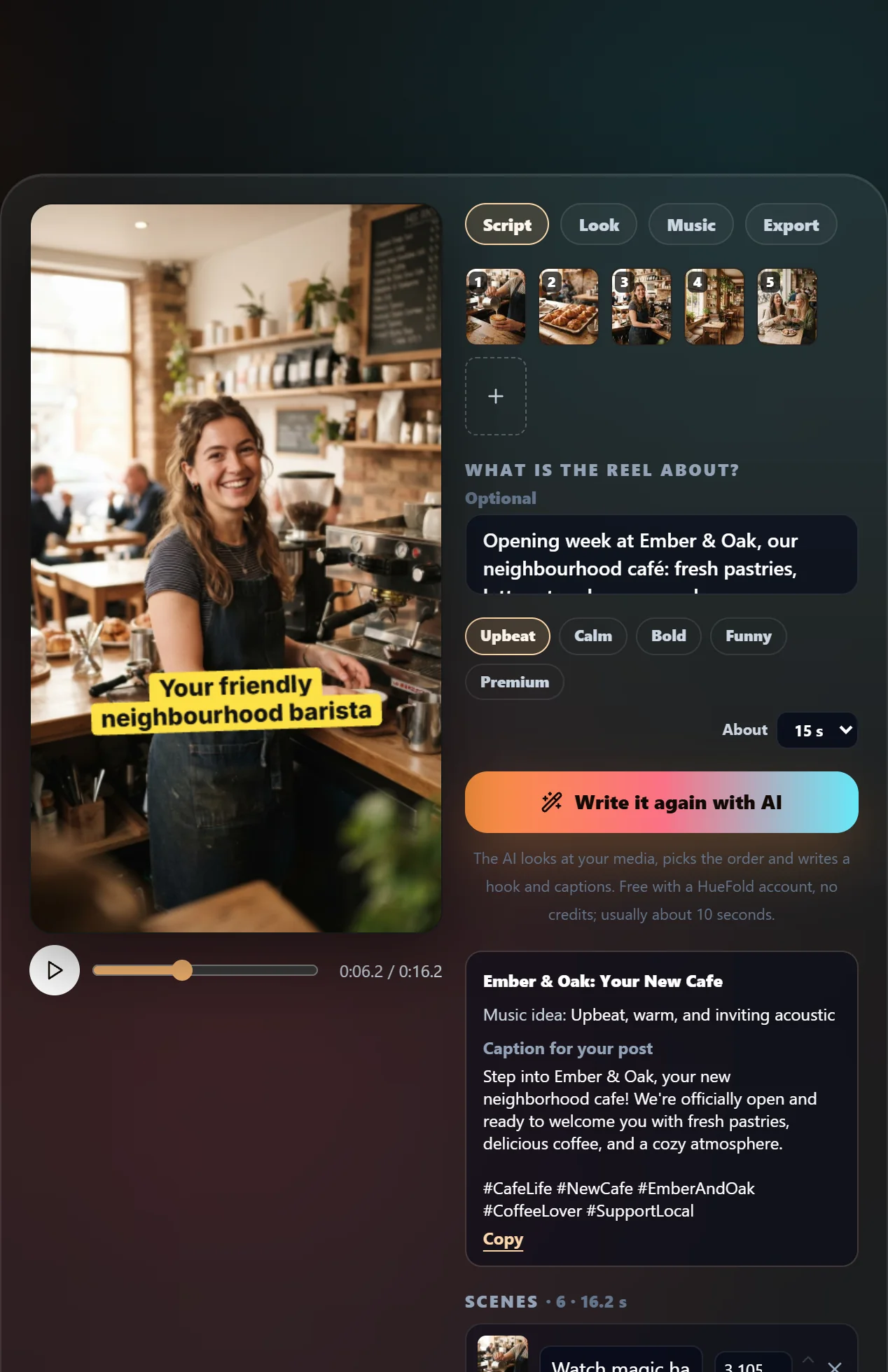
A real run of the tool on this page: five café photos are written into a reel by AI, given Pop captions and slides, cut on the beat of the sample music, previewed and exported as an MP4, which then plays with its music.
- Open the café sample: five photos, a brief about opening week at Ember & Oak, and the sample beat.
- Click Write my reel with AI. In about 14 seconds it returns six scenes: five captioned photos and a closing card.
- Scroll through the scenes it wrote; every caption and length can be edited.
- In Look, choose Pop captions and Slide transitions.
- In Music, the sample beat is analysed at 96 BPM and every cut moves onto a beat.
- Play the preview.
- In Export, make the MP4: the 16.2-second reel is ready in about six seconds. Save it.
- The saved MP4 plays, with its music.
How the AI writes your reel
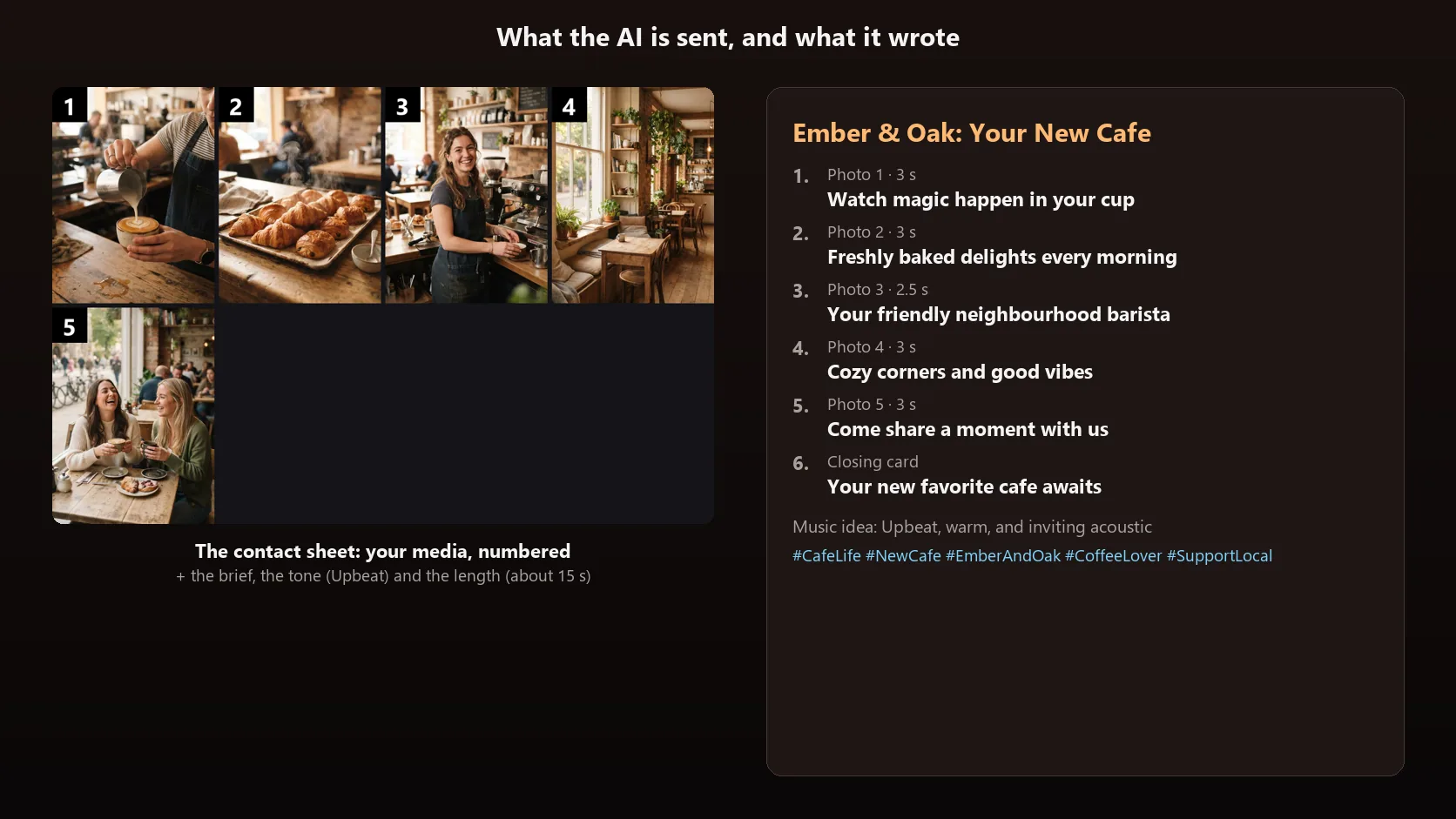
When you click Write my reel with AI, the tool makes one picture of all your media: a contact sheet with every photo and every clip's frame in a numbered tile, clips marked with their length. That picture, your brief (if you wrote one), the tone and the target length are sent to a vision model, Gemini 2.5 Flash, which returns a plan: a title, the order of the items, an on-screen caption of at most seven words for each one, a length for each scene, a closing line, a music idea and a caption with hashtags for your post.
The plan is checked before it reaches you. Every item has to appear exactly once — if the AI skips one, it is added at the end — captions are trimmed, a photo stays on screen for 1.5 to 4 seconds and a clip never for longer than itself. On the café sample, three runs took 10 to 12 seconds each and returned five captioned scenes and a closing card every time; with the five photos deliberately shuffled, all three opened on the croissants and wrote captions that matched each picture.
Writing the reel is free with a HueFold account and uses no AI credits; you can do it up to ten times a minute. You can also skip it: added media becomes scenes in the order you added it, 2.5 seconds each, ready for your own captions.
Cutting on the beat
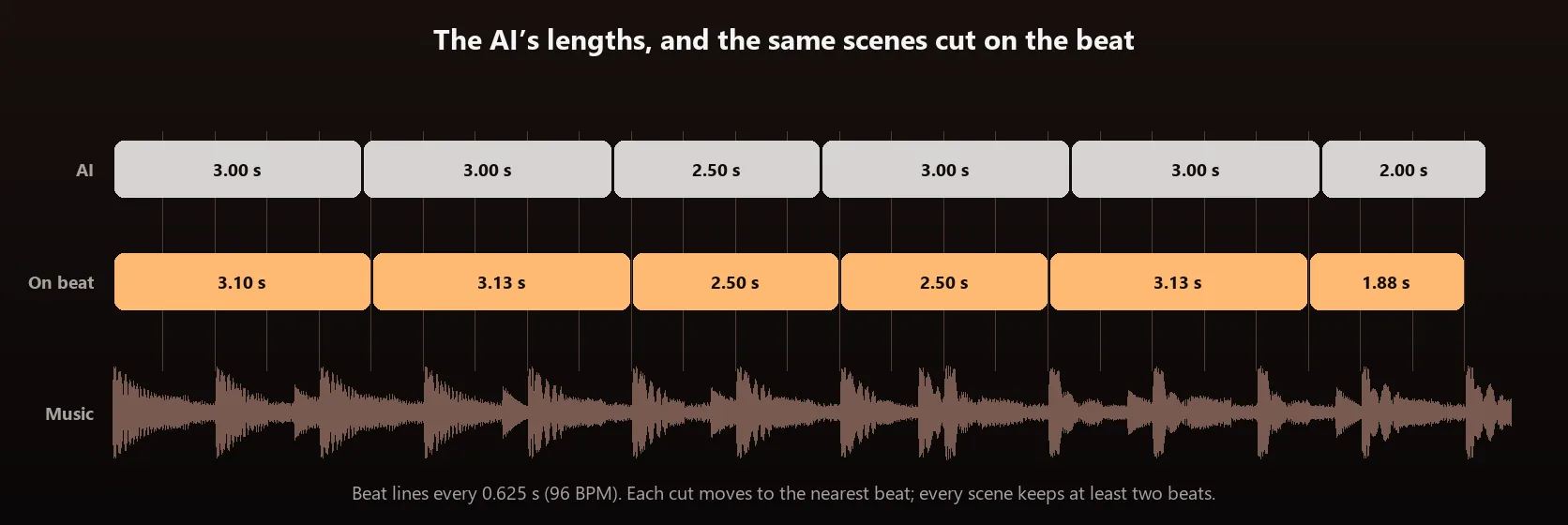
A reel feels edited when its cuts land on the music. Add a track and the tool asks HueFold's beat finder for its tempo and beats, then lays a tempo grid over the music, shifted to where the detected beats really fall. Each cut — the end of one scene and the start of the next — moves to the nearest line of that grid, so a 3-second scene at 96 BPM becomes 3.13 seconds, five beats, and the next cut lands on a beat too. Every scene keeps at least two beats, and a clip is never stretched past its own length.
The grid matters because detected beat times wobble: in the sample beat, swung hi-hats and off-beat claps made the gaps between detected beats alternate between 0.53 and 0.70 seconds around the true 0.625. Cutting on the raw times would have jittered; cutting on the grid does not. To check the result, we exported a reel of six coloured cards with hard cuts and measured the file: every cut landed within 2 to 13 milliseconds of a kick drum in the file's own sound, under half a frame.
Start the music at the liveliest part jumps to the track's most energetic section, and moving the start point re-cuts the reel to the beat from there. Untick Cut on the beat to go back to the lengths the AI or you set.
Captions, transitions and motion
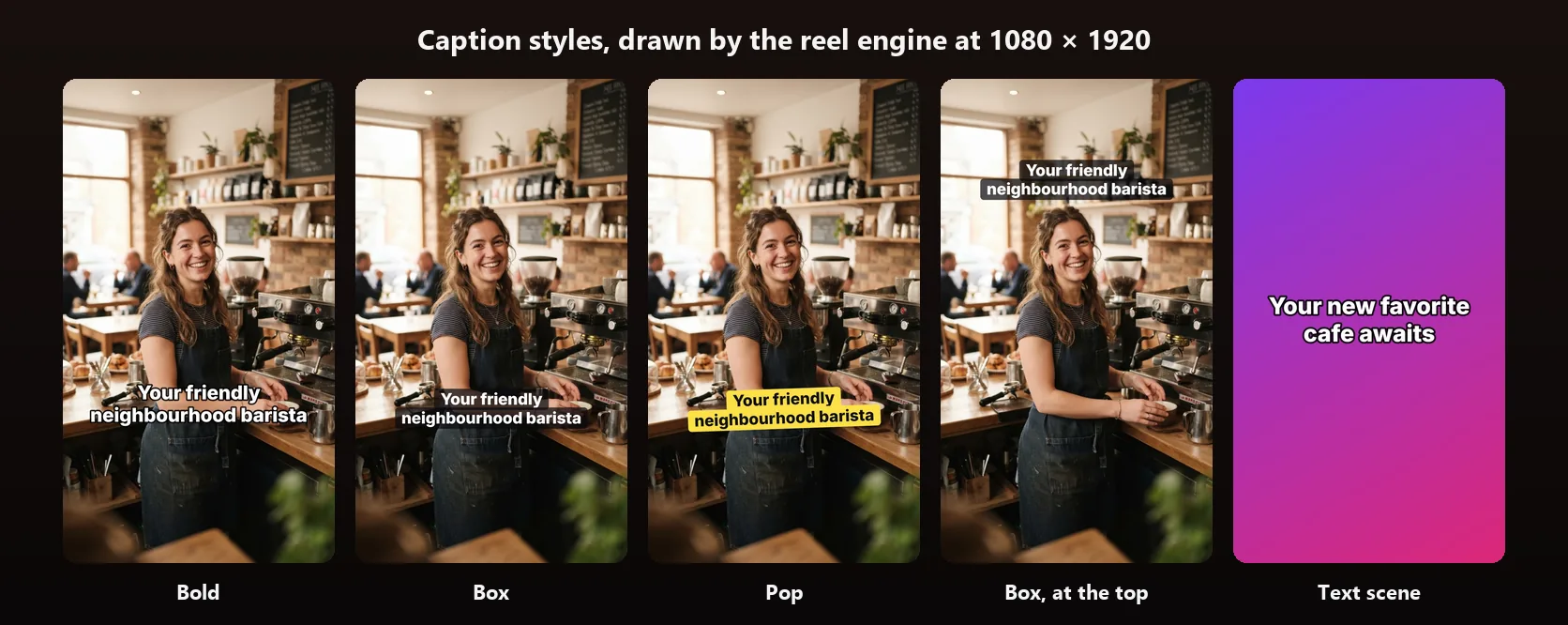
Captions come in three styles: Bold, white letters with a dark outline that read on any photo; Box, white on a dark rounded box; and Pop, black on yellow, tilted slightly. They sit at the top, middle or bottom of the frame; the bottom position sits above the bottom fifth of the frame, where Instagram and TikTok show your account name and post caption. Each caption pops in over the first 0.3 seconds of its scene.
Between scenes choose Cut, Fade or Slide; fades and slides take 0.35 seconds. Slow zoom on photos moves each photo from 100% to 110% over its scene with a slight drift, the same motion the HueFold renderer calls Ken Burns, so the reel moves the same way if you finish it in Studio. Text scenes — the closing card, or a whole reel made of text — use one of six colour gradients.
The shape is 9:16 for Reels, Shorts and TikTok, 4:5 for a feed post or 1:1 for a square; photos and clips are cropped to fill it.
Making the MP4 in your browser
Make the MP4 builds the video frame by frame in your browser: every one of its 30 frames a second is drawn at exactly its time and encoded as H.264 with the browser's own video encoder, the music is rendered with your volume and a one-second fade-out and encoded as AAC, and both are put into one MP4. Because nothing depends on the computer keeping time while it records, a cut that is on the beat in the preview is on the beat in the file, and the export runs faster than the reel plays: the demo's 16.2-second reel took between 5.5 and 6.4 seconds at 720p on our test machine. Choose 720p (720 × 1280 for 9:16) or 1080p (1080 × 1920).
Browsers without that encoder record the reel instead, in real time, as an MP4 or WebM; the tool says which it will do. Nothing is uploaded either way: your media, your music and the finished file stay on your device.
Clips play silent under the music, so a reel has one soundtrack. If you want a clip's own sound, open the reel in HueFold Studio, where each clip is a video you can unmute.
| What | Limit |
|---|---|
| Media | Up to 10 photos or clips: JPG, PNG, WebP, MP4, MOV, WebM, 50 MB each |
| Clips | The first 60 seconds of each are used |
| AI writer | Free account, no AI credits, up to 10 a minute |
| Brief | Up to 600 characters; tones Upbeat, Calm, Bold, Funny, Premium; about 10 to 60 seconds |
| Music | Your MP3, WAV, M4A, AAC, OGG or FLAC (50 MB), or the sample beat |
| Cut on the beat | Cuts on the nearest beat, at least two beats a scene |
| Shapes | 9:16, 4:5, 1:1 |
| Export | MP4, H.264 and AAC, 30 fps, 720p or 1080p, made in your browser |
| Studio | One page per scene, with captions, motion and music |
No photos? Make a text reel
Some of the best-performing reels are just words: a hook, three tips, a call to action. Choose No media: make a text reel, describe what it should say, and the AI writes four to seven short scenes on coloured backgrounds, the first one a hook and the last one a call to action. They play with the same caption animation, transitions, music and beat cuts as a photo reel, and you can add a text scene to any reel with + Add a text scene.
Finishing the reel in HueFold Studio
Continue editing in HueFold Studio asks you to sign in, uploads your media and music to your account and opens the reel as a new design: one video page per scene, each exactly as long as the scene, with its photo or clip filling the page, its caption as editable text and, if you chose it, the Ken Burns zoom on the photo. Text scenes keep their gradient, and the music is on the design from the first page, trimmed to where you started it, with a one-second fade-out.
In Studio you can change fonts and colours, add stickers, a logo or more text, reorder or trim scenes on the timeline and export with HueFold's renderer. Studio normally makes a page at least three seconds long; reels opened from this page keep their beat-cut lengths.
What is uploaded and stored
Opening media, playing the reel, cutting it to the beat and making the MP4 all happen in your browser. Two things leave it. Write my reel with AI sends the contact sheet — one small picture of your media — with your brief to HueFold, which passes it to the AI model and returns the plan; nothing is saved to your account. Cut on the beat sends your music track to HueFold's beat finder, which returns its tempo, beats and sections. Continue editing in HueFold Studio uploads your media and music to your account, because the design needs them.
| Step | Where it happens | Account |
|---|---|---|
| Add media, edit scenes, preview | Your browser | No |
| Write my reel with AI | A contact sheet and your brief go to the AI; nothing is stored | Free account |
| Cut on the beat | The music track is analysed by the beat finder | No |
| Make the MP4 | Your browser | No |
| Continue editing in HueFold Studio | Media and music are uploaded to your account | Free account |
Reels people make with it
A few kinds of reel that work well from photos and short clips.
- An opening, a new product or a new menu, from a handful of photos.
- A trip, an event or a weekend recap, cut to a song.
- Before and after: a renovation, a haircut, a garden.
- A behind-the-scenes look at how something is made.
- Three tips or a quick how-to as a text reel.
- A property tour or a product showcase with a caption on every scene.
Troubleshooting
The problems people run into most, and what fixes them.
- Write my reel with AI asks you to sign in: the writer needs a free account. Sign in and it starts by itself.
- You disagree with the order or a caption: move scenes with the arrows, edit any caption, or click Write it again with AI for a new version.
- Cut on the beat says no steady beat: the track has no clear tempo, such as ambient music. Set the lengths yourself.
- The music ends before the reel: start it earlier, choose a longer track, or remove a scene.
- A clip is cut short: a scene can be no longer than its clip; use a longer clip or another scene.
- Make the MP4 records in real time: this browser lacks the video encoder the fast export uses; keep the tab open until it finishes.
Frequently asked questions
How do I make a reel with AI?
Add your photos and clips to the tool on this page and click Write my reel with AI. It picks the order and writes a hook and captions; add music to cut it on the beat, then make the MP4.
Is the AI reel maker free?
Yes. Writing the reel needs a free HueFold account and uses no AI credits. Making the MP4 happens in your browser and is free.
What does the AI actually do?
It looks at a numbered picture of your media and your brief, and returns the order of the scenes, a caption for each, their lengths, a closing line, a music idea and a caption with hashtags for your post.
Can I use video clips?
Yes. Mix up to 10 photos and clips (MP4, MOV or WebM). The first 60 seconds of a clip are used, and clips play silent under the music.
Does it add music?
You add the music: your own track, or the sample beat on this page. The tool then cuts every scene on the beat of that music.
What size is the video?
9:16 for Reels, Shorts and TikTok, or 4:5 or 1:1, as an MP4 at 720p or 1080p and 30 frames a second.
Can I edit what the AI wrote?
Yes. Every caption and every length can be changed, scenes can be moved or removed, and you can add text scenes.
Are my photos uploaded?
Not to make the MP4. The AI is sent one small contact sheet of them, which is not stored. Your files are uploaded only if you continue editing in HueFold Studio.
Can I make a reel without photos?
Yes. Choose No media: make a text reel and describe it; the AI writes four to seven text scenes.
Can I keep editing in HueFold Studio?
Yes. Continue editing in HueFold Studio opens the reel as a design with one page per scene, your captions as text and the music on it.
Can I make reels from a prompt?
Yes, as a text reel: describe it and the AI writes the scenes. With photos or clips, the brief guides how the AI orders and captions them.
Can I edit captions and music?
Yes. Edit any caption in the Script tab; in the Music tab change the track, where it starts and its volume, and turn Cut on the beat on or off.
Is it only for social media?
No. It makes vertical, portrait and square videos for any use, such as ads, product demos, event recaps and announcements.
Can I use my own brand style?
Choose the caption style and the text scene colour here, then continue editing in HueFold Studio to add your fonts, colours and logo.
Do I need video editing experience?
No. The AI does the ordering, captions and timing, and every setting is a click.
Related tools
- Add Music To GIF — Put music on a GIF and cut it to the beat.
- Images to Video — Turn photos into a video.
- Resize Video for Instagram — Fit a video to any Instagram shape.
- Add Text to Video — Put words on a video.
- AI Caption Generator — Captions for spoken videos.
- Add Music to Video — Give any video a soundtrack.