Video Resizer
Resize a video for Reels, Stories, TikTok, Shorts, Instagram, Facebook or YouTube: crop it to 9:16, 4:5, 1:1 or 16:9 with a focus point, or fit the whole picture over a blurred copy. Sound kept, nothing uploaded.
Updated

How do you resize a video for social media?
Open a video and choose the shape: 9:16 Story, 4:5 Portrait, 1:1 Square or 16:9 Wide. Choose Fill to crop it, with Focus to keep the subject in the frame, or Fit to keep the whole picture on a blurred copy or a plain colour. The preview plays the video as it will look; press Resize video and download the MP4.
The sample landscape clip became a 1080 × 1920 story with its sound and all 192 frames. Everything happens in your browser, with nothing uploaded.
How to resize a video
- Open a video MP4, MOV, WebM or the sample.
- Pick a shape 9:16, 4:5, 1:1 or 16:9, at 1080p or 720p.
- Fill or fit Crop with a focus point, or fit on a blurred copy.
- Resize and download The page shows how long it will take.
Resize a video for Reels and Stories
A real recording of this tool: the sample video opened, the square, portrait and story shapes previewed, the focus moved, Fit on a blurred copy chosen, and the video resized.
- The sample landscape video is opened.
- The 1:1, 4:5 and 9:16 shapes are previewed.
- The focus is moved to keep her in the frame.
- Fit on a blurred copy is chosen.
- The video is resized to MP4.
How much of my video will be cropped?
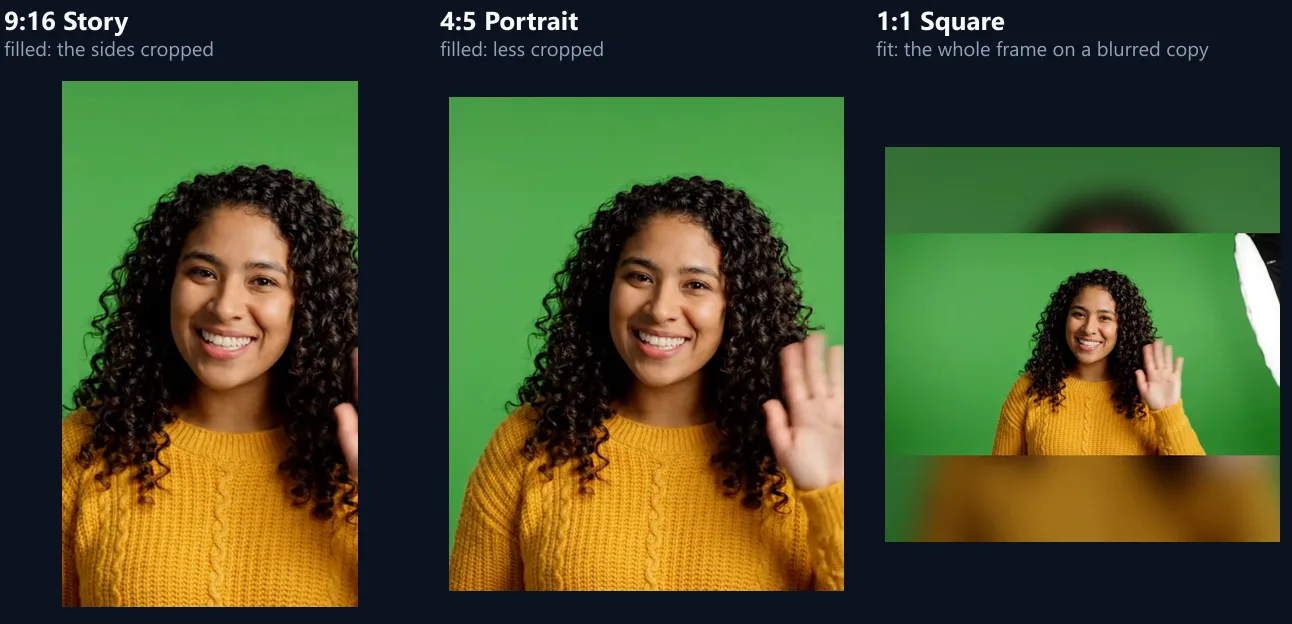
It depends only on how different the two shapes are. Filling a 9:16 story from a 16:9 landscape video keeps a tall slice of the middle and crops away 68% of the picture; 4:5 portrait crops 55%; a 1:1 square 44%; and 16:9 from 16:9 crops nothing. The tool shows the share under the preview before you resize, so there are no surprises.
If too much would be lost, use Fit instead: the whole picture is kept and the space around it is filled with a blurred copy of the video or a plain colour. Fill suits talking heads and single subjects; Fit suits wide shots, screen recordings and anything with text near the edges.
| Shape | Cropped away | Output at 1080p |
|---|---|---|
| 9:16 Story | 68% | 1080 × 1920 |
| 4:5 Portrait | 55% | 1080 × 1350 |
| 1:1 Square | 44% | 1080 × 1080 |
| 16:9 Wide | 0% | 1920 × 1080 |
Which size does each platform need?
9:16 (1080 × 1920) is the full-screen vertical shape of Instagram Reels and Stories, TikTok, YouTube Shorts and Snapchat. 4:5 (1080 × 1350) is the tallest shape the Instagram and Facebook feeds show in full. 1:1 (1080 × 1080) is the square that suits every feed. 16:9 (1920 × 1080) is the shape of YouTube, websites, TVs and slides.
Choose 1080p for the full sizes above, or 720p for smaller files, which suit messaging apps and quick posts.
How do I keep the important part in the crop?
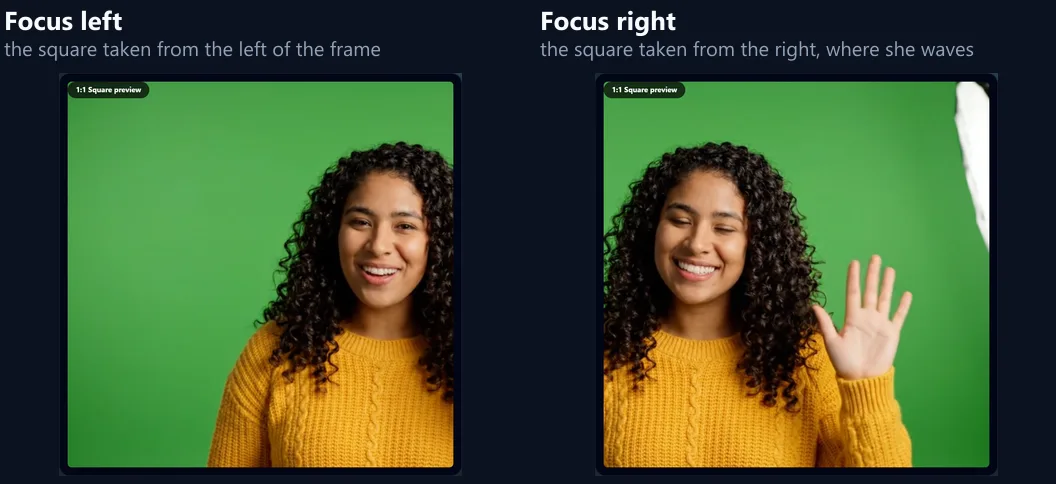
Move the Focus slider. When a wide video is cropped to a taller shape, Focus slides the crop from the left edge to the right; when a tall video is cropped to a wider shape, from top to bottom. The preview plays the video as it will look, so you can see whether the subject stays in the frame for the whole clip.
The crop stays in one place for the whole video. If the subject moves from one side to the other, choose the position that keeps them in frame longest, or use Fit so nothing is lost.
What is the blurred background?
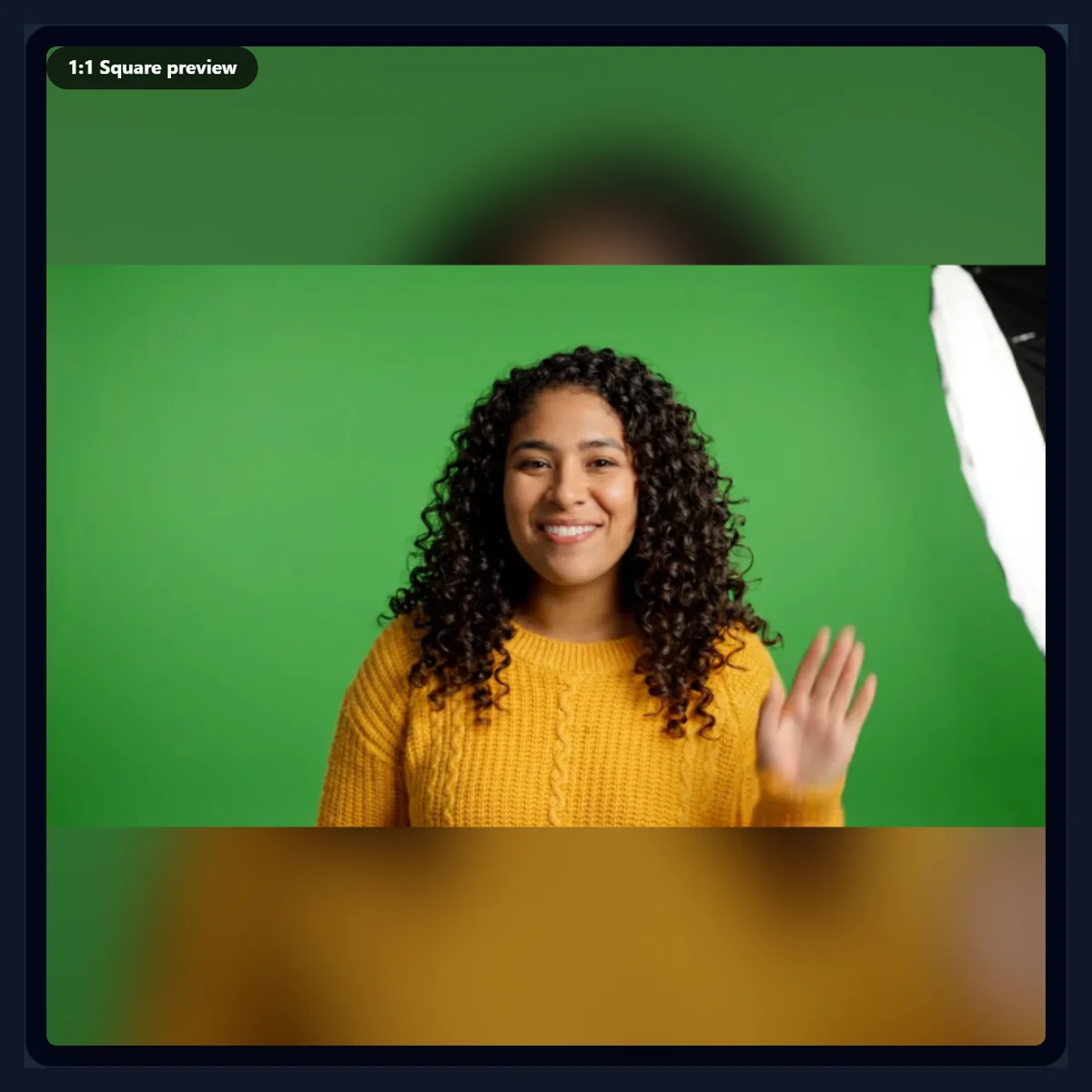
With Fit, the whole video is placed in the middle of the new shape, and the rest is filled with a copy of the same video, enlarged to fill, blurred and darkened. It moves with the video, so the frame looks full and calm instead of having black bars, which is why it is the usual way to post a landscape video as a story. Black, White and Navy are there for a plain look.
Fit never crops: it is the right choice for screen recordings, slides, subtitles burned into the picture, and group shots where someone would be cut off.
Will the resized video be sharp?
As sharp as the source allows. A crop uses part of the picture, and that part is enlarged to the size you choose; when it is enlarged a lot, it looks softer. The sample is 1280 × 720, so a 9:16 story keeps a slice only 405 pixels wide, and at 1080p that slice is enlarged 2.7 times; the tool says so under the preview. Choose 720p to enlarge it less, and start from the highest-resolution copy of your video you have: a 4K or 1080p original gives a sharp 1080p story.
The video is encoded as H.264 at a high bitrate, so the encoding itself adds little loss.
Is the sound kept?
Yes. The sound is decoded from the file and written into the new MP4 as AAC, in stereo at 48 kHz, in step with the picture. The 8-second sample came out as 1080 × 1920 with sound, 9.97 MB, and 192 frames, the same number as the source.
To remove the sound as well, convert the result with the video to MP4 tool and choose Remove sound, or use the remove audio from video tool.
How does the resizer work?
Your browser plays the video once, silently, and draws every frame into the new shape, cropped or fitted as you chose, and the browser's own H.264 encoder writes each frame at the moment it belongs to, so the frame rate is kept. The sound is decoded and encoded alongside. The video plays at half speed (a quarter for 4K sources), so that no frame arrives while the one before is still being encoded, and the frames the browser showed are counted: if a busy page made it miss any, the video is read again more slowly. Resizing therefore takes about twice the video's length, and the page shows how long before you start. Keep the tab open and in front while it works.
The 8-second sample took about 17 seconds as a 1080p story, 17 as a 1080p portrait and 17 as a 720p square, each with all 192 frames.
Should I choose 1080p or 720p?
1080p for the full-size files platforms recommend, when your source is at least as sharp; 720p for smaller files and for sources that are 720p or lower, which would otherwise be enlarged. The sizes add up: the 8-second sample was 9.97 MB as a 1080p story and 7.05 MB as a 1080p portrait, against 3.26 MB as a 720p square.
Platforms re-encode what you upload anyway, so a 720p file from a 720p source loses nothing compared with an enlarged 1080p one.
Can I turn a vertical video into a horizontal one?
Yes: choose 16:9 Wide. With Fill, a tall phone video is cropped to a wide band, and the Focus slider moves the band from the top to the bottom; with Fit, the whole tall video sits in the middle with a blurred copy of itself on both sides, the usual way to put a phone clip on YouTube or in a slideshow without losing anything.
The same works for any shape to any other: a square to a story, a story to a square.
Where should text and faces go in a 9:16 video?
Towards the middle. Reels, TikTok and Shorts lay their own captions, buttons and profile name over the bottom and the right side of the video, and a status bar can cover the top, so text or a face near those edges can be hidden. When you fill a story from a wide video, use Focus to keep the subject near the centre of the frame.
If your video already has text burned into it near the edges, use Fit rather than Fill, so none of it is cropped.
Can I make several sizes from one video?
Yes. Resize and download one shape, press Back to the preview, choose the next shape and resize again: the video stays open, so a story, a square and a wide version of the same clip take three short runs, one after the other. Each keeps the sound and every frame.
Set the Focus for each shape separately: the best crop for a tall story is often not the best for a square.
Which background should I use with Fit?
The blurred copy suits most videos: its colours match the picture, so the frame looks full and calm. Black suits dark, cinematic footage and night shots. White suits bright product videos and anything posted on a light page. Navy is a neutral brand-style colour that works behind text and screen recordings.
Whichever you choose, the whole picture is kept: Fit never crops, it only fills the space around the video.
Square or 4:5 for the Instagram feed?
Usually 4:5. In the feed a 4:5 video is taller than a square one, so it fills more of a phone screen as people scroll past, and it keeps more of a landscape video than 9:16 would. A square suits places that show square previews and other networks where 4:5 is cropped.
If the same clip will also be a story or reel, make the 9:16 version separately, with its own Focus.
Is my video uploaded?
No. The video is opened, reframed and saved inside your browser tab; nothing is sent to HueFold or anyone else, and there is no account or watermark.
Because nothing is uploaded, large videos are not slowed by your connection; the limit is your device's memory, so very long 4K videos are best resized on a computer.
Which videos can I resize?
Any video your browser can play: MP4, MOV, WebM and most MKV files. The result is always an MP4 with H.264 video and AAC sound, which every platform accepts.
If your video does not open, convert it first with the video to MP4 tool in a browser that plays it, such as Chrome.
Why does my resized video look wrong?
If someone is cut off, move the Focus slider or switch to Fit. If the video looks soft, the crop is being enlarged a lot: choose 720p, or start from a sharper original. If the resized video stutters or is shorter than the original, the tab was probably hidden while it worked, where browsers stop drawing video: resize again with the tab in front.
If the page says the browser cannot write MP4 at this size, choose 720p, or use a current Chrome or Edge.
Frequently asked questions
How do I resize a video for Instagram Reels?
Choose 9:16 Story, Fill or Fit, then resize and download the MP4.
Can I resize without cropping?
Yes. Choose Fit for the whole picture on a blurred copy or a colour.
How do I keep the subject in frame?
Move the Focus slider; the preview shows the crop.
What size is a TikTok video?
1080 × 1920, the 9:16 Story shape.
What size is an Instagram feed video?
1080 × 1350 (4:5) or 1080 × 1080 (1:1).
Is the sound kept?
Yes, as AAC in the MP4.
Is my video uploaded?
No. Everything happens in your browser.
Why does it take twice as long as the video?
The browser plays it once at half speed, redrawing every frame without missing one.
Is it free?
Yes, with no account and no watermark.
Related tools
- Resize Video for Instagram — Instagram sizes in particular.
- Crop Videos — Crop a video freely.
- Rotate Video — Turn a sideways video.
- Video to MP4 — Convert other videos to MP4.
- Online Video Recorder — Record a video to resize.
- Free Stock Videos — Clips to resize and use.