AI Filter
Turn a photo into art with one tap: oil painting, watercolour, anime, pencil sketch, pop art, pixel art, woodblock print, neon night or stained glass, or describe your own style. HueFold’s AI repaints the whole photo and keeps its composition.
Updated
How do you apply an AI filter to a photo?
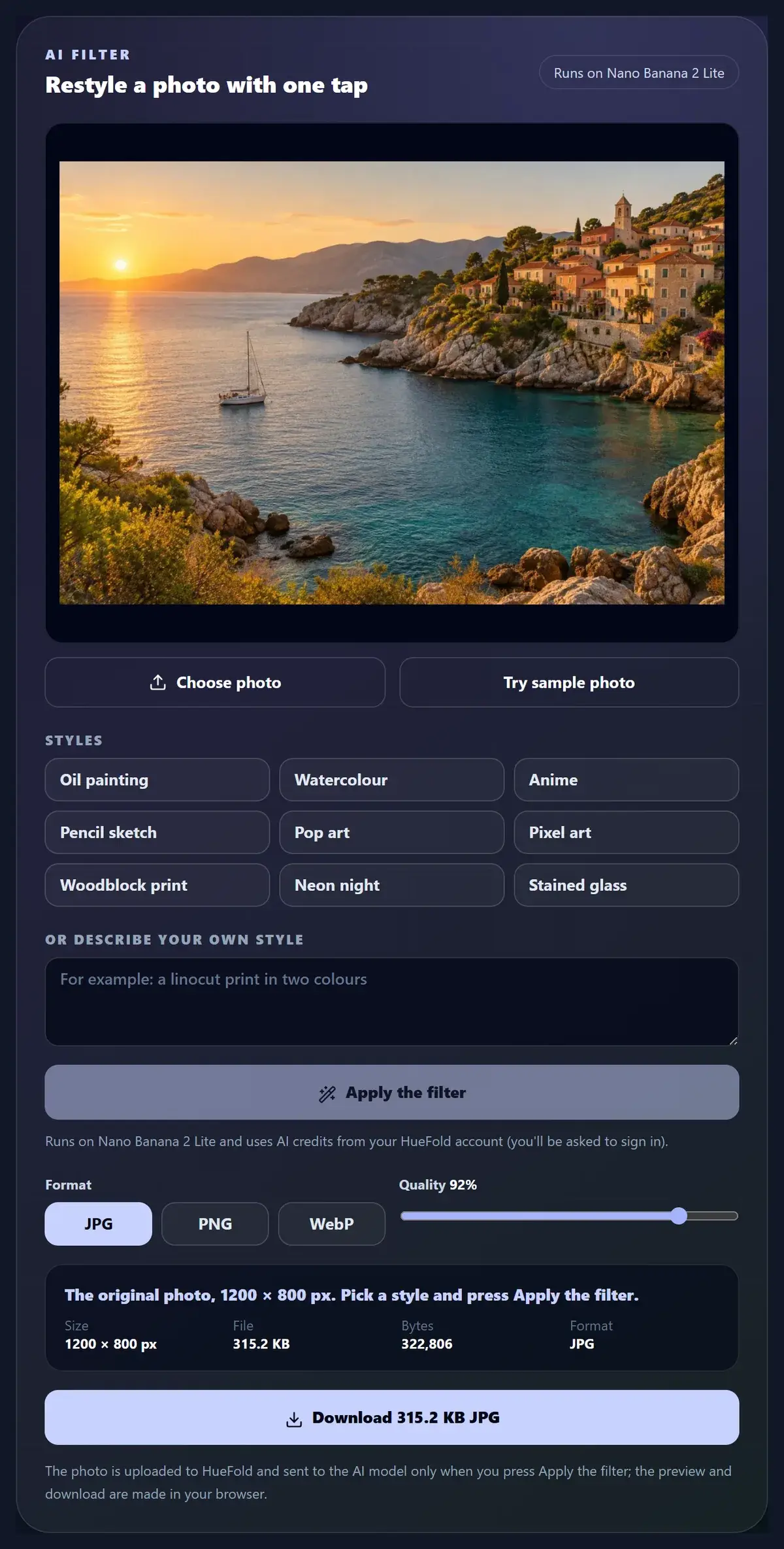
Choose a photo, or try the sample, pick a style or describe your own, and press Apply the filter. HueFold sends the photo to an image model with an instruction to restyle the whole picture while keeping its composition, subjects and layout. Compare the result with the original, try other styles, and download the one you like.
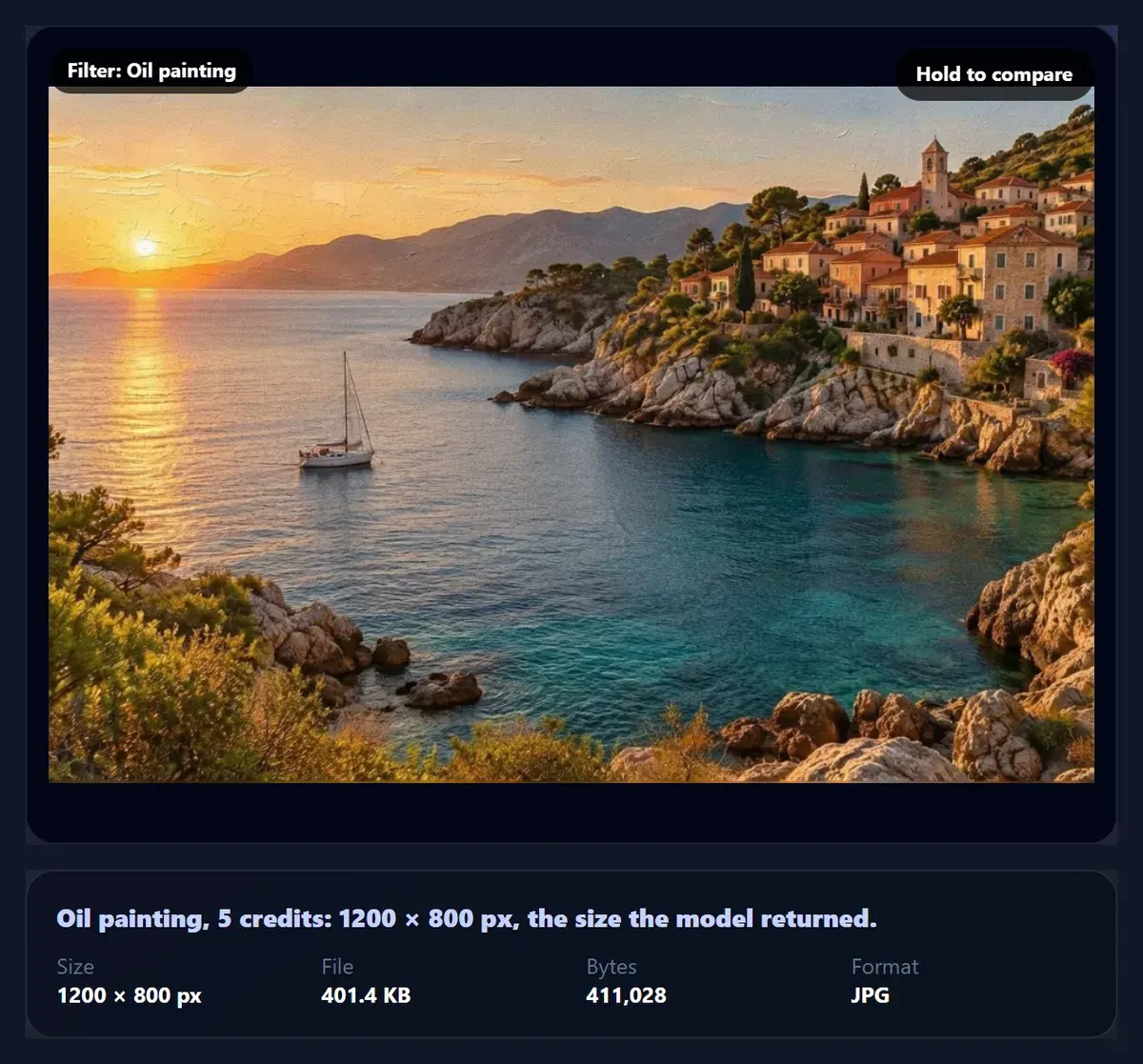
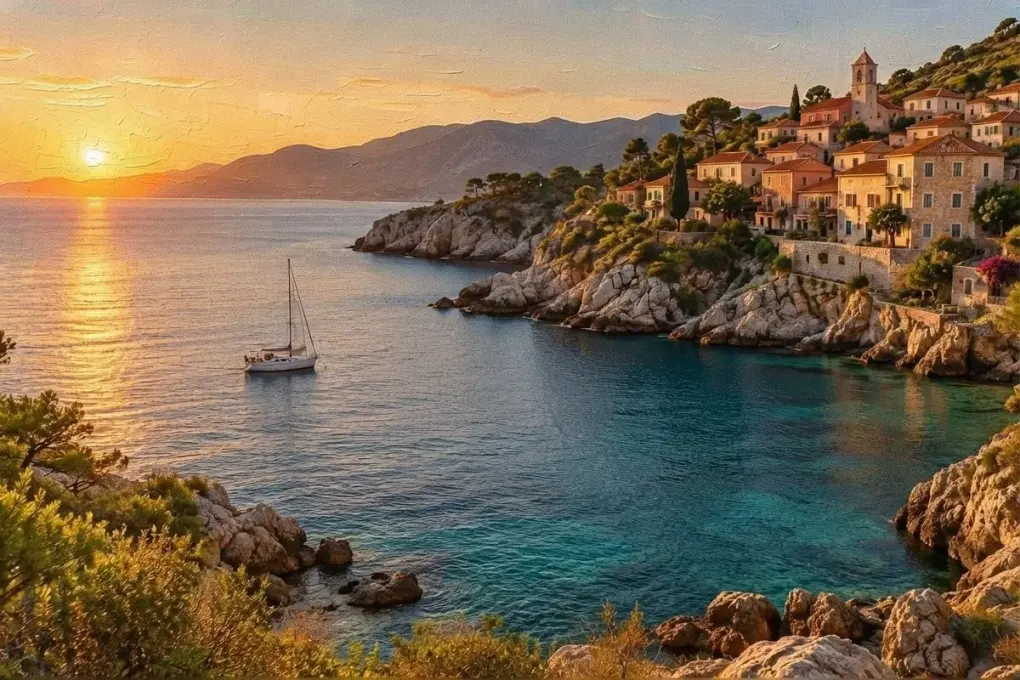
On the coastal sample, each run on Nano Banana 2 Lite took between 10 and 32 seconds and used 5 credits; the pencil sketch changed 94% of the pixels, the oil painting 25%.
You need an account; each run uses AI credits, and refused runs use none.
How to apply an AI filter
- Choose a photo Any clear photo, or the sample.
- Pick a style Nine styles, or describe your own.
- Apply the filter Sign in; the AI repaints the photo.
- Compare and download Hold to compare; save as JPG, PNG or WebP.
Turn a photo into pop art with an AI filter
A real recording of this tool: the coastal photo, the Pop art style, the AI run on Nano Banana 2 Lite, the comparison with the original, and the download.
- The AI filter opens with the coastal sample photo.
- The Pop art style is chosen.
- Apply the filter sends the photo to Nano Banana 2 Lite and the restyled photo comes back.
- Hold to compare shows the original, and the result is downloaded.
How much does an AI filter change a photo?
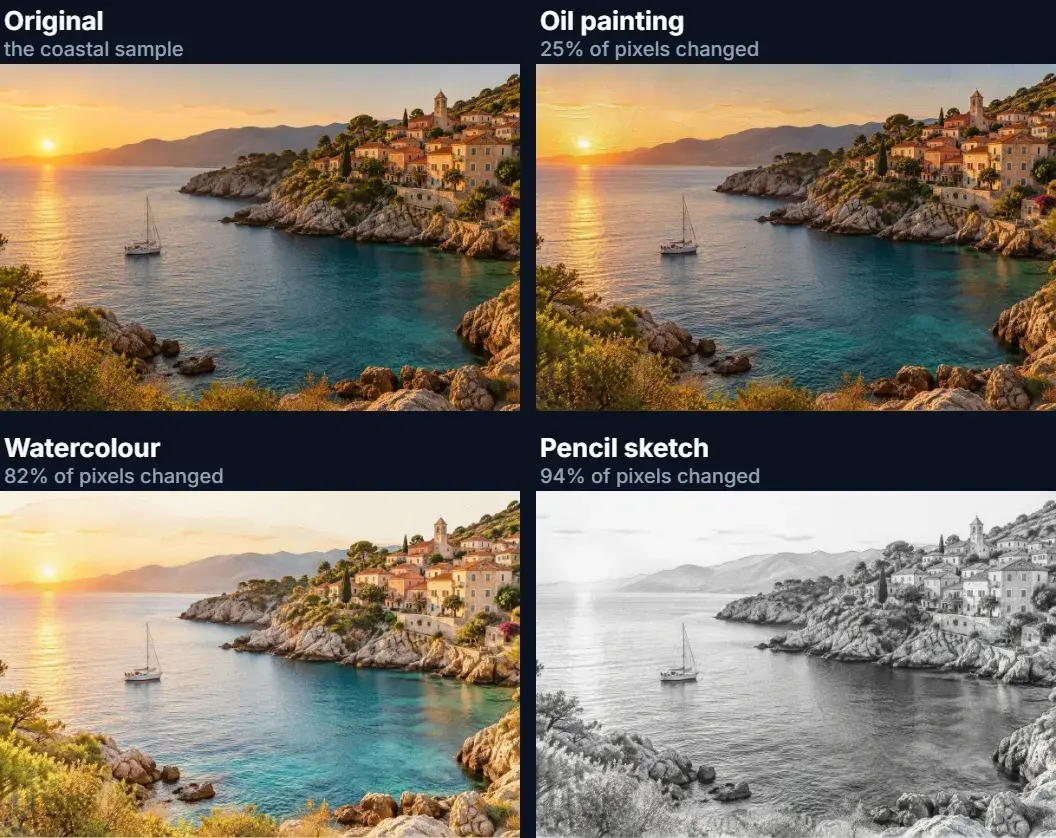
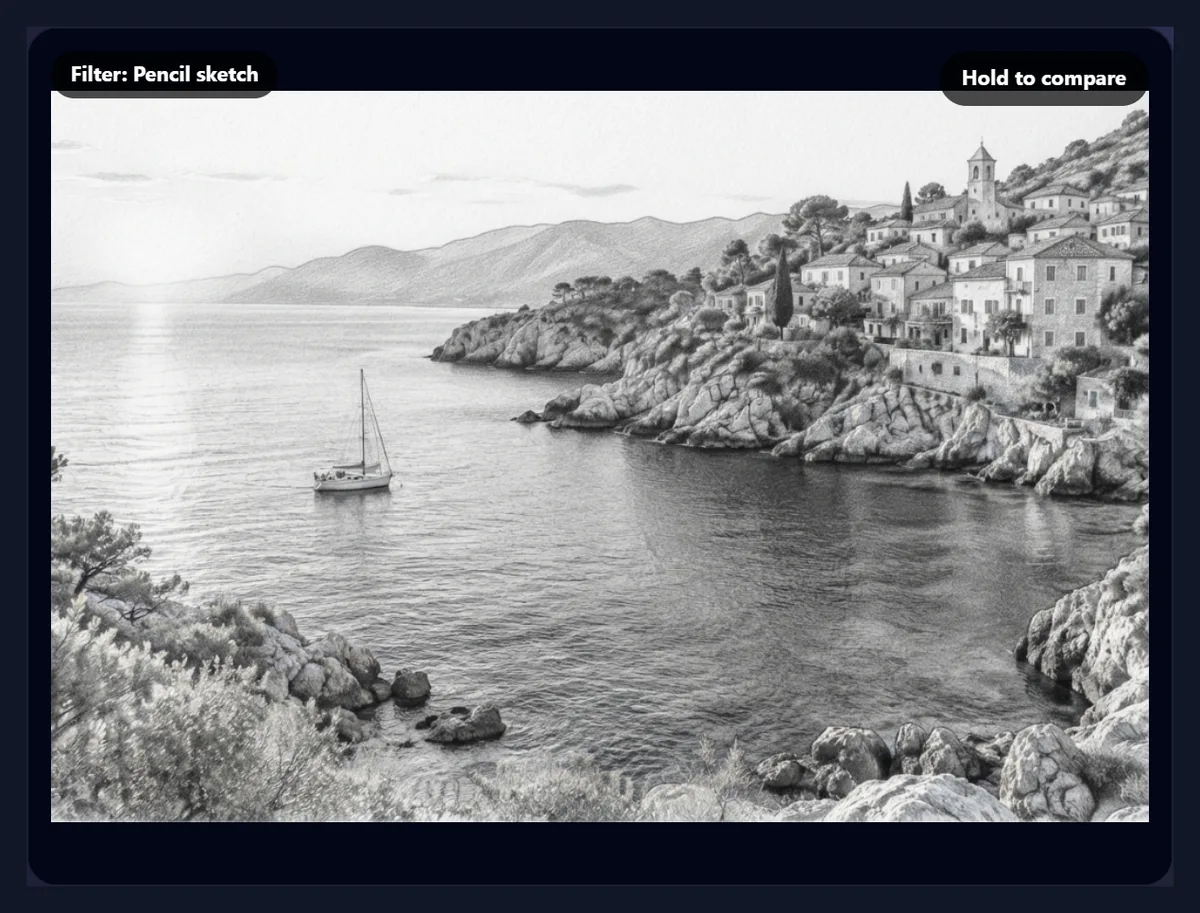
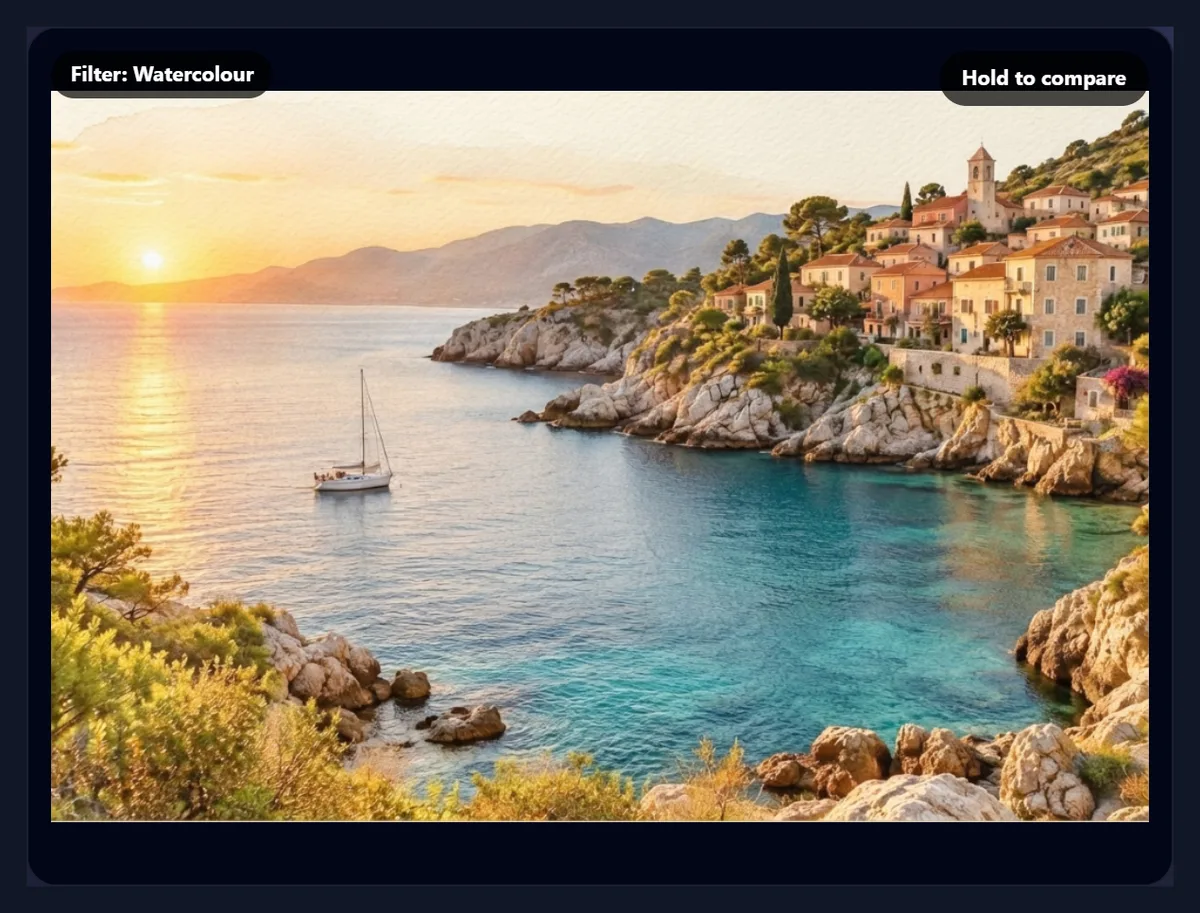
It depends on the style, and the model decides how far to go. The coastal sample was restyled three times on Nano Banana 2 Lite and each result was compared with the original pixel by pixel, counting a pixel as changed when its colour moved noticeably. Pencil sketch changed 94% of the pixels, as you would expect when colour becomes graphite; Watercolour changed 82%, mostly by lightening and softening the whole picture; Oil painting changed only 25%, adding brush and canvas texture while keeping the colours close to the photo.
In every case the composition stayed: the same bay, the same boat, the same houses in the same places. That is what the instruction asks for, and it is the difference between an AI filter and generating a new picture. If a style comes out lighter than you wanted, run it again or describe it more strongly in your own words.
| Style | Pixels changed | Time | Credits |
|---|---|---|---|
| Oil painting | 25% | 32.1 s | 5 |
| Watercolour | 82% | 16.8 s | 5 |
| Pencil sketch | 94% | 10.4 s | 5 |
How does an AI filter work?
Unlike a classic photo filter, which applies the same colour formula to every pixel, an AI filter asks an image model to repaint the photo. The tool sends your photo with an instruction: restyle this whole photo as the chosen style, keeping the composition, the subjects, their poses and the layout exactly as they are, and changing only the style. The model returns a new picture, drawn in that style, that follows the original.
That is why an AI filter can do what no colour filter can, such as turning a photo into a pencil drawing or a woodblock print, and also why the result varies a little each time: the model paints it afresh.
Which styles can I choose?
Nine to start from: Oil painting (visible brush strokes and rich colour), Watercolour (a loose painting on textured paper), Anime (a film still with clean line art and soft cel shading), Pencil sketch (detailed graphite on white paper), Pop art (bold flat colours and halftone dots), Pixel art (16-bit, limited palette), Woodblock print (in the Japanese ukiyo-e tradition), Neon night (the scene lit by pink and blue neon) and Stained glass (dark lead lines between coloured glass).
Pick one and press Apply the filter; the style's description goes into the instruction, and the badge on the result shows which style it is.
Can I describe my own style?
Yes. Type it in the box, for example "a linocut print in two colours" or "a 1970s travel poster", and press Apply the filter. Name the medium (oil, ink, pastel, clay), the period or movement if you have one in mind, and one or two qualities (bold outlines, muted colours, heavy texture). Short descriptions work better than long ones.
Your description replaces the chosen style; it is still wrapped in the same instruction to keep the composition, so the photo is restyled rather than replaced.
How many credits does an AI filter use?
Each run on Nano Banana 2 Lite used 5 credits from the account, shown on the result. Every run starts again from the original photo, so trying three styles costs three runs, and styles never pile up on each other. Runs the model refuses cost nothing: two refused test runs on another page left the account's balance unchanged.
Credits come with HueFold accounts and plans; the tool asks you to sign in before the first run, and shows which model it uses before you press the button.
How long does it take?
Seconds. The three runs took 32, 17 and 10 seconds from the click to the finished picture, including uploading the photo; the first run of a session tends to be the slowest. Times depend on the model's load, so they vary from run to run.
While a run is working, the tool shows its stage (preparing, uploading, editing), and you can keep the page open in the background.
What size is the result?
Up to the size the model returns. The tool sends the photo at up to 1,536 pixels on its long side, padded with its own edge colours to the nearest shape the model accepts (square, 3:4, 4:3, 9:16 or 16:9), and cuts the padding off the answer, so the result has your photo's shape. The 1200 × 800 sample came back at 1200 × 800.
For a large print, run the filter and then enlarge the result with an upscaler; for social media, the result is already the right size.
Which photos work best?
Clear photos with a strong subject and good light: landscapes, city scenes, pets, food and portraits. The model follows shapes and edges, so a sharp, uncluttered photo gives a clean painting, while a dark, noisy or blurred one gives a muddier result. Photos are kept in their own shape, so portrait and landscape photos both work.
Some photos of people are refused by the model for some styles; if a run is refused, no credits are used, and a different style or wording often works.
Can I compare the result with the original?
Yes. Hold the Hold to compare button on the preview to see the original, and let go to see the result. Back to the original returns to the photo without spending anything. Download the result as JPG, PNG or WebP; JPG is the smallest for a painted photo.
The oil painting downloaded as a 401.4 KB JPG at 92% quality.
AI filter or a classic photo filter?
A classic filter, such as vintage, black and white or a colour grade, changes colours with a formula: it is instant, free, works in your browser and gives the same result every time. An AI filter repaints the picture: it can change the medium itself (paint, pencil, pixels), but it uses credits, sends the photo to a model and varies a little each run.
For a look on many photos at once, use a classic filter; for turning one photo into art, use an AI filter.
What are AI filters used for?
Turning holiday photos into paintings for prints and cards, giving a social feed a consistent illustrated look, making posters and covers from your own photos, creating gifts from pet and family photos, and quick concept art from a reference photo.
For a consistent series, use the same style and the same wording for every photo, and pick photos with similar light.
How do I get the same look on several photos?
Use the same style, or paste the same description, for every photo, and choose photos with similar light and colours: the model reads each photo afresh, so a sunny photo and a grey one come back looking less alike than two sunny ones. Run each photo once, compare them side by side, and re-run any that drifted.
Styles with a strong medium of their own, such as Pencil sketch, Woodblock print and Pixel art, give the most consistent series, because they replace the photo's colours with the medium's.
Can I print an AI-filtered photo?
Yes. Download it as PNG or as JPG at high quality. The result is about as large as the photo the tool sent (up to 1,536 pixels on the long side), which prints sharply at about 13 cm on its long side at 300 dpi; for a larger print, enlarge it with an upscaler first. Painted styles hide softness well, so they print larger than a photo of the same size would.
Check the colours on paper: a test print is worth it, because screens show painted styles brighter than ink does.
Is my photo uploaded?
Only when you press Apply the filter. The photo is then uploaded to HueFold and sent to the model with your instruction; the preview, the comparison and the download are made in your browser. You need to be signed in, and the first time you use AI on HueFold you are asked to accept the AI policy.
Choosing a photo, picking a style and downloading the original send nothing.
Why did my AI filter not work?
If the model refuses an image, the tool shows its message and no credits are used; try another style or another photo. If the result looks too close to the photo, the model kept it light: run it again or describe the style more strongly. If it says AI is not switched on, the AI model is not available on this site at the moment.
If you were signed out during a run, sign in again and the run starts again automatically.
Frequently asked questions
What is an AI filter?
An image model repaints your photo in a style, keeping its composition.
Which styles are there?
Oil painting, watercolour, anime, pencil sketch, pop art, pixel art, woodblock print, neon night and stained glass, or your own.
How many credits does it use?
5 credits a run on Nano Banana 2 Lite; refused runs use none.
Do I need an account?
Yes, to run the AI; choosing a photo and a style does not need one.
Does it keep my photo’s composition?
Yes, the instruction asks the model to keep it; the style is what changes.
Can I describe my own style?
Yes. Type it in the box and press Apply the filter.
Why does the same style look different each time?
The model repaints the photo afresh on every run.
Is my photo uploaded?
Only when you press Apply the filter.
Can I try several styles?
Yes. Each run starts from the original photo.
Related tools
- AI Photo Editor — Edit a photo by describing the change.
- AI Cartoon Generator — Turn a photo into a cartoon.
- Vintage Filter — A classic film look, free and instant.
- Photo Effects — Colour effects in your browser.
- AI Image Upscaler — Enlarge the result for print.
- AI Sketch and Draw — Turn a sketch into a picture.